
 Computer Forum
Linux for gaming PC: Does it work well and does it make sense at all?
The short answer is: Yes! The well-known Youtuber KreativEcke set up a high-end gaming PC himself as a Linux beginner, which ran ChimeraOS in just a few steps and was ready for gaming. In the video we have embedded above, he impressively describes his experiences and gives a good overview of what is possible in Linux today.
In his video, KreativEcke emphasized: "I basically equipped a gaming PC with the operating system from Steam Deck, which is based on Linux, and I can tell you one thing: gaming on Linux is now really cool!"
In cooperation with KreativEcke, we are following up on this topic, as we have also been dealing with it recently. In this article, we would like to take a closer look at the topic and show interested parties how to proceed and describe how well it worked in our tests. We offer installation instructions and provide some information on possible system configurations and show how well some selected games work.
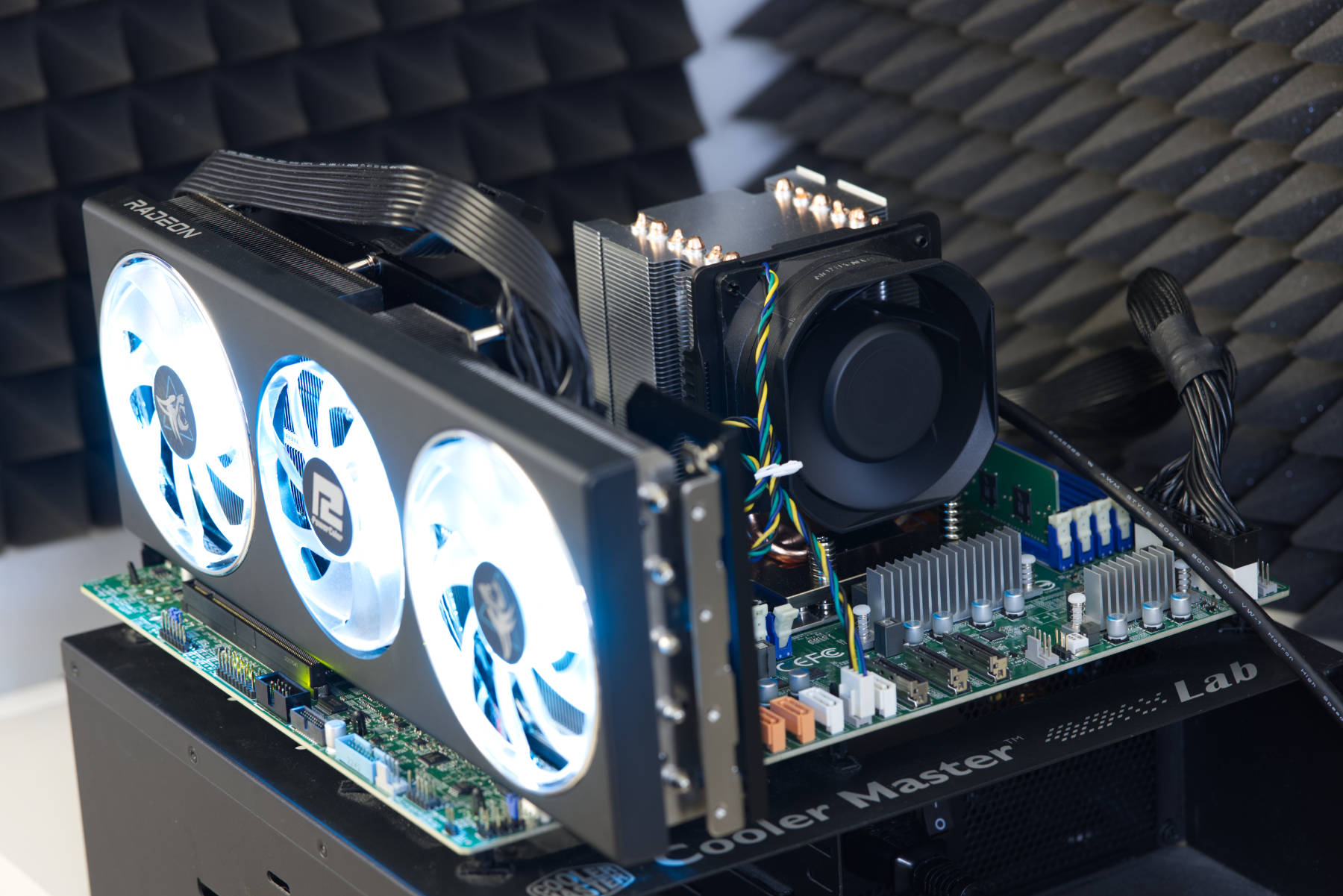 Server-/Workstation-System (Image © PCMasters.de)
Which Linux to use for gaming?
In general, you can use SteamOS, which is provided free of charge by Valve. This is called Proton and is also installed on the SteamDeck. The only limitation you have to bear in mind is that you can only run Steam on it. This will be enough for many, but we wanted to go one step further.
The games we test in Steam also run on the SteamDeck. However, ChimeraOS offers some advantages because it is not limited to Steam as a client. You can reach the Epic Games Store and GOG Store and install these games, which will then be launched in Steam.
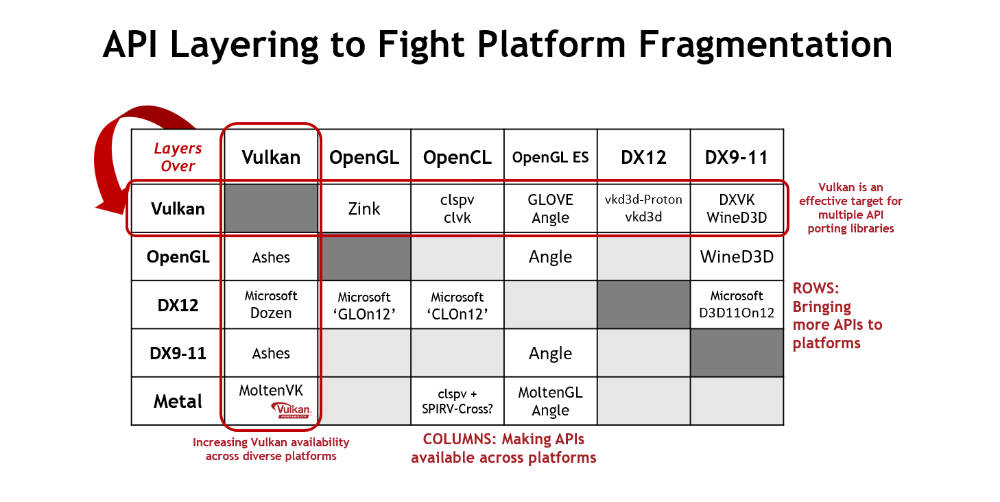 Vulkan API Layer (Image © Khronos)
Why do Windows games work on Linux?
It has always been said that you have to have a Windows PC to play games because the operating system natively provides the DirectX APIs that most games rely on. DirectX is not gone and the games in SteamOS still have EXE and DDL files (libraries) in the folder. Years ago, "Wine" was used in Linux to overcome this hurdle, but nowadays it has almost become redundant thanks to the "Vilkan" API.
Developers rely on Vulkan instead to maintain cross-platform compatibility with Nintendo Switch, Android and Windows. Vulkan also offers a porting layer1** that takes the workload off developers. For graphics development, Vulkan has established itself as a modern GPU (Graphics Processing Unit) Application Programming Interface (API). This unique feature of Vulkan allows developers to develop applications with a wider range on different platforms.
You might think that modern games don't use it, but very popular games, such as Baldur's Gate 3, Valheim or Path of Excile 2, all rely on Vulkan.
Vulkan's architecture is specifically designed to combat the problem of platform fragmentation. By implementing layered API structures, Vulkan improves the compatibility and flexibility of different software ecosystems. One notable aspect of Vulkan's capabilities is its efficient support of translation layers from other APIs. For example, Vulkan can translate from Apple's Metal API, allowing applications not originally developed for Vulkan to run smoothly on Vulkan-enabled platforms.
In addition to translation, Vulkan's adaptability is also evident in its ability to function via platform-specific APIs. This allows Vulkan-based applications to run seamlessly on systems for which there are no native Vulkan drivers. In particular, this includes platforms such as iOS and macOS, which traditionally do not support Vulkan natively. Through these multi-layered solutions, Vulkan ensures that the same powerful graphics applications can be used on a wide variety of devices and operating systems.
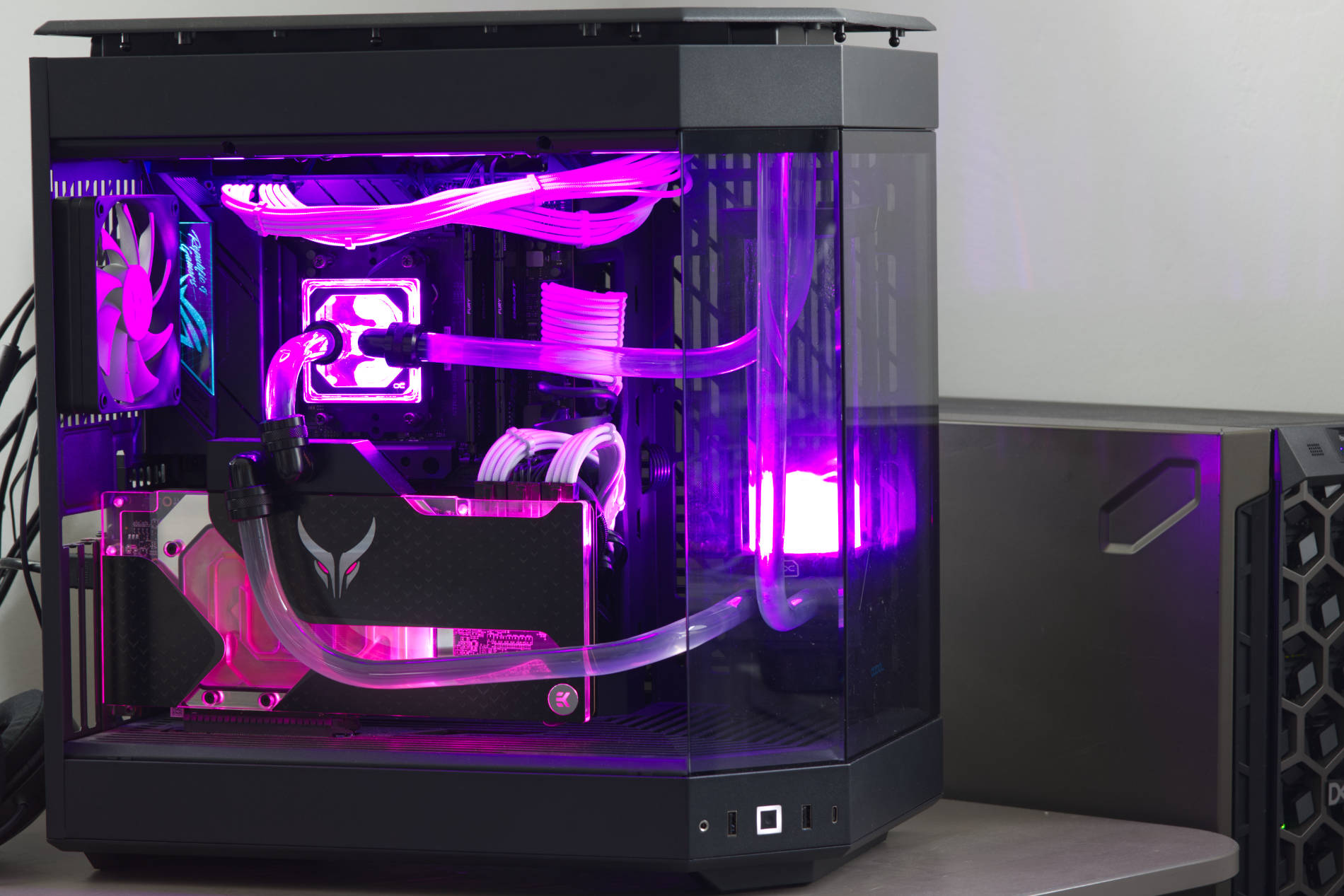 Linux-Gaming-Setup (Image © PCMasters.de)
Linux Gaming PC Build 2024 with configurations
As far as graphics cards are concerned, the system configurations currently rely on AMD, as the driver support here is first-class. NVIDIA graphics cards work to some extent and there are drivers for various distros, but that's nothing for gaming. AMD is also the best choice for the CPU, as Valve also uses an AMD+AMD combo for SteamDeck. Intel processors are also generally possible, but you can confidently choose AMD for both. KreativEcke has also resorted to the AMD combination.
KreativEcke system configuration
- CPU**: AMD Ryzen 9 7950X
- Graphics card: Powercolor Radeon RX 7900 XTX Hellhound
- Mainboard**: AORUS X670E Master
- RAM**: 32GB Ripjaws S5 6000 Mhz
-
Storage**: 1TB SSD
- Power supply**: FSP Hydro G with 1000W
- Case: **HYTE Y40
We have set up two different systems for this test. The first is a server/workstation setup with an AMD EPYC processor and Radeon RX 7700 XT Hellhound and the second, a gaming setup with Ryzen 7 7800X3D and the Radeon RX 7900 XTX LiquidDevil. Below you will find a list of the two configurations that were used for the benchmarks.
Server/workstation system
- CPU**: AMD EPYC 9334
- Graphics card: Powercolor Radeon RX 7700 XT Hellhound
- Mainboard**: Supermicro H13SSL-N bulk
- RAM**: Micron 16GB DDR5-4800 RDIMM 1Rx8 CL40(MTC10F1084S1RC48BR)
-
Storage: 2TB **Lexar NM790 SSD
- Power supply**: BeQuiet! Pure Power 11 FM 1000W
- Case: Open Bench
Linux gaming setup
- CPU**: AMD Ryzen 7 7800X3D
- Graphics card: Powercolor Radeon RX 7900 XTX LiquidDevil
- Mainboard**: ASUS ROG STRIX X670E-F GAM. WIFI
- RAM**: 32GB Ripjaws S5 6000 Mhz
-
Memory: **4TB Lexar NM790 SSD
- Power supply: Corsair RM-750X - 750W
- Case: HYTE Y60
SteamOS recommendation
Steam has a somewhat unspecific recommendation from Valve for SteamOS. This configuration defines a framework for an entry-level system, because not all games need expensive high-end components.
- Processor**: 64-bit processor from Intel or AMD
- RAM**: 4 GB or more RAM
- Hard disk**: 200 GB or more hard disk space
- Graphics card**: NVIDIA graphics card, AMD graphics card (RADEON 8500 and newer), Intel graphics
- Additional: USB port for installation, UEFI firmware (recommended)
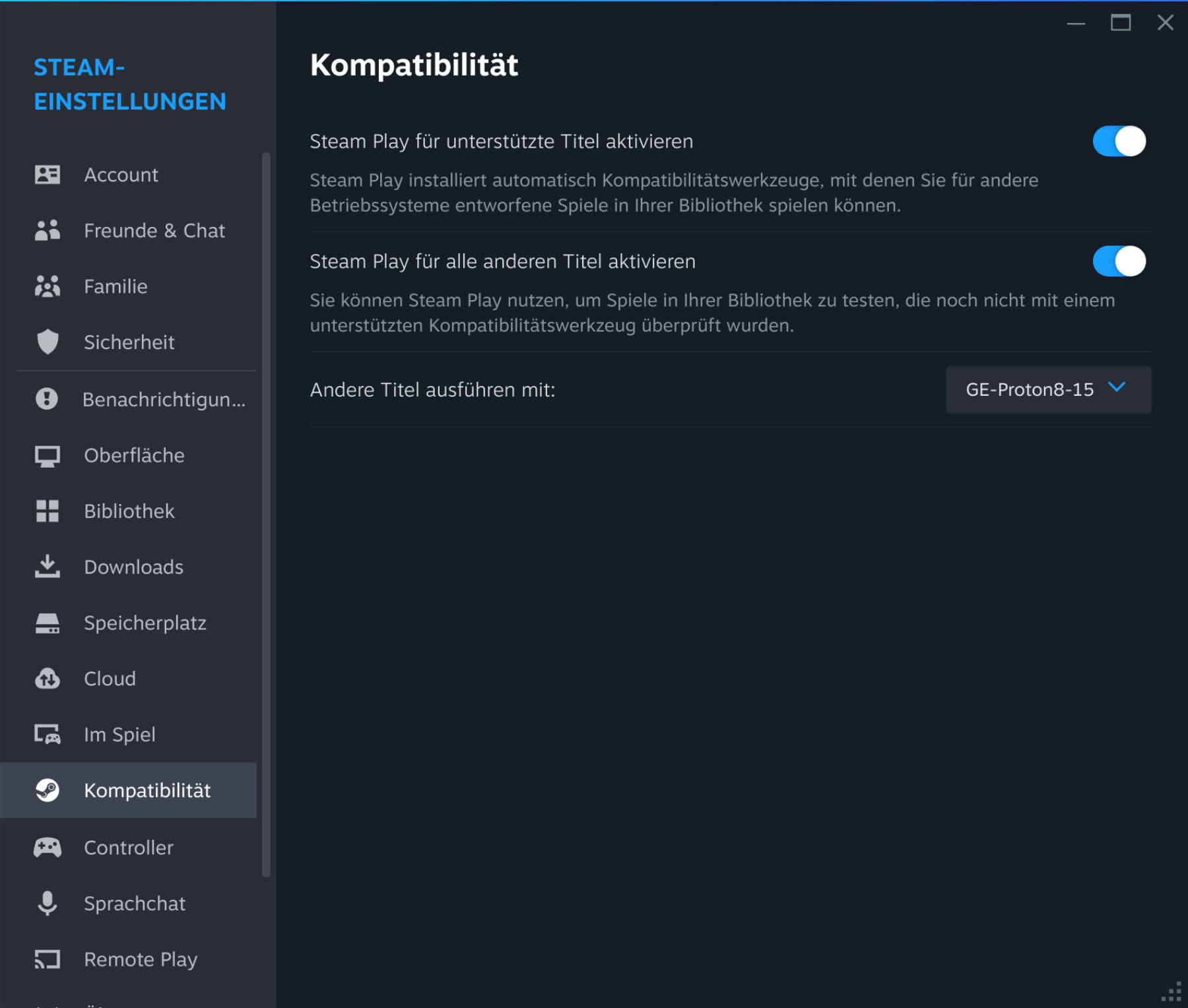 Steam-Settings (Image © PCMasters.de)
Install ChimeraOS
KreativEcke used a guide from viewer Maximilian, who published it in the PCGH forum. We have gone our own way.
UEFI support must be activated in the BIOS for the installation. Then it's time to create the USB stick in the operating system of your choice. A USB stick must be available for this.
ChimeraOS pulls the data from the Internet during installation, which is why an Internet connection is required.
The procedure for the boot USB stick:
- download balenaEtcher for Windows or Mac.
-
download the latest ChimeraOS-ISO.
- Start balenaEtcher.
- select ChimeraOS-ISO.
- select the USB stick and then write to the drive.
- once finished, remove the USB stick.
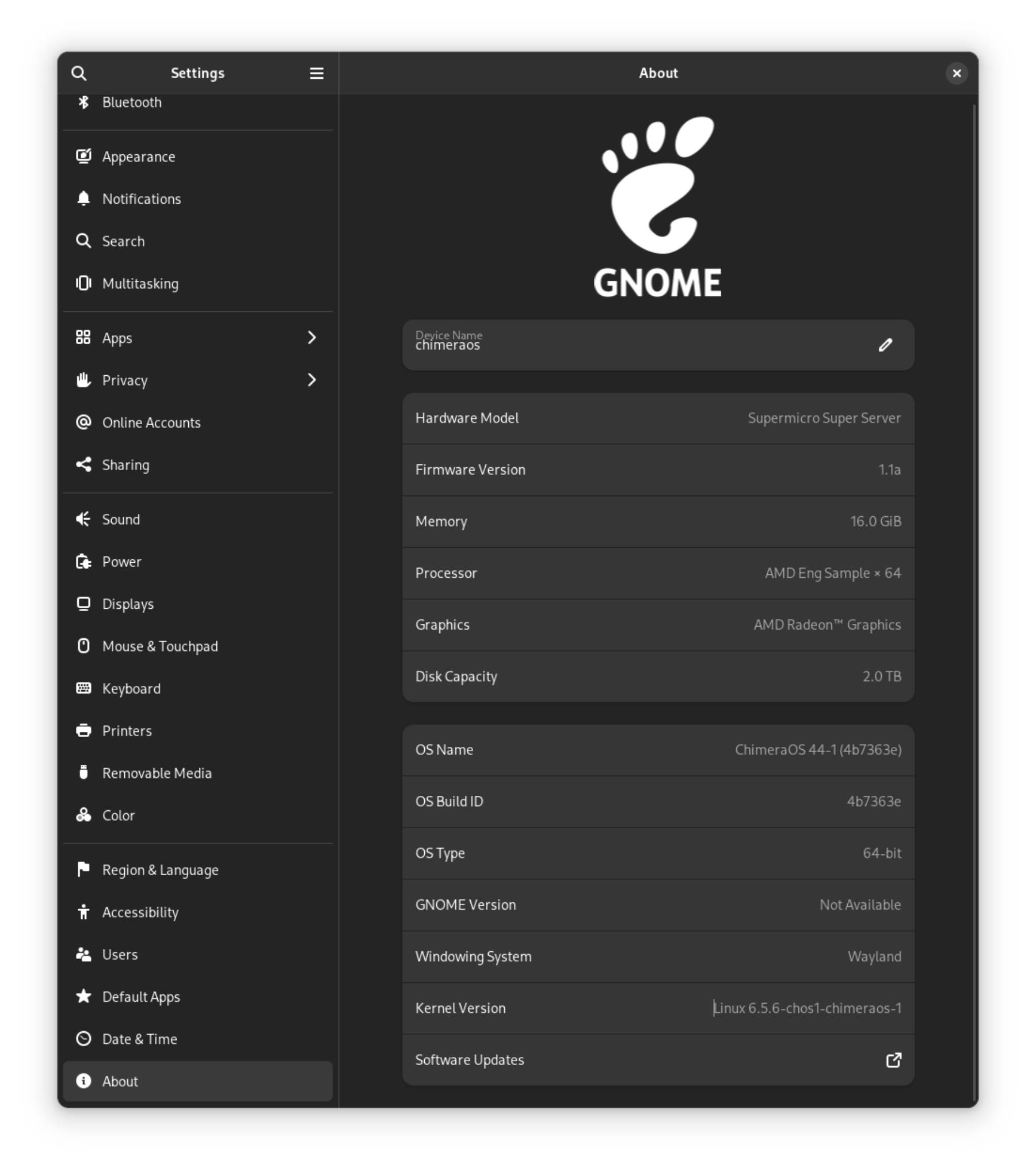 Linux Server-/Workstation-System ChimeraOS Systeminfo (Image © PCMasters.de)
The procedure for installation:
You can then start the system on which ChimeraOS is to be installed.
- prepare boot USB stick.
- select Installation.
- select drive for installation (this will be completely formatted!!! Please do not select the wrong hard disk!)
- wait, then select standard installation.
- when completed, restart the system.
- after reboot SteamOS will be started. Then configure it and log in to Steam.
Once this is done, you can use SteamOS. If you want to use GOG or Epic Store, you have to do more. The procedure is described in the next chapter.
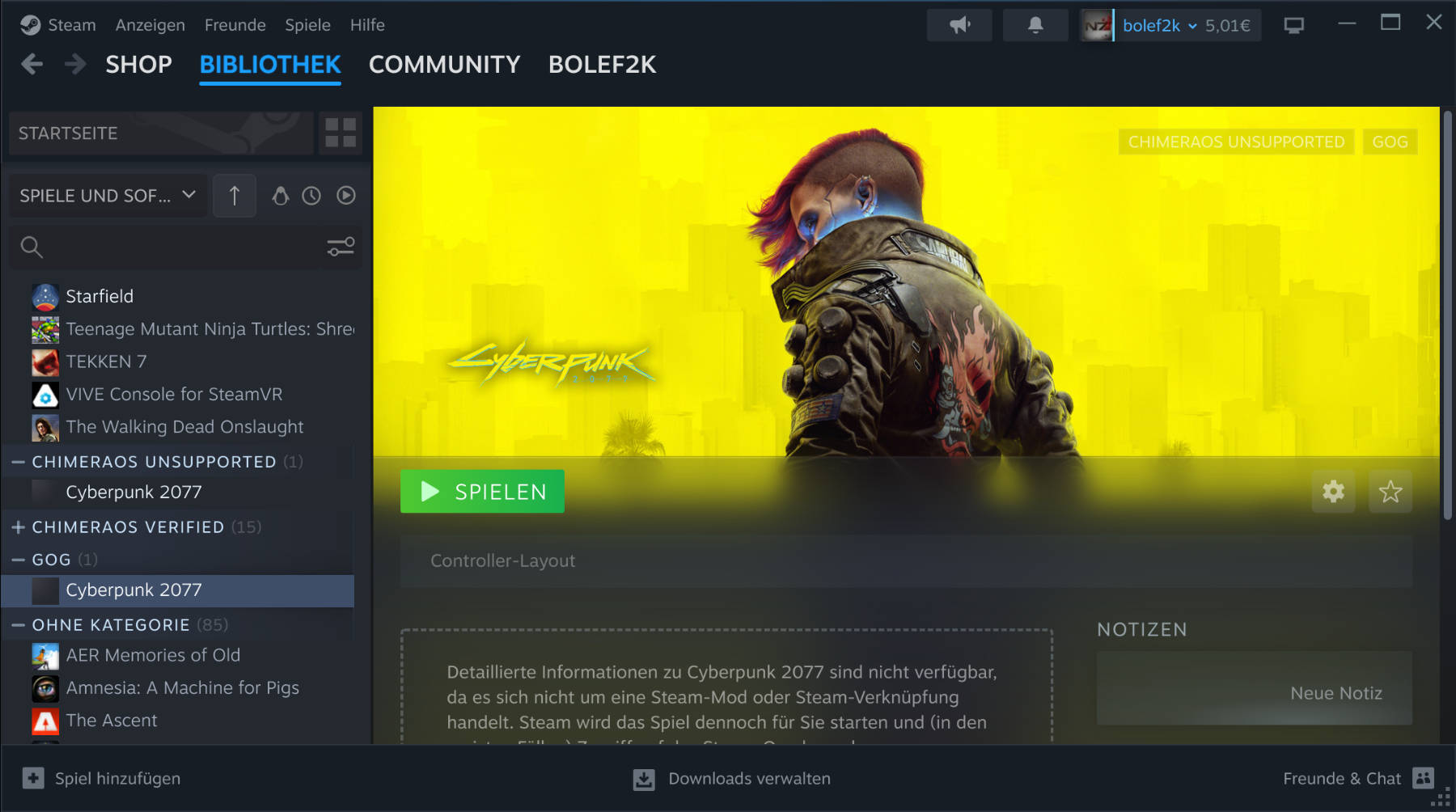 GOG-Cyberpunk-2077 (Image © PCMasters.de)
Starting non-Steam games (GOG, Epic Store)
Using the example of Cyberpunk 2077, we would like to briefly explain how to install GOG games. To do this, you have to get out of "Big Picture" mode to get to ChimeraOS desktop. This is done by pressing Escape, then "On/Off" and then switching to Desktop.
Then move the mouse to the Hot-Corner top left to bring up the menu at the bottom. There you click on the ChimeraApp. This opens a browser with a local server whose URL should look like this http://chimeraos.local:8844/. This page directly provides an overview of all possible options available to you. You can start Playstation or GameCube** emulators** here, or use the GOG client. We click on the GOG logo here.
 ChimeraOS-WebApp-Library (Image © PCMasters.de)
You will then be taken to a login page. This wants an authentication code from us, which we get when we open the "Login-Link" in a new tab and log in to GOG. The URL path then contains the auth code, which consists of all the character strings after the URL part with "code=". Copy this and paste it into the previous tab. You are then logged in to GOG and can see your library.
There are probably hardly any compatible games displayed, which is why you click on View all to see your collection. There we clicked on "Cyberpoint 2077" and then on Install.
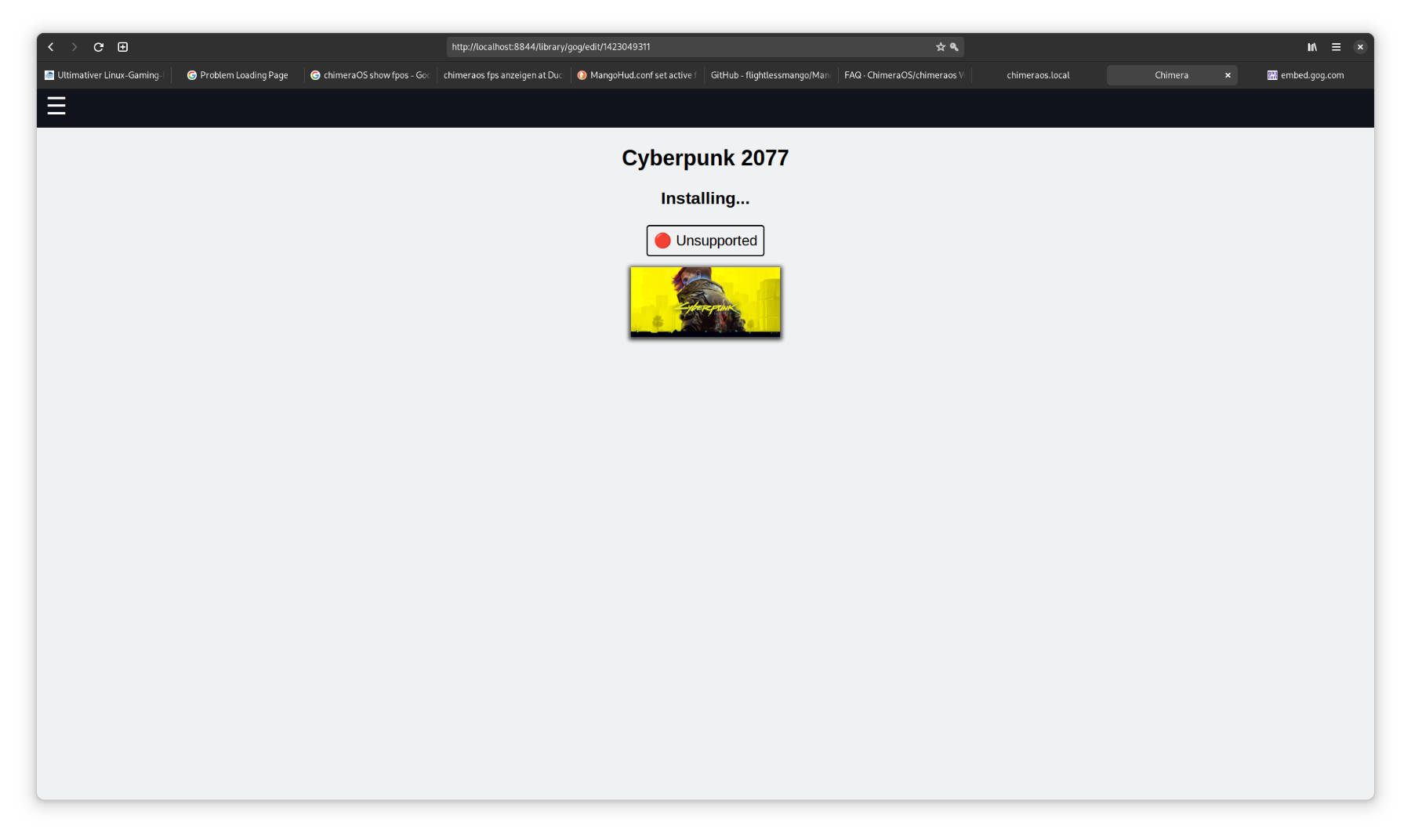 ChimeraOS-WebApp-Cyberpunk2077 (Image © PCMasters.de)
The installation takes longer, as many gigabytes of data are downloaded first. When the installation is finished, restart ChimeraOS. After the restart, you will see Cyberpunk 2077 in the Steam library under the category "GOG ". There you can start the game directly! From then on, you no longer have to leave Steam Big Picture, as everything you need is already available.
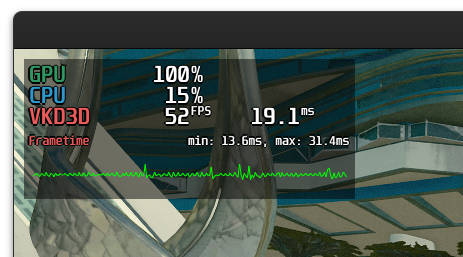 ChimeraOS-fps-anzeigen (Image © PCMasters.de)
Show ChimeraOS fps
If you want to view the performance values in the game, ChimeraOS is the best choice, as it comes with MangoHUD. This provides similar statistical data of the system in games, which is also known from Capframes. This feature is deactivated by default and can actually be activated via the F3 key in the game. This did not work for us.
Instead, there is another way: Right-click on the Steam game in Steam Desktop and then click on Settings. You can then define a special start command in the new window.
Here you enter
- mangohud %command%
and the next time you start the game you will see the fps, CPU and graphics card load.
If you want to output more values, you can do this via the configuration file using an editor. Users with some experience can edit the configuration file in the console directly with vim:
- vim /home/gamer/.config/MangoHud/MangoHud.conf
The MangoHud project on GitHub has a long list with all the options that you can then apply accordingly. You can really let off steam here!
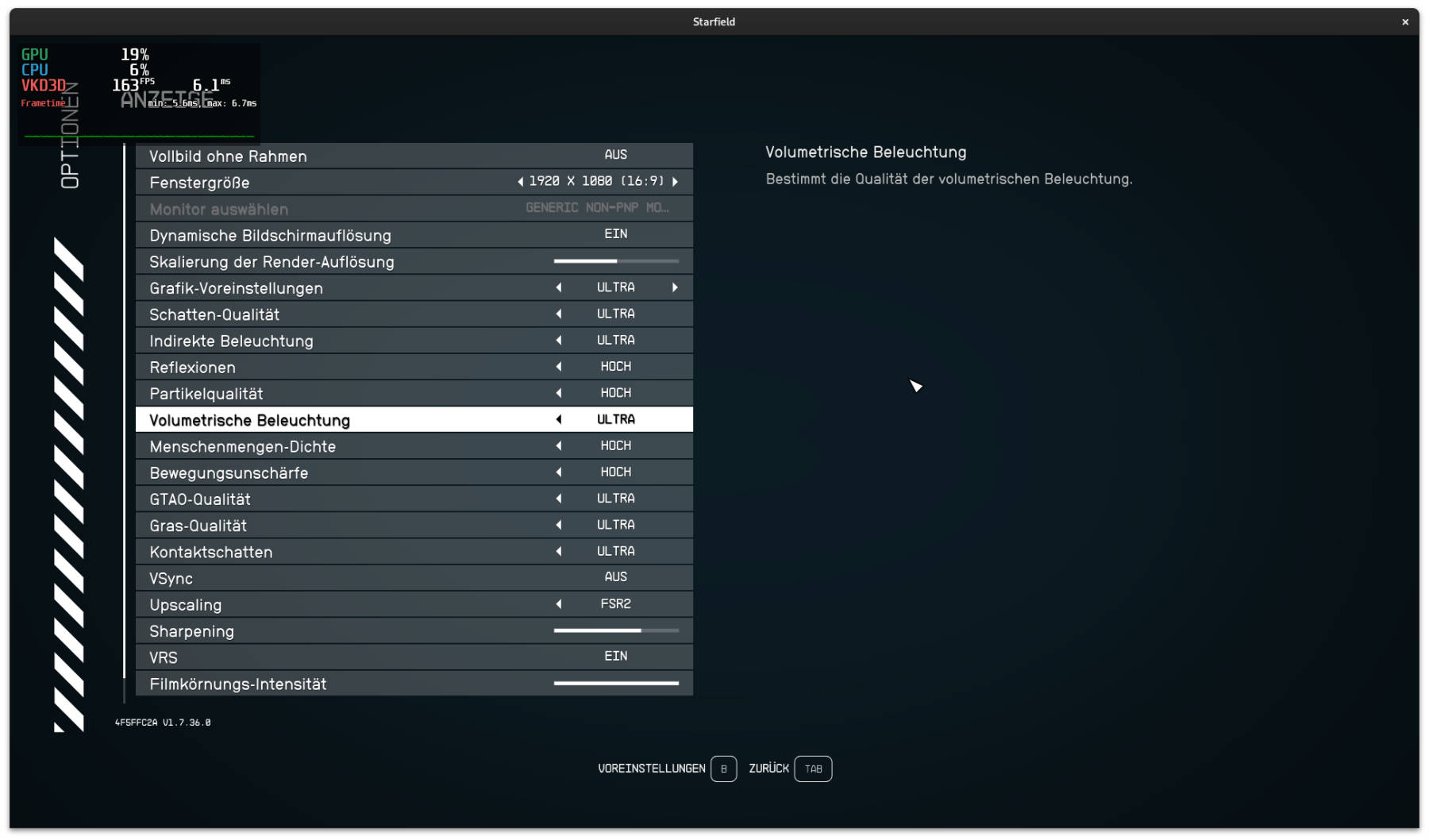 Linux Server-/Workstation-System Starfield-Settings (Image © PCMasters.de)
Steam games under Linux
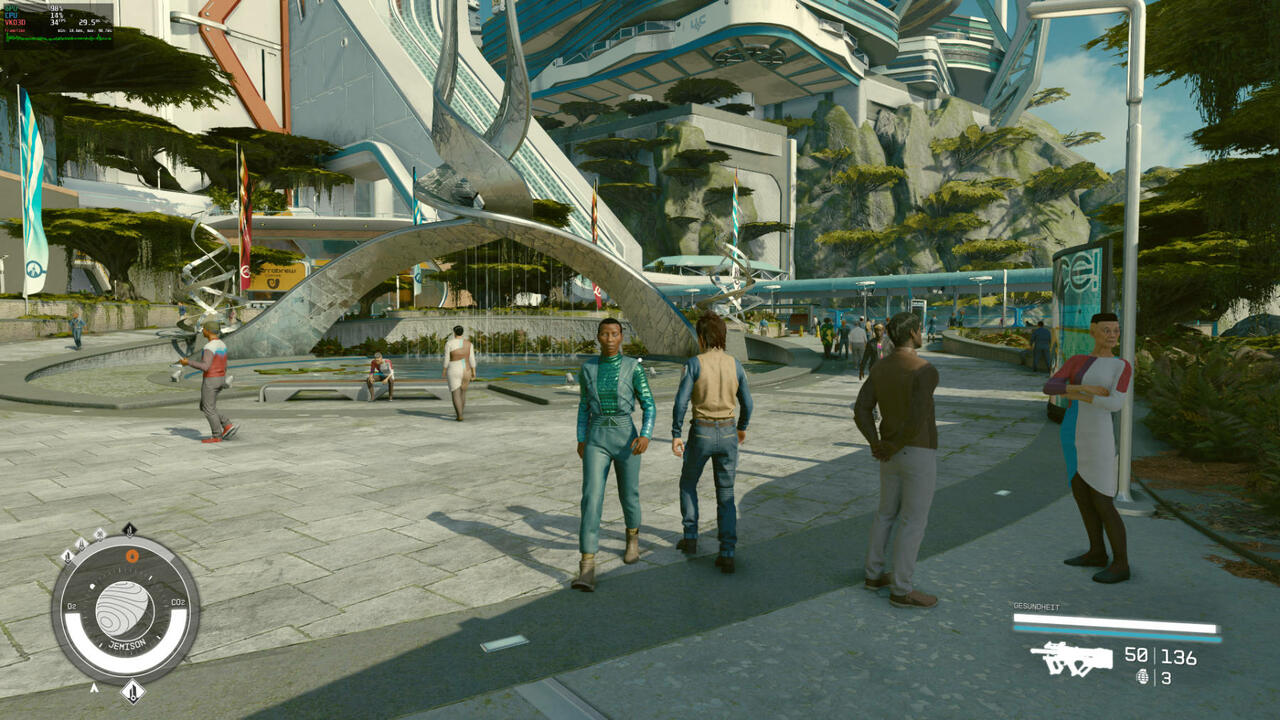
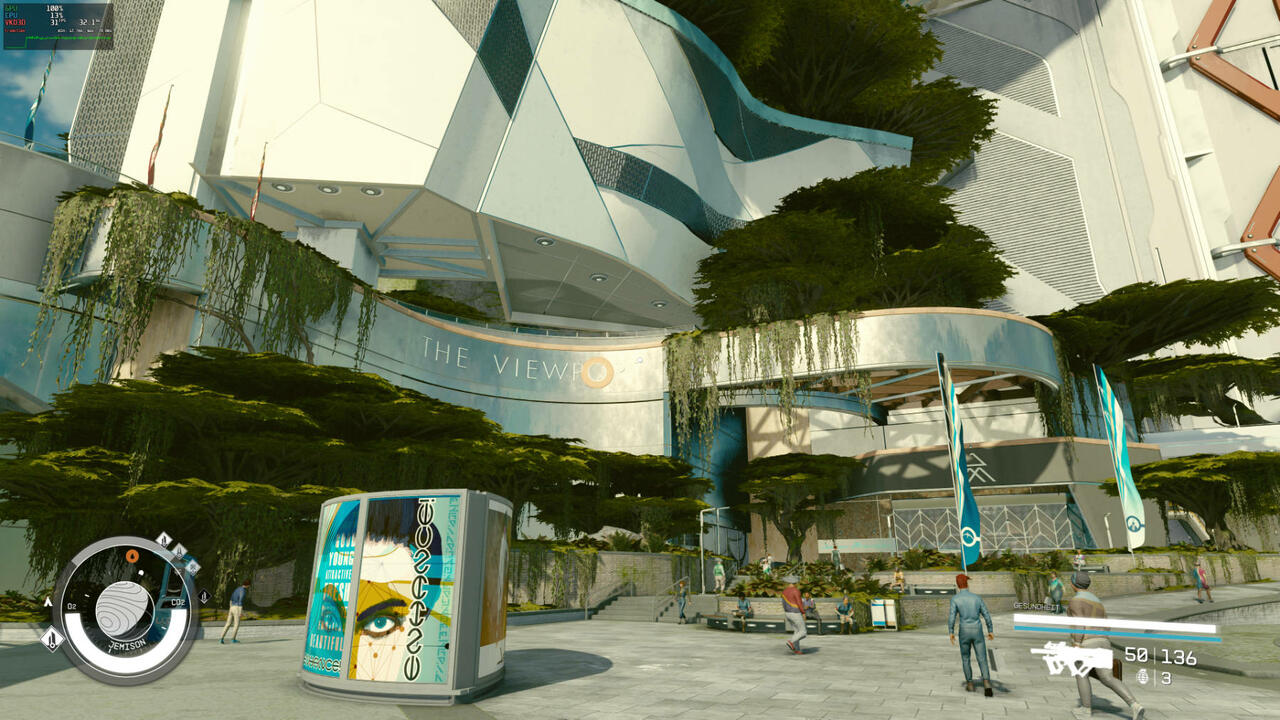
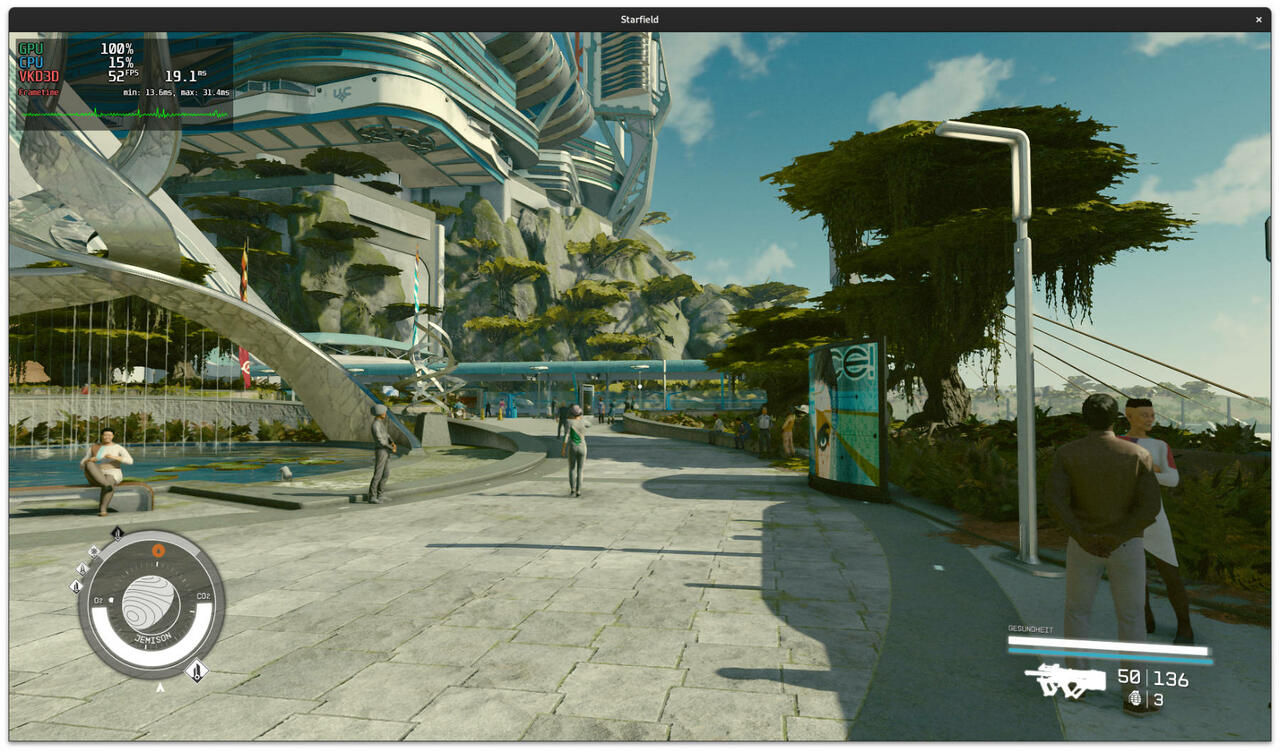
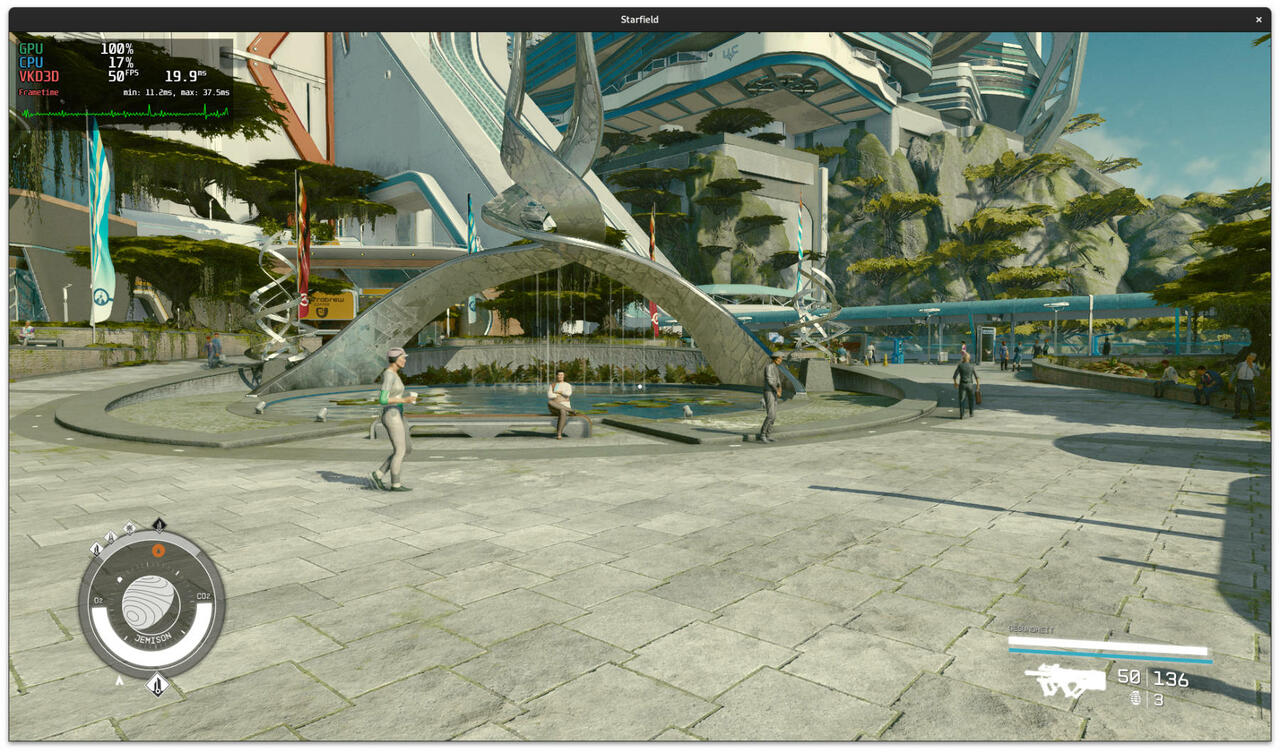
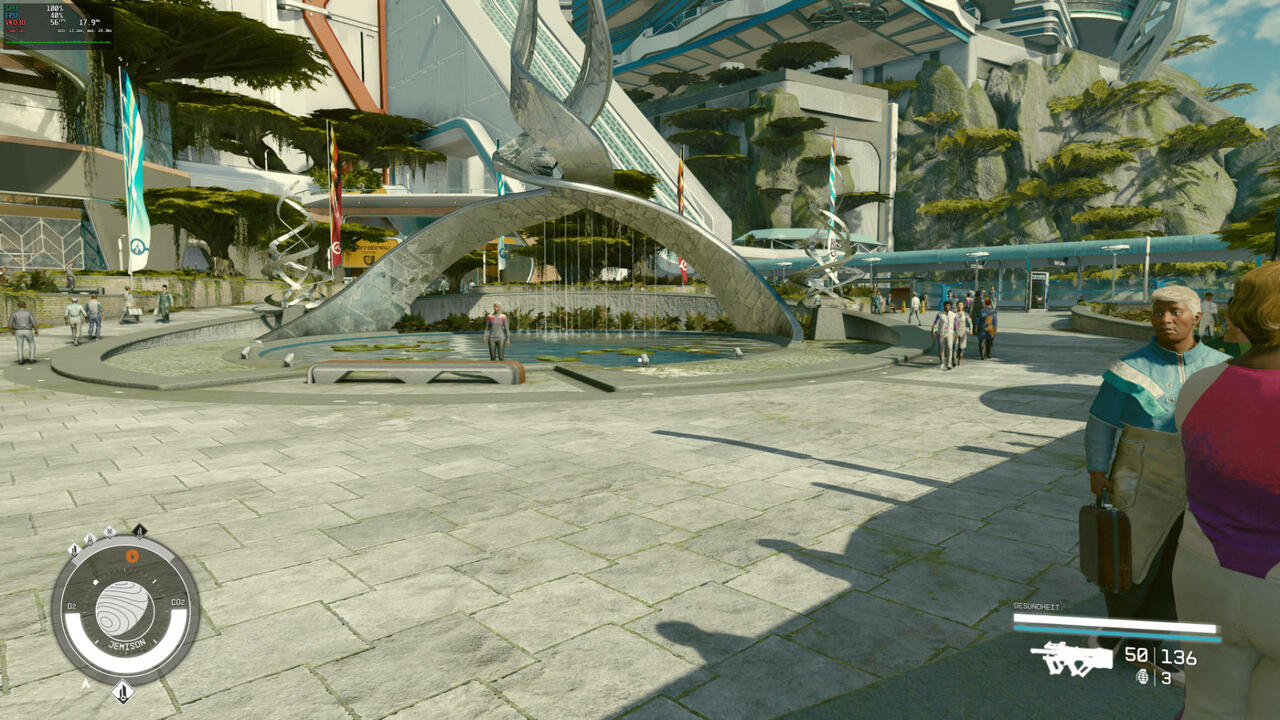
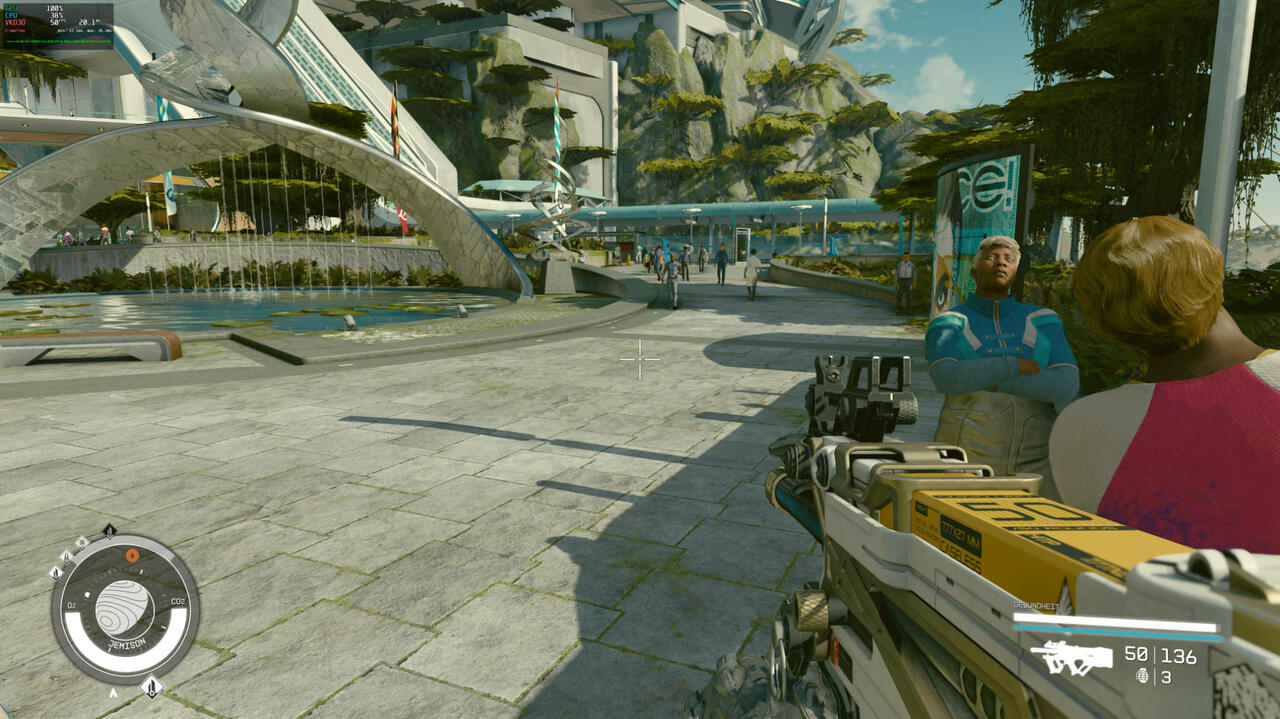
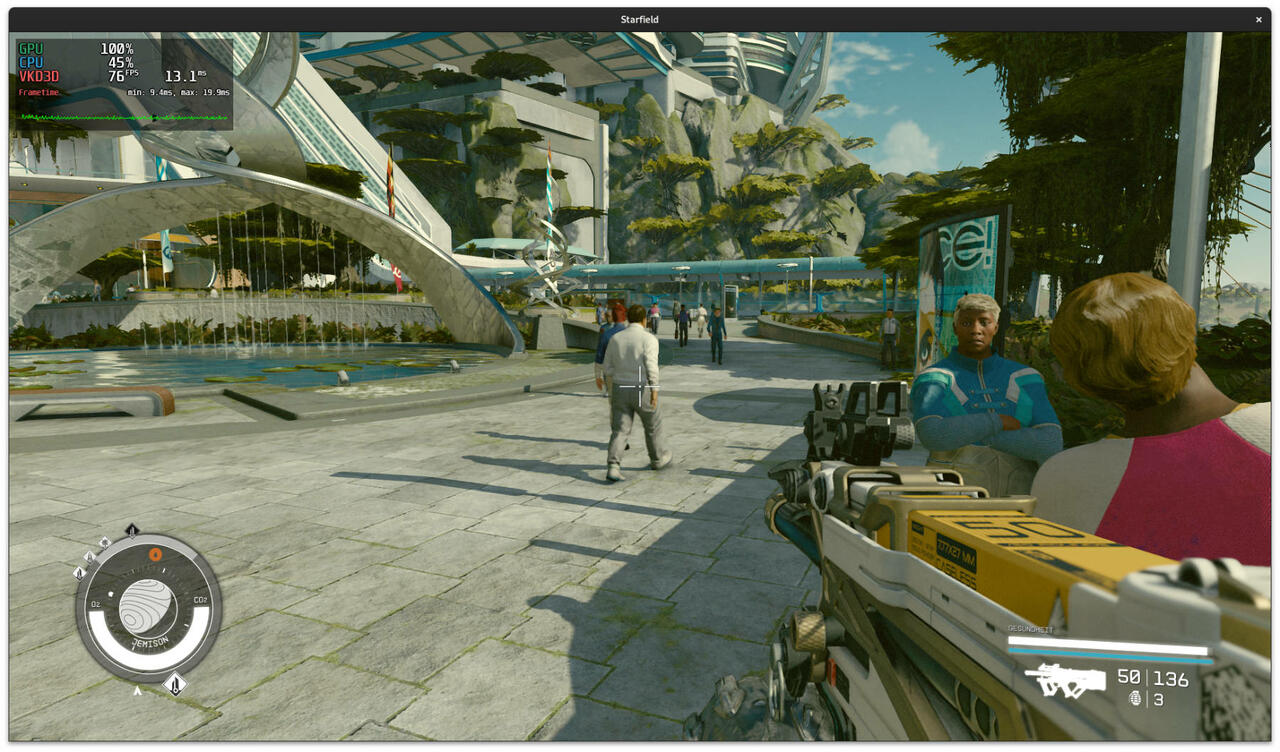
We selected a few games from the Steam collection that we found exciting. Among them was Starfield, which is up-to-date and also has high demands on the PC. We played the game on SteamDeck, but the console started to sweat. You can configure Starfield with medium and high levels of detail in the settings and SteamDeck copes with this quite well. However, the gaming PC should be able to do much better. The game also ran wonderfully on the gaming PCs. However, the FSR2 function had no effect whatsoever, as it did not change the frame rates. We selected "Ultra" presets.
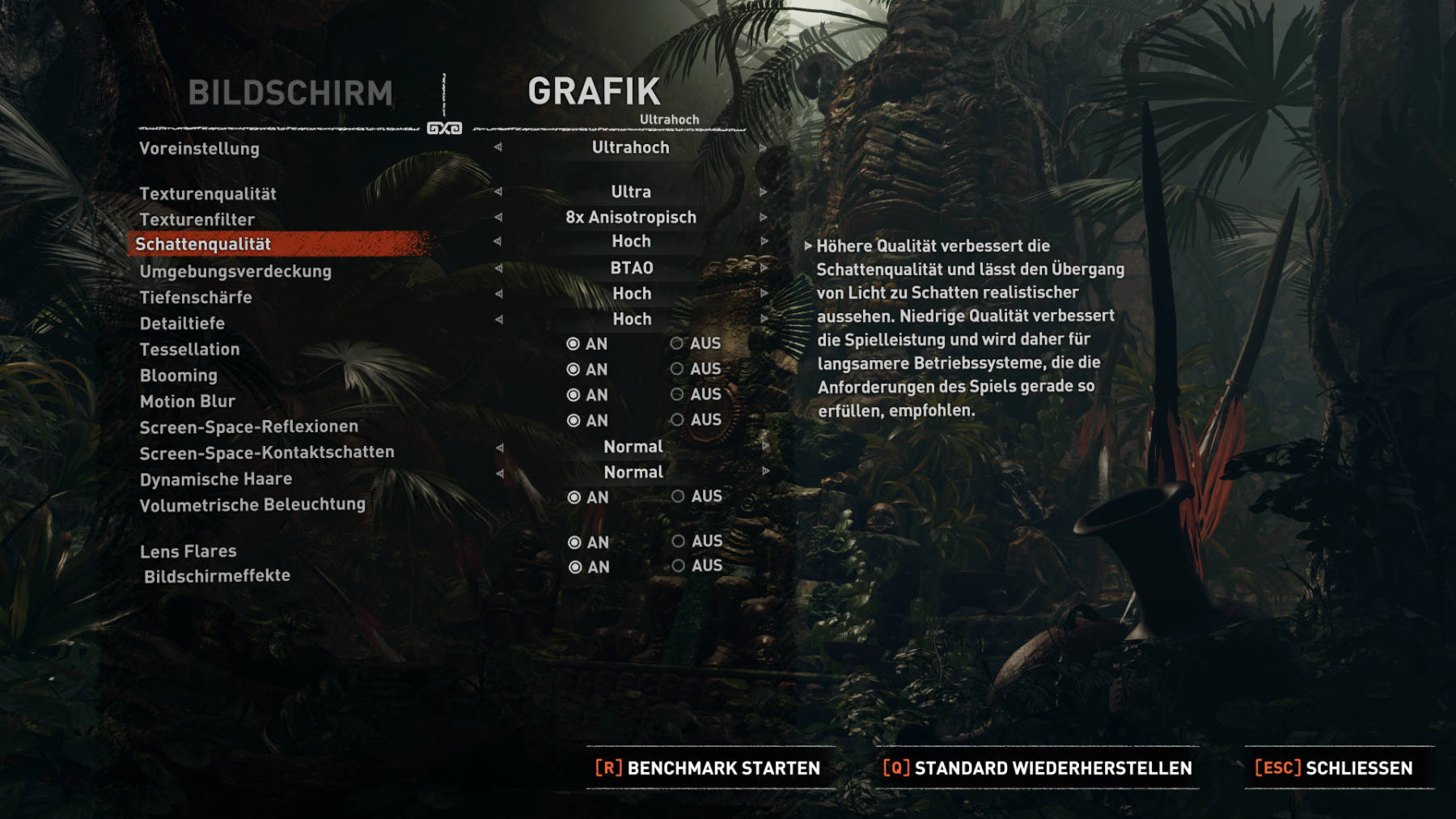 Linux Server-/Workstation-System SOTR-4k-Settings (Image © PCMasters.de)
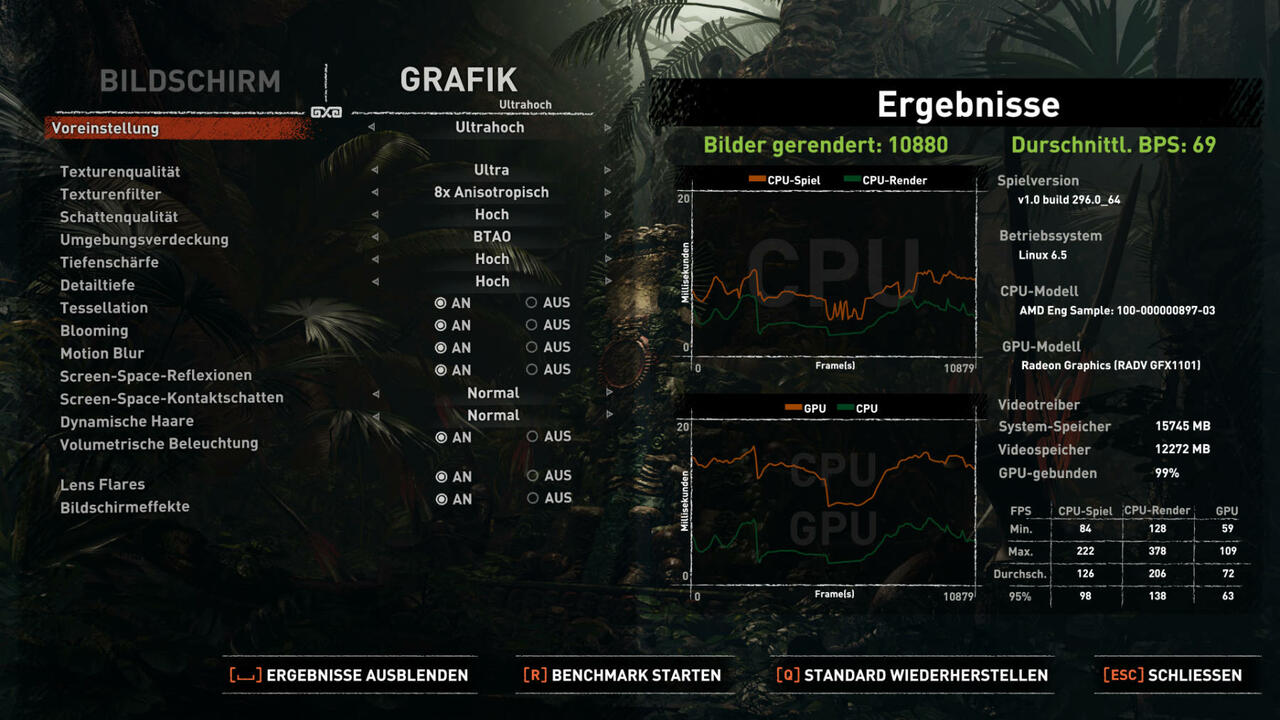
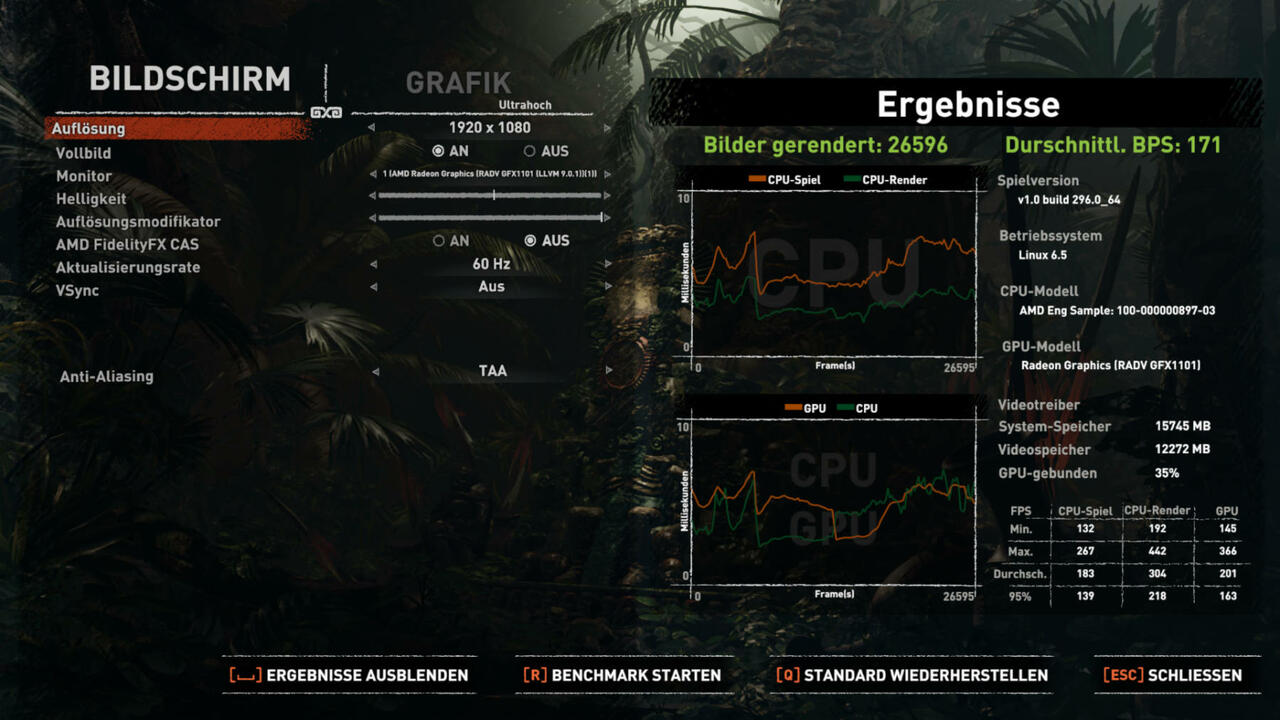
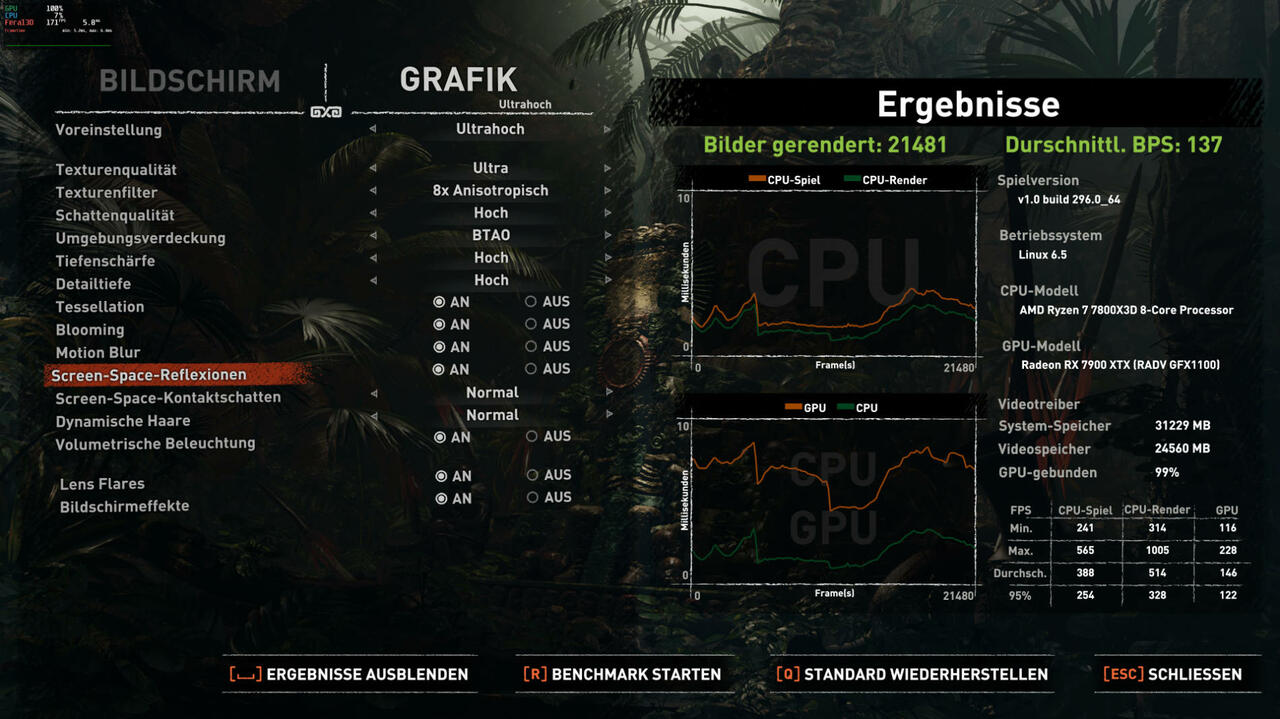
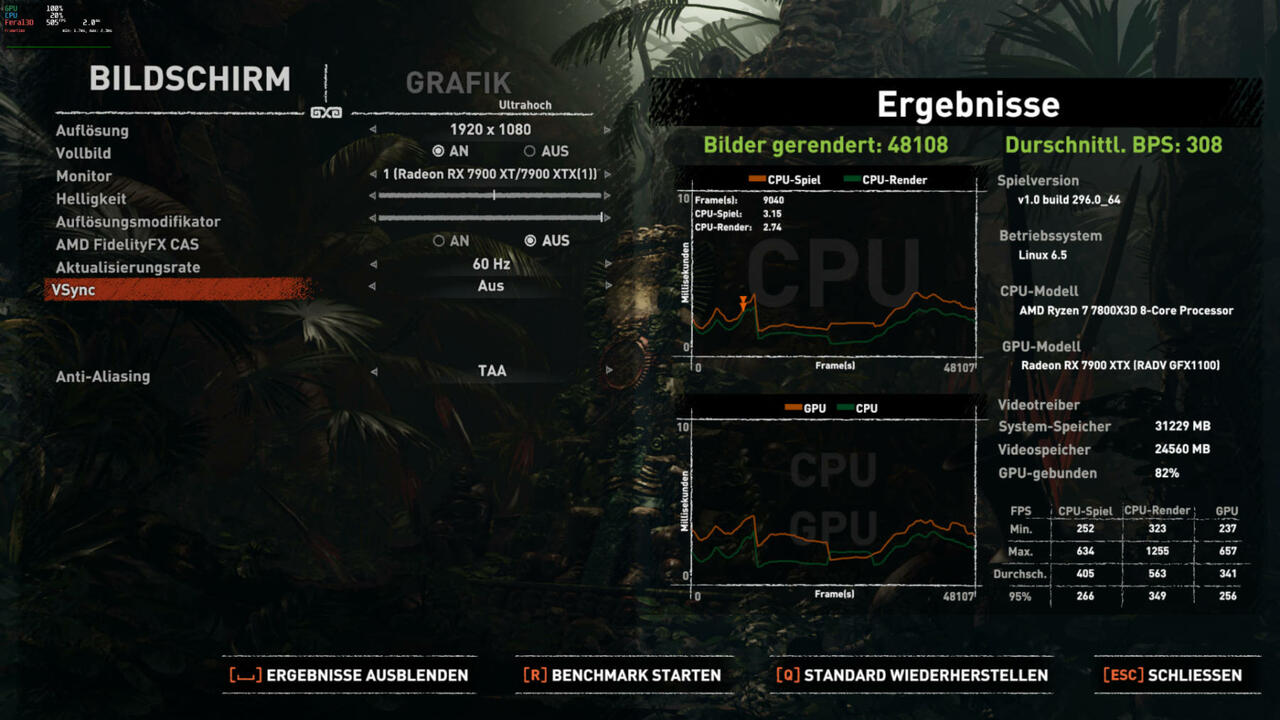
We also installed the classic Shadow of the Tomb Raider, which also has a benchmark mode. We used this for the benchmarks. The game ran without any problems and there were no crashes. We set the presets to Ultra.
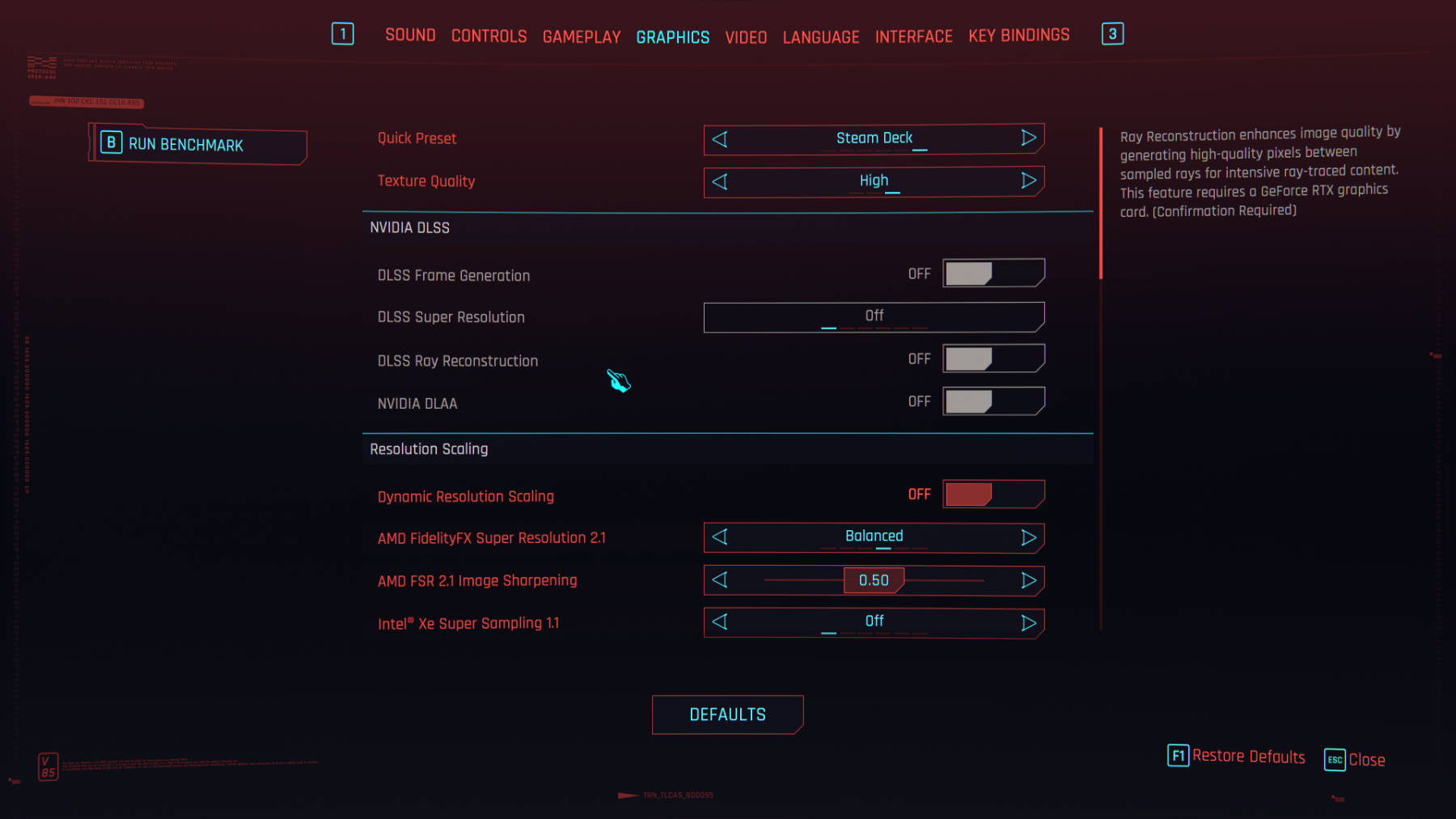 Linux Server-/Workstation-System Cyberpunk-2077-4k-SteamDeck-OPTION (Image © PCMasters.de)
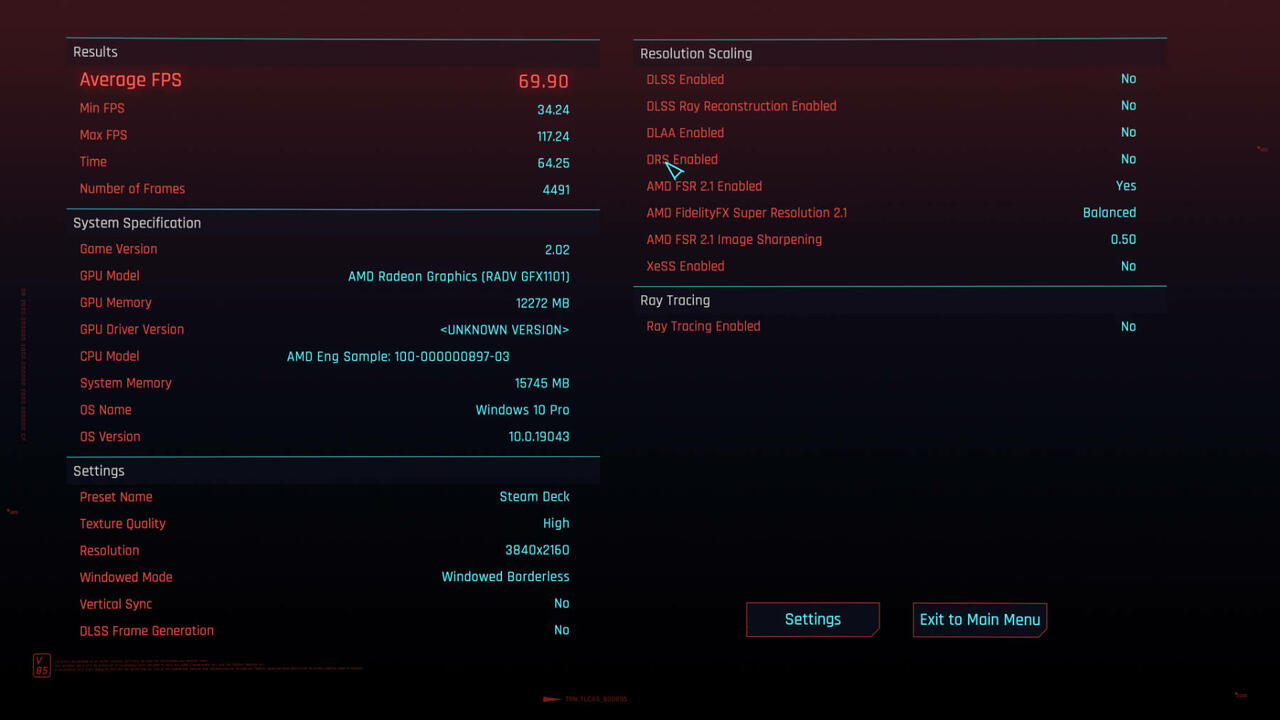
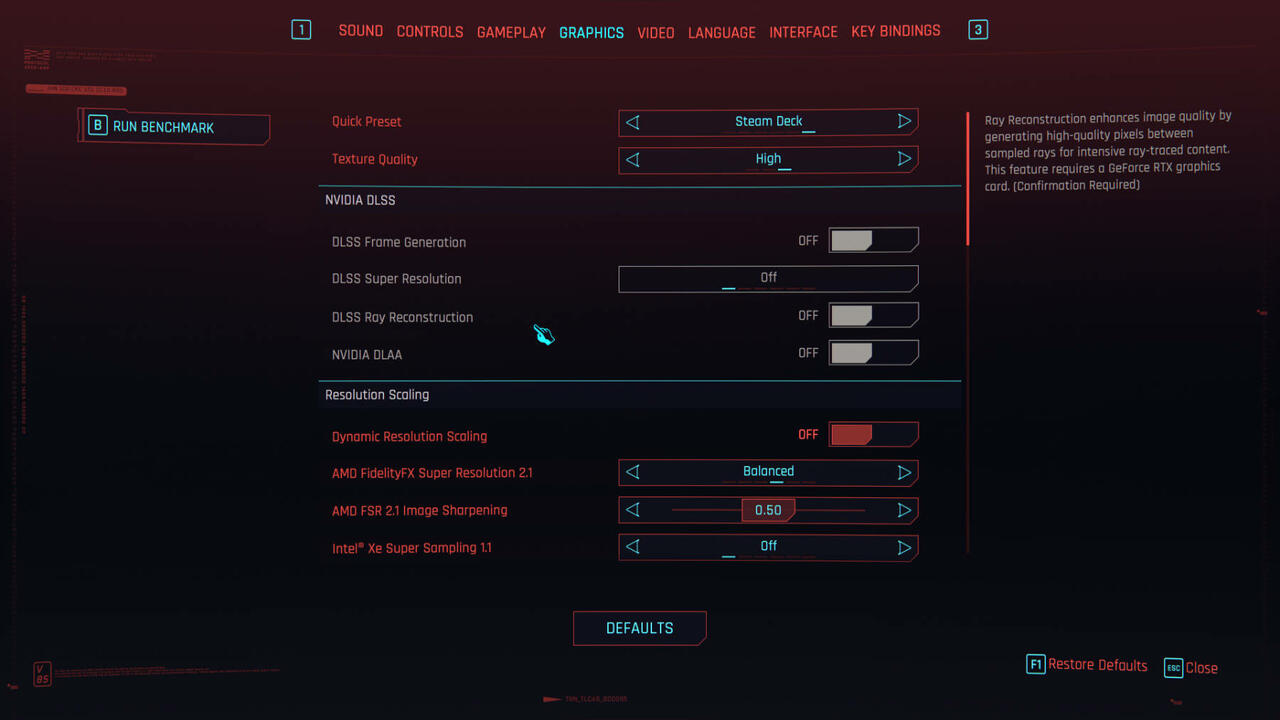
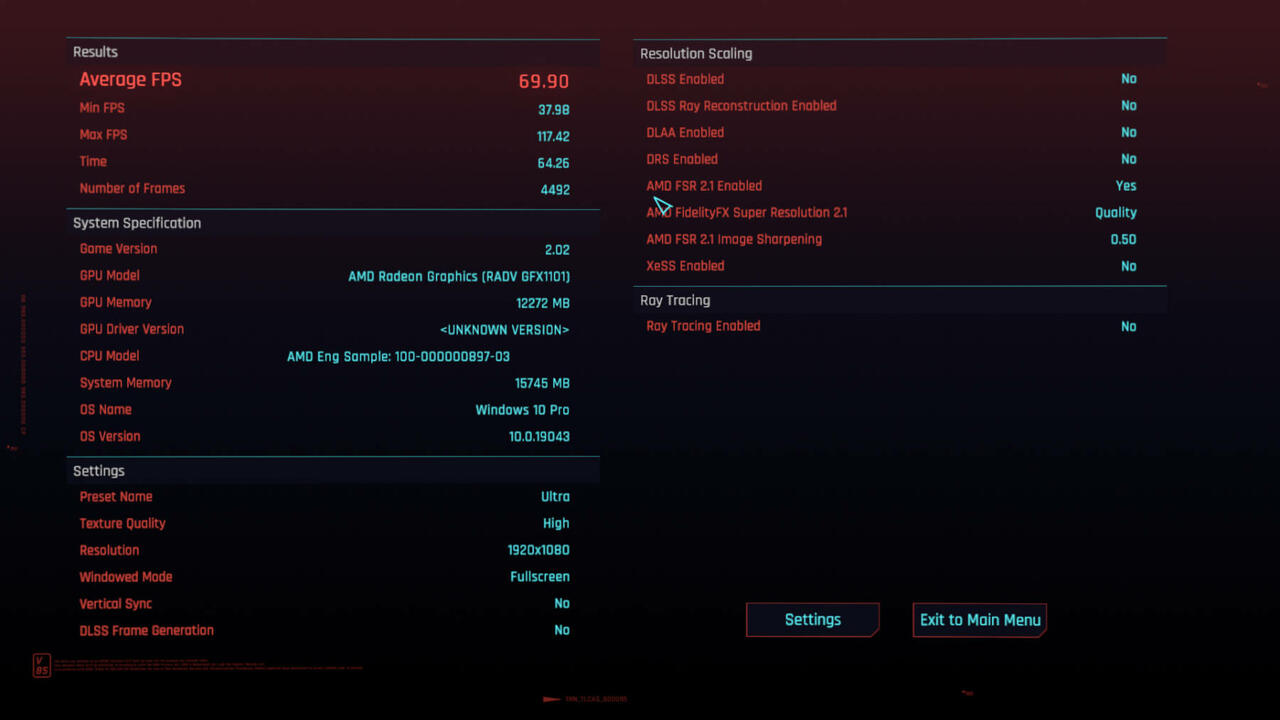
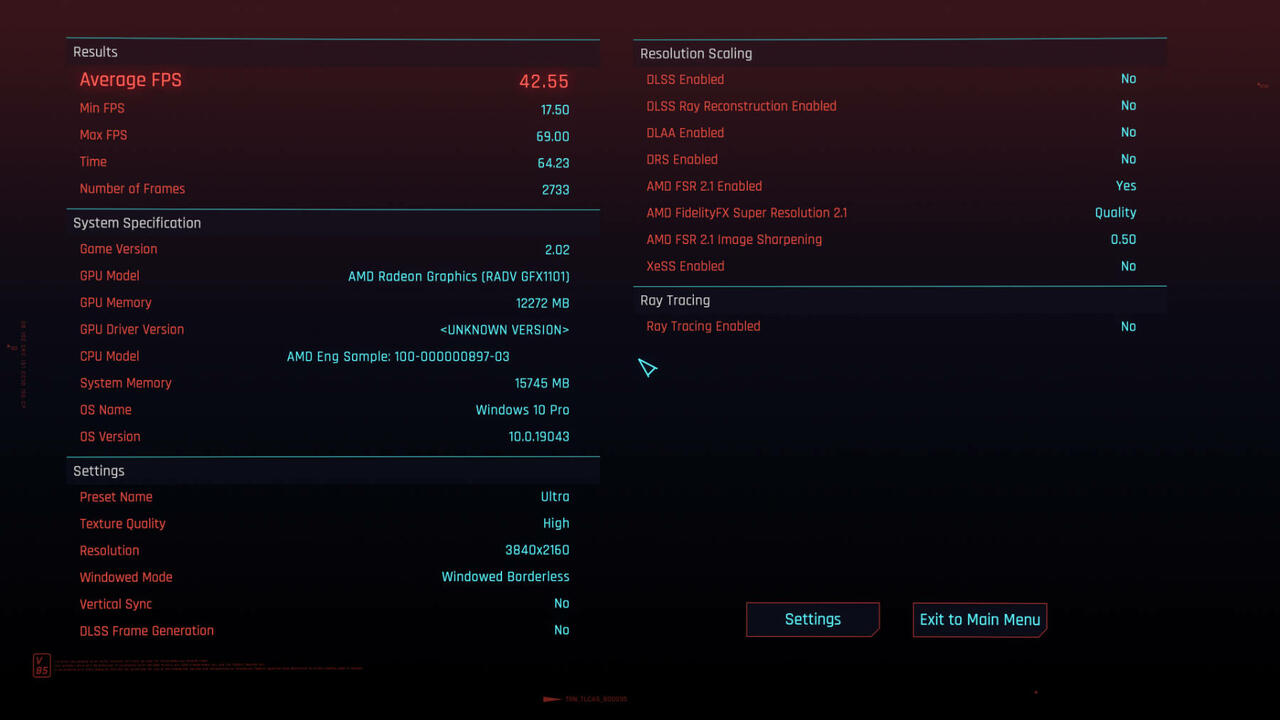
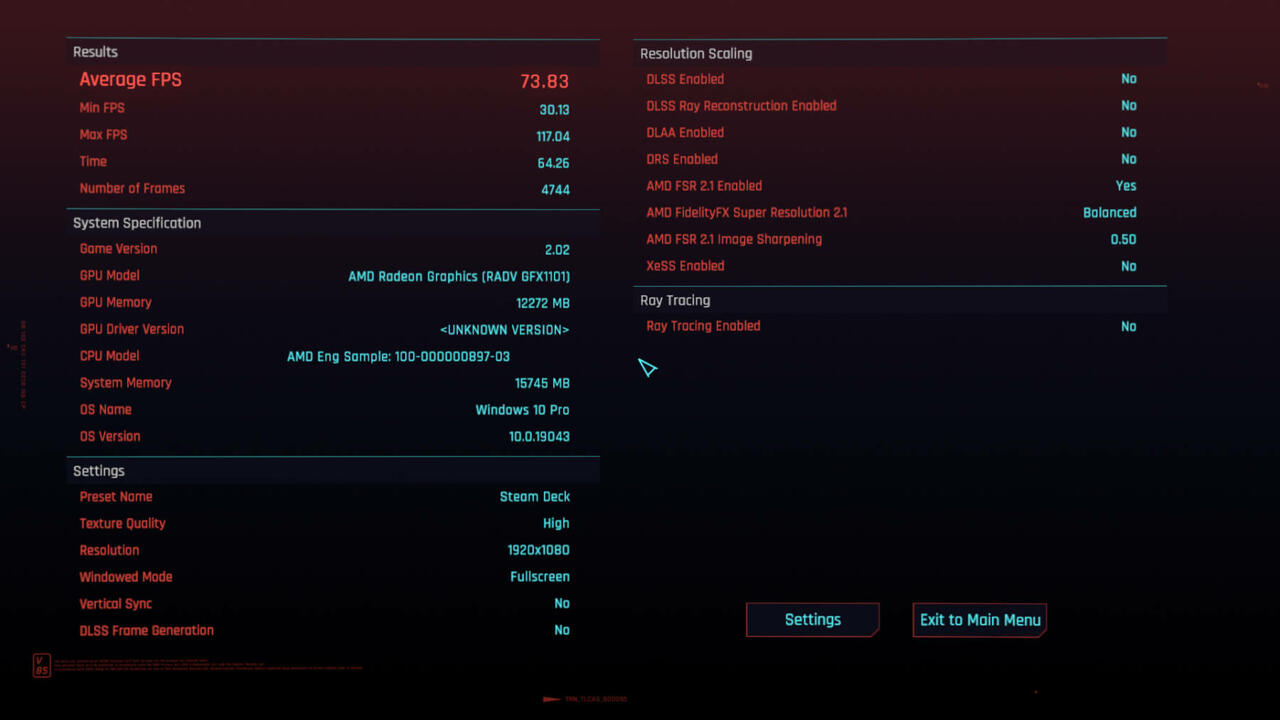
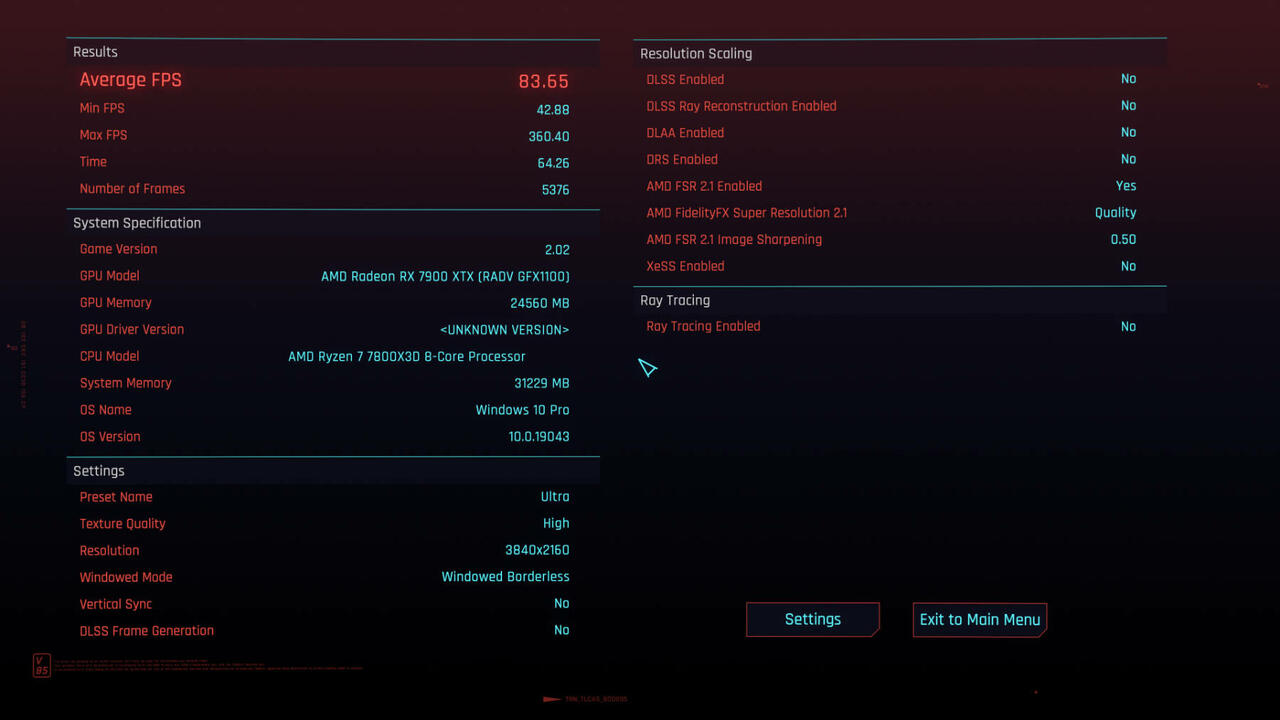
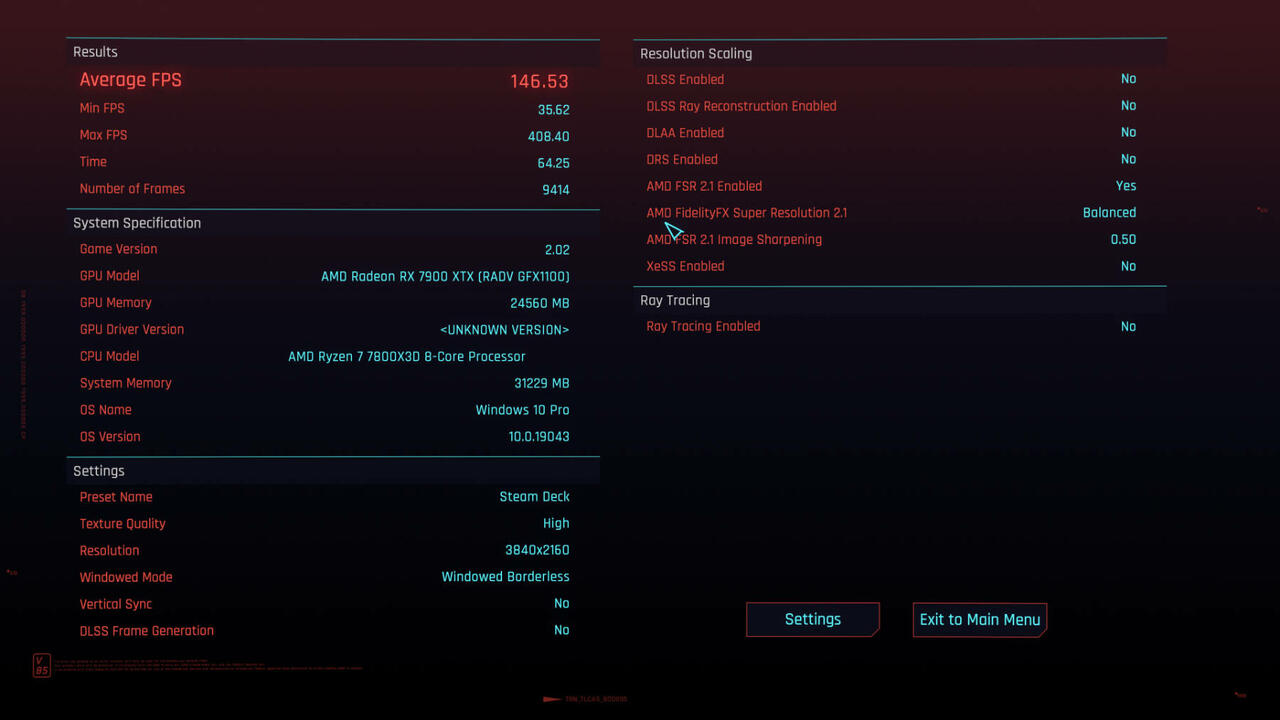
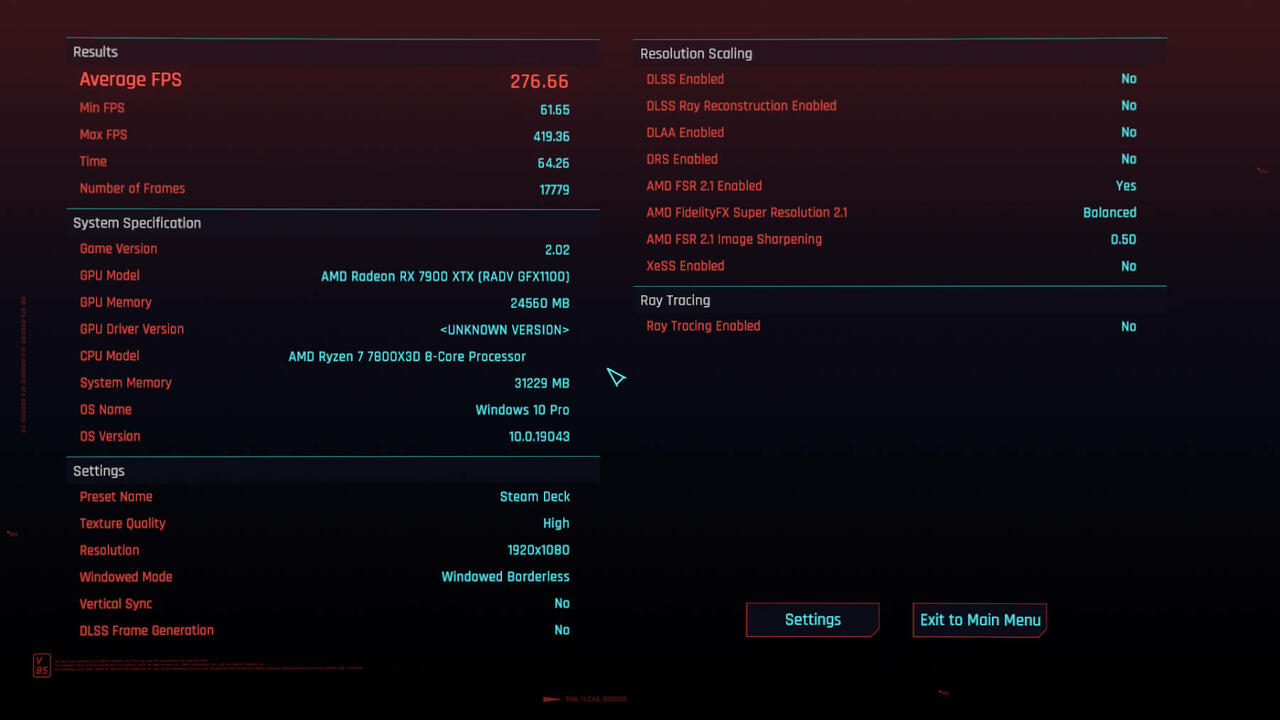
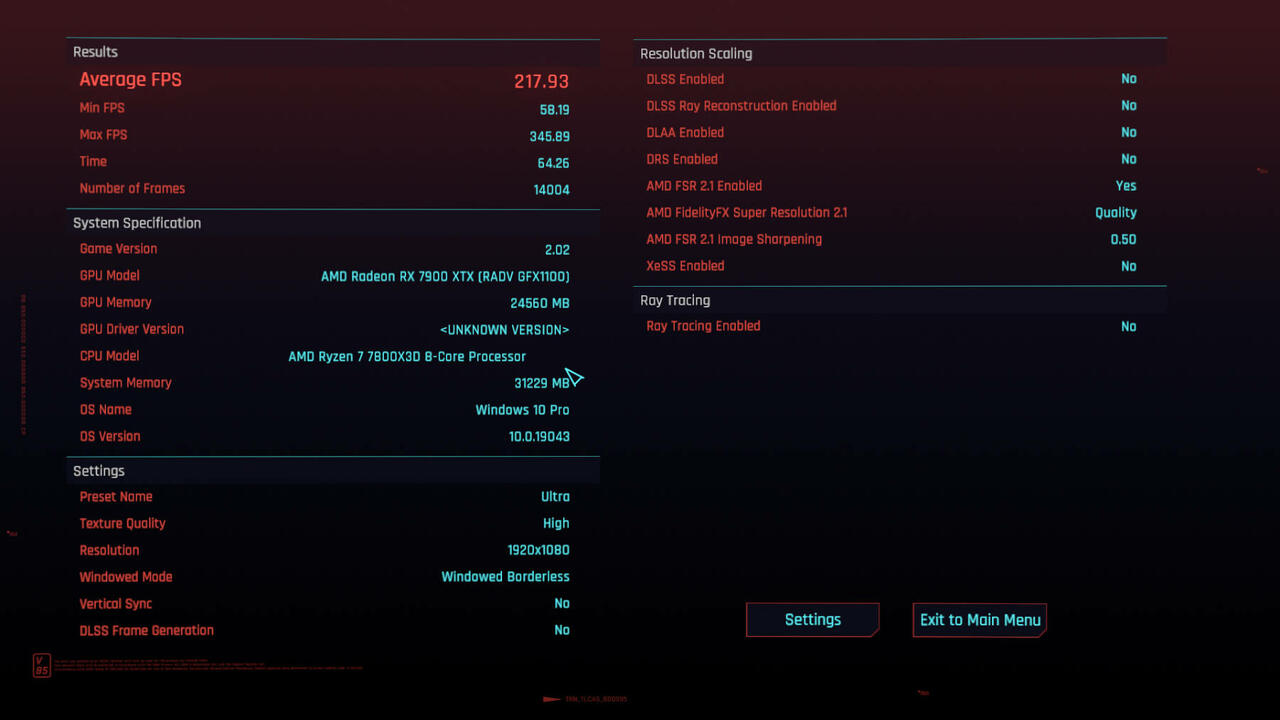
A real highlight is the aforementioned Cyberpunkt 2077, which doesn't even come from Steam. However, the game ran unexpectedly well and didn't cause any problems. We tried the game with "Ultra" and "SteamDeck". Upscaling via FSR was switched on.
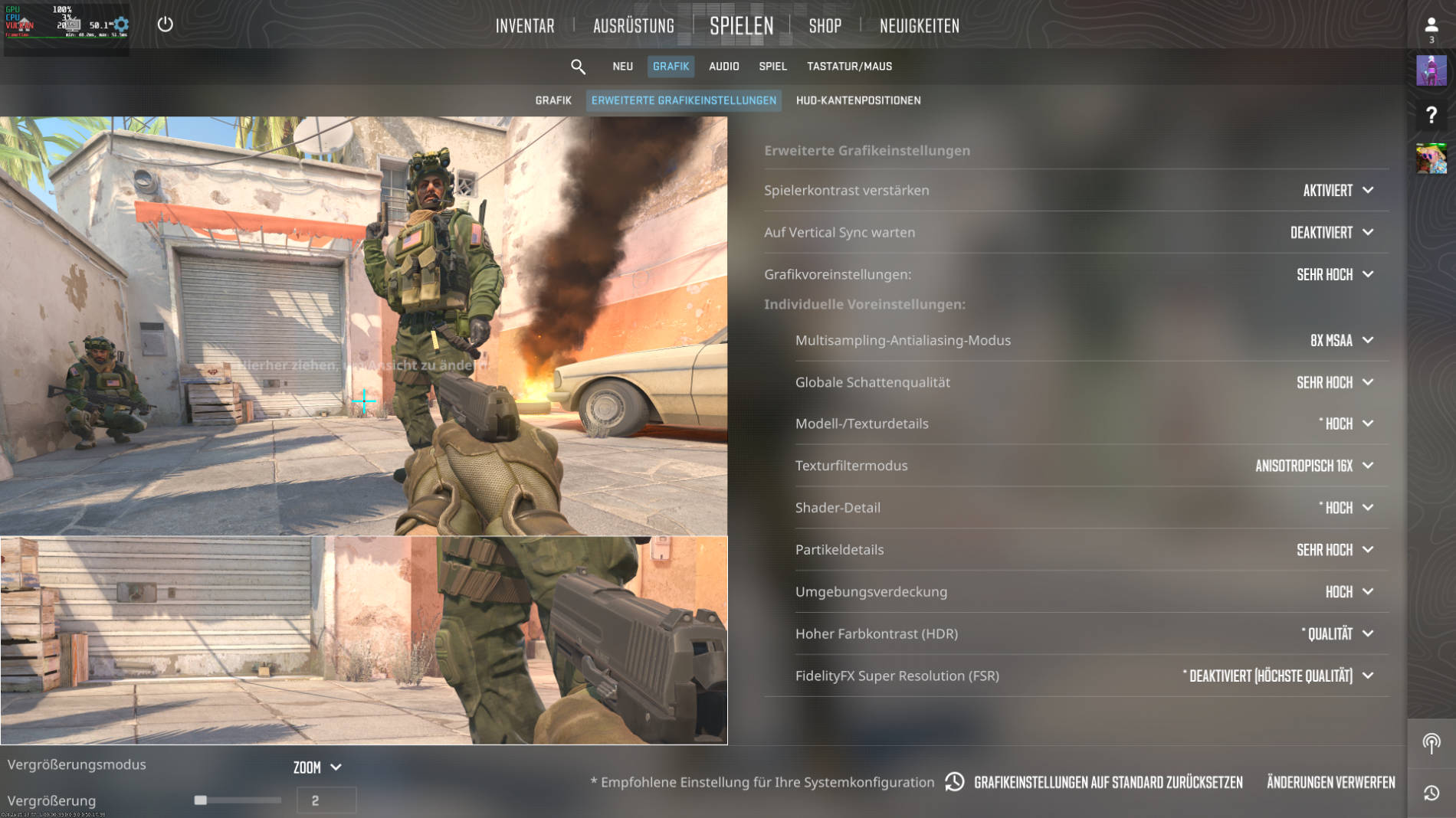 Counter Strike - 4k - Settings (Image © PCMasters.de)
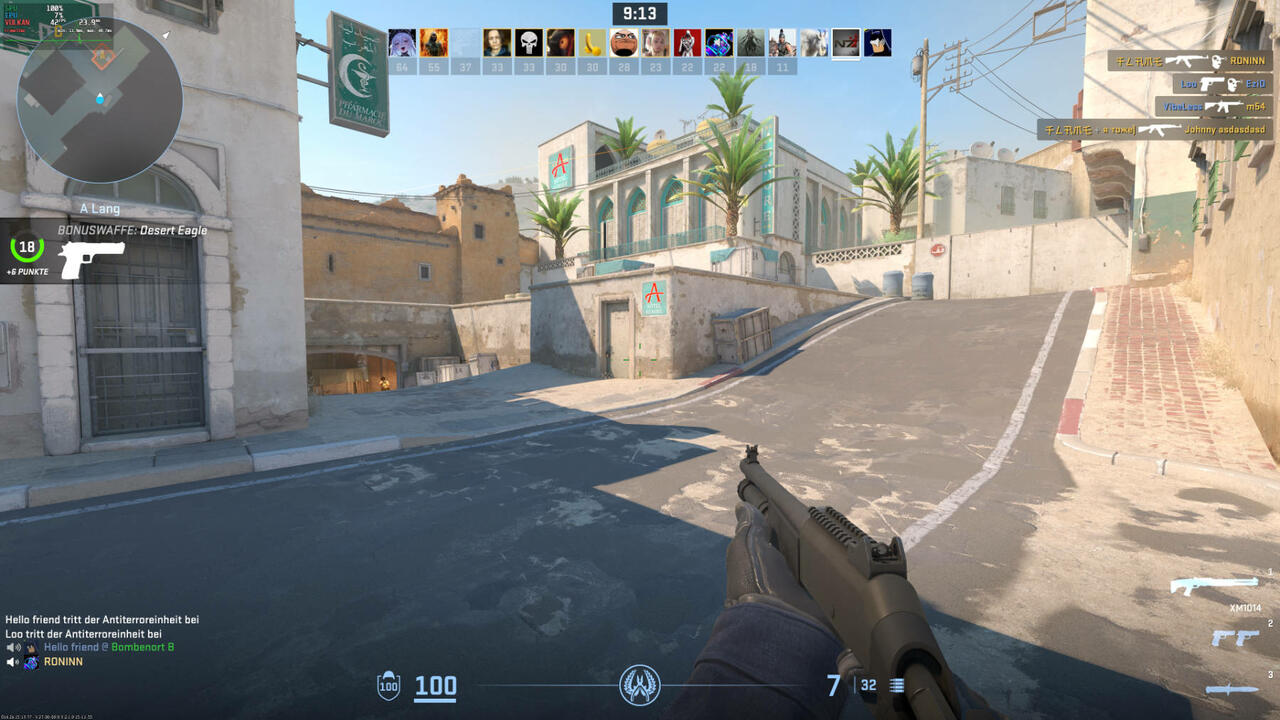
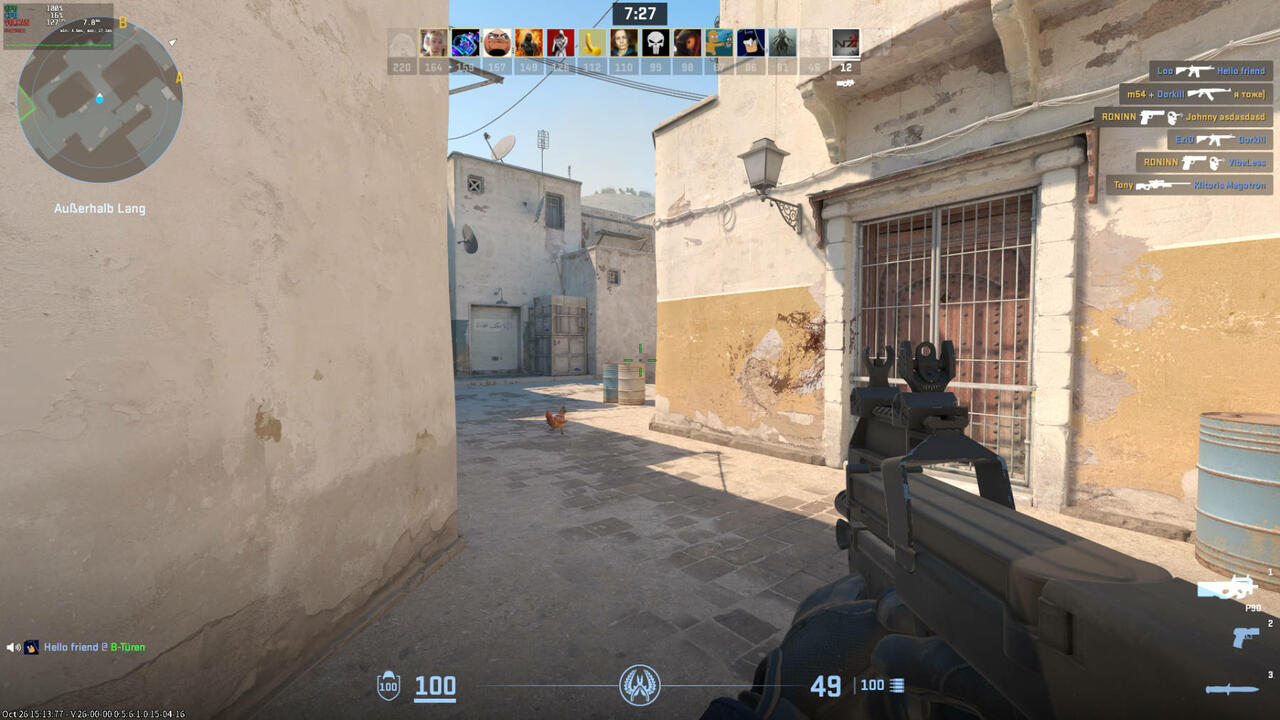
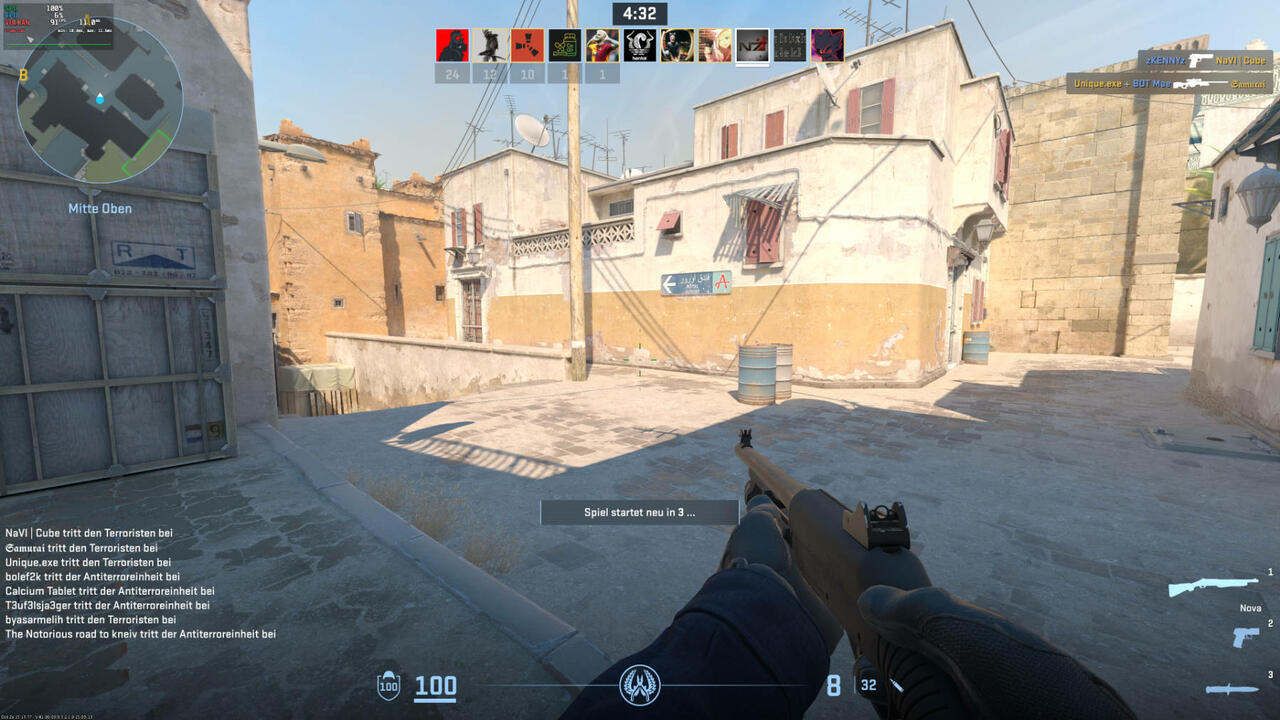
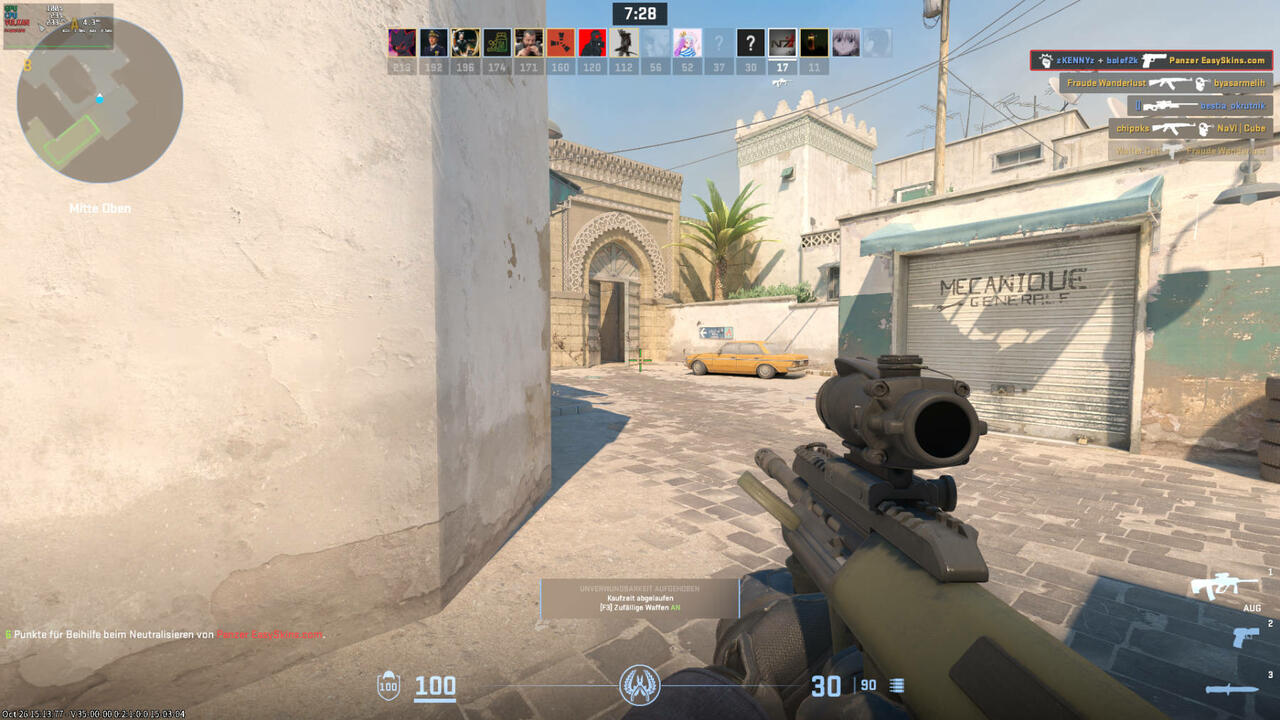
We also installed Counter Strike 2 because it is a modern, competitive title. The game started right away. We set the settings to "Very high" for the run-through.
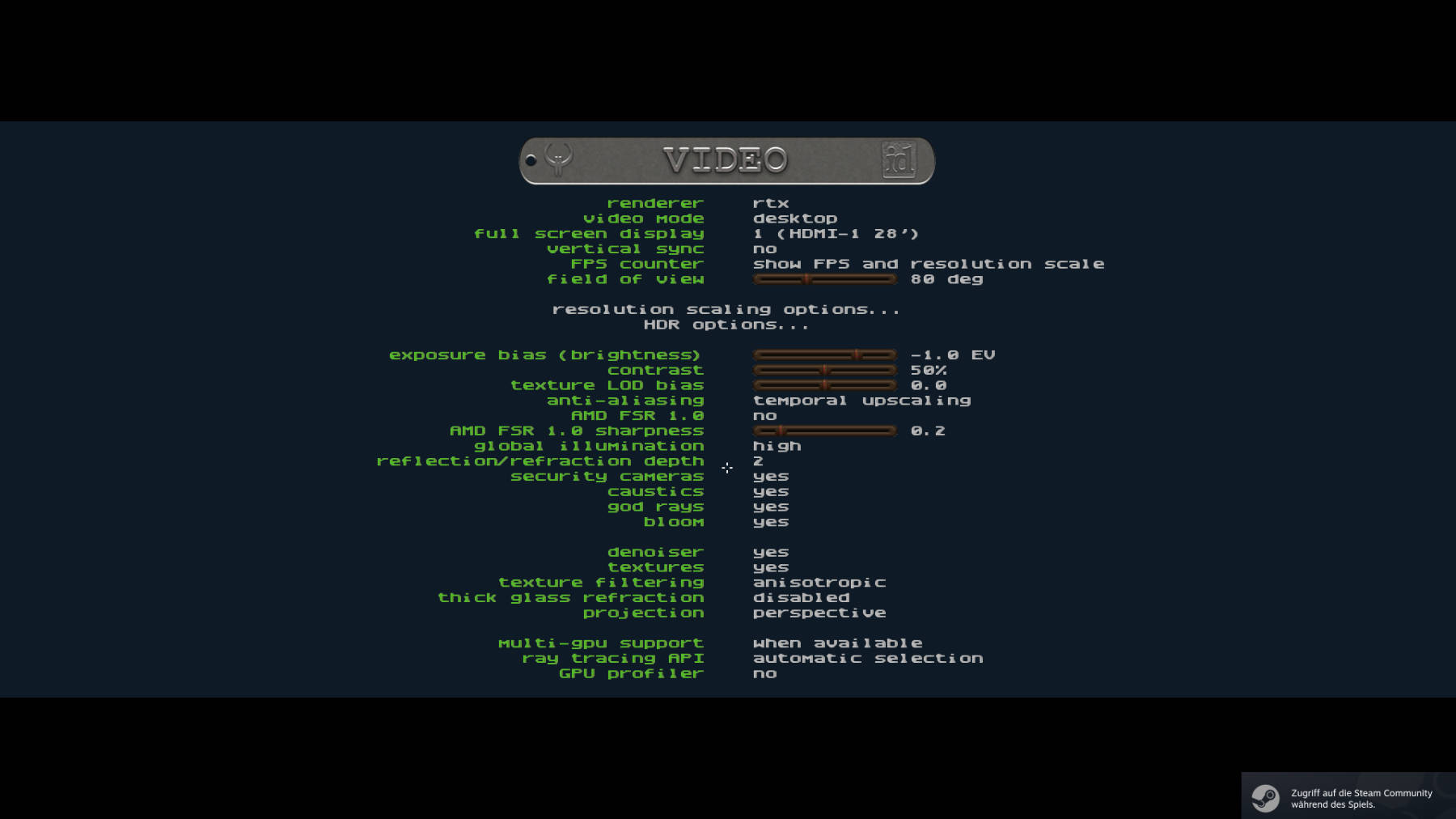 Linux Server-/Workstation-System Quake-2-RTX-4k-Settings (Image © PCMasters.de)
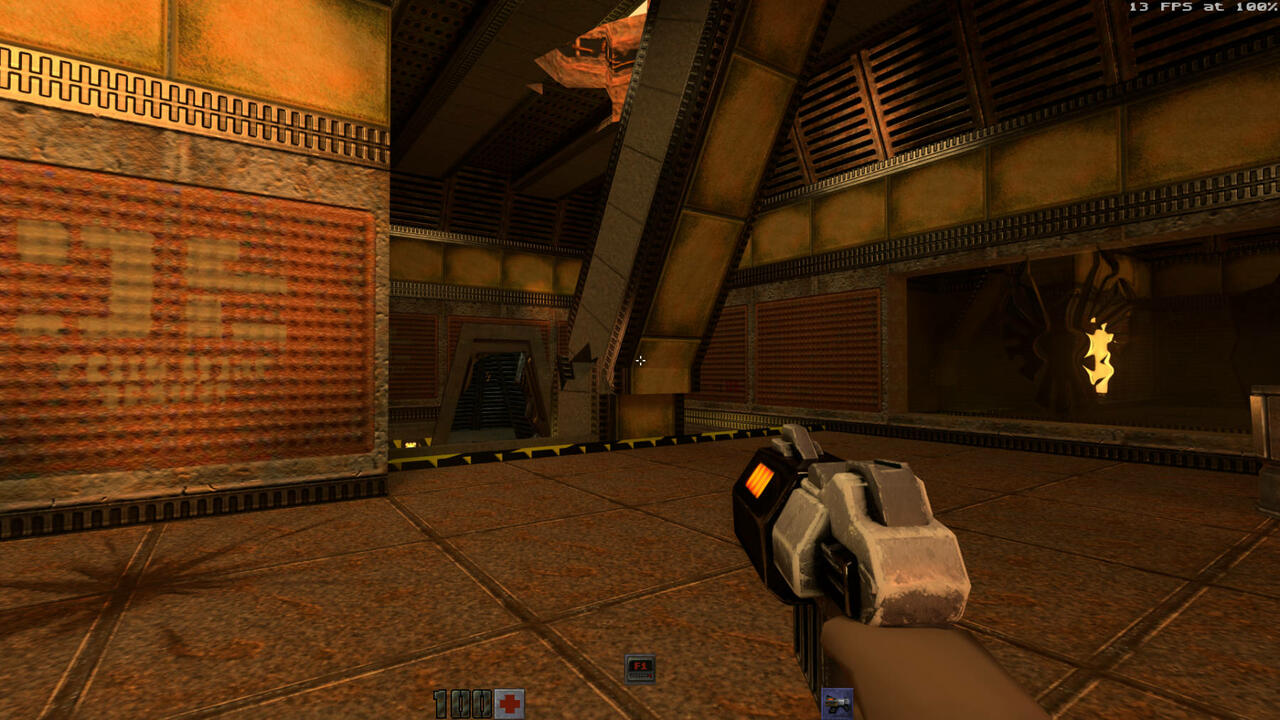
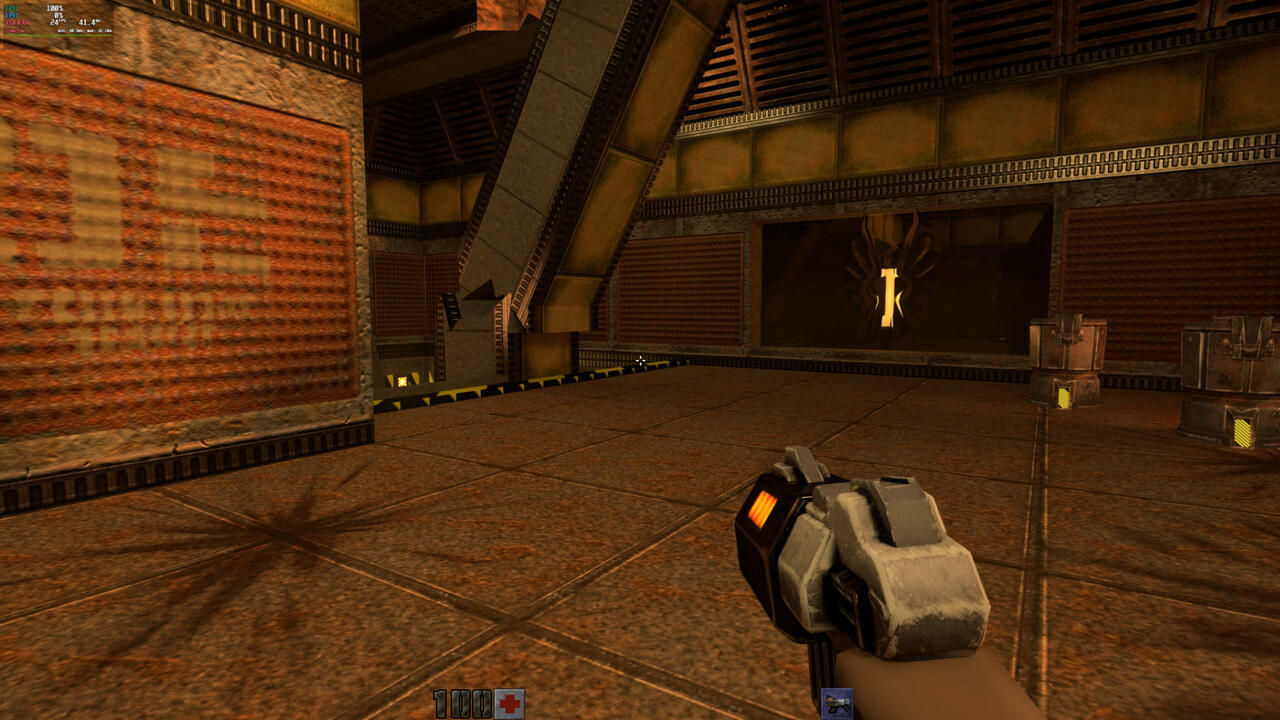
We took a look at Quake 2 RTX as an exotic game. The game started and worked rather poorly. As a flagship title for GeForce RTX, the Vulkan API can start the game and also translate it, but the game ran jerkily. This is a good example of the fact that not every game has to run optimally, especially if it is not popular and not optimized.
Linux game benchmarks
Once the games were selected, we installed them on the two systems. This process was simple for most of the games because we followed the typical Steam procedure. For GOG, we had to take the detour described in the Chapter "Starting non-Steam games ".
Below we have included all screenshots of the game results including settings in galleries. The table below provides an overview of the recorded frames per second (fps). We have dispensed with diagrams as there were only the two systems.
| AMD EPYC 9334 QS | Ryzen 7 7800X3D | |
| System name | Server/workstation system | Linux gaming setup |
| Graphics card | Radeon RX 7700 XT | Radeon RX 7900 XTX |
| Quake 2 RTX (Highest / no FSR1 / UHD) | 13 fps | 24 fps |
| Counter Strike 2 (Very high / UHD) | 42 fps | 91 fps |
| Counter Strike 2 (Very high / 1080p) | 127 fps | 233 fps |
| Starfield (Ultra / no FSR2 / UHD/4k) | 31 fps | 50 fps |
| Starfield (Ultra / FSR2 / UHD/4k) | 34 fps | 56 fps |
| Starfield (Ultra / no FSR2 / 1080P) | 52 fps | 76 fps |
| Starfield (Ultra / FSR2 / 1080P) | 50 fps | 74 fps |
| Shadow of the Tomb Raider (Ultra / Benchmark / 1080p) | 171 fps | 308 fps |
| Shadow of the Tomb Raider (Ultra / Benchmark / UHD) | 69 fps | 137 fps |
| Cyberpunk 2077 (UHD / SteamDeck) | 69.9 fps | 146.53 fps |
| Cyberpunk 2077 (UHD / Ultra) | 42.55 fps | 83.65 fps |
| Cyberpunk 2077 (1080p / SteamDeck) | 73.83 fps | 276.66 fps |
| Cyberpunk 2077 (1080p / Ultra) | 69.9 fps | 217.93 fps |
Server/workstation system benchmarks
Linux gaming setup benchmarks
Conclusion
Despite our positive experiences with the SteamDeck, we were a little skeptical at the beginning as to whether normal gaming PCs would also run well with Steam. The self-experiment showed impressively that this not only worked perfectly. What's more, we hardly had any problems and didn't have to fix anything in the console - it just ran. The games didn't crash and almost all ran at high refresh rates.
What didn't work, for example, was the use of higher frequencies on monitors. We had to rely on the 60 Hz default setting, but this was not a major problem.
Overall, we can warmly recommend Linux for gaming, especially for owners of AMD hardware. You can put a powerful ITX gaming system in your living room and operate it with the controller of your choice.
If you also have experience with gaming in Linux, please feel free to share your experiences with us in the comments.