

 Computer Forum
Affordable 4K UHD gaming monitor with solid features
Philips has a very wide range of monitors and the Evnia series also has the right products for different price ranges. The Envia 3000 series covers monitors with a diagonal of 23 to 27 inches. These are very inexpensive models designed for gamers with a limited budget. With the Evnia 3000 27M2N3800A we take a closer look at a 27" monitor from this series. It is available on the market for a sporty €253 (Affiliate), but offers exciting features and a good overall package, which we will discuss below.
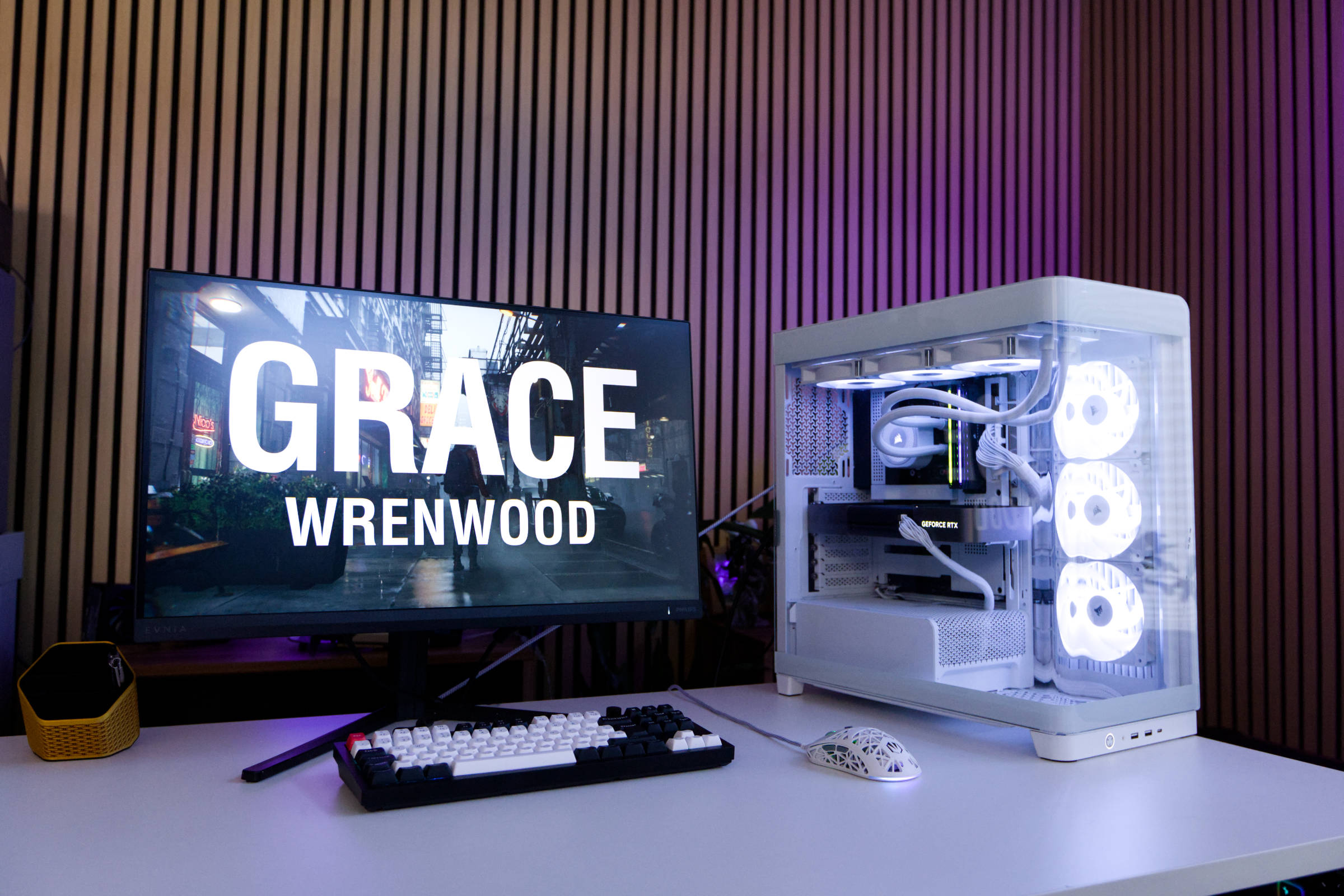 Philips Evnia 3000 27M2N3800A Test Review (Bild © PCMasters.de)
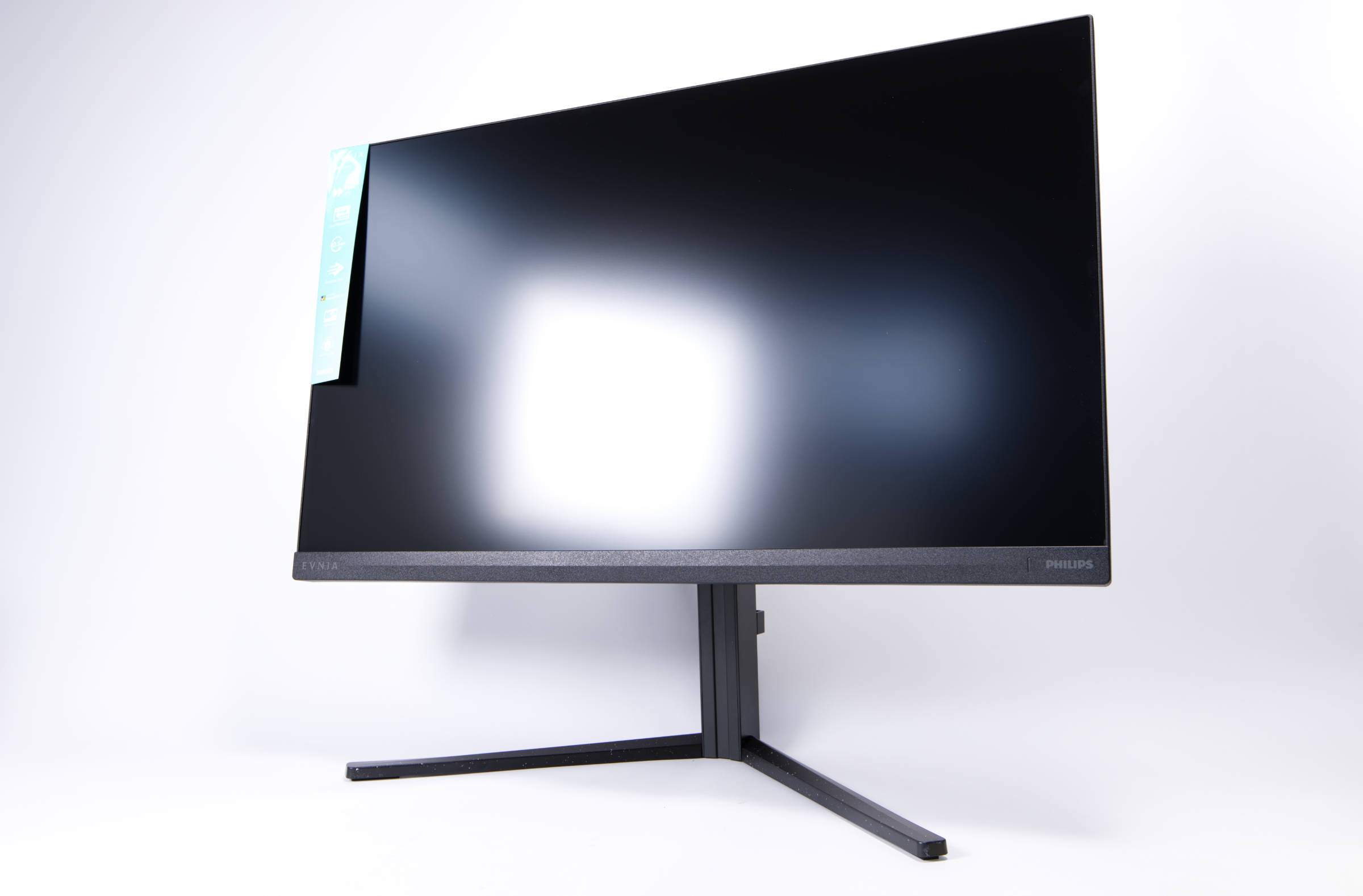
You don't get a QD OLED panel in this price segment, but Fast IPS. Nevertheless, the specifications are solid. Philips relies on a W-LED system for the backlight and the illumination seems very homogeneous to us. There are no dark areas on the sides. The static contrast ratio is a moderate 1,000:1 and the response time (GtG) of 1 ms is not outstanding, but it is okay. In terms of brightness, the monitor achieves around 350 nits in SDR mode and up to 450 nits in HDR mode, although "only" DisplayHDR 400 certification is available here. In terms of the color space, the manufacturer Philips specifies sRGB coverage of 130% and DCI-P3 coverage of 95%. We operated the monitor in the DCI-P3 color space. Features such as Low Blue Light, MultiView with Picture-by-Picture and Picture in Picture are also offered, but we consider these to be pointless for this diagonal.
 Philips Evnia 3000 27M2N3800A Review Test (Bild © PCMasters.de)
Dual mode for 3,840 x 2,160 (4K UHD) and 1,920 x 1,080 (Full HD)
Philips is taking the dual-mode route with several of its monitors. Users can switch between two modes, which greatly adjust the properties of the screen. In standard mode, the Fast IPS panel can reach the high 3840x2160 (4K UHD) with a pixel density of 163 ppi. This gives you a high resolution and a fairly sharp image. This is good for working and gaming if you focus on it. The refresh rate for the resolution can be set from 60 to 160 Hz. Thanks to AdaptiveSync, the refresh rate can also be synchronized in games for a smoother gaming experience.
If a higher refresh rate is important, you can switch to Full HD mode. The screen can then display a maximum of 1920x1080 and the pixel density drops to 82 ppi. What you gain, however, is the higher refresh rate of 320 Hz. For competitive shooters, the resolution is fine and the higher refresh rate is more important. At 320 Hz, it is by no means the fastest monitor, but this is a good option that makes the monitor more attractive.
 Philips Evnia 3000 27M2N3800A Anschlüsse (Bild © PCMasters.de)
Connection options
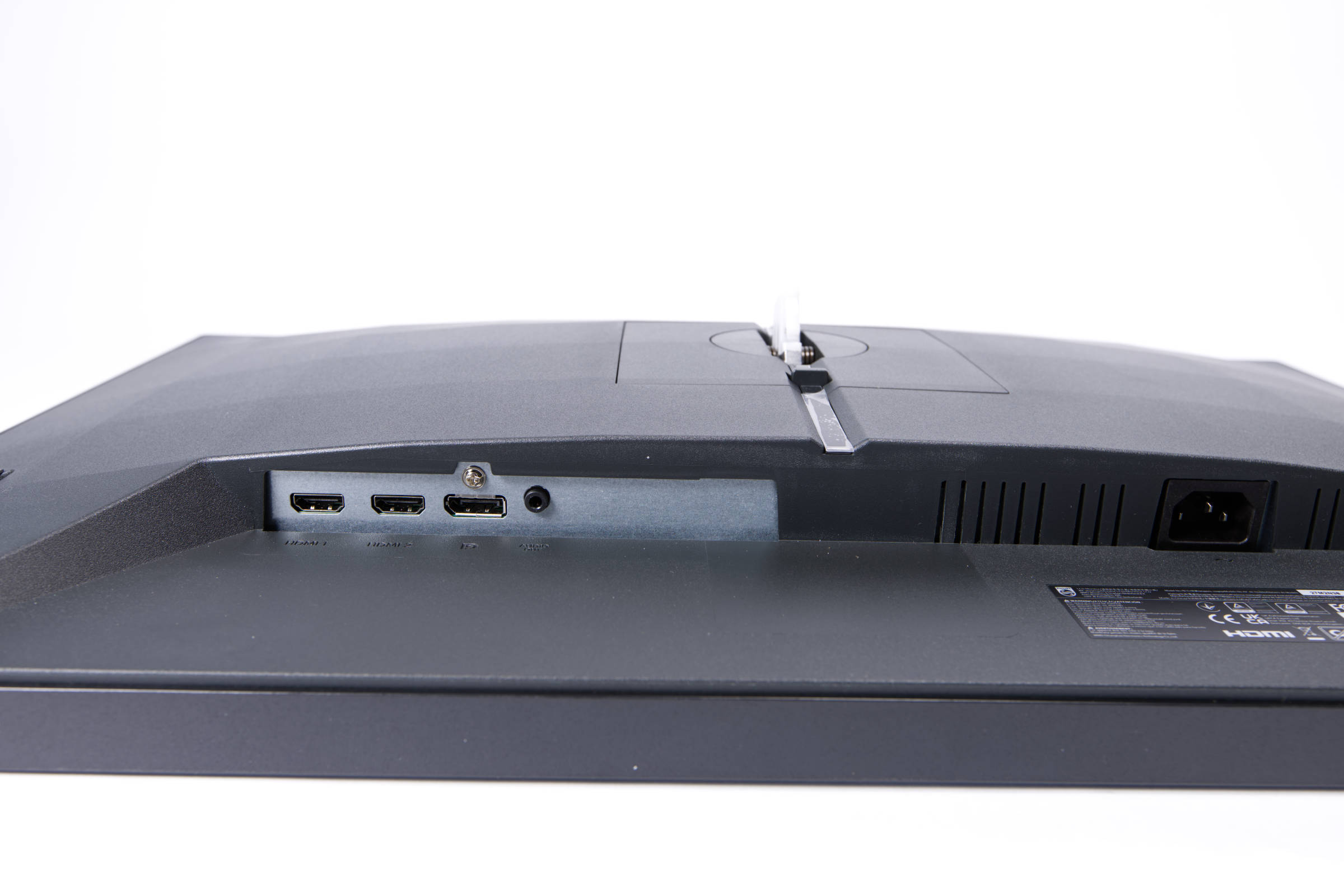
Philips holds back a little on the connectivity options for this monitor. We basically only get four connections on the back, three of which are used for the video input and the fourth is a headphone output.
For the connection to the graphics card, we get two HDMI 2.1 and one DisplayPort 1.4 port. Both are perfectly suitable for the targeted resolution and cover the entire spectrum of graphics cards that you would want to connect to them. These ports can also be used to transmit audio and AdaptiveSync and high refresh rates can also be used without any problems. There is no KVM switch or hub.
 Philips Evnia 3000 27M2N3800A Design (Bild © PCMasters.de)
Stand and mounting
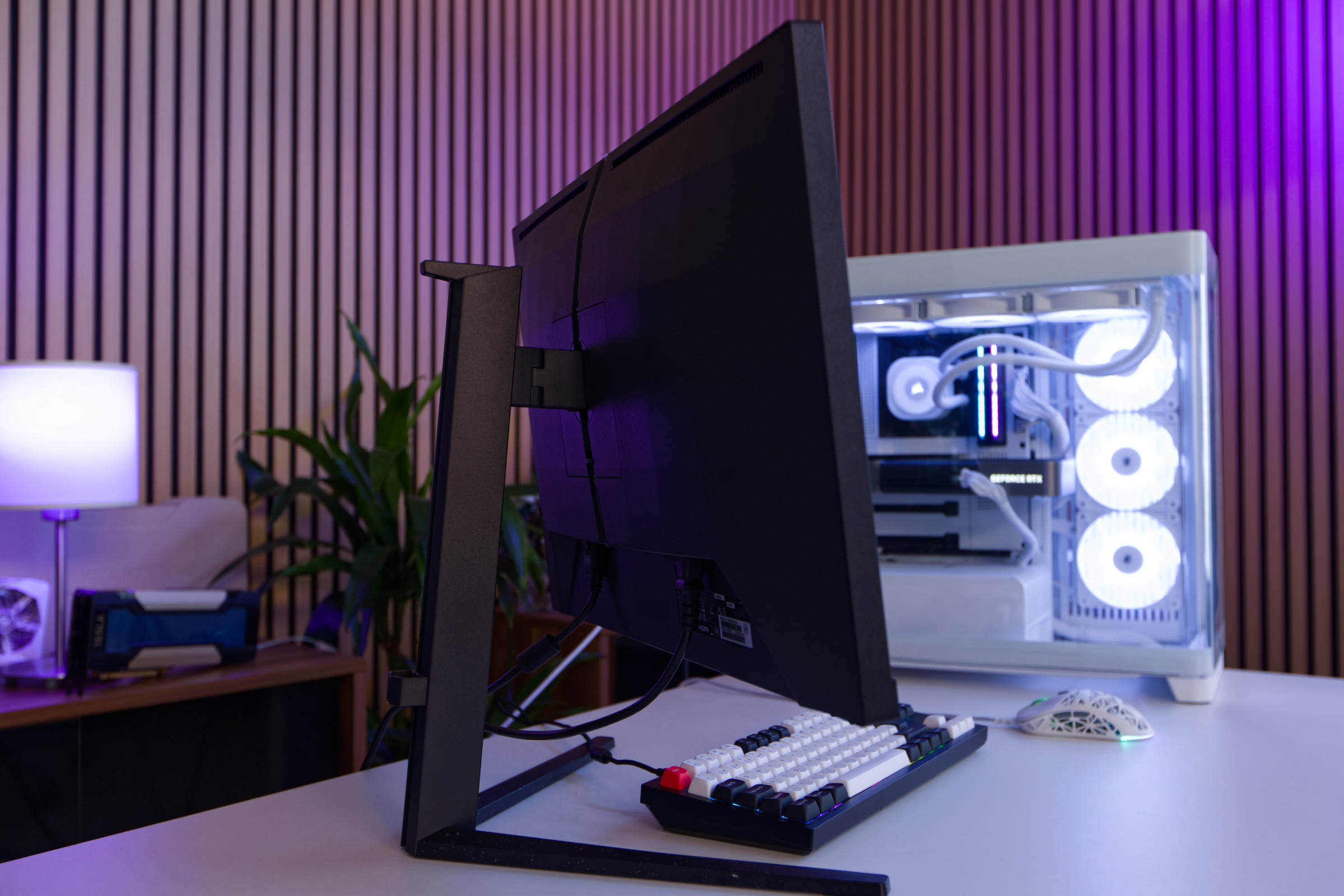
The stand is an important component of a monitor that has a strong influence on the overall impression of the device. If it is wobbly, the negative impression is reflected on the entire device. In the case of the Evnia 3000 27M2N3800A, Philips has opted for a thin-looking stand that is nevertheless very stable. However, as is so often the case, you have to assemble it first, which is a simple task.
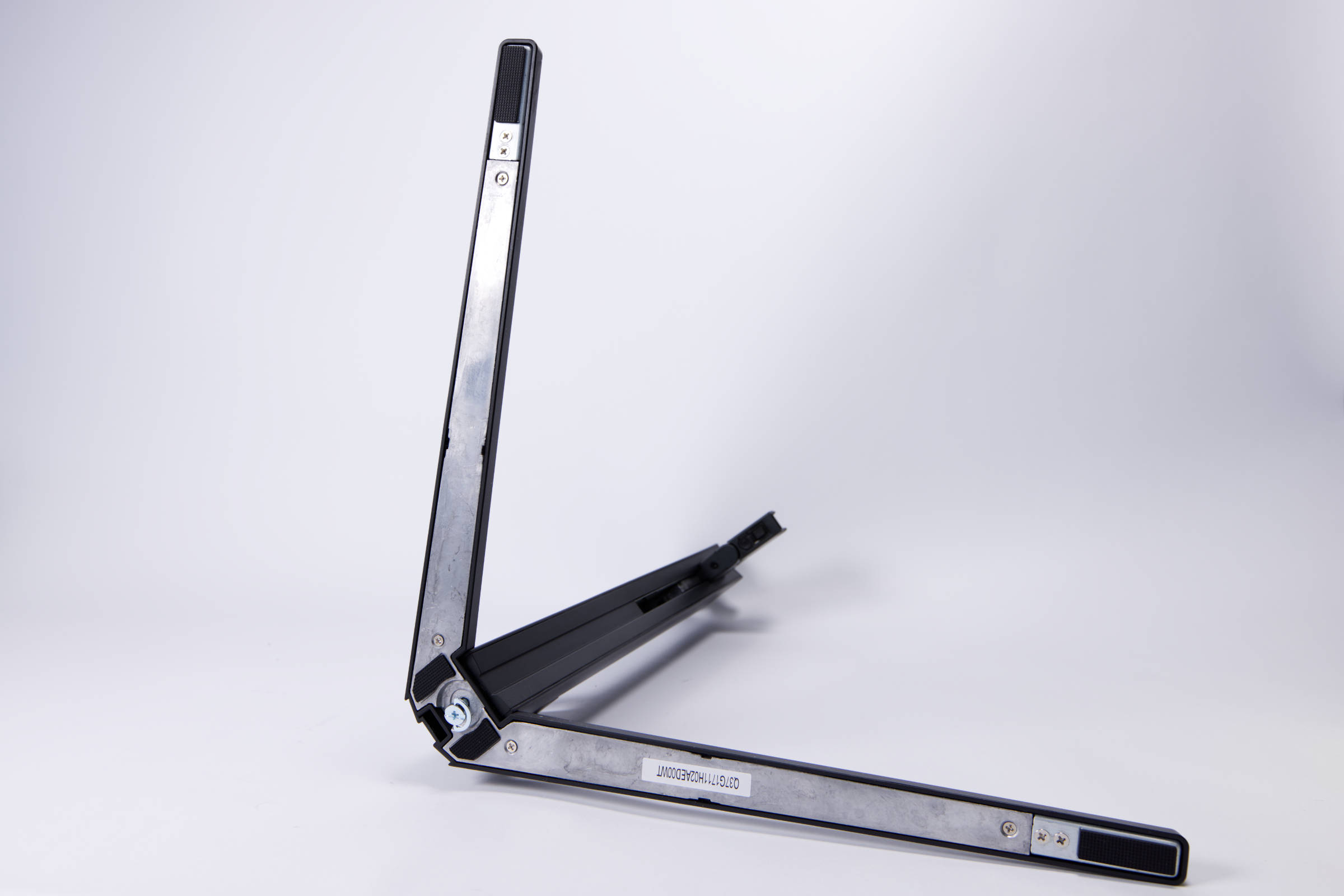 Philips Evnia 3000 27M2N3800A Standfuss (Bild © PCMasters.de)
The base consists of two parts that are inserted into each other. The upper part is a continuous bar and the lower part is a V-shaped element that is reinforced with metal from below. The upper element is then fixed to the underside with a screw that can be easily tightened without tools.
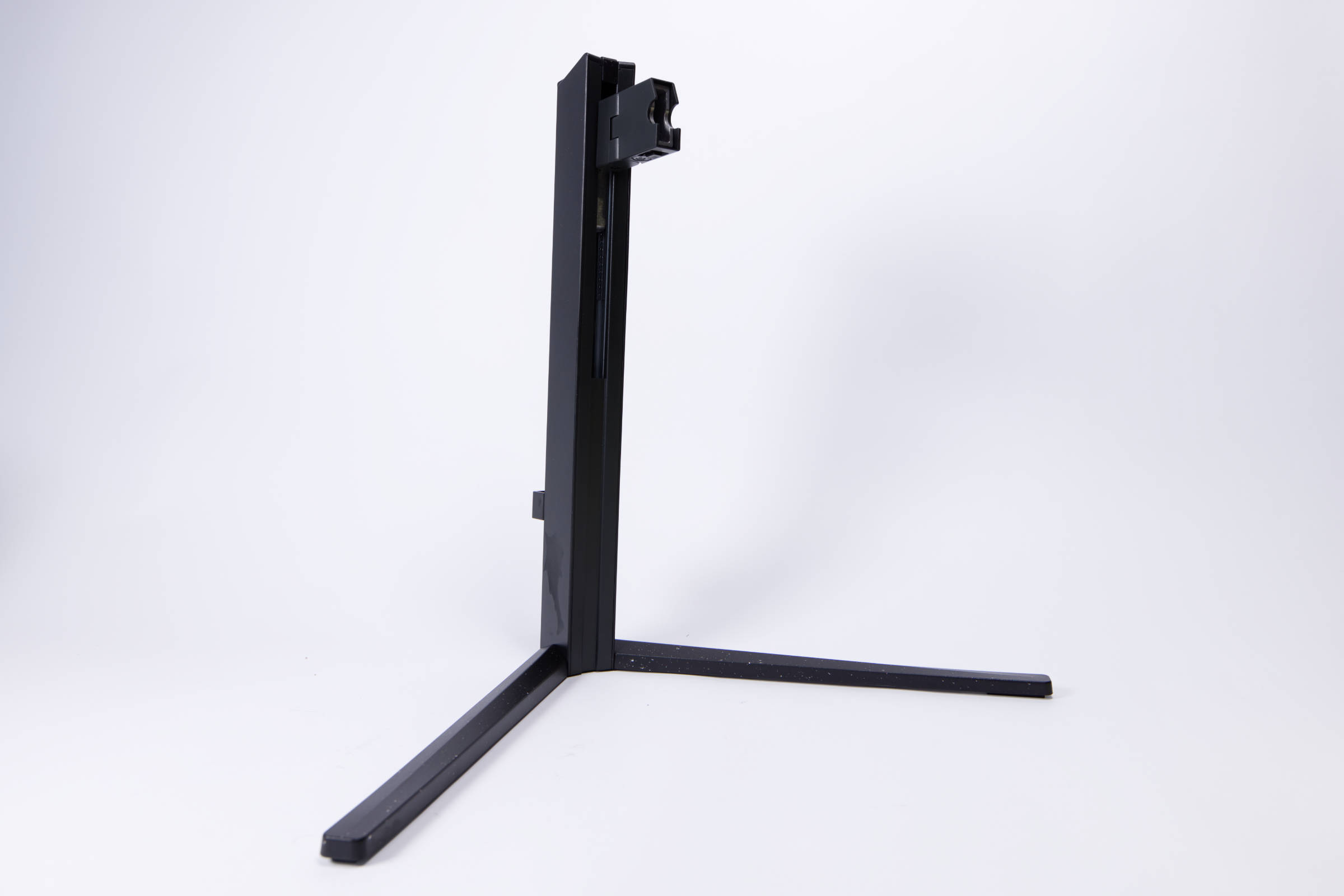 Philips Evnia 3000 27M2N3800A aufgebaut (Bild © PCMasters.de)
But that's not all, because the stand also allows the monitor to be rotated by 90°, which means it can then stand upright - ideal for programming environments or chats.
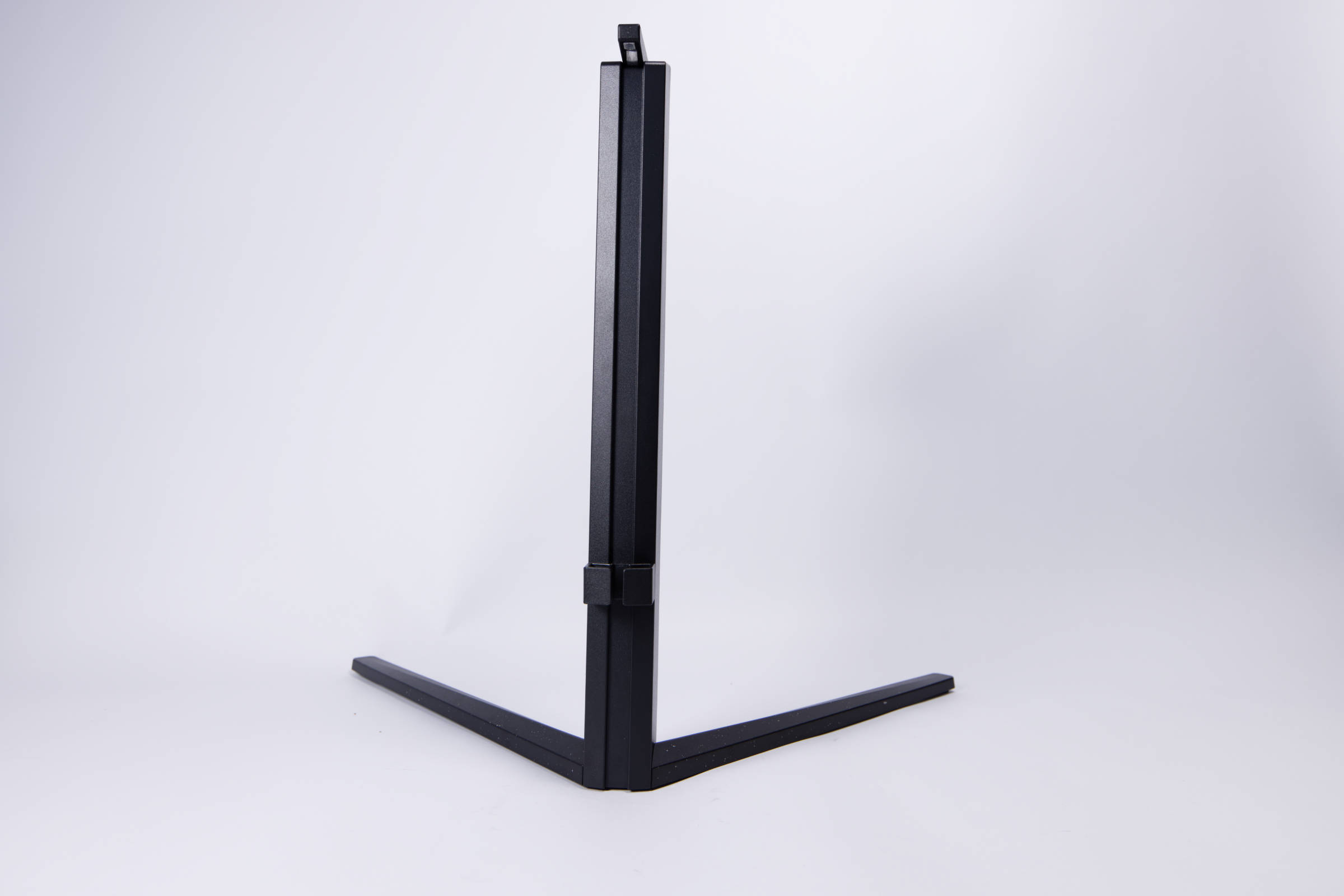 Philips Evnia 3000 27M2N3800A Kabelfühgrung (Bild © PCMasters.de)
The stand is supplied in two parts, which is very common. This saves space and the assembly is extremely simple. You simply place the upper part on the protruding element of the stand and then screw it on from the back.
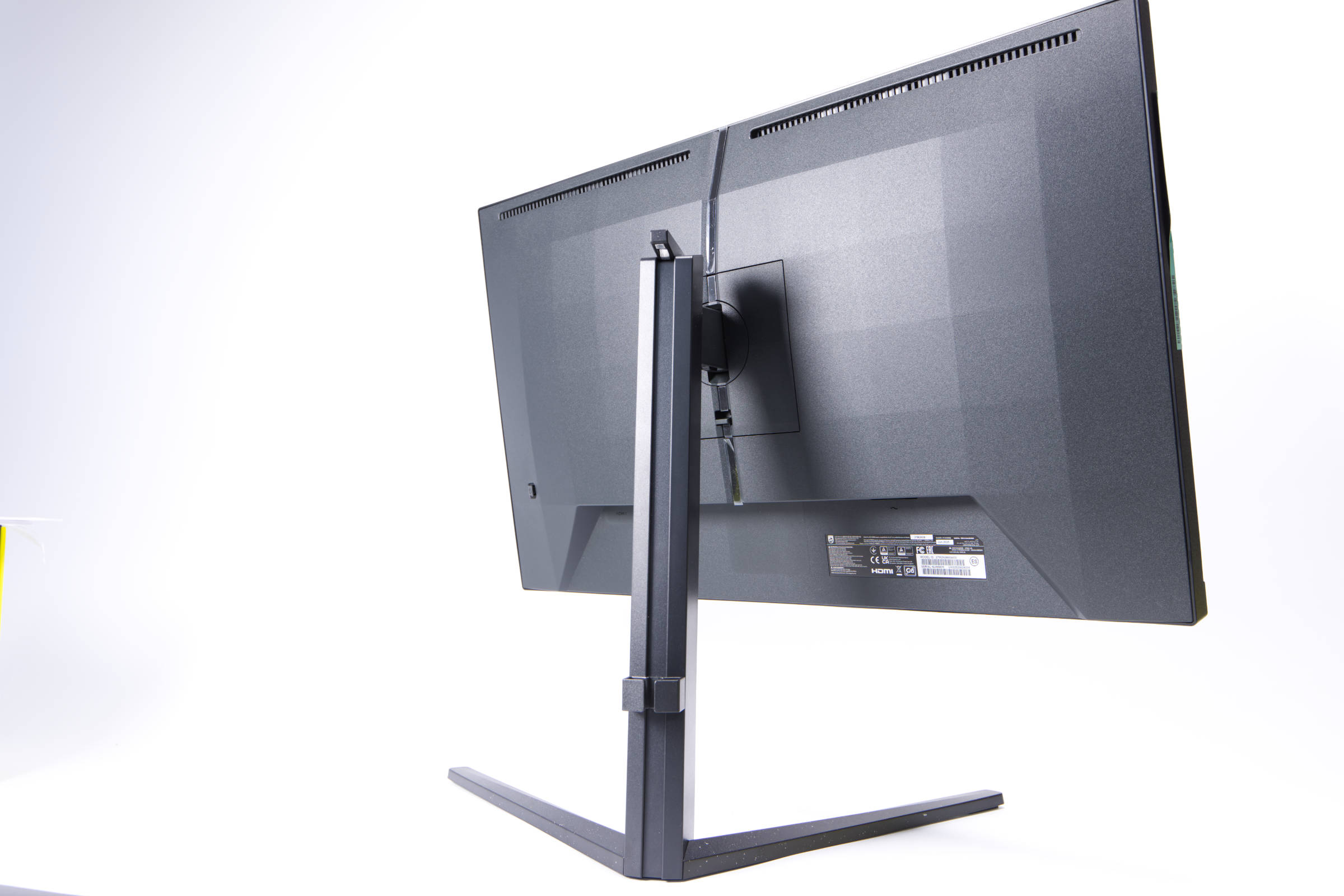 Philips Evnia 3000 27M2N3800A gedreht (Bild © PCMasters.de)
The outer layer of the stand seems to be made of plastic, in which lighter grains are also embedded, which has a very nice effect.
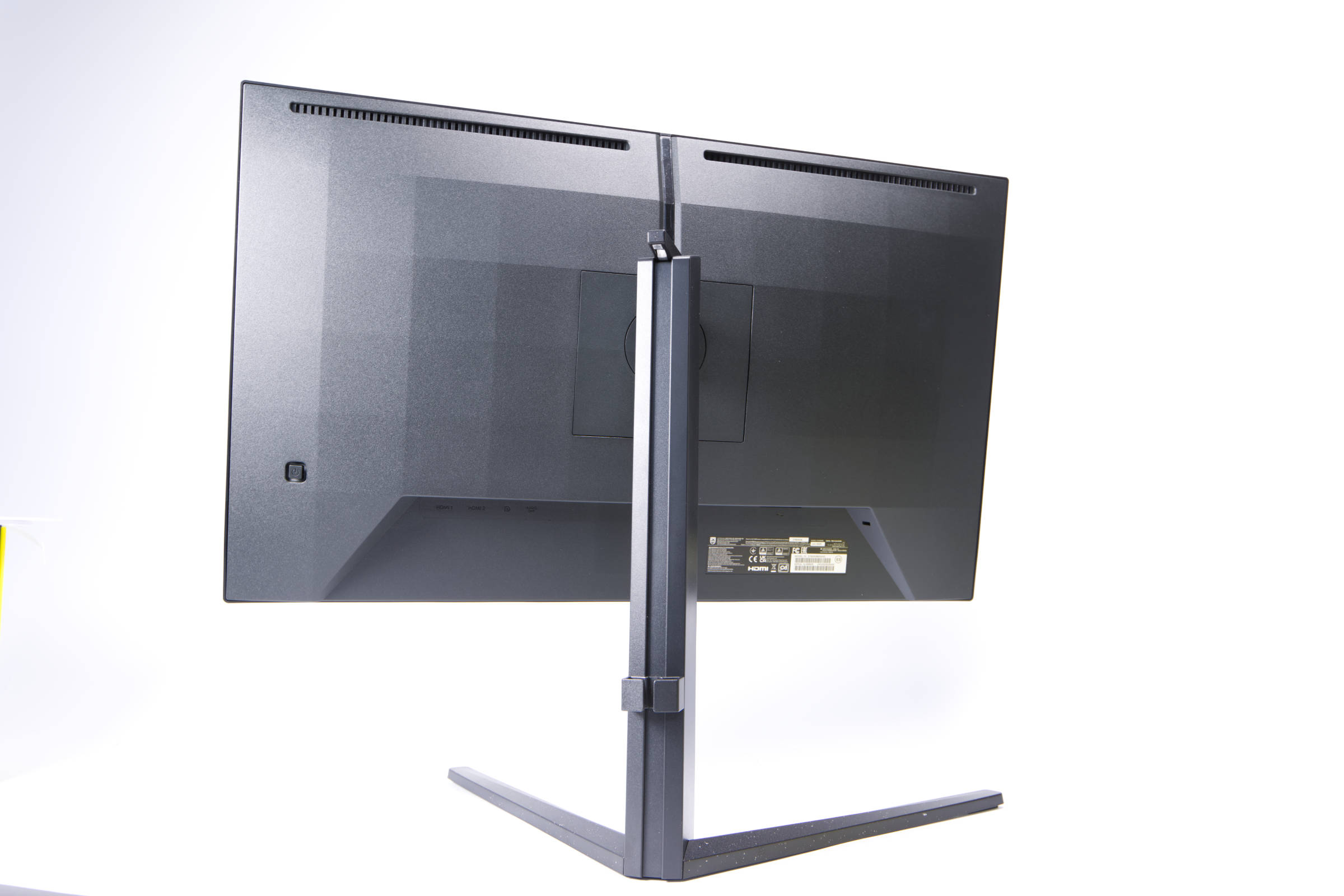 Philips Evnia 3000 27M2N3800A Drehung zur anderen Seite (Bild © PCMasters.de)
The stand is simply plugged into the monitor at the back, after which it hooks into the white holder on the monitor.
Philips Evnia 3000 27M2N3800A Drehung zur anderen Seite (Bild © PCMasters.de)
The bracket and stand are designed to adjust the height of the monitor by 130 mm from top to bottom. This mechanism is infinitely variable, which means that the height can be adjusted as required. Thanks to the swivel joint, the monitor can be rotated 30 degrees to the right and left. A tilt function of -5/20 degrees is also supported, which is also infinitely variable. This allows you to rotate the monitor to suit your desk.
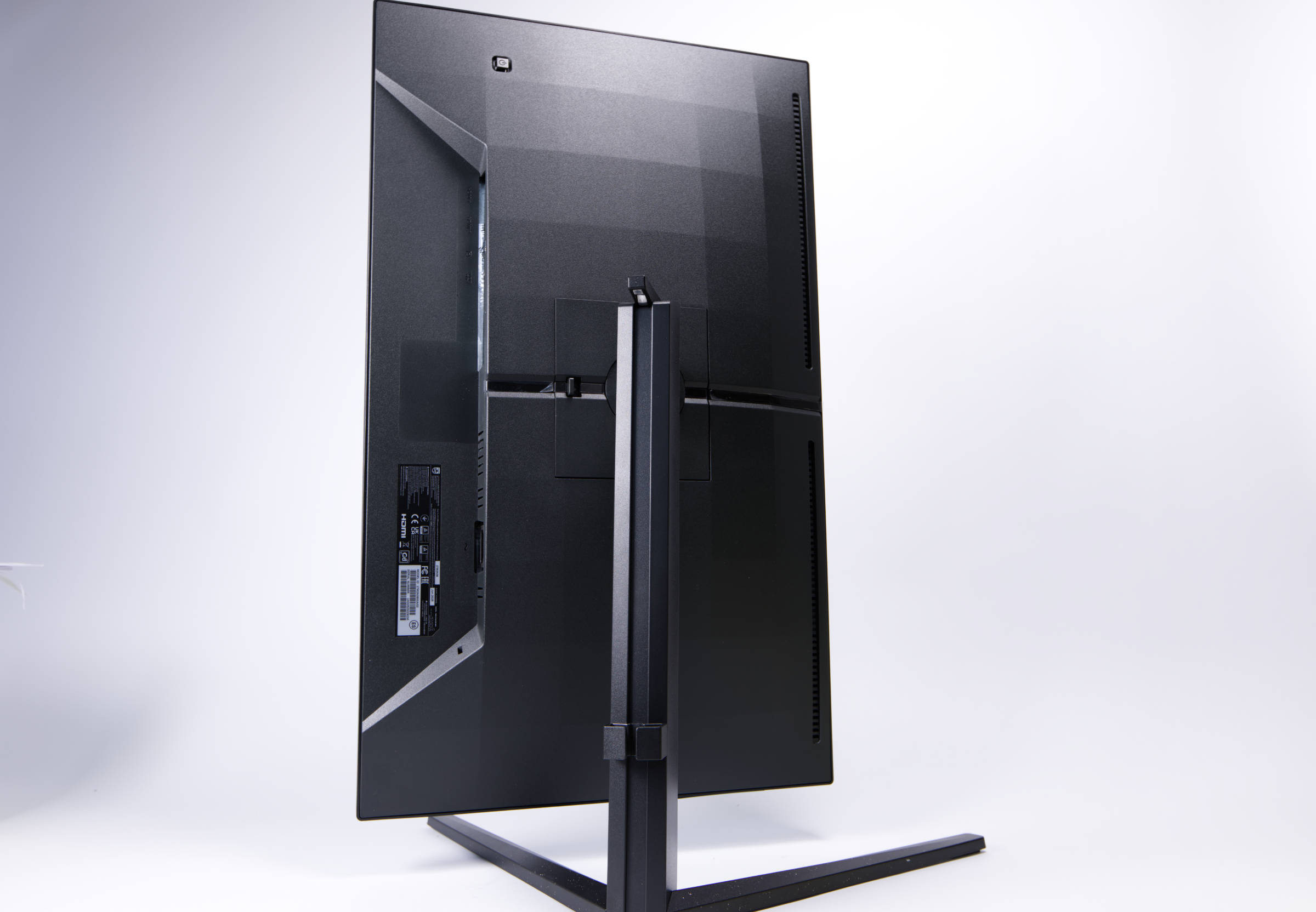 Philips Evnia 3000 27M2N3800A hochkant (Bild © PCMasters.de)
The entire monitor can also be rotated 90 degrees to the right or left, allowing it to be used in an upright position. The adjustment options are therefore optimal and the monitor does not wobble when you move the desk.
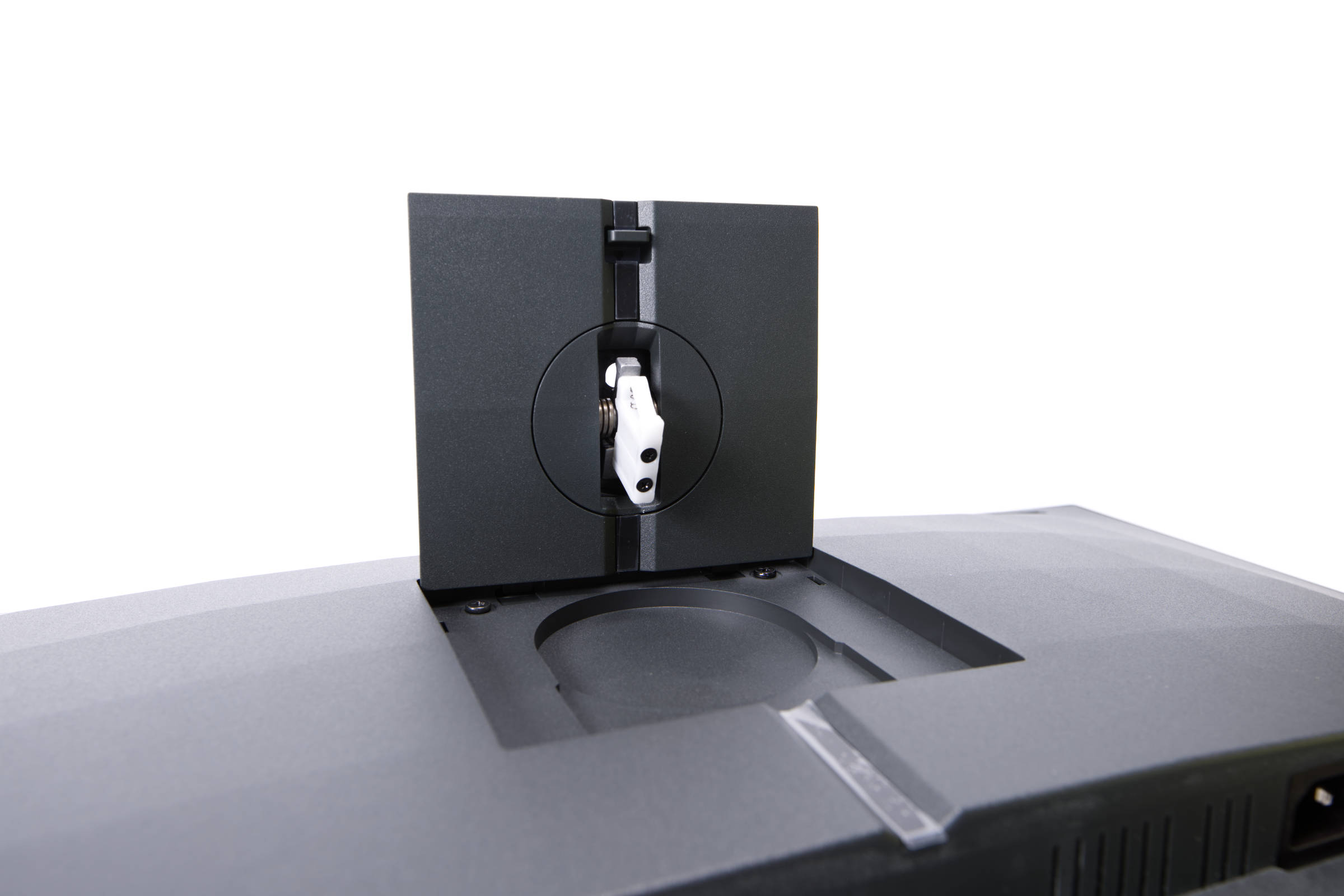 Philips Evnia 3000 27M2N3800A Standfusshalterung (Bild © PCMasters.de)
VESA mount
You can remove the stand mount on the back. Underneath are four screws that are already inserted in the monitor. These can be used to attach a monitor arm that supports the VESA mount with 100x100 mm hole spacing.
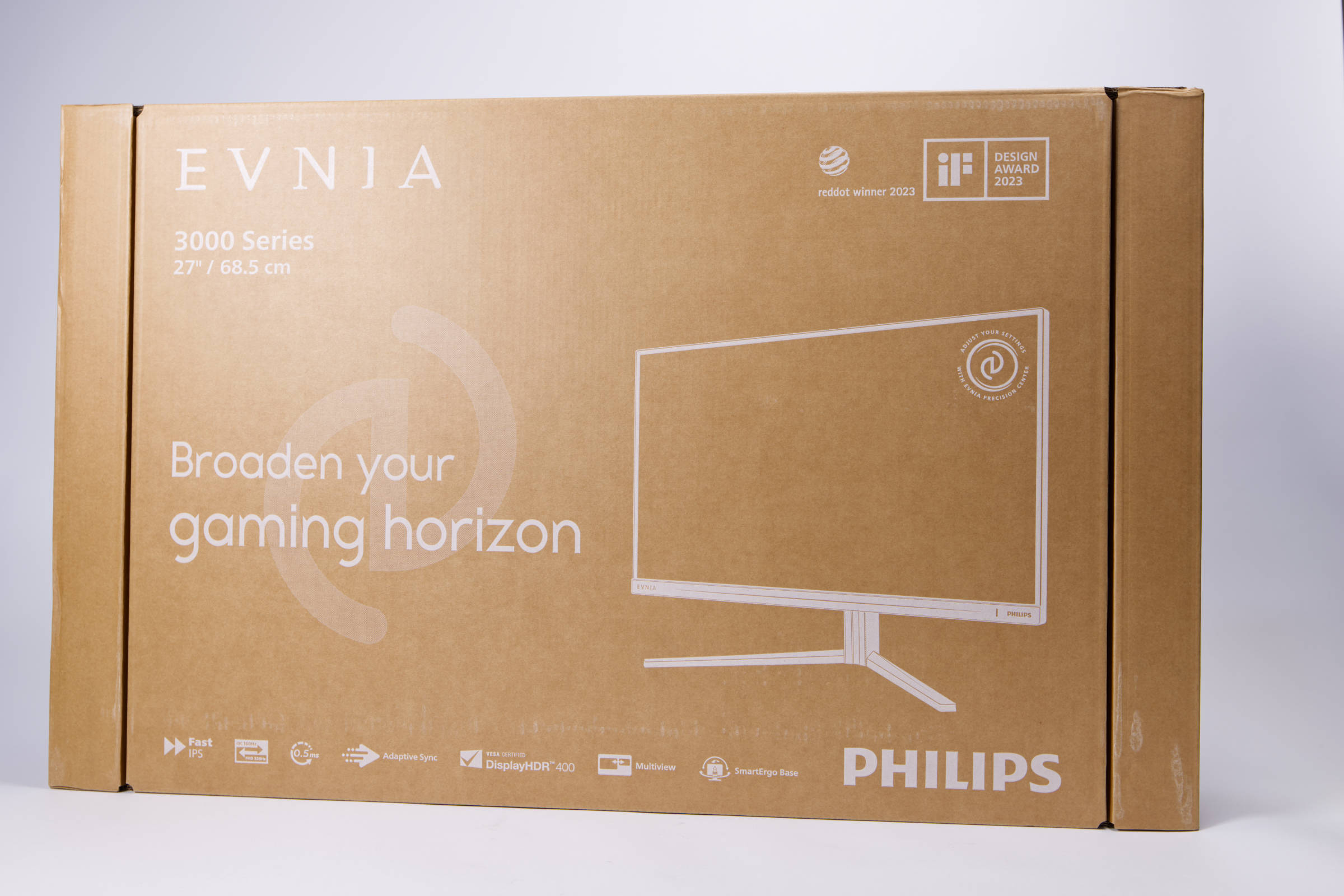 Philips Evnia 3000 27M2N3800A Verpackung (Bild © PCMasters.de)
Packaging & scope of delivery
The Evnia 3000 27M2N3800A comes in a neutral looking cardboard box, which is also compact and easy to carry. Philips uses white color for the print. Some specifications and features are shown as well as a simple picture of the monitor.
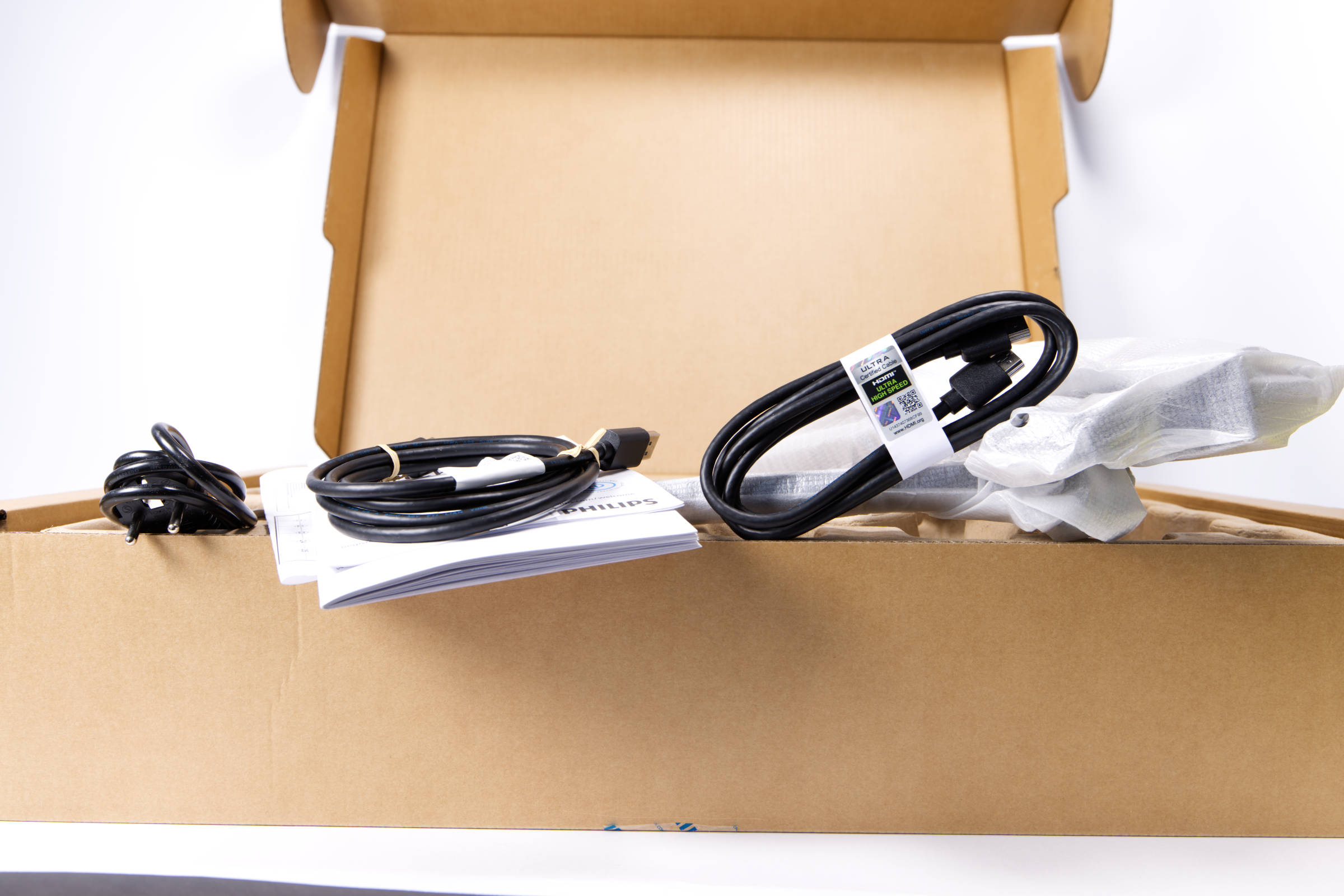 Philips Evnia 3000 27M2N3800A Lieferumfang (Bild © PCMasters.de)
The box is opened like a box with a flap. Inside, there is another layer of cardboard to protect the monitor.
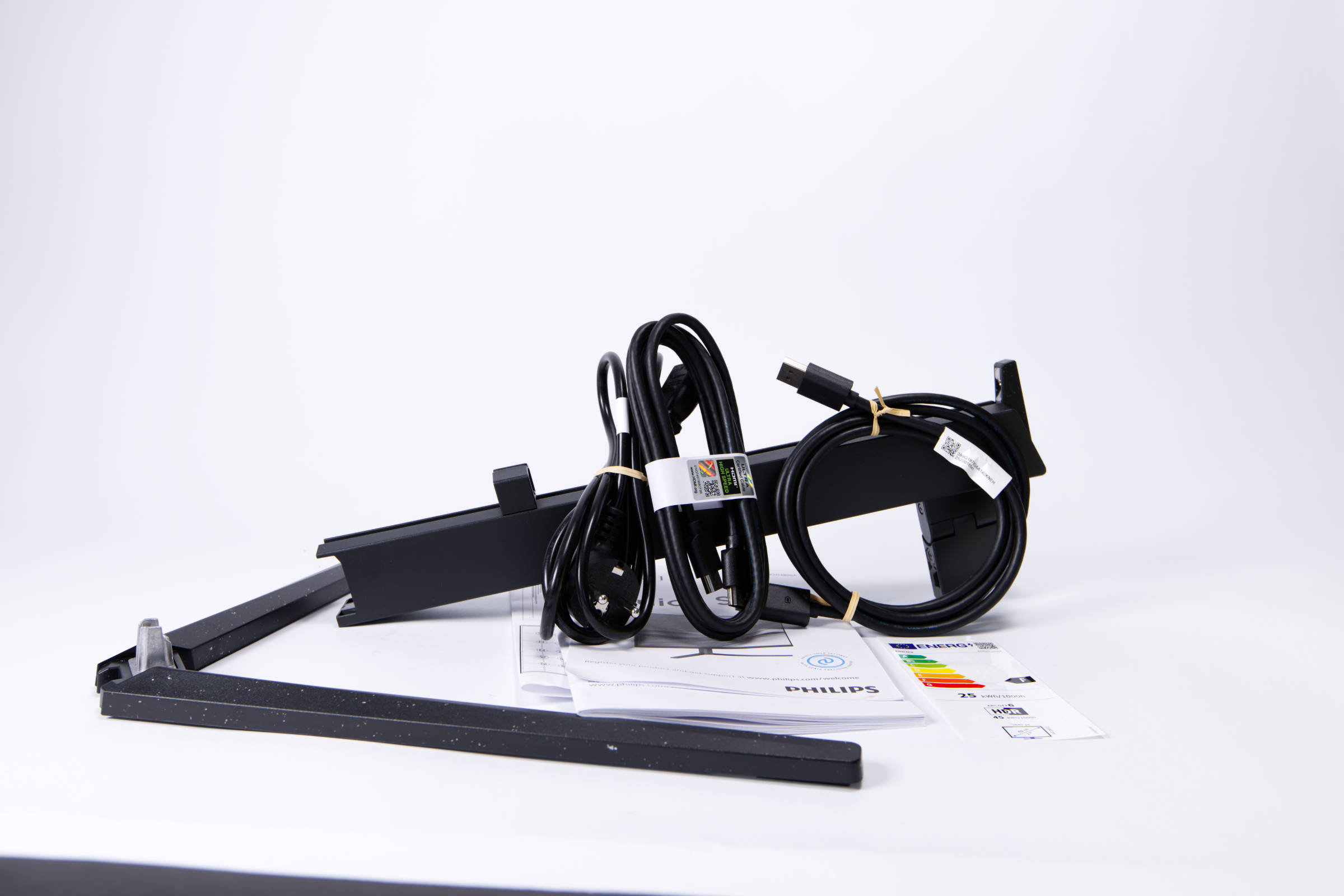 Philips Evnia 3000 27M2N3800A Lieferumfang ausgepackt (Bild © PCMasters.de)
On top of this tray we find a manual, the stand and a DisplayPort and HDMI cable and then the power cable. The scope of delivery is manageable, but everything necessary for operation is included.
Test systems
We used the following test systems for this test:
Gaming Setup
- CPU**: AMD Ryzen 7 9700X
- CPU cooler: Corsair Nautilus 360 RS ARGB
- Mainboard: NZXT N7 B650E White
- RAM**: Corsair Dominator Titanium RGB DDR5 6000
- SSD**: WD SN850
- Graphics card: NVIDIA GeForce RTX 5080 FE
- Power supply**: NZXT C1200 Gold
- Case**: Corsair FRAME 4500X RS-R ARGB
- Operating system**: Windows 11 24H2
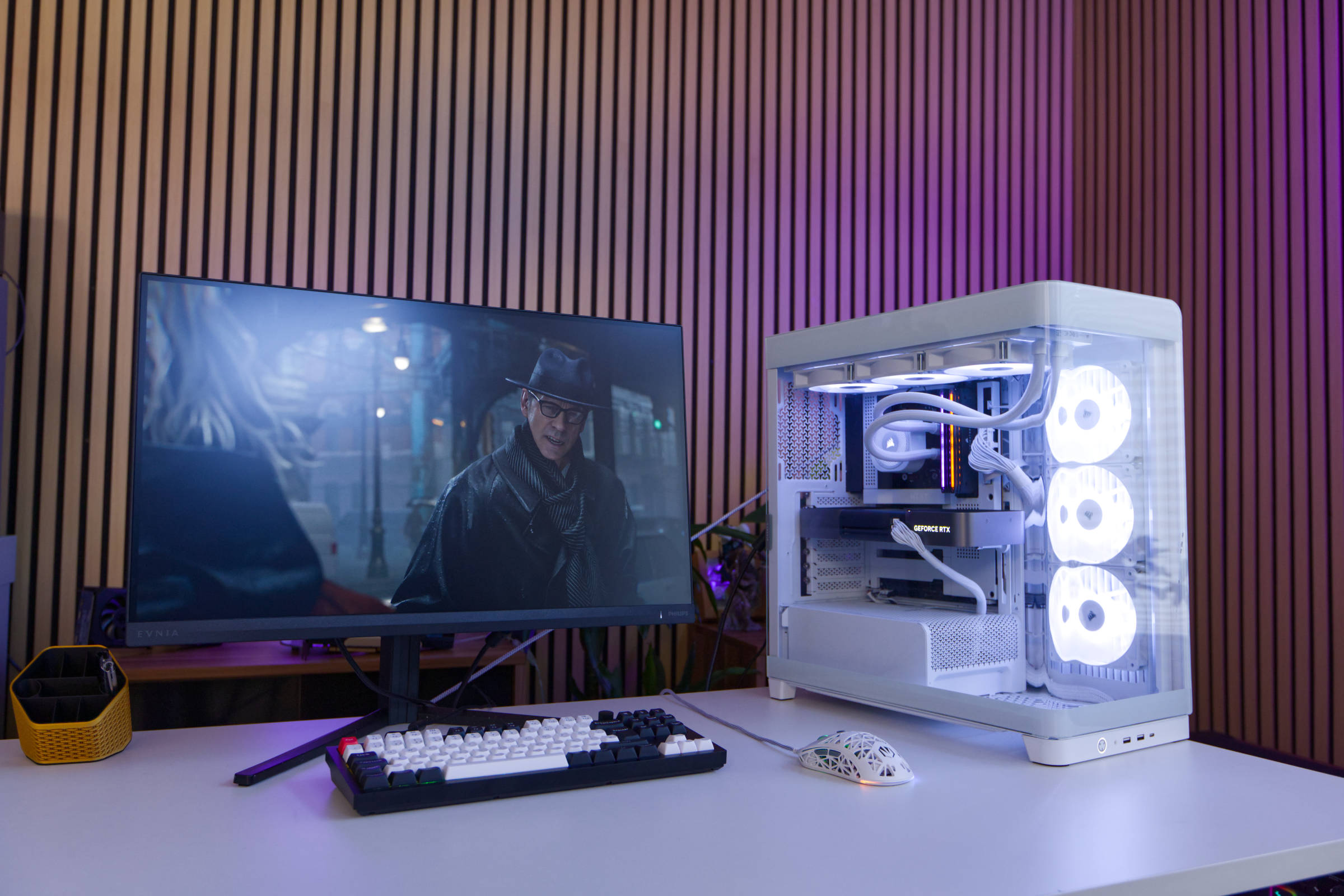 Philips Evnia 3000 27M2N3800A Erfahrungsbericht (Bild © PCMasters.de)
Evnia 3000 27M2N3800A review
The Evnia 3000 27M2N3800A is a monitor suitable for everyday use at a very attractive price. In our opinion, the 27" Fast IPS panel offers a good resolution, which is particularly suitable for working on a PC. We wouldn't downgrade to Full HD for gaming in order to get the higher frame rate, as this isn't decisive for us and would be the wrong compromise. The monitor performs pretty well in everyday use, but the rich black tones are lacking once you get used to QD OLED. What we found annoying was the glare on the otherwise matte surface of the panel. Compared to the AGON PRO AG276QZD2, this bothers us more, but the Evnia 3000 is much sharper compared to the 2560x1440 (WQHD) resolution with 110ppi of the AG276QZD2, which can be seen in the following picture. This is less noticeable when gaming, but the 4K UHD is much more pleasant when working with text and images.
What also bothered us at first was the white LED on the front, which is actually only intended to signal that the monitor is on. The illuminated area is large and at full LED brightness it is far too bright. Fortunately, it can be set from level 4 to level 1 or switched off completely in the OSD menu. We opted for level 1, which wasn't that annoying.
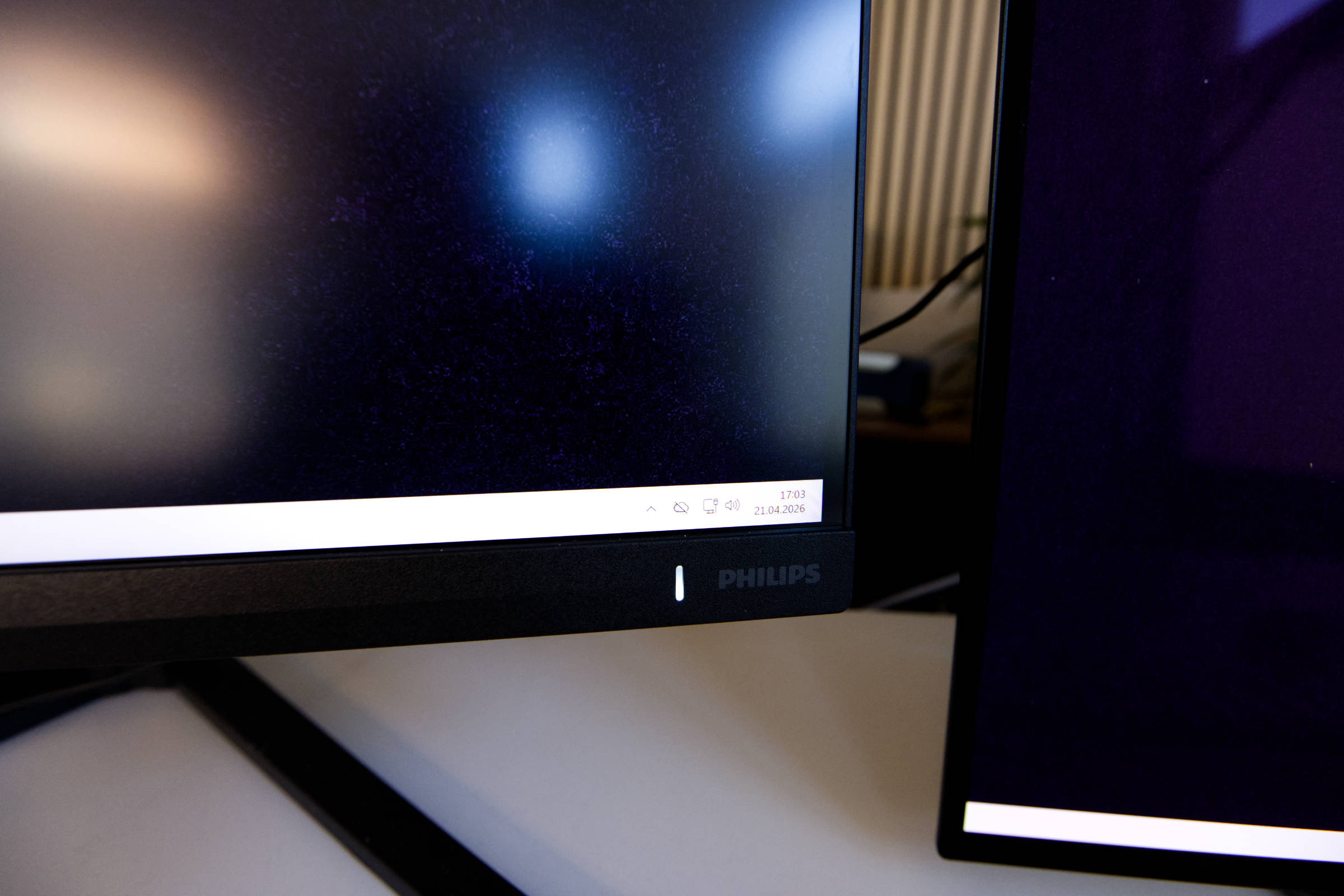 Philips Evnia 3000 27M2N3800A Strom LED Stufe 4 (Bild © PCMasters.de)
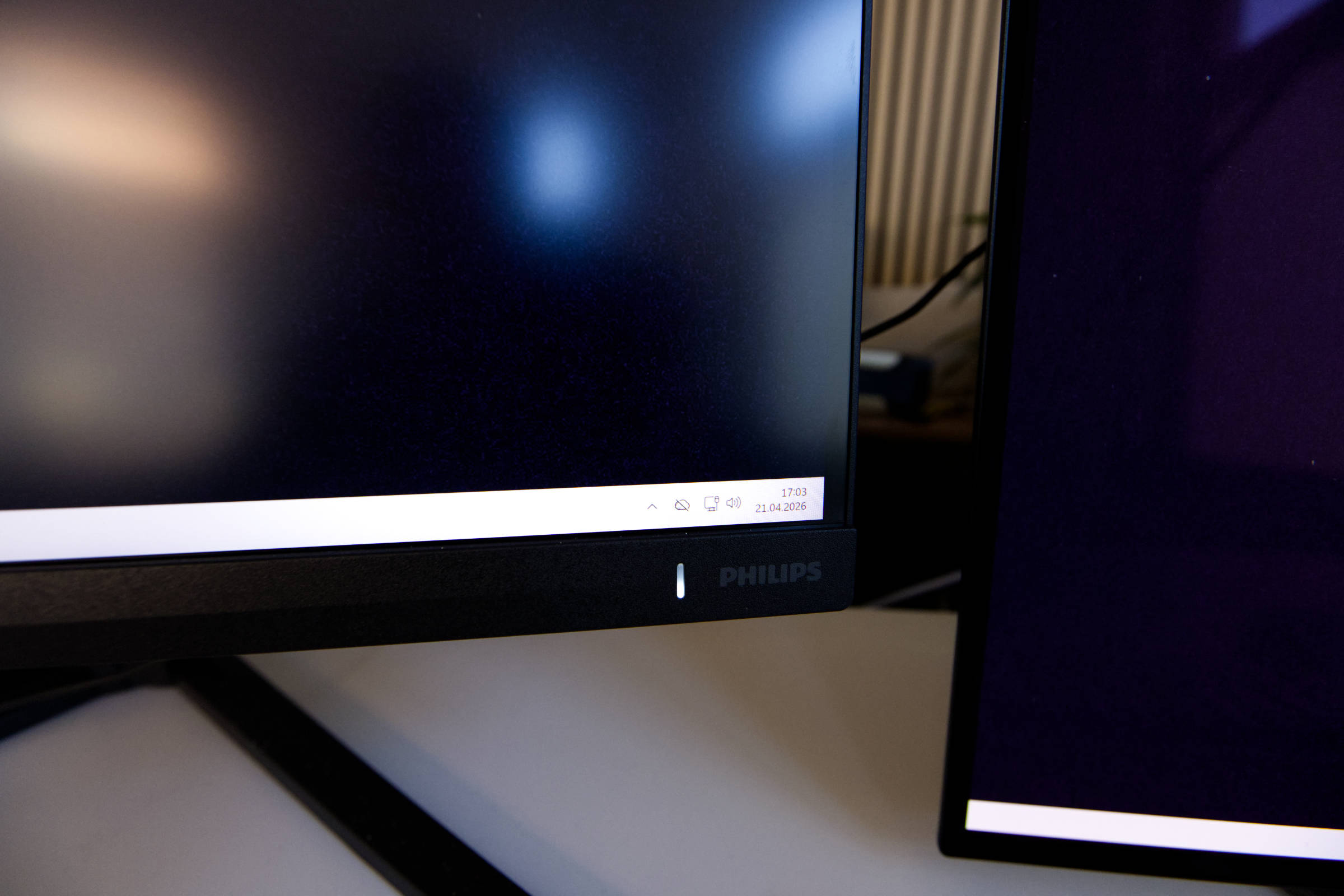 Philips Evnia 3000 27M2N3800A Strom LED Stufe 1 (Bild © PCMasters.de)
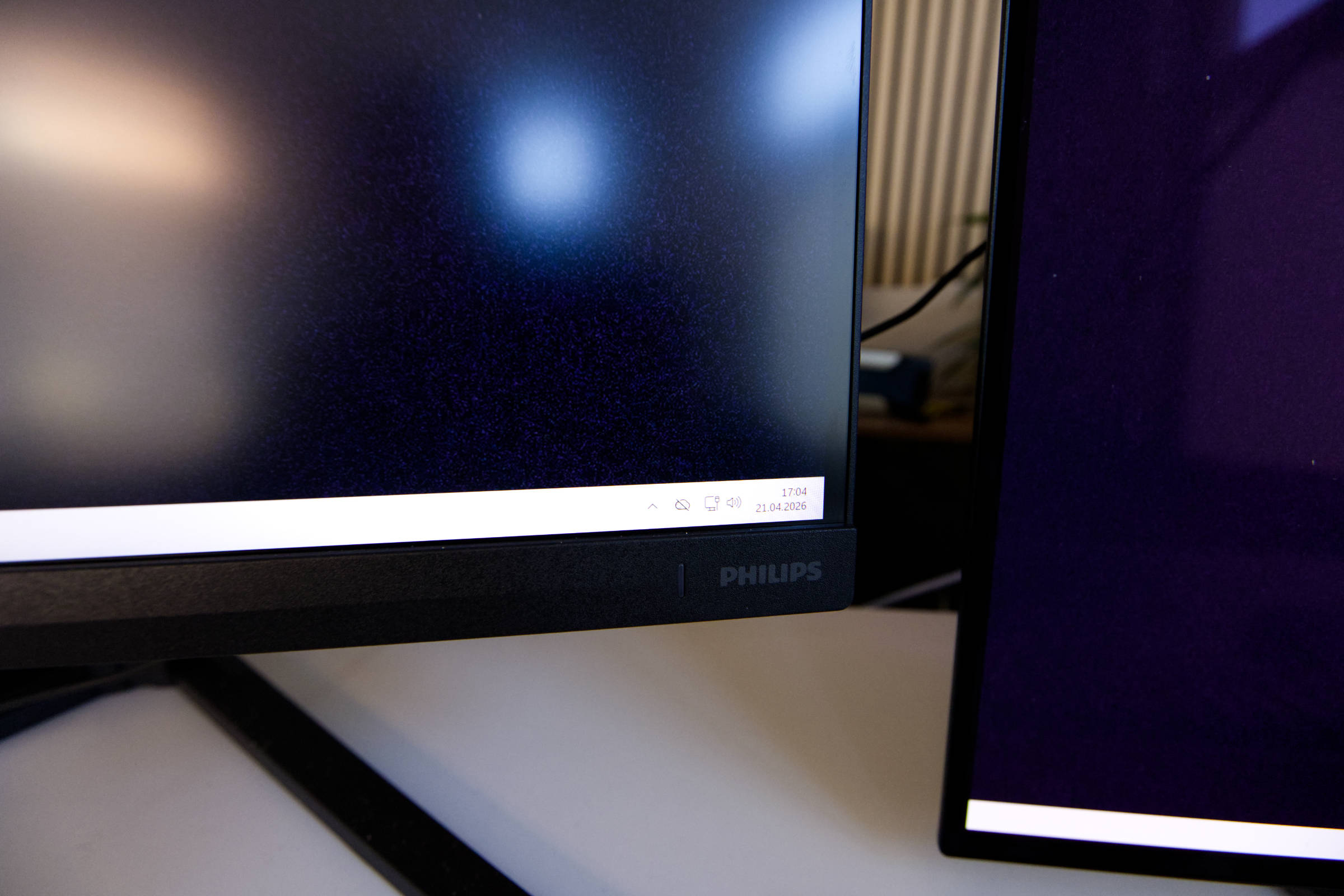 Philips Evnia 3000 27M2N3800A Strom LED Stufe 0 (Bild © PCMasters.de)
The HDR400 mode is only useful under Windows once the HDR calibration has been carried out. In our opinion, the standard option is useless because everything simply has poor contrast and we prefer to work in SDR mode. After activating HDR, you can also make further adjustments in the OSD and load the DisplayHDR400 profile, for example, but we found working with it in Windows to be bland. In games, however, it looks much better and the distance to the QD OLED is smaller when watching HDR content. The following image shows the Evnia 3000 27M2N3800A on the left and the AGON PRO AG276QZD2 on the right using the DisplayHDR profile on both monitors.
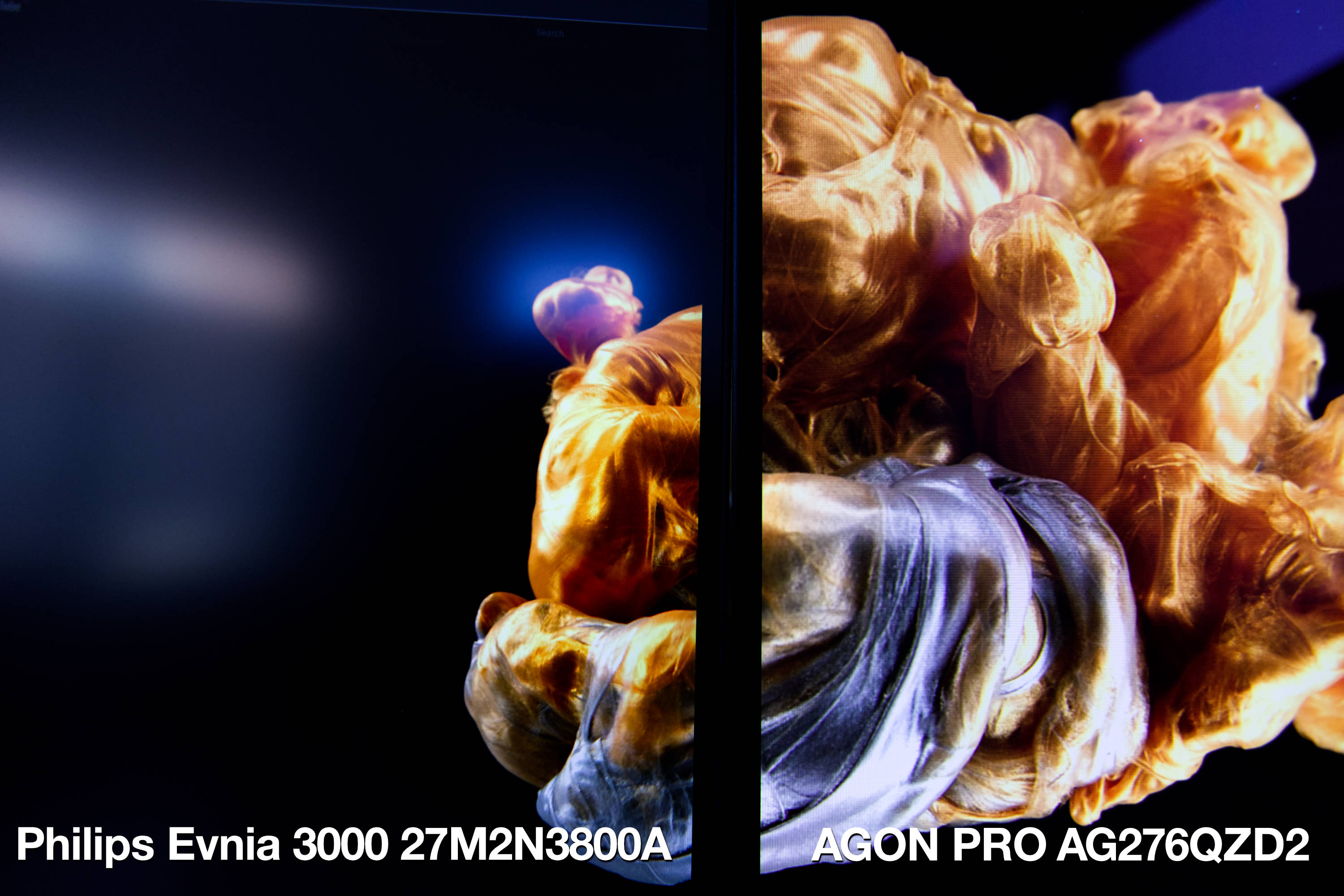 Philips Evnia 3000 27M2N3800A vs AGON PRO AG276QZD2 (Bild © PCMasters.de)
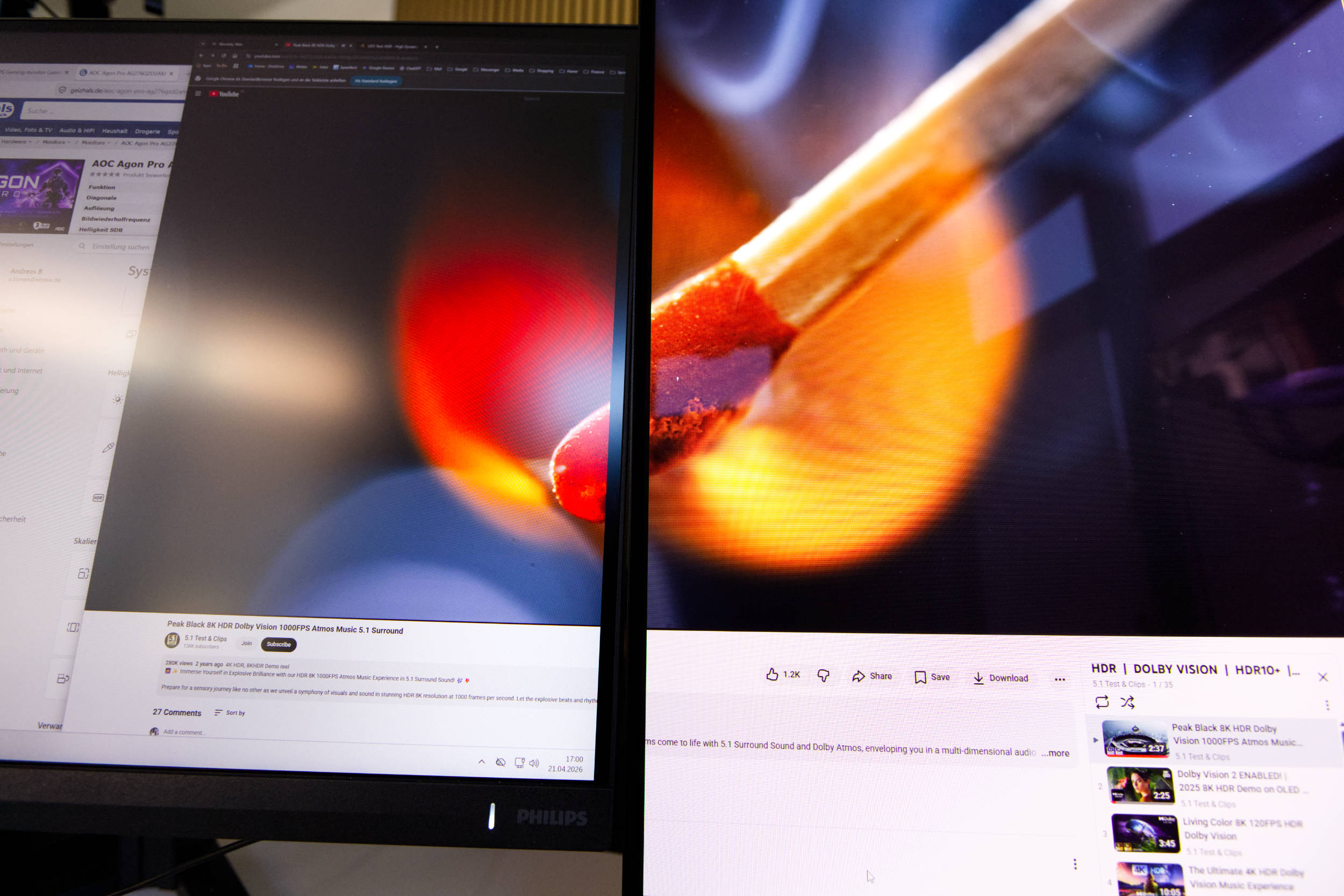 Philips Evnia 3000 27M2N3800A vs AGON PRO AG276QZD2 2 (Bild © PCMasters.de)
The stand is acceptable for the display weight and the display does not wobble on the table. The infinitely variable height adjustment also works well and the mechanism holds the monitor firmly at the right height. The option to stand the monitor upright is also good and very useful. The design of the stand saves space and matches the monitor.
Games are fun with the monitor, unless you are dazzled by the sun or other light sources. The 160 Hz refresh rate is perfectly adequate for us, as many modern titles in 4K UHD don't necessarily need to run faster than 150 fps and with AdaptiveSync, the frame rate is synchronized with the graphics card, which is more pleasant for shooters.
Speakers
Many monitors have integrated speakers, even if they rarely offer acceptable sound. It is even rarer to find precise information about the drivers inside. Philips only states that the speakers are two 2 W drivers. There is no more information on this. Audio is transmitted via HDMI or DisplayPort. You have to adjust the volume in the OSD menu, as this is set to off or minimum.
Somewhat surprisingly, the speakers sound better than we expected from a €250 monitor. The sound is not flat and also manages to cover a moderate low-frequency range. It can easily reproduce voices and videos without sounding like a tin can. They are also suitable for music playback, even if we would prefer headphones to speakers. At 85 and 100% volume, the speakers sound identical and are definitely sufficient for office use.
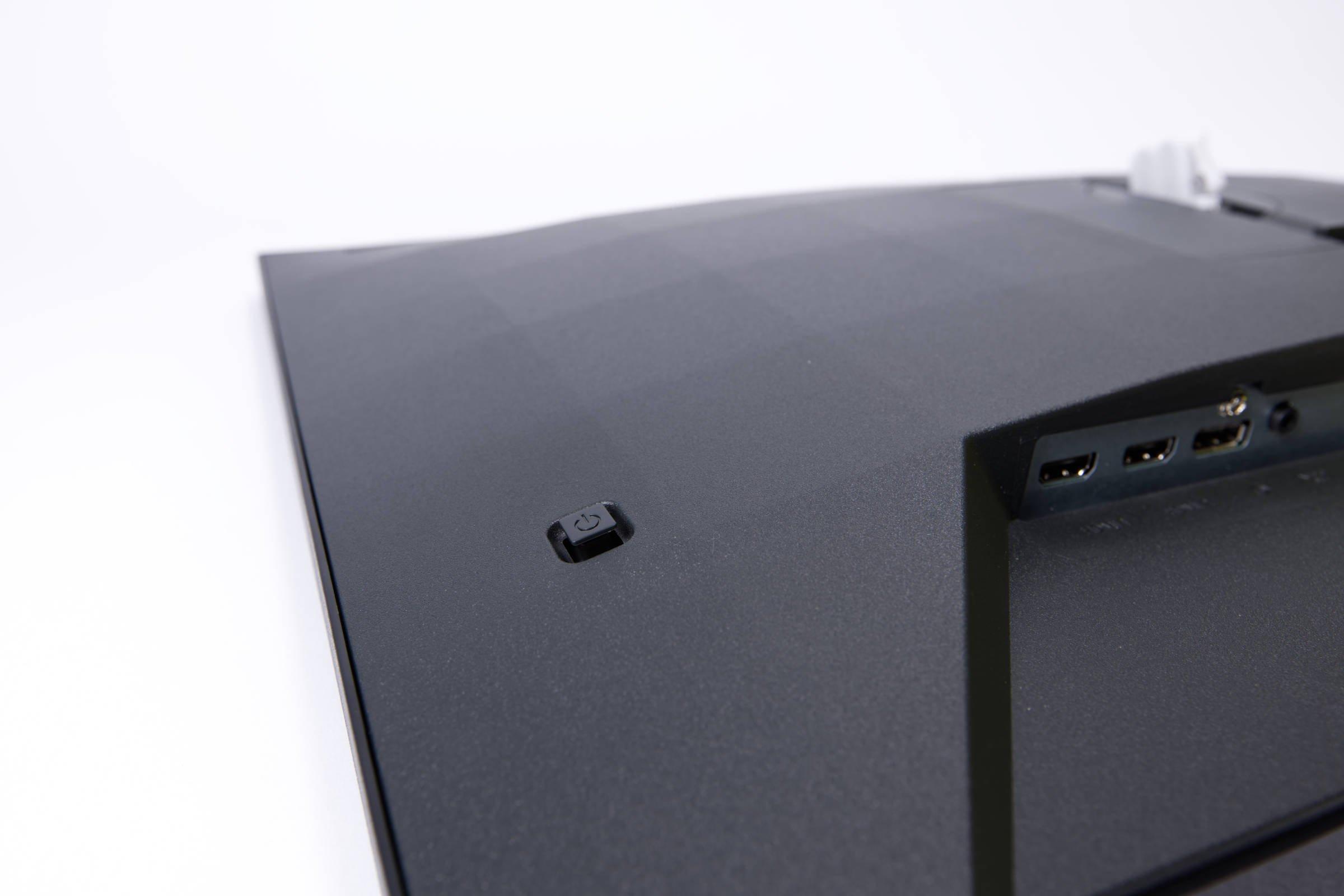 Philips Evnia 3000 27M2N3800A Steuerkreuz (Bild © PCMasters.de)
OSD
Once the monitor has been switched on, it can be further customized to your own requirements. The actual interaction with the monitor takes place via the control pad on the back. When you click on the control pad, the large menu opens and you confirm the selection or option with a further click. Use the up/down and right/left directions to move around the menu.
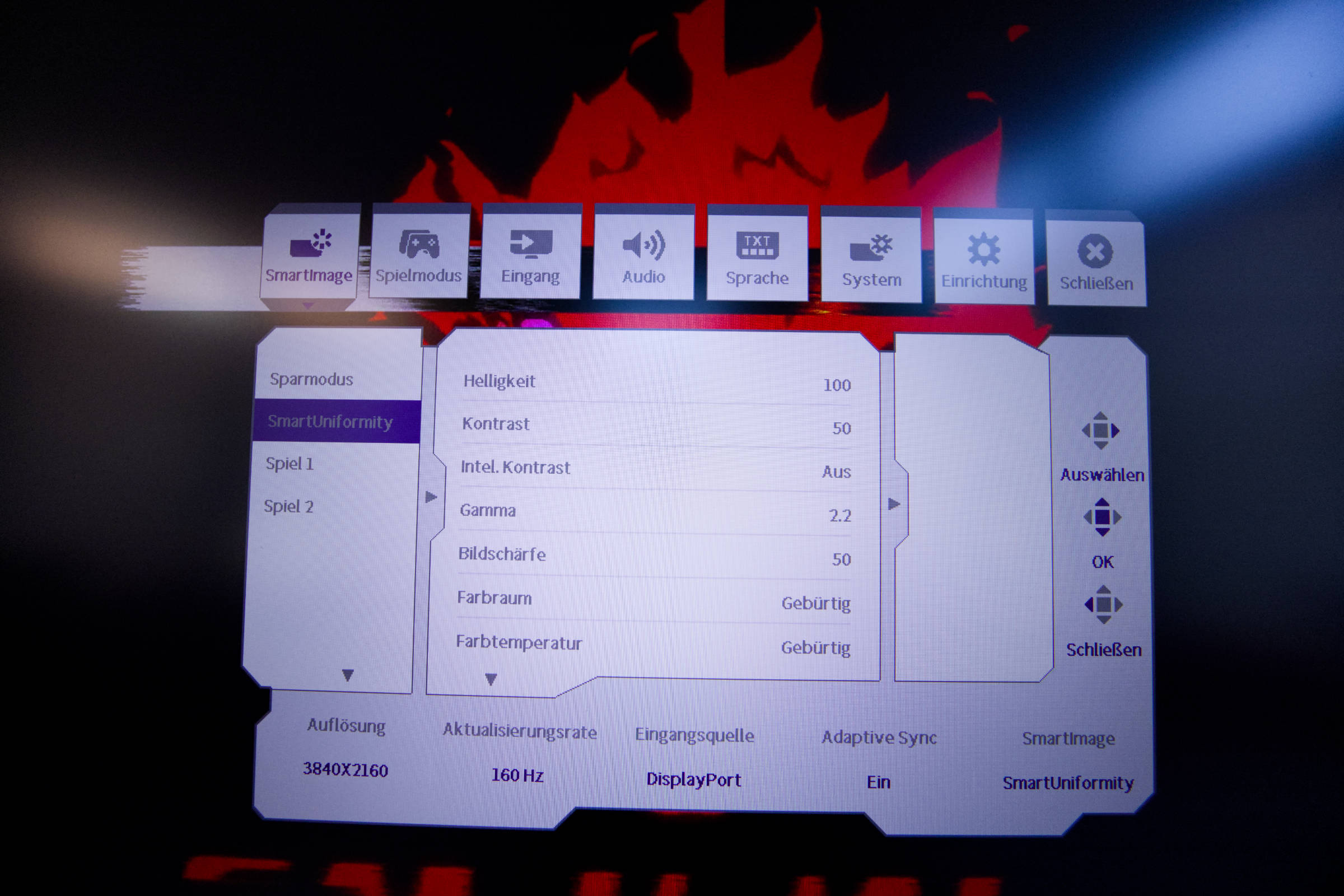 Philips Evnia 3000 27M2N3800A OSD SmartUniformaty (Bild © PCMasters.de)
However, you will probably spend most of your time in the first two menu items until you have made the right settings for you. The stock settings were a bit bland. If you use the monitor in SDR mode, the first menu item is "SmartImage" and the SmartUniformity option seems to be the best. We can adjust the brightness and contrast here and also set the color space to DCI-P3. The color temperature can also be changed manually from 5000 to 11500K.
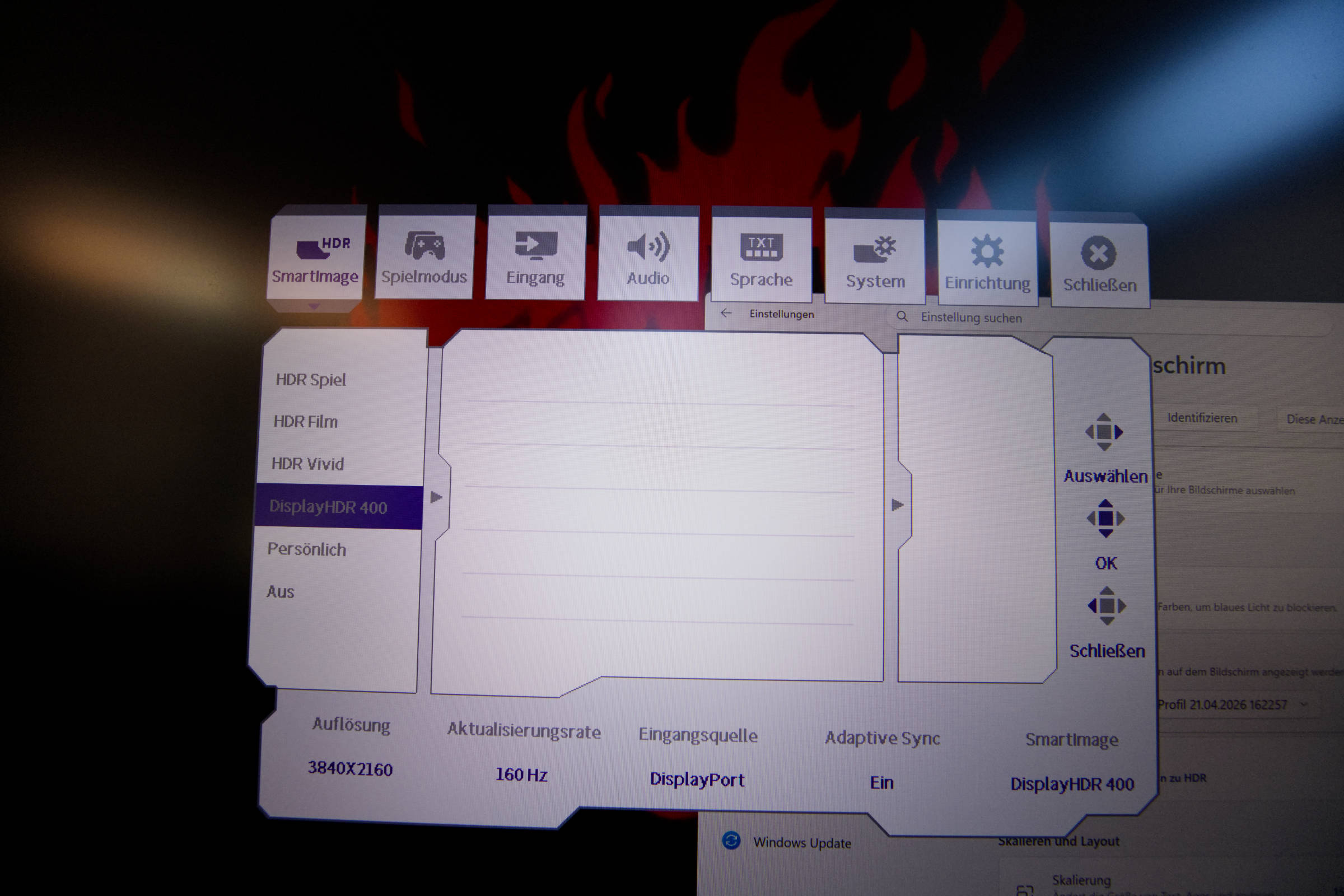 Philips Evnia 3000 27M2N3800A OSD HDR (Bild © PCMasters.de)
If you switch on HDR in the OSD, the HDR profiles are activated. We liked the DisplayHDR 400 profile the best. You can't adjust it any further, but the balance was sufficient and the rest can be adjusted via profiles in Windows or macOS.
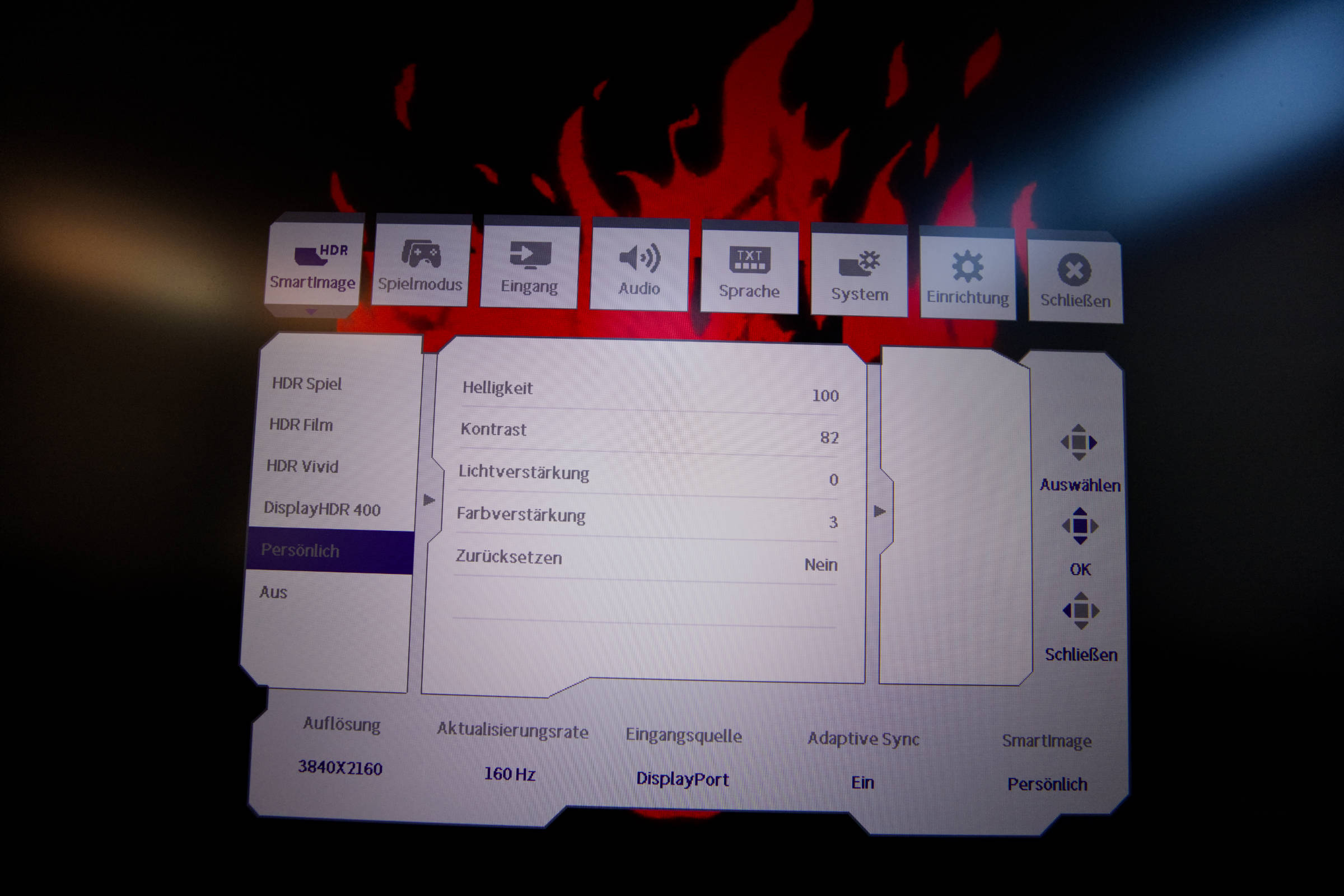 Philips Evnia 3000 27M2N3800A OSD HDR persönlich (Bild © PCMasters.de)
If you want to make adjustments directly via the monitor, you can do this via the "Personal" profile. The options for brightness, contrast, light amplification and color amplification are available here.
Game Setting
The second main point "Game mode" is also not without its problems, even if not all options are freely available in all modes. The top item is the advertised "Dual-Mode" feature. Here you can switch back and forth between the resolutions.
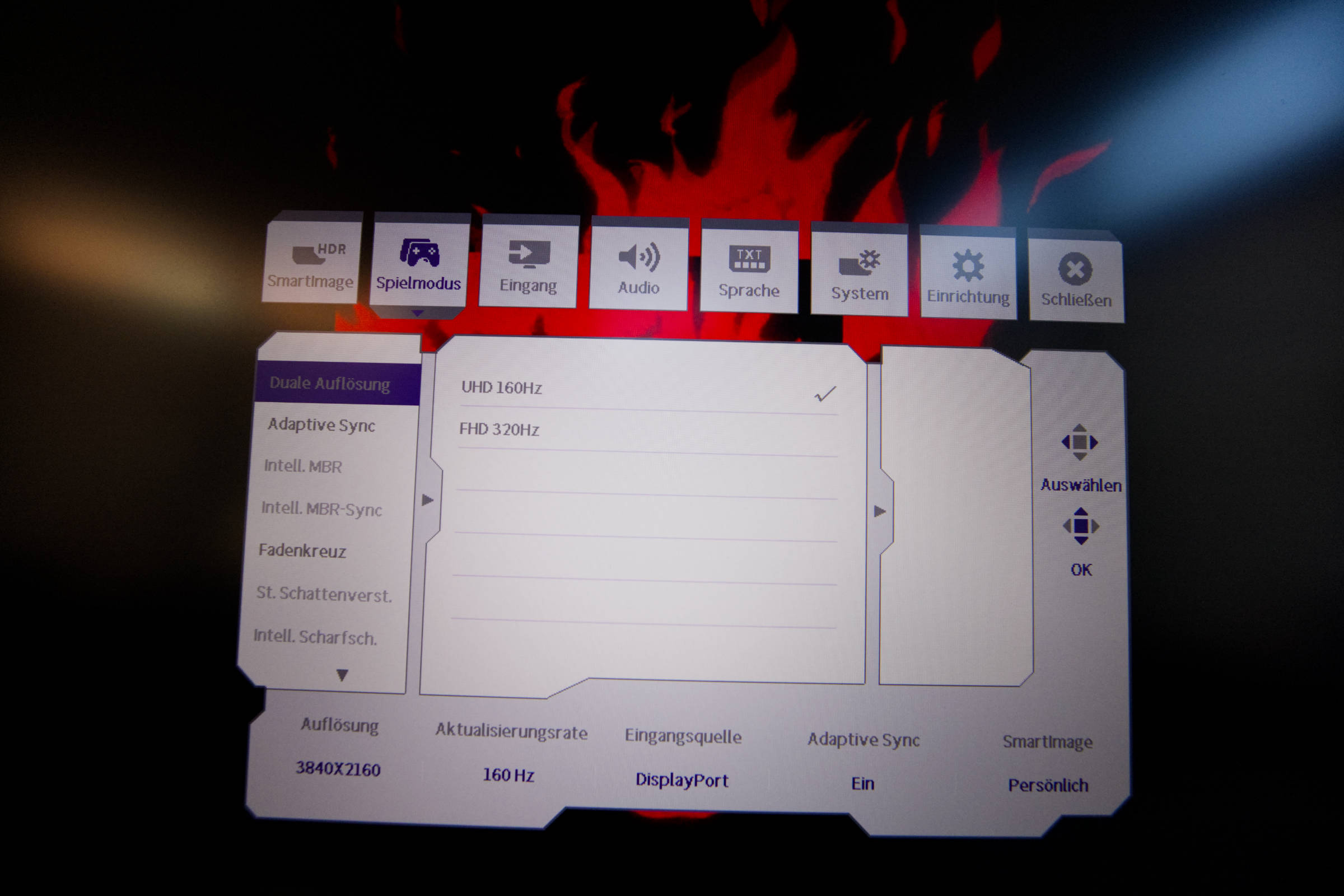 Philips Evnia 3000 27M2N3800A OSD Spielmodus Dual Mode (Bild © PCMasters.de)
We had AdaptiveSync switched on immediately and it's best to leave it on because it makes sense.
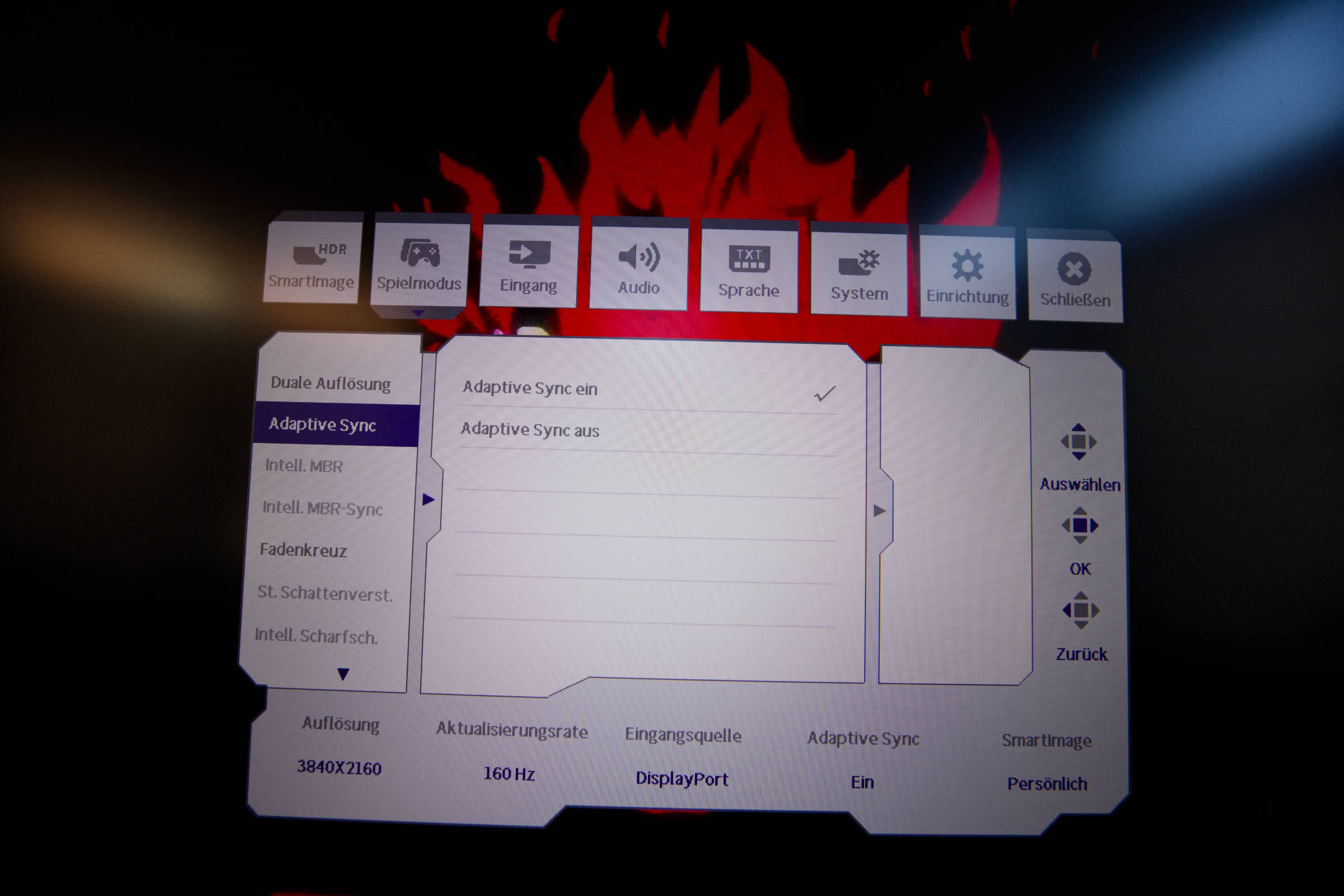 Philips Evnia 3000 27M2N3800A OSD Spielmodus AdaptiveSync (Bild © PCMasters.de)
There are also many other special features for games, such as a crosshair or a sniper zoom mode, which are not recognized as cheats by the operating system. This can be useful or annoying.
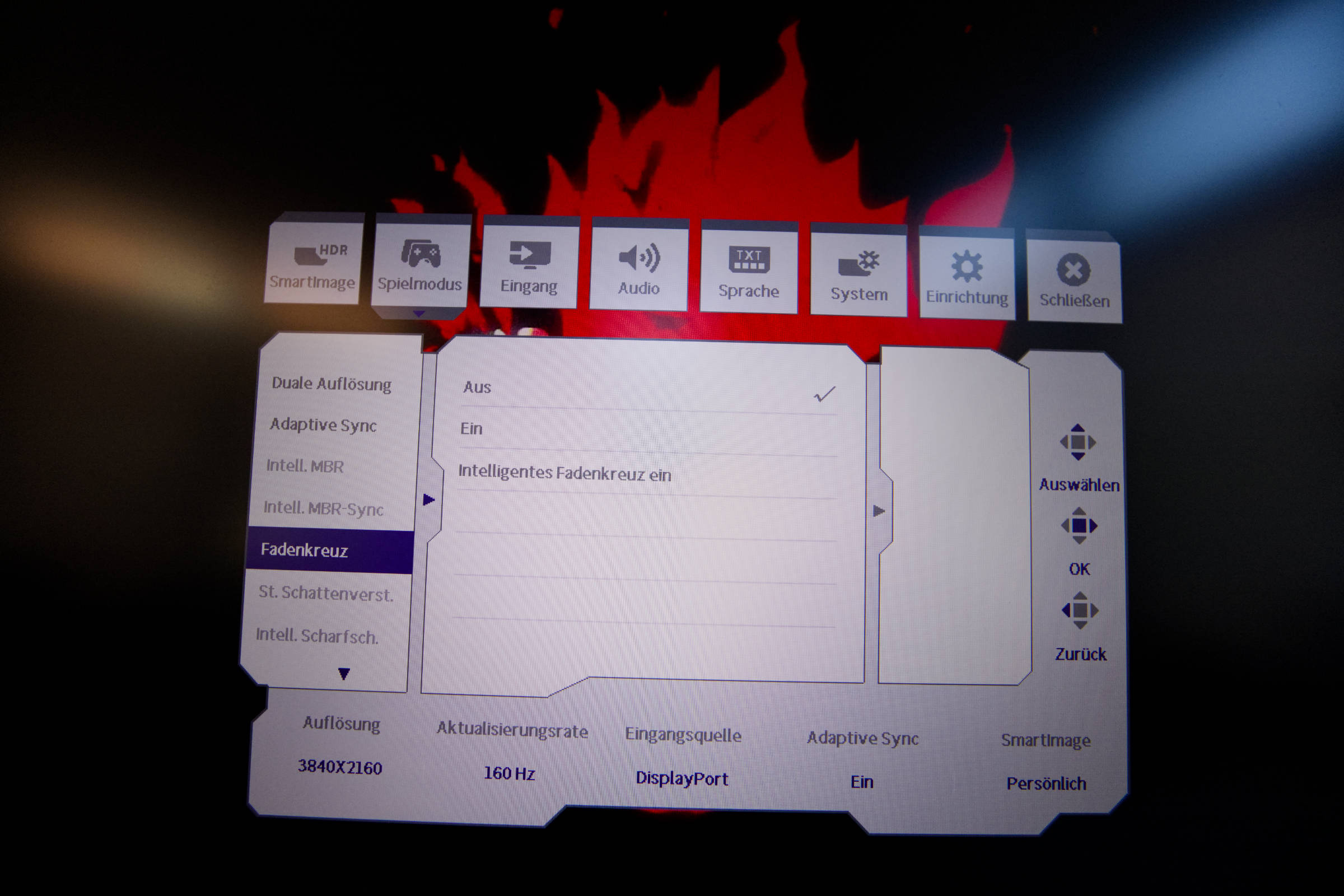 Philips Evnia 3000 27M2N3800A OSD Spielmodus Fadekreuz (Bild © PCMasters.de)
There are also SmartResponse and Smart MBR, the latter of which can reduce the response time of the monitor to 0.5 ms. You have to experiment here to find the sweet spot for yourself.
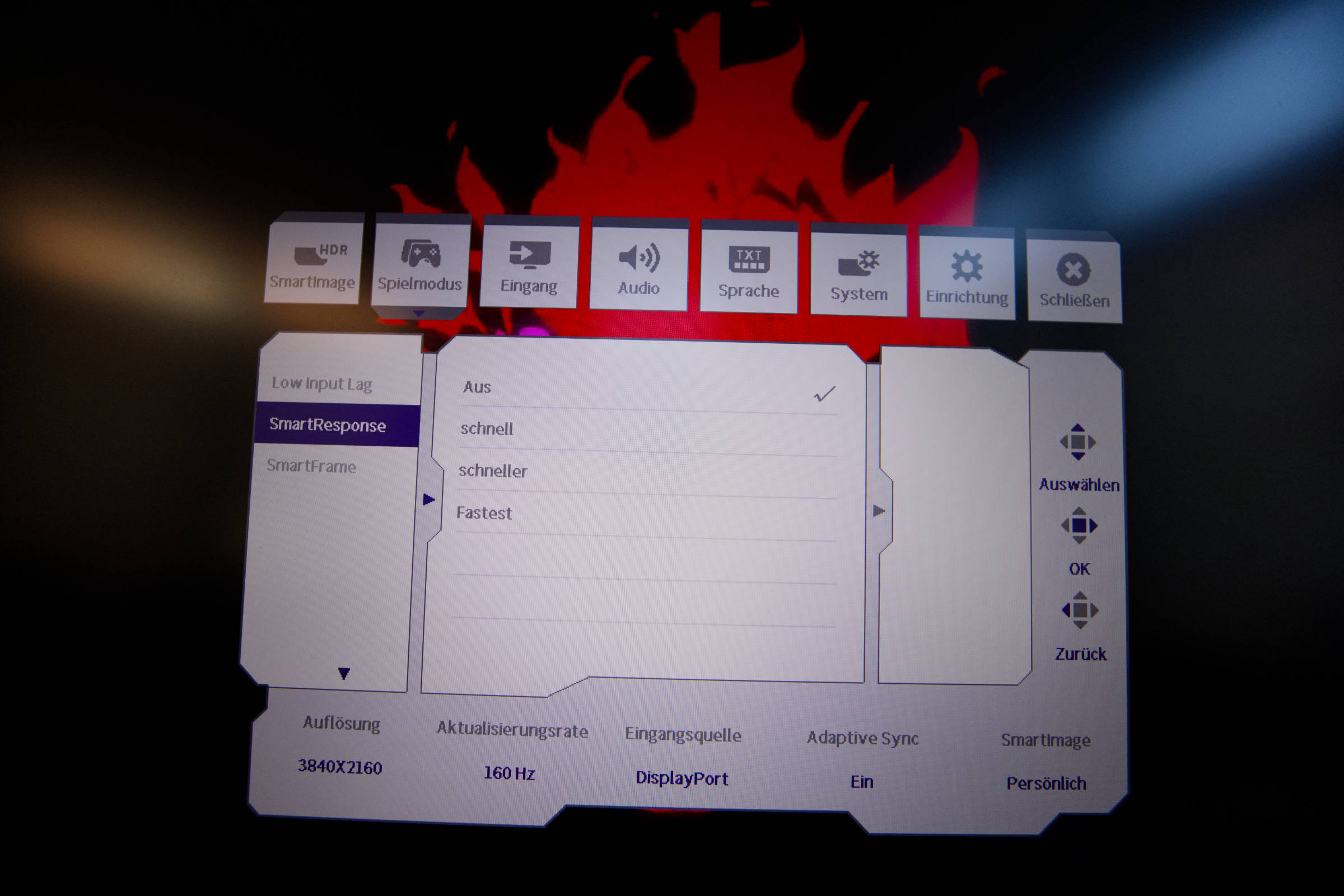 Philips Evnia 3000 27M2N3800A OSD Spielmodus SmartResponse (Bild © PCMasters.de)
As already mentioned, the monitor also offers two speakers, which are integrated at the top and provide quite good sound. There are three options for setting these in the OSD, which can be found under the "Audio" menu. The settings are self-explanatory.
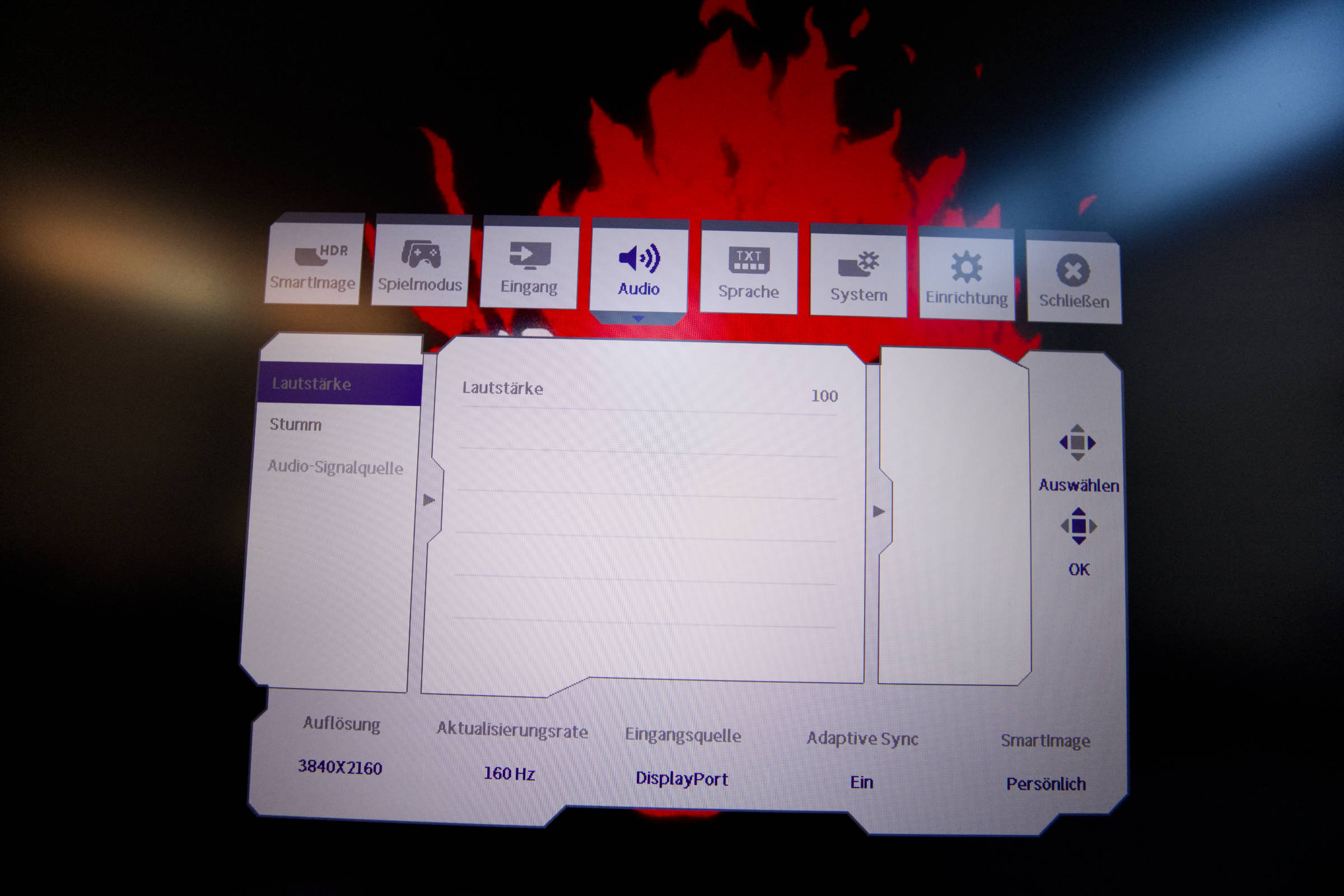 Philips Evnia 3000 27M2N3800A OSD Audio (Bild © PCMasters.de)
PIP Setup
If you want to project several sources onto the monitor at the same time, you can try the PIP/PBP option under "System". You can also adjust other settings, including the OSD settings.
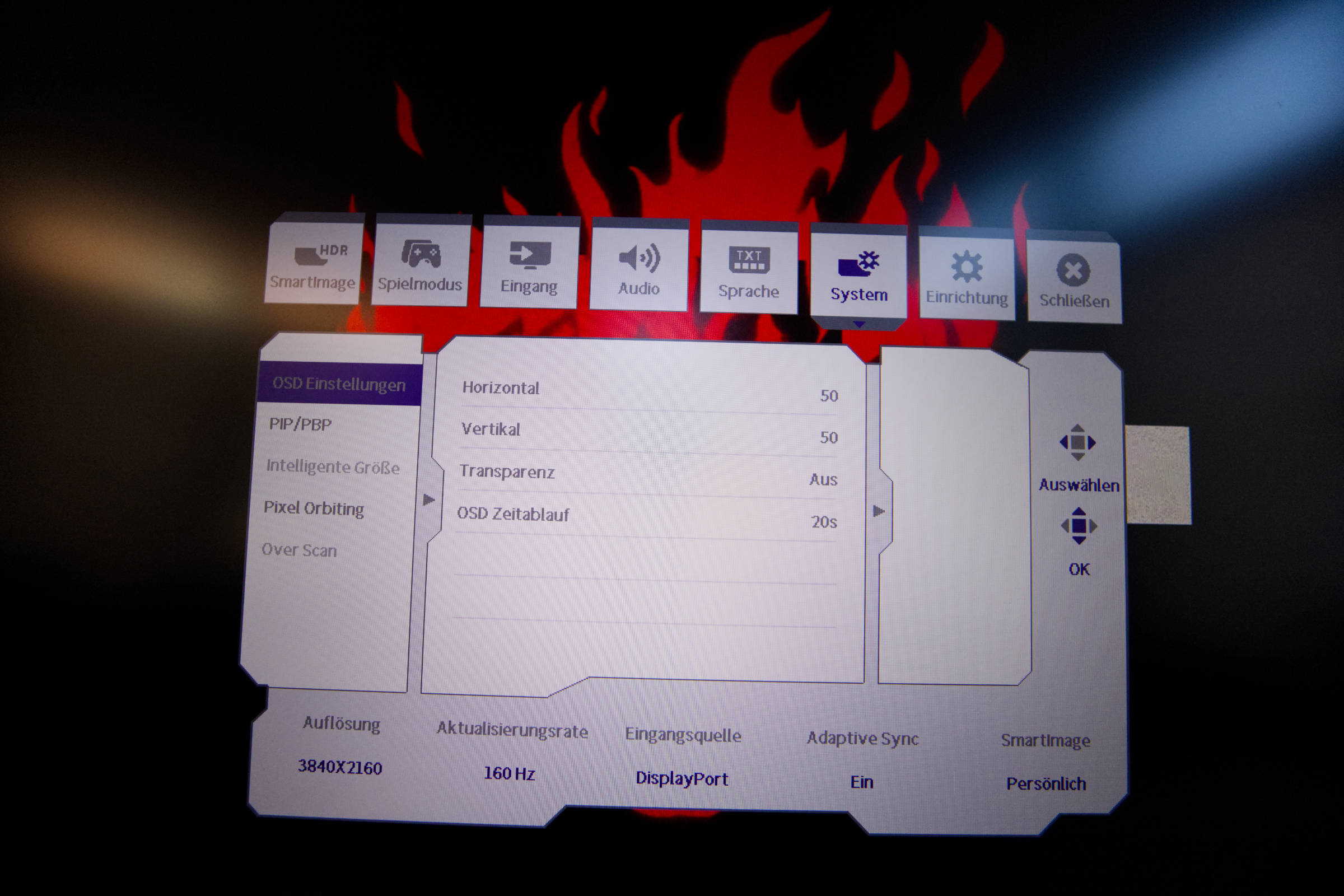 Philips Evnia 3000 27M2N3800A OSD System (Bild © PCMasters.de)
The LED brightness can also be set under "Setup". We found levels 4 and 3 particularly annoying, 1 or 0 was best.
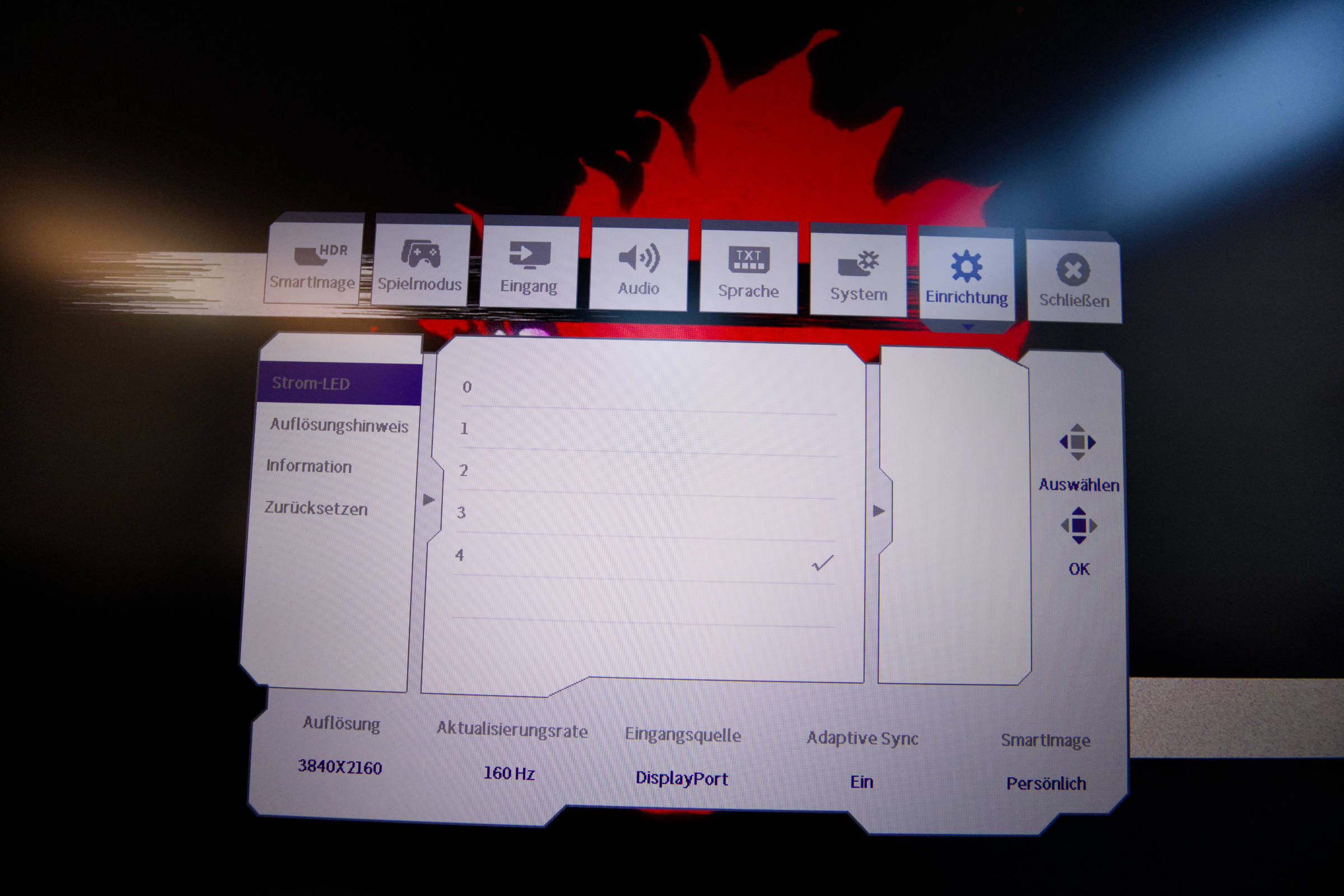 Philips Evnia 3000 27M2N3800A OSD Strom LED (Bild © PCMasters.de)
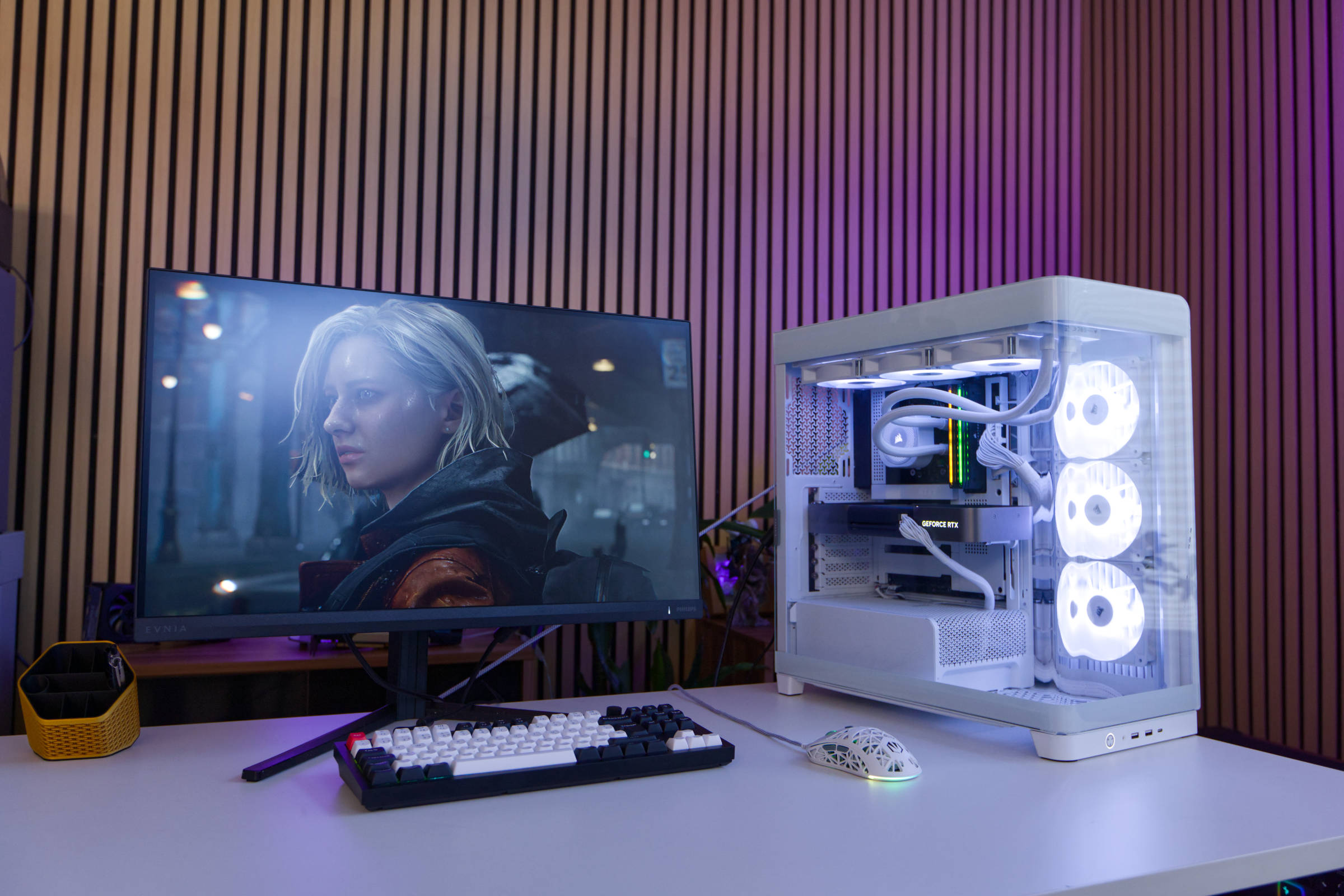 Philips Evnia 3000 27M2N3800A Fazit (Bild © PCMasters.de)
Conclusion on the Evnia 3000 27M2N3800A
The Evnia 3000 27M2N3800A from Philips turned out to be a good 27" monitor, even if it does have some weaknesses. The dual mode, which allows you to switch between 3,840 x 2,160 (4K UHD) resolution with max. 160 Hz and 1,920 x 1,080 (Full HD) resolution with 320 Hz, is sure to find its fans. For us, the standard mode with its 4K UHD resolution was the best option, as the resolution was equally good for working and gaming and the 160 Hz was sufficient for us.
Unfortunately, the matte Fast IPS panel was a little too reflective in bright sunlight. The DisplayHDR 400 setting was good for gaming, but needed some adjustment for working with the monitor. At 450 nits, it is not the brightest panel and the picture was darker from steep angles, but this is sufficient for everyday use at this price. The stand supplied is ideal for the monitor and offers sufficient adjustment options. You can't complain about the scope of delivery and the connection options at this price either.
Overall, the Evnia 3000 27M2N3800A monitor is well-balanced and a good companion, especially at the price of around €250 (Affiliate).
Pro
- Simple design
- Fast IPS panel
- Dual mode for 3,840 x 2,160 (4K UHD) and 1,920 x 1,080 (Full HD)
- AdaptiveSync and up to 160 Hz or 320 Hz
- Useful, integrated speakers
- Stand with good adjustment options
- Price
Cons
- Strong reflection/glare in daylight