Computer Forum
Sapphire NITRO+ X870EA PhantomLink Polar in detail
Sapphire is getting serious as a motherboard manufacturer and recently launched a new series of motherboards with the name PhantomLink as an addition. Today we take a closer look at the NITRO+ X870EA PhantomLink Polar Edition as a representative of this series. We will explain exactly what PhantomLink is and how it works in the following chapters, but we will first look at the board as a whole and then slowly work our way through the features and possible problems.
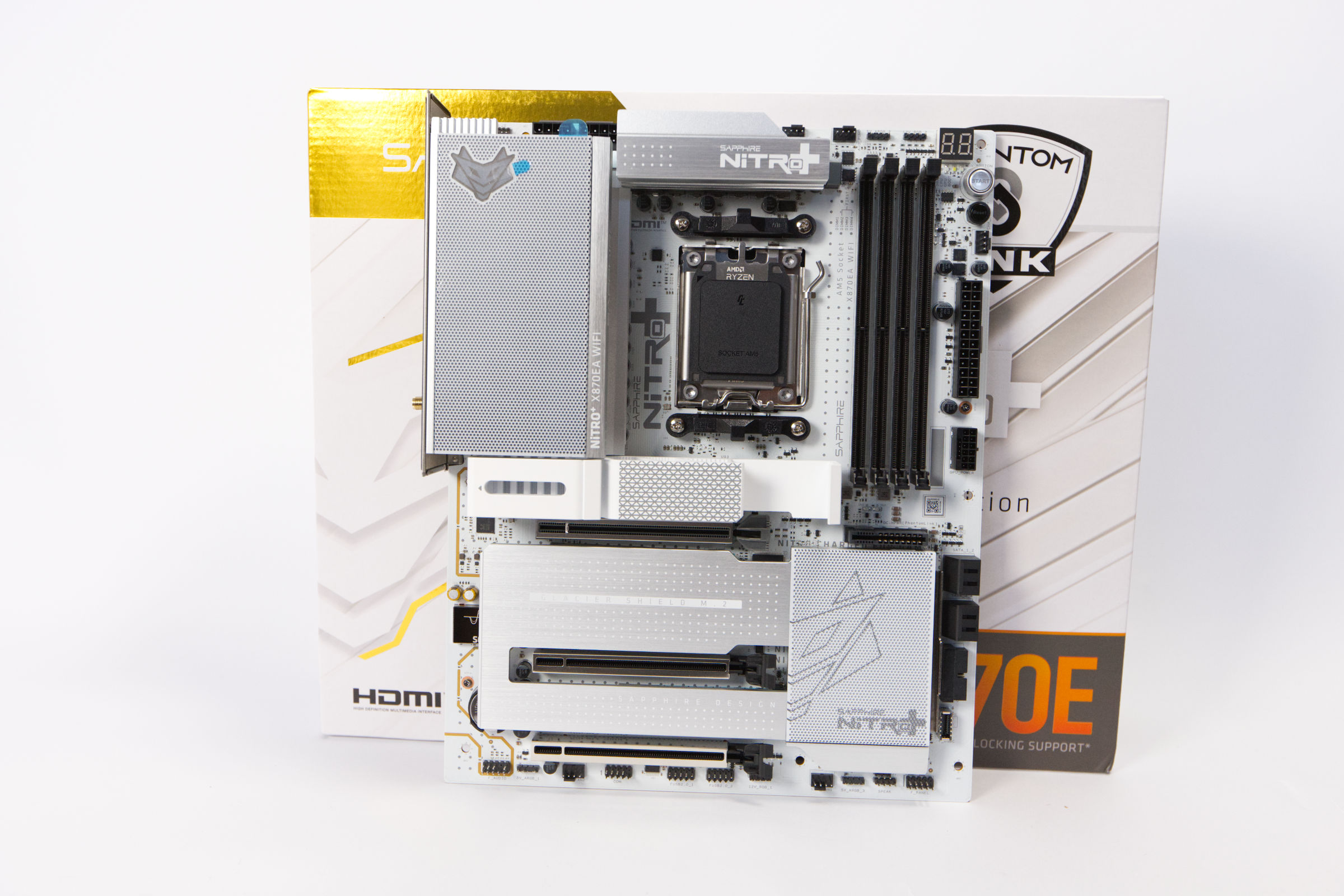 Sapphire Nitro X870EA PhantomLink Polar Mainboard Test (Image © PCMasters.de)
As the name suggests, the board is a representative of the NITRO+ series, which is popular among users. In addition, it is the Polar Edition, which indicates the completely white design. It is based on the full AMD X870E chipset.
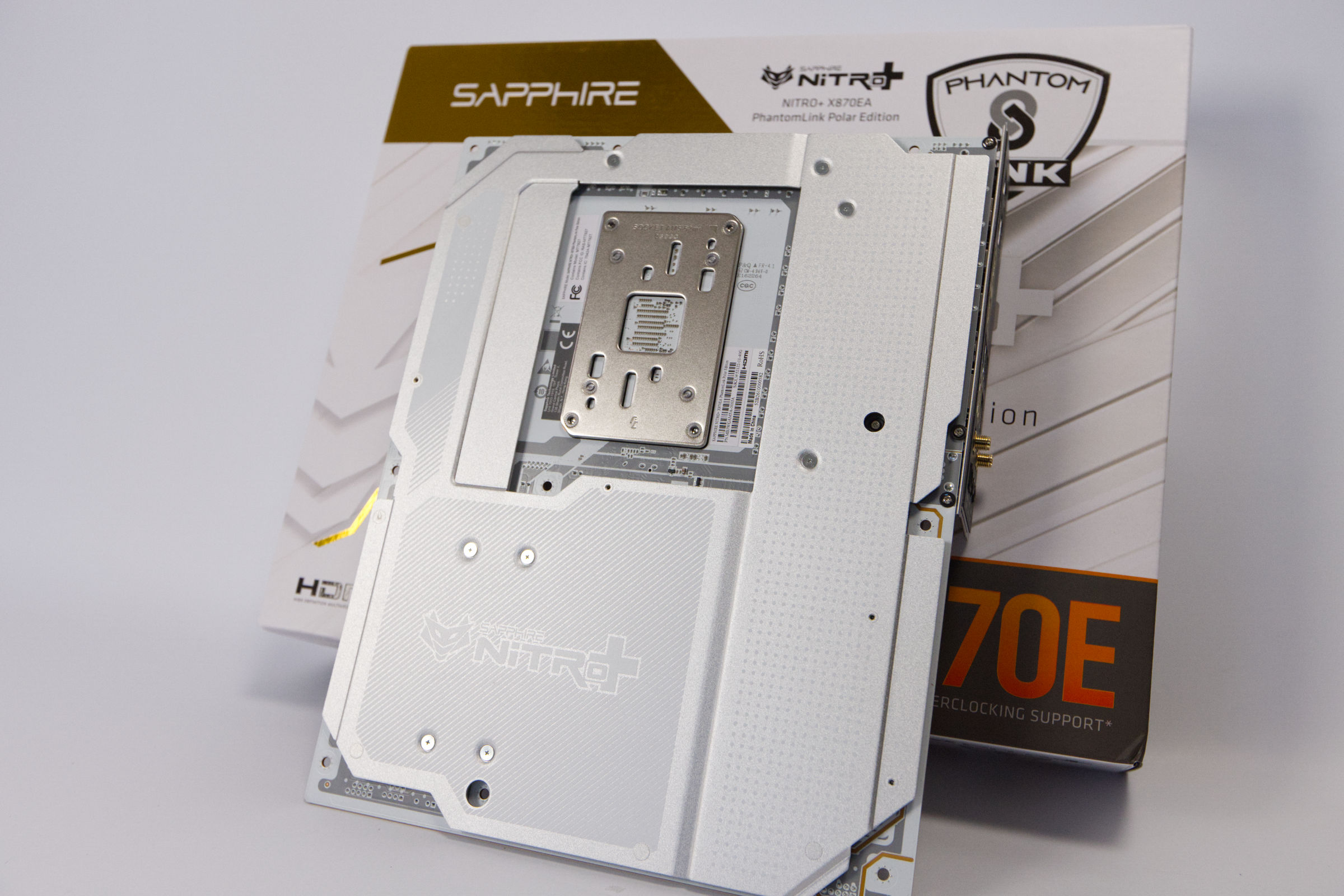 Sapphire Nitro X870EA PhantomLink Polar Rückseite (Image © PCMasters.de)
Based on the fact that the largest chipset is installed here, the NITRO+ X870EA PhantomLink Polar Edition is positioned high up as a high-end board at Sapphire, which is further underpinned by a retail price of 378 € (Affiliate). This is underpinned by many extras that you can see and feel. For example, the back is completely white, and both the PCB of the board is coated white-grey and a solid cover protrudes over it. Although Sapphire has dispensed with back-connect ports on the rear, the GPU power connection is located on the front. The metal cover on the back makes the board heavy and rigid, making it almost impossible to bend.
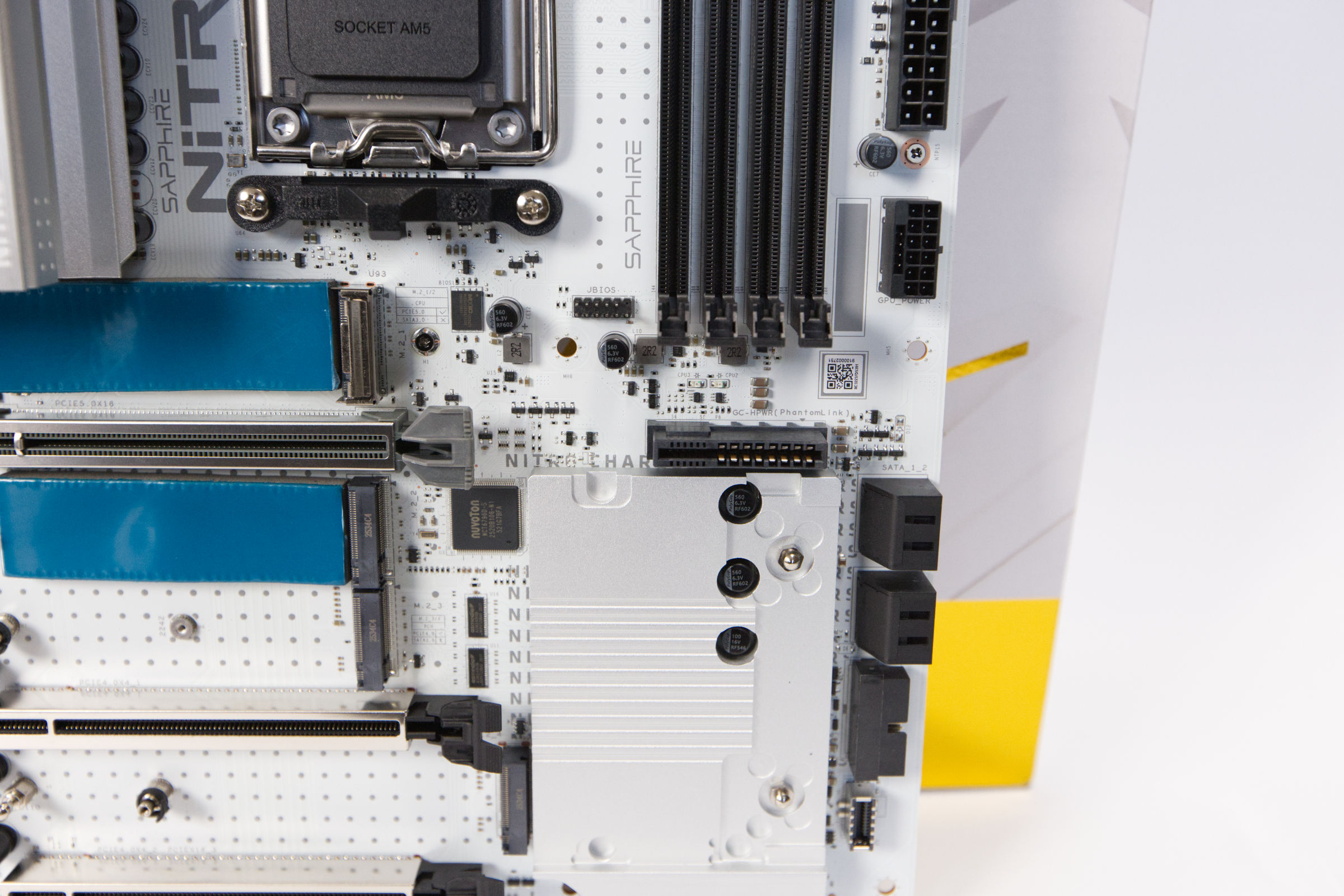 Sapphire Nitro X870EA PhantomLink Polar PhantomLink Header (Image © PCMasters.de)
What is PhantomLink?
Probably the biggest highlight of this new motherboard is the technology called "PhantomLink". Sapphire wants to use it to create a series of products that enable a clean look in the case. The main function of PhantomLink is to supply the appropriate graphics cards in the first PCIe 5.0 slot with power via a dedicated slot.
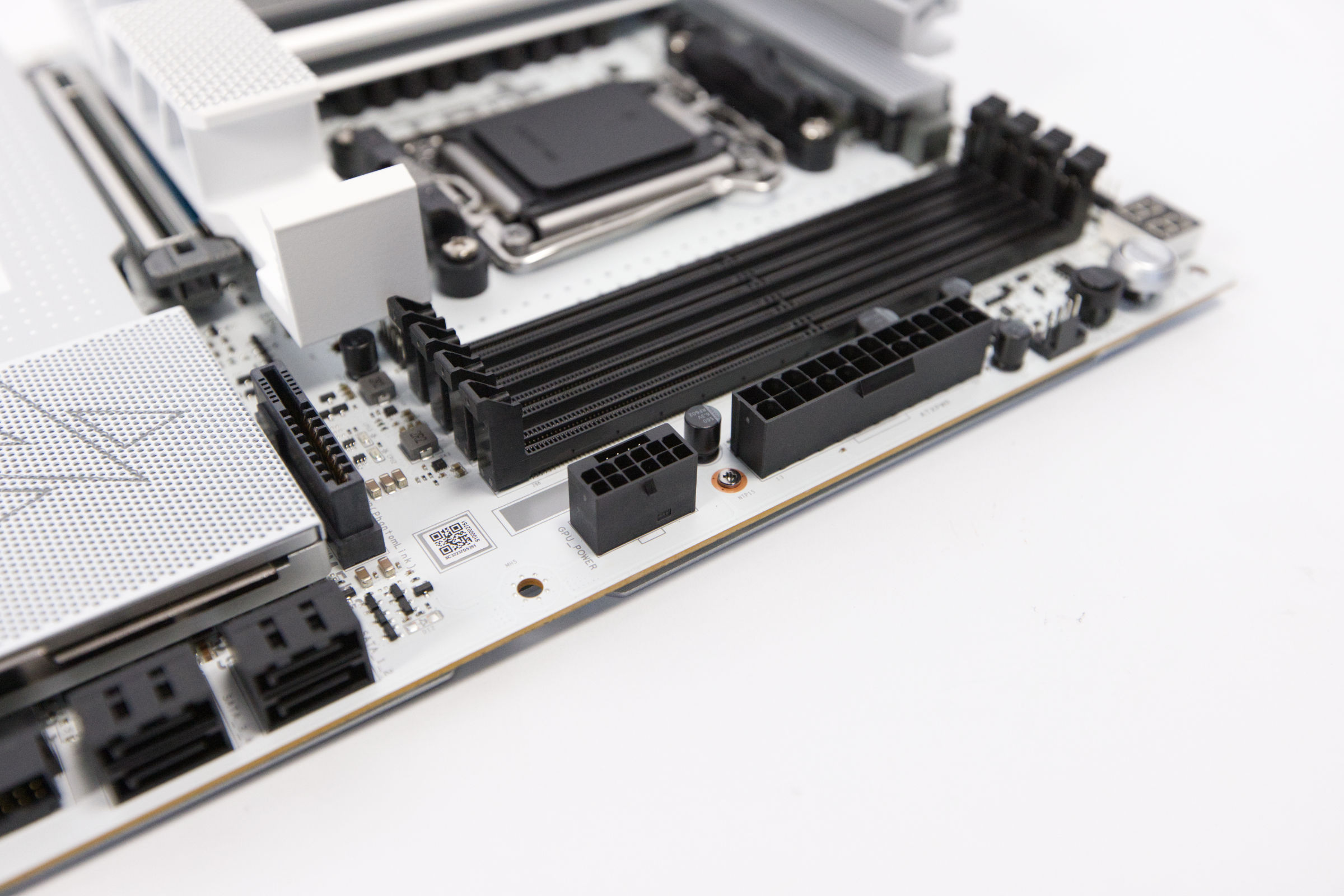 Sapphire Nitro X870EA PhantomLink Polar GPU Power (Image © PCMasters.de)
This eliminates the 12V-2x6 PCIe 5.1 cable on the graphics card. However, the cable is not completely gone, it is just relocated. Sapphire always tries to hide the cable with covers, as we have already seen in the test of the Radeon RX 9070 XT Nitro+, but PhantomLink should take it further.
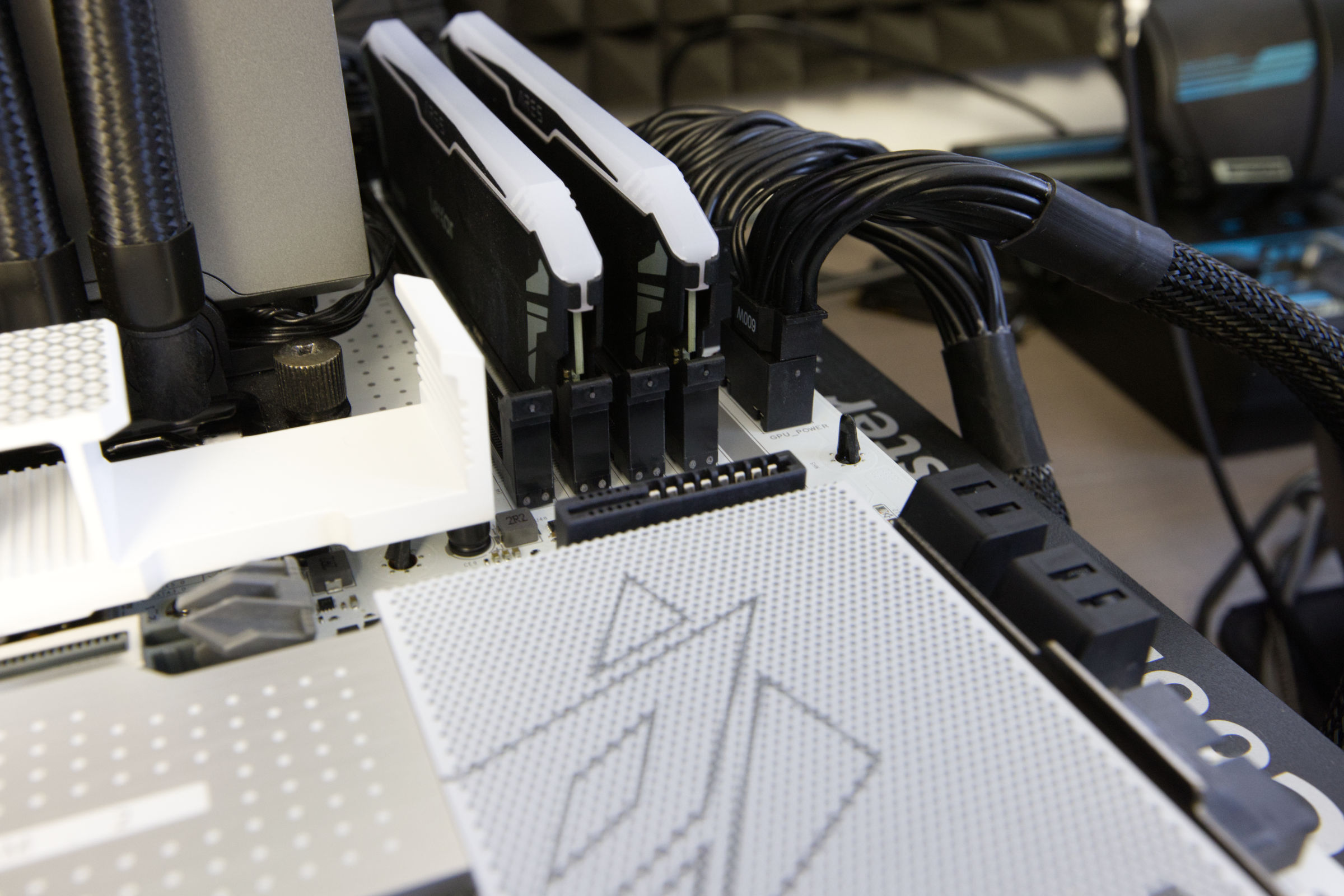 Sapphire Nitro X870EA PhantomLink Polar GPU Power Anschluss (Image © PCMasters.de)
Is PhantomLink BTF- compatible?
In the technical documentation Sapphire calls the port "GC-HPWR/BTF" and on the motherboard itself only "GC-HPWR". When asked, Sapphire was able to confirm that this port is also BTF-compatible, which means that ASUS graphics cards can be connected to it. Most users will probably not do this, but the BTF Alliance is slowly bearing fruit, and Sapphire is not listed as a partner on the ASUS site.
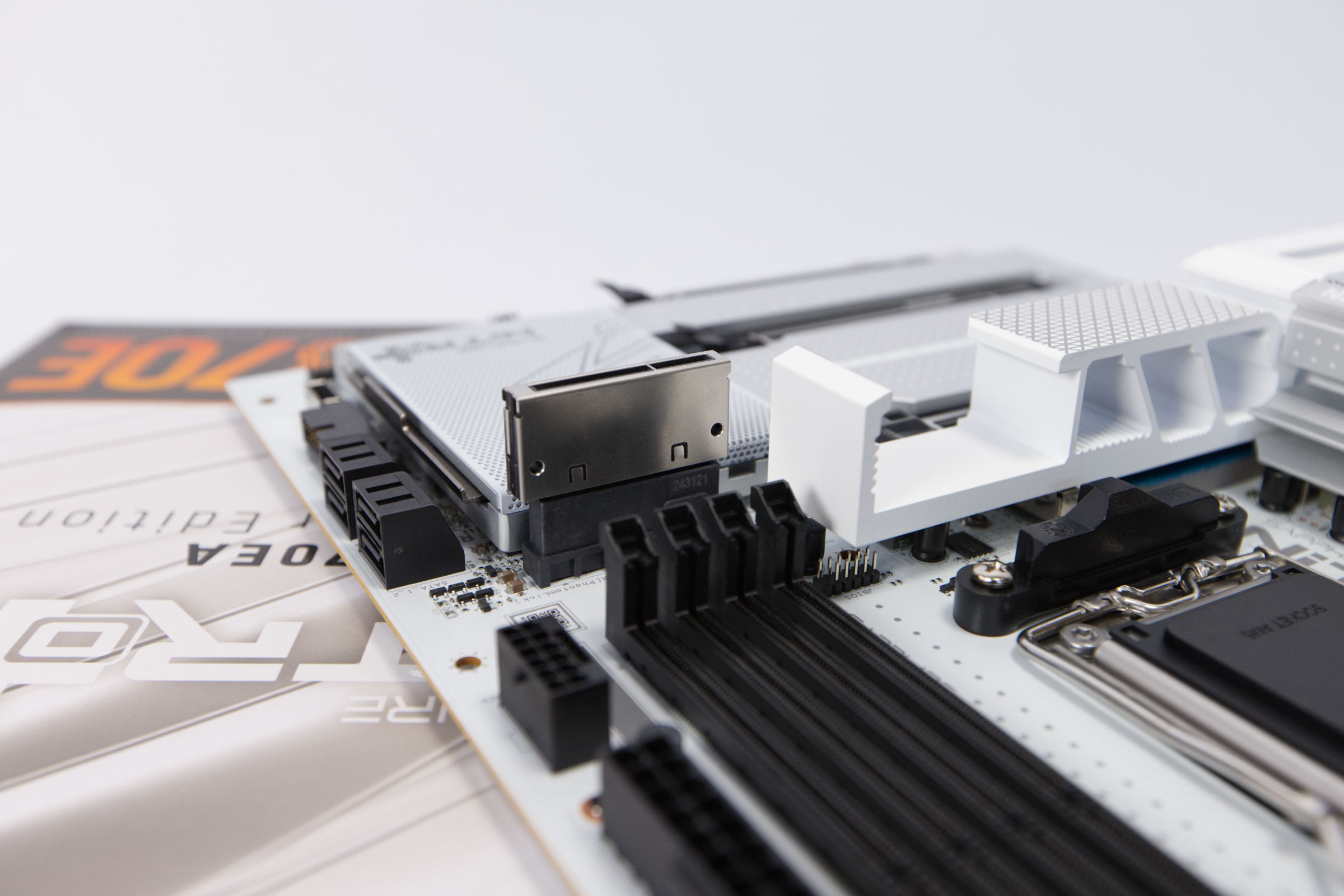 Sapphire Nitro X870EA PhantomLink Polar PhantomLink Brücke (Image © PCMasters.de)
The Sapphire PhantomLink graphics cards can also be operated on standard motherboards, as the gold finger adapter is included but does not necessarily have to be used. If the adapter is not connected to the board or graphics card, the power supply must be provided via the 12V-2x6 PCIe 5.1 cable.
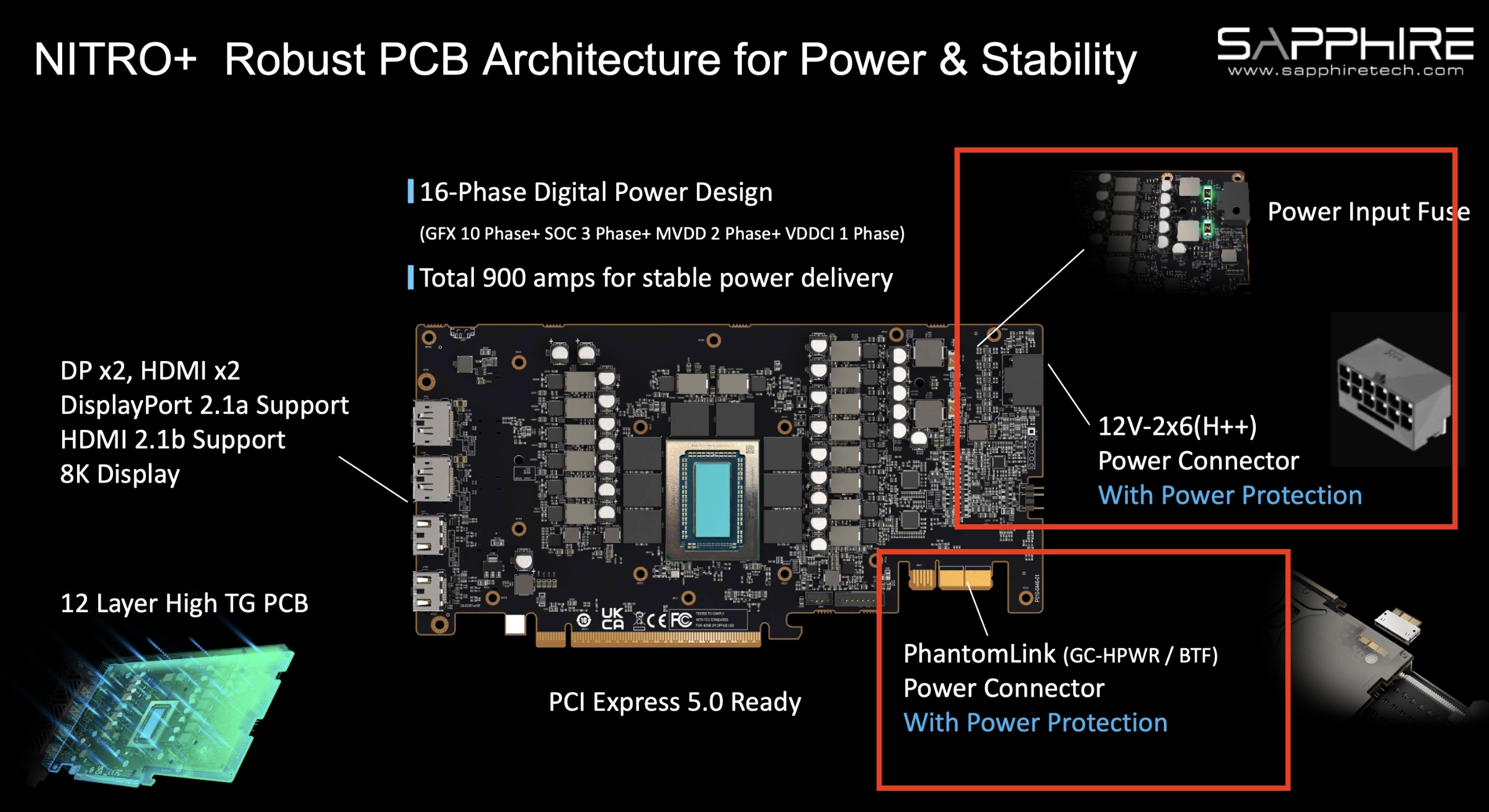 Sapphire NITRO Robust PCB Architectur PhantomLink Aufbau auf der Grafikakrte (Image © Sapphire)
How does PhantomLink work?
PhantomLink outsources the power supply to the mainboard. This can be a good thing, because it also allows protective circuits to be integrated on the board, which can protect the graphics card and prevent fires. If you want to use PhantomLink, place the gold finger adapter on the mainboard or graphics card. The sense, ground and 12 V cables are then operated via the gold finger. The latest BTF 2.5 standard supports up to 1,000 W via this connection, but it is not clear whether BTF 2.0 or v.2.5 is used. The power supply is supposed to withstand 900 amps, but this is unlikely to flow here. Sapphire installs two fuses on the PCB, but (in our opinion) this will not protect the 12V-2x6 PCIe 5.1 connectors from melting. Unfortunately, there is hardly any technical documentation to be found on the subject. Sapphire refers to "power protection" in the slides, but does not go into this in detail. However, the specification states that 600 watts should be maintained under load.
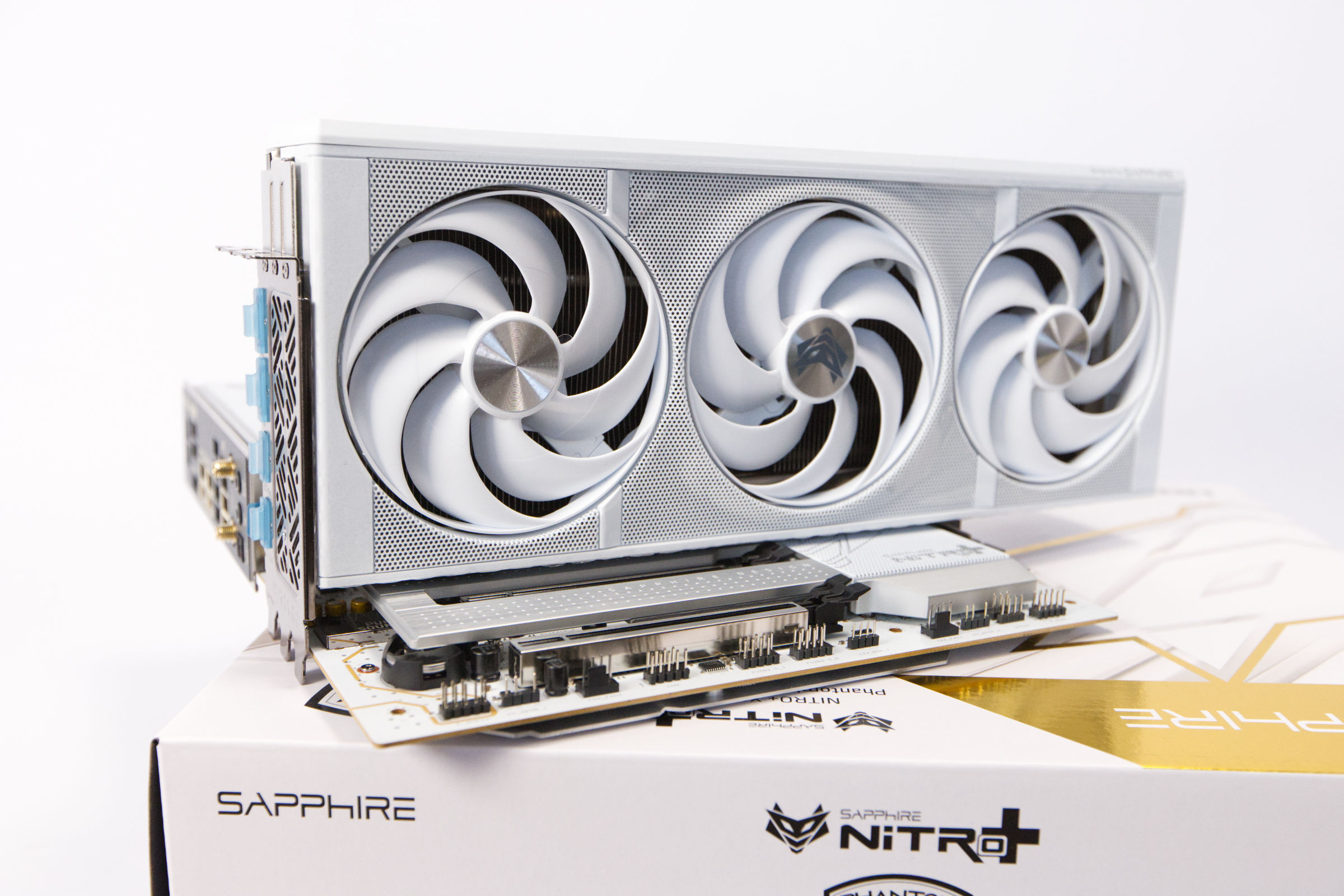 Sapphire Nitro X870EA PhantomLink Polar mit Radeon RX 9070 XT (Image © PCMasters.de)
The graphics card is plugged into the mainboard and the 12V-2x6 PCIe 5.1 cable is plugged into the side of the mainboard. The graphics card is then ready to be used. The look is definitely better this way.
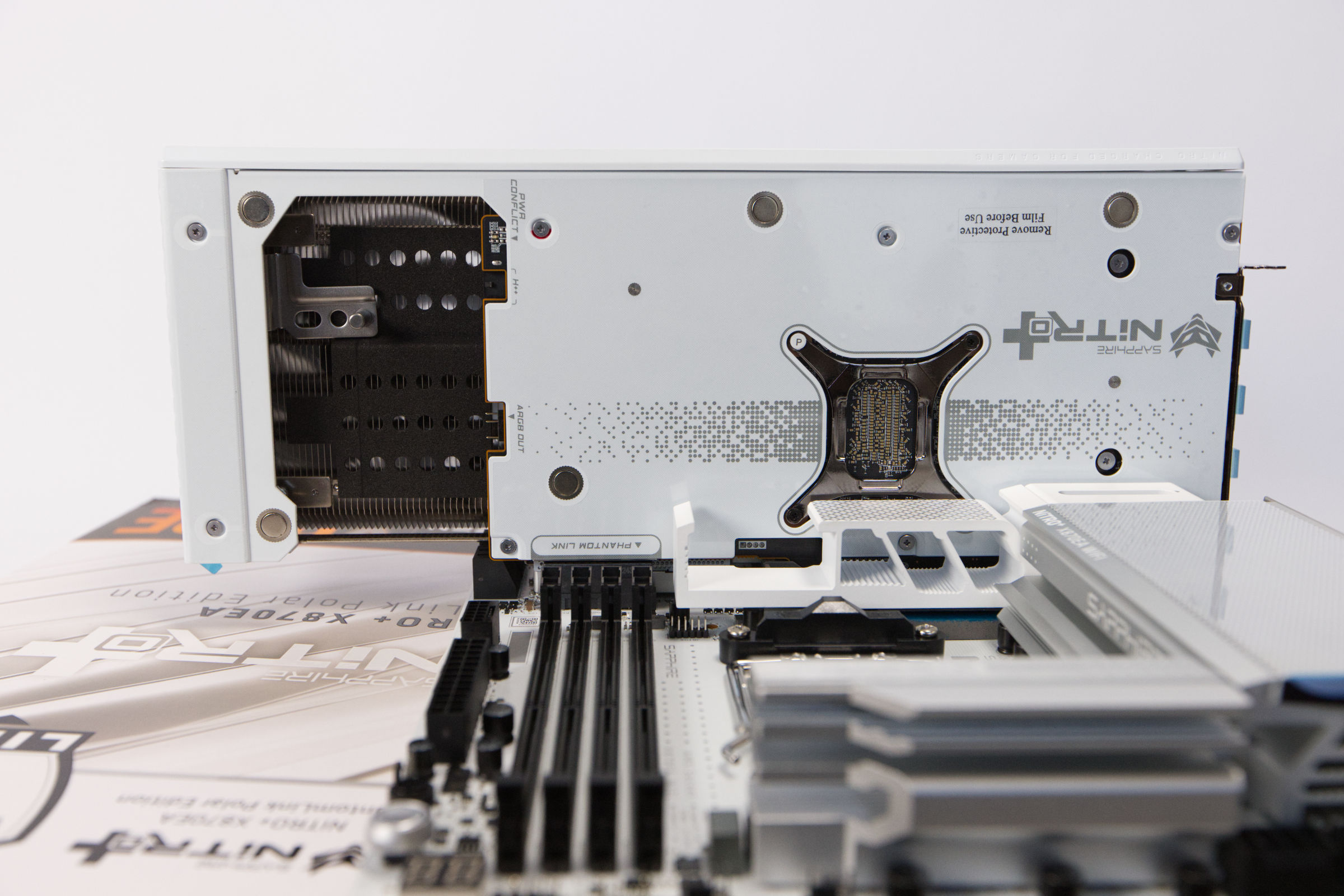 Sapphire Nitro X870EA PhantomLink Polar PhantomLink mit GPU (Image © PCMasters.de)
The graphics card also shows where the PhantomLink connector is on the back. On the mainboard, it is at the same height as the four RAM slots. There is an opening at the PCIe slot to release the graphics card. Inserting and removing the graphics card is easy.
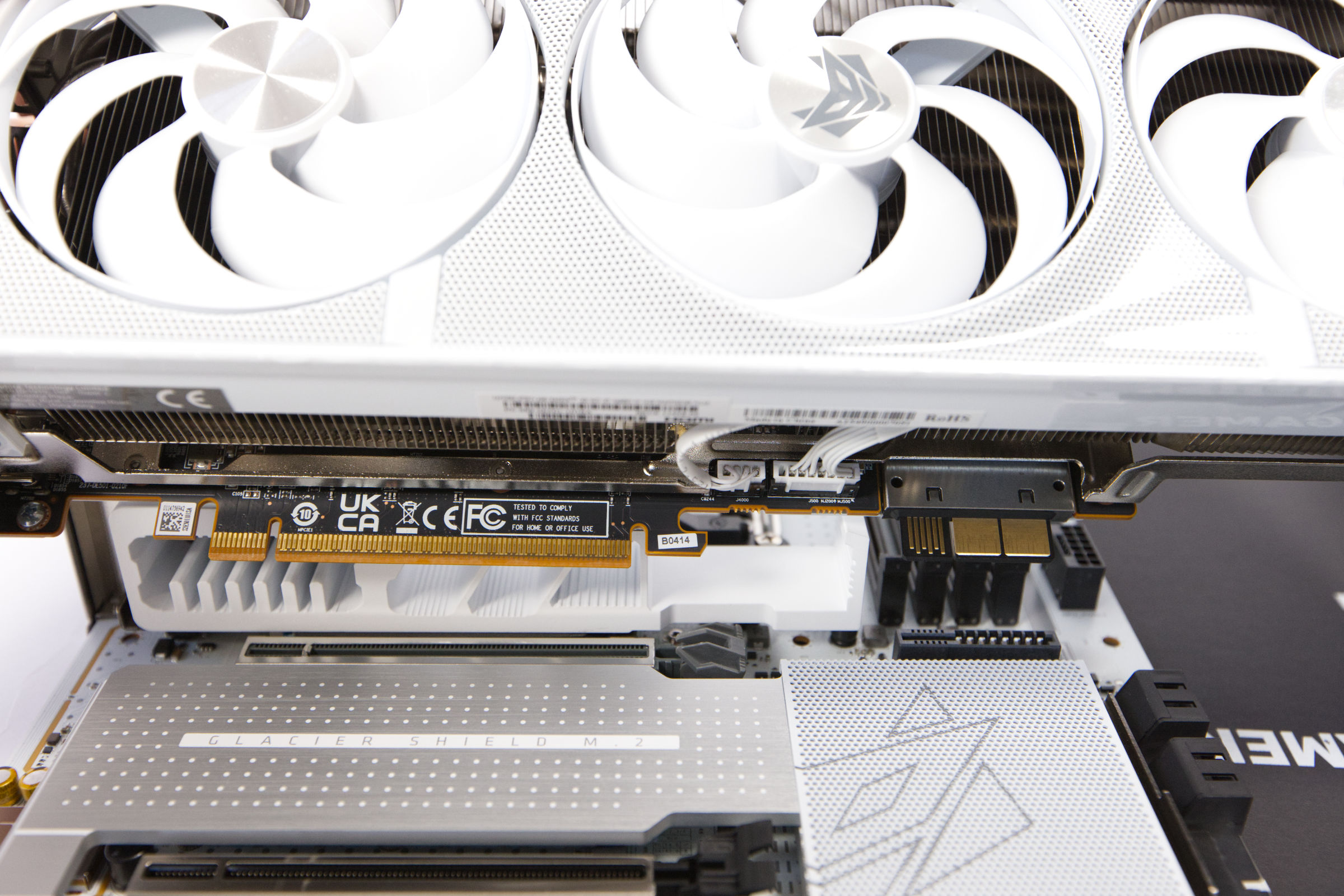 Sapphire Nitro X870EA PhantomLink Polar PhantomLink Anschluss (Image © PCMasters.de)
On the PhantomLink adapter, you can see that three of the six gold fingers are shorter. With BTF, they are intended to ensure that the card is fully inserted and thus prevent damage to the graphics card and mainboard.
 Sapphire PhantomLink Sicherungen (Image © Sapphire)
Does PhantomLink offer greater protection against the risk of fire?
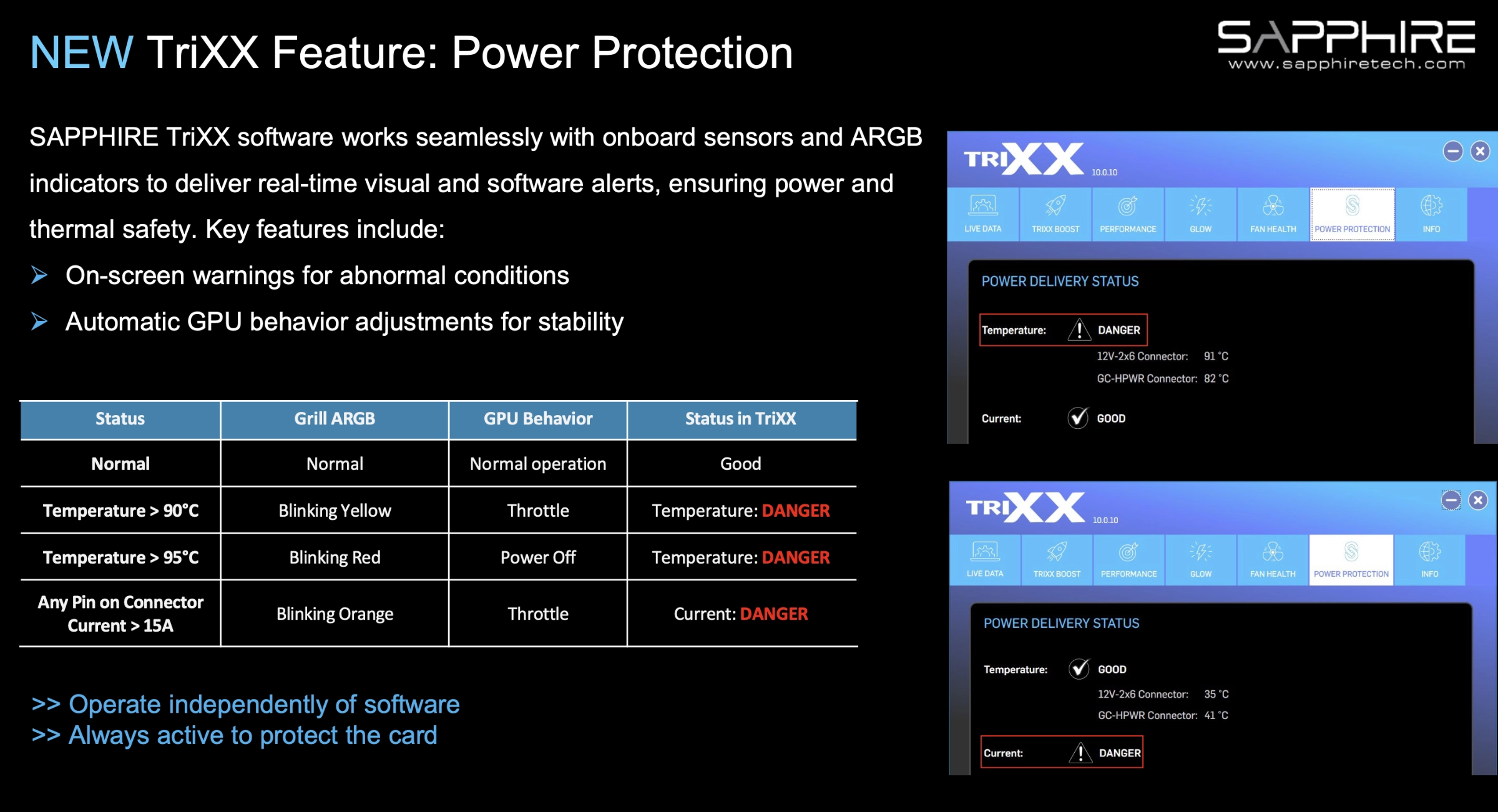
We recently discovered that fire damage to the 12V-2x6 PCIe 5.1 cable or connector can occur. In our case, it was not too serious, but after such an incident you have to be even more careful. Uneven distribution of the current can cause the thin cables on the connector on the graphics card and power supply side to become extremely hot. This first melts the plastic, the insulation and then causes a fire. This can be prevented by temperature sensors and measuring the amperes per cable. Sapphire says in its own slides that there is protection and also visual indications of the temperature of the GPU.
There's a catch
Of particular interest is that the current is measured per wire/pin. If one of the pins exceeds a current beyond 15 A, there is orange flashing of the ARGB lighting of the board and in addition throttles the graphics card. Monitoring is also possible in the TriXX software. If implemented correctly, this is an extremely helpful measure to prevent cable fires.
Upon request, Sapphire informed us that this protection only exists on the graphics card and not on the mainboard. The software and the warnings remain primarily "warnings", because apart from throttling, nothing more will happen at this point. If you don't look, you're just as screwed in the event of a cable fire.
However, as we were unable to carry out a long-term test, this remains a theoretical assumption. We would like to see a remedy on the motherboard side and a countermeasure from everyone, but especially from NVIDIA.
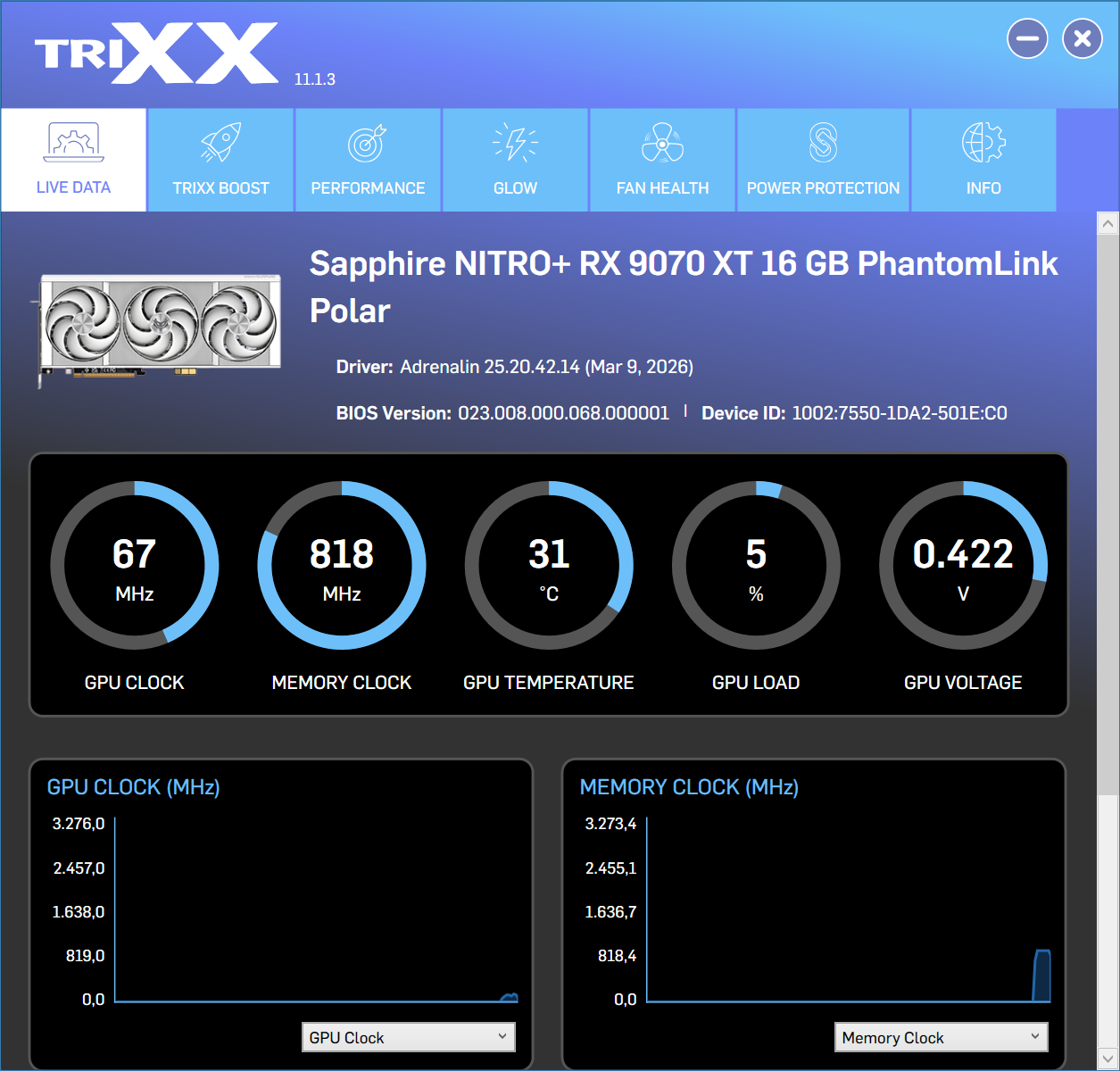 Sapphire NITRO X870EA PhantomLink Polar TrioXX GPU Übersicht (Image © PCMasters.de)
Software-side monitoring
The besgate monitoring of temperature and current per pin is available in the software, but we were looking for it in the mainboard version of the software. Sapphire separates the TriXX software into a mainboard version (TriXX-M v3) and a GPU version (TriXX v11). We were only able to access the features mentioned in the GPU version. In any case, they would make more sense on the mainboard, as we have two connectors here that can lead to problems: PhantomLink (BTF) and the 12V-2x6 PCIe 5.1 connector.
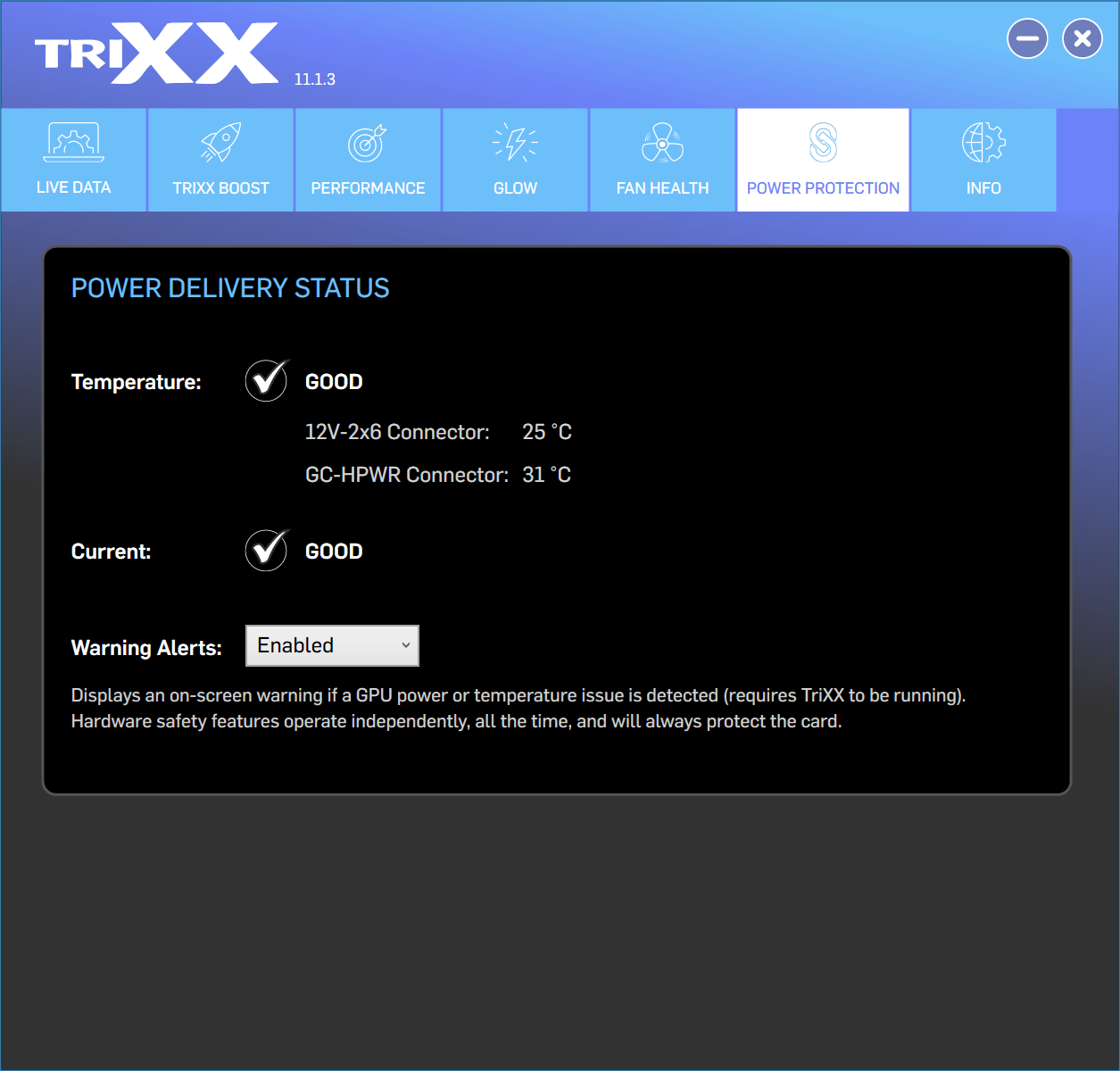 Sapphire NITRO X870EA PhantomLink Polar TrioXX GPU GC HPWR Temps (Image © PCMasters.de)
Under prolonged load, the temperatures of 12V2x6 rose to a maximum of 63° C and GC-HPWR to around 62° C.
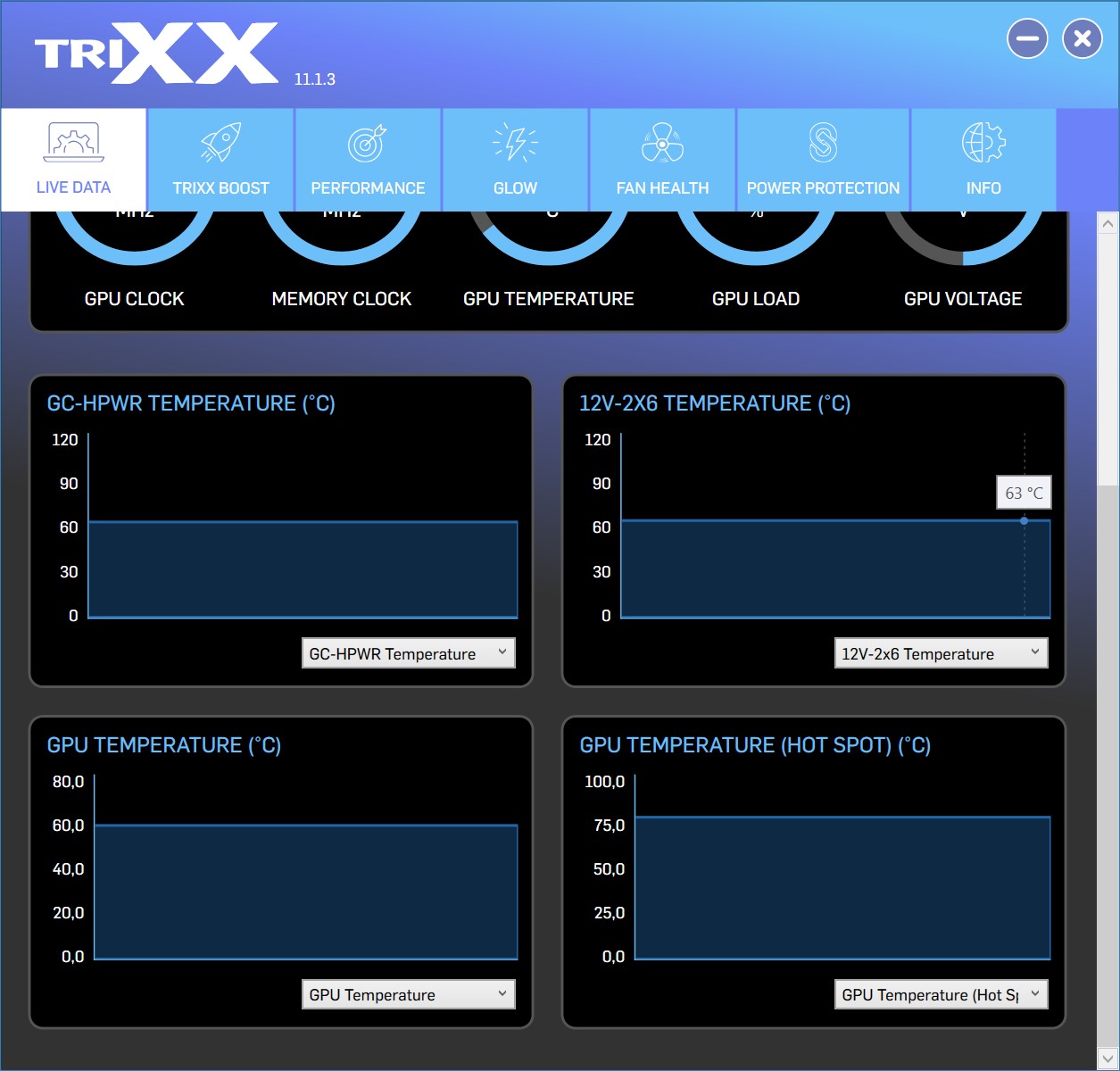 Sapphire NITRO X870EA PhantomLink Polar TrioXX GPU GC HPWR Temps Last (Image © PCMasters.de)
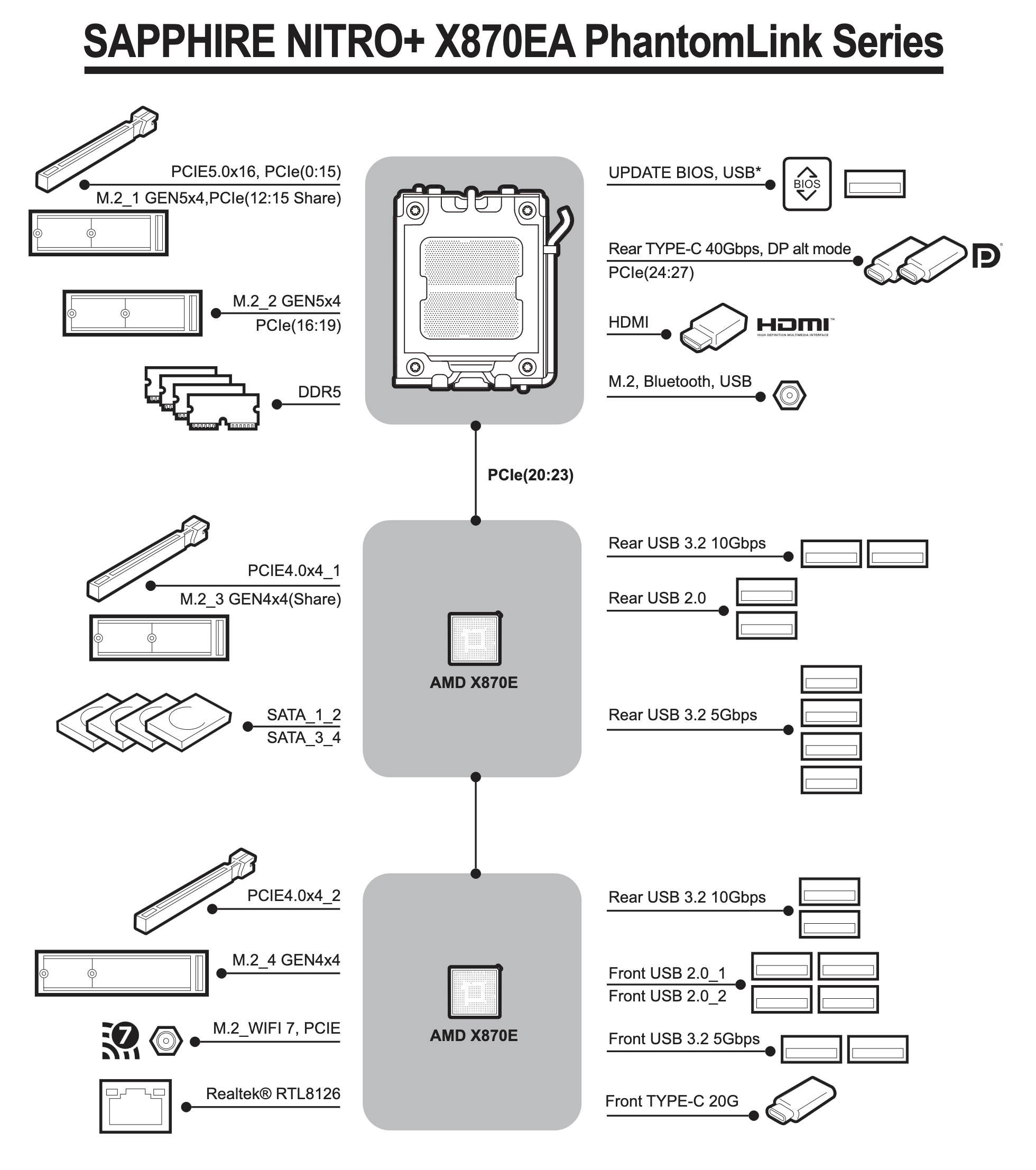 Sapphire NITRO X870EA PhantomLink Polar Block Diagramm (Image © Sapphire)
NVMe, PCIe slots and connection
The block diagram is the easiest way to see how the individual slots and ports are connected to the mainboard. The number of PCIe 5.0 lanes is very limited and so the fast interface to the CPU is usually divided up for the most important components: Graphics card, RAM, NVMe and inevitably USB 3.2 or UISB 4 ports.
The first slot at the top is the PCI Express primary slot and supports full PCIe 5.0 x16 lanes. If the NVMe M.2_1 Gen5 slot is not occupied, the graphics card alone gets 16 of the fast GEN 5 lanes, otherwise it shares the last 4 lanes with the NVMe slot. The NVMe M.2_1 Gen5 slot is obviously the primary slot, which has the largest cooler and is to be used for the SSD. Here, Sapphire is probably relying on the fact that the graphics cards do not utilize all 16 lanes and it does not ultimately have a negative effect on the graphics card performance if 4 lanes are missing.
The NVMe M.2_2 slot, on the other hand, has its own 4 lanes, which are independent of the rest. These are connected with PCIe GEN 5 lanes. A solid plate serves as a cooler, which is not only beautifully decorated but also equipped with a tool-free hook-in mechanism. It covers three of the lower NVMe SSDs and gets quite warm.
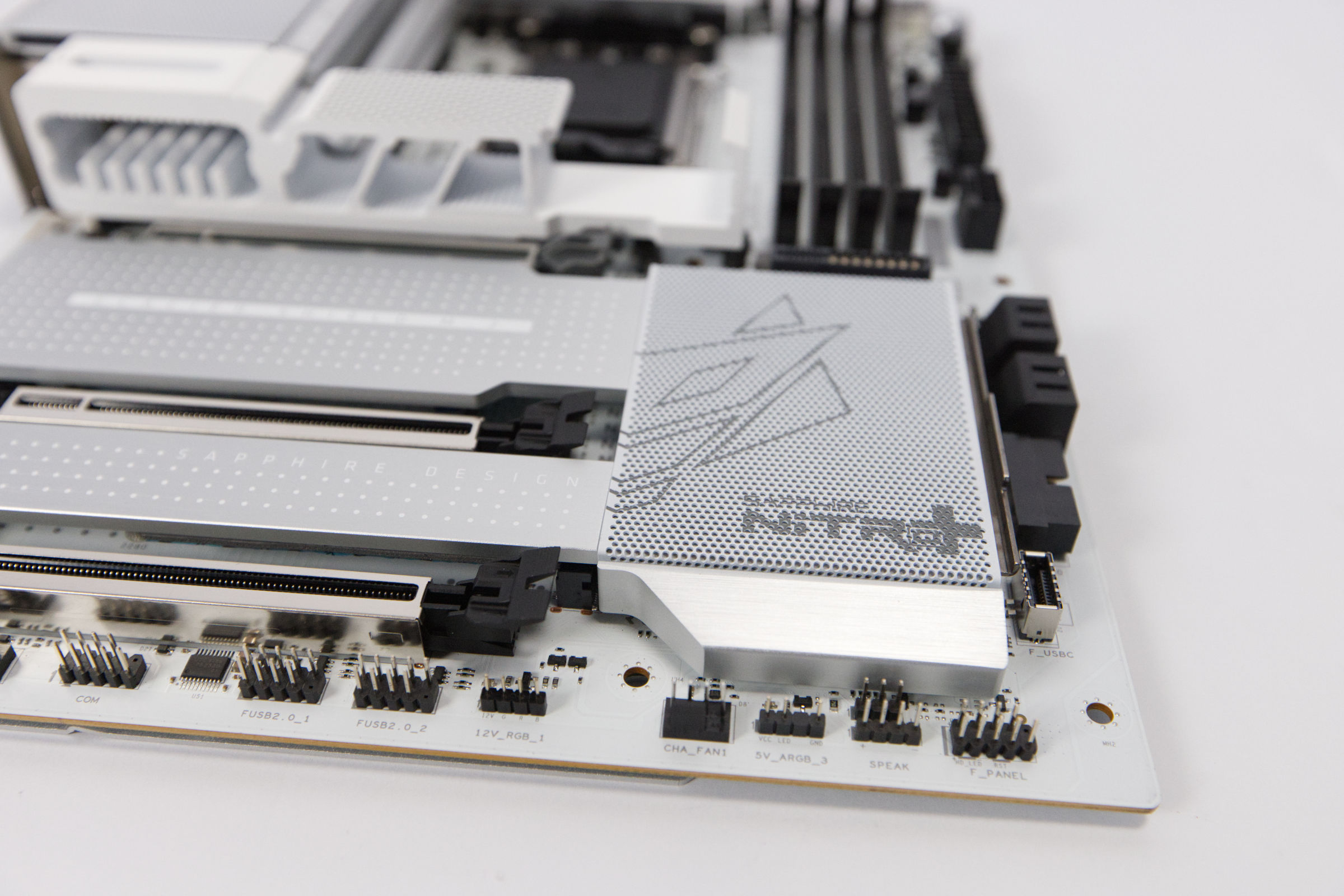 Sapphire Nitro X870EA PhantomLink Polar Chipsatzkühler (Image © PCMasters.de)
The second and third PCI Express slots "only" support PCIe 4.0 and, despite the full x16 slot length, are only connected to one of the two X870E chipsets with 4 lanes each. This means it is still fast, but does not offer the full bandwidth. So you can also plug in short cards with 4 lanes without any problems, because the rest of the pins are probably only decorative.
However, if the PCIe 4_1 slot is occupied, the lanes for the NVMe M.2_3 are switched off, as they share the bandwidth. In contrast, the lowest NVMe M.2_4 slot does not share any lanes with the lowest PCIe 4.0-4_2 slot. A WIFI 7 module is also connected to the lowest chipset, which is listed as M.2_WIFI 7. The Realtek RTL8126 LAN controller is also connected to this X870E chipset, as well as other USB ports.
The PCIe slots all feature metal shielding, which reinforces the slots' physical integrity and prevents damage or deformation from heavy graphics cards or expansion cards during installation or transportation.
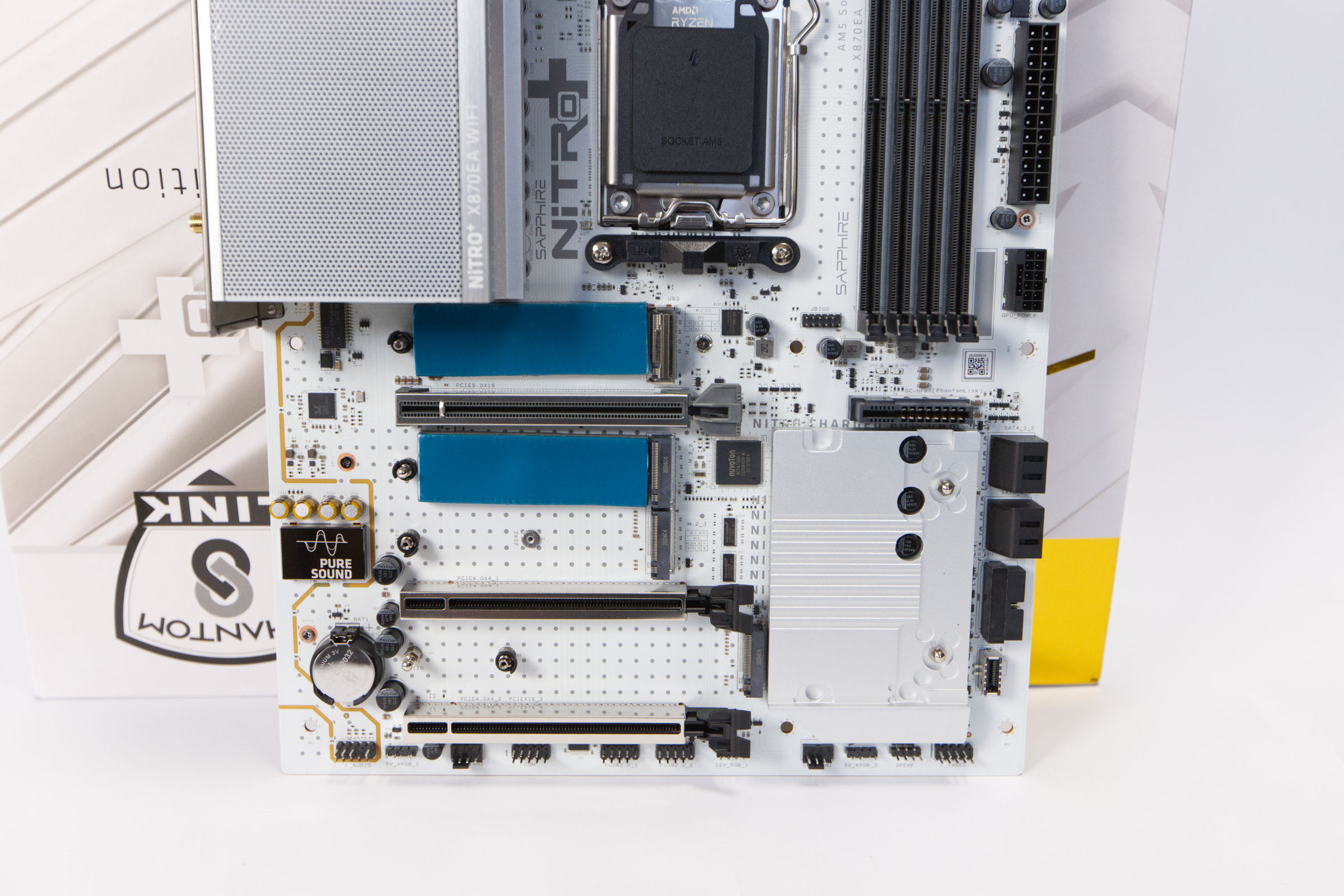 Sapphire Nitro X870EA PhantomLink Polar NVMe Slots (Image © PCMasters.de)
Four NVMe slots
We have already explained how the M.2 slots are attached and will now look at performance and cooling. All M.2 slots are primarily fixed without screws, which is convenient. M.2 M-Key SSDs are supported in 2280 format or, in one slot, also in the shorter 2242 format.
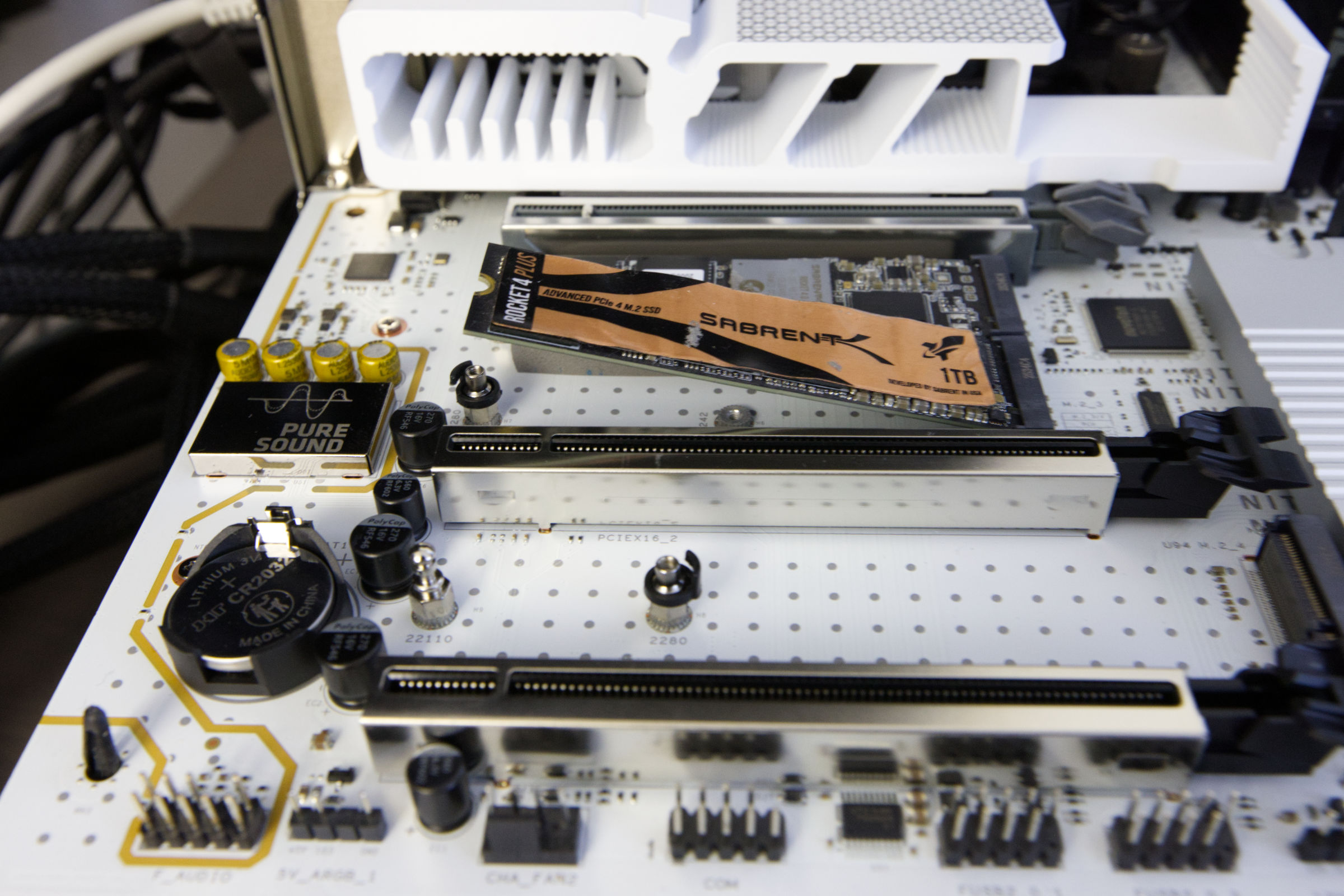 Sapphire Nitro X870EA PhantomLink Polar NVMe anschließen (Image © PCMasters.de)
In the top 2 slots, Sapphire has already placed two thick thermal pads on the board to establish contact with the mainboard and transfer the waste heat. How effective this is with this thickness remains to be seen.
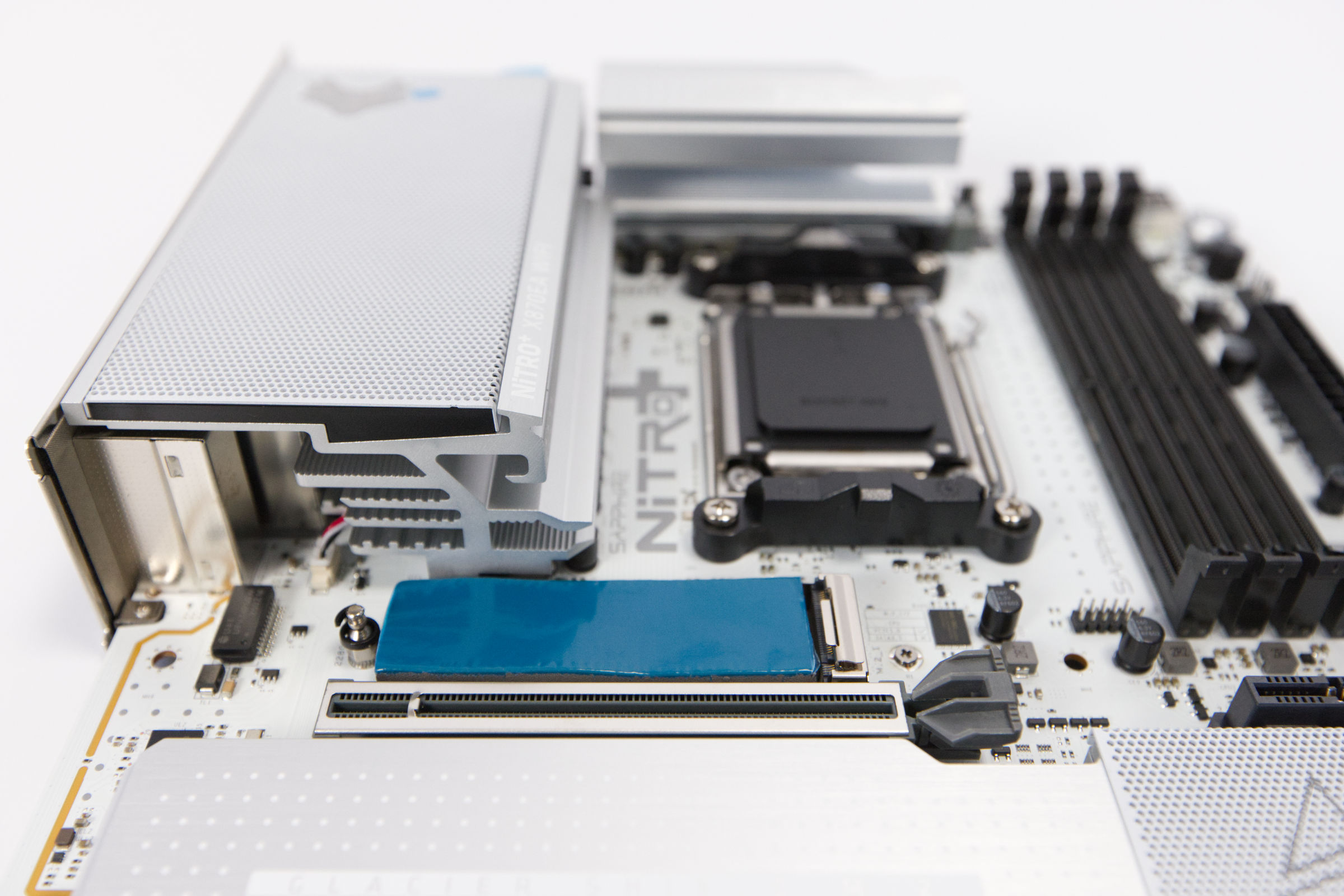 Sapphire Nitro X870EA PhantomLink Polar NVMe 1 Wärmeleitpaste (Image © PCMasters.de)
The largest cooler is used for the first M.2 NVMe SSD. The thermal pad on the cooler is already glued on and only the foil needs to be removed - as with the rest. The cooler is then hooked into place and holds securely on the mainboard.
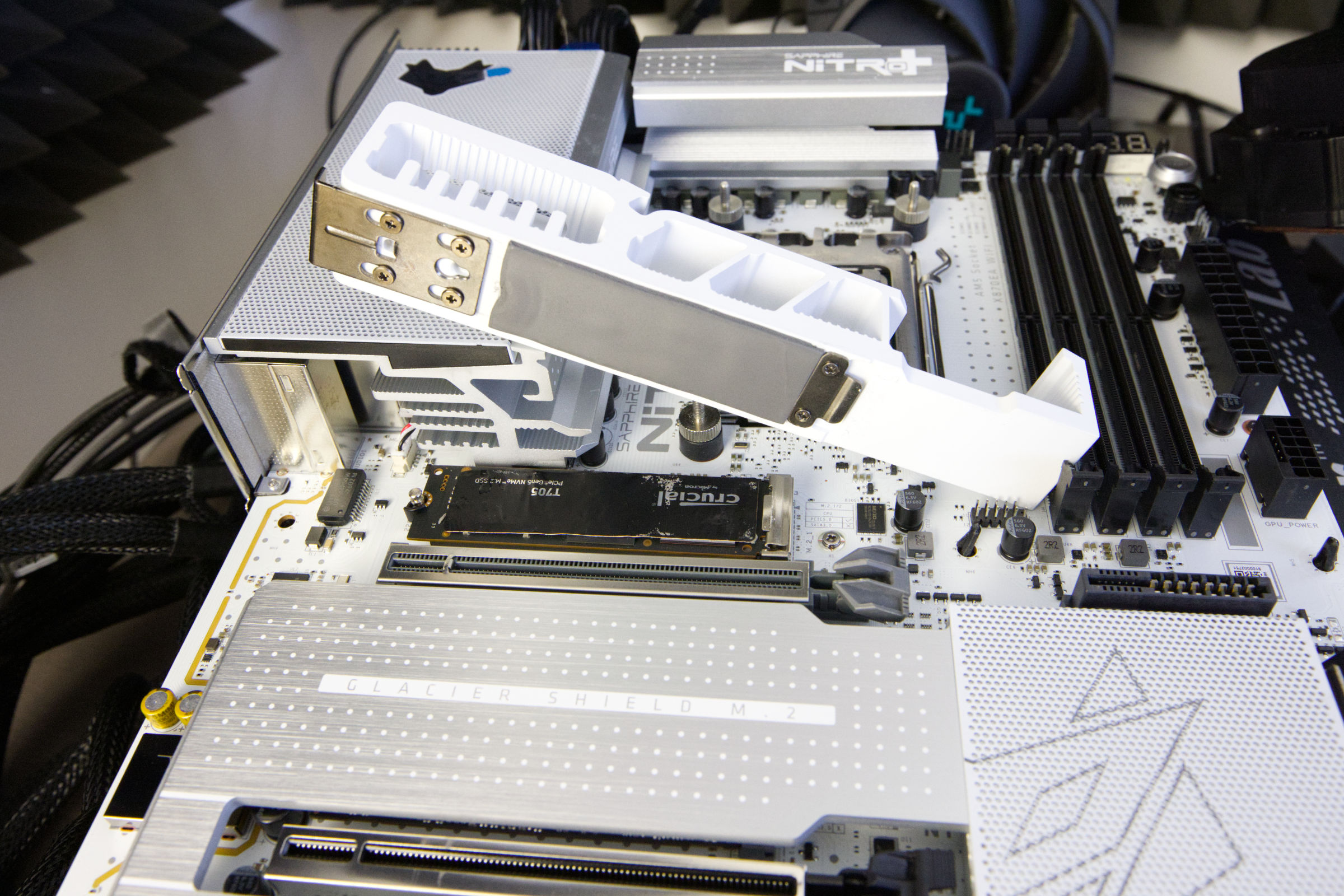 Sapphire Nitro X870EA PhantomLink Polar PCIe 5 NVMe (Image © PCMasters.de)
The lower three NVMe SSDs are cooled by a single plate, which is also equipped with thermal pads. There are even two pads that make contact with the mainboard chipset cooler. So the construction does not rattle and everything remains stable.
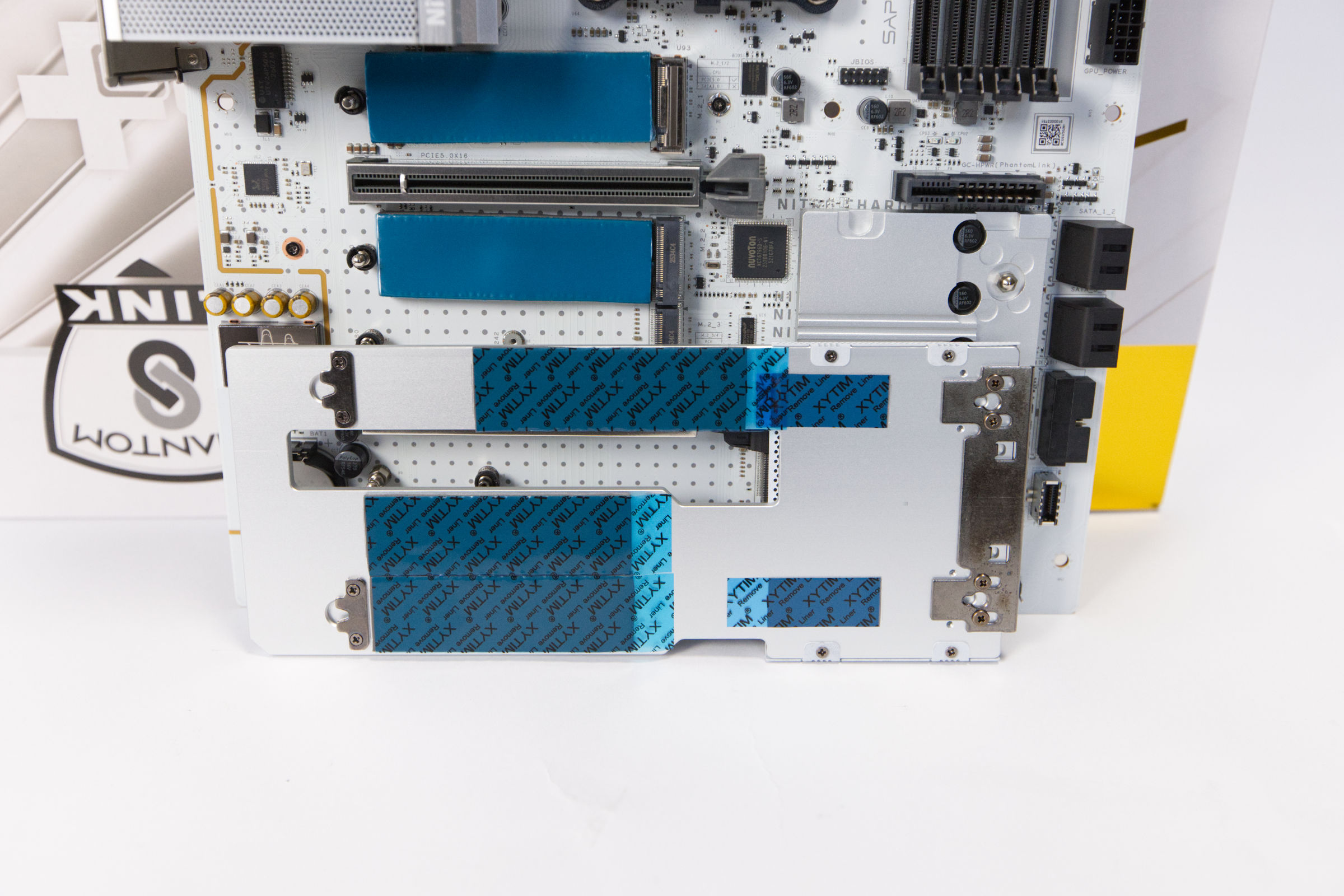 Sapphire Nitro X870EA PhantomLink Polar NVMe Kühler 2 (Image © PCMasters.de)
This cooling plate is also placed on the spacers next to the SSDs without tools and then hooks into place.
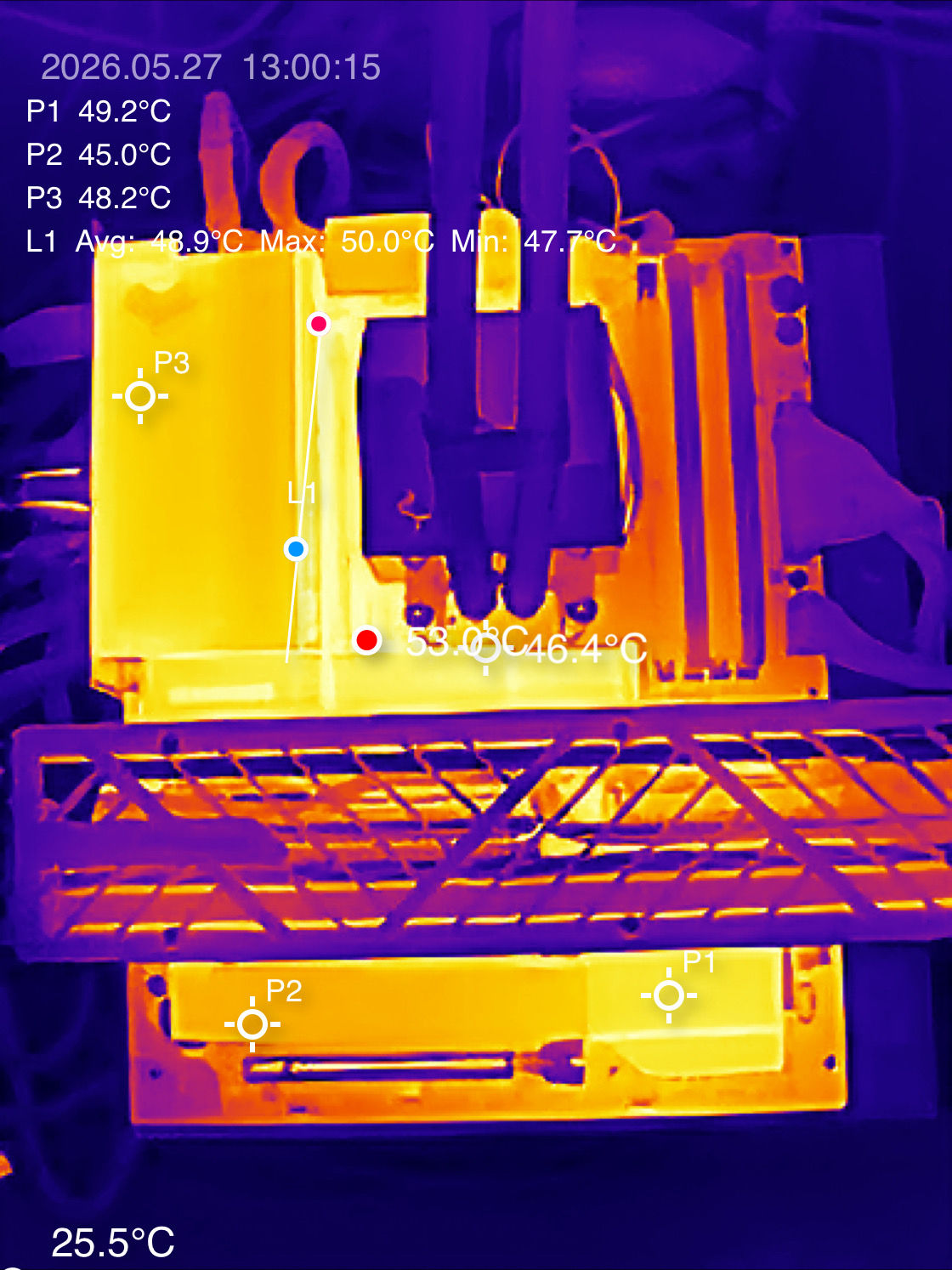 Sapphire NITRO X870EA PhantomLink Polar Wärmebilduafnahme (Image © PCMasters.de)
During longer operation and load on SSDs, the waste heat on the coolers becomes visible. The chipsets and NVMe SSDs also generate waste heat. However, with stable ventilation in the housing, this should not be a problem, as the SSDs did not throttle in the open setup.
Measured values
In the performance comparison with a Crucial T705 for PCIe 5.0 and Sabrent Rocket 4.0 Plus for PCIe 4.0 NVMe performance tests, the Sapphire board shows itself to be very positive. The SSDs did not throttle and the results were particularly strong in the PCMark and 3DMark runs.
 Sapphire Nitro X870EA PhantomLink Polar ARGB und Debug (Image © PCMasters.de)
Debug display and buttons
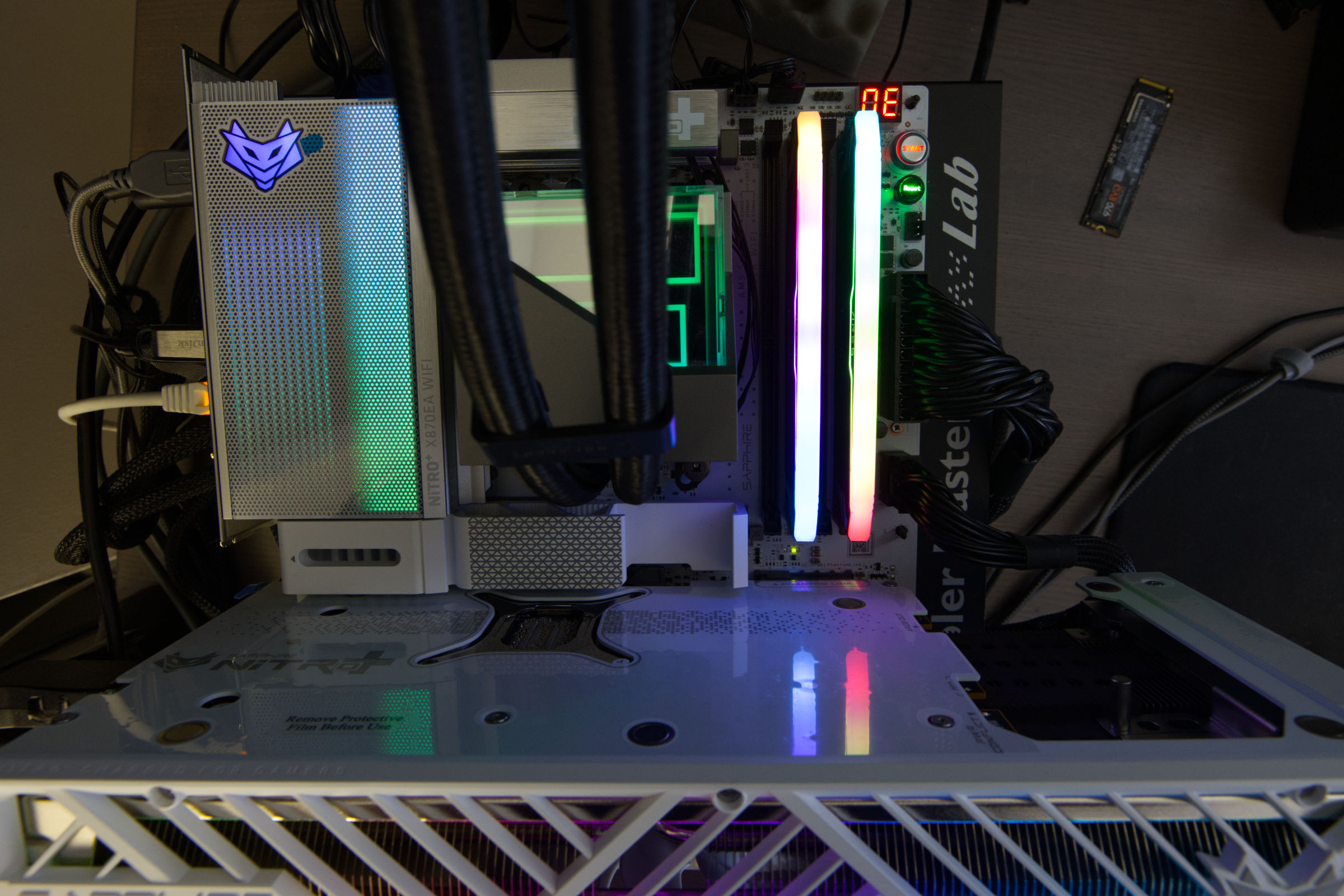
A really useful feature for us, which massively increases user-friendliness, is the Port 80 debug display. Here you can see where the boot process is at the moment and where there were errors during booting (system stops at a post code).
There is also a dedicated power and reset button at the top right of the board. This is extremely helpful for everyday testing. The LEDs also light up when the mainboard is ready for operation but switched off (red) or switched on (green). There are other LEDs on the board that make debugging easier.
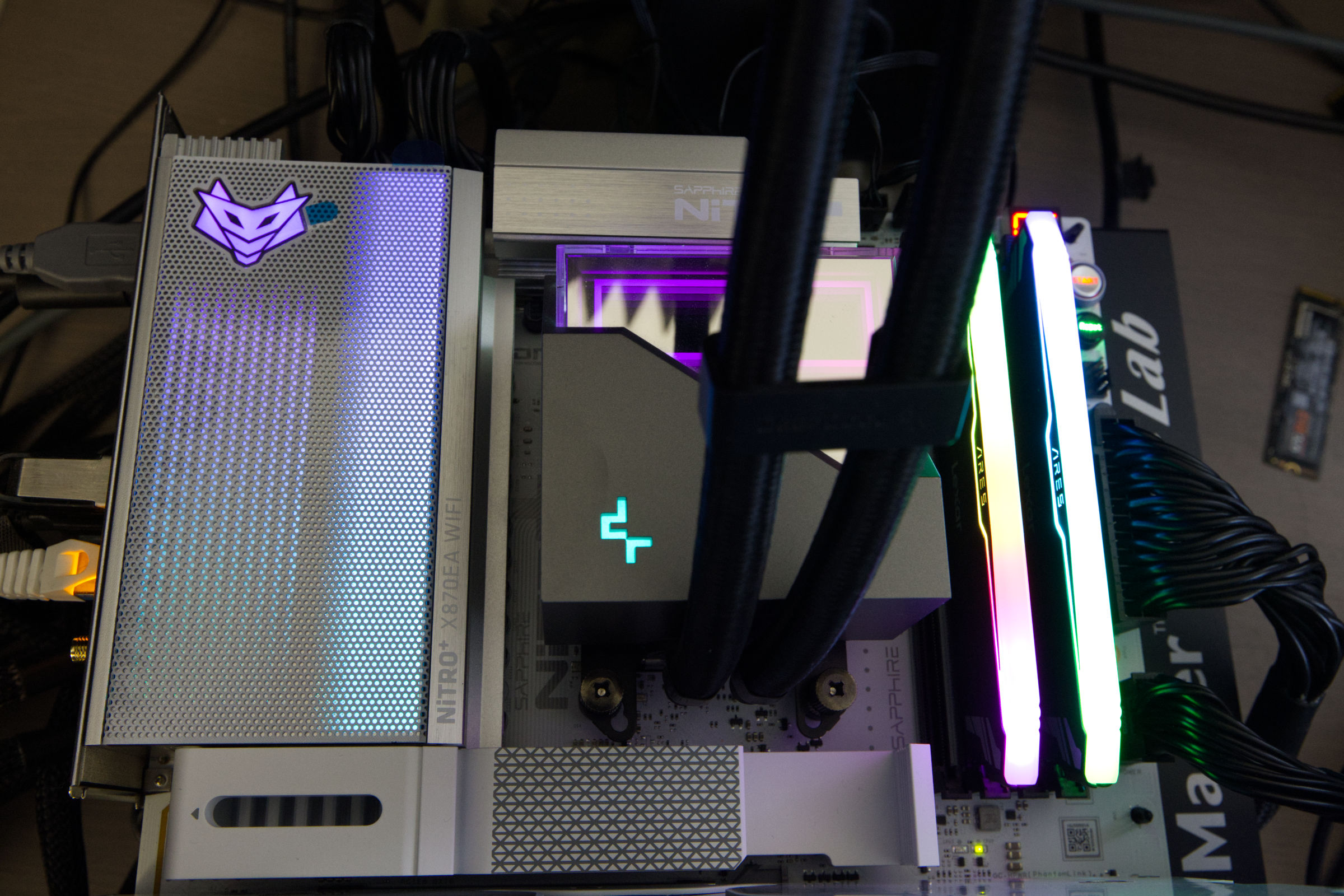 Sapphire Nitro X870EA PhantomLink Polar ARGB (Image © PCMasters.de)
ARGB lighting
Sapphire has also implemented the ARGB lighting very stylishly. There is a mesh grid with the Nitro+ logo on the large cooler next to the I/O panel. When the PC is switched on, the area lights up and can be synchronized with RAM, GPU and other ARGB headers. The corresponding ARGB headers can be found above.
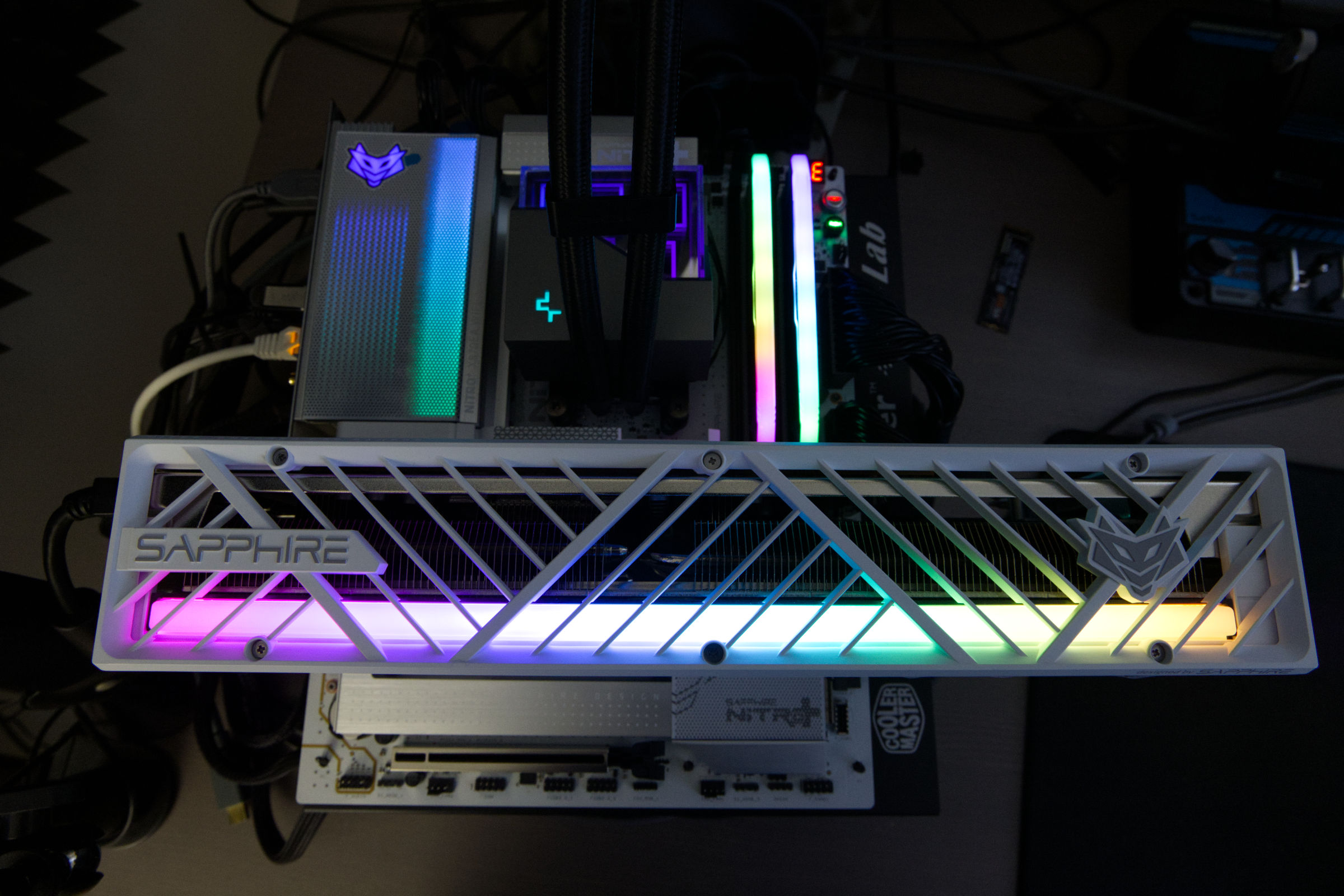 Sapphire Nitro X870EA PhantomLink Polar ARGB Sync (Image © PCMasters.de)
The lighting works particularly well with the matching Sapphire graphics cards. However, the lighting can be combined with components from other manufacturers without hesitation.
Sapphire Nitro X870EA PhantomLink Polar ARGB und Debug (Image © PCMasters.de)
The lower area of the mainboard, on the other hand, is not illuminated. The lighting control can be configured via the TriXX-M software or the BIOS, whereby the TriXX-M software probably offers the best options.
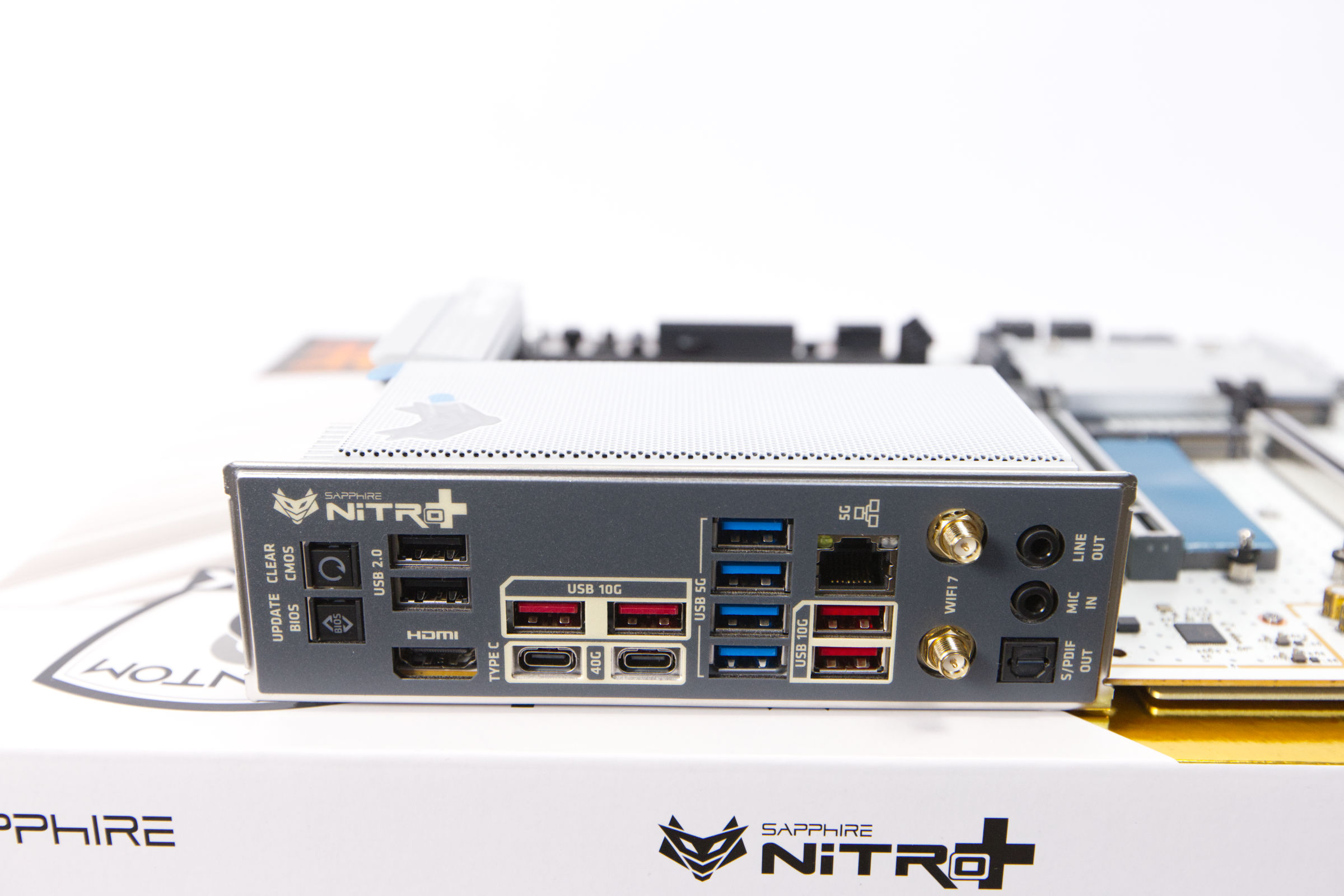 Sapphire Nitro X870EA PhantomLink Polar IO Panel und Anschlüsse (Image © PCMasters.de)
I/Os and extras
On the I/O panel, which is permanently integrated into the mainboard, we find many connections. First and foremost are the two USB4 ports, which enable data transfer rates of 40 Gb/s, support DisplayPort video output and offer a 15 W power supply. To support additional devices and peripherals, the board has USB-A ports, including four USB 3.1 10 Gb/s ports and four USB 3.0 5 Gb/s ports as well as two standard USB 2.0 ports.
Networking functions are handled by a Realtek RTL8126 controller, which provides a 5GBit-T RJ-45 Ethernet connection for faster local network throughput than standard Gigabit solutions. Wireless capabilities are supported via two RP-SMA antenna connectors, while audio output is via a Realtek ALC897 codec on three 3.5mm jacks.
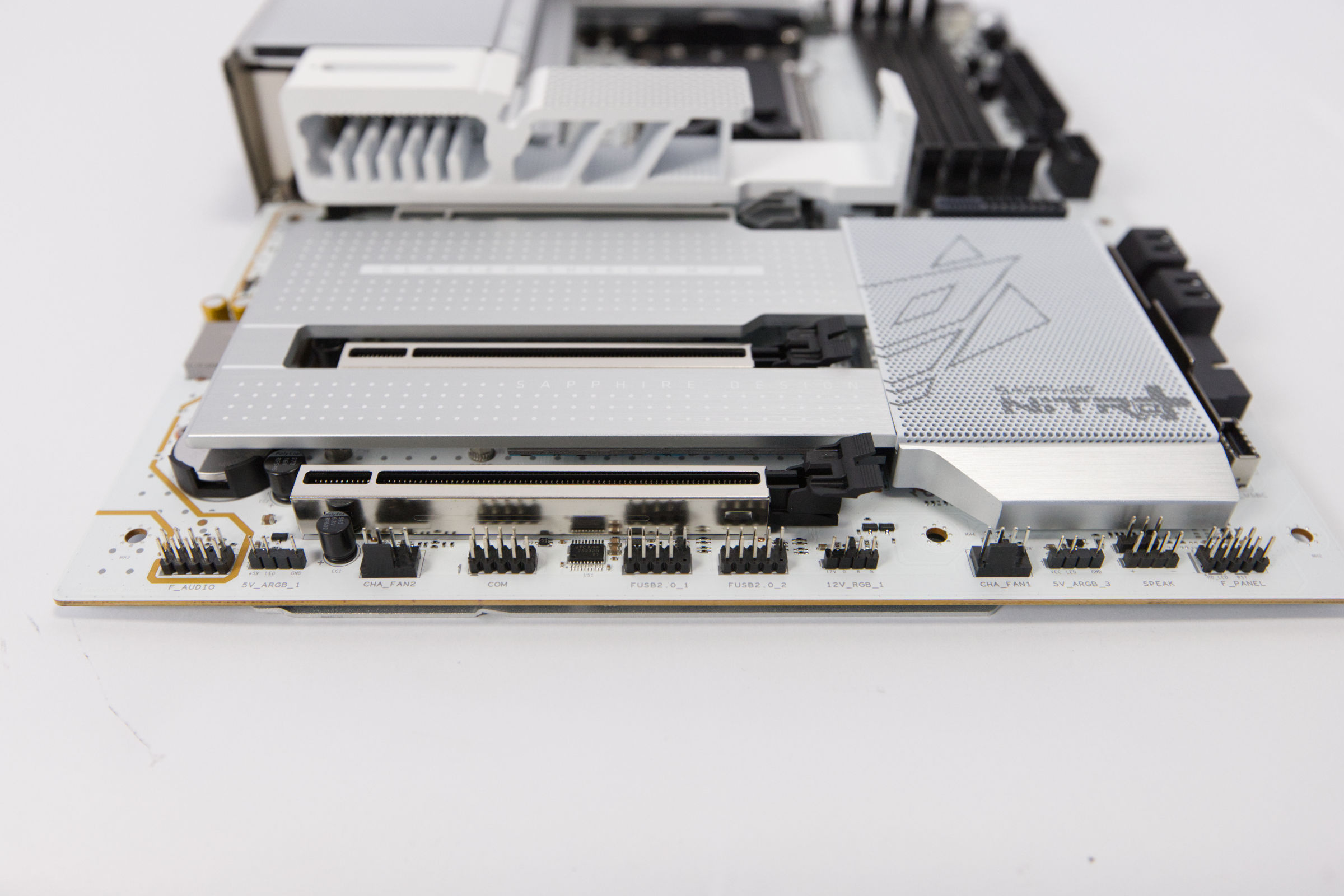 Sapphire Nitro X870EA PhantomLink Polar Headerpins unten (Image © PCMasters.de)
Expansion options and internal header pin
Internally, the board focuses on fast front panel connections. A USB 3.2 Key-A header enables a USB-C connection with 20 Gbit/s and 30 W power supply. Additional internal USB support is provided via a 20-pin USB 3.0 header and two 9-pin USB 2.0 headers, enabling the connection of a variety of peripherals in the chassis.
Thermal management is provided by a comprehensive set of 4-pin PWM connectors. The system offers dedicated control for the CPU cooler, an AIO pump and three additional case fans. For visual customization, the board has three 5 V ARGB connectors and one 12 V RGB connector.
For technicians and enthusiasts, the board offers several utility functions at hardware level. External access to USB BIOS Flashback and a Clear CMOS button allow firmware updates and BIOS resets without having to enter the system environment. In addition, the motherboard has internal start and reset buttons, which makes testing and troubleshooting during assembly easier.
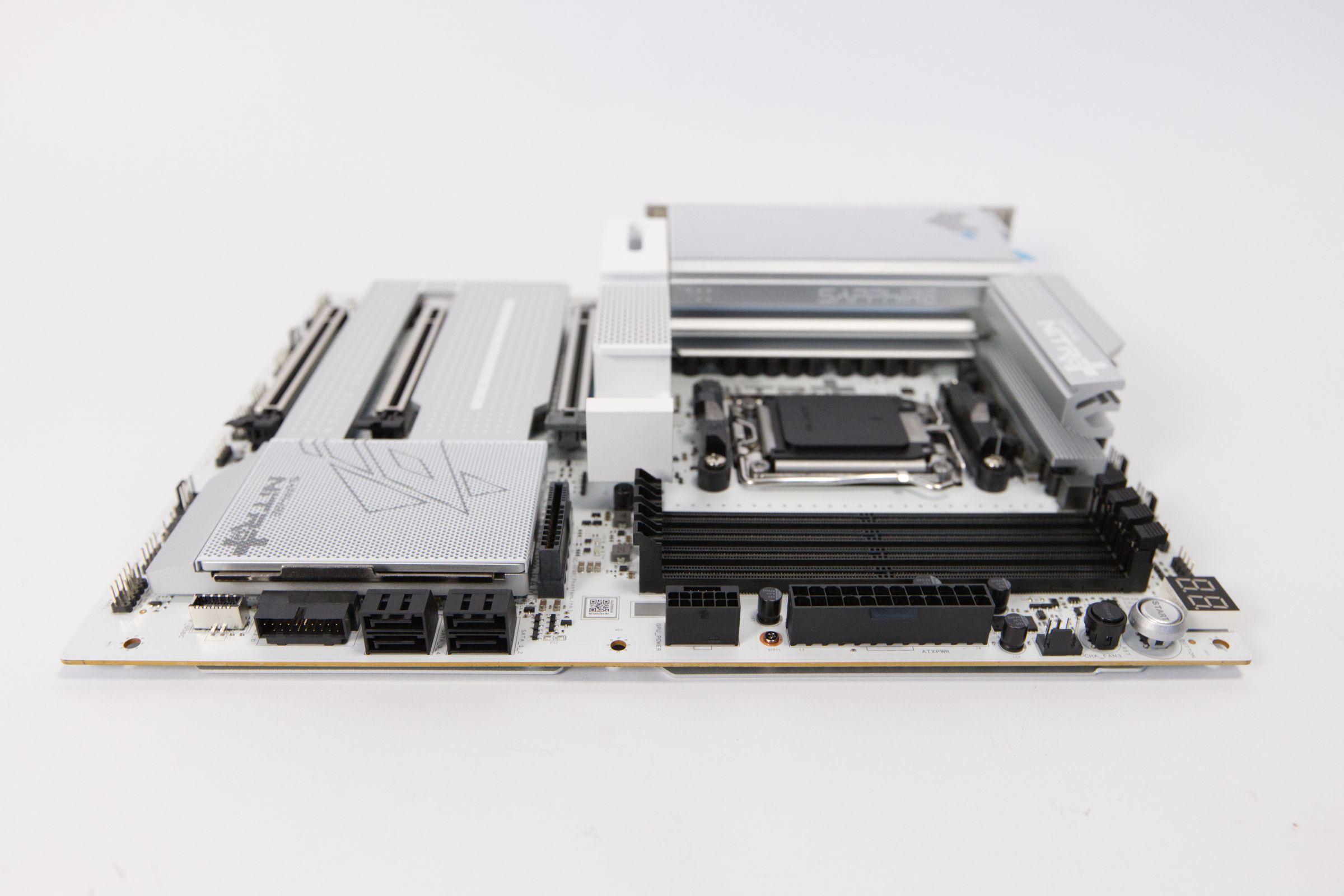 Sapphire Nitro X870EA PhantomLink Polar Anschlüsse seitlich (Image © PCMasters.de)
Wifi 7, Bluetooth 5.4 and 5 Gbit LAN
The NITRO+ X870EA PhantomLink Polar Edition comes with a WLAN-Bluetooth combo chip. As can be seen in the block diagram above, this is connected via the X870E chipset. Sapphire uses the RTL8126 to supply the RJ45 port on the I/O panel at the rear and thus offers bandwidths from 100 MBit/s to 2.5 GBit/s to 5 GBit/s. Even though there is only one RJ45 connection, it is still nice that it is so fast. This is a very common combination in this price range and can be considered the de facto standard.
For WLAN, Sapphire relies on Wi-Fi 7 according to 802.11 a/b/g/n/ac/ax/be. It operates on the 2.4, 5 and 6 GHz bands. The appropriate antennas for the Wi-Fi 7 signal are included in the scope of delivery and must be screwed onto the two connectors. You then get a stronger signal for Bluetooth 5.4 and WiFi. The antennas are white to match the overall design.
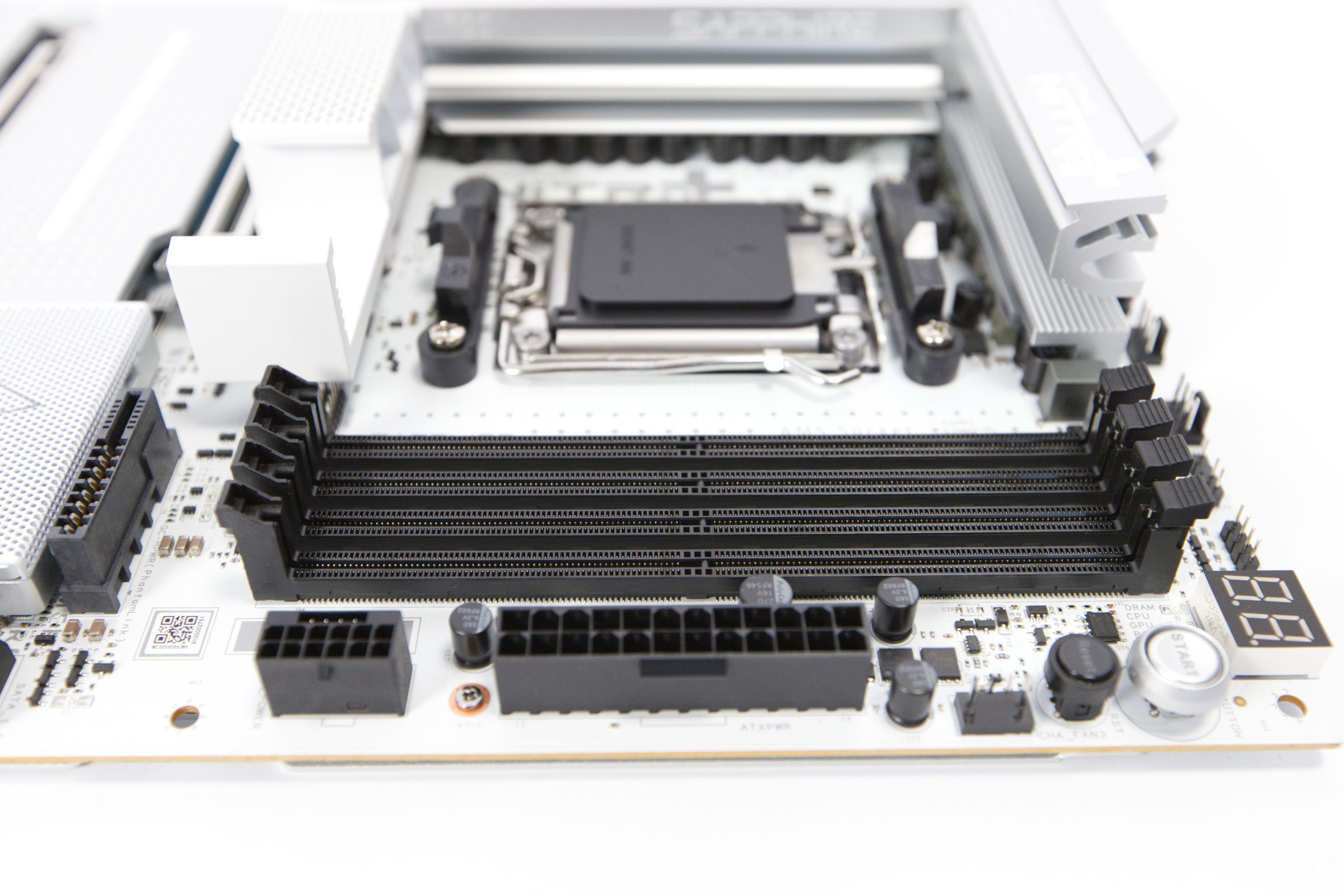 Sapphire Nitro X870EA PhantomLink Polar DDR5 DIMM (Image © PCMasters.de)
Four DDR5 slots for up to 8,400 MT/s
The motherboard supports a maximum total memory capacity of 256 GB non-ECC RAM. This is achieved by four slots, each of which can hold up to 64 GB per module. In terms of processor compatibility, the board is designed for the AMD Ryzen 7000, Ryzen 8000G and Ryzen 9000 series. The standard memory speeds vary depending on the CPU installed. For users running Ryzen 7000 or 8000G processors, the native speed is DDR5-5200, while for the newer Ryzen 9000 series, the native speed increases to DDR5-5600.
For users looking for higher performance, the motherboard supports AMD EXPO profiles. These profiles allow memory overclocking up to 8,400 MT/s, which significantly increases the data transfer rate beyond the standard specifications.
To maintain and improve these features, the manufacturer provides regular UEFI and BIOS updates. These updates integrate the latest AGESA firmware from AMD and ensure that memory stability and compatibility are optimized as new RAM modules are released and firmware optimizations are developed.
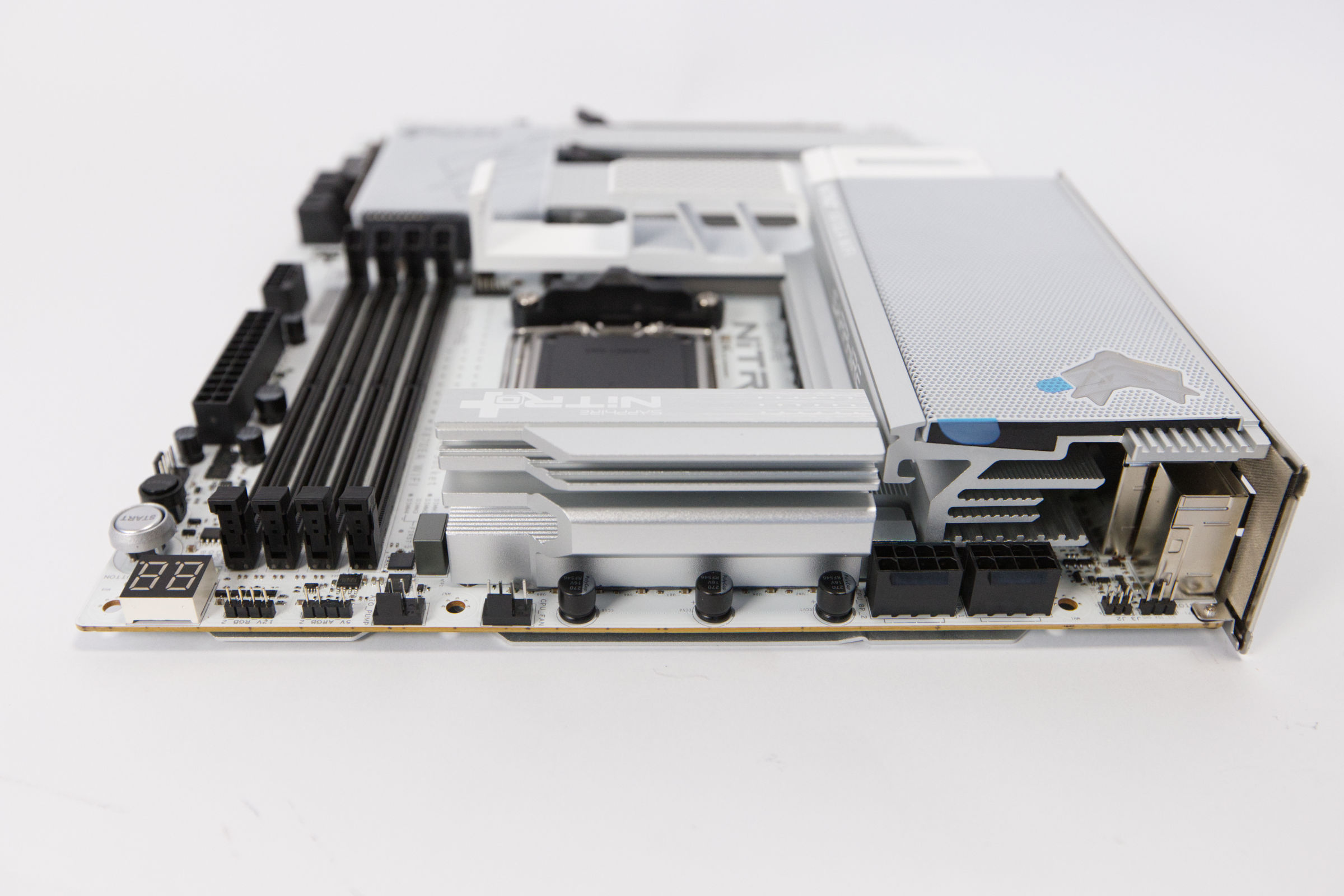 Sapphire Nitro X870EA PhantomLink Polar Anschlüsse oben (Image © PCMasters.de)
Robust power management design
With the NITRO+ X870EA PhantomLink Polar, Sapphire uses a well-dimensioned power design for the AM5 platform. This should be able to withstand and safely operate even the hungriest high-end CPU from AMD. Sapphire relies on a power supply design with a 16+2+1 phase VRM (Voltage Regulator Module) configuration, whereby each phase can supply up to 90 A. The integration of two 8-pin EPS connectors ensures stable overclocking performance and reliability during intensive tasks.
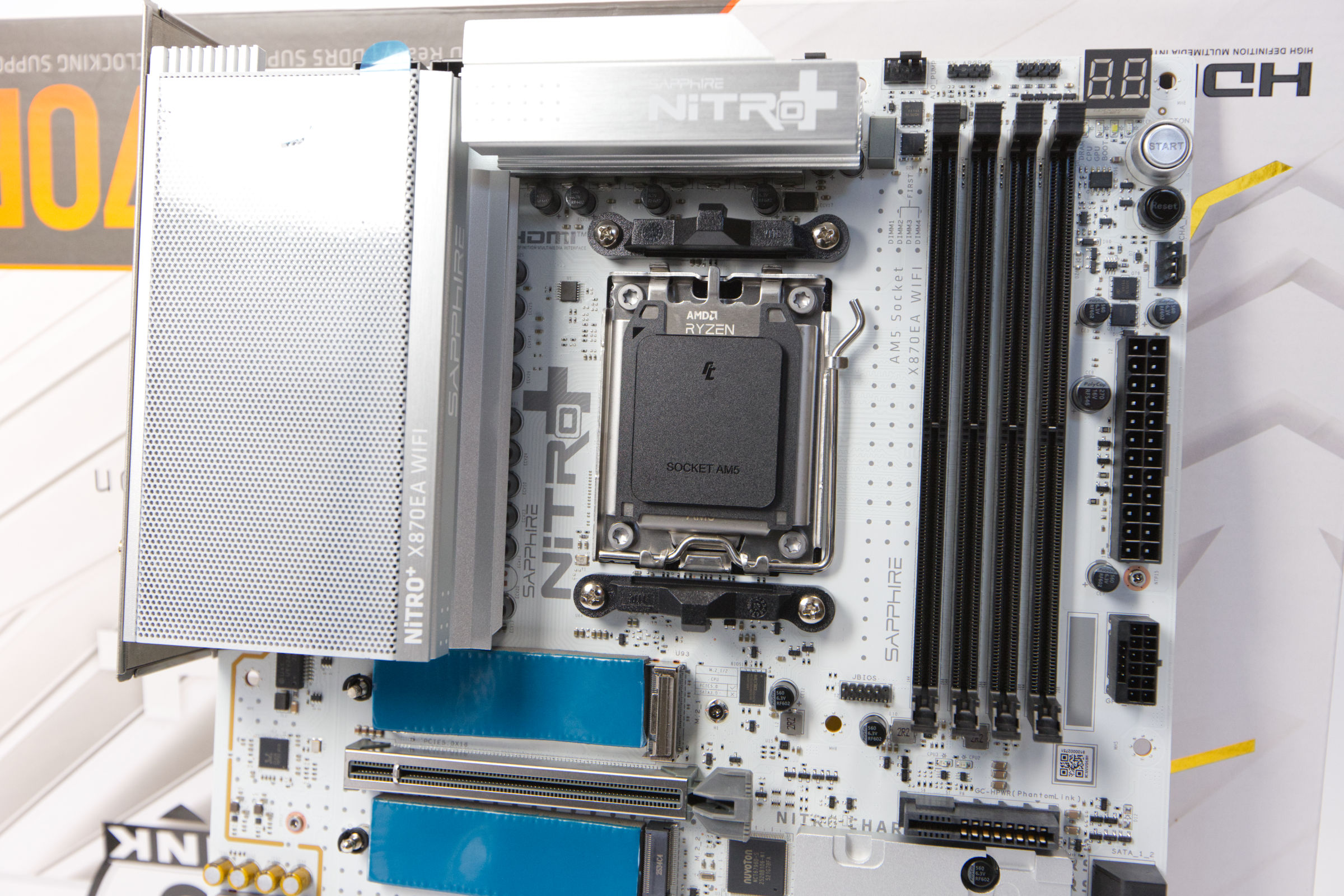 Sapphire Nitro X870EA PhantomLink Polar Sockel AM5 (Image © PCMasters.de)
X870 compared to previous generation
With a jump in the naming scheme from 600 to 800, one would expect obvious innovations, but everything is different with this generation. You have to look carefully in the table to see the differences. In the 600 series, there were only minor differences between the X670 and X670E chipsets, but the X870 seems to be more clearly differentiated from the X870E. Above all, the X870E offers more support for USB ports and has more PCIe 5.0 lanes. Nevertheless, X870 boards are equipped with full PCIe 5.0 lanes, which the X670 chipset still lacks.
| X870E | X870 | X670E | X670 | |
| Socket | AM5 | AM5 | AM5 | AM5 |
| PCIe lanes (graphics card) | 1x PCIe 5.0 ×16 or 2x PCIe 5.0 ×8 | 1x PCIe 5.0 ×16 or 2x PCIe 5.0 ×8 | 1x PCIe 5.0 x16 or 2x PCIe 5.0 x8 | 1x PCIe 4.0 x16 or 2x PCIe 4.0 x8 |
| PCIe 5.0 lanes (total) | 44 | 36 | 44 | 44 |
| PCIe 5.0 Lanes (CPU) | 24 | 24 | none | 20 |
| PCIe 5.0 Lanes (NVMe) | 4 | 4 | 4 | 4 |
| PCIe 4.0 lanes (chipset) | 12 | 8 | 12 | 12 |
| PCIe 3.0 lanes (chipset) | 8 | 4 | 8 | 8 |
| PCIe 4.0 lanes (CPU) | 24 | 24 | 24 | 4 |
| USB SUPERSPEED 5Gbps | 2 | 1 | 2 | 2 |
| USB SUPERSPEED 10Gbps | 12 | 6 | 12 | 12 |
| USB SUPERSPEED 20Gbps | 2 | 1 | 2 | 2 |
| USB 4.0 support | present | present | optional | optional |
| SATA ports (or PCIe 3.0) | 8 | 4 | 8 | 8 |
| Overclocking | Supported | Supported | Supported | Supported |
| AMD EXPO | Supported | Supported | Supported | Supported |
| Integrated WLAN | Wi-Fi 7 | Wi-Fi 7 | Wi-Fi 6E | Wi-Fi 6E |
| Chipset TDP | 14 W | 7 W | 14 W | 14 W |
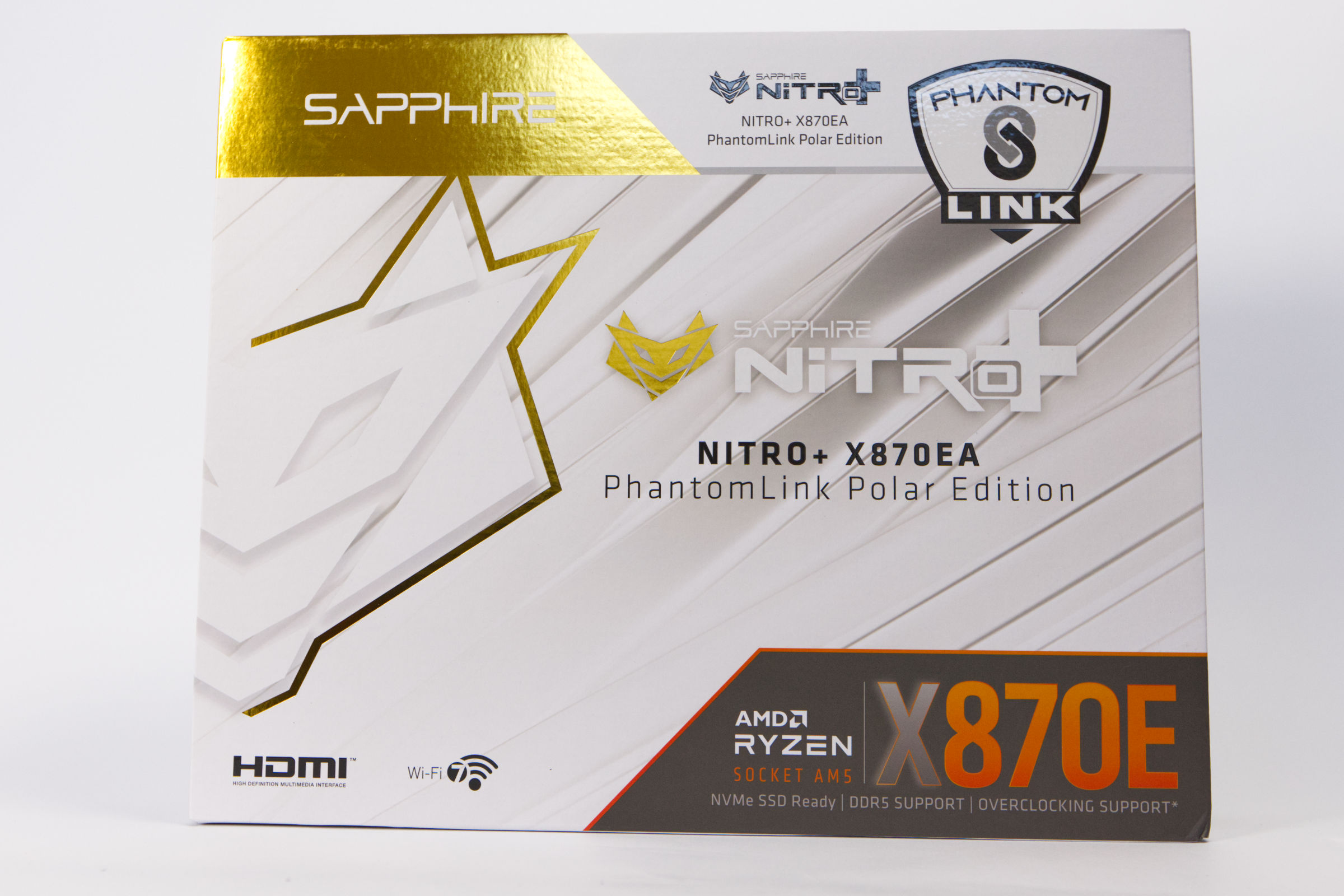 Sapphire Nitro X870EA PhantomLink Polar Verpackung (Image © PCMasters.de)
Packaging
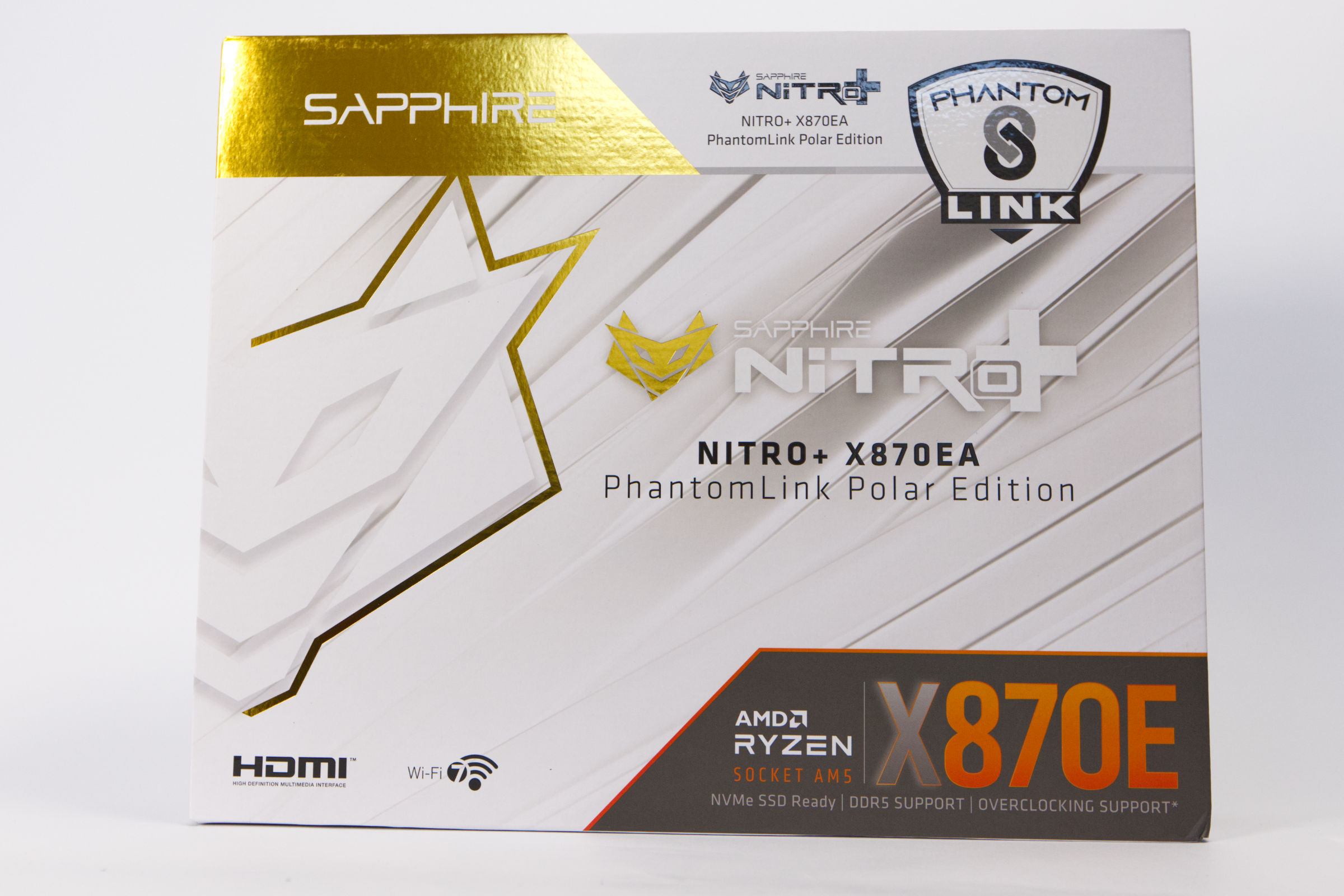
The NITRO+ X870EA PhantomLink Polar comes in a large cardboard box, which is predominantly white with a gold-plated coating on the top. The rest is white and black to match the board. The AMD lettering is retained in the AMD design, as this is specified. The lower area is covered with adhesive tape to prevent the packaging from opening during transportation. To open the box, pull on the adhesive tape and then push up the upper part of the box.
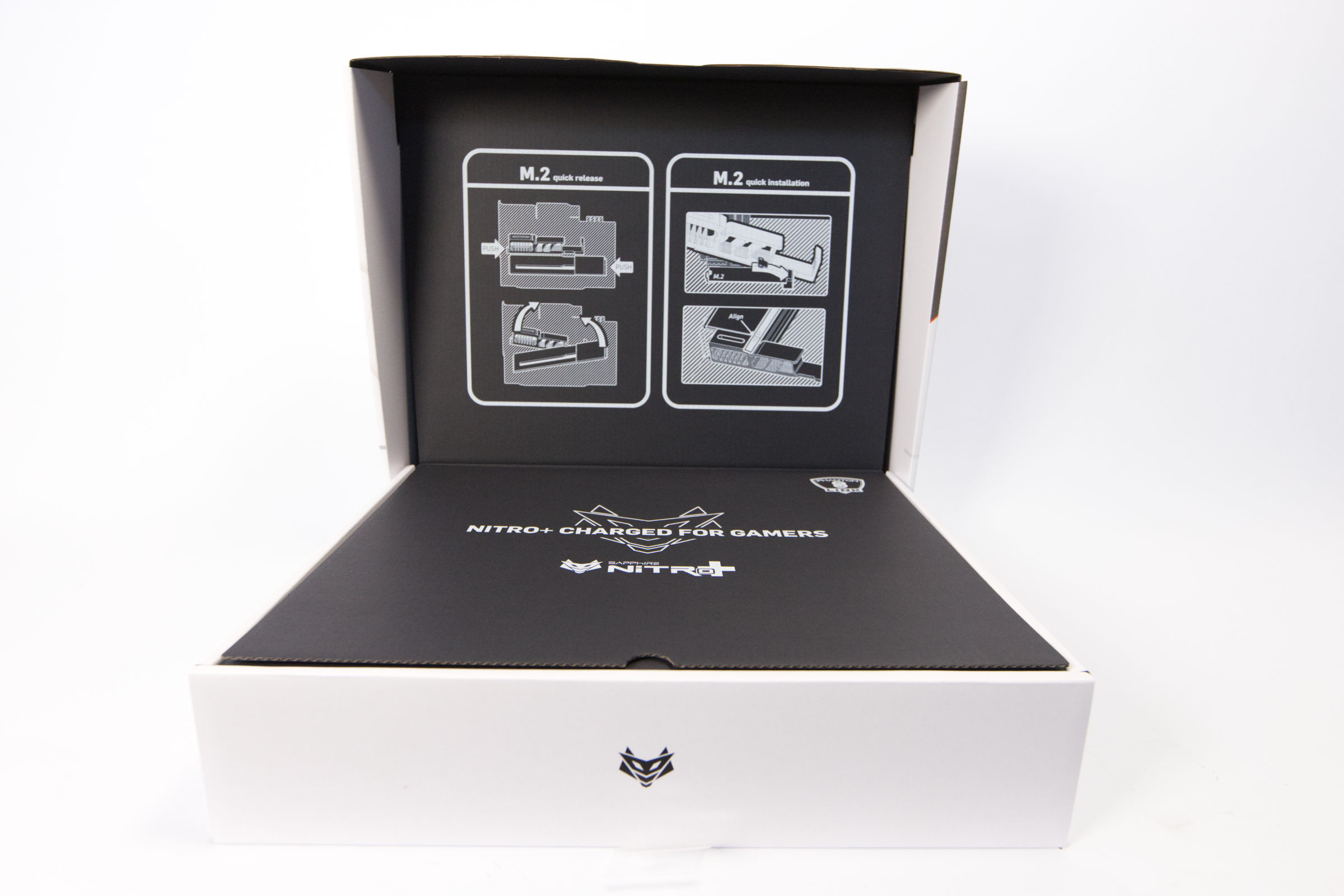 Sapphire Nitro X870EA PhantomLink Polar Verpackung offen (Image © PCMasters.de)
There is then a stark contrast, as the inside is black. In the upper segment, you are informed that the coolers can be attached without tools.
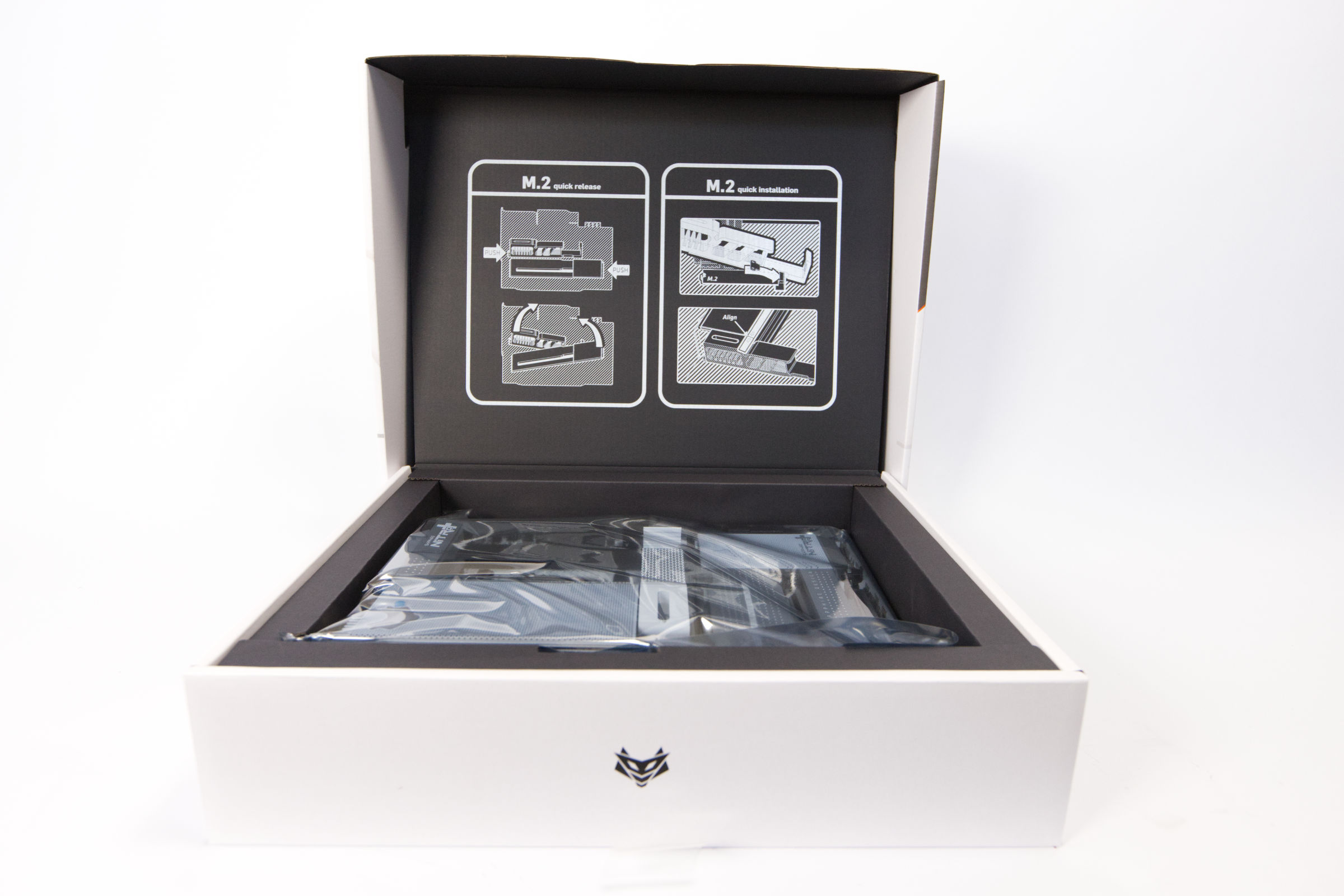 Sapphire Nitro X870EA PhantomLink Polar Verpackung innen (Image © PCMasters.de)
Underneath the insert is the mainboard, which is wrapped in antistatic foil. This can be pulled out in the cardboard tray, which also protects it from damage during transportation.
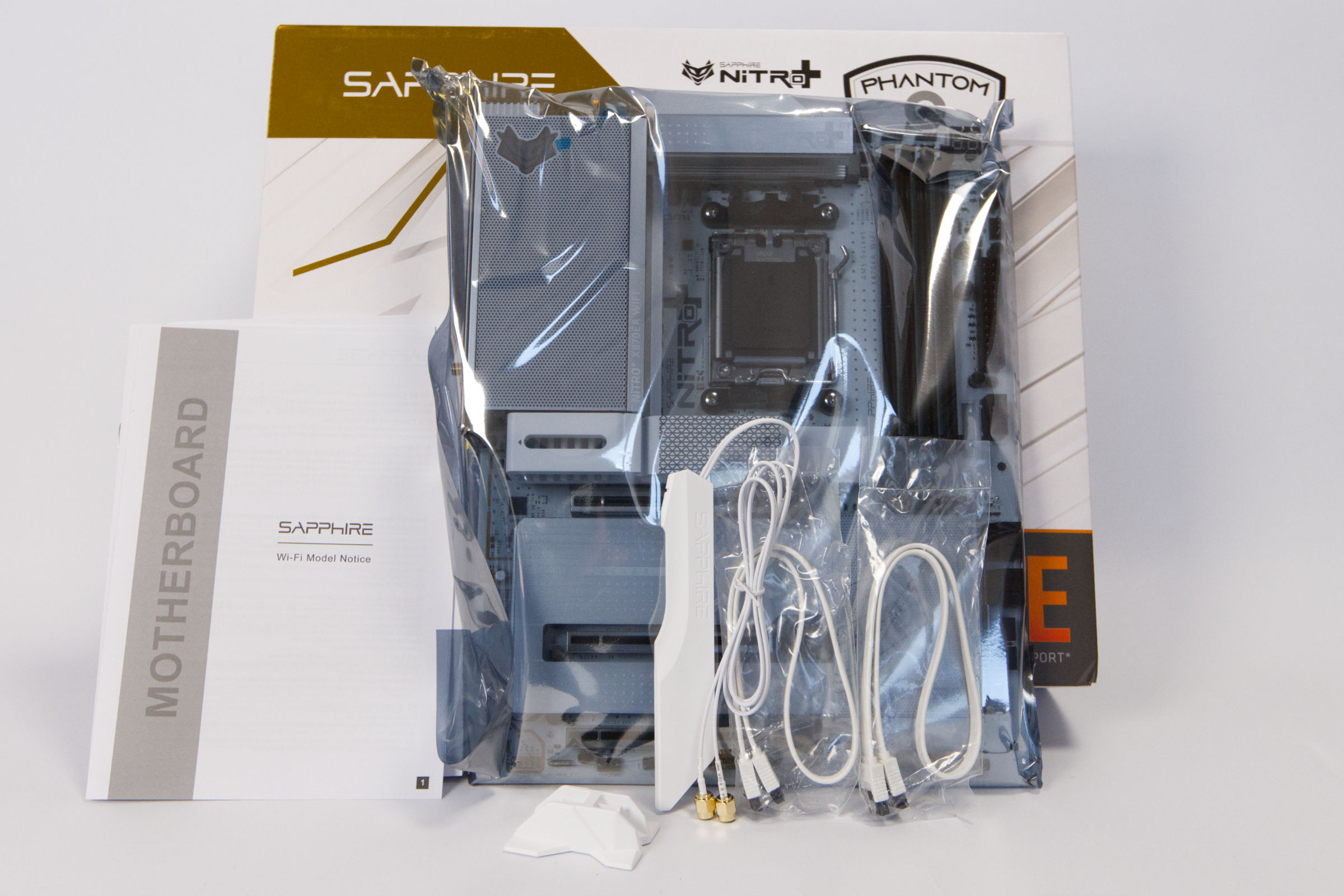 Sapphire Nitro X870EA PhantomLink Polar Lieferumfang (Image © PCMasters.de)
## Packaging & scope of deliveryThe scope of delivery is average, as there are no stickers or special features to excite fans - Sapphire concentrates on the essentials:- 2 x white SATA cables - Manual and warranty information - White Wifi antenna with base
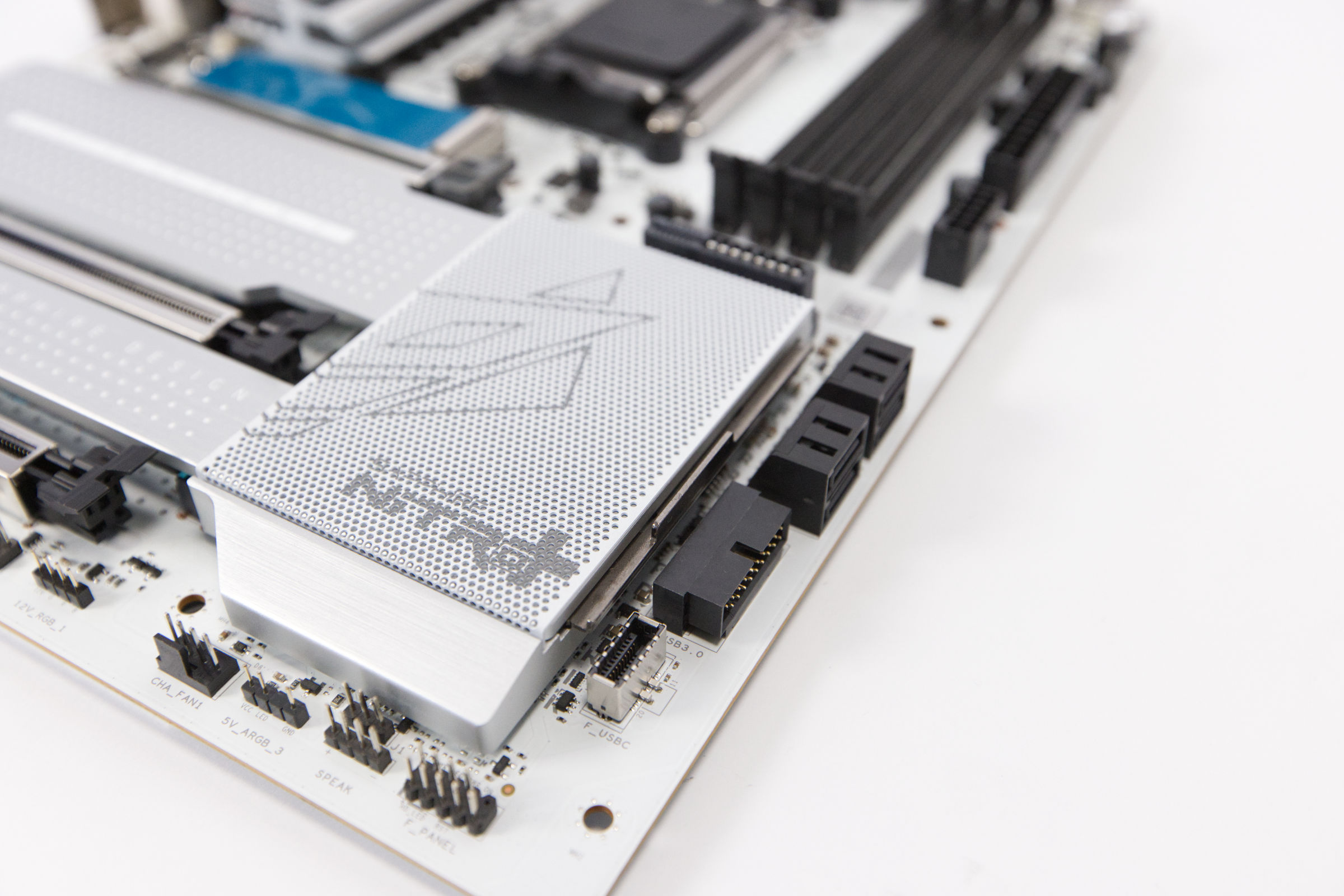 Sapphire Nitro X870EA PhantomLink Polar Logo (Image © PCMasters.de)
Technical data
| Sapphire NITRO+ X870EA PhantomLink Polar Edition - technical data | |
| Form factor | ATX |
| Socket | AMD AM5 / LGA1718 |
| CPU support | Ryzen 7000, Ryzen 8000G, Ryzen 9000 |
| RAM slots | 4x DDR5 DIMM, Dual Channel, UDIMM, max. 256GB (UDIMM),non-ECC |
| EXPO profile (maximum) | DDR5-8400 |
| Connections (I/O panel) | 1x HDMI (iGPU), 2x USB4 with DisplayPort (40Gb/s, PD-Out 15W, iGPU), 4x USB-A 3.1 (10Gb/s), 4x USB-A 3.0 (5Gb/s), 2x USB-A 2.0 (480Mb/s), 3x 3.5mm jack (Realtek ALC897), 1x RJ-45 (5GBase-T, Realtek RTL8126), 2x RP-SMA antenna connection |
| PCIe slots | 1x PCIe 5.0 x16, 2x PCIe 4.0 x16 (x4) |
| M.2 slots | 2x M.2/M-Key (PCIe 5.0 x4, 2280), 2x M.2/M-Key (PCIe 4.0 x4, 2280), 1x M.2/E-Key (2230, occupied with WiFi+BT module) |
| Header connections | 1x USB 3.2 header Key-A (20Gb/s, PD-Out 30W, 1x USB-C), 1x USB 3.0 header 20-pin (5Gb/s, 2x USB-A), 2x USB 2.0 header 9-pin (480Mb/s, 4x USB-A) |
| PWM fan connectors | 1x CPU fan 4-pin PWM, 3x fan 4-pin PWM, 1x AIO pump 4-pin PWM |
| ARGB connections | 3x 3-pin ARGB (+5V/DATA/GND), 1x 4-pin RGB (+12V/G/R/B) |
| Audio | Realtek ALC897, Sapphire |
| Network | Realtek RTL8126 (5Gb/s) |
| Wireless standards | Wi-Fi 7 (WLAN 802.11a/b/g/n/ac/ax/be), Bluetooth 5.4 |
| VRM | 16+2+1, 18 virtual CPU phases (16+2) |
| MOSFETs | 16x 55A |
| Warranty | 2 years |
| Price | 378 € (Affiliate) |
Core BIOS
Sapphire has established its "Core BIOS" for its motherboards. The firmware interface serves as the basis for all of the manufacturer's motherboard models. The firmware focuses on an optimized user experience and uses a standardized layout that remains consistent regardless of the user's technical expertise.
To improve navigation, Sapphire has implemented a side menu for the main categories and a tab-based system for sub-settings, avoiding long scrolling and allowing faster access to specific parameters.
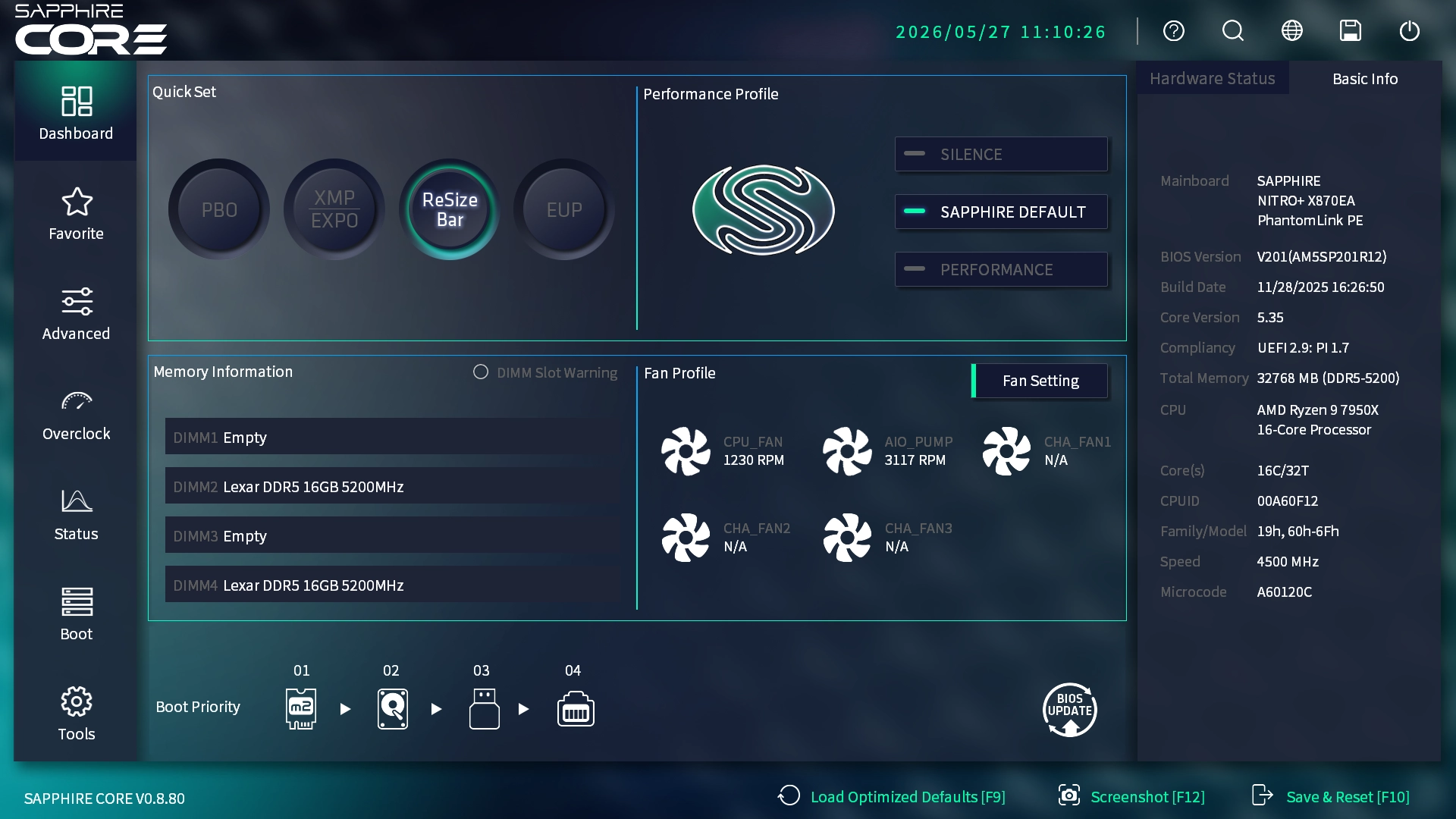 Sapphire NITRO X870EA PhantomLink Polar BIOS Dasboard (Image © PCMasters.de)
The system status and thermal management are managed centrally in the BIOS. The status menu serves as a real-time telemetry hub and displays data on CPU specifications, power consumption and voltage. It also provides specific memory diagnostics, including identification of occupied RAM slots and current memory temperatures.
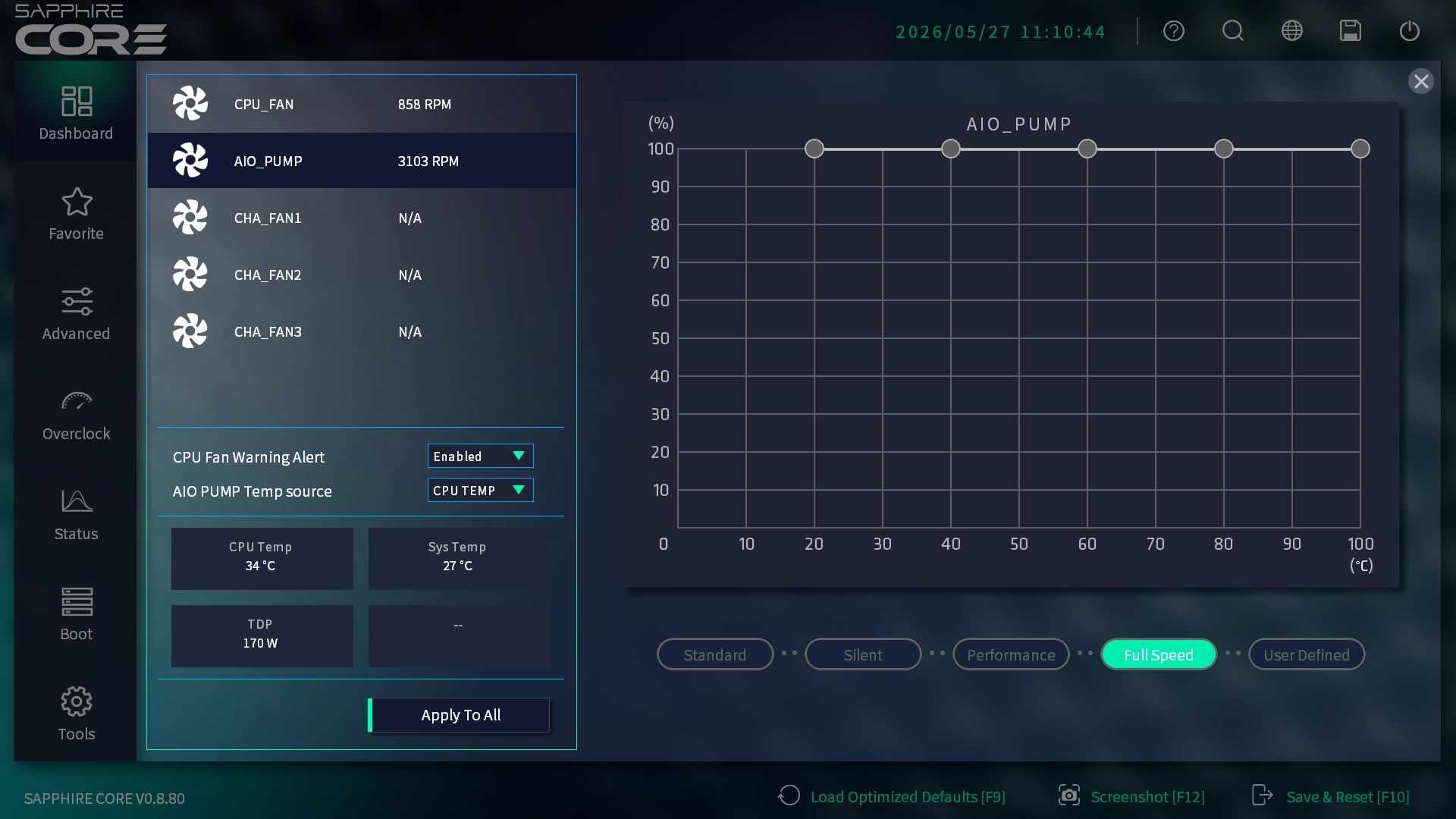 Sapphire NITRO X870EA PhantomLink Polar BIOS Fan Full Speed (Image © PCMasters.de)
For cooling, the BIOS provides a special interface for fan curves. Users can choose from pre-configured presets or create a user-defined curve. A functional highlight is the ability to apply a single custom curve to multiple fans simultaneously, which simplifies the setup process while allowing monitoring of live temperature data.
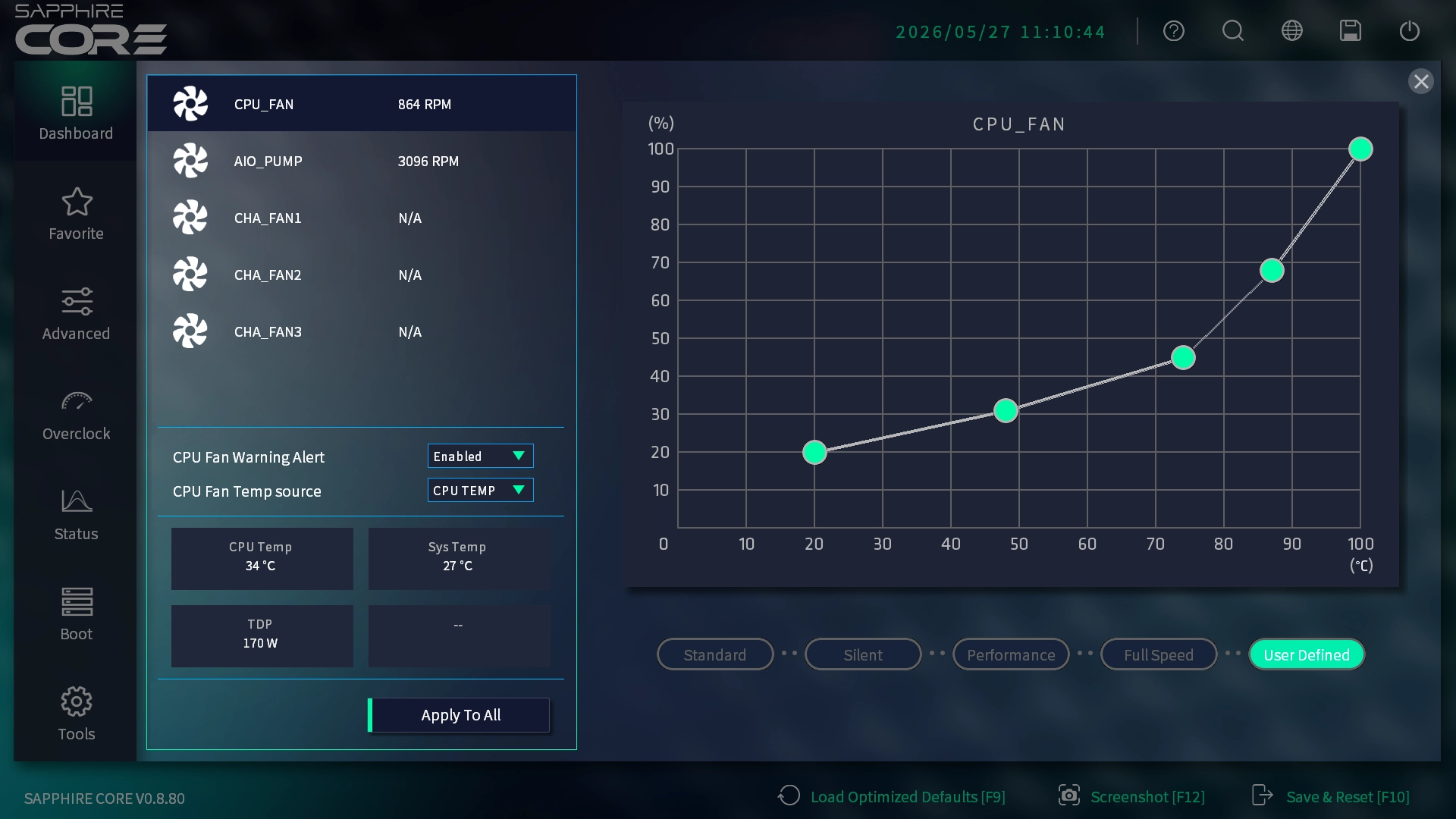 Sapphire NITRO X870EA PhantomLink Polar BIOS Fan Custom Curve (Image © PCMasters.de)
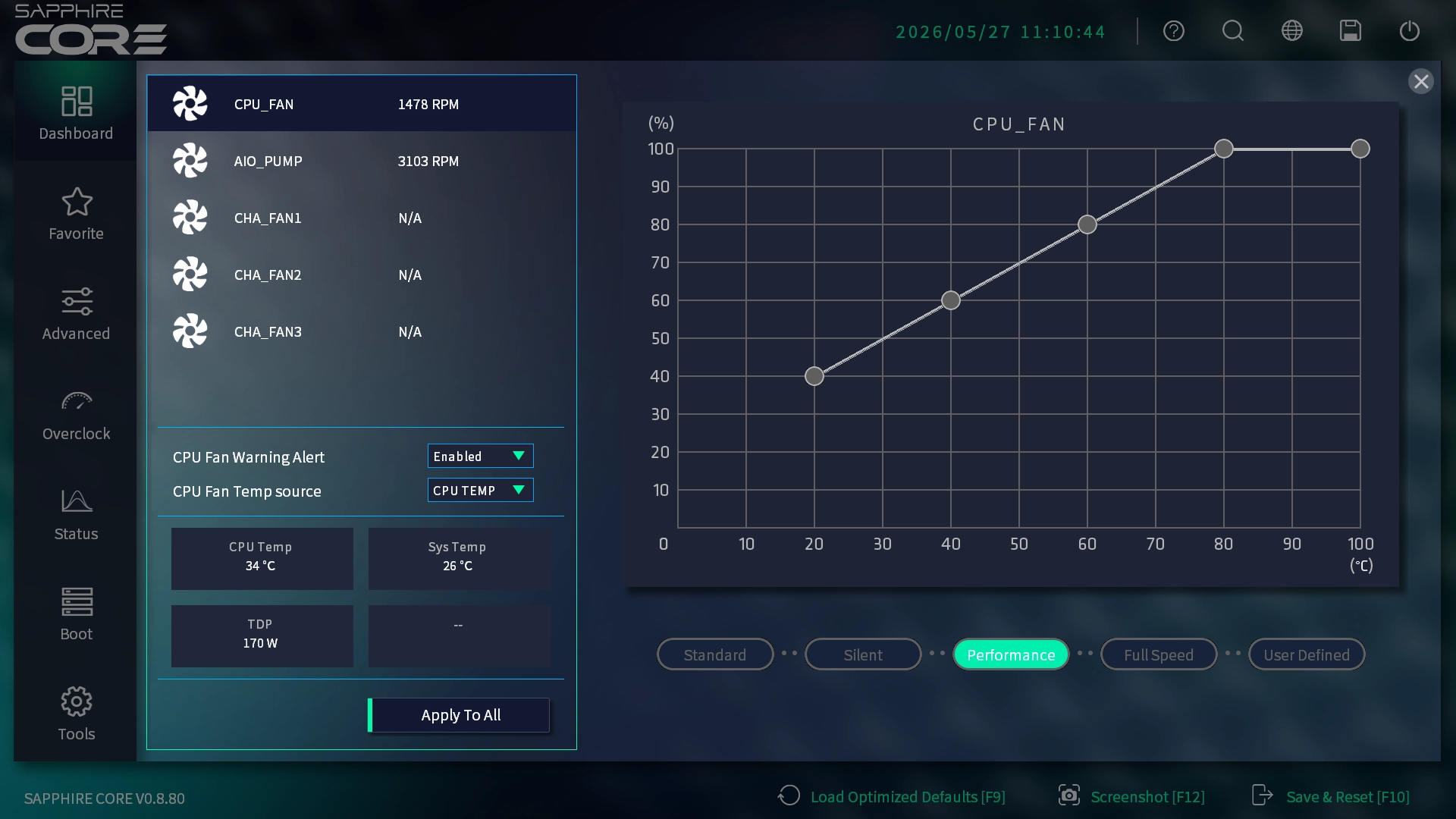 Sapphire NITRO X870EA PhantomLink Polar BIOS Fan Control (Image © PCMasters.de)
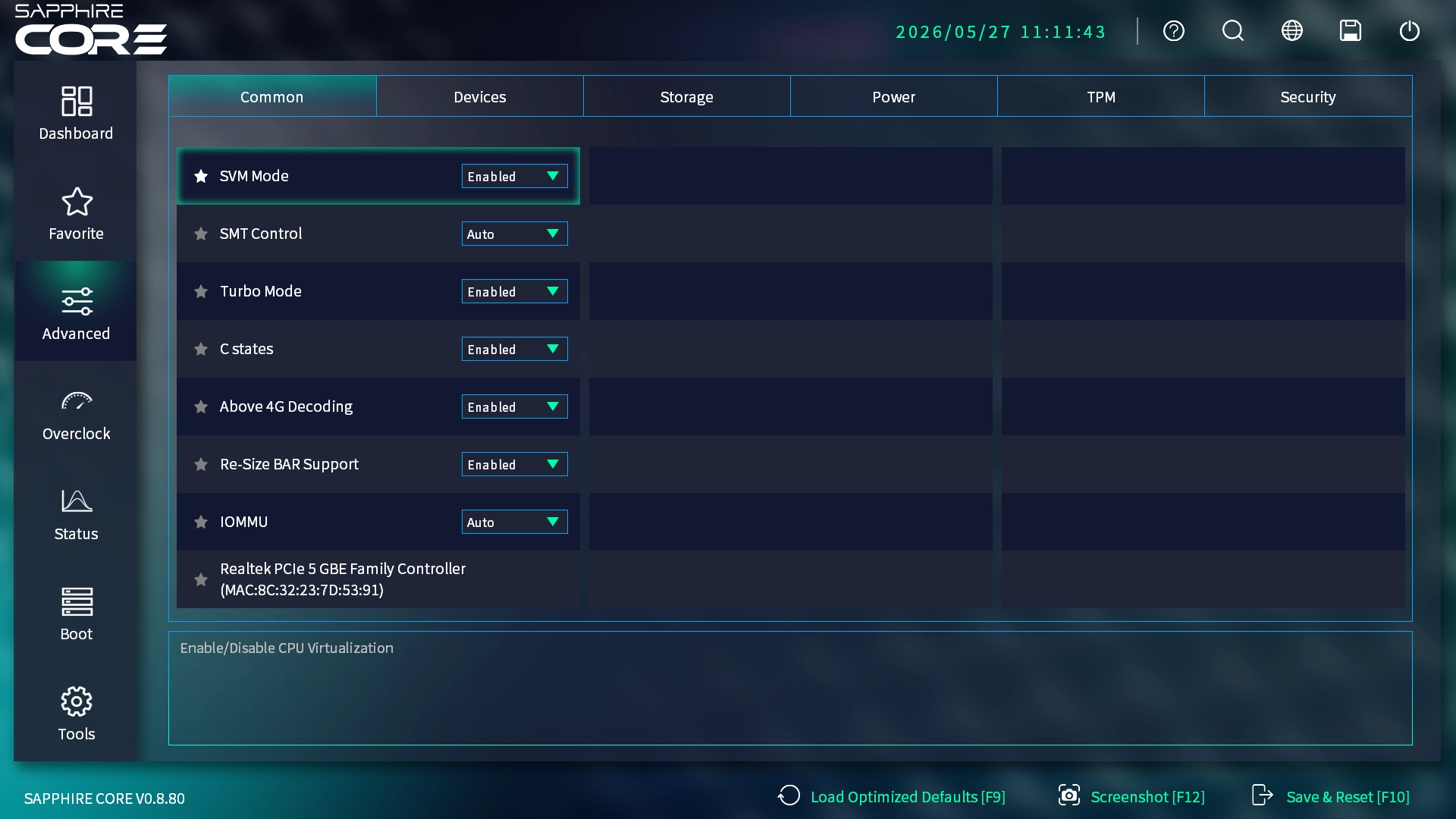 Sapphire NITRO X870EA PhantomLink Polar BIOS Advanced (Image © PCMasters.de)
Advanced
The "Advanced" menu offers the necessary depth for system optimization. While the depth of these settings is rather conservative compared to high-end motherboards for enthusiasts from other manufacturers, the menu remains comprehensive enough for standard professional and gaming requirements.
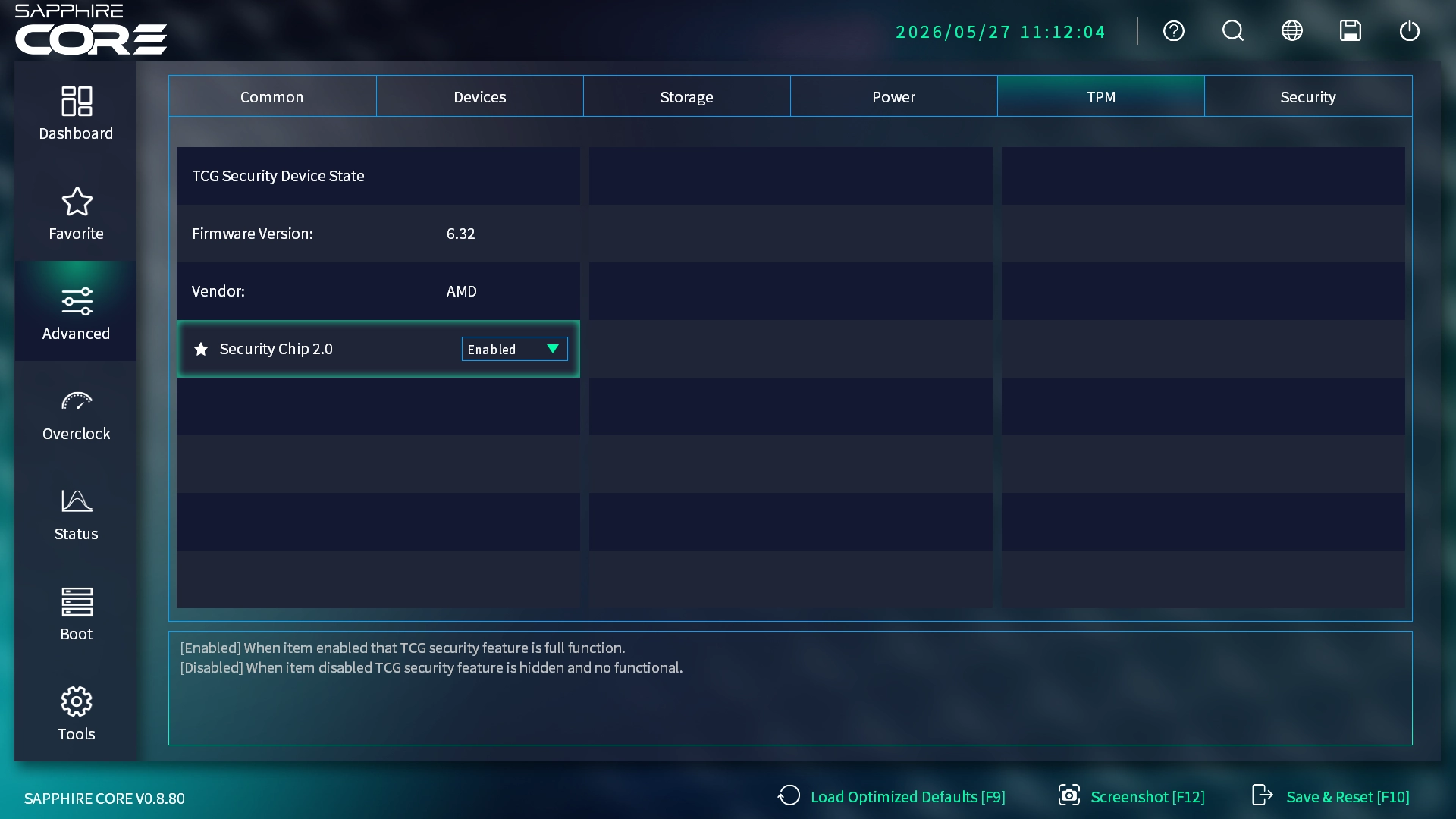 Sapphire NITRO X870EA PhantomLink Polar BIOS Advanced TPM (Image © PCMasters.de)
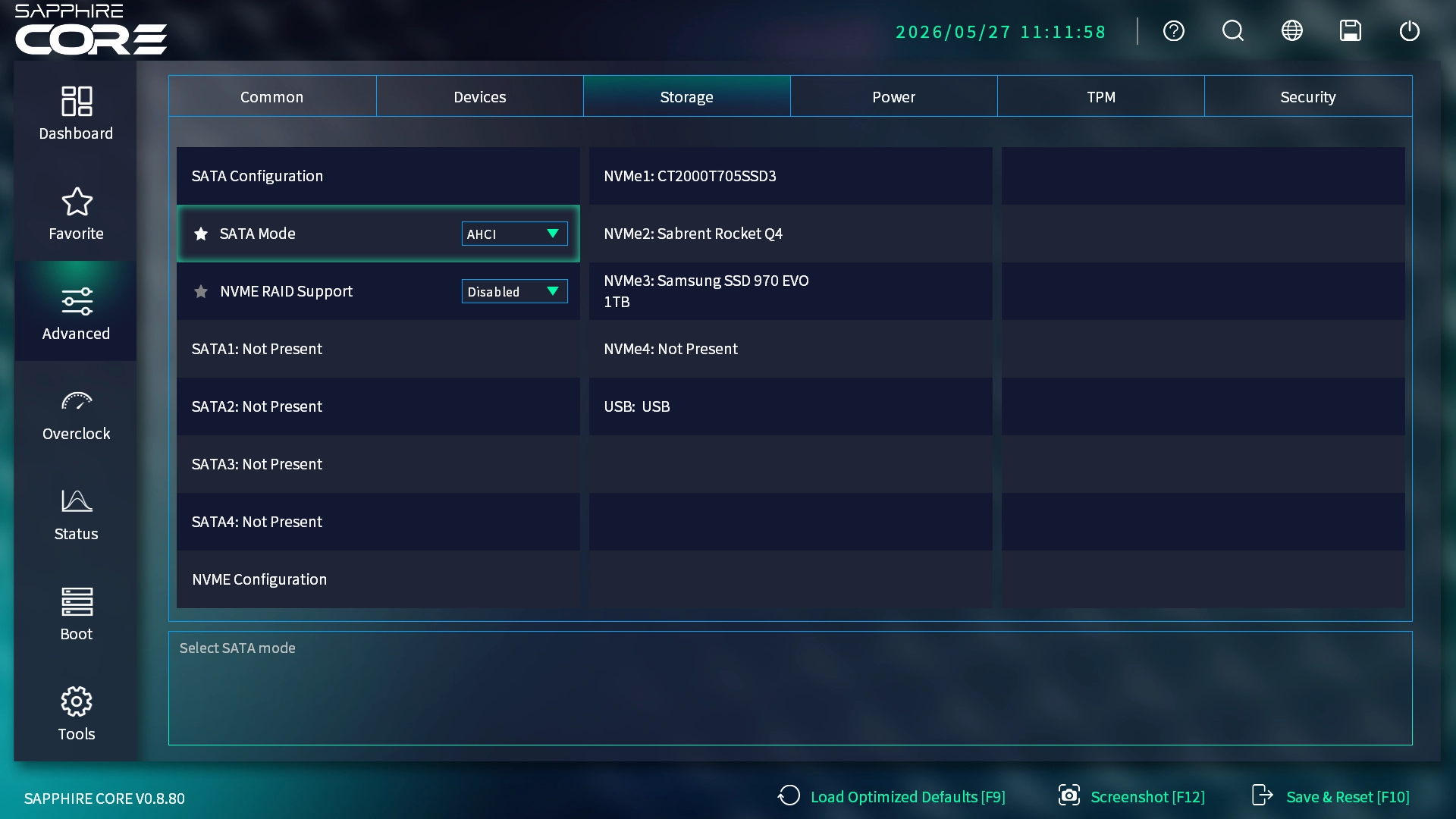 Sapphire NITRO X870EA PhantomLink Polar BIOS Advanced Storage (Image © PCMasters.de)
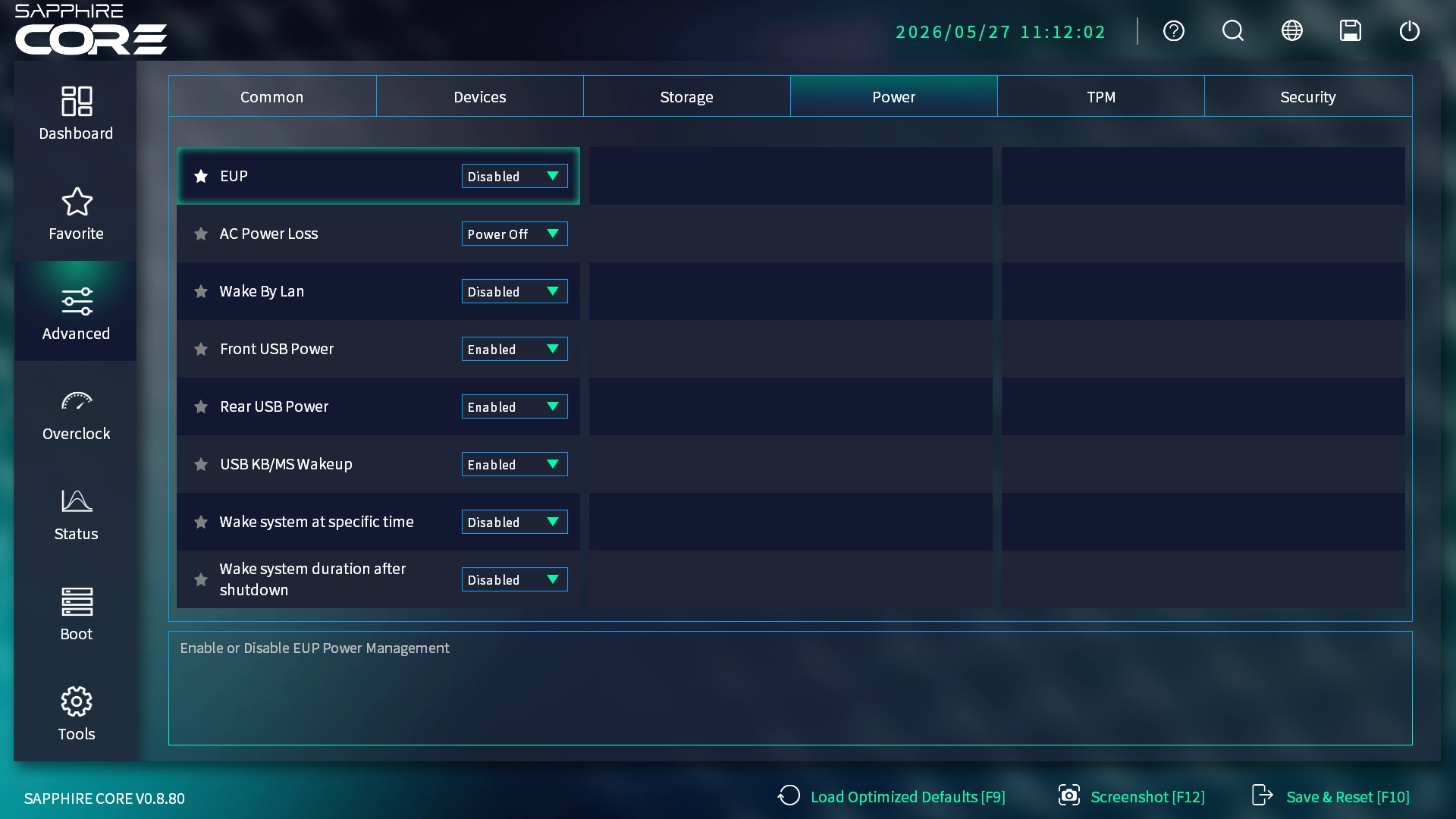 Sapphire NITRO X870EA PhantomLink Polar BIOS Advanced Power (Image © PCMasters.de)
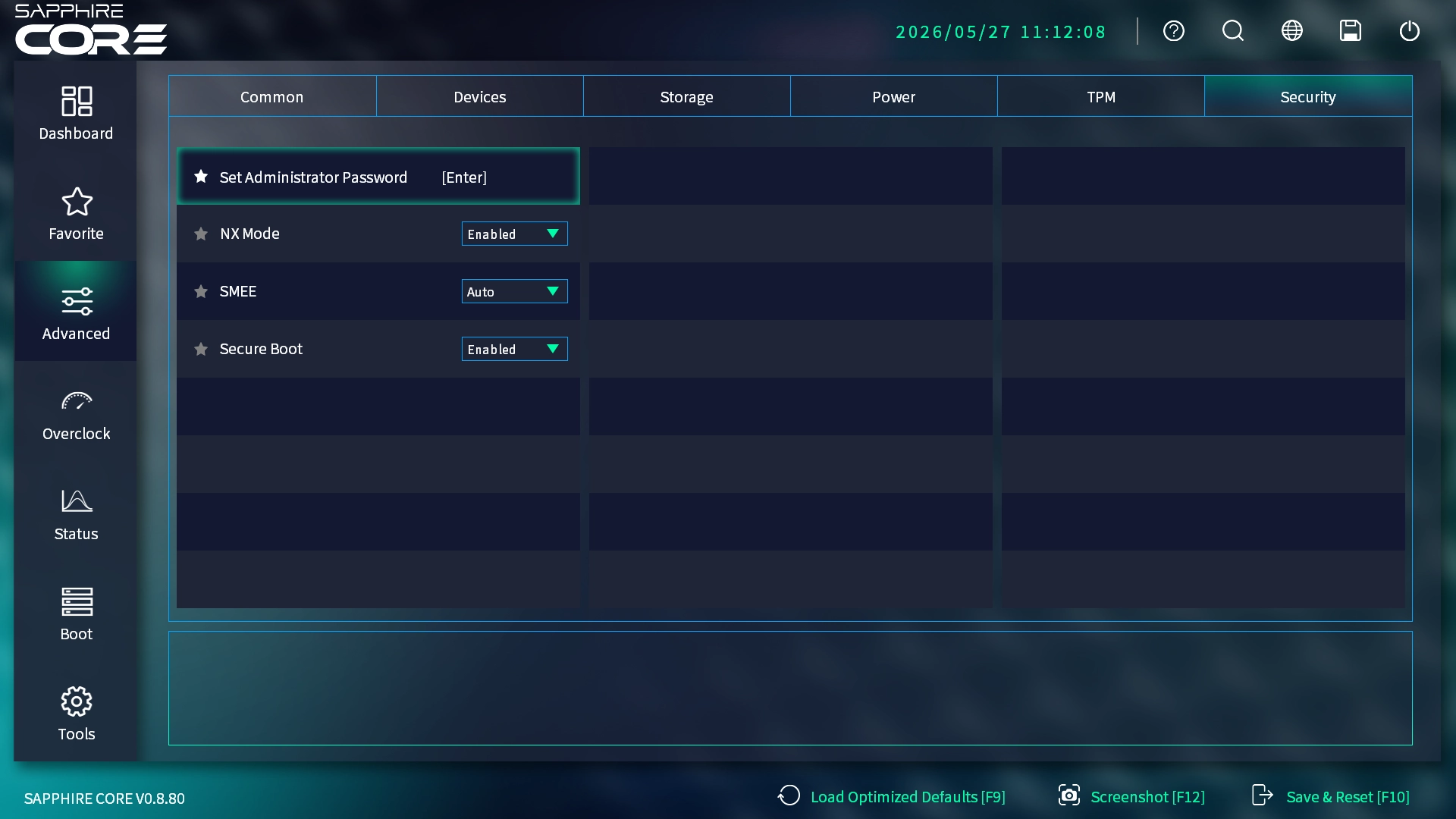 Sapphire NITRO X870EA PhantomLink Polar BIOS Advanced Security (Image © PCMasters.de)
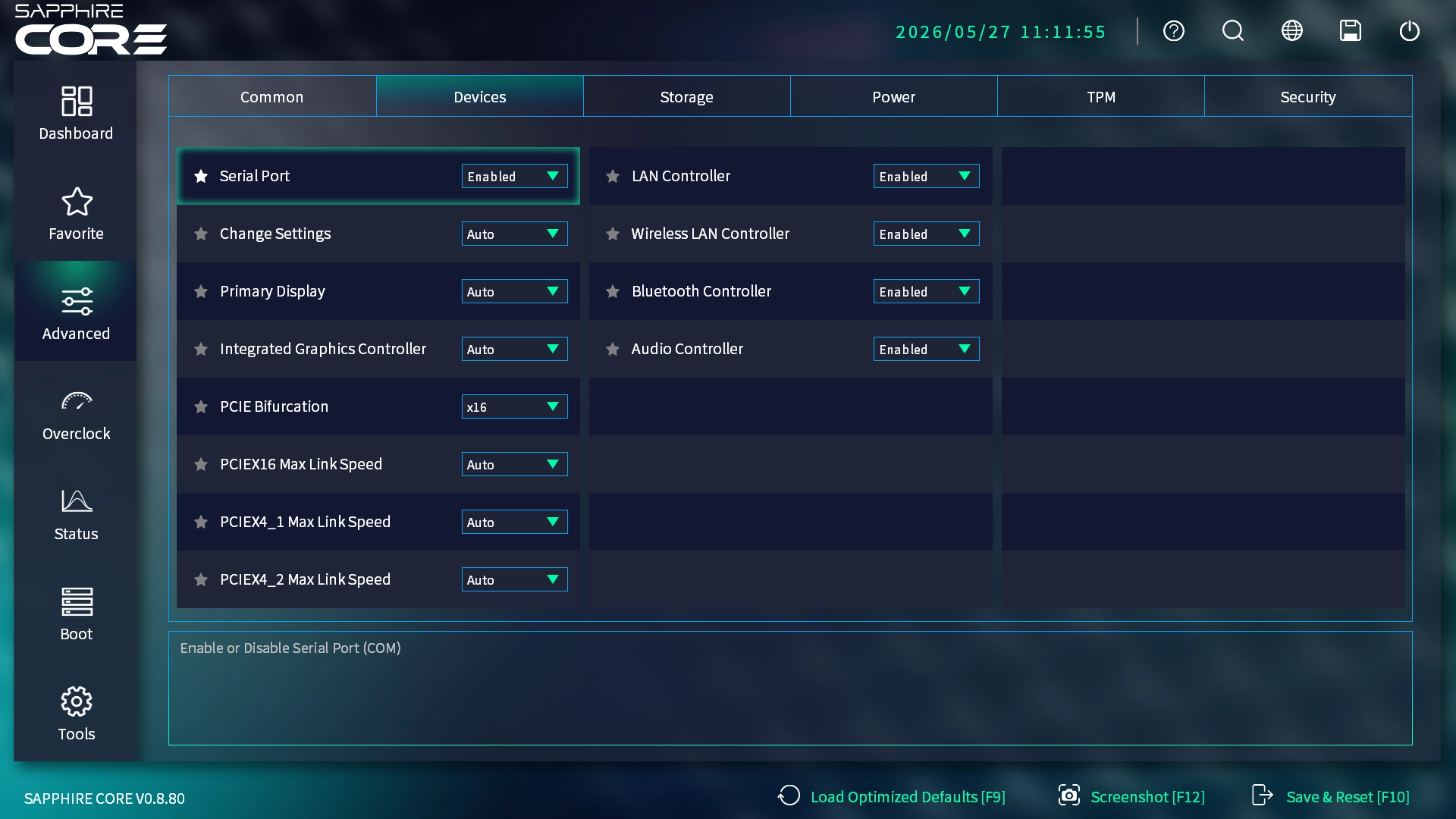 Sapphire NITRO X870EA PhantomLink Polar BIOS Advanced Devices (Image © PCMasters.de)
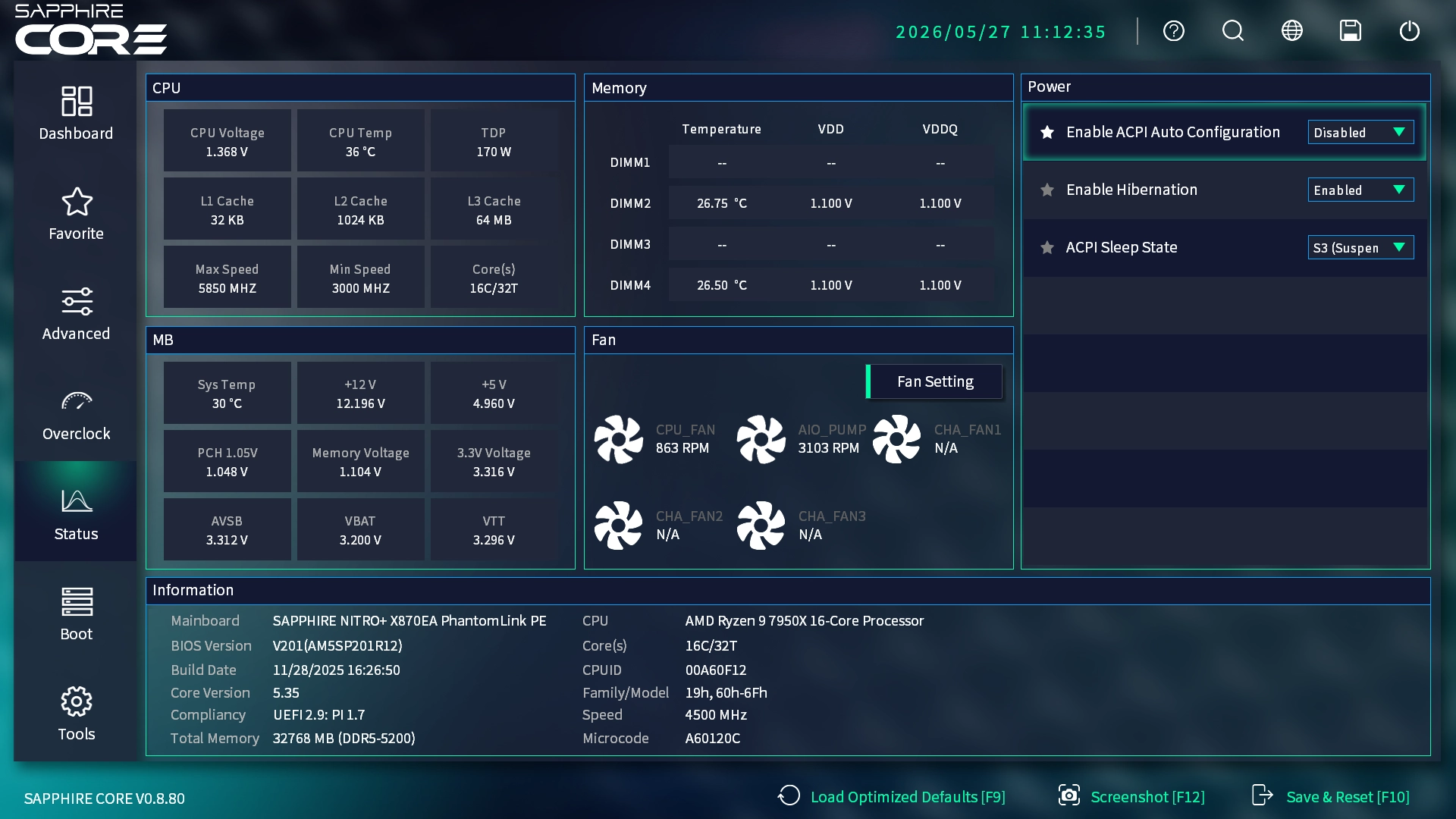 Sapphire NITRO X870EA PhantomLink Polar BIOS Stats (Image © PCMasters.de)
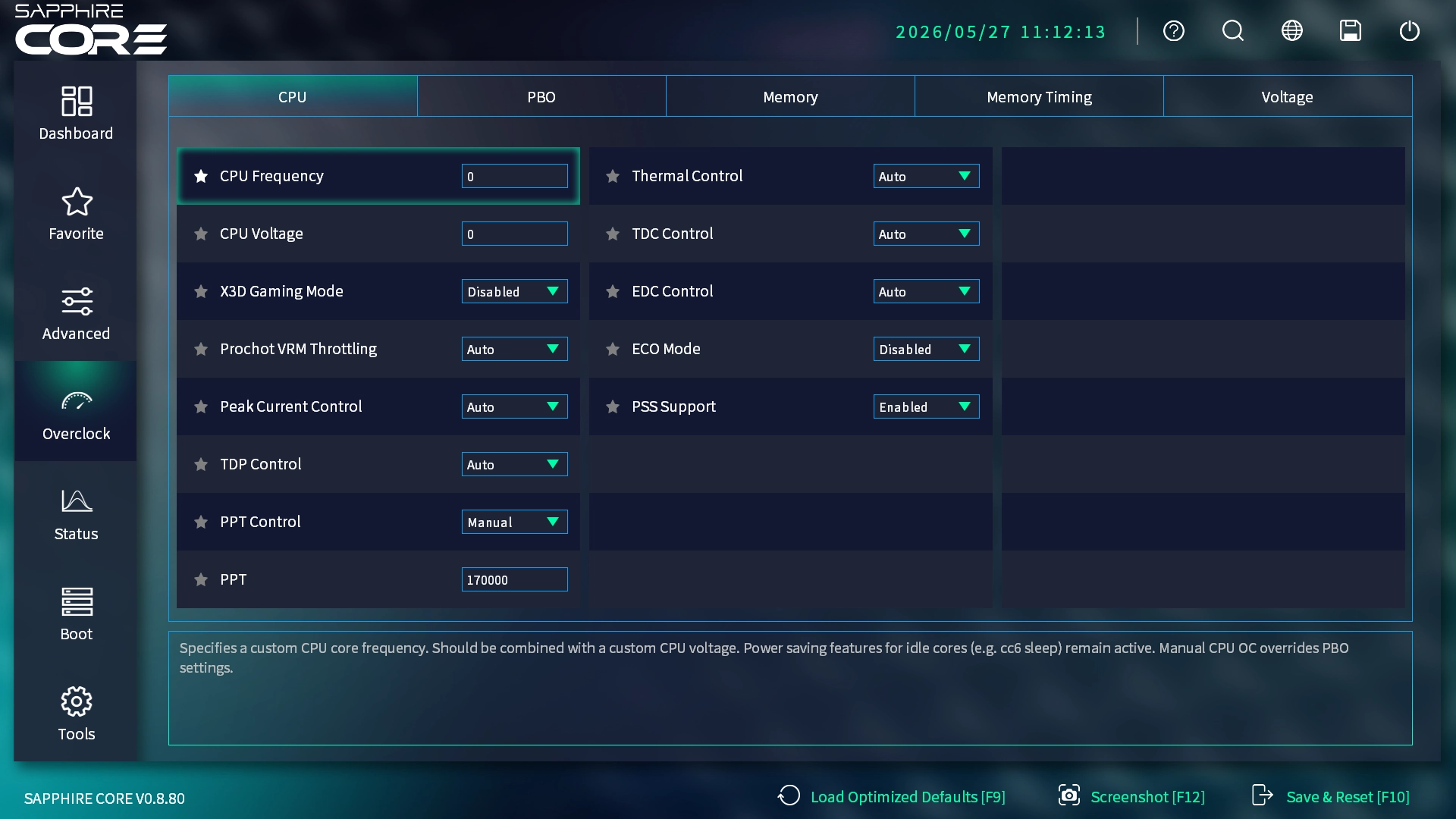 Sapphire NITRO X870EA PhantomLink Polar BIOS Overclocking (Image © PCMasters.de)
AMD Overclocking
For performance optimization, the "AMD Overclocking" section offers specific setting options for the processor and memory. Memory management is achieved through the integration of EXPO and XMP profiles, which ensures that RAM modules can be operated at their rated speeds with minimal manual intervention.
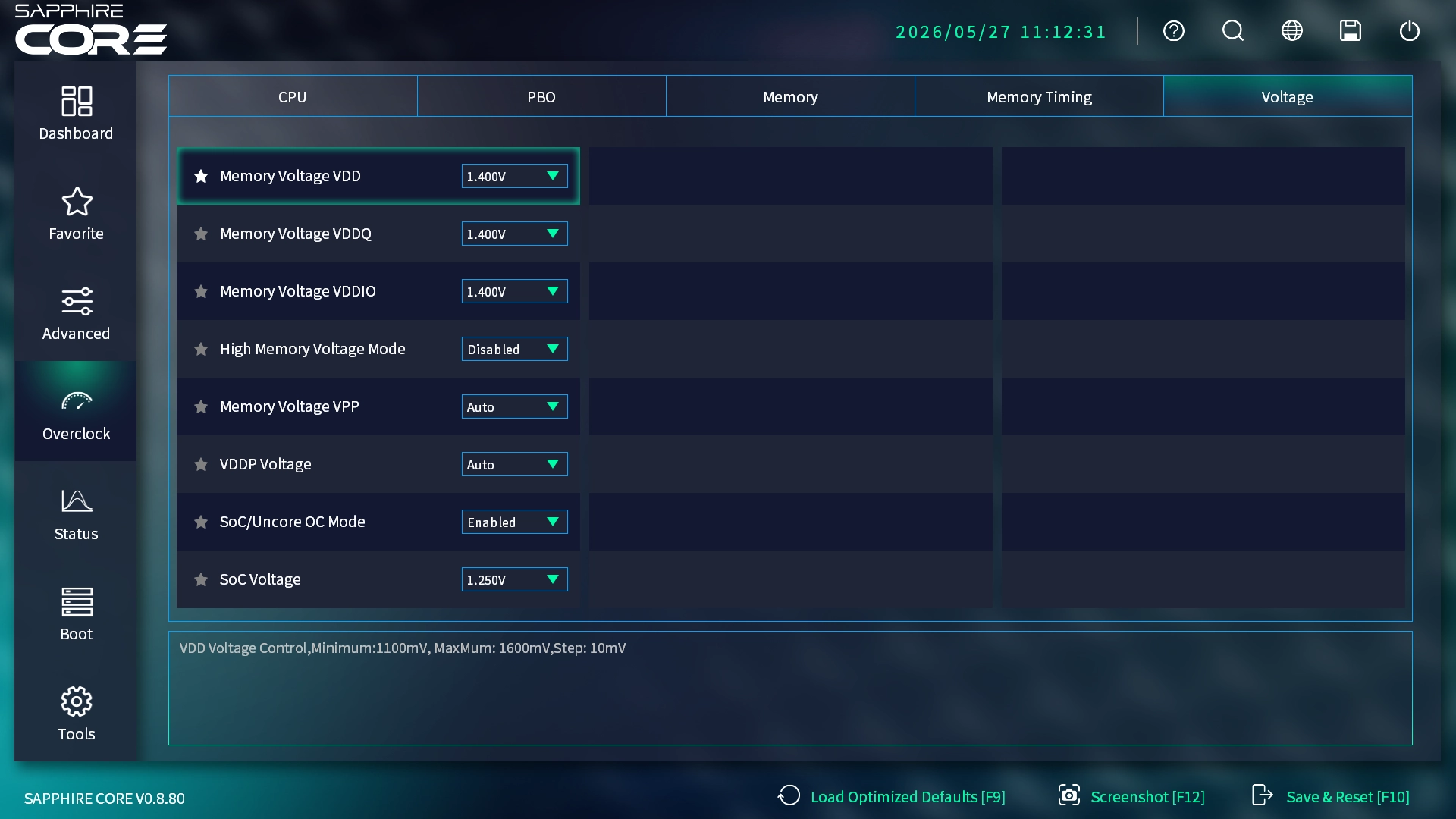 Sapphire NITRO X870EA PhantomLink Polar BIOS OC Voltasge (Image © PCMasters.de)
For users who want finer control, manual timing adjustments and PBO (Precision Boost Overdrive) are available, allowing precise undervolting and voltage offsets to be set.
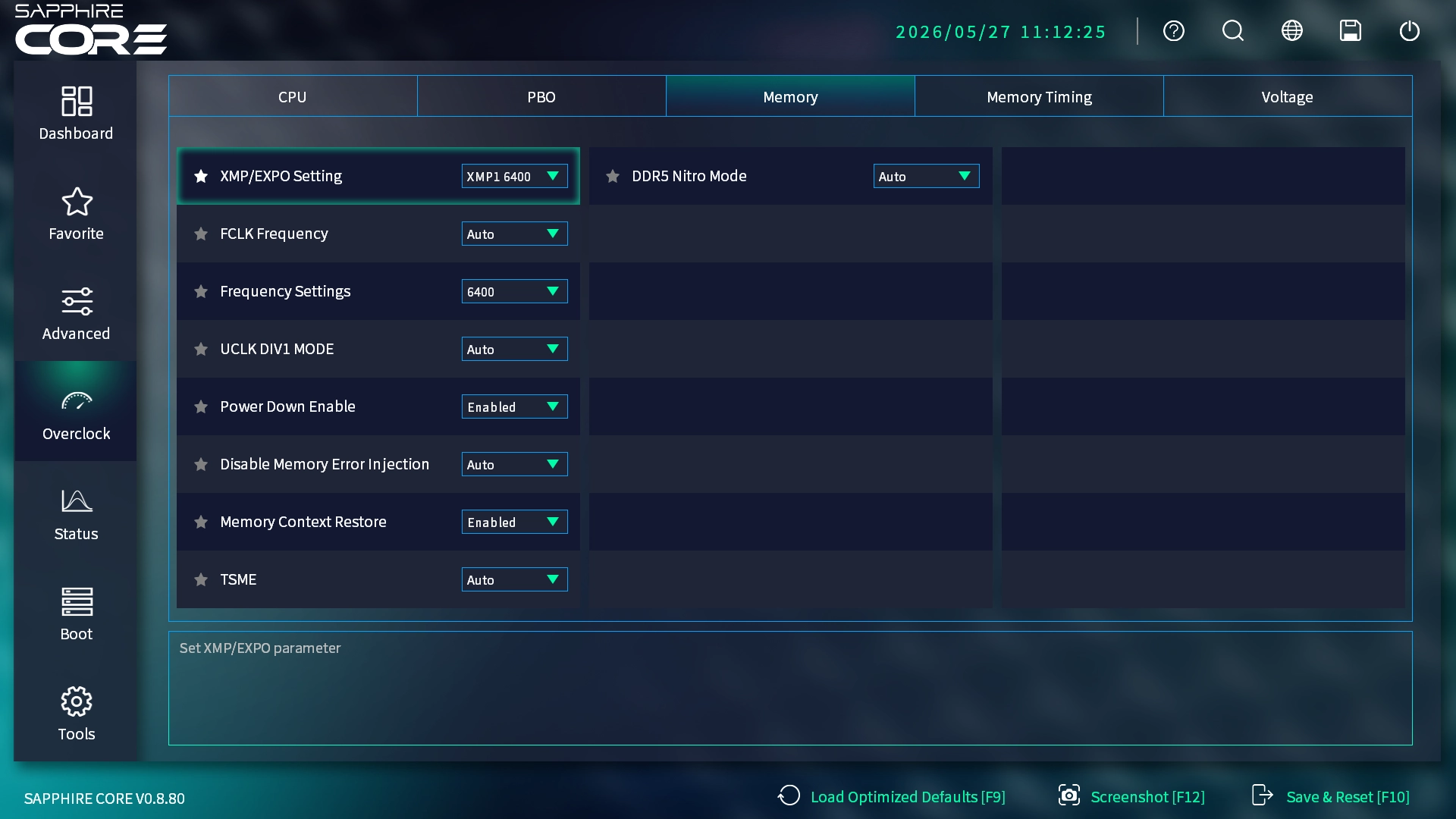 Sapphire NITRO X870EA PhantomLink Polar BIOS OC RAM Profile (Image © PCMasters.de)
Under Memory, you must always select the EXPO/XMP profiles that are suitable for your RAM and are supplied by the RAM. If necessary, you can change other settings or switch to the timings to change them.
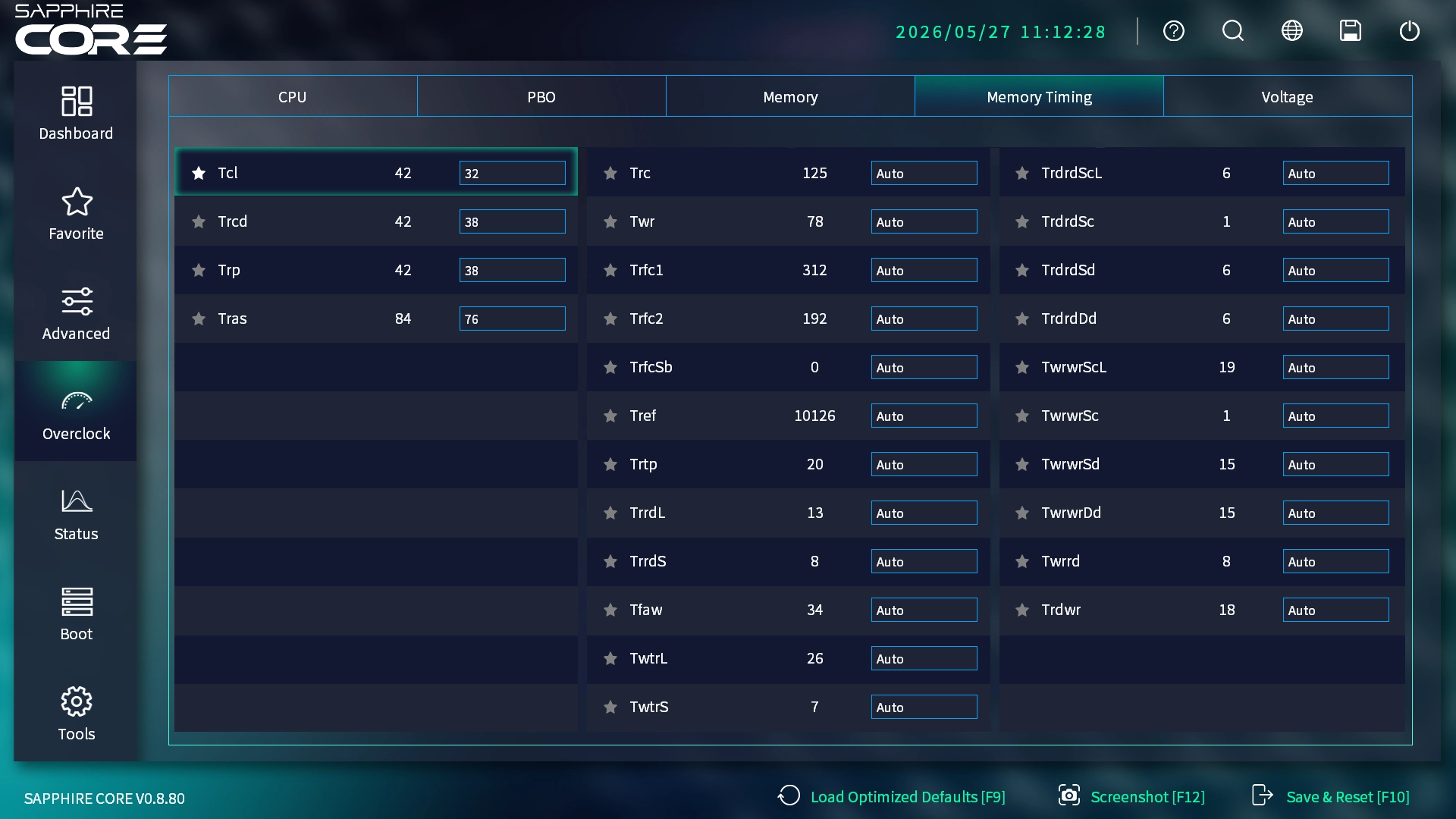 Sapphire NITRO X870EA PhantomLink Polar BIOS RAM TImings (Image © PCMasters.de)
If you want to undervoltage the CPU or define offsets, you can do this under the PBO tab. We have not tried these options any further.
Sapphire NITRO X870EA PhantomLink Polar BIOS OC Voltasge (Image © PCMasters.de)
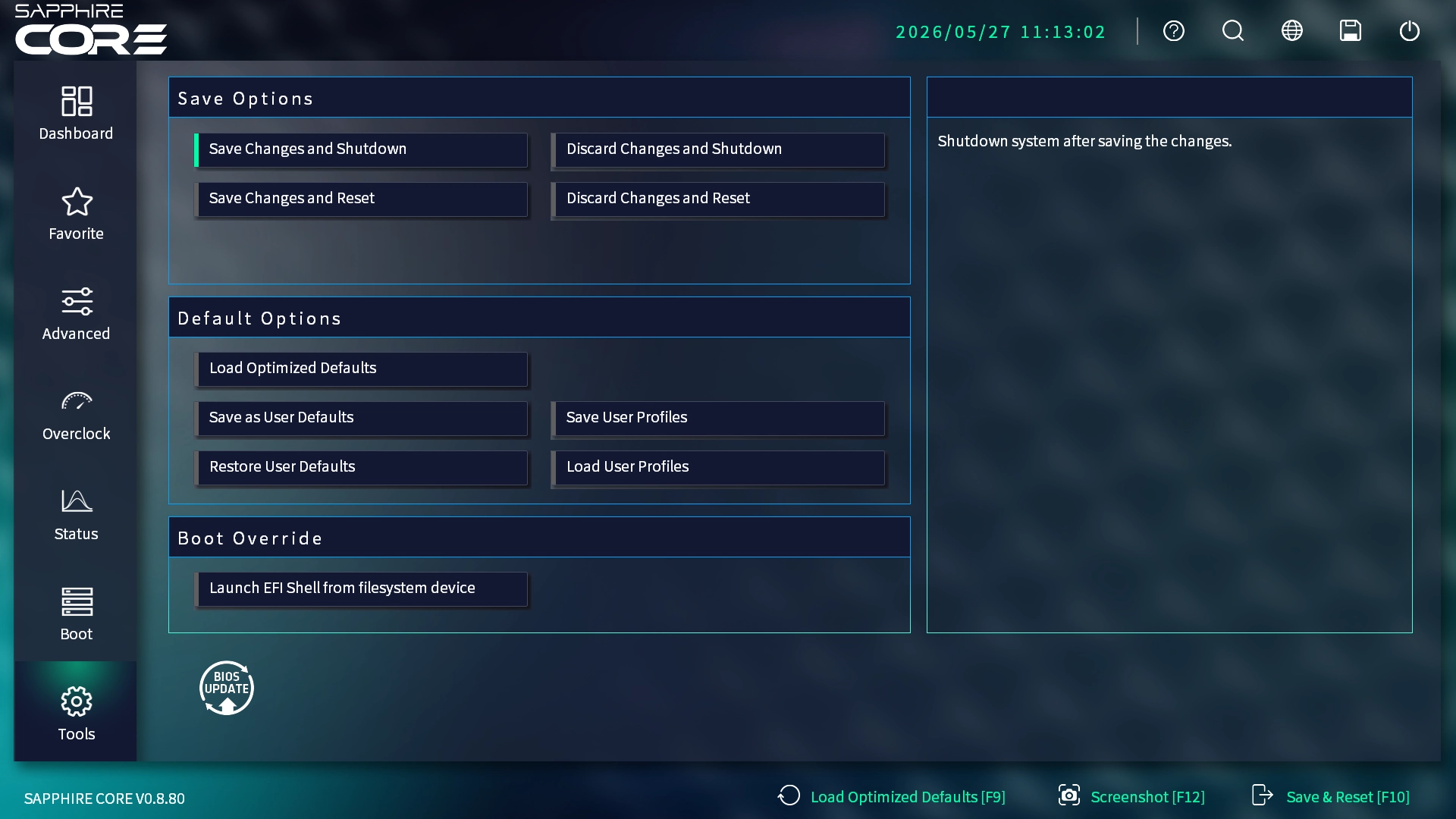 Sapphire NITRO X870EA PhantomLink Polar BIOS Tools (Image © PCMasters.de)
Tools
Under the Boot tab, you can change adjustments for the boot process and the boot sequence. You can also disable the boot logo. Under Tools you will find the default settings and when saving the changes you can check whether the list of changes is correct before saving them.
Sapphire NITRO X870EA PhantomLink Polar BIOS OC RAM Profile (Image © PCMasters.de)
Sapphire Nitro X870EA PhantomLink Polar Mainboard Test (Image © PCMasters.de)
Conclusion on the NITRO+ X870EA PhantomLink Polar
Sapphire has done a lot of things right with the new NITRO+ X870EA PhantomLink Polar AM5 motherboard and has gone to great lengths to position a high-end motherboard on the market. The PhantomLink technology that Sapphire has focused on is compatible with BTF and uses the same adapter that comes between the graphics card and motherboard. Unfortunately, for some reason Sapphire has omitted the back-connect option, which is why all the connectors are on the front. In addition, although protection mechanisms such as temperature sensors for PhantomLink and 12V-2x6 PCIe-5 connectors as well as current monitoring per pin are installed, they are unfortunately on the graphics card and not on the motherboard. This leaves the board seemingly unprotected. We see wasted potential here in particular, as Sapphire could have achieved more here.
On the other hand, the white and silver design of the motherboard is very stylish and the build quality is of a high standard. The NVMe SSDs are covered with coolers and thermal pads. The SSDs can also be attached without tools. The BIOS is very clear and appealing. Furthermore, two of the four NVMe slots support the fast PCIe 5.0 standard, even if the first slot shares four lanes with the graphics card slot and then takes these away from the graphics card. For the PCIe x16 slot below, there is basically a PCIe Gen 4 connection with 4 lanes, even if you have to choose between the PCIe slot and the NVMe SSDs in the middle slot because there are simply not enough lanes provided. Apart from that, the NVMe SSDs deliver very high transfer rates, which speaks in favor of the motherboard.
For an X870E motherboard, the NITRO+ X870EA PhantomLink Polar is on the more expensive side with its retail price of €378 (Affiliate), as competitor boards can be found from around €220 in a price comparison. Nevertheless, the overall package is good and recommendable if you accept the small cutbacks.
Pro
- AMD X870E chipset
- Good cooling
- One PCIe 5.0 NVMe, one PCIe 4.0 NVMe, one PCIe 3.0 NVMe
- All NVMe slots with coolers and tool-free assembly
- DEBUG disk with POST output and onboard buttons
- Modern, user-friendly BIOS
- Good workmanship
- PhantomLink/BTF for graphics card
- Well-equipped IO panel and many expansion options
Contra
- BTW support but no Back-Connect
- Protective measures for 12V-2x6 PCIe 5.1 connector outsourced to GPU
- Price