
 Computer Forum
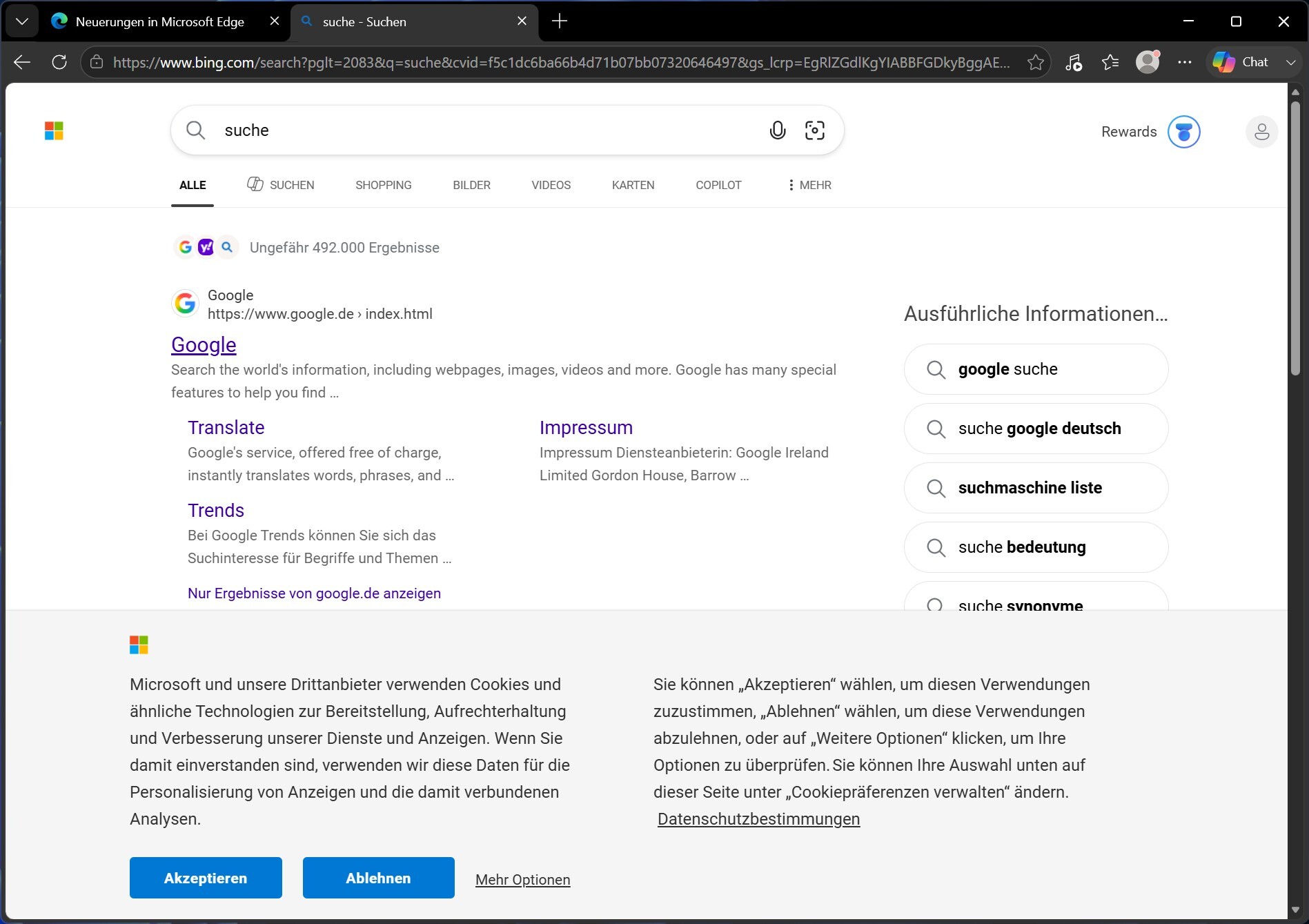 Microsoft Edge Browser (Image © PCMasters.de)
Set Google as search engine for Micosoft Edge
-
- Start Edge and click on the menu icon with the three dots in the upper right corner
-
- Select Settings. Select Privacy, Search and Services in the left pane.
-
- Scroll down and open Address bar and search.
-
- Under Search engine used in the address bar, select Google from the drop-down menu.
-
- Optionally specify whether the address bar or a separate search field should be displayed in new tabs.
The change will be saved automatically and all subsequent search queries will be processed by Google instead of Bing.
Customizing the “New tab” page
While the search engine can be changed directly, Edge's default layout for new tabs remains unchanged. To display a different start page - for example, the Google start page - users must install an extension:
- Search for the “Custom New Tab” add-on provided by Microsoft.
- Add the extension to Edge and configure it to open the selected URL as soon as a new tab is opened.
This approach enables a personalized start page without affecting the overall design of the browser.