Computer Forum
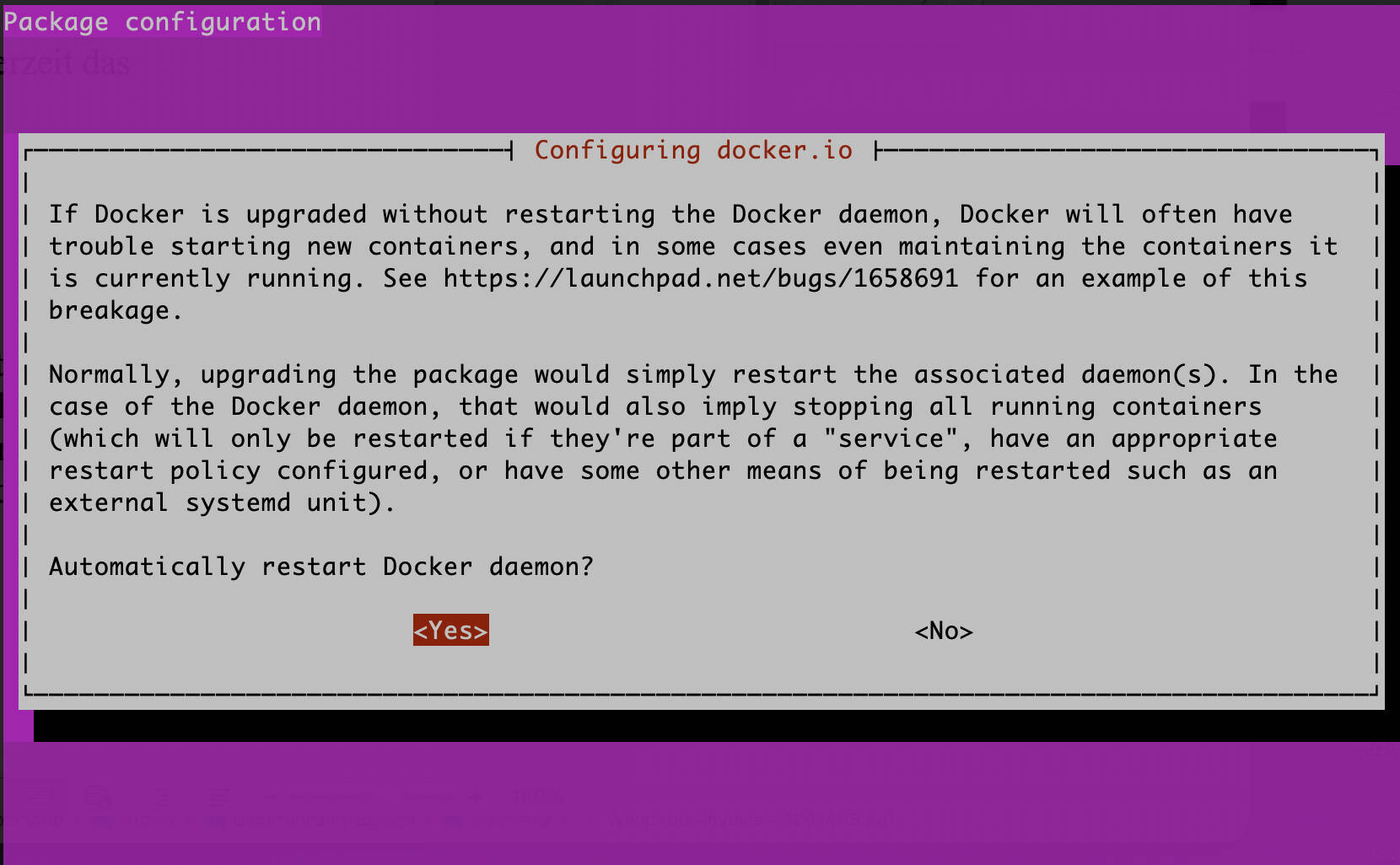 dpkg reconfigure (Image © PCMasters.de)
Checking Existing Package Settings
Before starting a reconfiguration, system administrators can check the current status of a package. The debconf-show utility can be used to retrieve the current configurations as they are stored in the debconf database. For example, to check the current settings for the docker.io package, use the following command:
sudo debconf-show docker.io
This process provides a clear overview of the parameters that currently determine the software’s behavior.
Reconfiguring a Package
The dpkg-reconfigure tool can be used to run the configuration prompts that originally appeared during the initial installation. This is particularly useful for packages where settings are defined by interactive installation scripts. To reconfigure a specific package, such as docker.io, run the following command:
sudo dpkg-reconfigure docker.io
After execution, the system displays a series of prompts. The administrator selects the desired settings, and the system updates the configuration files accordingly. Once the process is complete, the terminal displays information about the updated package settings.
Selecting the User Interface and Managing the Frontend
The user interface used during reconfiguration is referred to as the frontend. Users can specify a particular frontend using the -f flag. Available options include dialog, readline, Gnome, KDE, “Editor,” or noninteractive. To force a specific user interface, such as readline, the command is:
sudo dpkg-reconfigure -f readline docker.io
If the default frontend for the entire system needs to be changed, the administrator can reconfigure the debconf package itself:
sudo dpkg-reconfigure debconf
During this process, use the up and down arrow keys to navigate through the options, select the desired frontend with the TAB key, and confirm your selection by pressing Enter. You can also use this sequence to set the priority level of the prompts the system should display.
Priority Filtering and Forced Reconfiguration
To limit the number of prompts displayed during a reconfiguration, use the -p option to set a minimum priority level. This ensures that only critical settings are addressed. For example, to display only critical prompts for docker.io:
sudo dpkg-reconfigure -p critical docker.io
In cases where a package has entered an inconsistent or corrupted state, the -f flag can be used to force the reconfiguration process. This operation should be performed with caution to avoid further system instability:
sudo dpkg-reconfigure -f package-name
For comprehensive documentation of all available flags and behaviors, the system’s man page is the primary reference:
man dpkg-reconfigure