
 Computer Forum
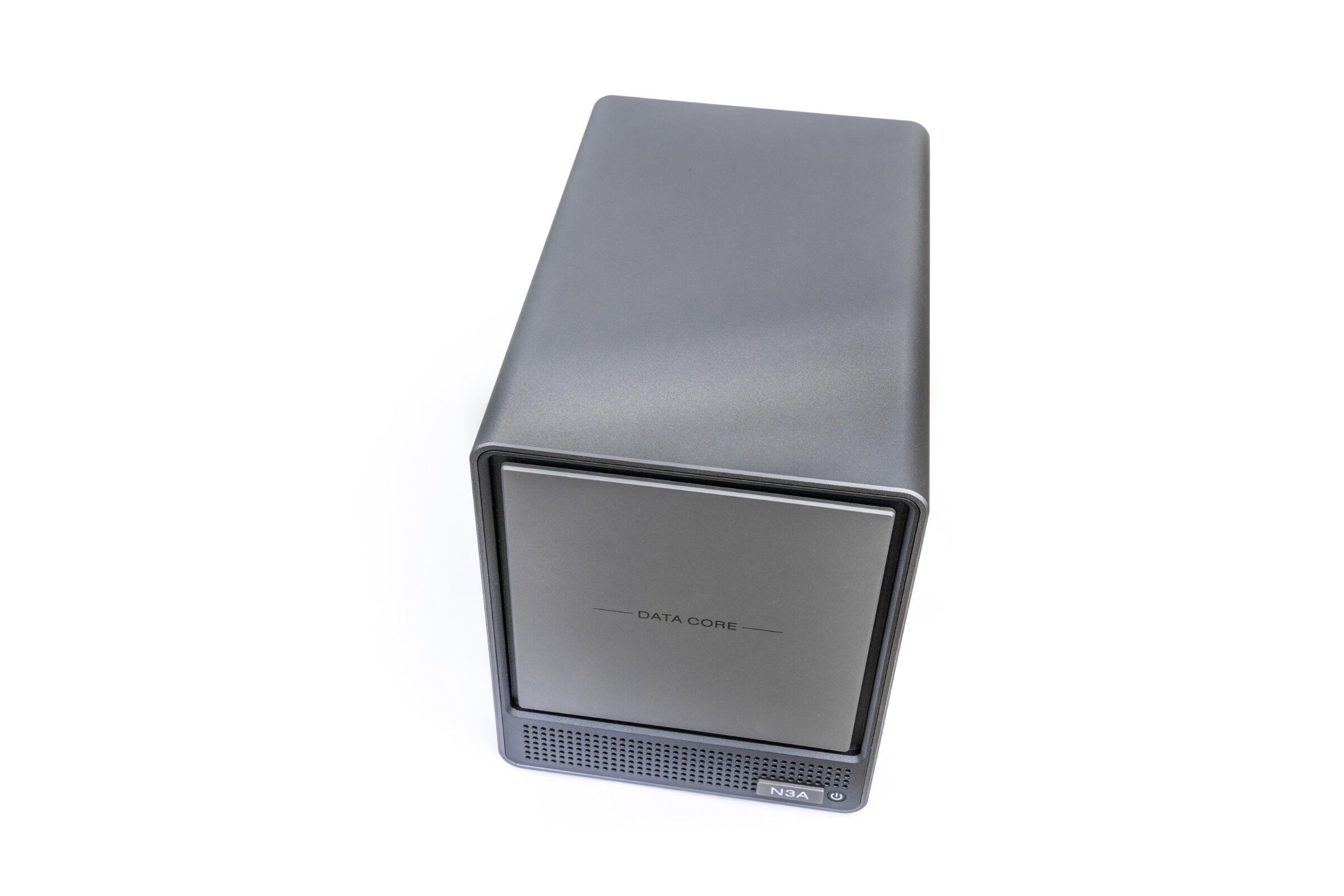 ACEMAGIC N3A Test/Review (Image © PCMasters.de)
Anyone setting up a system like this in their home today is usually looking for the perfect balance of ease of use, solid performance, and enough room for the future. The market now offers a huge selection, and a well-known name from the mini-PC scene is now joining the fray. ACEMAGIC has added the N3A, a brand-new system, to its lineup, which we are currently putting through a detailed test.
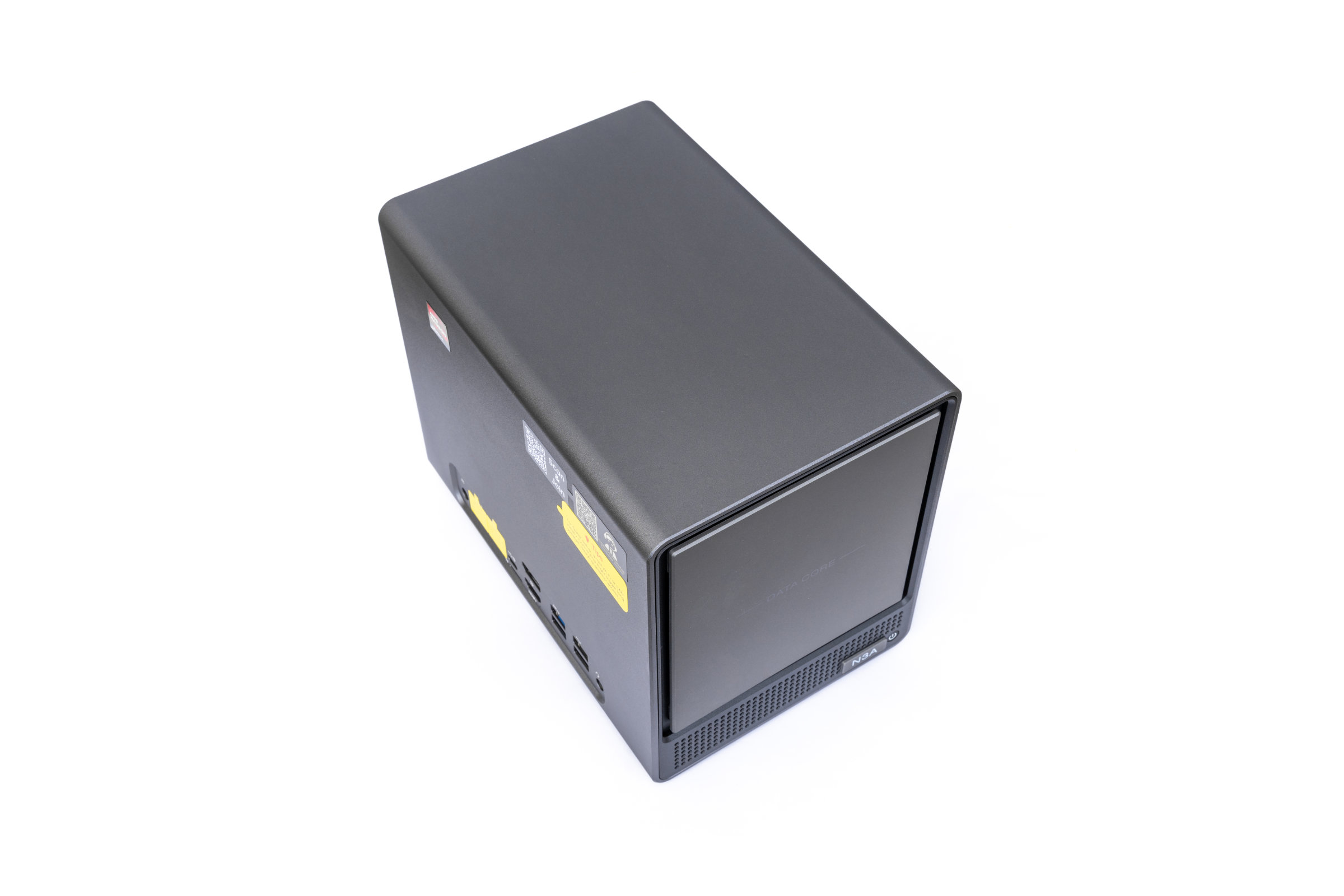 ACEMAGIC N3A Overview Front (Image © PCMasters.de)
About ACEMAGIC
Behind the ACEMAGIC brand is a hardware manufacturer from China that has made a name for itself in recent years primarily with compact mini-PCs and notebooks. After more than a decade on the market, the company is now venturing into the NAS systems sector. With the N3A, ACEMAGIC is launching the first 4-bay NAS in its history, applying the knowledge it has gained in compact hardware to network storage.
 ACEMAGIC N3A Box Front (Image © PCMasters.de)
Technical Specifications
| ACEMAGIC N3A NAS - Technical Specifications | |
|---|---|
| Processor | AMD Ryzen Embedded R2544 (4 cores, 8 threads, up to 3.7 GHz) |
| Graphics Card | AMD Radeon Graphics (8 Compute Units) |
| Memory | 8 GB DDR4 SO-DIMM (expandable via 2 slots up to 64 GB) |
| System drive | 128 GB M.2 NVMe PCIe 3.0 SSD (2 slots available in total) |
| Drive bays | 4 bays for 3.5-inch SATA hard drives |
| Maximum capacity | Up to 136 TB total storage supported |
| Network Connections | 1x 2.5 Gigabit Ethernet, 1x 1 Gigabit Ethernet |
| USB Ports | 1x USB 3.2 Gen2 Type-C (DP 1.4), 2x USB 3.2 Gen1 Type-A, 2x USB 2.0 Type-A |
| Video outputs | 1x HDMI 2.0, 1x DisplayPort 1.4 |
| Additional ports | microSD card reader, 3.5 mm headphone jack, DC-IN |
| Cooling | Large case fan on the back |
| Power supply | External power adapter (19V / 6.3A) |
| Dimensions | 270 x 150 x 185 mm |
 ACEMAGIC N3A Box Overview (Image © PCMasters.de)
Package Contents
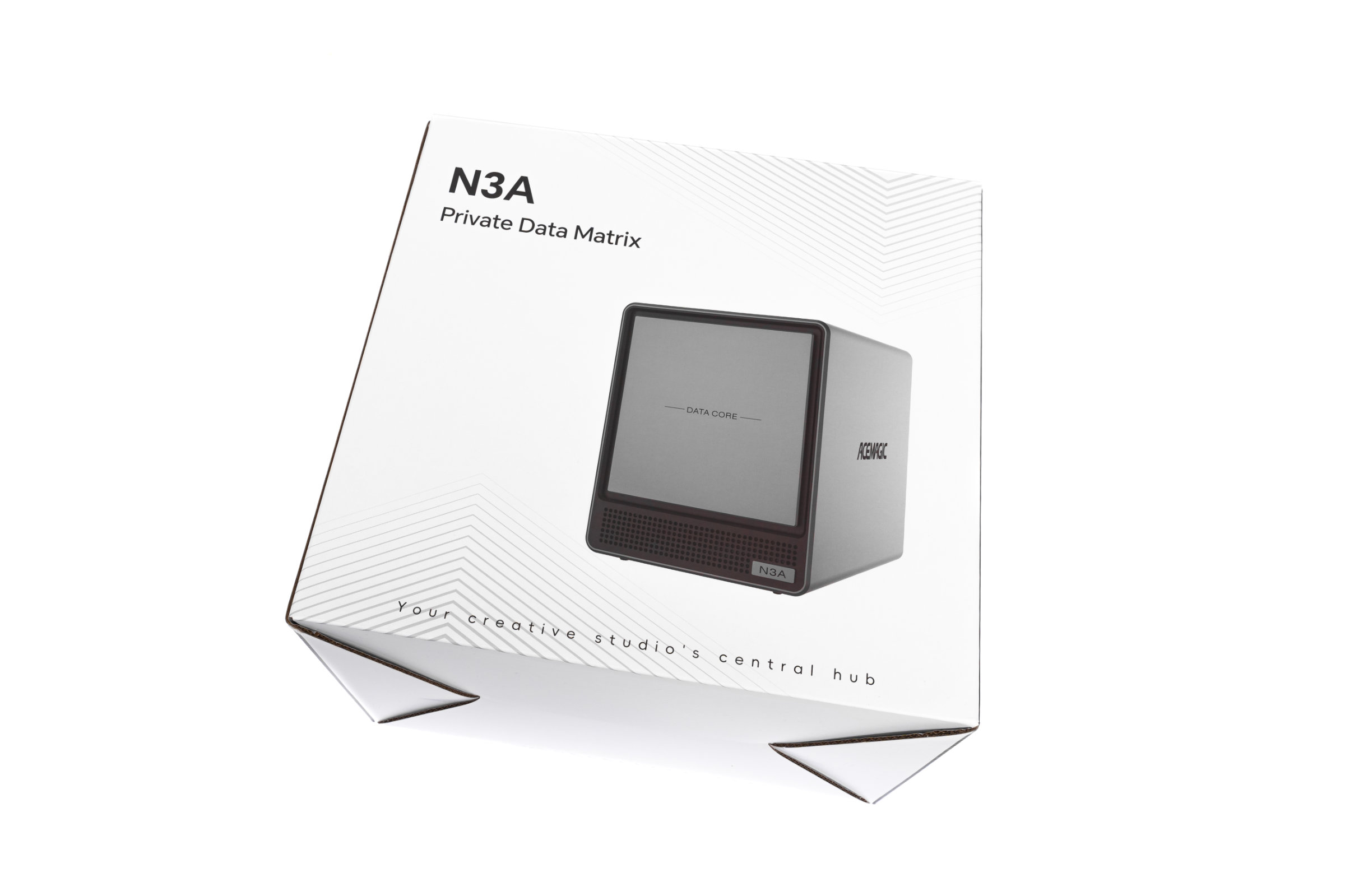
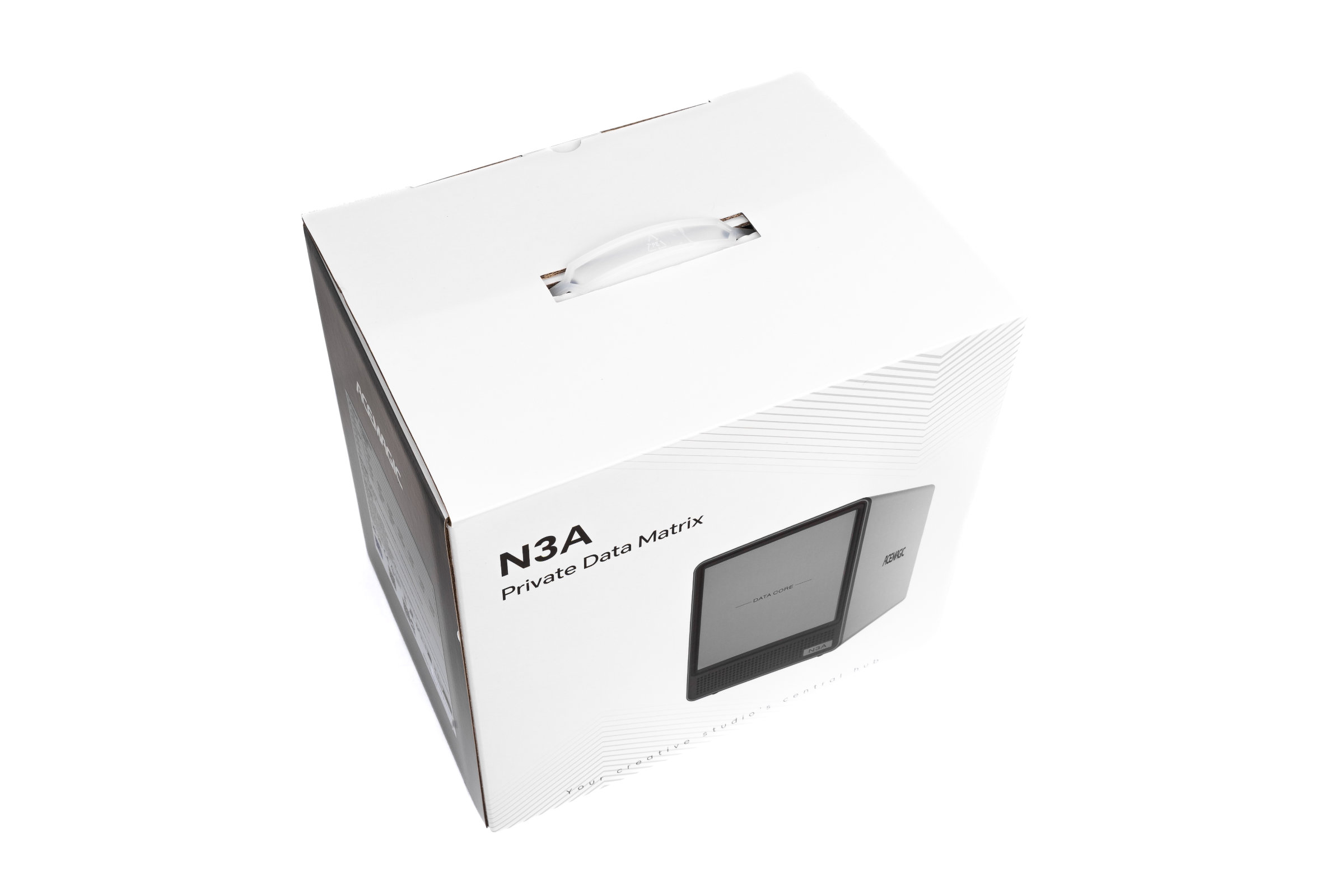
The packaging of the ACEMAGIC N3A is neat and visually appealing. All important information and key technical specifications are clearly printed for us, so the first impression upon unboxing is absolutely spot-on. Everything is securely stowed inside. In addition to the NAS itself, we find the appropriate external power supply, an HDMI cable for direct connection to a monitor, and a short, easy-to-understand guide for getting started.
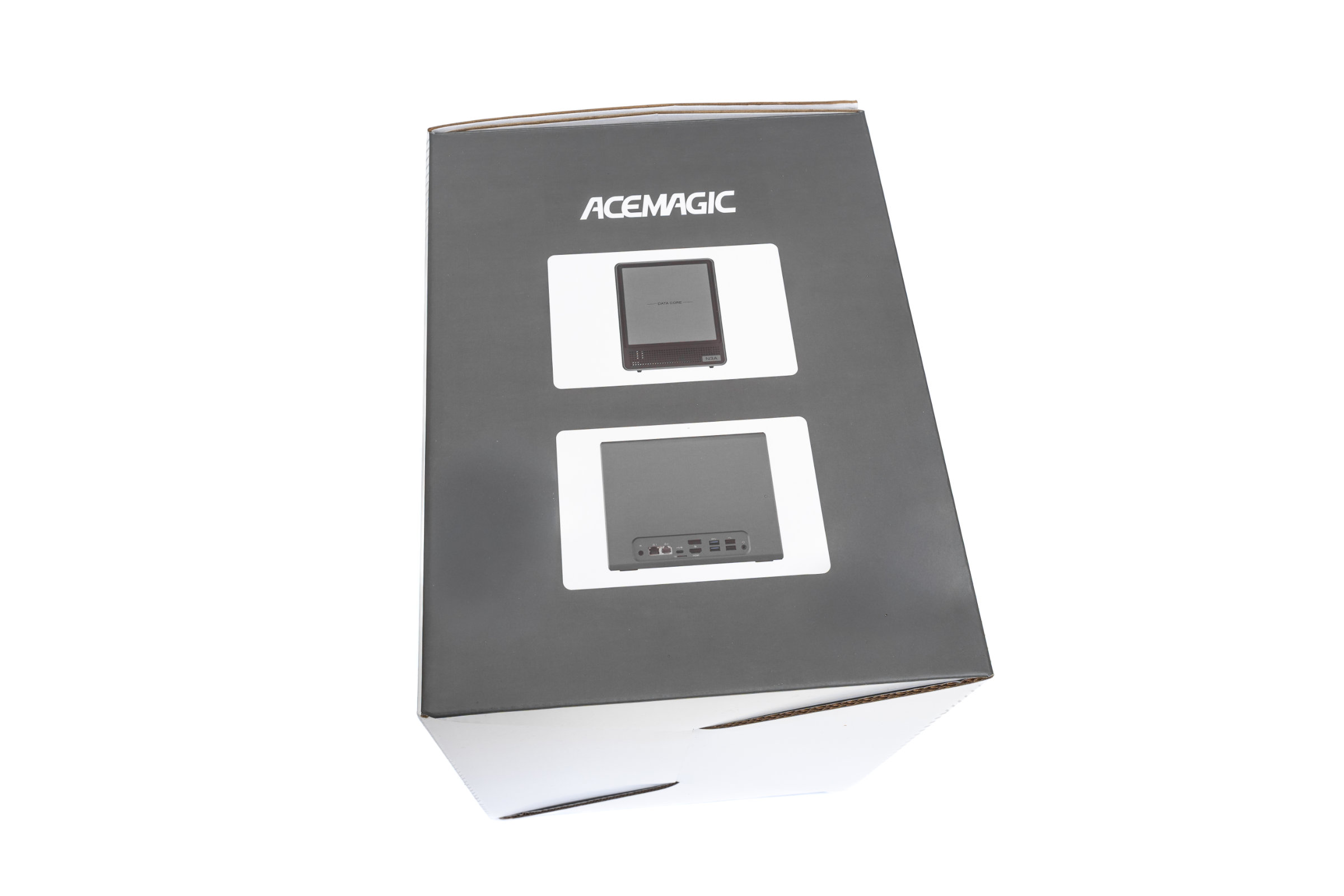 ACEMAGIC N3A Box Side (Image © PCMasters.de)
However, there is one drawback: although the device is explicitly advertised as a NAS and network product, there isn’t a single Ethernet cable in the box. We find this baffling, as we believe a compatible LAN cable should be an absolute standard for a network storage device. If you don’t have a spare cable on hand, you can’t put the device into operation right away and will have to find a suitable one before setting it up for the first time.
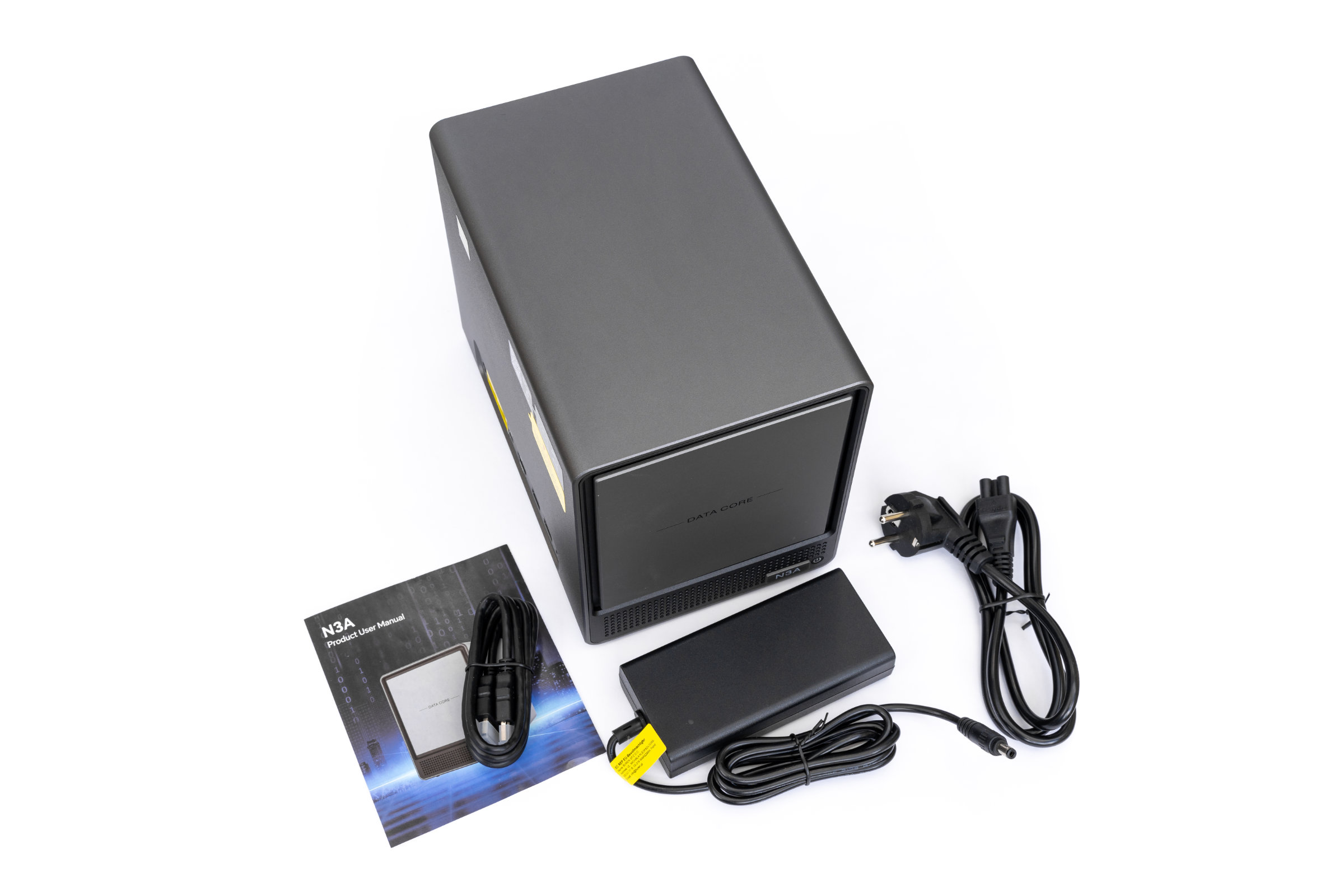 ACEMAGIC N3A Package Contents (Image © PCMasters.de)
ACEMAGIC does not include any other items in the package. After this initial quick look inside the box, we’ll now examine the NAS in detail and assess its exterior design and build quality.
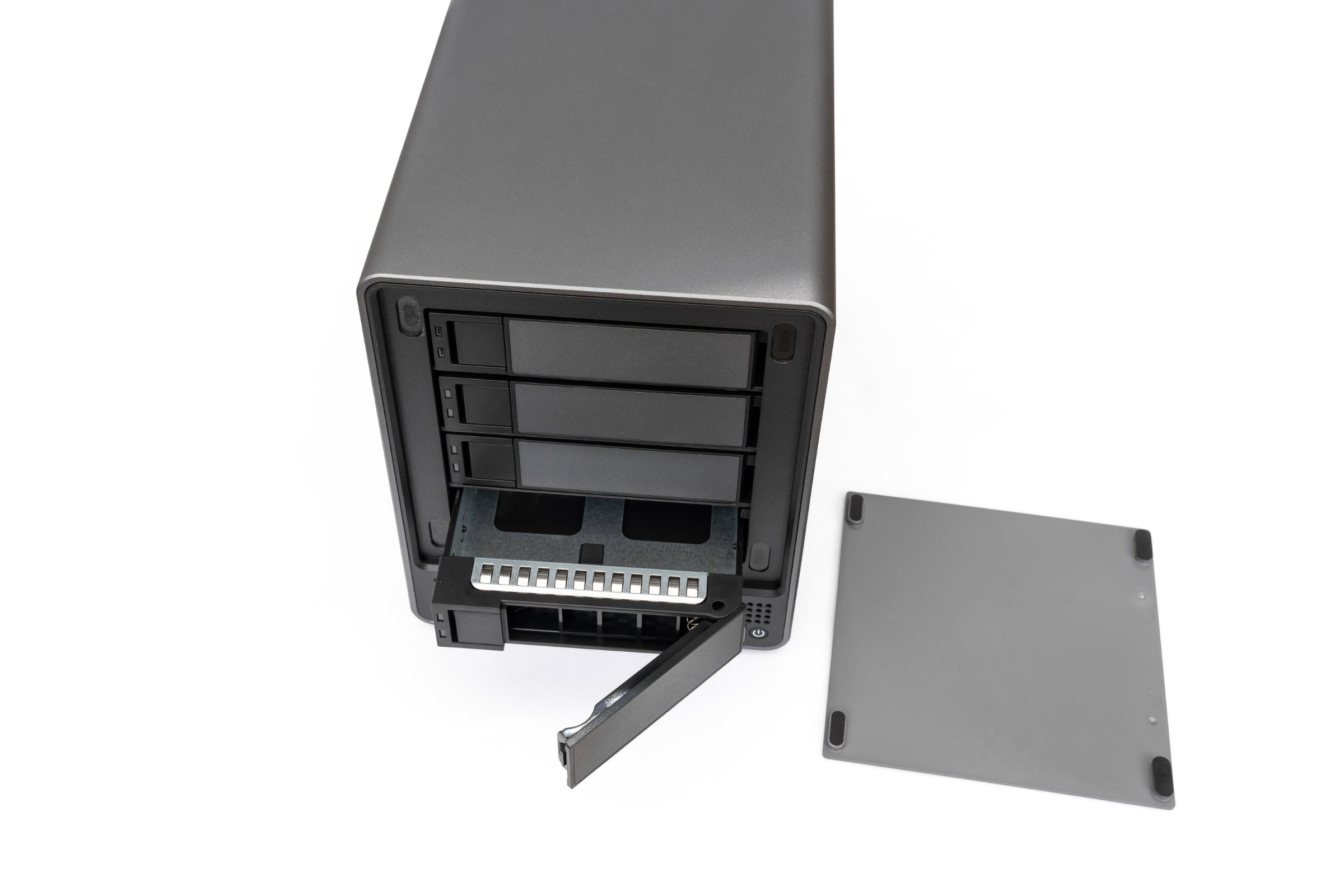 ACEMAGIC N3A Tray Pulled Out (Image © PCMasters.de)
ACEMAGIC N3A NAS in Detail
When we take a closer look at the N3A’s chassis, the material used stands out positively. ACEMAGIC has opted for a metal case here, which gives the device a pleasant heft and a truly premium feel. When it comes to port placement, however, the manufacturer takes a completely different approach. Instead of placing all the ports on the back as is customary, they are all grouped together on the side of the case. This definitely takes some getting used to at first and may require a bit of rethinking when setting up the device, but the selection of ports here is extremely generous.
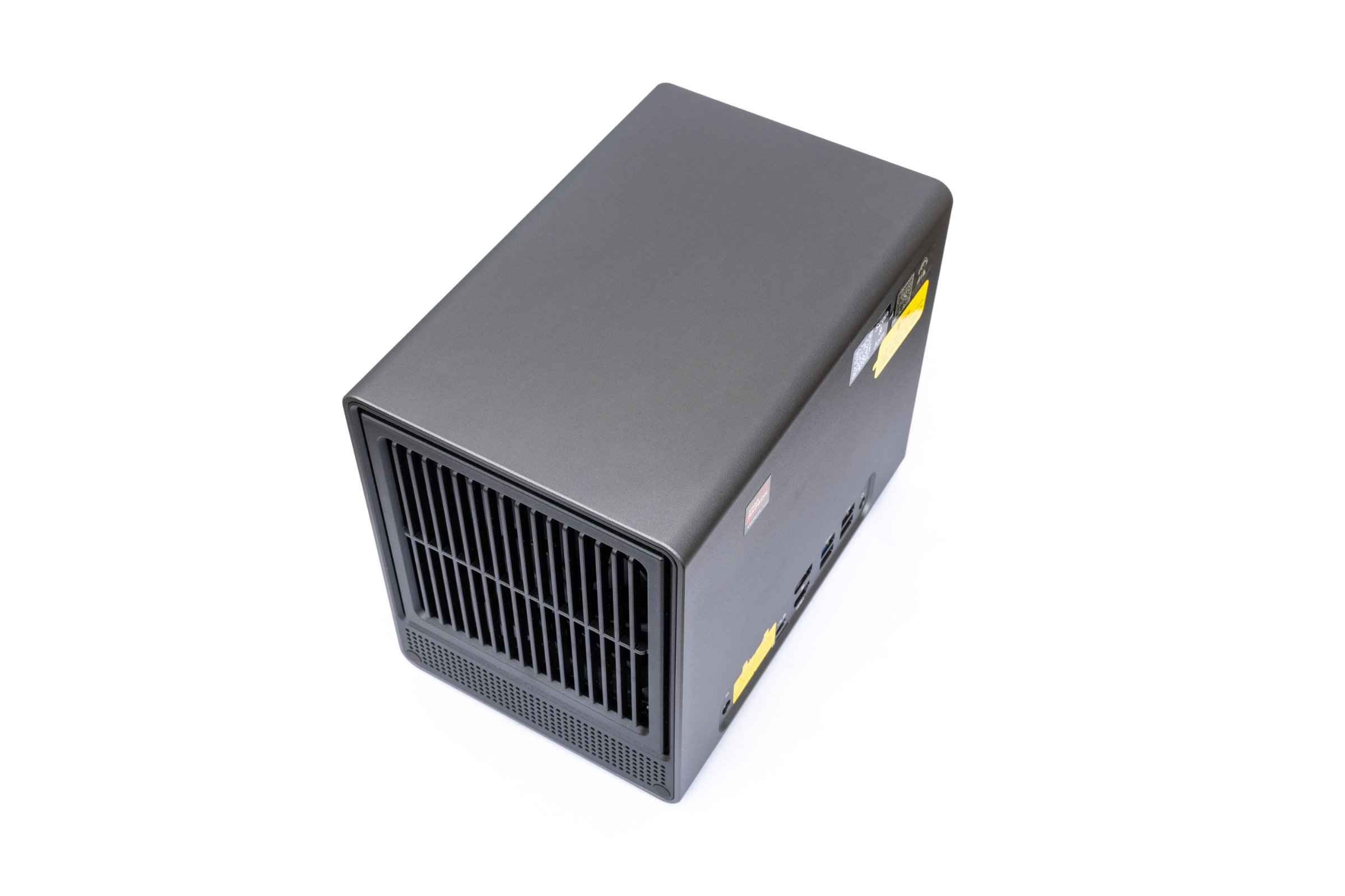 ACEMAGIC N3A Overview Back (Image © PCMasters.de)
In addition to the power connector, we find two network ports here. These are joined by a USB-C 3.2 Gen 2 port with DisplayPort support, a small microSD card reader, one full-size DisplayPort 1.4 and one HDMI 2.0 output, as well as two USB-A 3. 2 Gen 1 ports, and two additional classic USB-A 2.0 ports. ACEMAGIC has even included a 3.5-mm audio jack here. The side view is rounded out by a few stickers highlighting the integrated AMD Radeon graphics card, as well as QR codes for quick support from the manufacturer.
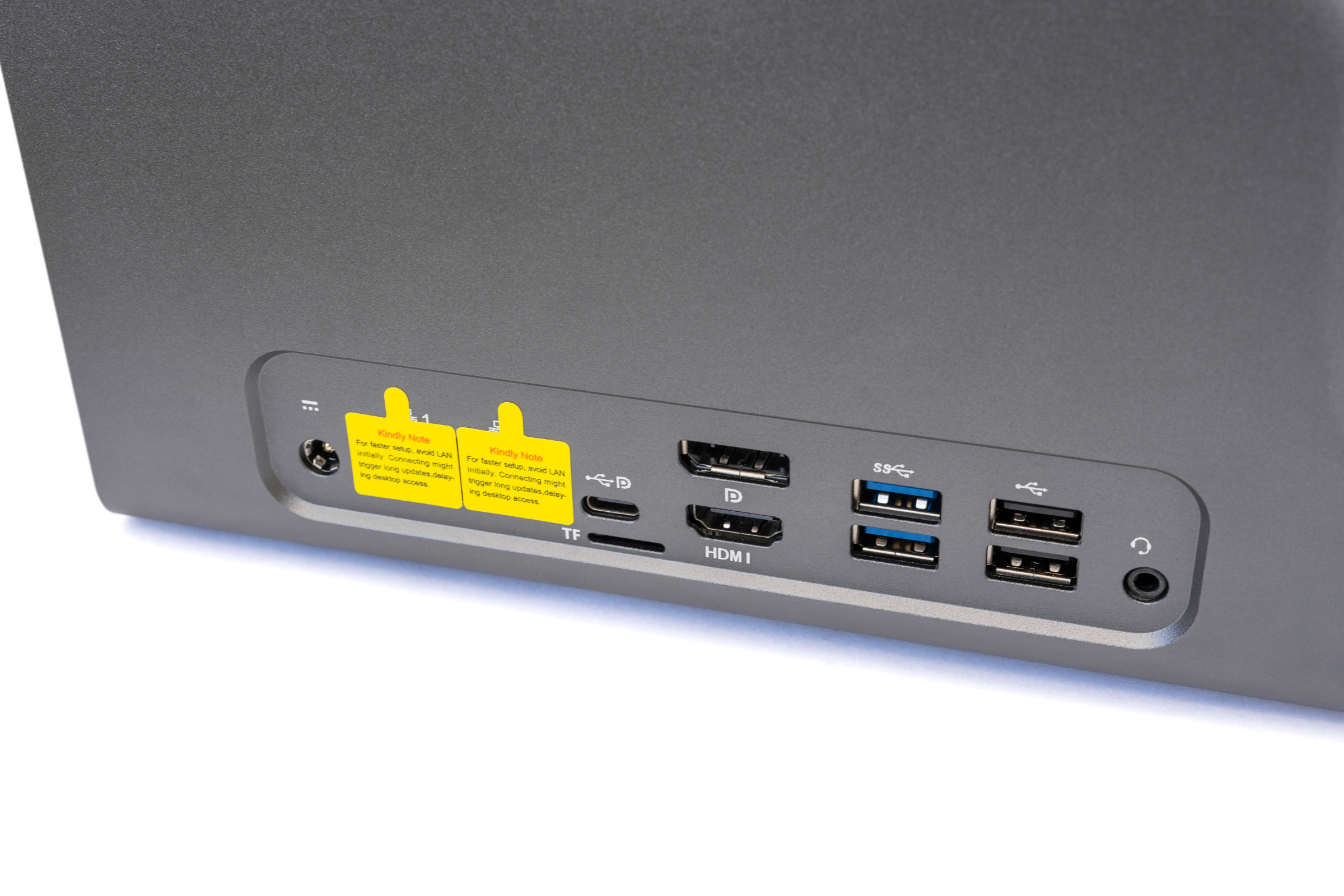 ACEMAGIC N3A Ports 1 (Image © PCMasters.de)
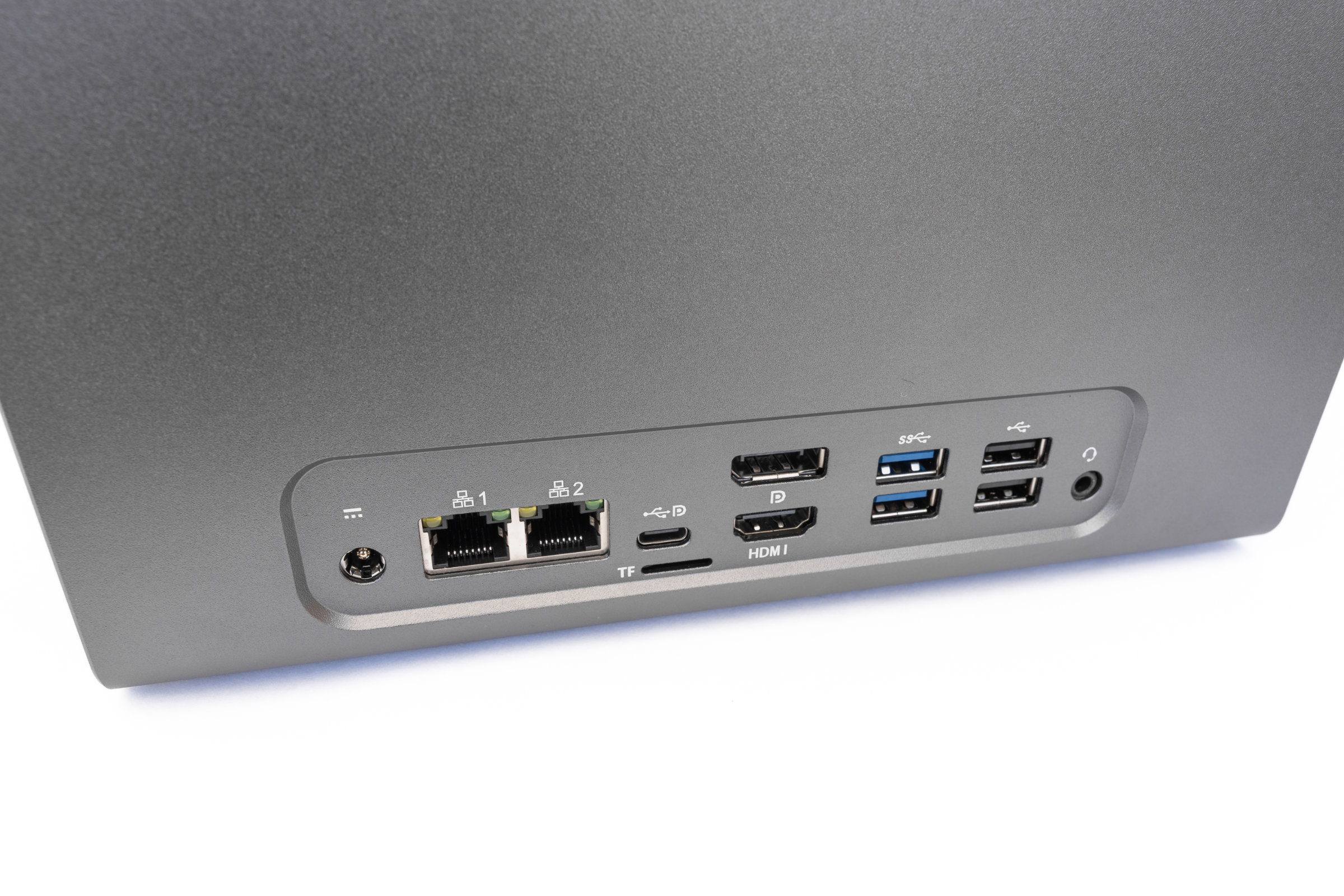 ACEMAGIC N3A Ports 2 (Image © PCMasters.de)
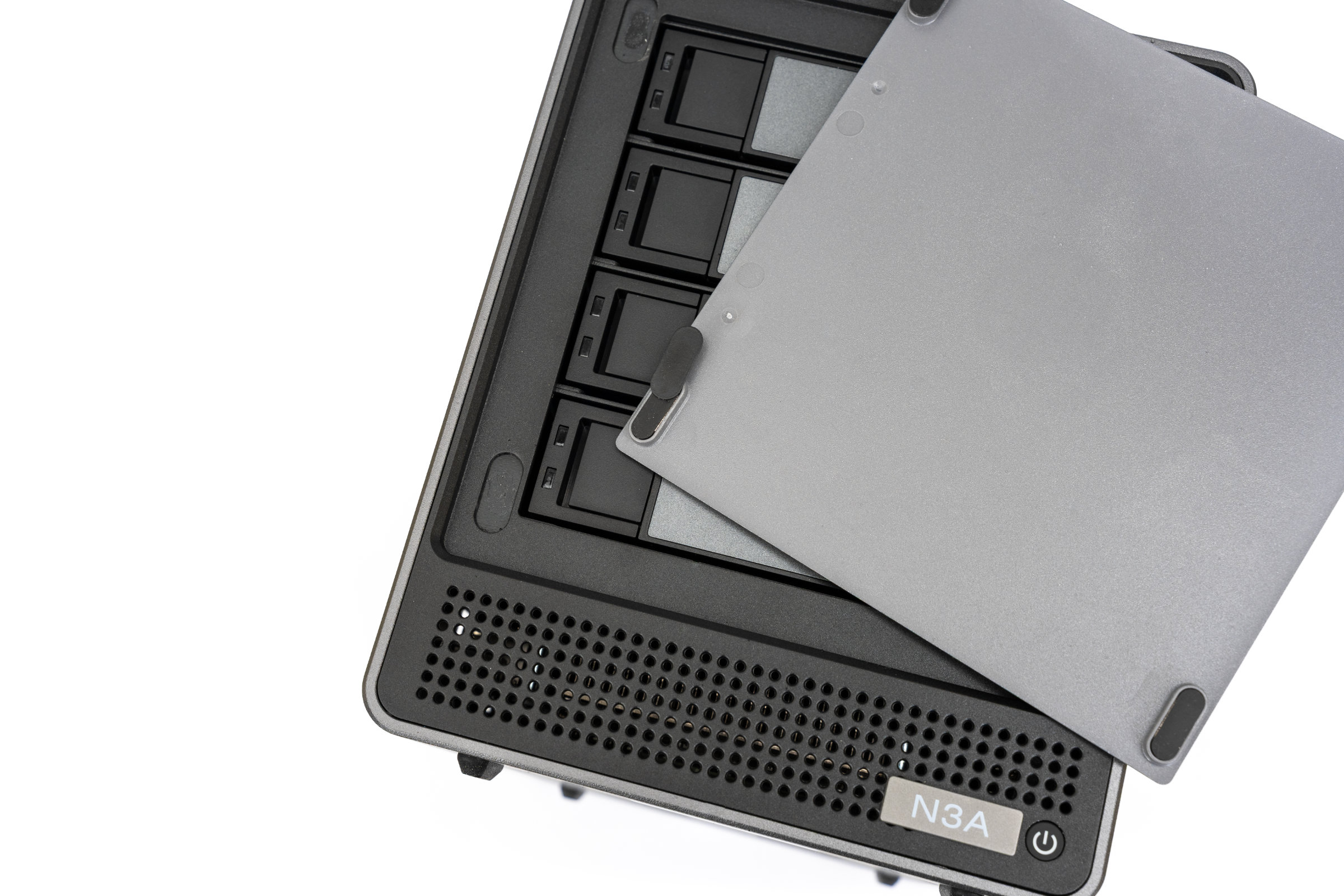 ACEMAGIC N3A Front Cover Magnets (Image © PCMasters.de)
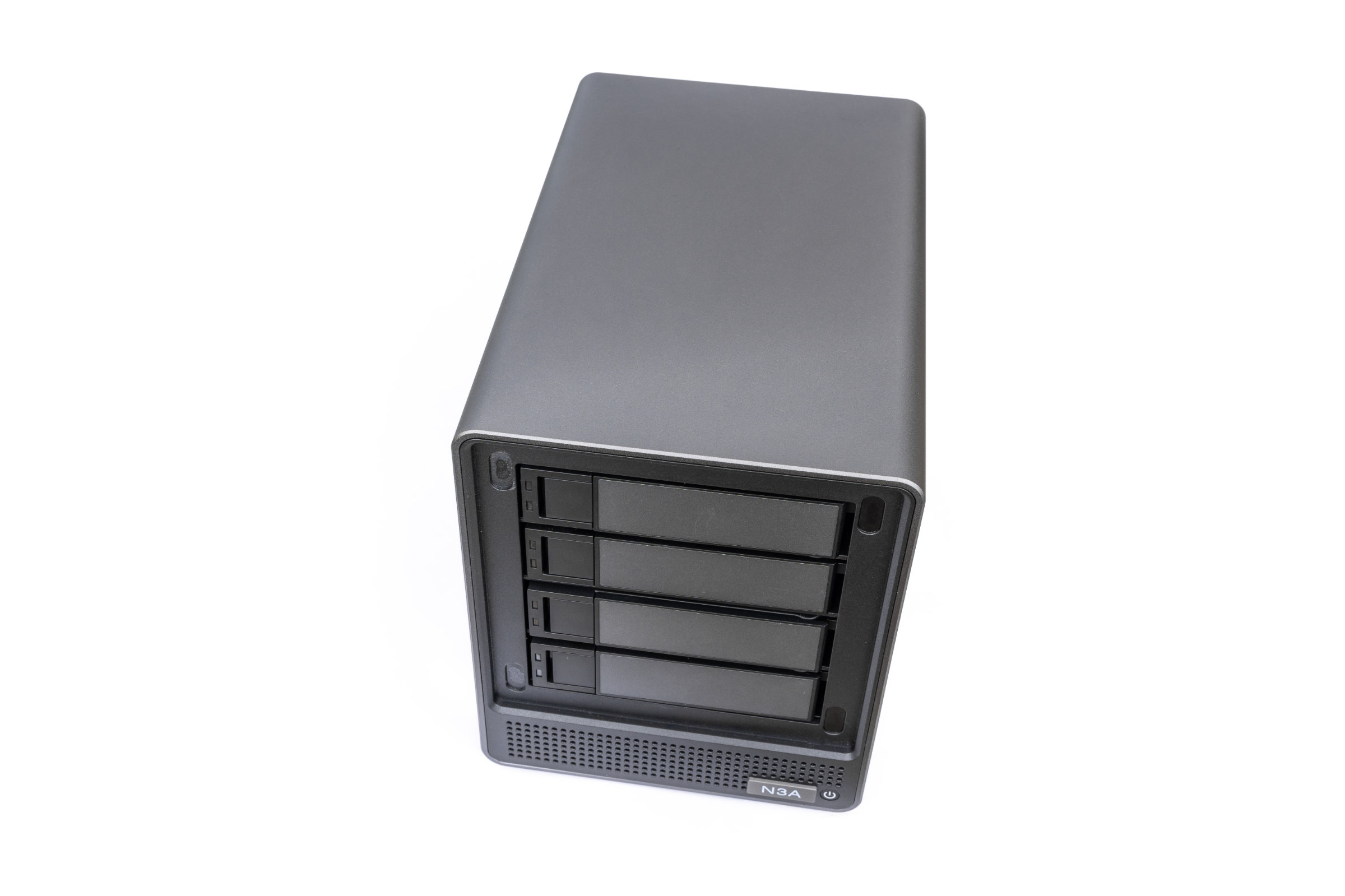
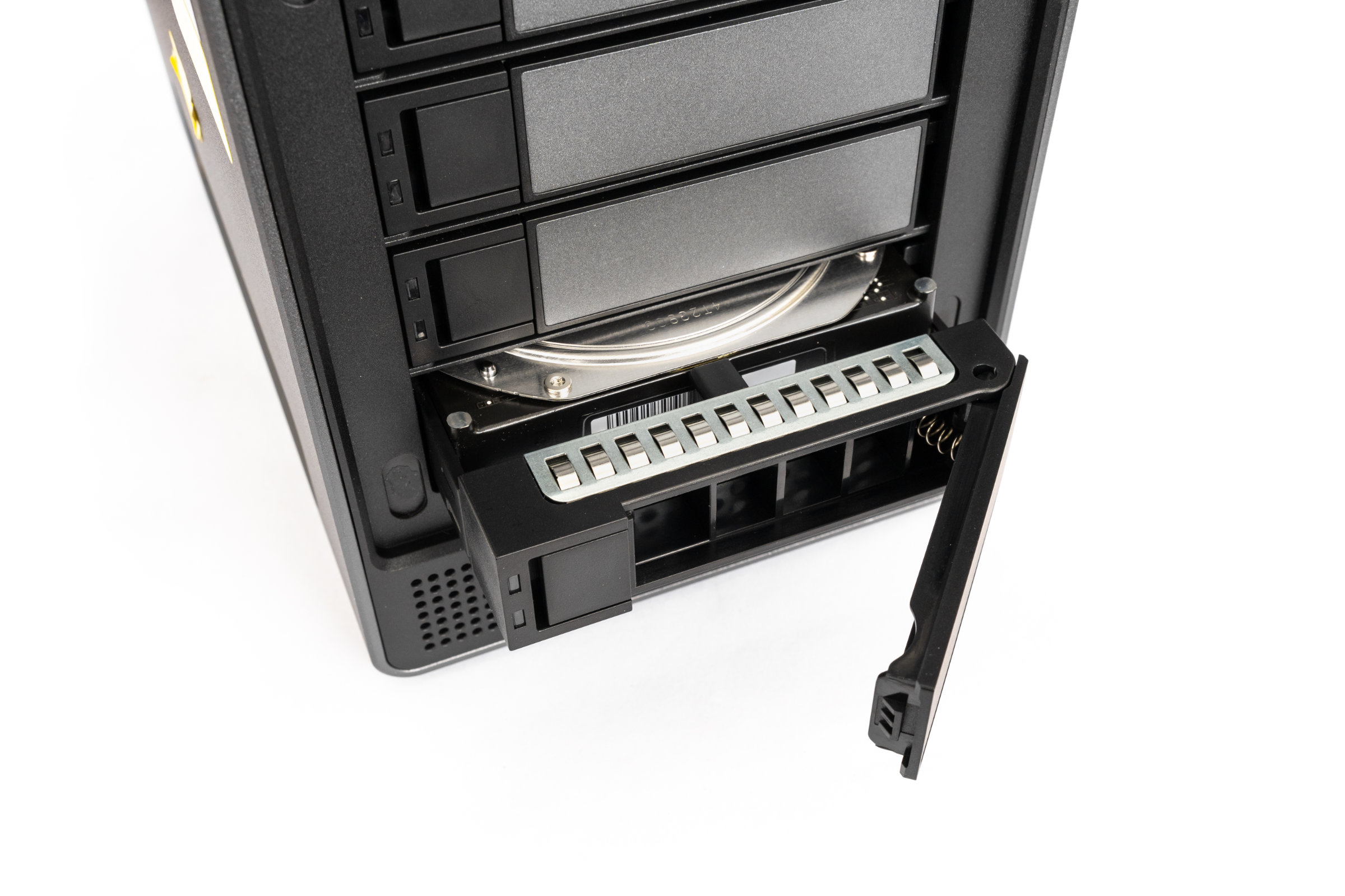
The front is dominated by a large plastic flap that looks stylish and attaches magnetically to the case. Unfortunately, the build quality here detracts somewhat from the overall impression. On our test unit, the adhesive had already come loose on two of the magnets, which immediately detracts somewhat from the otherwise good visual impression. Behind this flap, however, we finally find the four bays for our NAS hard drives. Here, too, the all-plastic construction doesn’t give the very best premium impression, but the mechanism works quite reasonably in everyday use. The drives can be installed completely without screws. Another nice visual touch is the sliding N3A badge on the front. If we don’t want the power button in plain sight all the time, we can simply slide the badge over it to hide the button. A nice idea for a clean look.
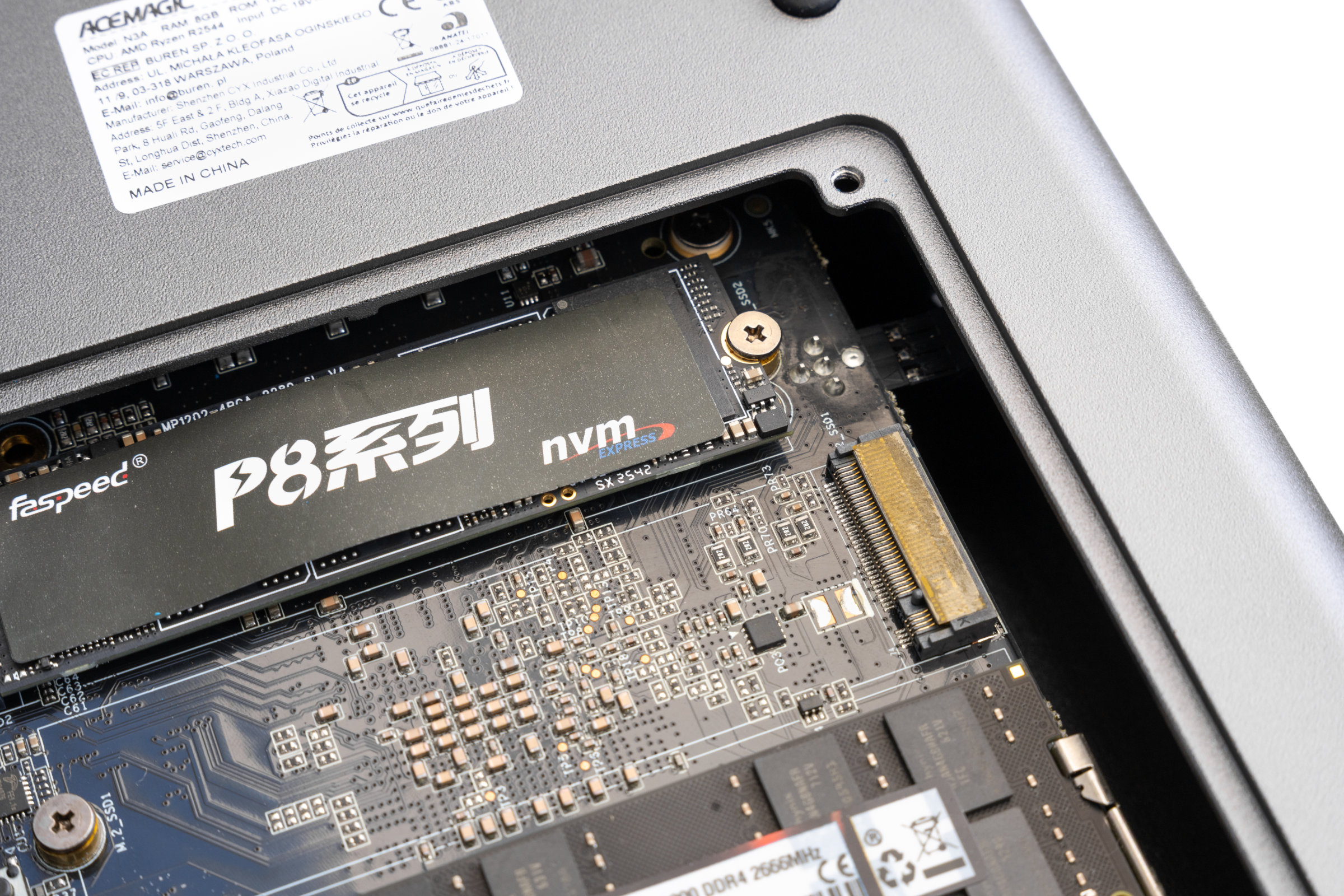 ACEMAGIC N3A NVMe Detail View (Image © PCMasters.de)
A look at the back reveals a large case fan, protected by a simple plastic grille, which ensures the necessary removal of warm air. But things get really interesting for us on the bottom of the NAS, because that’s where the maintenance panel is located.
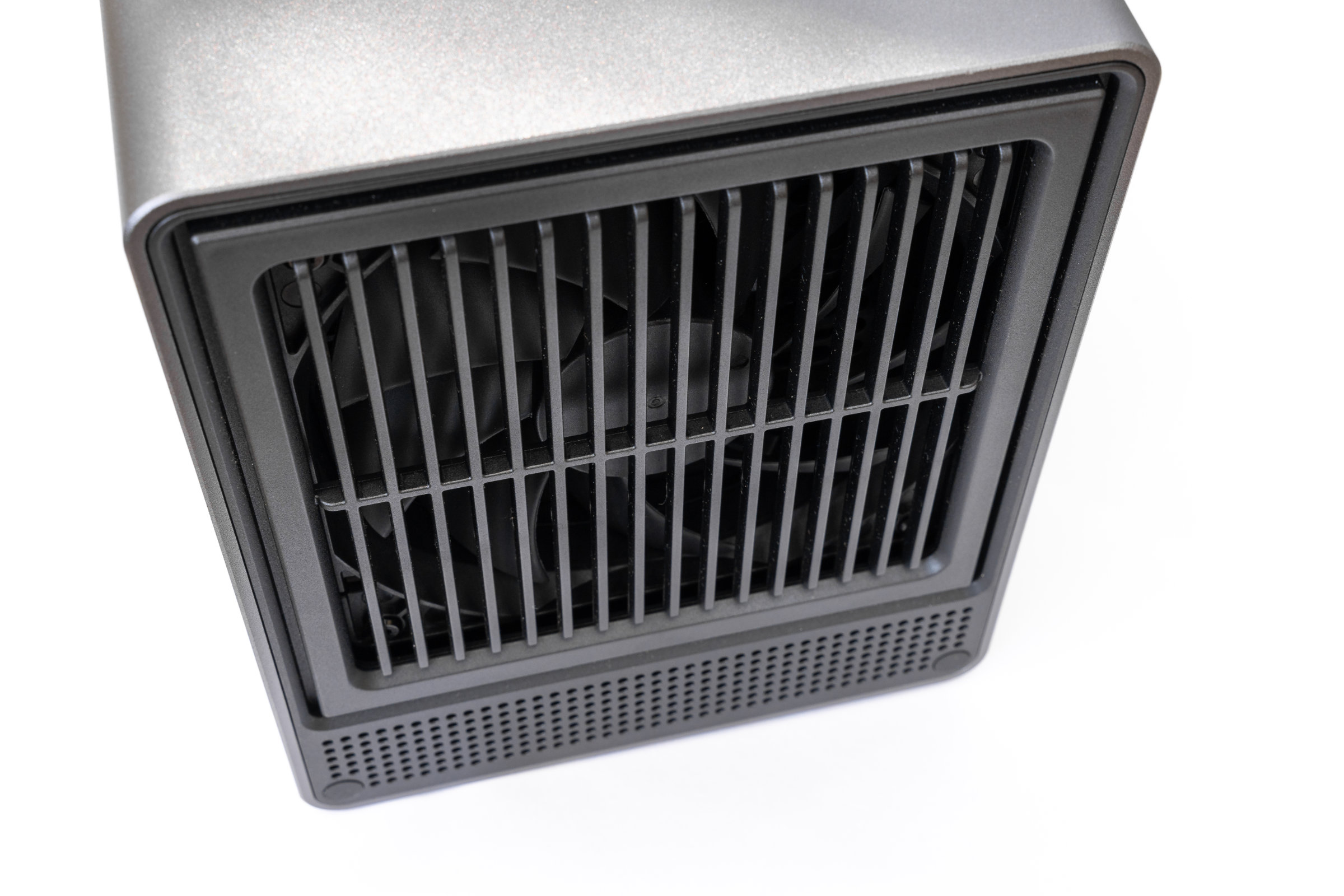 ACEMAGIC N3A Cooling Fan (Image © PCMasters.de)
If you unscrew this, you get direct access to the NVMe and the RAM. In our version, this is where the 128-GB NVMe SSD with the operating system is located, along with another free NVMe slot and two RAM slots, one of which is already factory-equipped with an 8-GB module. Four sturdy, non-slip rubber feet on the bottom ensure that the device stays securely in place and that any vibrations from the spinning hard drives aren’t directly transmitted to the surface below.
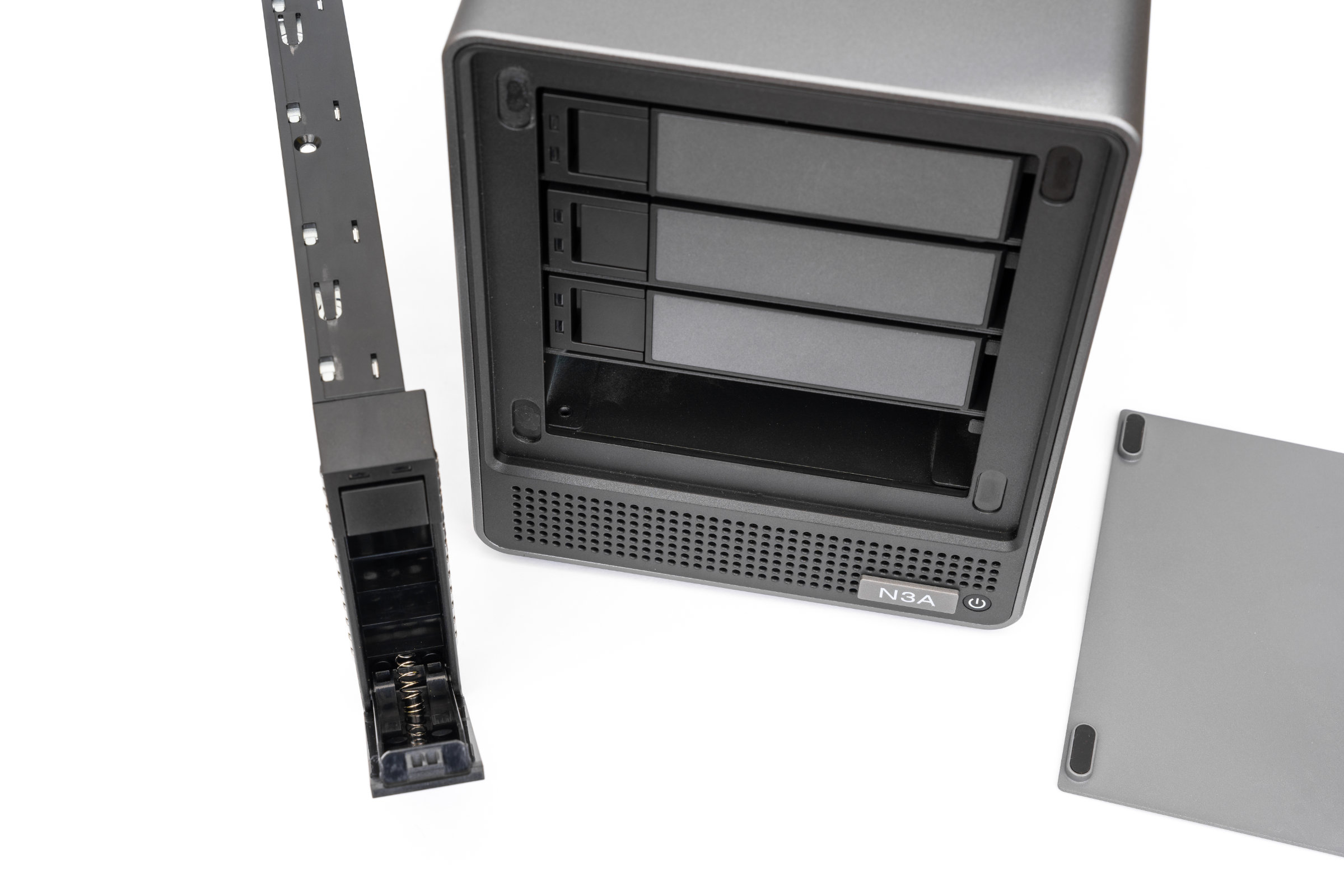 ACEMAGIC N3A Drive Tray Pulled Out 2 (Image © PCMasters.de)
Practical Use – Installation & Setup
The physical setup of the ACEMAGIC N3A is relatively straightforward. The power cable quickly finds its proper place, and for the initial setup, we briefly connect a mouse, a keyboard, and a monitor via HDMI to the side of the case. Things get interesting, however, when we try to connect the NAS to the home network. Aside from the missing cable, there are two LAN ports available on the side. One of them is supposed to offer 2.5 GbE, and the other is supposed to operate at standard Gigabit speeds. Unfortunately, there are no labels on the case. Nor is it specified anywhere in the manual or on the website which port is the faster one. Color-coded markings are also missing, so as users, we don’t know from the very first second where to get the maximum speed. This is somewhat frustrating and baffling, but more on that later.
 ACEMAGIC N3A Preparing Windows Desktop (Image © PCMasters.de)
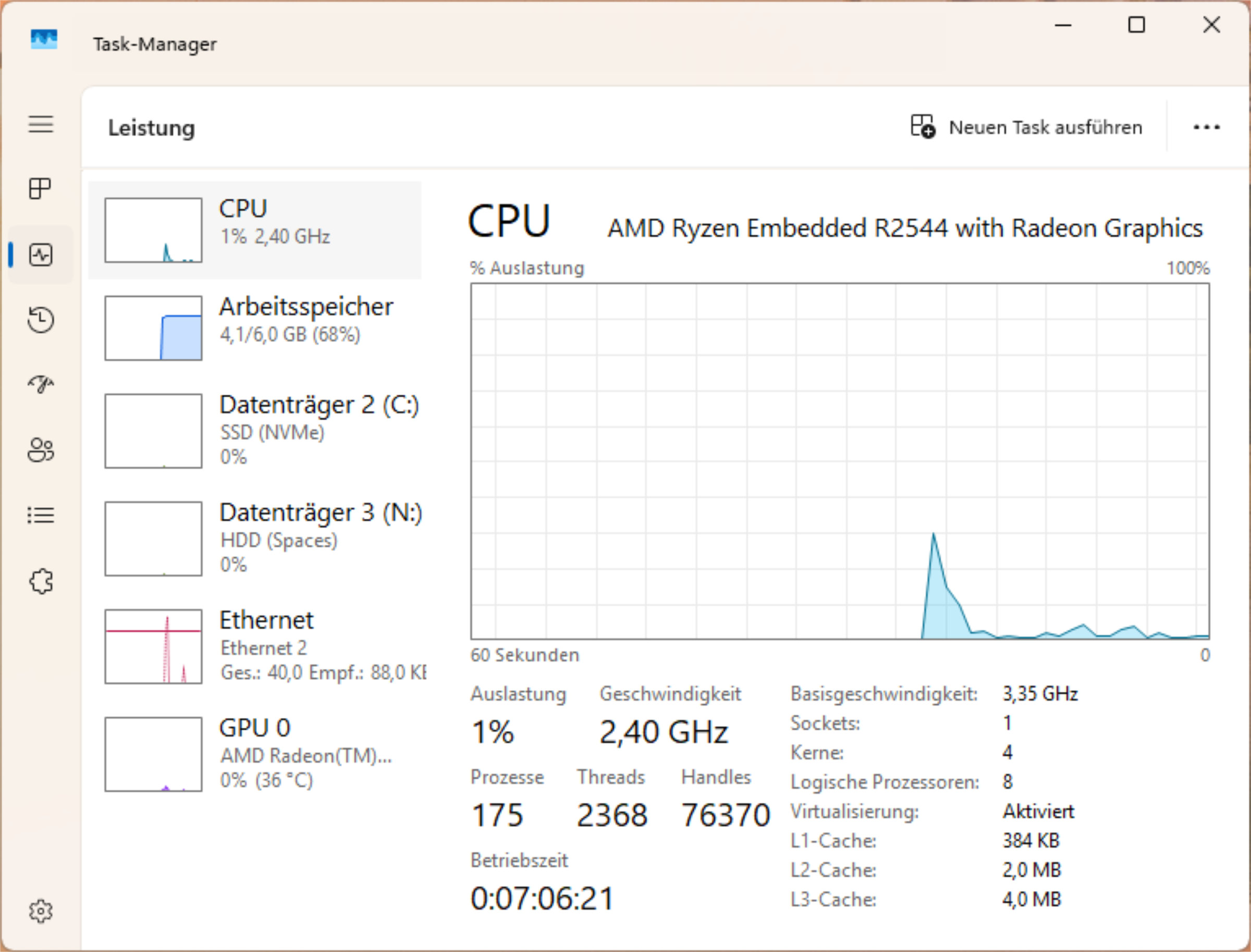 ACEMAGIC N3A Windows Task Manager Idle (Image © PCMasters.de)
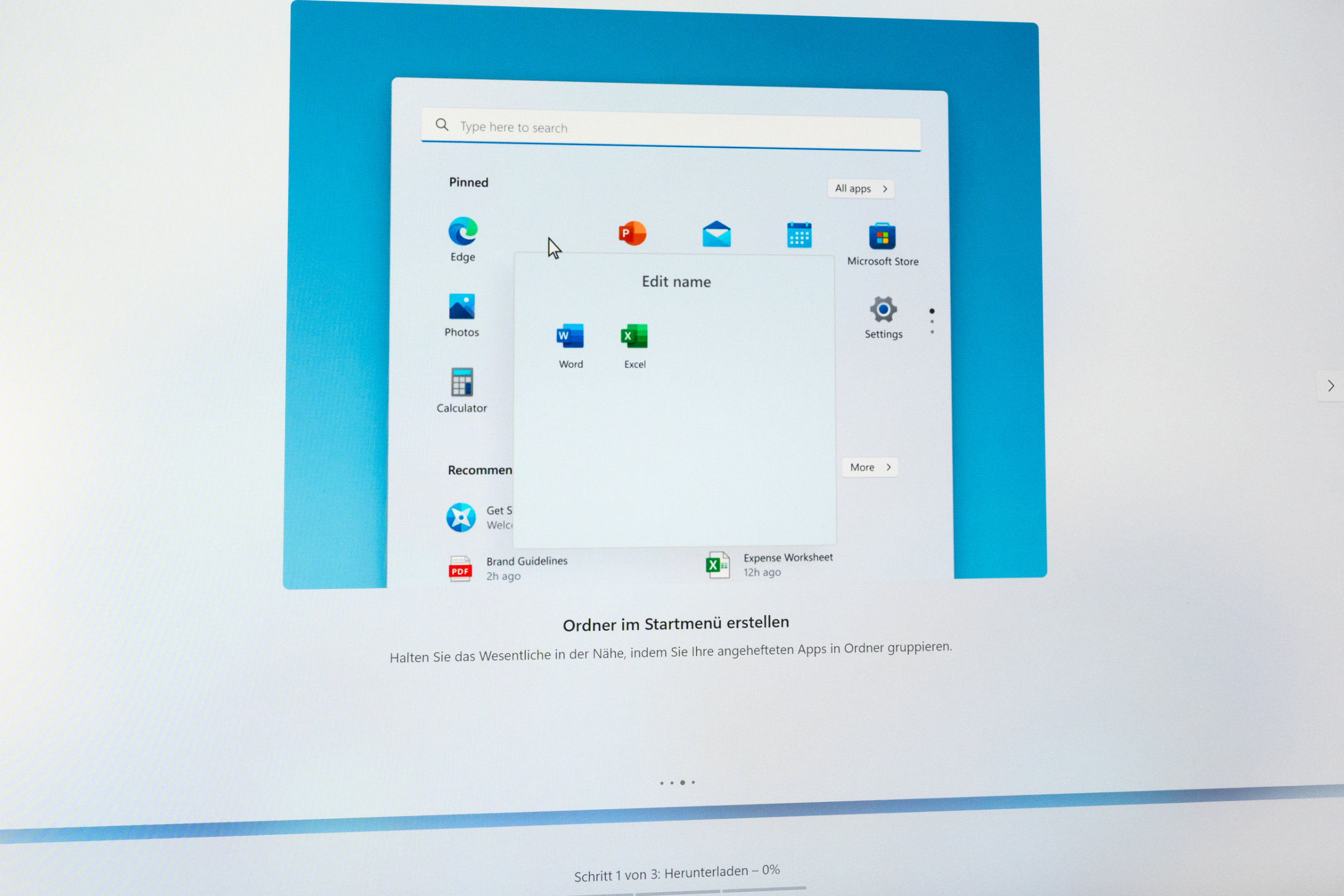
After pressing the power button, the NAS boots up and the fan audibly does its job, but not in a disruptive way. It’s noticeable in the room, but produces a perfectly tolerable and unobtrusive background noise. As for the operating system, we’re greeted by a freshly installed Windows 11 Pro, and the system takes us straight to the familiar Windows Setup Wizard, which guides us step by step through language selection, creating a user account, and network login. After a few minutes, we arrive at the familiar Windows interface and can continue with the setup.
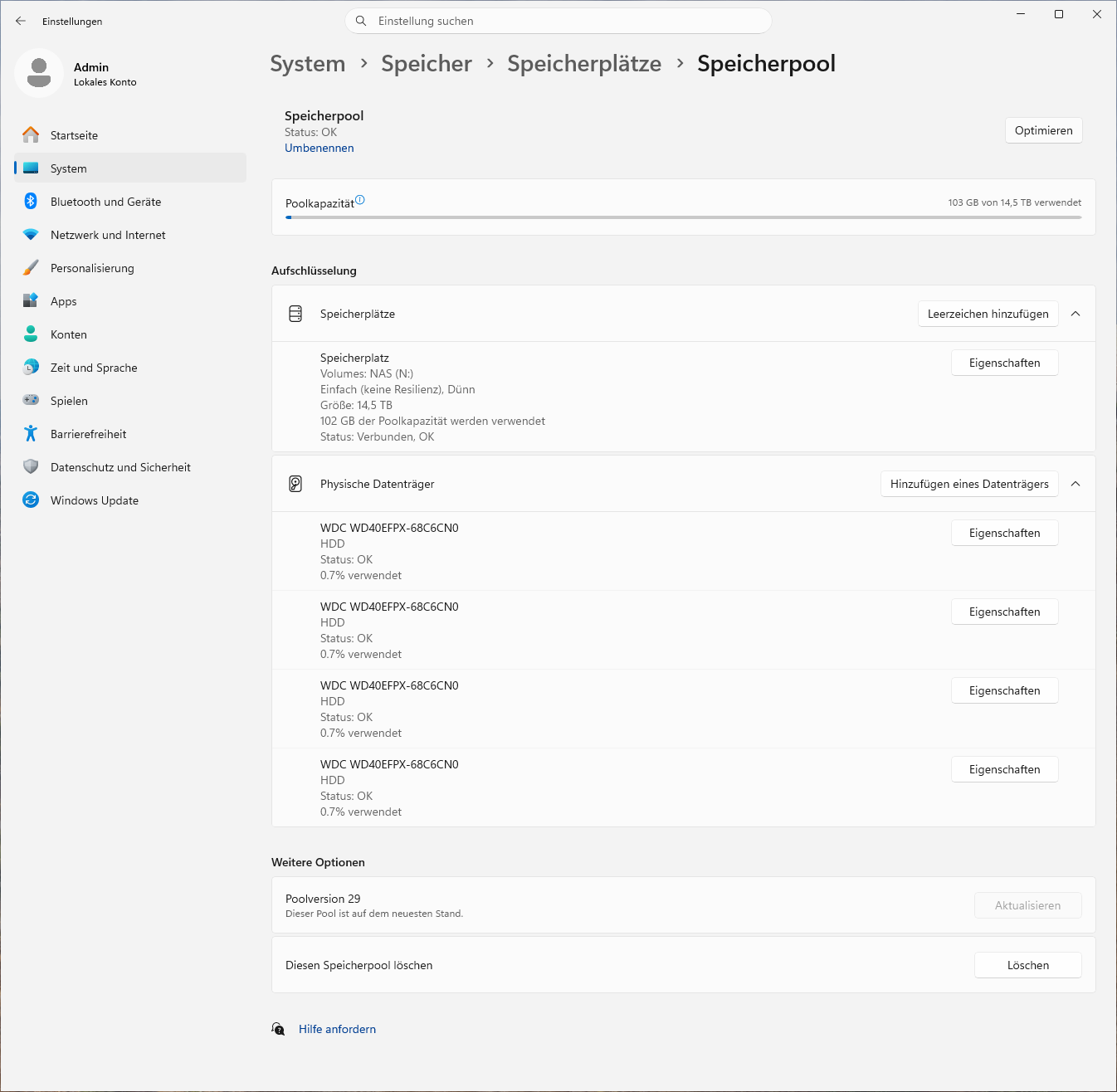 ACEMAGIC N3A Windows Storage Pool 1 (Image © PCMasters.de)
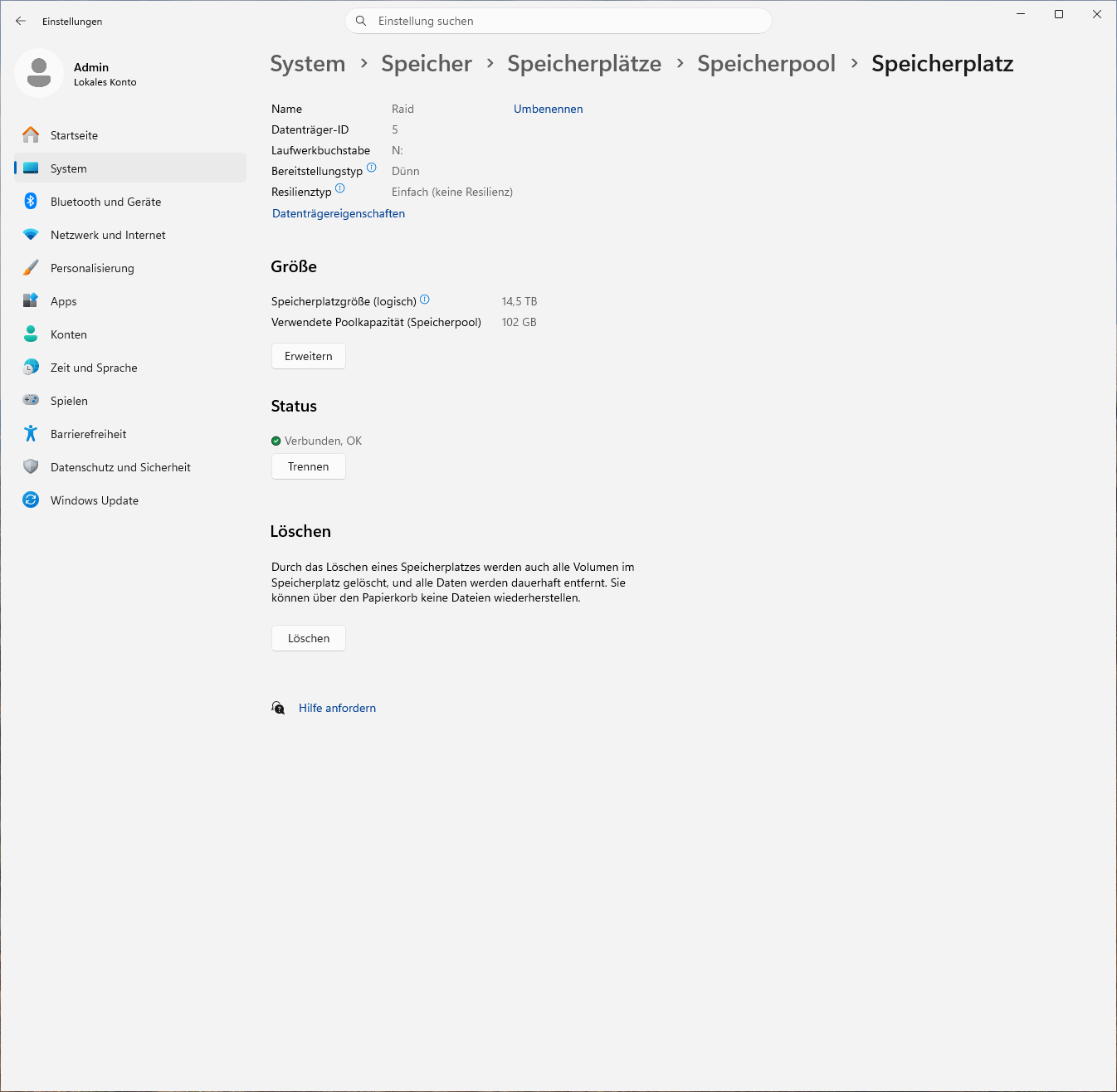 ACEMAGIC N3A Windows Storage Pool 2 (Image © PCMasters.de)
Unfortunately, Windows 11 Pro does not come with a convenient web interface for operation out of the box, as we are used to seeing on other ready-to-use NAS systems. To access the NAS remotely over the network, we need its IP address and use the Windows app on the Mac. While this works flawlessly after the initial setup, it does require additional software on our Mac, for example. Using this remote connection, we now turn to the core task of a network storage device: setting up the data storage. Since we equipped the N3A with four hard drives (WD Red Plus 4 TB) for this test, we want to combine them into a single-stripe array using the Windows storage spaces to achieve maximum drive performance and ensure the hard drives do not become a limiting factor in the subsequent network and speed tests.
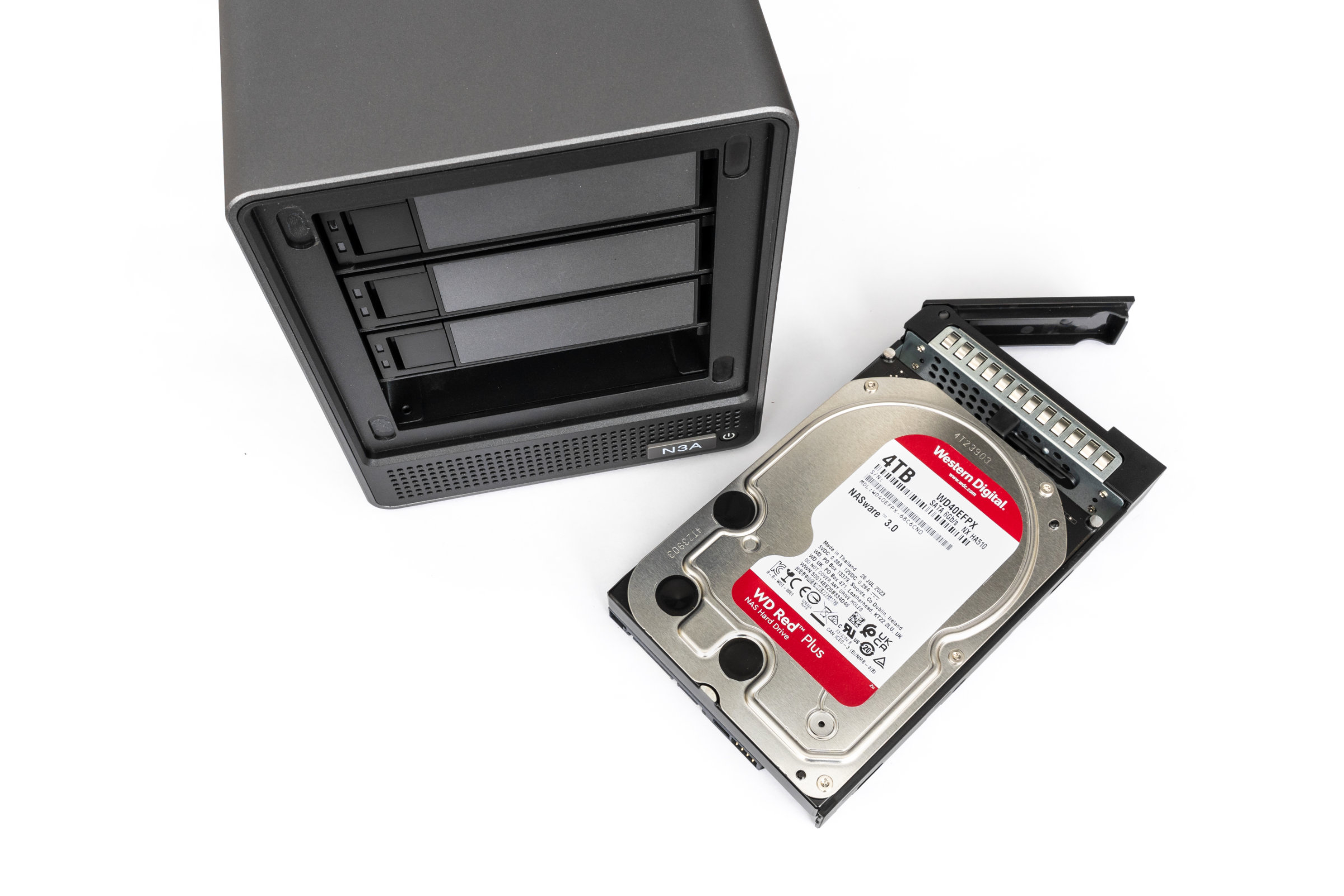 ACEMAGIC N3A Installed HDD (Image © PCMasters.de)
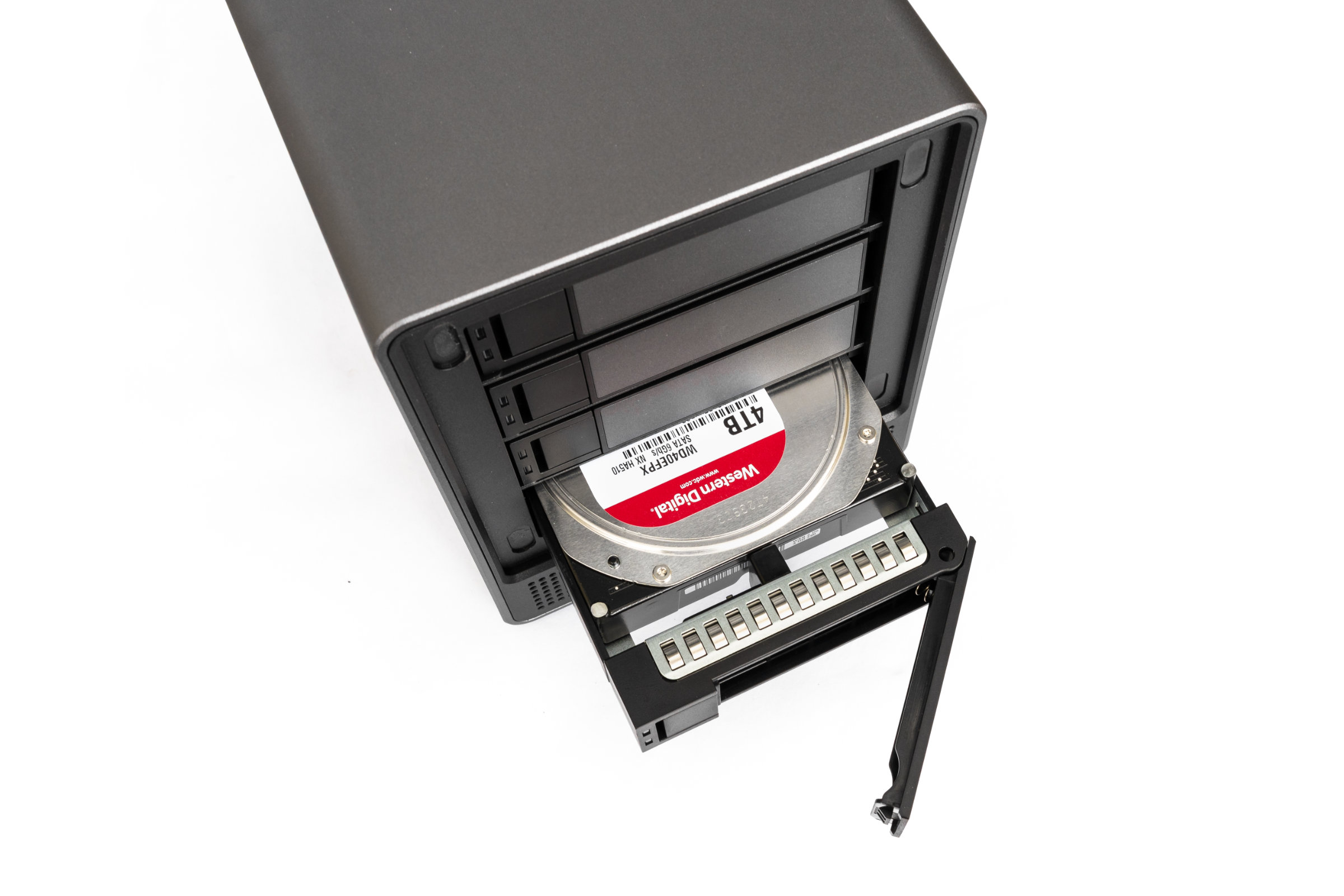 ACEMAGIC N3A HDD Tray (Image © PCMasters.de)
So we need to dive into the Windows Control Panel and navigate through the built-in Windows Storage settings. There, we select the four unformatted test drives, combine them into a new storage pool, and specify the fault tolerance type. For our purposes, we select the "Simple" option here, which corresponds to a striped array without redundancy and is functionally similar to RAID-0. Windows then formats the disks and presents the array to us as a single, new drive in File Explorer, which we now need to manually share on the network. While creating the array can be done entirely using Windows’ built-in tools, it involves more steps and configuration effort compared to competing solutions.
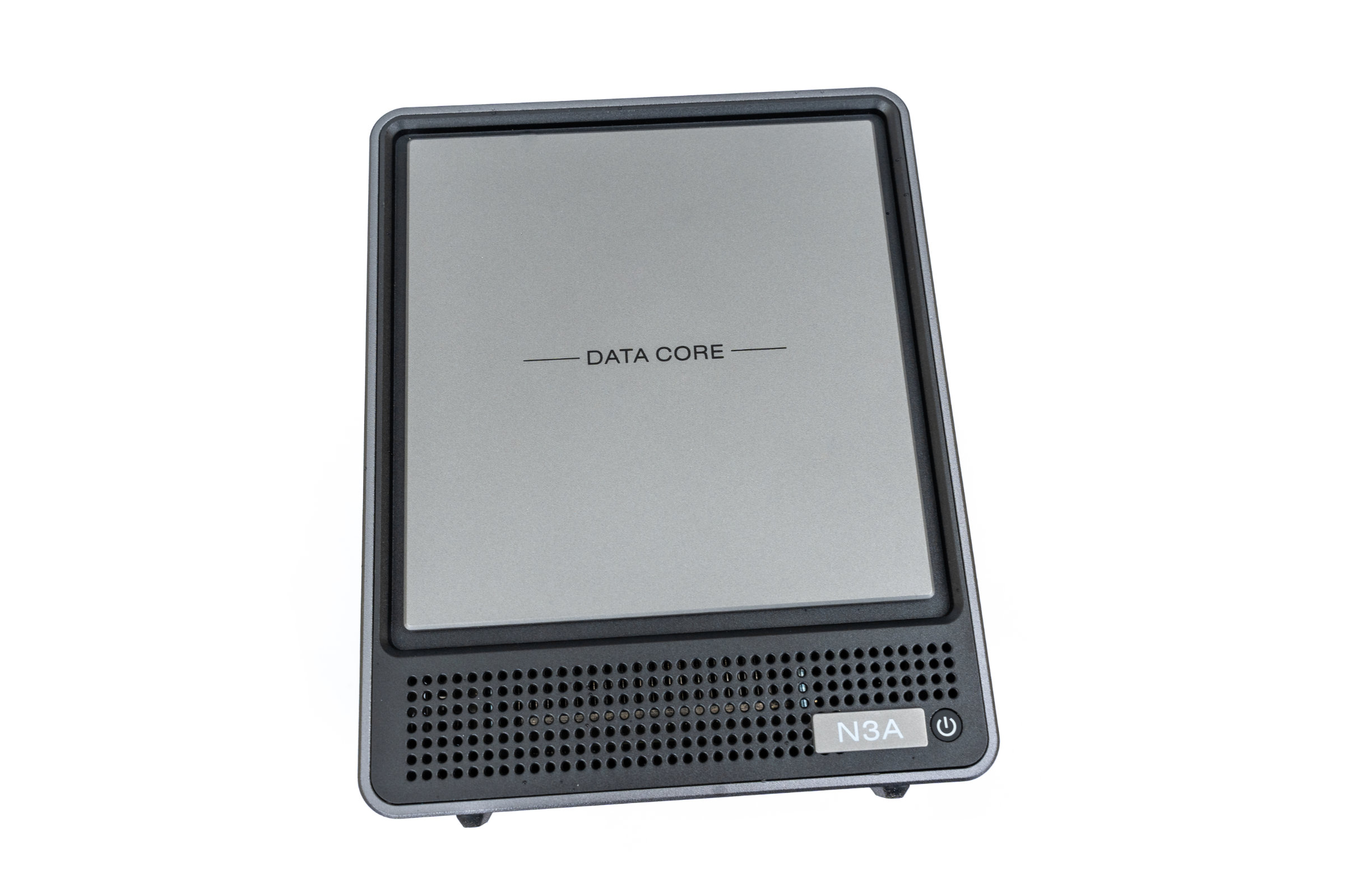 ACEMAGIC N3A Front Panel (Image © PCMasters.de)
Software
When looking at the software, the biggest difference from the market leaders in NAS becomes apparent. While specialized NAS companies score points with their own operating systems, where folder sharing, user permissions, and automatic PC backups can be set up relatively easily with just a few clicks in the browser, the N3A comes with a bare-bones Windows 11 Pro. ACEMAGIC does not include any proprietary NAS software or apps out of the box. If we want to back up our data and share it on the network, all functions must be configured manually through the standard Windows system settings and storage locations. The setup here is undoubtedly more complex and less user-friendly. Especially since you also have to keep in mind that, in the worst-case scenario, an unexpected Windows update could mess up the previously configured network setup overnight. You’ll also search in vain for convenient fan control directly within Windows; the cooling system operates rigidly via the motherboard BIOS. Another major drawback concerns mobile use, as the manufacturer simply does not offer a dedicated smartphone app for iOS or Android. This means automatic photo backups from your phone to the server are not available out of the box.
 ACEMAGIC N3A Windows Setup Screen (Image © PCMasters.de)
Closely related to this is the lack of a preconfigured backup solution out of the box. An important reason for many users to purchase a NAS is the straightforward backup of their own PCs or laptops at home, a feature that specialized NAS systems often offer right out of the box. The ACEMAGIC N3A initially provides only basic Windows functions and network shares. Anyone wishing to set up automatic and centrally managed backups must therefore familiarize themselves with the appropriate Windows tools or third-party software solutions. A particularly beginner-friendly plug-and-play solution, as is common with other NAS manufacturers, is not available out of the box.
On the other hand, there are thousands of different software solutions for Windows covering virtually every scenario, and perhaps users specifically want the flexibility that the Microsoft system offers here. Essentially, the platform provides the unbeatable freedom of a true PC, transforming the N3A into an ingenious all-rounder. This is especially true if you plan to use the NAS as an office computer on the side anyway. With the open-source operating system, you ultimately face hardly any significant limitations, unlike the closed ecosystems of the competition. But if you simply can’t get along with Windows on a server, you can just take advantage of the device’s biggest selling point: absolute hardware freedom. Since no software is locked down by the manufacturer, the system can be replaced in a flash via USB drive with TrueNAS, Unraid, or even FeiNiu OS, for example, and the drivers will work seamlessly thanks to the standard PC platform.
 ACEMAGIC N3A Without Front Cover (Image © PCMasters.de)
Performance and Speed
Under the hood of the N3A, ACEMAGIC relies on the AMD Ryzen Embedded R2544 with four cores and eight threads. Combined with 8 GB of RAM, this processing power is more than sufficient for the classic everyday tasks of a network storage device. The integrated Radeon graphics also do a good job. When connected directly via HDMI to a monitor or TV, it plays high-resolution 4K media completely smoothly. When streaming over the network, it also supports the system by providing hardware-based acceleration for video stream transcoding, which reduces the load on the processor during everyday use. The hardware even handles the simultaneous operation of common Docker containers and virtual machines without any significant performance drops.
However, a completely different picture emerges when it comes to data transfer, which tested our patience during the test and required quite a bit of detective work. Anyone connecting the NAS to their home network will initially stumble upon the unlabeled LAN ports. Ironically, checking the Windows network settings doesn’t help at all, since both network interfaces are displayed identically as Intel i226-V in Device Manager and run internally as 2.5-GbE adapters. We had to figure out which port was the high-speed connection during testing. It turned out that port two—the rightmost of the two ports—is the faster 2.5 GbE port. When writing to our four-disk RAID array using Windows storage volumes, the faster port delivered around 140 MB/s. While this is enough to break the gigabit barrier, it falls short of expectations for a 2.5-GbE connection. Port one, on the other hand, turned out to be quite a bottleneck during writes and dropped off sharply at around 86 MB/s. If we flip the script and read data from the NAS, the picture looks much better. Here, Port 1 manages a respectable 190 MB/s, while Port 2, with a whopping 290 MB/s in this scenario, nearly reaches the theoretical limit of the 2.5-GbE interface.
In a separate test run, when writing to the internal NVMe system SSD, data flies through the line at 140 MB/s on the faster port before the rate later drops sharply to a meager 20 to 50 MB/s during sustained transfer. However, since the NVMe is likely not intended as the primary data storage anyway, this drop is certainly tolerable in everyday use. Nevertheless, the impression remains that the network connection under Windows struggles with a few unsightly performance spikes without in-depth system optimization out of the box.
 ACEMAGIC N3A HDD Mounted in Tray (Image © PCMasters.de)
Power Consumption
Since a network storage device ideally runs around the clock, operating costs play a decisive role in the annual electricity bill. To roughly determine the N3A’s power consumption, we connected the system to an Eve Energy outlet during testing and measured consumption in typical everyday scenarios.
When completely turned off and in standby mode, the power supply still draws about 2 watts from the outlet. When you press the power button, the reading briefly spikes to a peak of up to 55 watts during bootup. However, once the system has fully booted up and is in normal idle mode on the Windows desktop, power consumption settles at around 24 watts. For a full-fledged system with an AMD Ryzen processor and Windows 11 Pro, this is a perfectly acceptable and solid figure.
However, as soon as data is transferred over the network, the entire system demands noticeably more power. When reading from and writing to the RAID array simultaneously, the reading climbs to a steady 40 watts. This is primarily because, in addition to the spinning hard drives, the CPU is also under greater strain during ongoing network and storage access. If you push the processor to its absolute limits using tools like Prime95, the architecture’s dynamic boost behavior becomes apparent, and the system draws up to 48 watts from the outlet at peak.
Overview of the measured values (operating state / power consumption (watts)):
- Powered off (standby): approx. 2 W
- Powering on (boot peak): approx. 55 W
- Idle (desktop idle): approx. 24 W
- Data transfer (write load): approx. 40 W
- Peak (peak load during stress test): approx. 48 W
ACEMAGIC N3A Without Front Cover (Image © PCMasters.de)
Conclusion
At the end of our test, the ACEMAGIC N3A faces a tough test and leaves a mixed impression. Anyone looking at the suggested retail price of €599.99 and expecting a completely worry-free, high-performance data storage solution from the very first second should perhaps steer clear of this device. For the same price, established NAS manufacturers offer more mature all-in-one systems that, while lacking a free Windows version, deliver full network performance right out of the box with their custom operating systems. With the N3A, the theoretical 2.5-GbE potential is noticeably throttled in real-world SMB copying scenarios. Casual users expecting pure plug-and-play, automatic backups, and smart smartphone apps won’t be particularly happy with the bare-bones Windows 11 Pro and the somewhat complicated setup process for managing storage spaces either.
Based on the official MSRP, we simply find the package a bit too expensive, even though a current 200-euro discount on Amazon (as of June 5, 2026) makes the starting price significantly more palatable in actual retail sales. The built-in Ryzen Embedded processor performs its tasks absolutely reliably for daily server tasks, 4K playback, and common Docker containers, delivering solid performance; however, when writing over the network, the entire NAS slows down, which is a shame. The unlabeled LAN ports and the rather basic build quality in some areas also reveal the manufacturer’s cost-cutting measures.
Despite all this, the N3A is an interesting piece of technology. It’s aimed at users who value flexibility and don’t mind a slightly more hands-on setup. You’re not presented with a ready-made system that delivers maximum performance right out of the box. But for those seeking precisely this freedom from a PC and wanting to leverage the advantages and vast software selection of a true Windows platform on their server, this is a versatile all-rounder for their own digital environment.