
 Computer Forum
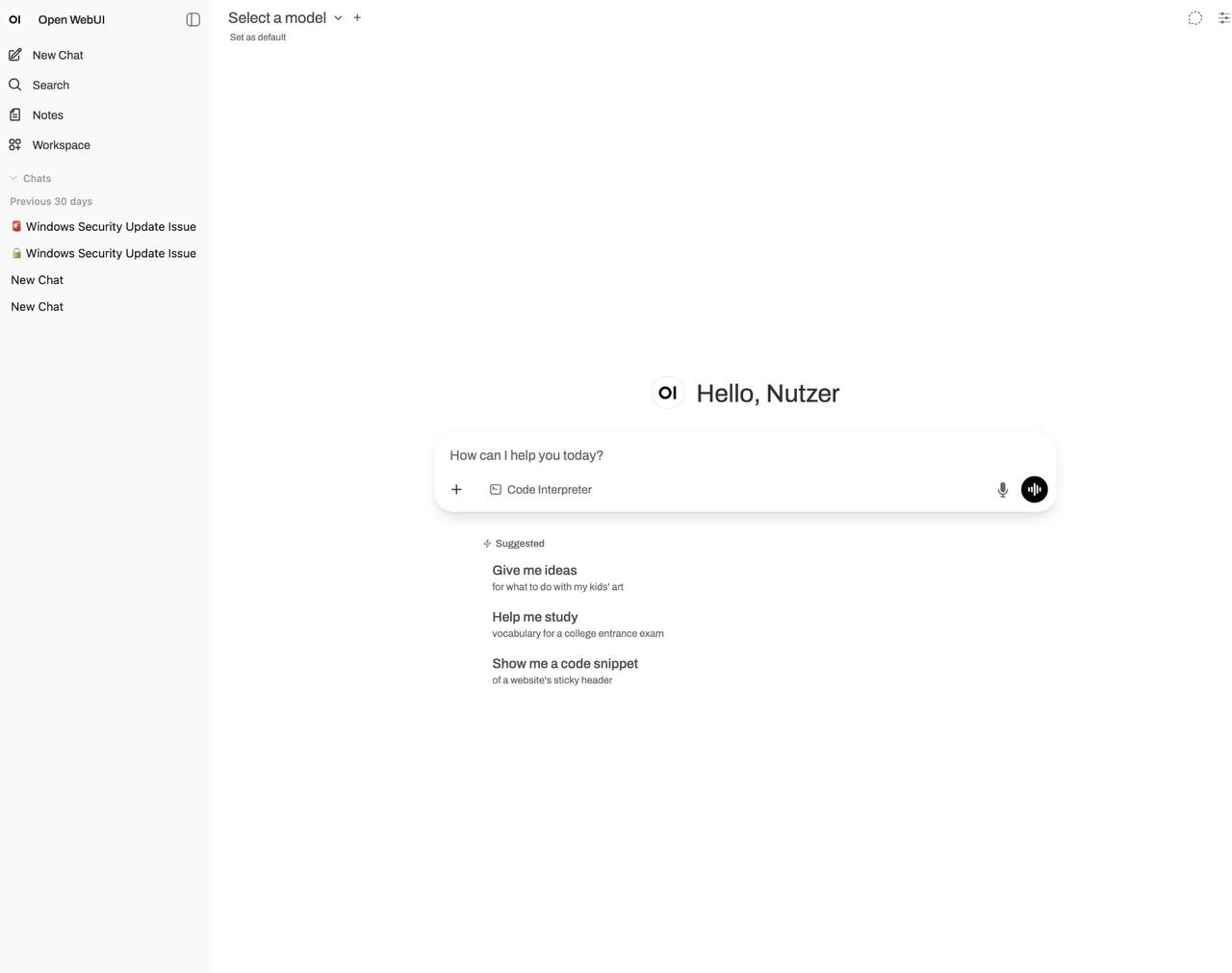 Open WebUI installieren (Image © PCMasters.de)
Requirements and options
- Considered platforms: Ubuntu 24.04, Debian 12.
- Minimum hardware requirements: 16 GB RAM, ~50 GB free disk space. A graphics card is optional. Modern CPUs with AVX-512 and DDR5 help with throughput (lscpu | grep -o avx512 and dmidecode -t memory | grep -i DDR5).
- Topologies: single host with Ollama and Open WebUI on the same server or shared host with Ollama on one server, WebUI on another - requires network access to the Ollama API port.
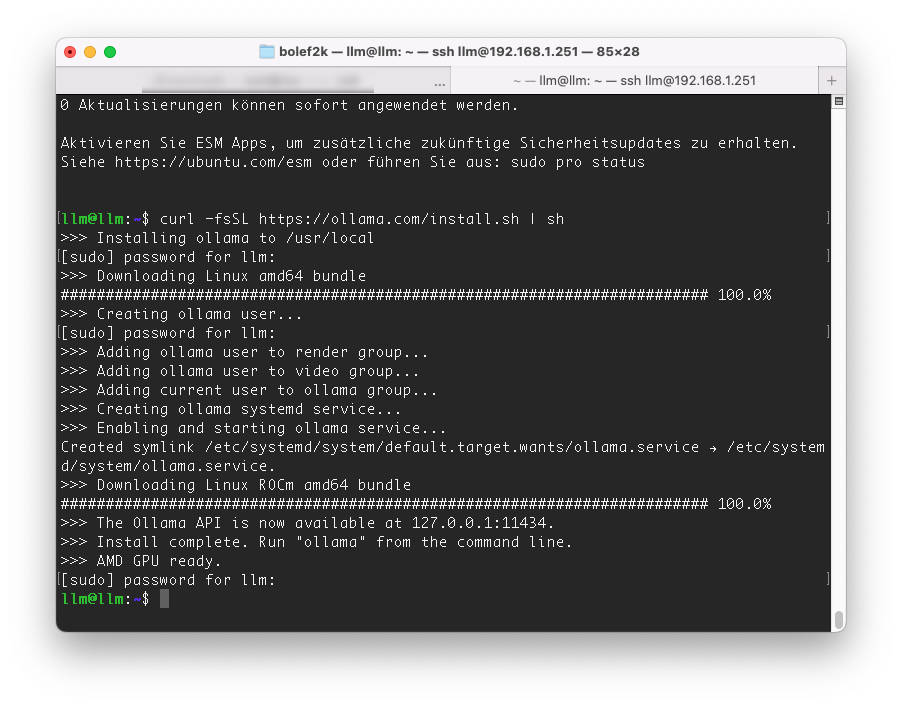 Ollama installieren und ausführen (Image © PCMasters.de)
Step 1 - Install and run Ollama
The easiest way is to use the installation script:
bash
curl -fsSL https://ollama.com/install.sh | sh
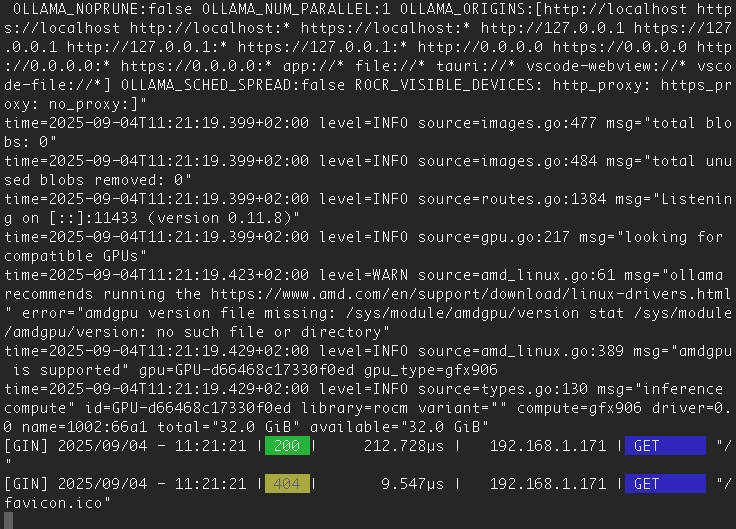 Instinct Mi50 proxmox Baremetal Ollama (Image © PCMasters.de)
Manual path (large level):
- 1.graphics card driver (optional): Check NVIDIA CUDA with nvidia-smi; install the corresponding nvidia-kernel-open-545 and cuda-drivers-545 if needed.
- 2.AMD support**: Download the ROCm-enabled Ollama tarball and extract it to /usr.
- 3.runtime: Download the default ollama tarball, extract it to /usrand create a locked service user (ollama).
- 4.systemd service: Create /etc/systemd/system/ollama.service, run ExecStart=/usr/bin/ollama serve as user/group ollama.
- Default binding: 127.0.0.1:11434 (local only).
- Network access (optional): Set Environment="OLLAMA_HOST=0.0.0.0:11434" and open the port in the firewall.
Activate and check whether Ollama works as a service:
bash
sudo systemctl daemon-reload
sudo systemctl enable --now ollama
systemctl status ollama
ollama --version
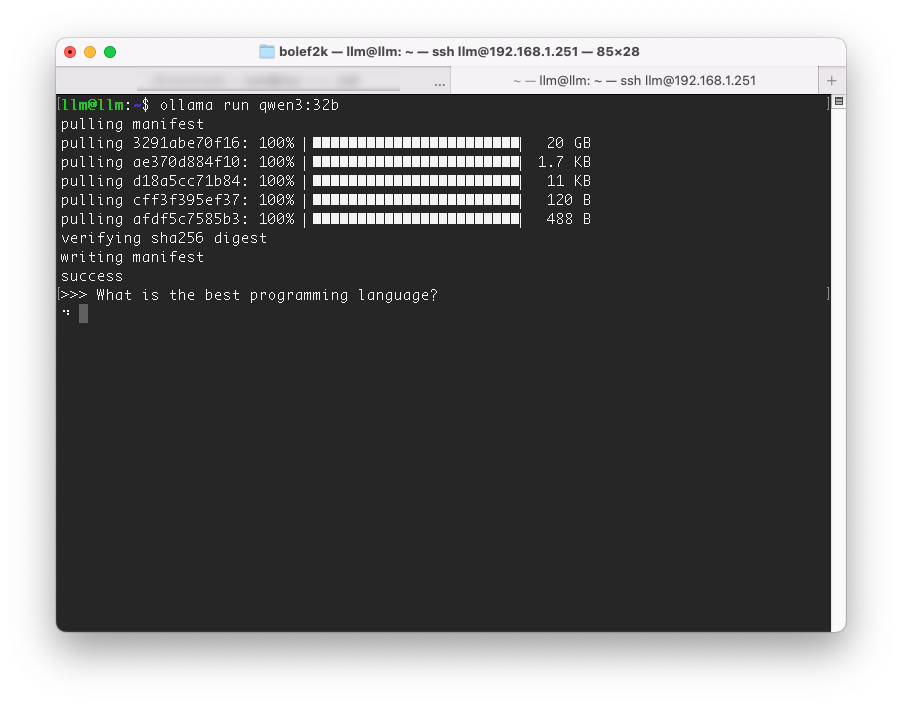 Ollama Modell installieren (Image © PCMasters.de)
Quick test on the system using a model:
bash
ollama run qwen3
# Remove model later:
ollama rm <model name>
The available models, such as qwen3 can be found on the OLLAMA page and can also be checked there.
</model></section></div>
Step 2 - Install Open WebUI (manually or Docker)
Open WebUI offers a chat frontend and communicates with the Ollama API.
The manual installation looks like this. Install the prerequisites and clone:
bash
sudo apt update && sudo apt install -y npm python3-pip python3-venv git
git clone https://github.com/open-webui/open-webui.git
cd open-webui && cp -RPp .env.example .env
Set Ollama endpoint:
- Same host: localhost:11434 in .env beibehalten
- Shared host: replace with http://(ollama-host):11434
Create frontend and prepare backend:
bash
npm i && npm run build
cd backend
python3 -m venv venv && source venv/bin/activate
pip install -r requirements.txt -U
bash start.sh
The default WebUI port is 8080 → Access at http://
Install Docker
Same host as Ollama:
bash
sudo docker run -d -p 3000:8080 --add-host=host.docker.internal:host-gateway \
-v open-webui:/app/backend/data --name open-webui --restart always \
ghcr.io/open-webui/open-webui:main
Separate host: Make sure that the Ollama server releases 11434 and is properly protected by a firewall, then:
bash
sudo docker run -d -p 3000:8080 \
-e OLLAMA_BASE_URL=http://(ollama-host):11434 \
-v open-webui:/app/backend/data --name open-webui --restart always \
ghcr.io/open-webui/open-webui:main
The default WebUI port for Docker is 3000 → http://
</server></server></section></div>
Step 3 - Open firewall ports
Check the listeners with:
bash
sudo ss -tulpn | grep LISTEN
# e.g. 127.0.0.1:11434 (Ollama), 0.0.0.0:8080 or 3000 (WebUI)
With ufw on Ubuntu:
bash
sudo ufw status
sudo ufw allow proto tcp to any port 8080 # manual WebUI
sudo ufw allow proto tcp to any port 3000 # Docker WebUI
# If Ollama is made available externally:
sudo ufw allow proto tcp to any port 11434
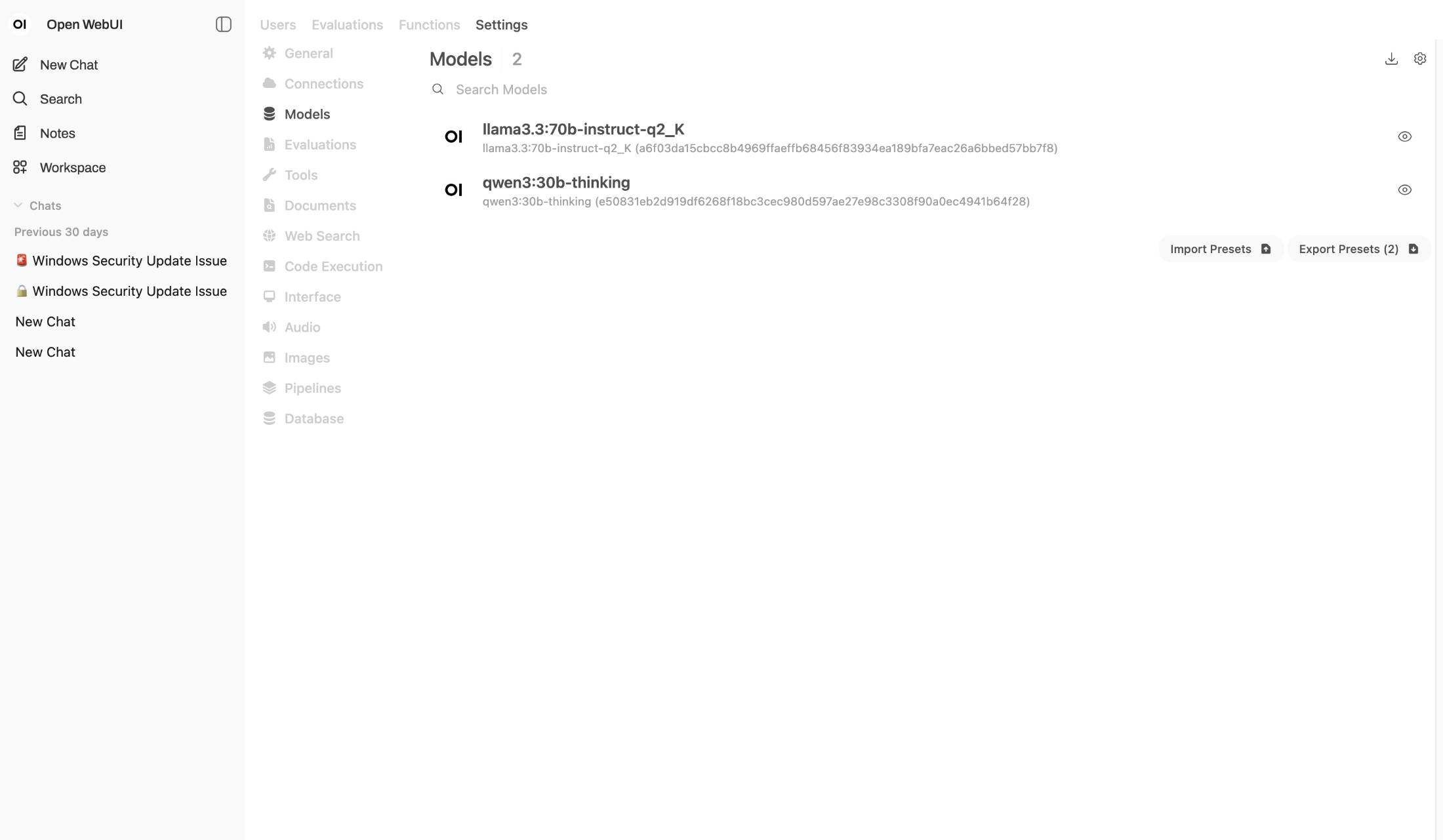 Modelle hinzufügen und mit dem Chatten anfangen (Image © PCMasters.de)
Step 4 - Add models and start chatting
First login: Create the first admin user in Open WebUI. Retrieve models from the user interface:
- Admin area → Settings → Models → Download, e.g. llama3 or DeepSeek.
Troubleshooting: If the UI reports that it cannot reach Ollama, make sure the service is active and the API URL matches your topology.
Chatting:
Select the model in Composer; add multiple models to get parallel responses.
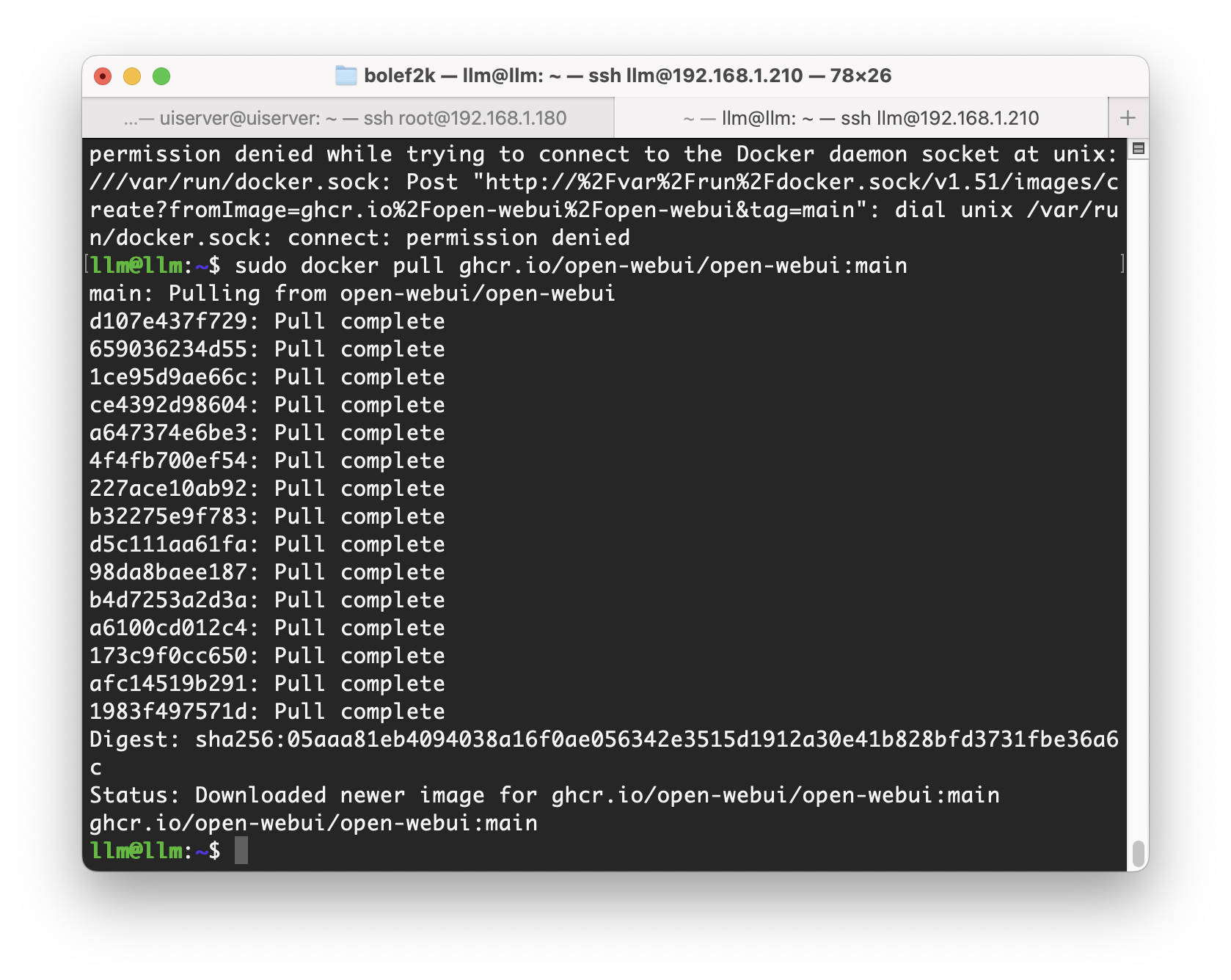 Open WebUI mit Docker installieren (Image © PCMasters.de)
Update Open WebUI
When updating the framework, it is sometimes necessary to update the Open WebUI with Docker:
bash
docker rm -f open-webui
docker pull ghcr.io/open-webui/open-webui:main