Computer Forum
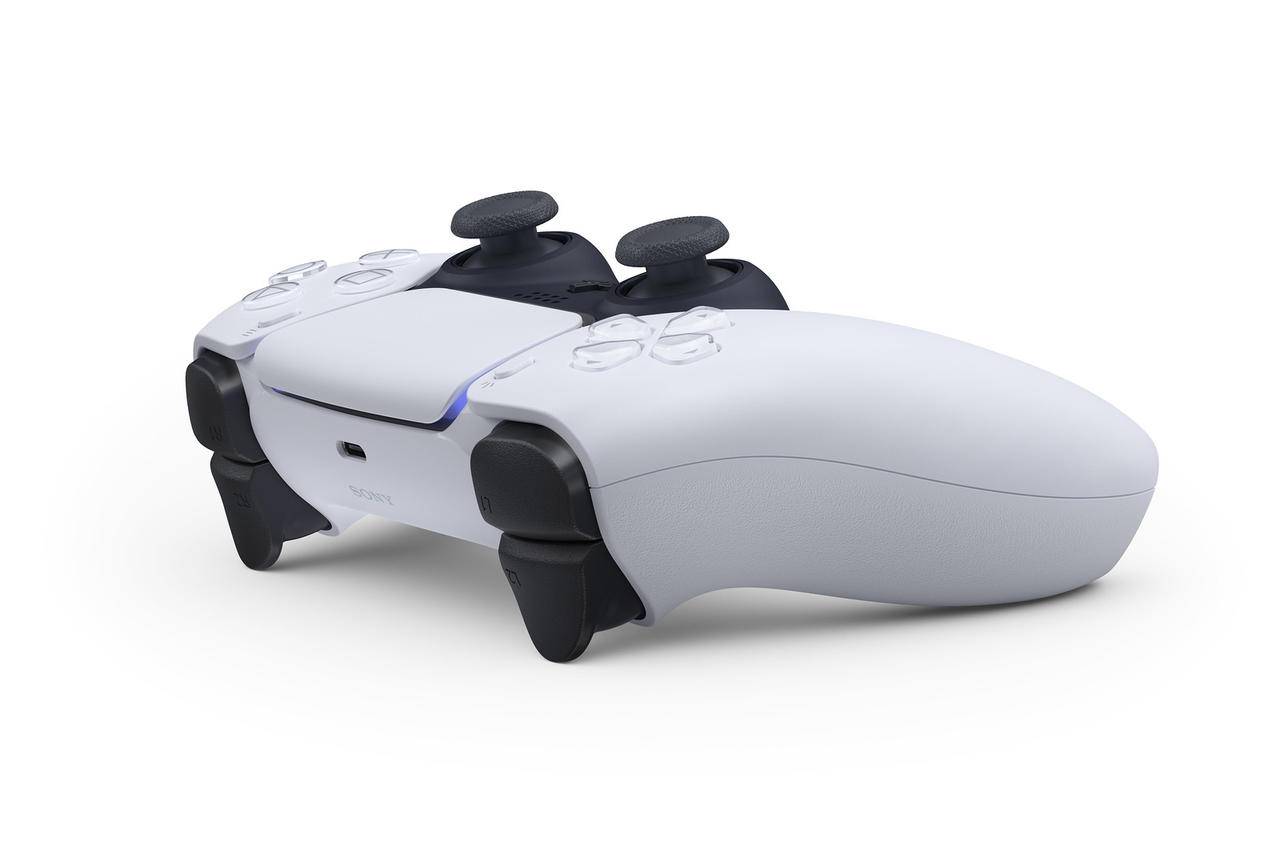 DualSense Wireless Controller (Image © PCMasters.de)
Using the DualSense Controller with a PC
Sony states that the DualSense controller is compatible with Windows 10 (64-bit) and Windows 11, among various other operating systems. In this guide, you’ll learn how to connect the DualSense to your PC, either wirelessly via Bluetooth or using a USB-C cable.
Support via Steam and a Few Tips
A major advantage for you is that Steam natively supports your DualSense controller. This means you can adjust settings directly in the controller settings within Steam. For games outside the Steam platform, compatibility with the controller may vary slightly. If necessary, that is, whenever your desired game doesn’t recognize the controller or doesn’t process all inputs correctly, you can experiment with the “DS4Windows” tool; it tricks your PC or the game into thinking that an Xbox-compatible controller is connected. In general, you should be aware that adaptive triggers and haptic feedback aren’t supported by all games.
Just follow these step-by-step instructions:
- Have your DualSense controller and a USB-C cable ready.
-
Connect your controller to an available USB port on your PC using the cable.
- If you encounter connection issues, try different cables. If you received your controller with your PlayStation, we recommend using the included cable.
- Windows will now detect a new device and automatically set up the drivers for you in the background, downloading them if necessary.
Using the DualSense Controller Wirelessly on a PC
- Of course, your computer must be equipped with Bluetooth for this. Many laptops come with Bluetooth pre-installed; for desktop PCs, you can easily retrofit Bluetooth for a small fee using a Bluetooth USB dongle if needed.
- First, make sure your Bluetooth chip or dongle is activated and ready to go
- If necessary, wait until your controller is turned off (no lights are on).
- Now press and hold the PS button and the Create button simultaneously until the light bar on the touchpad flashes rapidly—your controller is now in pairing mode.
- Go to the Bluetooth settings in Windows and have your computer search for a new device.
- After a few seconds, your controller will appear. Now you can connect to the controller.
If you have other consoles or controllers, you should know that you can also use your Xbox Wireless Controller on a PC or connect your Nintendo Switch 2 Pro Controller to a PC.