Computer Forum
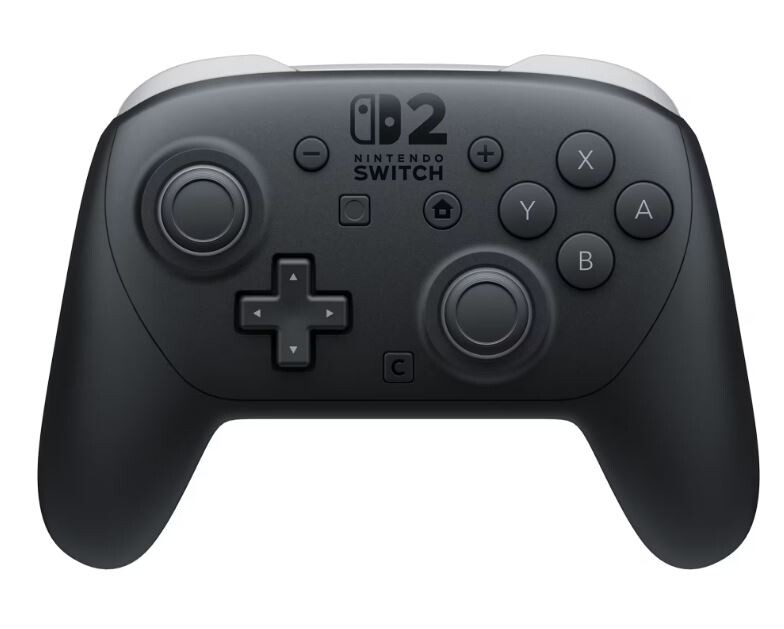 Nintendo Switch 2 Pro Controller (Image © Nintendo)
Using the Nintendo Switch 2 Pro Controller with a PC
First, here’s some good news for you:
-
This guide applies to both your Nintendo Switch 2 Pro Controller and its predecessor, the Switch Pro Controller. You can connect either controller using these instructions.
-
Microsoft has built standard drivers for many controllers directly into Windows, so you don’t need to download or install anything extra.
Just follow this step-by-step guide:
-
Have your controller and a USB-C cable ready. It’s best to use the original cable that came with your Nintendo Switch.
- Connect the controller to your PC using the cable.
- Windows will now recognize the controller and set everything up. If necessary, Windows will automatically download a driver via Windows Update. You don’t need to take any action.
You can also use a Switch 2 Pro Controller wirelessly on your PC:
- The most important requirement for using the Switch 2 Pro Controller wirelessly on your PC is that your PC has Bluetooth. This has been standard on many laptops (including budget models) for years, so you don’t need to spend money on an additional Bluetooth receiver in the form of a USB adapter.
- Turn on the Bluetooth receiver or enable the feature in Windows.
- Turn on your controller and hold down the sync button on the controller until the LEDs start flashing.
- Go to your PC’s Bluetooth settings and search for new devices.
- Now pair with your controller, just as you would with other Bluetooth devices (such as headphones).
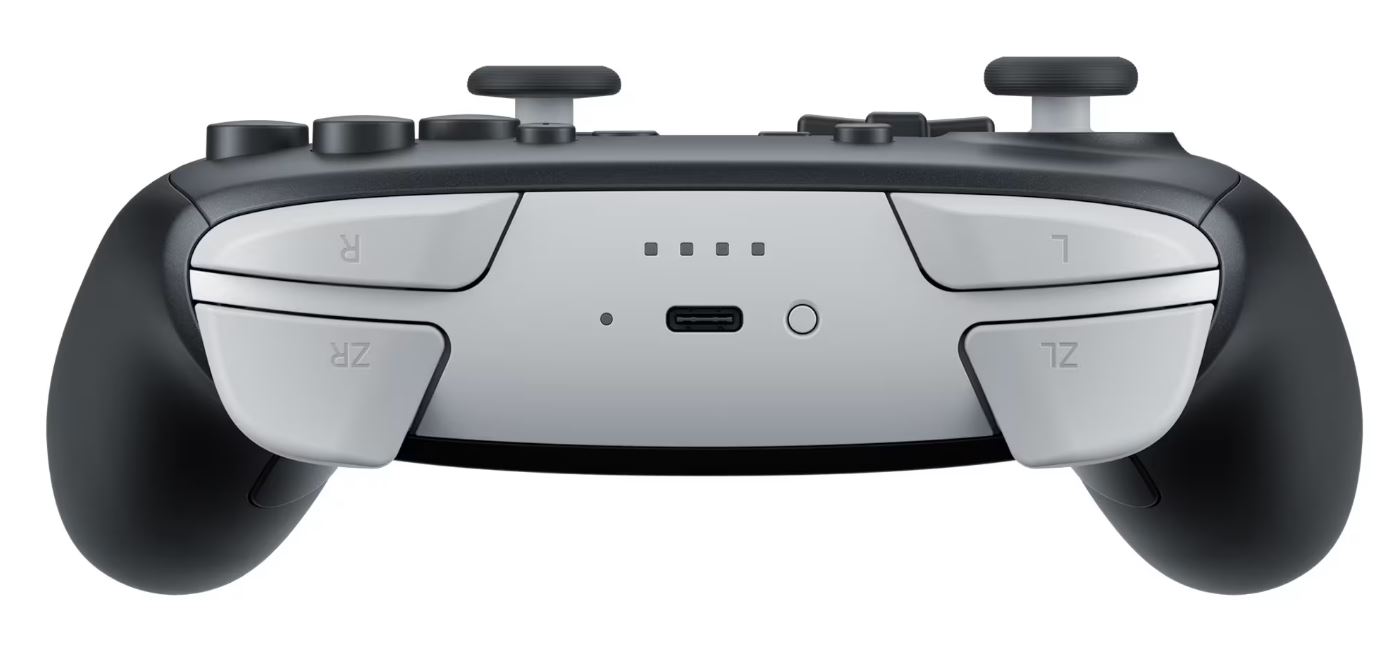 Nintendo Switch 2 Pro Controller USB Port LEDs (Image © Nintendo)
Here’s a guide on how to use your Xbox controller on a PC