Computer Forum
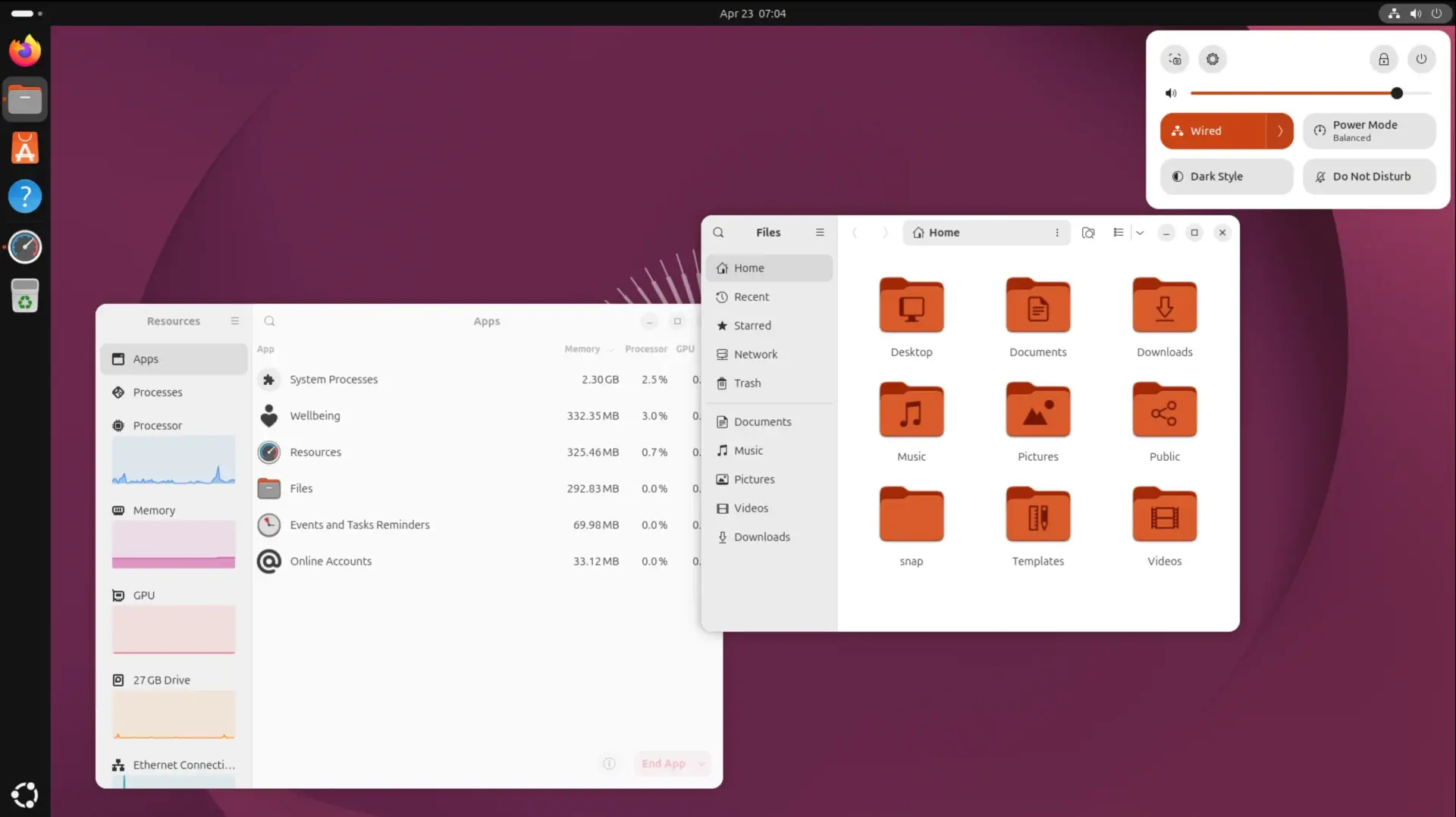 Ubuntu 26 04 LTS mit Linux Kernel 7 0 (Image © Canonical)
Linux Partitioning
Analysis with fdisk
The fdisk utility serves as the primary tool for editing and viewing partition tables. By running the command with the -l flag, users can generate a comprehensive list of all partitions on all detected hard drives. Since this tool accesses low-level hard drive information, root privileges are required.
Beyond simply listing partitions, fdisk is used to identify the disk label type, allowing administrators to determine whether a drive uses the Master Boot Record (MBR) or the GUID Partition Table (GPT) standard. It is particularly effective when sector-level details are needed for data recovery or before initiating hard drive imaging processes.
Create a comprehensive list of all partitions on all detected hard drives:
sudo fdisk -l
Display partition data for a specific storage device:
sudo fdisk -l /dev/sda
Determine whether the drive uses MBR or GPT partition tables:
sudo fdisk -l | grep "Disklabel type"
Storage Hierarchy with lsblk
For a more visual representation of the storage system, the lsblk command provides a tree-like structure of all block devices. Unlike fdisk, this utility generally does not require root privileges for basic display.
The tool is extremely versatile; the -f flag displays file system types and universally unique identifiers (UUIDs), while the -p flag shows the full device paths. It is the preferred method for quickly identifying which partitions are currently mounted and for detecting removable media such as USB drives by checking the "Removal" (RM) attribute.
Display a simple tree structure of all available block devices:
lsblk
Display file systems and universally unique identifiers (UUIDs):
lsblk -f
Display the full device paths for all storage devices:
lsblk -p
Determine device ownership and permission settings:
lsblk -m
List all devices, including those that are currently empty:
lsblk -a
Identify Attributes with blkid
The blkid utility specializes in determining and outputting attributes of block devices. Its main function is to display the UUID and file system type of a partition.
This information is crucial when editing the /etc/fstab file. Using UUIDs instead of device names (such as /dev/sda1) ensures that the system mounts the correct partitions, even if the physical order of the drives changes after a hardware update. The -o list option can be used to convert this data into a more readable vertical list.
List all attributes of block devices, including labels and UUIDs:
sudo blkid
Format block device attributes as a readable vertical list:
sudo blkid -o list
Retrieve the specific UUID of a single partition:
sudo blkid /dev/sda1
Filter the list to display only partitions of a specific file system type (e.g., ext4):
sudo blkid -t TYPE=ext4
Isolate and display only the UUIDs of the devices:
sudo blkid -s UUID
List all hard drives and their current partition configurations:
sudo parted -l
Display the partition table of a specific hard drive:
sudo parted /dev/sda print
Check the partition table type of a specific device:
sudo parted /dev/sda print | grep "Partition Table"
Launch the interactive shell for detailed hard drive modifications:
sudo parted /dev/sda
Advanced Partitioning with parted
While fdisk is suitable for traditional MBR tables, parted was designed for modern environments. It offers full support for GPT, which is essential for managing hard drives larger than 2 terabytes and systems running UEFI.
Administrators use parted to check partition alignment on solid-state drives (SSDs) and to resize partitions. It can be run in non-interactive mode with the -l flag or as an interactive shell for more complex changes.
Monitoring Disk Space with df
The df (disk free) command focuses more on disk space usage than on partition structure. It provides information about available and used disk space on all currently mounted file systems.
Using the -h flag converts the output to human-readable formats (gigabytes and megabytes). Additional options allow you to filter specific file system types or monitor inode usage, which is essential for systems that handle a huge number of small files.
Hardware Specifications with hwinfo
For detailed hardware-level data, the hwinfo utility provides specifications that go beyond partition tables. This tool identifies the manufacturer, model, and specific kernel driver that manages the storage device.
It is particularly useful for hardware troubleshooting or for verifying a drive’s manufacturer specifications. The --short flag can be combined with --block or --disk to provide a concise overview of the hardware environment without overwhelming the user with raw data.
Retrieve detailed technical specifications for all physical hard drives:
sudo hwinfo --disk
Generate a concise overview of all block devices:
sudo hwinfo --short --block
Generate a concise summary specifically for hard drive hardware:
sudo hwinfo --disk --short
Disk Management with GUI-Based Programs
For users working in a desktop environment, graphical utilities provide a visual representation of disk layouts. With the GNOME tool "Disks," users can monitor the status of hard drives using SMART data, perform read/write performance tests, and manage partitions without having to use the terminal.
Similarly, the KDE Partition Manager offers a native interface for the Plasma desktop and provides functions for formatting, mounting, and resizing partitions. These GUI tools are ideal for users who need a visual representation of partition boundaries and health metrics.
Comparison of Tools
| Tool | Root access required | Main use case | Main Advantage |
|---|---|---|---|
| fdisk | Yes | Partition tables | Sector-level details |
| lsblk | No | Device overview | Visualization as a tree structure |
| blkid | Yes | System configuration | UUID lookup |
| parted | Yes | Modern storage media | Support for GPT and more than 2 TB |
| df | No | Storage space monitoring | Tracking available capacity |
| hwinfo | Yes | Hardware check | Manufacturer and driver details |
| GUI Tools | Yes (for changes) | Visual management | SMART status monitoring and benchmarking |
FAQ
What is the difference between using a device name and a UUID in Linux?
A device name, such as /dev/sdb1, is assigned by the kernel based on the order in which hard drives are detected. This order can change if a drive is connected to a different port or a new hard drive is added. A UUID is a unique identifier assigned to the partition by the file system itself during formatting. Using the UUID in configuration files ensures that the system always identifies the correct partition, regardless of its physical connection point.
When should you use "parted" instead of "fdisk"?
"Parted" should be used when dealing with hard drives larger than 2 TB or when the system uses a GPT partition table. Although "fdisk" now offers some GPT support, "parted" was specifically designed to handle the complexity of GPT and is the standard for modern UEFI-based systems.
How can a user identify a USB drive among many hard drives?
The most efficient way to do this is with the "lsblk" command. In the "RM" (removable) column, a value of 1 indicates a removable medium, while 0 indicates a permanently installed internal hard drive.
Which tool is best for checking if a hard drive is failing?
For checking hardware status, "GNOME Disks" is the most user-friendly tool, as it integrates SMART (Self-Monitoring, Analysis, and Reporting Technology) data. For command-line users, "hwinfo" does provide hardware details, but SMART-specific utilities are required for a thorough health analysis.
Can disk space be checked without root privileges?
Yes. Both the "lsblk" and "df" commands can be run by regular users to display the structure and available space of mounted file systems. However, modifying these partitions or viewing low-level table data via "fdisk" or "blkid" requires root access.