Computer Forum
 WhatsApp Web (Image © WhatsApp)
What You Can Do in the Browser
- Manage one-on-one chats and groups using the same interface you're familiar with on your phone.
- Edit your profile picture and status, and archive conversations with a right-click.
- Make and receive calls through the web interface.
- Stay connected even when your phone is turned off or updating, thanks to WhatsApp’s multi-device architecture.
- You can also create and follow communities and channels
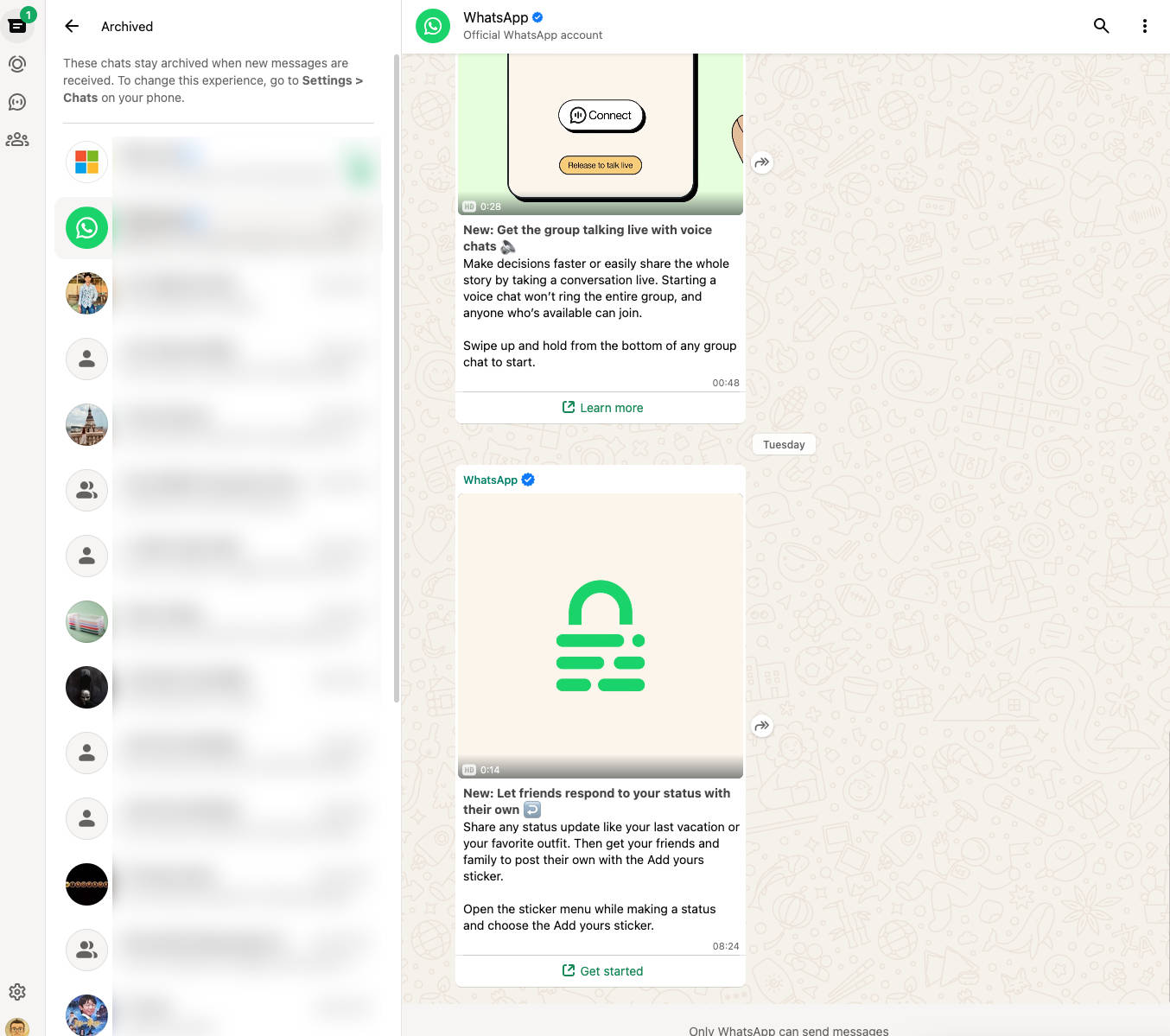 WhatsApp Web direkt im Browser nutzen (Image © Eigene)
Enable WhatsApp Web: Quick Setup
-
- Update WhatsApp on your phone and make sure you’re online for the first link.
-
- On your phone, open Settings → WhatsApp Web/Desktop.
-
- Open the web app in your browser and scan the QR code on the screen.
-
- Your account will be linked to the browser and will remain available between sessions.
Tip: WhatsApp also offers native clients for Windows and macOS.
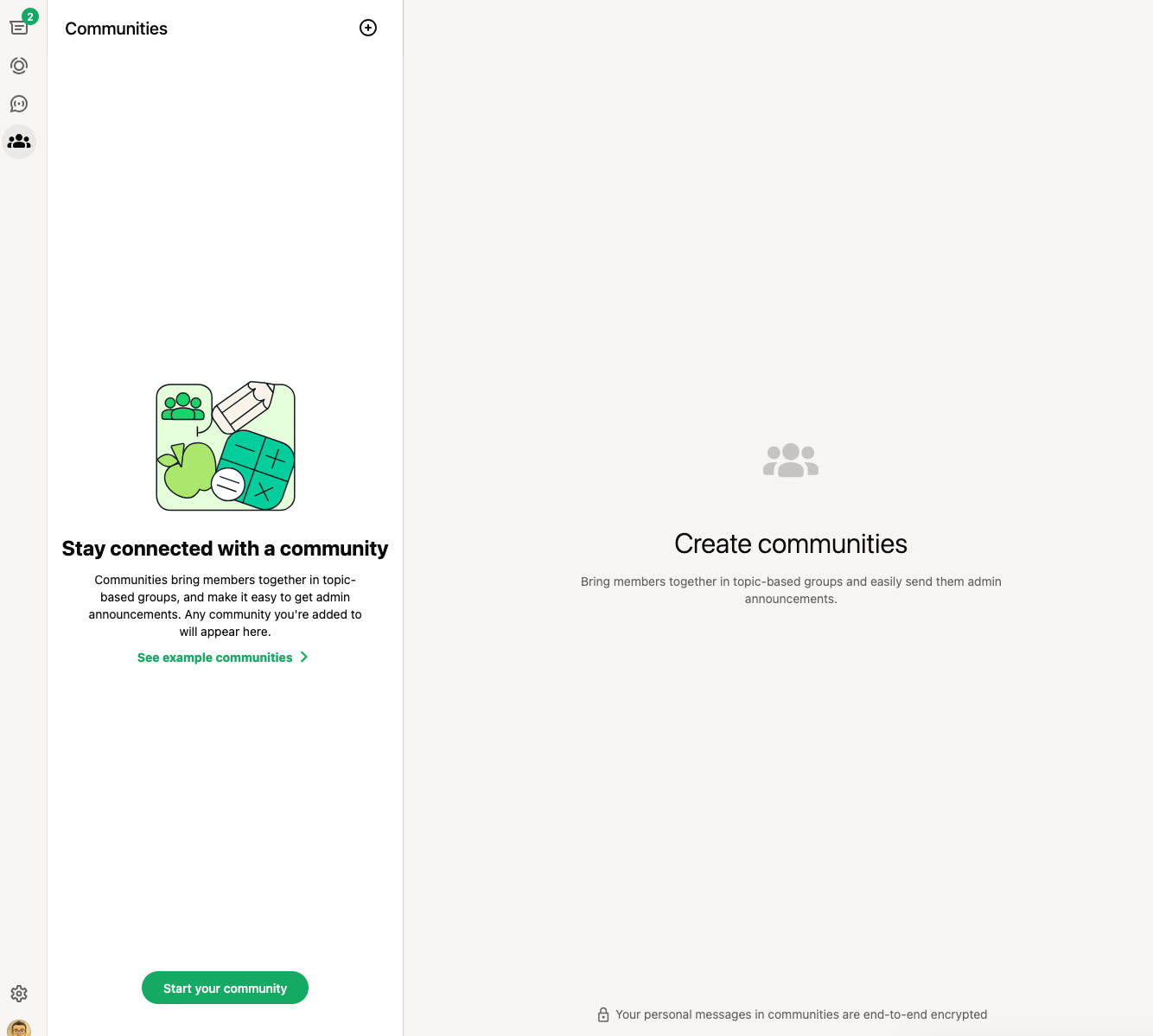 WhatsApp Web Communities (Image © Eigene)
Tablets Are Supported
WhatsApp Web runs smoothly on tablets and avoids the ads or restrictions often associated with unofficial tablet apps. The setup works the same way: Open the web client, display the QR code, and connect from your phone.
Where to Find the QR Code
The QR code appears every time you open WhatsApp Web while you’re logged out. If you’ve already linked this browser, you’ll be taken directly to your chat list.
Connection Requirements
An active phone connection is only required for the initial setup. After that, the web client remains usable even if your phone’s battery is dead or the device is temporarily offline.
Conclusion
WhatsApp Web is arguably the easiest and most convenient way to type messages using a keyboard. You can also enjoy the larger screen to view pictures or manage your contacts. You can even make calls through it. The controls are intuitive and user-friendly, and you don’t need to install an app. Chats and messages are synced without having to pick up your smartphone. The connection is also secure and encrypted.