Computer Forum
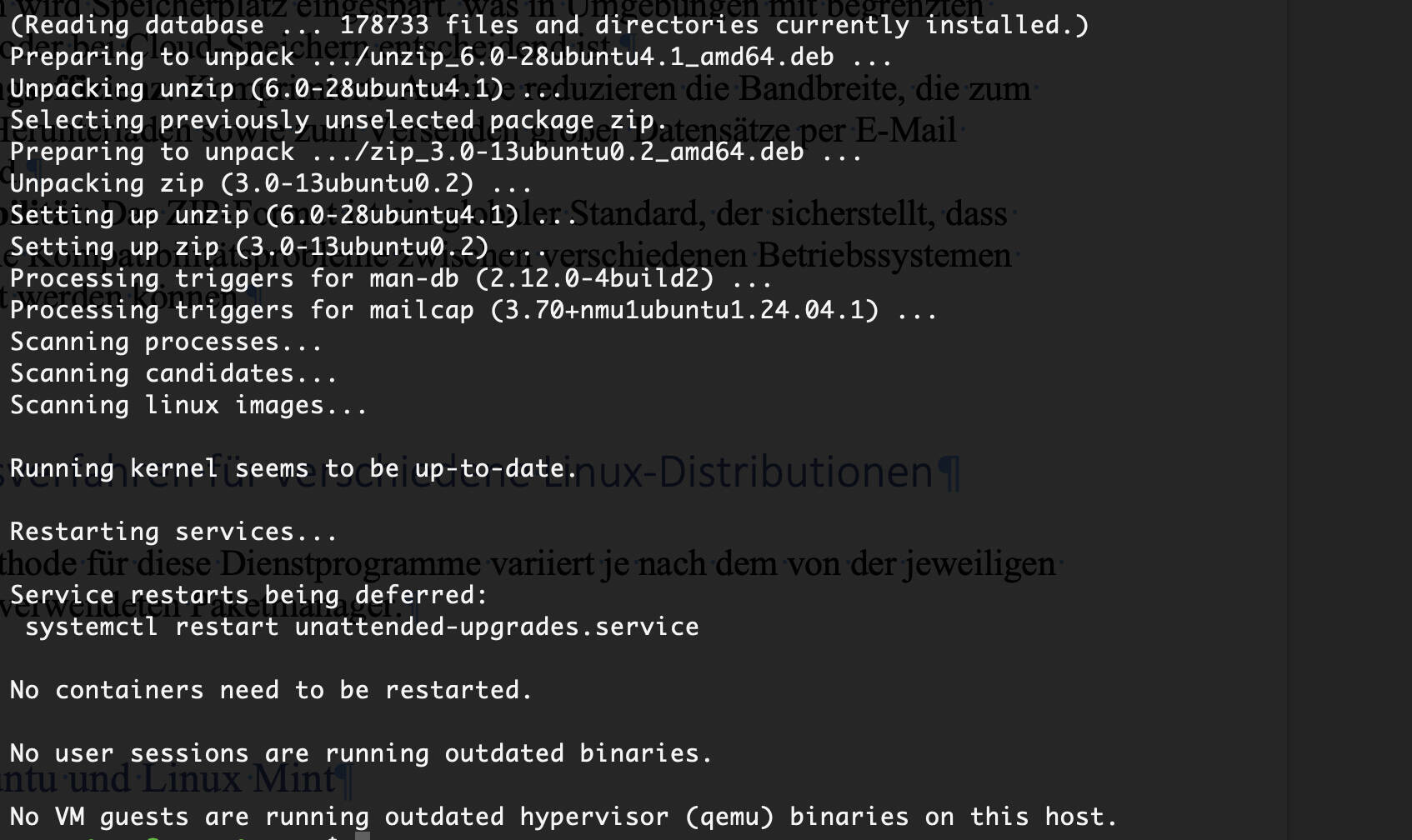 Zip und unzip installieren und nutzen in Linux (Image © PCMasters.de)
Technical Advantages of File Compression
The use of archiving programs offers several operational advantages:
- Storage optimization: Reducing the physical size of files and folders saves storage space, which is crucial in environments with limited resources or when using cloud storage.
- Transfer efficiency: Compressed archives reduce the bandwidth required for uploading, downloading, and sending large data sets via email.
- Interoperability: The ZIP format is a global standard that ensures archives can be exchanged between different operating systems without compatibility issues.
Installation Procedures for Various Linux Distributions
The installation method for these utilities varies depending on the package manager used by the respective Linux distribution.
Debian, Ubuntu, and Linux Mint
These distributions use the Advanced Package Tool (APT). To install the compression and decompression programs, run the following commands.
To install the zip utility:
sudo apt install zip
To install the unzip utility:
sudo apt install unzip
You can verify the installation and version using the following commands:
zip -v
unzip -v
Red Hat Enterprise Linux (RHEL), CentOS, and Fedora
Systems based on RHEL use the DNF (Dandified YUM) package manager. The installation process is as follows:
To install the zip utility:
sudo dnf install zip
To install the unzip utility:
sudo dnf install unzip
Arch Linux and Manjaro
Arch-based systems use the pacman package manager. Use the following commands:
To install the zip utility:
sudo pacman -S zip
To install the unzip utility:
sudo pacman -S unzip
OpenSUSE
OpenSUSE uses the Zypper package manager. The installation commands are:
To install the zip utility:
sudo zypper install zip
To install unzip:
sudo zypper install unzip
Instructions for Compressing and Extracting
Once the utilities are installed, you can use them via the terminal to manage files.
Creating a Compressed Archive
To compress multiple files into a single archive, use the zip command followed by the desired archive name and the target files:
zip archive.zip file1 file2 file3
Extracting Files from an Archive
To extract files from a compressed archive into the current working directory, use the unzip command:
unzip archive.zip
Viewing the contents of an archive
If you want to view the files contained in a ZIP archive without extracting them completely, use the -l (list) flag:
unzip -l archive.zip
Troubleshooting Common Usage Errors
When using these utilities, administrators may encounter certain errors that require technical action.
- Command not found: If the system returns “zip: command not found” or “unzip: command not found,” the utility is not present in the system path. This requires installation via the package manager appropriate for your distribution.
-
Access denied: This error occurs when the user attempts to compress or extract files in a directory for which they do not have write permissions. The solution is to either run the command with
sudoor move the operation to a directory owned by the current user. - Signature not found at the end of the root directory: This specific error indicates that the ZIP file is corrupted, truncated, or incomplete. The file must be downloaded again or recompressed from the source.
Details on System Administration Support
How can an administrator verify that the “zip” utility is working properly after installation?
The most reliable method is to run zip -v. This command outputs the version number and build details of the utility. If the command returns a version string, the binary is correctly installed and available in the system’s PATH.
Is it possible to compress an entire directory instead of individual files?
Yes, using the -r (recursive) flag. This instructs the utility to traverse the directory structure and include all subdirectories and files in the archive. The command syntax is zip -r archive_name.zip directory_name.
What is the difference between the “zip” and “unzip” utilities in terms of system dependencies?
Although they are often installed together, zip and unzip are separate binary files. The zip utility is responsible for creating the archive (compression), while the unzip utility is solely responsible for restoring data (decompression). Technically, a system can have one without the other.
Why is the ZIP format preferred over other Linux-native formats like tar.gz for external data exchange?
While .tar.gz is very efficient on Linux, the ZIP format is natively supported by almost every operating system without requiring additional third-party software. This makes it the standard for cross-platform data exchange.
How does the system handle passwords in ZIP archives?
The zip program supports encryption. By adding the -e flag to the command (zip -e archive.zip file1), the system prompts the user to enter and confirm a password, ensuring that the archive cannot be extracted without the correct credentials.