Computer Forum
 Dateien in Linux umbenennen (Image © PCMasters.de)
The most common method for renaming files in a desktop environment is the system's default file manager. This method uses a graphical interface to interact with the file system.
To rename a single file, you must first navigate to the directory where the file is located. Right-clicking on the file will display a context menu. In this menu, select the Rename option (or the corresponding term in your local language). This converts the file name into an editable text field where you can enter the new name and confirm the change by pressing the Enter key or clicking outside the field.
In addition, most modern Linux file managers support batch renaming. To do this, select multiple files at once using the mouse or keyboard shortcuts. Once the group is selected, right-clicking and choosing “Rename” launches a batch renaming utility that often allows for pattern-based changes or sequential numbering for all selected items.
Renaming Files in the Linux Terminal (CLI)
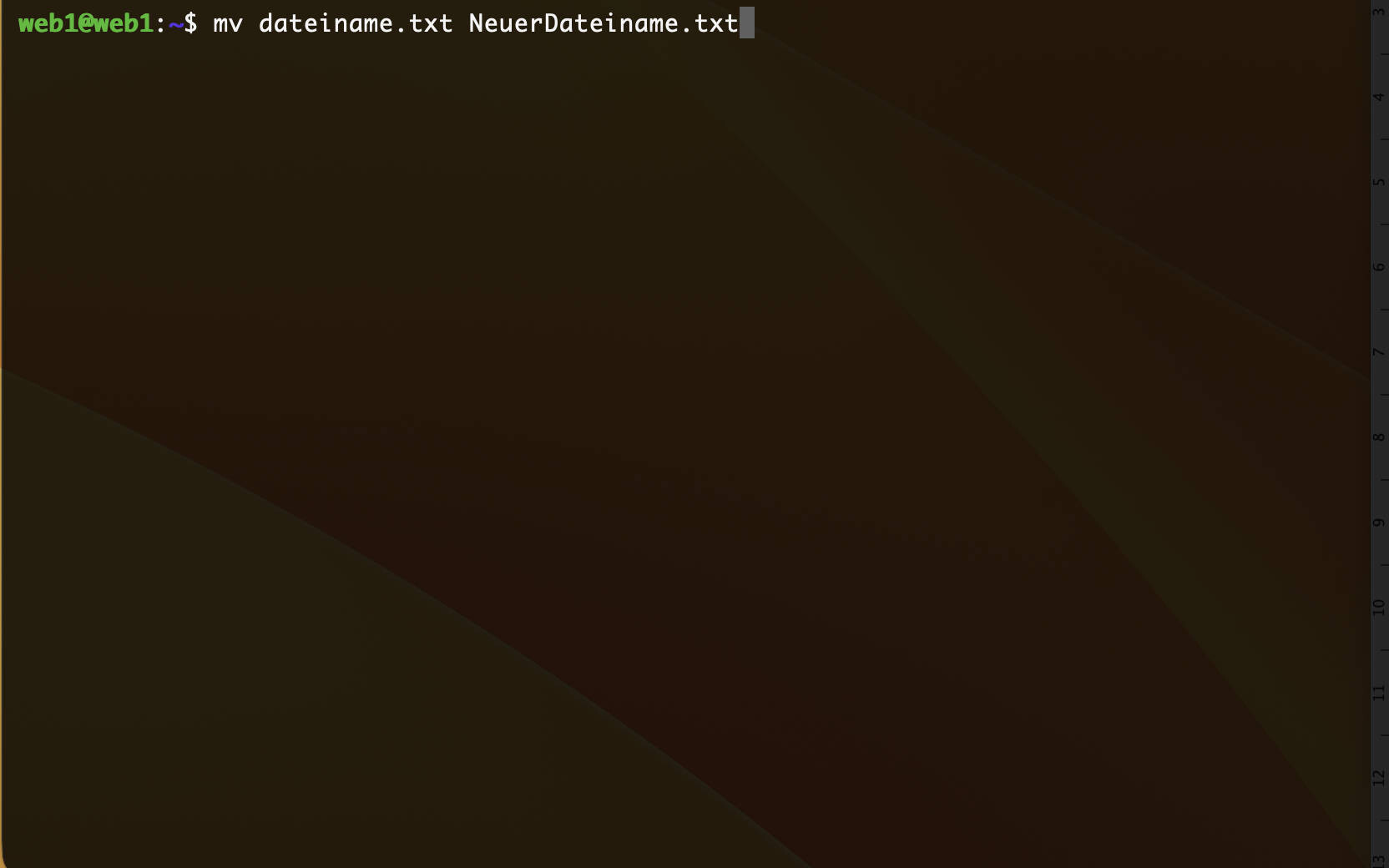
For users who work in the terminal or perform remote system administration, the command line offers a precise method for renaming files. In Linux, there is no dedicated rename command for simple operations on individual files; instead, the mv (move) command is used. The mv command is used to move files from one location to another, but if the source and destination are in the same directory, the operation results in a file name change. Therefore, you can achieve exactly the same result using the same command.
The technical process for renaming via the console involves the following steps:
-
1. Directory navigation: The user must first change to the directory where the file is stored. This is done using the
cd(change directory) command. For example,cd /home/username/Desktopchanges the working directory to the specified folder. -
2. File verification: To ensure the correct spelling and file extension of the target file, the
ls(list) command is used. This displays all files in the current working directory. -
3. Renaming the File: The
mvcommand is executed using the following syntax:mv <filename> <new_filename>
If the filename contains spaces, it must be enclosed in quotation marks so that the shell does not interpret the space as a separator between two different arguments:
mv “old_filename.txt” “new_filename.txt”
Alternatively, you can place a backslash before each space to “hide” the space:
mv old\ filename.txt new_filename.txt
</new_filename></filename>