
 Computer Forum
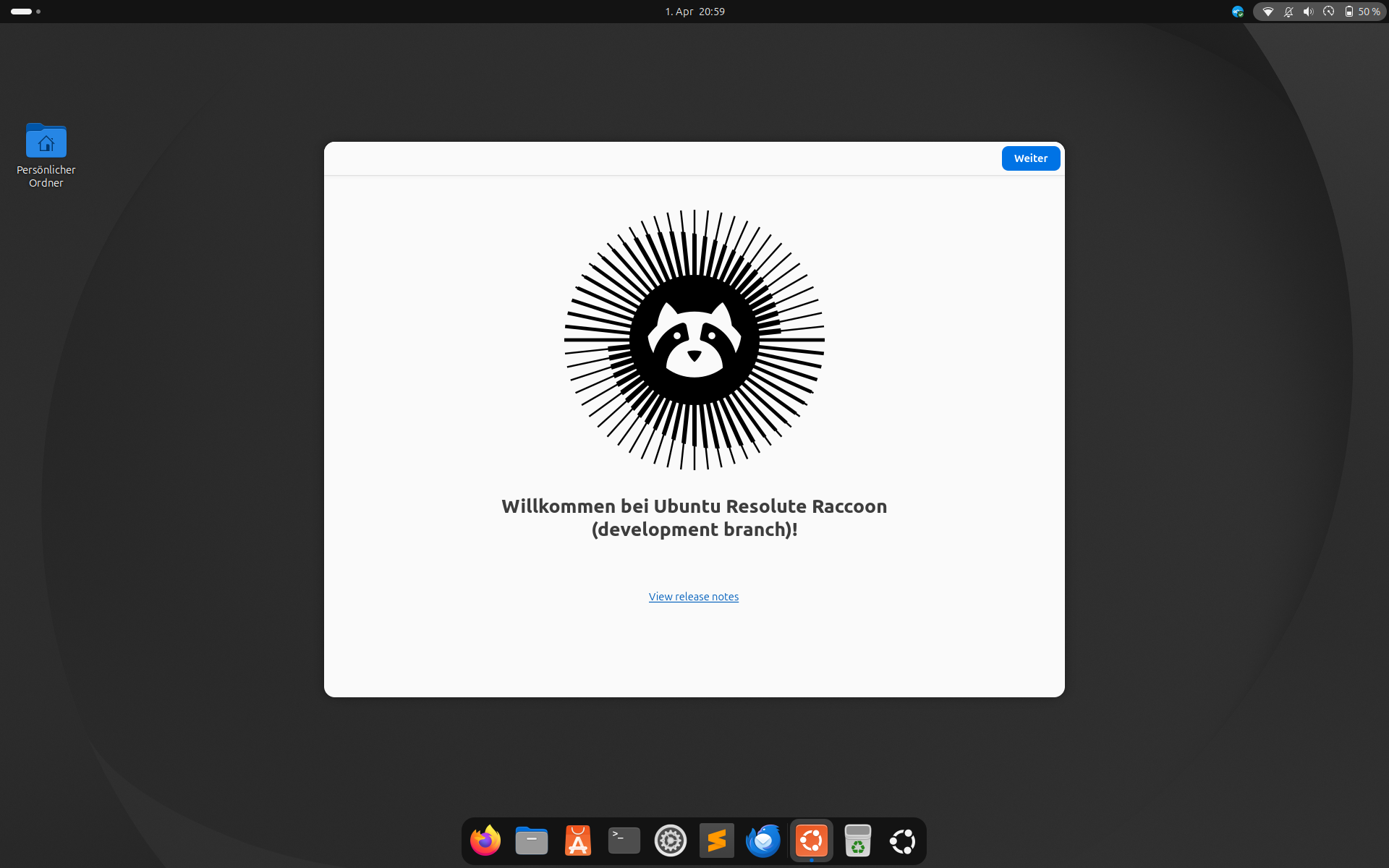 Ubuntu 26 04 LTS Resolute Raccoon (Image © PCMasters.de)
This guide is intended for developers and advanced users. As this is a development version, the system may be unstable or have software incompatibilities. This guide describes the technical steps required for the upgrade.
Prerequisites and system requirements
Before you start the upgrade, make sure that the following conditions are met:
- Current operating system: Ubuntu 24.04 LTS.
- Required software: The update-manager-core package must be installed.
- Internet connection**: A stable internet connection is required to download several gigabytes of package data.
- Data backup: A complete backup of all important data is mandatory. Development versions can lead to system failures or data loss.
Step-by-step instructions for the upgrade
1. synchronization of the system packages
The current installation must be completely up to date to avoid dependency conflicts during the version change. Open the terminal and execute the following command: sudo apt update && sudo apt upgrade -y
This command updates the local package index and installs the latest available updates for Ubuntu 24.04.
2. run the release upgrade
Since Ubuntu 26.04 is not yet marked as a stable version, it is not recognized by the standard upgrade command. The development flag (-d) must be used to force the system to check for the pre-release version. Execute the following command: sudo do-release-upgrade -d
3. manage the interactive process
Once the command has been executed, the system will switch to an interactive mode. You will now have to go through several prompts:
- package analysis: The system will calculate the number of packages to be removed, installed and updated. Check these lists before confirming.
- Restart services: The installation program asks whether services should be restarted automatically during the upgrade. Select the desired option to avoid manual intervention for each service.
- Conflicts with configuration files: If a configuration file has been changed locally, the system will ask whether to keep the current version or replace it with the new package version.
- Removal of obsolete packages: At the end of the process, the system identifies obsolete packages that are no longer required. These should be removed to keep the system clean.