Computer Forum
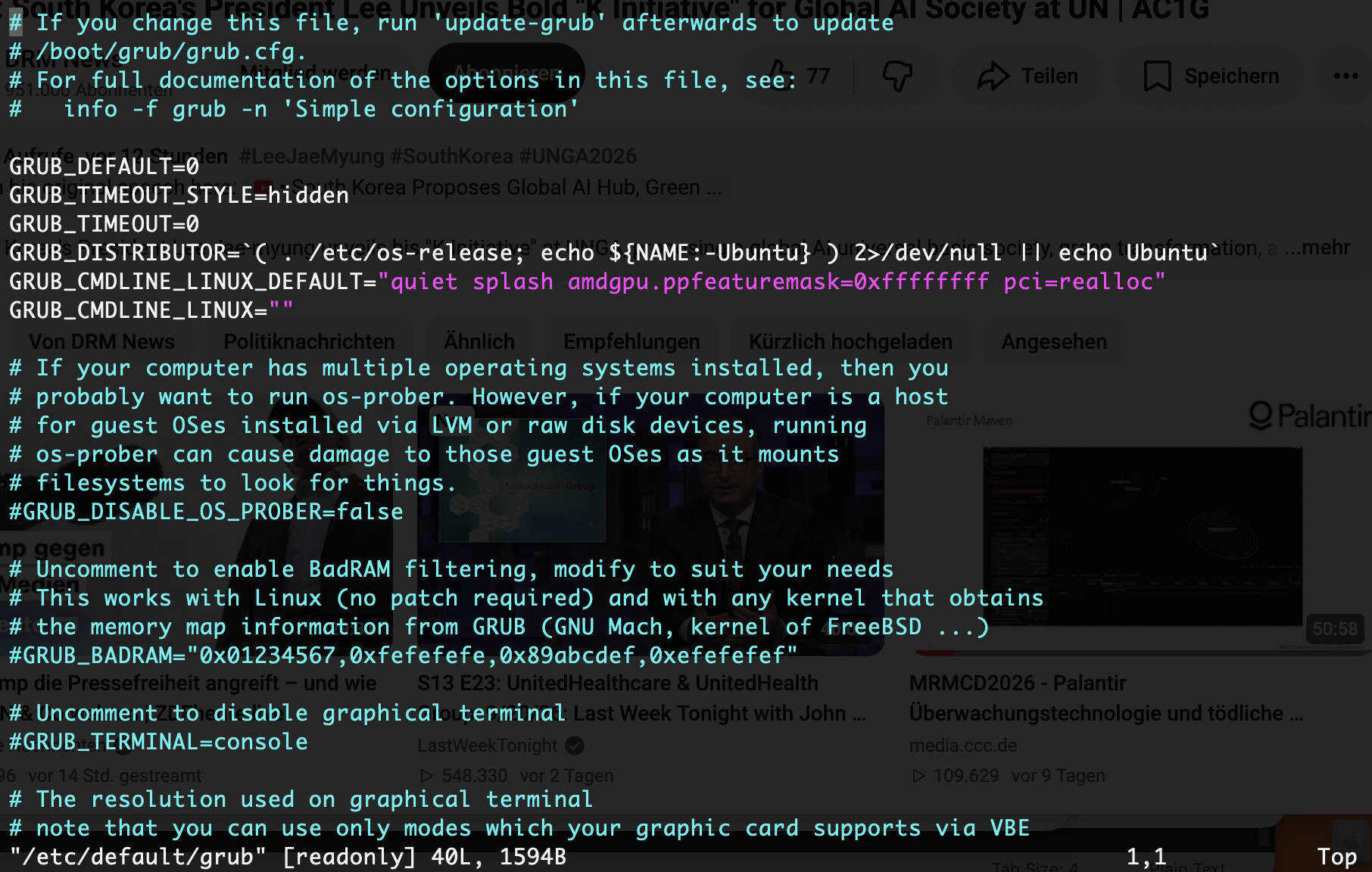 GRUB Bootloader konfigurieren (Image © PCMasters.de)
GRUB File System Architecture and Configuration Logic
GRUB uses a multi-level configuration system to ensure that user-defined settings are preserved even during system updates. The architecture is divided into the following main components:
-
/etc/default/grub: The main configuration file where users define global variables such as timeouts and kernel parameters. -
/etc/grub.d/: A directory containing scripts that generate the actual menu entries. -
/boot/grub/grub.cfg: The final, generated configuration file that is read by the boot loader. This file should not be edited manually, as it will be overwritten during updates. -
/boot/grub/: The directory containing the GRUB binaries and modules.
To apply changes to the configuration files, the system must regenerate the final boot file. On Debian- or Ubuntu-based systems, this is done with the command update-grub. On CentOS- or RHEL-based systems, the command is grub2-mkconfig -o /boot/grub2/grub.cfg.
Global Configuration Settings in /etc/default/grub
The file /etc/default/grub controls the behavior of the boot menu. The most important variables include:
-
GRUB_DEFAULT: Sets the default operating system entry. The value
0selects the first entry. -
GRUB_TIMEOUT: Specifies how long the menu remains visible in seconds before the default entry is booted. A value of
0results in an immediate boot, while-1pauses the system indefinitely until the user enters something. -
GRUB_TIMEOUT_STYLE: Controls the visual presentation of the timeout with options such as
menuorhidden. -
GRUB_CMDLINE_LINUX_DEFAULT: Defines parameters passed to the kernel during the default boot process. Common values include
quietto suppress logs andsplashto display a splash screen. - GRUB_CMDLINE_LINUX: Used for parameters that must be applied regardless of the boot mode.
- GRUB_GFXMODE: Sets the resolution of the boot menu; often set automatically.
-
GRUB_TERMINAL: Specifies whether output is displayed via the
consoleor a graphical interface. -
GRUB_DISABLE_OS_PROBER: A Boolean value (
trueorfalse) that determines whether GRUB searches for other installed operating systems.
Managing and Optimizing Kernel Parameters
Kernel parameters allow administrators to customize the behavior of the Linux kernel at runtime. These are added to the variables GRUB_CMDLINE_LINUX_DEFAULT or GRUB_CMDLINE_LINUX.
Common Configuration Parameters
-
Log Suppression:
quietandnosplashsuppress the text output and boot screens. -
Network control:
ipv6.disable=1completely disables the IPv6 stack. -
Hardware interface:
intel_iommu=onenables IOMMU for Intel processors, which is essential for PCIe passthrough. -
Resource Limitation:
mem=4Glimits the amount of system memory available to the kernel.
The parameters are combined in quotation marks as a space-separated list, for example: GRUB_CMDLINE_LINUX="ipv6.disable=1 net.ifnames=0".
Managing Default Boot Entries
Administrators can specify which operating system or kernel to boot by default in several ways:
-
1. Index-based: Setting
GRUB_DEFAULT=1selects the second entry in the list. -
2. Name-based: By specifying the exact string of the menu entry, e.g.,
GRUB_DEFAULT="Ubuntu, with Linux 5.15.0-generic". For entries in submenus, the syntax isGRUB_DEFAULT="Advanced Options for Ubuntu>Ubuntu, with Linux 5.15.0-generic". -
3. Dynamic Saving: If you set
GRUB_DEFAULT=savedandGRUB_SAVEDEFAULT=true, the system will boot by default to the most recently selected entry. -
4. Command-Line Tools:
grub-set-default 2sets the default to the third entry, whilegrub-reboot 1sets the second entry as the boot option for a single reboot.
Customizing the Boot Menu and Entries
Beyond the global settings, you can add custom entries to the boot menu via the file /etc/grub.d/41_custom. This allows you to create manual boot options. A sample entry for booting from a USB drive or a command to power on the system follows this structure:
# /etc/grub.d/41_custom
menuentry "Restart" {
    reboot
}
menuentry "Boot from USB Drive" {
    set root=(hd1,1)        chainloader +1
}
Recovery Procedures and System Repair
If a system fails to boot, GRUB offers several recovery mechanisms.
GRUB Recovery Mode
You can access the GRUB menu by holding down the Shift key during the boot process. Pressing e on a specific entry allows you to temporarily modify the kernel line. If you replace quiet splash with recovery and then press Ctrl+X or F10, the system will boot into a recovery environment. For deeper access, appending single or init=/bin/bash enables single-user mode.
Repair via a Live System (Chroot)
If the bootloader is corrupted, it can be repaired using a live USB drive:
-
1. Mount the root partition:
mount /dev/sda2 /mnt. -
2. Mount system directories:
mount --bind /dev /mnt/dev,mount --bind /proc /mnt/proc, andmount --bind /sys /mnt/sys. -
3. Mount the EFI partition (for UEFI systems):
mount /dev/sda1 /mnt/boot/efi. -
4. Switch to the environment:
chroot /mnt. -
5. Reinstall GRUB: For BIOS, use
grub-install /dev/sda. For UEFI, usegrub-install --target=x86_64-efi --efi-directory=/boot/efi --bootloader-id=ubuntu. -
6. Update the configuration:
update-grub.
GRUB Rescue Mode
If the system switches to the grub rescue prompt, use the following commands to boot manually:
-
ls: Lists available partitions. -
set prefix=(hd0,2)/boot/grubandset root=(hd0,2): Specifies the location of the GRUB modules. -
insmod normalandnormal: Loads the default GRUB environment.
UEFI vs. BIOS
The implementation of GRUB depends on the system firmware.
UEFI (Unified Extensible Firmware Interface):
UEFI uses its own EFI system partition. Tools such as efibootmgr are used to manage boot entries. efibootmgr -v displays existing entries, and efibootmgr -o 0002,0001,0000 changes the boot priority.
BIOS/Legacy:
BIOS relies on the Master Boot Record (MBR). Installation is performed directly on the drive using grub-install /dev/sda.
Security and Access Control
To prevent unauthorized changes to the boot order, GRUB supports password protection. First, a password hash is generated using grub-mkpasswd-pbkdf2. This hash is then entered into the file /etc/grub.d/40_custom along with a superuser definition: set superusers="admin"
password_pbkdf2 admin grub.pbkdf2.sha512.10000.HASH...
Individual menu entries can also be restricted by adding the --users admin flag to the menuentry definition.
Multi-Boot Integration
For systems with multiple operating systems, the os-prober tool is used. By setting GRUB_DISABLE_OS_PROBER=false in the configuration and running update-grub, the bootloader automatically detects other operating system installations. For manual Windows integration, a custom entry in /etc/grub.d/40_custom is required, which uses insmod part_gpt and chainloader to point to the Windows EFI boot manager.
Technical Support – Reference
### How is the GRUB configuration updated after editing the default file?
Changes to /etc/default/grub are not applied immediately. The administrator must run update-grub on Debian/Ubuntu systems or grub2-mkconfig -o /boot/grub2/grub.cfg on RHEL/CentOS systems to write the changes to the actual boot file.
What is the difference between the quiet and nosplash parameters?
The quiet parameter instructs the kernel to suppress most of its startup messages on the console. The nosplash parameter disables the graphical boot screen provided by a splash image, allowing the user to view the actual kernel logs during the boot process.
What should you do if the GRUB menu does not appear during the boot process?
If the menu is hidden, the user can hold down the Shift key (for BIOS) or the Esc key (for UEFI) during the initial boot phase. Alternatively, the administrator can set GRUB_TIMEOUT_STYLE=menu and a positive value for GRUB_TIMEOUT in the configuration file.
How can a user boot a specific kernel version just once?
The grub-reboot command allows for a one-time override of the boot process. For example, grub-reboot 1 instructs the system to boot exclusively from the second entry on the next reboot, after which it will revert to the default entry for subsequent boots.
What is the purpose of the "chroot" command during a GRUB repair?
The chroot (change root) command changes the root directory to the mounted system partition. This allows the administrator to execute commands as if they were logged into the faulty system, enabling the use of grub-install and update-grub with the correct system paths.