Computer Forum
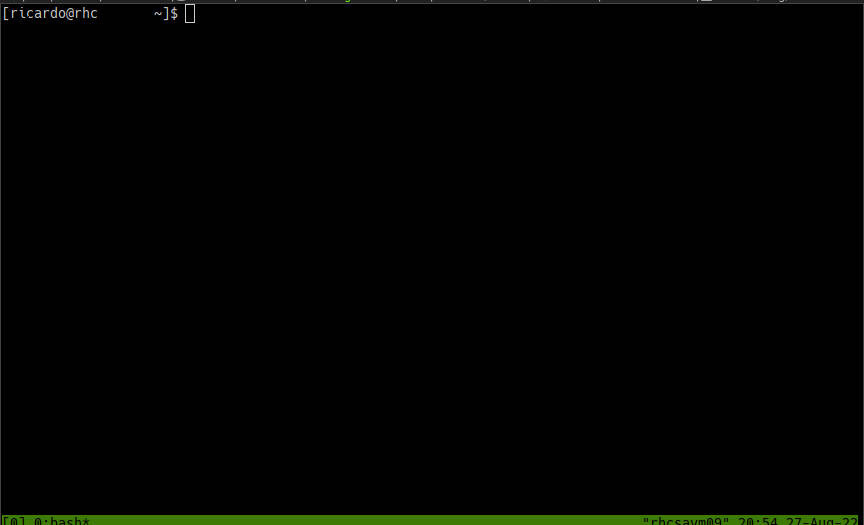 tmux (Image © eigene)
tmux is based on a hierarchical structure that allows a single terminal window to serve as a gateway to multiple environments. The hierarchy is structured as follows:
- **tmux server: The background process that manages all sessions.
- **Session: A top-level container for a specific project or task. Sessions are persistent; they remain active on the server even after a user has disconnected.
- **Window: Within a session, multiple windows can be created that function similarly to tabs in a web browser.
- **Panel: Windows can be further divided into panels, allowing a user to view multiple terminal outputs (such as a text editor and a system log) simultaneously on a single screen.
Installation Guide
tmux is available for most common Linux distributions. Installation is performed using the standard package manager:
Debian and Ubuntu systems
apt install tmux
CentOS and RHEL systems
dnf install tmux
Session Management and Persistence
The core advantage of tmux lies in its ability to decouple the terminal session from the SSH connection.
Initializing Sessions
A simple session can be started by running tmux. In professional environments, however, it is common to name sessions to avoid confusion.
- To create a named session:
tmux new -s [session name] - To create a session with a specific name for the initial window:
tmux new -s [session name] -n [window name]
Managing Session Status
Administrators can monitor active sessions and switch between them using the following commands:
List sessions:
tmux ls
or
tmux list-sessions
Reconnect to a session:
tmux attach -t [session name]
(Short form: tmux a -t [session name])
Terminate a session: tmux kill-session -t [session name]
**Stop the entire tmux server: tmux kill-server
To detach from a session while the processes continue running, press the prefix key followed by d.
The Prefix Key and Command Execution
All tmux commands are triggered by a prefix key, which tells the multiplexer that the subsequent keystroke is a tmux command and not a shell command. By default, the prefix is Ctrl + b.
Example: To detach from a session, the key sequence is Ctrl + b, followed by d.
Workspace Organization: Windows and Panes
tmux offers detailed control over the terminal’s visual layout.
Window Navigation
Windows allow you to separate different tasks within the same session.
- Create a new window:
Prefix + c - Switch between windows:
Prefix + n(next),Prefix + p(previous), orPrefix + [0–9](specific index). - Management:
Prefix + wlists all windows,Prefix +renames the current window, andPrefix + &closes it.
Editing Panes
Panels allow you to split the terminal screen into sections.
-
Splitting:
Prefix + %creates a vertical split;Prefix +creates a horizontal split. -
Navigation:
Prefix + arrow keysorPrefix + olet you switch between panels. -
Resizing:
Prefix + Ctrl + arrow keysresizes the active pane. -
Additional functions:
Prefix + ztoggles a pane between maximized and normal size, whilePrefix + xcloses the pane.Prefix + Spacecycles through predefined layouts.
System Configuration and Customization
tmux’s behavior is controlled by the configuration file ~/.tmux.conf. This file allows administrators to override default settings to improve usability.
Common Configuration Parameters
Professional configurations often include the following customizations:
-
Changing the prefix: Change the prefix to
Ctrl + a(similar to GNU Screen) usingunbind C-bandset -g prefix C-a. -
User Interface Extensions: Enable mouse support (
set -g mouse on) and support for 256-color terminals (set -g default-terminal “screen-256color”). -
Indexing: Change the starting index for windows and regions from 0 to 1 (
set -g base-index 1). -
Performance: Reduce
escape-timeto 0 for faster response in editors like Vim. - Appearance: Set the colors and styles of the status bar to clearly distinguish the active window and the session name.
Advanced Key Bindings
To optimize navigation, custom key bindings can be added to the configuration file. For example, implementing Vim-like movement commands (h, j, k, l) to switch between panes and creating key combinations to split panes (e.g., assigning | and - for vertical and horizontal splits).
To apply changes to the configuration file without restarting the server, run the command tmux source-file ~/.tmux.conf.
Data Processing and Copy Mode
tmux has its own buffer for copying and pasting text, which is essential when mouse integration is disabled.
-
- Enter copy mode:
Prefix + [
- Enter copy mode:
-
- Navigation: Use the arrow keys or Vim keys (
hjkl).
- Navigation: Use the arrow keys or Vim keys (
-
- Selection:
Spacebarstarts the selection.
- Selection:
-
- Copy:
Entercopies the text to the tmux buffer and exits the mode.
- Copy:
-
- Paste:
Prefix + ]pastes the buffered text.
- Paste:
Automation and Scripting
For complex environments, tmux supports automation via shell scripts and third-party tools.
Shell Scripts for Layouts
Administrators can write Bash scripts to start a session with a specific layout and pre-installed commands. By using tmux new-session -d to create a session in the background, tmux split-window to organize the screen, and tmux send-keys to execute startup commands (such as htop or vim), you can instantly set up a complete workspace.
tmuxinator
For a higher level of abstraction, tmuxinator allows you to define project environments using YAML files. This lets you specify windows, panes, and the commands to run within them, and start the entire environment with a single command:
tmuxinator start [project_name]
Advanced Management Features
Synchronized Panes
When managing multiple servers simultaneously, the synchronize-panes feature is indispensable. By running prefix + : setw synchronize-panes on, every keystroke entered in one pane is mirrored across all panes in the current window. This is particularly useful for executing the same command across multiple SSH connections.
Shared Sessions
tmux allows multiple users to join the same session. This is used for collaborative troubleshooting or pair programming.
Join a session:
tmux attach -t [session_name]
Read-only access:
tmux attach -t [session_name] -r
SSH Integration
To ensure that a tmux session is always available upon login, a conditional check can be added to the ~/.bashrc file on the server:
if [ -z “$TMUX” ]; then tmux attach -t default || tmux new -s default; fi