Computer Forum
Republic of Gamers
ASUS, based in Taipei (Taiwan), was founded in 1989 and has since evolved from a manufacturer of motherboards alone into a true giant in the PC hardware industry. In 2006, the company took a decisive strategic step and launched the dedicated sub-brand "Republic of Gamers" (ROG).
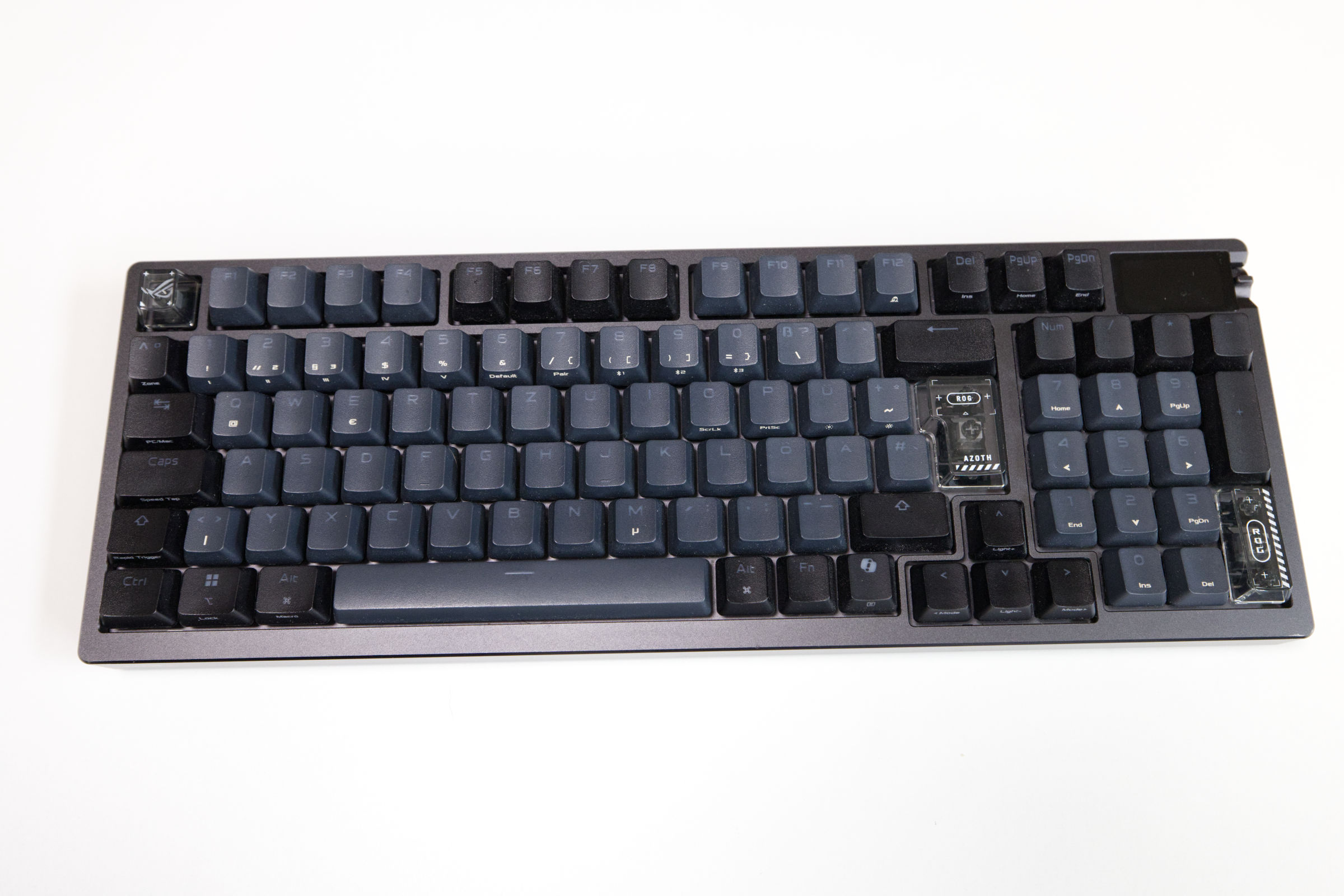
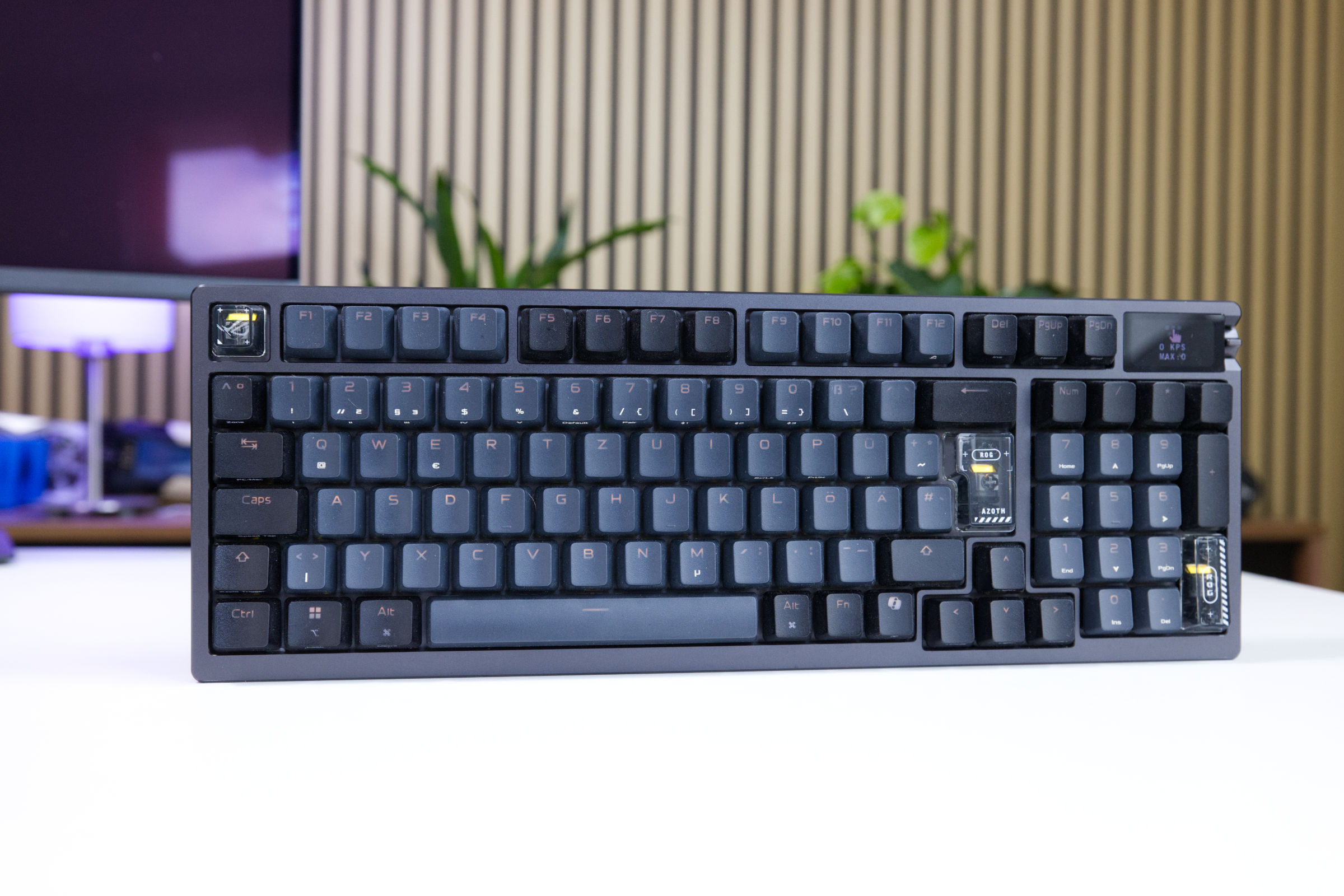 ASUS ROG Azoth 96 HE Test Review (Image © PCMasters.de)
In the peripherals sector, the manufacturer has pursued various technical approaches over the years. Keyboards like the modular ROG Claymore still focused primarily on eye-catching design and classic mechanical switches. ASUS took it a step further with the ROG Strix Scope RX, which introduced in-house opto-mechanical switches.
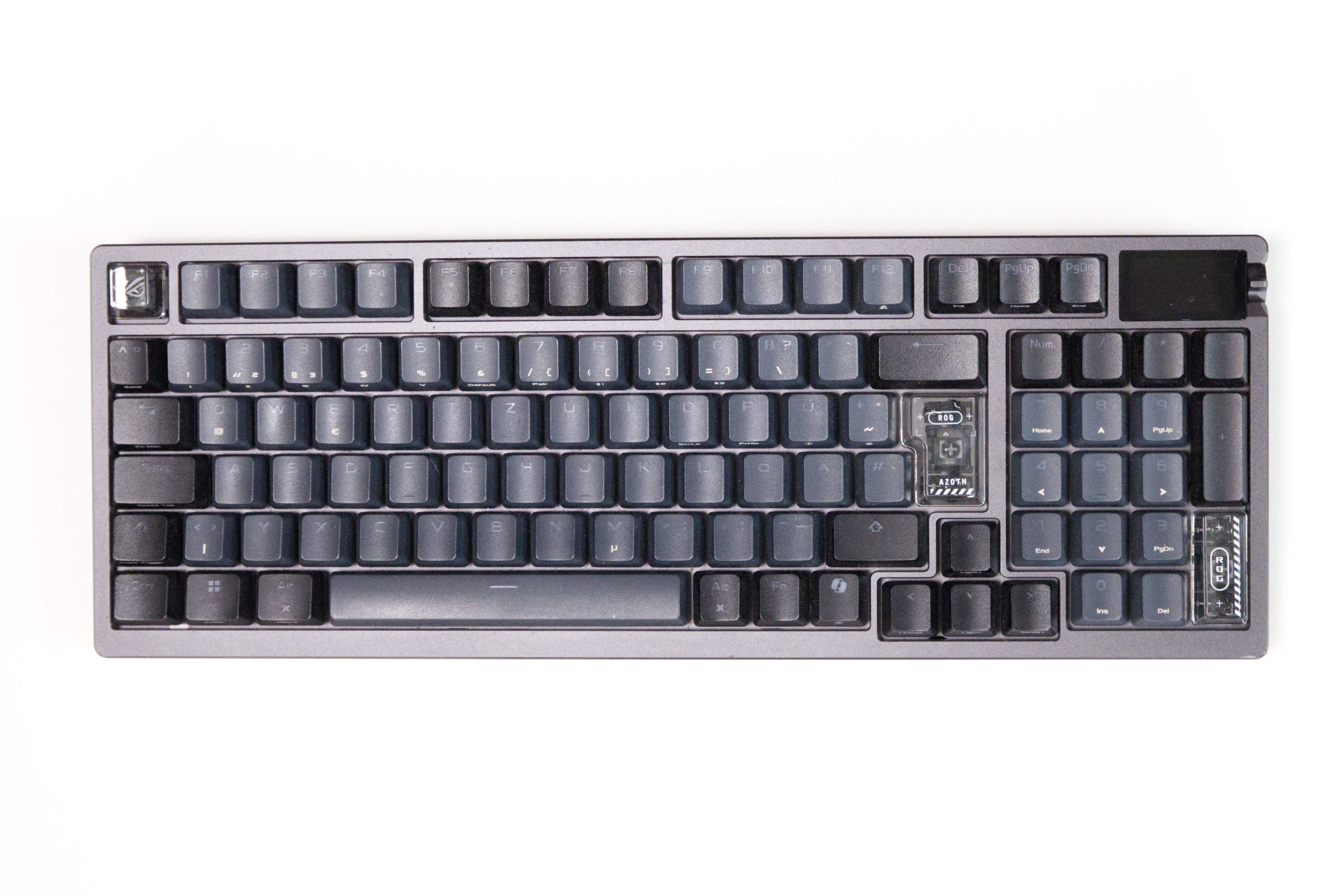 ASUS ROG Azoth 96 HE Draufsicht (Image © PCMasters.de)
Finally, the first generation of the ROG Azoth. Here, ASUS took clear cues from the custom keyboard scene and integrated features such as sophisticated chassis damping and pre-lubricated switches into a mass-produced 75% keyboard. The new ROG Azoth 96 HE now takes this approach a step further: It combines the build quality of its direct predecessor with the magnetic Hall-effect switches currently prevalent in esports, while featuring a larger 96%-layout.
Keyboard Package Contents
Packaging
For a keyboard with a suggested retail price of 400 euros, the packaging naturally raises high expectations—expectations that are quickly dashed in reality. Although the outer sleeve looks stylish at first glance with its engravings and glossy reflections, at its core it’s a paper-thin cardboard sleeve typical of industry giants, designed purely for aesthetics. The moment we started unboxing, this sleeve tore right away —an annoying and unnecessary start.
When you remove the slipcase, a large, black cardboard box is revealed. It’s of decent quality, but it doesn’t convey a noticeable premium feel to the touch. The unboxing experience itself seemed more thoughtfully designed and higher quality with competitors, such as the Wooting 60 HE+. At least ASUS earns bonus points for
materials: commendably, the packaging consists almost entirely of paper and cardboard.
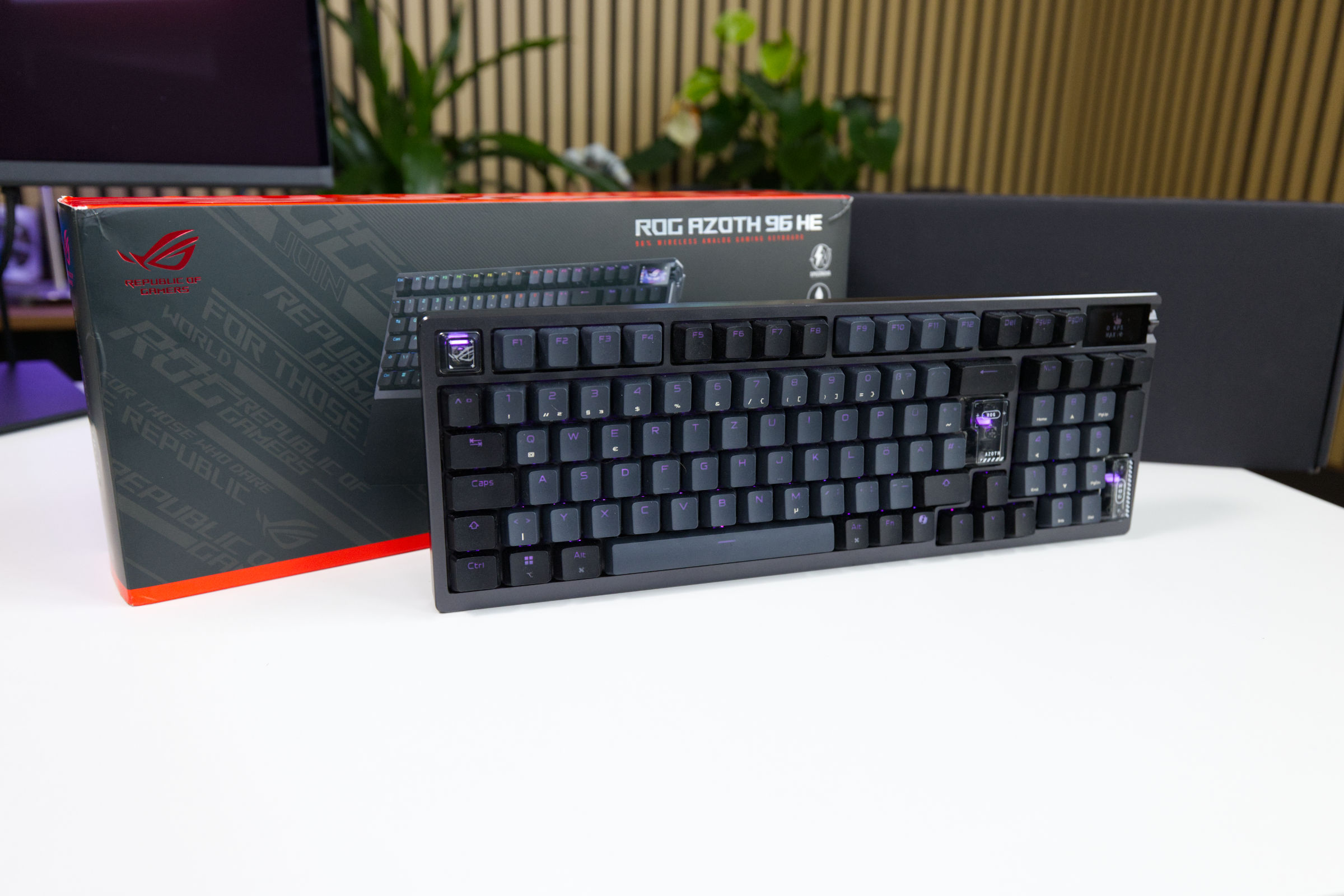 ASUS ROG Azoth 96 HE mit Verpackung (Image © PCMasters.de)
When you open the sturdy black box, the keyboard is safely nestled inside a fabric pouch. Right next to it are the standard documents, such as the Quick Start Guide, the warranty card, and ROG stickers. If you lift the keyboard along with this first layer, a second layer containing the additional accessories is revealed underneath. Fortunately, this also includes the included silicone wrist rest, which we certainly expected at this enormous price point.
Contents
The package contents are generous and well-thought-out for a keyboard. When you lift the heavy keyboard out of the box, you’ll find the following at the bottom of both boxes:
- the detachable silicone wrist rest
- an approximately 1.8 m long, high-quality fabric-sheathed USB-C to USB-C cable in black
- a USB-C to USB-A adapter
-
a keycap and switch puller
-
three additional ROG-design keycaps, as well as an extra
Ctrlkey for minor visual customizations - a USB dongle extender (a small adapter to optimally position the wireless receiver on your desk)
- the ROG SpeedNova 8K Wireless Dongle in its dock on the back of the keyboard
- the standard manuals, a warranty card, and ROG stickers
It’s commendable that ASUS includes a metal switch puller among the accessories for removing keycaps and switches, rather than relying on plastic, as is unfortunately often the case with the competition.
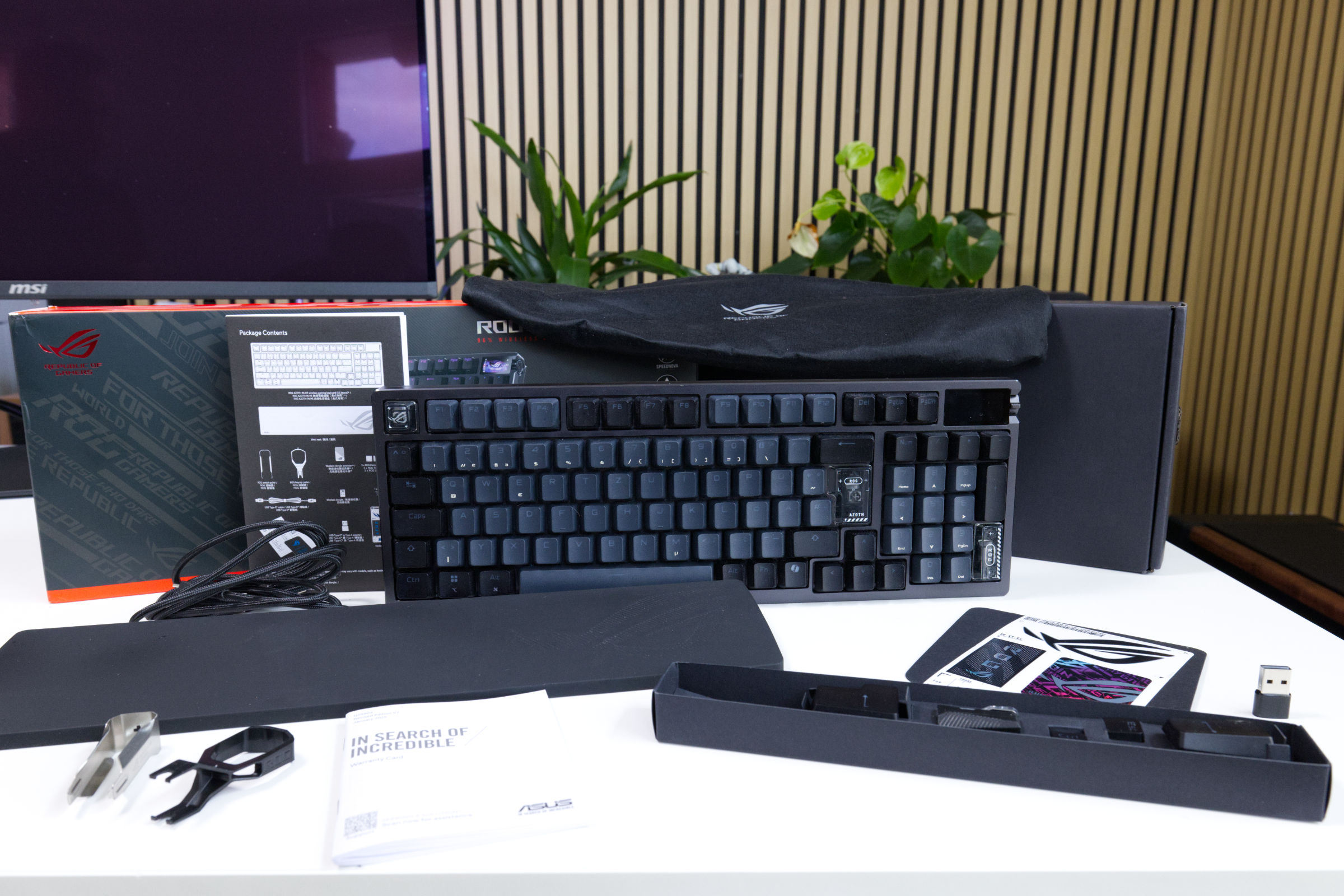 ASUS ROG Azoth 96 HE Lieferumfang (Image © PCMasters.de)
A minor drawback for DIY enthusiasts: there’s no Lube Kit, which was included with earlier mechanical Azoth models and enhanced the "DIY feel." However, since the new magnetic ROG HFX V2 switches are pre-lubricated at the factory anyway, this omission is absolutely negligible from a practical standpoint.
Ordering
Anyone looking to add the ASUS ROG Azoth 96 HE to their desk will generally find it readily available at the usual major electronics retailers and online stores in Germany. The real shock for many, however, is likely to be the price: The official suggested retail price (SRP) is a downright painful 399 euros. Even though current price comparisons show that the street price in competitive retail is currently hovering around 350 euros, it remains a massive investment.
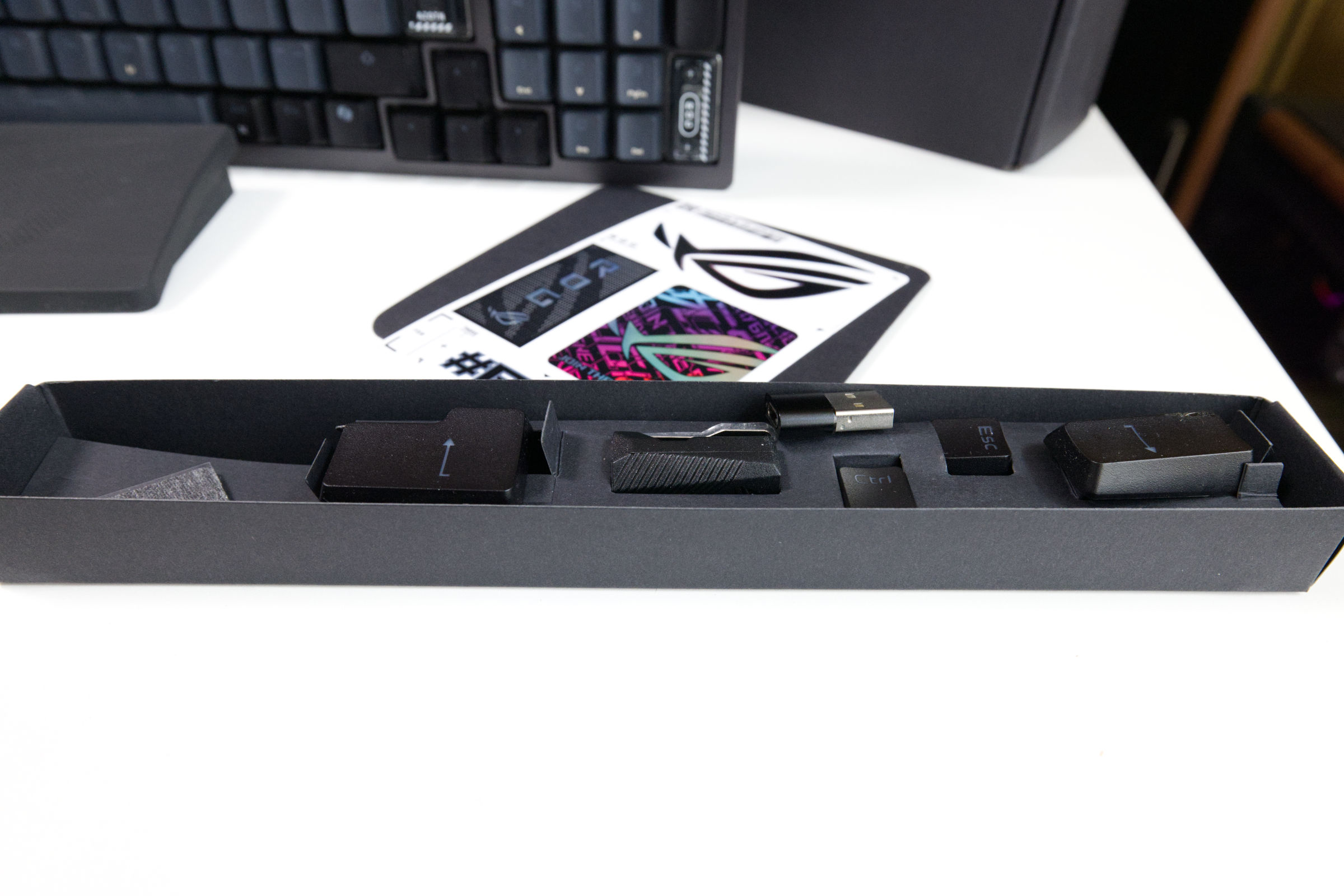 ASUS ROG Azoth 96 HE Zubehörbox (Image © PCMasters.de)
To put that into perspective: The Corsair Vanguard 96 offers a nearly identical 96-percent layout and also features magnetic switches (MGX) for around 229 euros—that’s over 150 euros less in some cases. The Wooting 60 HE+ is priced at about 170 euros as a prebuilt model, although you’ll have to dig even deeper into your pockets here for an aluminum case and a palm rest. Anyone who deliberately chooses the Azoth 96 HE is paying a premium for the solid materials, the built-in OLED display, the high 8,000-Hz wireless technology, and the sophisticated damping system.
In addition to the black version of the ASUS ROG Azoth 96 HE shown here, a white version was also teased, which is also featured on the product page, though it is currently unavailable in any store. Upon inquiry with ASUS, it appears there are no further variations planned for now. The white version is reportedly in the works, but no release date has been announced yet.
Design, Materials, and Workmanship
The trend toward minimalism—which has been significantly shaped in recent years by enthusiast brands such as Ducky and Keychron—is increasingly making its way into the classic gaming peripherals segment as well. ASUS, too, is focusing on developing understated elegance; with the Azoth, it has thus dispensed with aggressive edges and eye-catching chassis details in favor of a simple, functional appearance. This purely functional aesthetic is also reflected in the all-black silicone wrist rest. In a direct comparison, the integrated OLED display and the accompanying rotary control stand out haptically from the controls of the Corsair Vanguard 96, as ASUS has made more elegant design choices here.
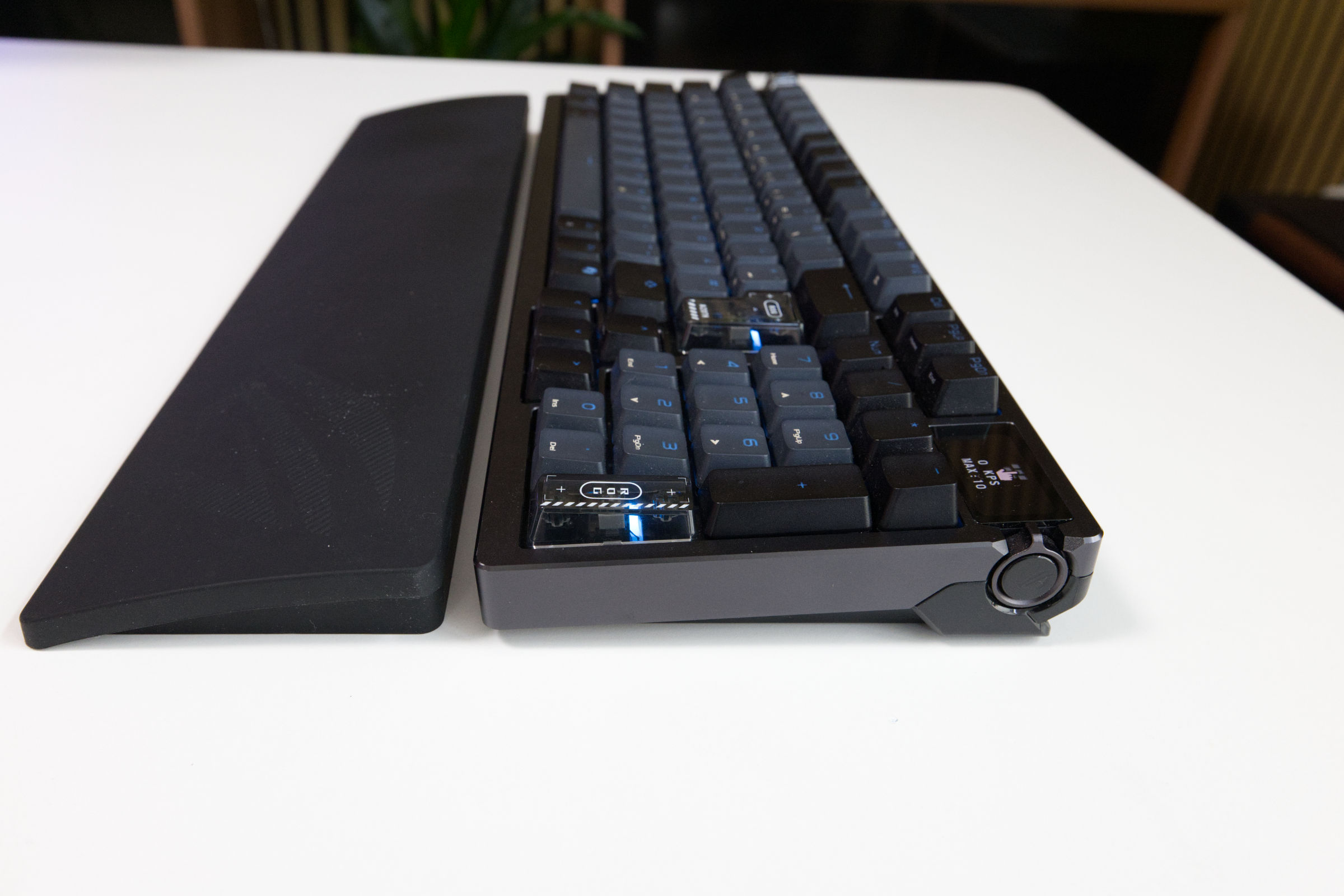 ASUS ROG Azoth 96 HE Profil (Image © PCMasters.de)
The build quality of the keyboard itself stands in stark contrast to the simple packaging. Its substantial weight of just under 1.4 kilograms conveys stability and ensures that the ROG Azoth 96 HE sits firmly and securely on the desk when in use.
Due to its design, the chassis consists of two main components: The top cover is made of CNC-machined aluminum, which extends downward over the edges and encloses the lower housing to create a unified appearance. The base tray itself, however, is made of plastic.
Upon direct inquiry to ASUS, we were confirmed that this choice of materials was made specifically to optimize two aspects: First, it improves the transmission and reception performance of the wireless and Bluetooth connections compared to an all-metal housing. Second, the plastic is intended to provide a more muted sound profile—especially if you decide to remove the internal damping layers.
Nevertheless, given a price point of just under 400 euros, one might critically note: An [all-aluminum base with integrated
plastic cutouts]9 for the antennas would have been just as feasible here, as other manufacturers in the absolute high-end segment have demonstrated.
The keycaps come factory-installed as double-shot PBT caps. They offer a good grip and feel correspondingly high-quality under the fingers.
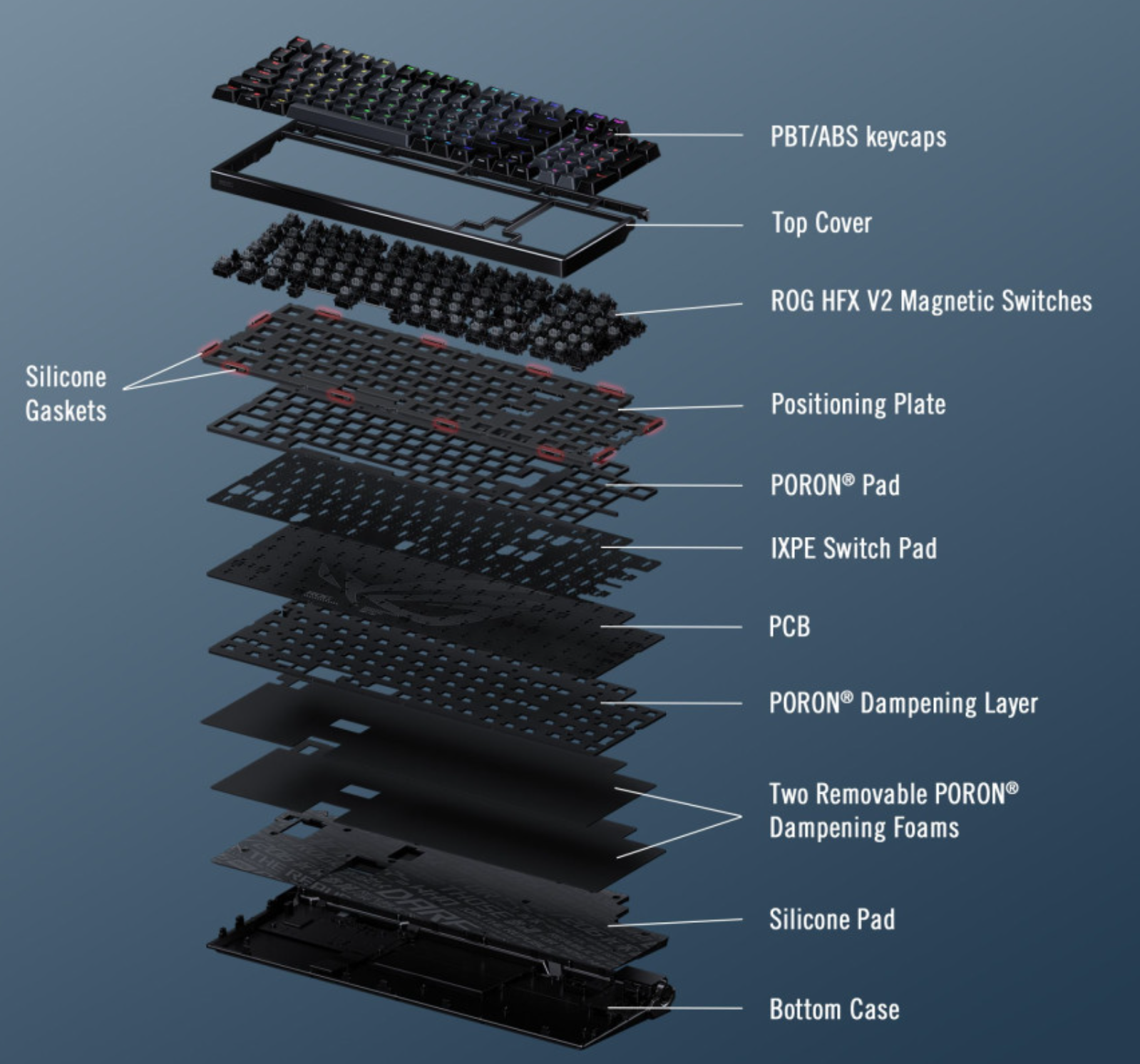 ASUS ROG Azoth 96 HE Layers (Image © PCMasters.net)
Inside the keyboard, ASUS relies on a gasket-mount design. ROG employs a structure consisting of six damping layers, which serves to optimize acoustic and haptic performance:
- Silicone gaskets: These support the internal mounting system, keep the circuit board flexible within the chassis, and absorb primary vibrations.
-
Four PORON® layers: These foam pads reduce internal echoes and the metallic "ping" sounds from the switches. The two lower PORON mats can be removed if needed to specifically adjust the typing feel from a softer to a firmer keystroke.
- IXPE switch pad: A layer directly beneath the switches designed to dampen the impact on the circuit board when the keys are pressed.
- Silicone pad: A final layer in the base tray to minimize chassis resonance for a cleaner sound profile.
In practice, this multi-layered design delivers the described results. The typing feel is well-defined, and the keyboard’s sound profile is clean and heavily dampened, without any metallic reverberation or chassis rattling. And this difference in quality is indeed noticeable in a direct comparison with the Corsair and the Wooting, elevating the Azoth to the level of established enthusiast brands.
Operation & Features
Key Layout
As the name suggests, the ROG Azoth 96 HE uses a 96-percent layout (often referred to as 1800-Compact). Specifically, this means that the main keybed, the arrow keys, and the numeric keypad are arranged directly next to one another without the gaps typically found on 100-percent keyboards. This compact design saves valuable desk space and allows you to position the mouse closer to the keyboard from an ergonomic standpoint, even if it isn’t quite as comfortable as, for example, a 60-percent layout like the Wooting 60 HE+.
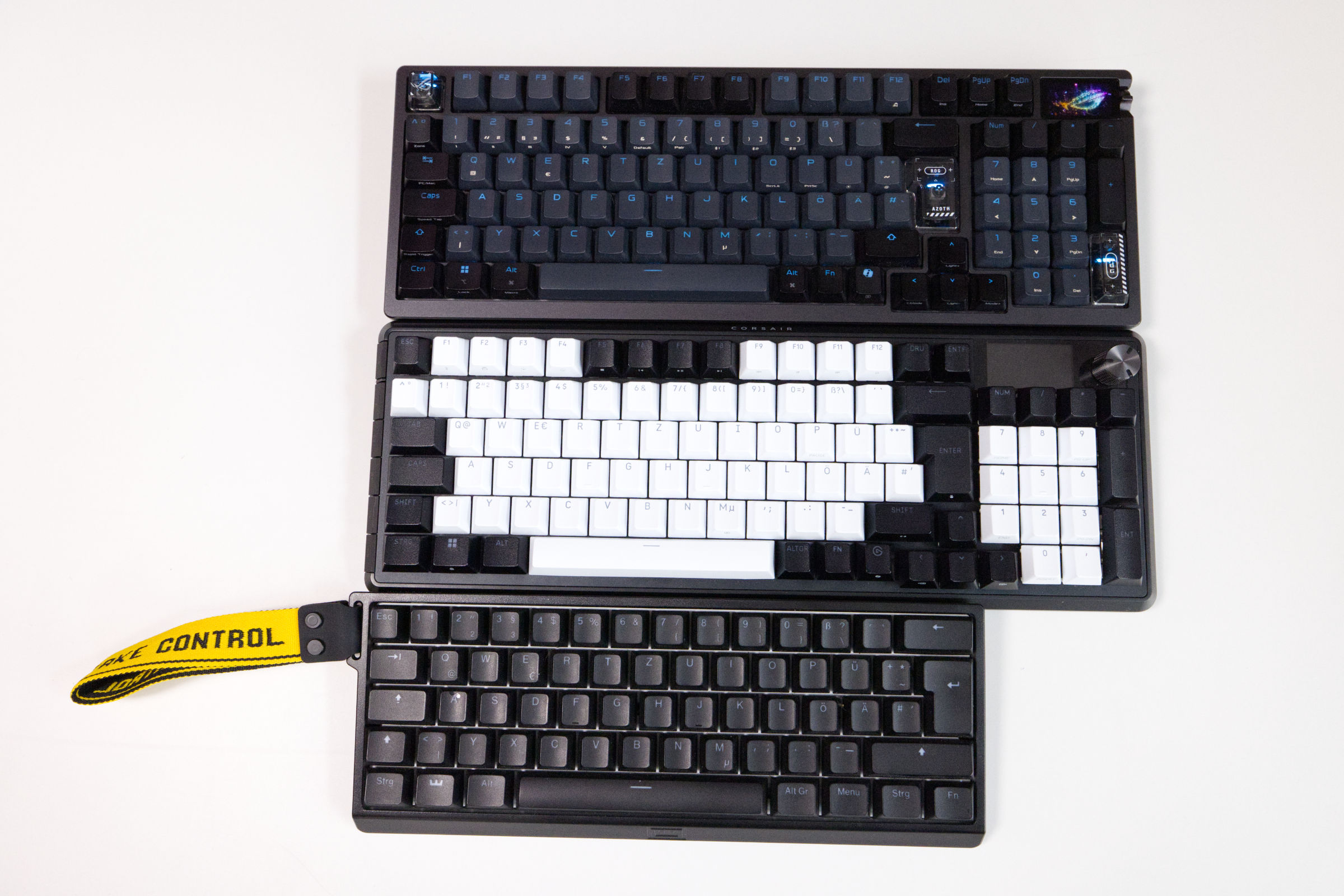 ASUS ROG Azoth 96 HE Größenvergleich (Image © PCMasters.de)
In a direct comparison to the Corsair Vanguard 96, which uses the same form factor, there is, however, a significant architectural difference in the key layout: While Corsair, due to the large, Elgato
-inspired rotary control and the larger 1.9-inch LCD screen, Corsair has omitted dedicated keys such as Page Up and Page Down and focuses more on gamers and streamers; on the Azoth 96 HE, however, these keys are still physically present. ASUS achieves this through a different use of space in the upper right corner. The built-in OLED display, at 1. 47 inches, and the accompanying three-way rotary knob has been moved to the outer right edge of the chassis to save space. This leaves enough room for the navigation block.
Since these scroll keys are of little relevance for pure gaming, it stands to reason that ASUS is using this layout to specifically bridge the gap to productivity and is following the lead of enthusiast-oriented manufacturers in this regard as well. For developers, frequent typists, or in classic home-office use, dedicated Page Up and Page Down keys offer significant added value when quickly navigating through long lines of code or documents.
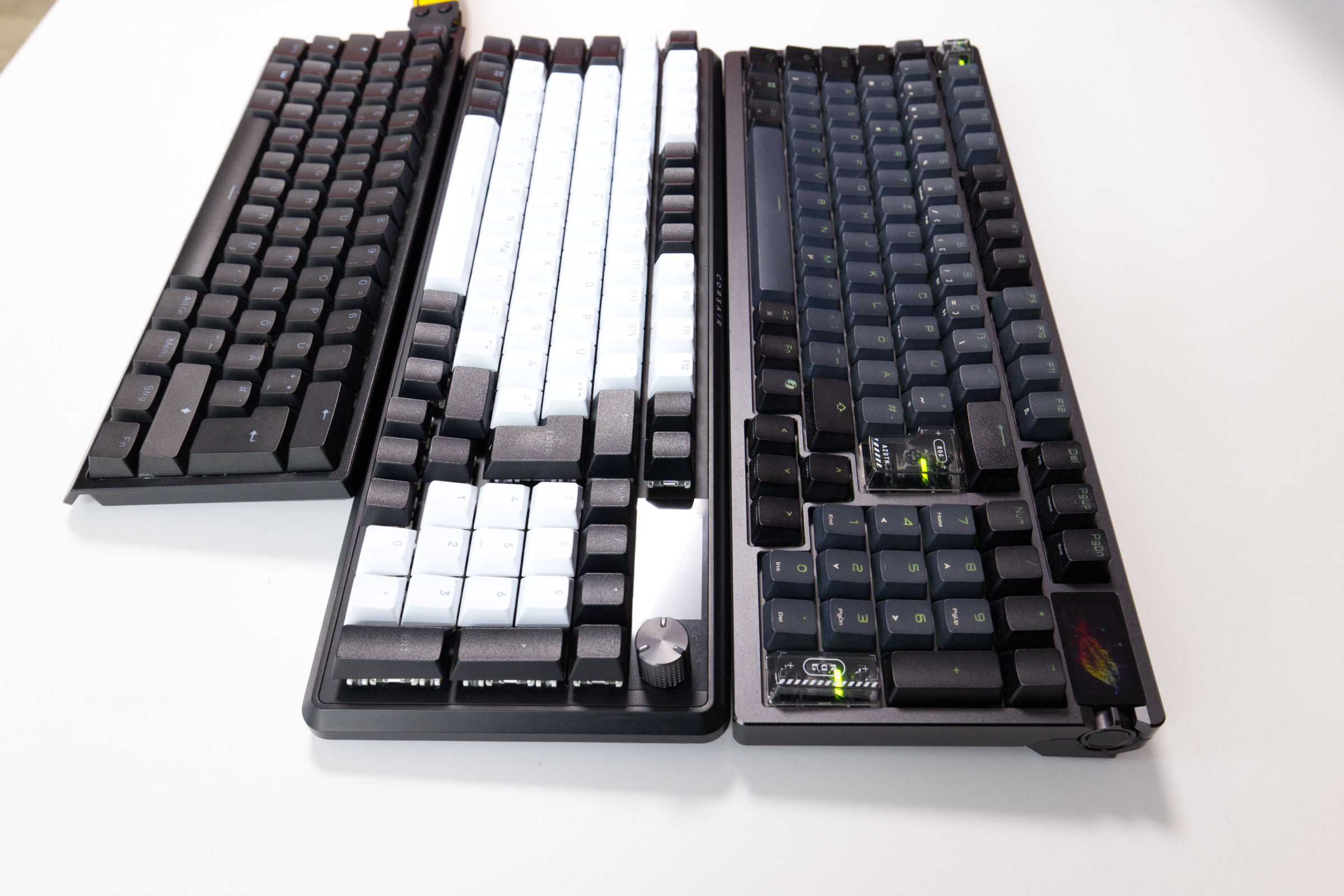 ASUS ROG Azoth 96 HE Größenvergleich 2 (Image © PCMasters.de)
As with all 96-percent keyboards, the seamless design takes some getting used to at first. In particular, finding the arrow keys or the zero key—which is squeezed into the numeric keypad—by touch must first become second nature. In everyday use, however—whether typing text or gaming—this compact layout poses no limitations after a brief adjustment period; the switches presented a greater challenge.
Additional Keys / Macro Keys
Another structural difference from Corsair’s competitors is the complete absence of dedicated macro keys. While the Vanguard 96 features an additional row of keys on the left edge, the Azoth 96 HE ends flush with the standard keypad. This further reduces the keyboard’s overall width, but it also means that MMO players or streamers do not have separate physical keys available for shortcuts. However, since the manufacturer’s software allows you to freely reprogram any regular key on the keyboard and assign macros to them, this omission can be compensated for in everyday use via the software.
Connectivity
When it comes to connectivity options, the Azoth 96 HE lives up to its premium status and offers tri-mode connectivity. This means you have the freedom to choose between wired operation, Bluetooth, or ASUS’s proprietary 2.4-GHz wireless technology. Thanks to this flexibility, ASUS states that the keyboard can be seamlessly paired with up to five devices simultaneously and switched between them at the push of a button .
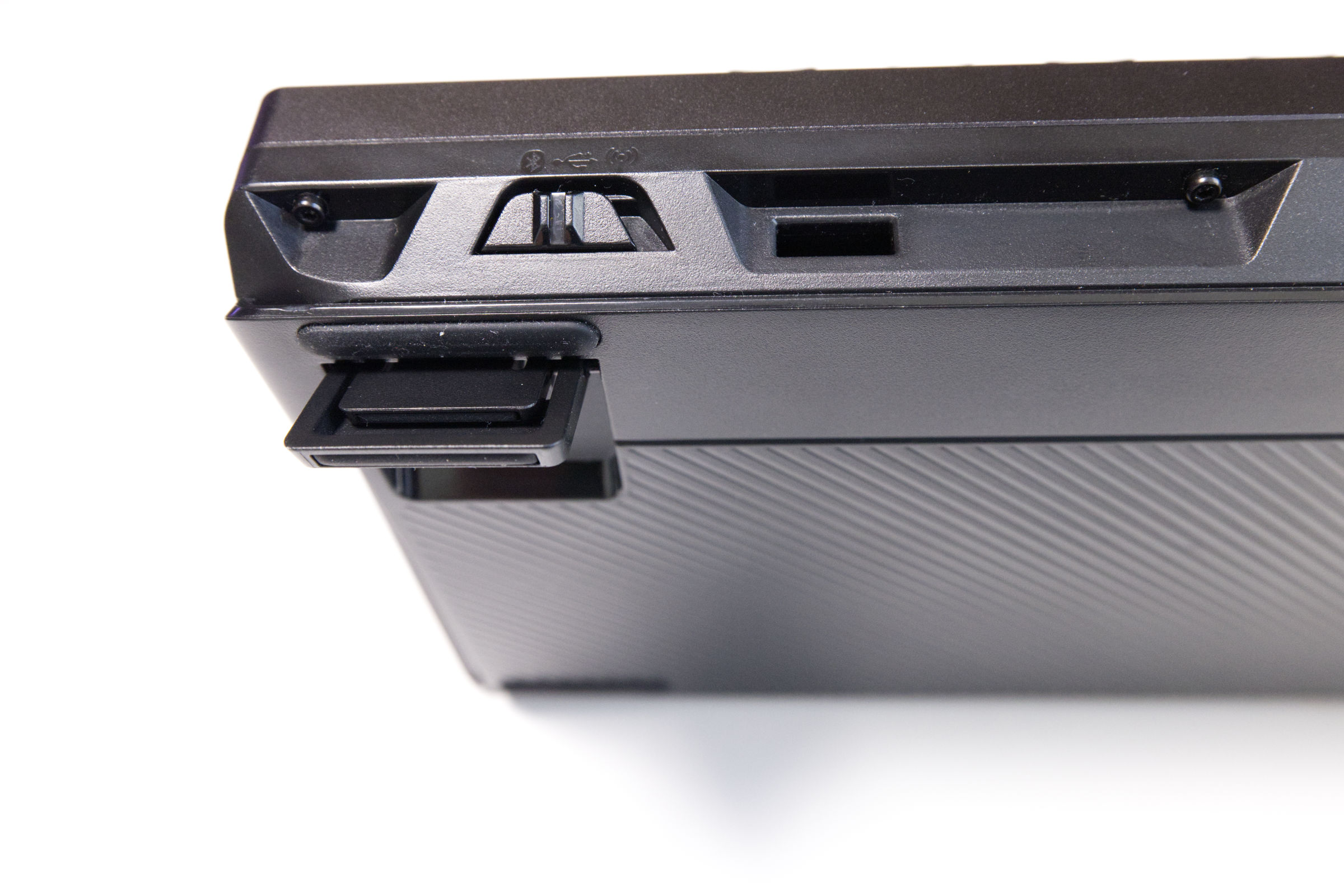 ASUS ROG Azoth 96 HE Füße und Switch (Image © PCMasters.de)
Wired Operation
For wired operation, ASUS includes a fabric-sheathed cable approximately 1.8 meters long. Unlike many competitors, this is—fortunately—a pure USB -C-to-USB-C cable, which is a benefit for modern systems. However, a compatible USB-C to-USB-A adapter is included.
On the Azoth, the port is conveniently located on the back, on the left side of the case. As with the Wooting 60 HE+, ASUS has opted against recessed ports or sharply angled cable channels on the underside of the case. Accordingly, we should also mention here that this results in a less "clean" look compared the Corsair Vanguard 96’s hidden cable routing; however, the externally mounted port offers the following advantages: You can unplug the keyboard much more quickly for transport, and the open design allows for hassle-free use of custom coiled cables.
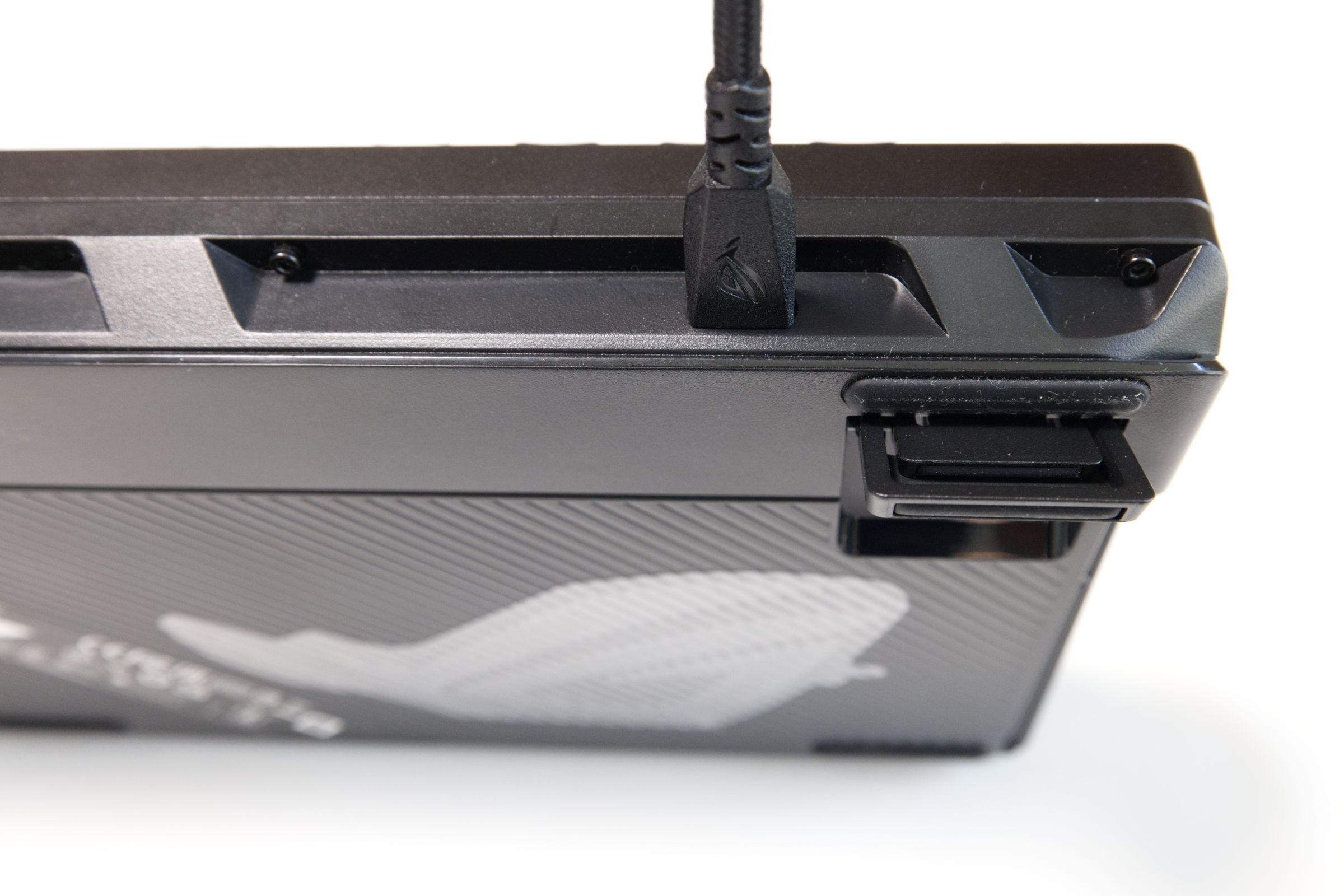 ASUS ROG Azoth 96 HE USB Kabel (Image © PCMasters.de)
In pure wired mode, the connection not only charges the battery or enables firmware updates but also transmits the full 8000-Hz polling rate to the PC without compromise. Setup is straightforward via Plug & Play. In terms of platform compatibility, the keyboard is officially supported on Windows (10 and 11) and macOS. Since it is recognized as a standard HID device, basic operation on consoles is also possible, even though ASUS does not offer a dedicated PlayStation mode—activated via a key combination—like Corsair does.
Wireless (2.4 GHz) & SpeedNova
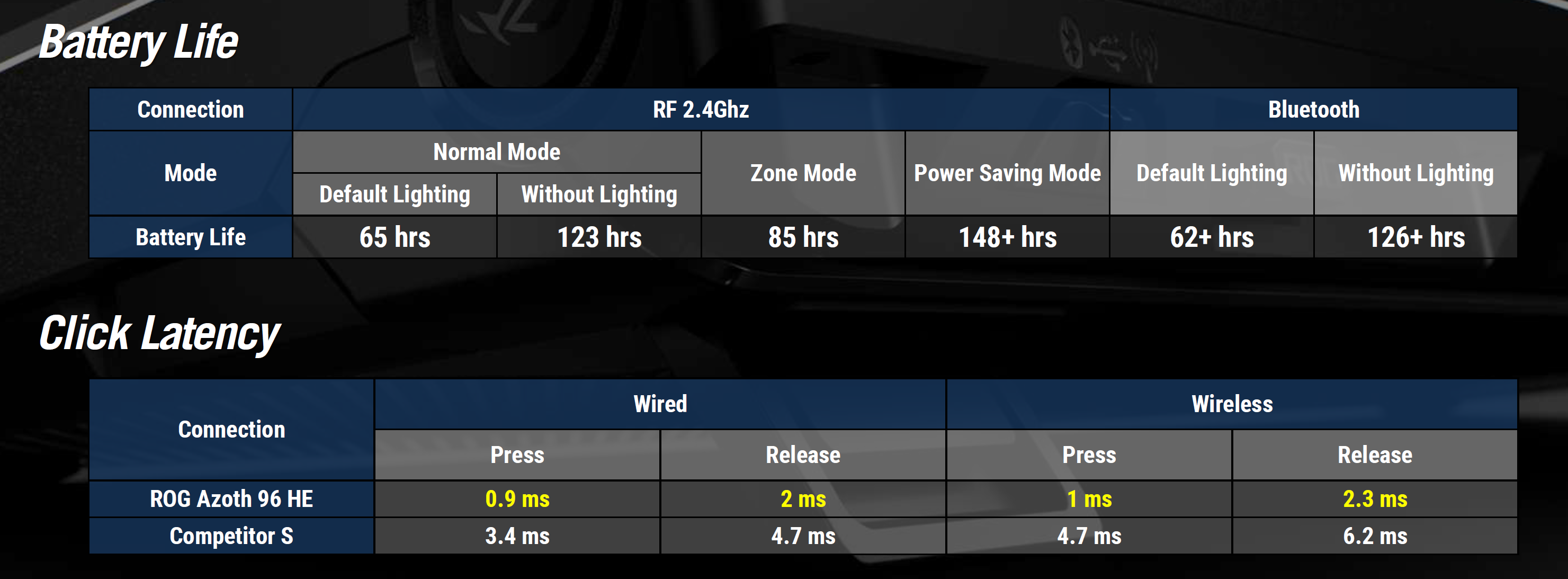
The real technological highlight, however, is wireless transmission via the proprietary ROG SpeedNova 8K wireless technology. When the included USB dongle is plugged into the PC, the keyboard transmits the full 8,000 Hz polling rate wirelessly thanks to the built-in SoC from the nRF54H series from Nordic Semiconductor, the keyboard transmits the full 8000 Hz polling rate over the air. According to the manufacturer’s internal measurements, click latency drops to a low 0.9 ms when pressing a key and 2 ms when releasing it.
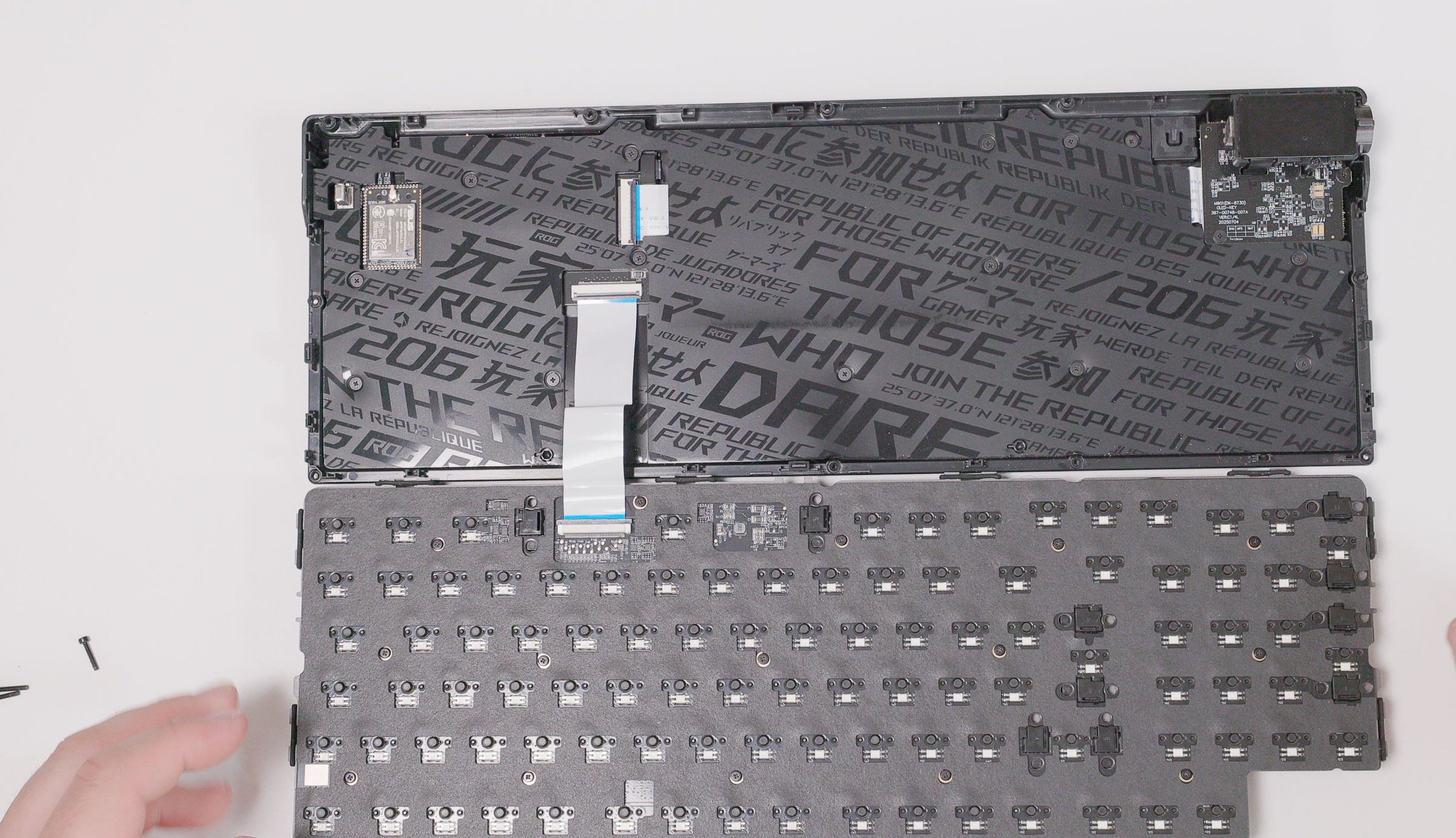 ASUS ROG Azoth 96 HE Nordic Semiconductor nRF54H Serie (Image © PCMasters.de)
However, this burst of performance needs to be powered. While ASUS markets the keyboard with a maximum battery life of up to 200 hours, the actual figures for everyday gaming use are more nuanced. In standard mode with RGB lighting enabled, the battery lasts about 65 hours in 2.4 GHz mode, according to ASUS. If you turn off the lighting completely, this figure rises to a solid 123 hours.
To intelligently counteract the enormous power consumption of the 8000-Hz polling rate, ASUS has dug deep into its software bag of tricks:
-
Normal Mode: By default, the keyboard uses "Smart Power Saving." Keys are polled at a lower rate in the background and only switch up to 8000 Hz at the exact moment they are pressed.
-
Zone Mode: This mode is designed for competitive esports players and can be activated using the
Fn + ´key combination or via software. The battery-draining RGB lighting is completely turned off in this mode. The key feature: The polling rate is permanently set to a responsive 8000 Hz exclusively for the primary gaming cluster (Q,W,E,R,A,S,D,F,Left Ctrl, andSpacebar), while the remaining keys operate in power-saving mode. ASUS claims a battery life of over 62 hours. - Power Saving Mode: If you use the keyboard purely for work, you can enable this mode. In this mode, the polling rate of all keys is reduced to 250 Hz and the backlighting is disabled, which extends battery life to over 126 hours when connected wirelessly.
Bluetooth
For pure office use, working on a laptop, or quick typing on a tablet, the Azoth 96 HE also offers the energy-efficient Bluetooth protocol. Latency is not an issue during text entry, and the keyboard operates extremely efficiently in this mode: According to the manufacturer, battery life exceeds 148 hours without RGB backlighting and still reaches 85 hours with the backlighting active.
In our hands-on test, the Bluetooth connection (with its 250 Hz polling rate) performed absolutely flawlessly in everyday office use. Its broad compatibility was also impressive: In addition to Windows, the connection to alternative operating systems like Ubuntu—or even mobile devices such as iPads and iPhones—worked completely seamlessly.
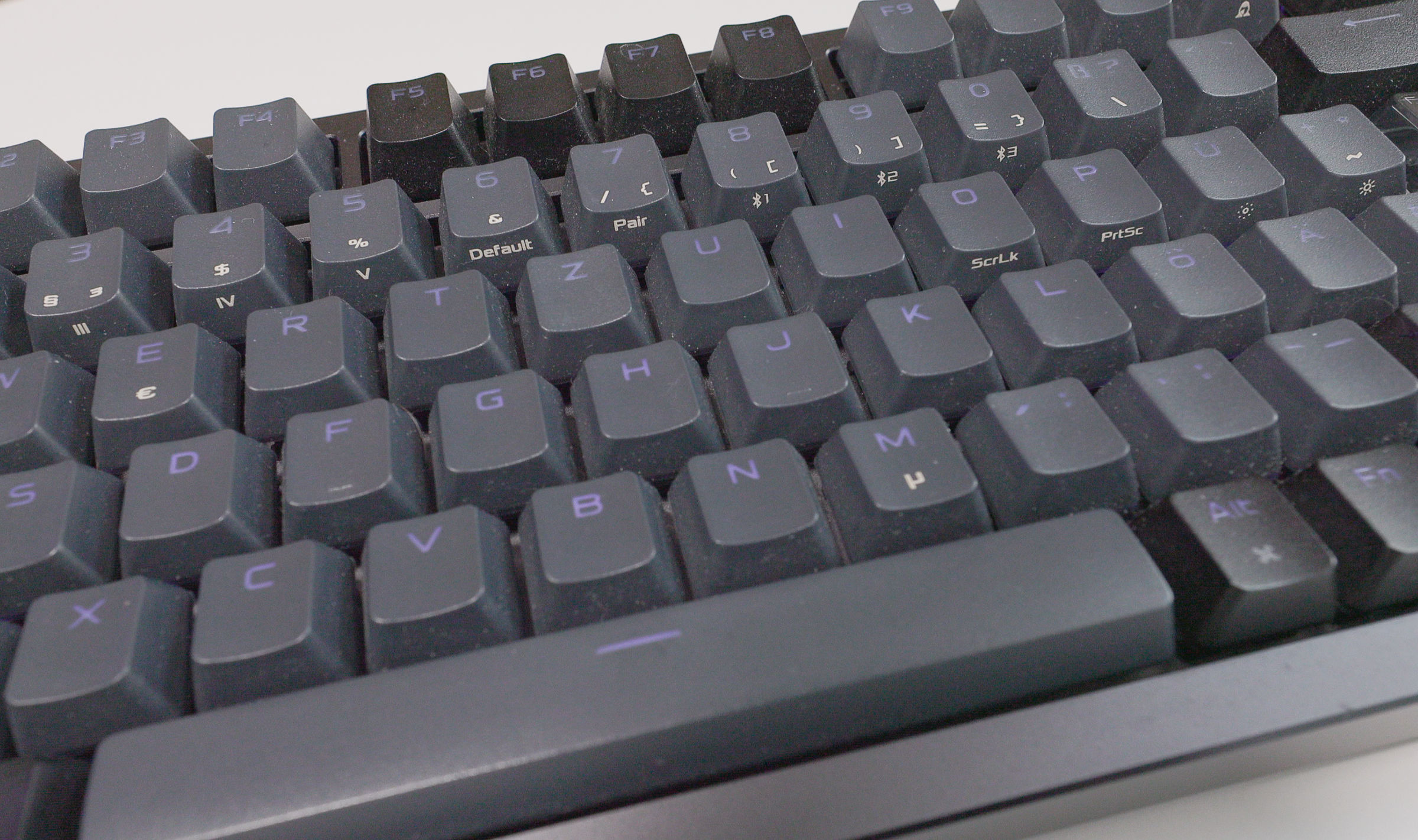 ASUS ROG Azoth 96 HE Bluetooth Tasten (Image © PCMasters.de)
To use the keyboard seamlessly with multiple devices in everyday use, the correct assignment of Bluetooth channels is crucial. The proper workflow—which the manual unfortunately doesn’t highlight prominently enough—is pleasingly simple:
First, use Fn + 8, Fn + 9, or Fn + 0 to select the desired Bluetooth channel (1, 2, or 3). If the channel is still empty (such as during initial setup) , the keyboard immediately and automatically sets that selected channel to pairing mode. If, on the other hand, you want to overwrite a channel that’s already in use with a new device, first select the channel and then hold down the regular pairing button (Fn + 7) for about three seconds to manually force pairing.
Once you’ve permanently assigned your devices to the three memory slots in this way, you’ll never need to press Fn + 7 again during your daily office routine; instead, you can switch between devices instantly using only the direct channel buttons.
Battery Life
We used the keyboard intensively and wirelessly for an entire week for our test.
Our usage profile was as follows: During the day, we performed our regular office tasks, sometimes using the more power-efficient Bluetooth. In the evenings, we switched to the 2.4-GHz dongle for extended gaming sessions, including the demanding "Zone Mode." During this entire time, the keyboard was never once connected to a power source via a cable.
 ASUS ROG Azoth 96 HE Akkulaufzeit (Image © PCMasters.de)
After 7 days and about 60 hours of active use, Gear Link still showed a remaining battery level of 30 percent. If we extrapolate this usage, we might not quite reach the perfect maximum values from the lab down to the last minute, but the result is still outstanding. Given the massive performance, the bright OLED display, and its flexibility in everyday use, our conclusion is clear: Having to plug the ROG Azoth 96 HE into the charging cable on average only about once a week is, in our view, absolutely no problem and perfectly practical.
Interim Conclusion: Connectivity
The interim conclusion on connectivity for the ROG Azoth 96 HE is outstanding and marks a massive lead. While direct competitors in the magnetic switch category—such as the Wooting 60 HE+ or the Corsair Vanguard 96—currently rely exclusively on traditional, wired operation, ASUS offers the full package here.
The tri-mode connectivity with the low-latency 2.4-GHz dongle finally makes cable management on the desk obsolete, without compromising on response time. In addition, the keyboard can switch almost seamlessly between up to five devices, which greatly expands its functionality in everyday office use.
An important detail for everyday use: No matter when or to which channel we switch, the keyboard always requires a few seconds of initialization time to establish the connection. So for those who expect absolutely lag-free, instant switching between different screens and devices for their specific workflow, this process might be a tad too slow. Everyone else, however, will find this solution works flawlessly and greatly expands functionality in everyday office use.
ASUS ROG Azoth 96 HE Test Review (Image © PCMasters.de)
As for the massive 8,000 Hz polling rate, we view this performance from a purely pragmatic perspective: Technically, this is impressive for a wireless keyboard. For us, however, the difference compared to the standard 1,000 Hz polling rate is essentially imperceptible. The situation here is similar to that with high-refresh-rate esports monitors: for the vast majority of gamers, the gap between pure lab measurements and what’s actually noticeable in practice is simply marginal. One positive aspect worth highlighting, however, is that this maximum performance remains optional. The polling rate can be easily reduced, which not only conserves system resources but also saves valuable battery life when using wireless mode.
Hardcore gamers are offered uncompromising technology here, while everyone else can enjoy an absolutely smooth and durable setup with reduced settings. The only drawback: The ROG Azoth 96 HE presents an ultimatum—either the full 8,000 Hz or the 250 Hz optimized for the workplace.
Performance and User Experience
The specifications on the data sheet are one thing; real-world performance is another. A gaming keyboard in this price range must deliver in everyday use, whether for gaming or office work. Here, we’ll take a closer look at how the ASUS ROG Azoth 96 HE performs in terms of usability in both scenarios.
Key Feel & Gaming Performance
While we’re typically used to a key travel of 4.0 mm and an average actuation force of 45 cN on other keyboards, ROG takes a different approach with its keys. In a direct comparison to the Wooting 60 HE+, it’s immediately apparent that the ASUS keyboard requires significantly less force to press. Why? While Wooting’s Lekker L60 switches start at an actuation force of 45 cN and end at a final force of 60 cN to prevent accidental presses, ASUS opts for a much lighter profile: Here, the resistance starts at a light 31 cN and ends at 48 cN. As a result, the Azoth feels smooth to type on—and is similar in force to the MLX Plasma switches on the Corsair Vanguard 96.
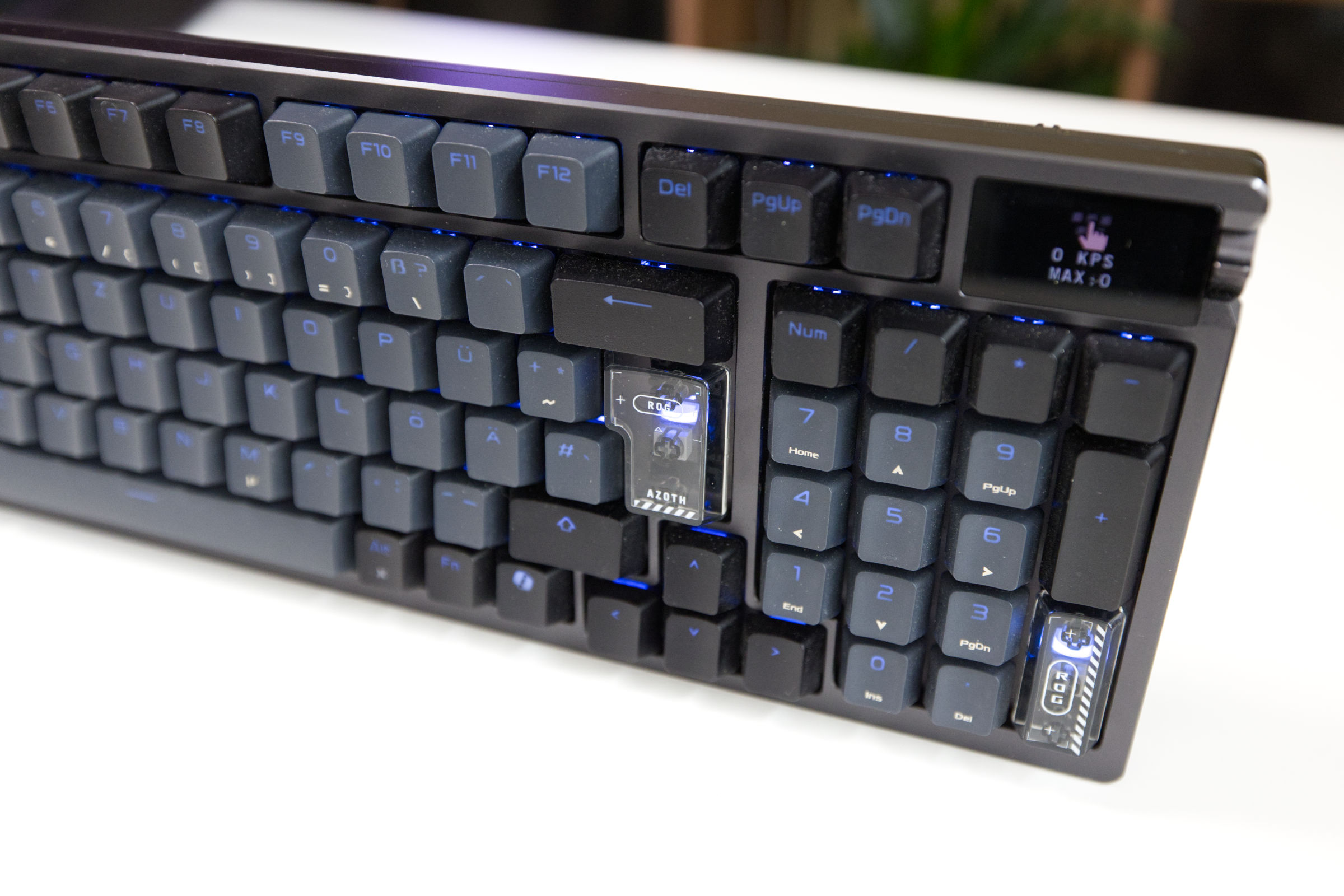 ASUS ROG Azoth 96 HE Keycaps rechts (Image © PCMasters.de)
As a result, we initially found ourselves accidentally pressing the wrong keys. In addition to the aforementioned actuation force, the Azoth’s actuation point—just like on the Wooting—is initially set at 1 mm. The difference of a few Newtons in resistance may seem small, but it makes a noticeable difference here. Even after some time, we couldn’t quite break the habit, because when sitting comfortably and typing, your thumb tends to press the key down to 1 mm, causing you to accidentally spam spaces on the screen. That’s why simply resting your fingers on the keys takes some getting used to at first—or you can set the global trigger to at least 2 mm, at least while typing, as with the Corsair.
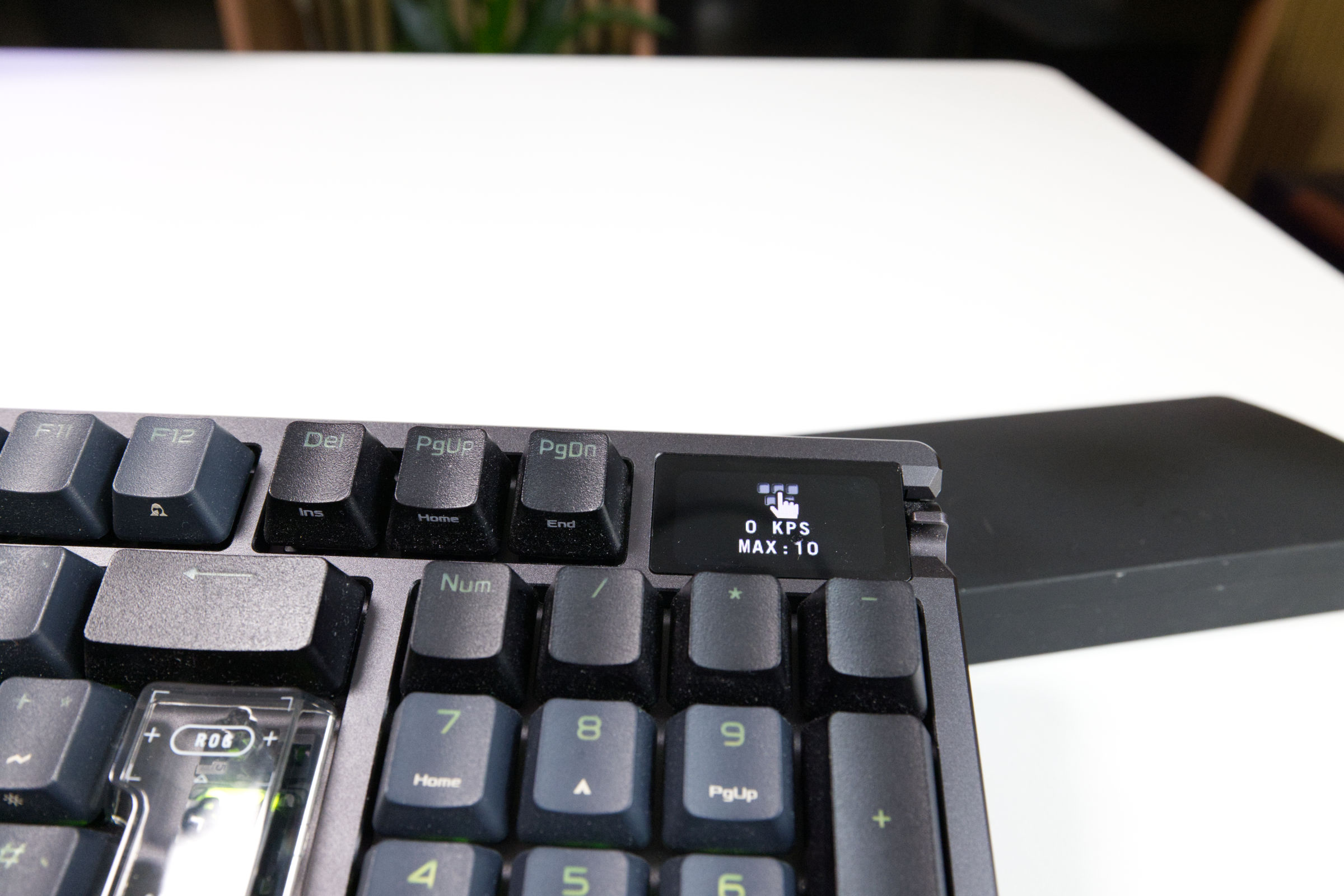 ASUS ROG Azoth 96 HE Dispaly Nahaufnahme (Image © PCMasters.de)
Now that we’ve adjusted to the initial quirks and the keys’ lighter travel, let’s move on to how it performs in competitive games. This is where the technical advantages of the Hall-effect sensors really come into play. ASUS has integrated the same core functions here that Wooting and Corsair offer; here are the technical features for you:
-
Rapid Trigger: Instead of having to lift the key back up past a fixed mechanical trigger point after pressing it, the Azoth 96 HE resets the key immediately as soon as it moves upward even slightly. This allows for fast, repeated inputs ("key-spamming") and smoother movement sequences.
-
Speed Tap (SOCD): This is ASUS’s take on SOCD (Simultaneous Opposite Cardinal Directions)—equivalent to Wooting’s "Rappy Snappy" or Corsair’s "FlashTap." If you press two opposite directional keys simultaneously (e.g., A and D) at the same time, the keyboard automatically prioritizes the most recently pressed key and immediately registers the previous input.
Important Note Regarding the Risk of Bans: Currently, extreme caution is advised when using automation features like Speed Tap (SOCD). Valve now considers the use of such mechanics in Counter-Strike 2 to be cheating, which can result in being kicked from ongoing matches or even account bans. We strongly recommend checking the current rules of the respective game before using these tools.
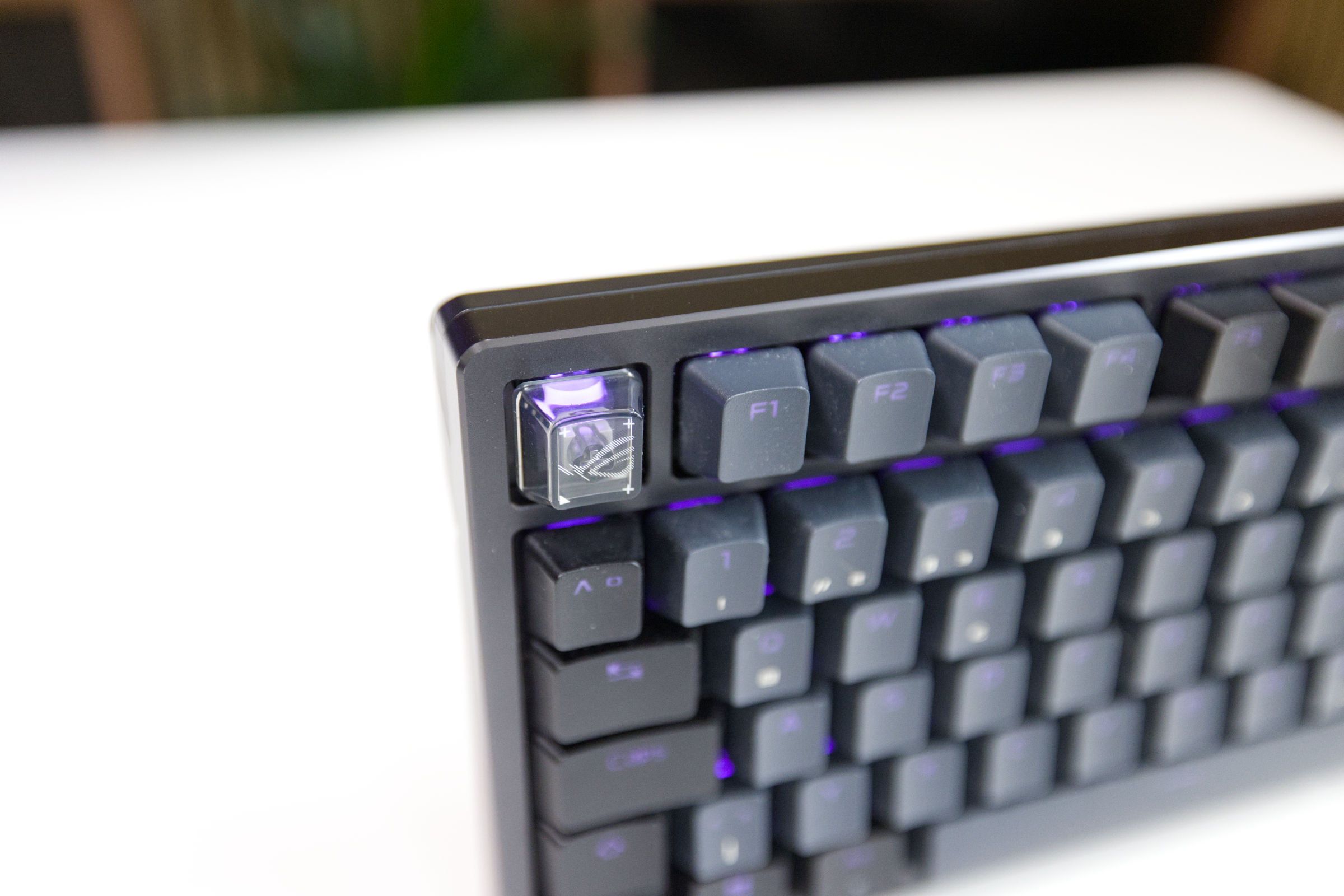 ASUS ROG Azoth 96 HE Keycaps (Image © PCMasters.de)
Otherwise, the ROG Azoth 96 HE certainly doesn’t do a bad job here; rather, it requires a genuine paradigm shift in input. Certainly, many players will love the ease of use and the shorter key travel, as they promote fast and effortless inputs. For us, however—who are accustomed to the classic 4.0 mm and an average of 50 cN—it remains a double-edged sword. In everyday gaming, the smooth switches allowed us to react noticeably faster in some situations, but at the same time, this very slight "resting" of the fingers repeatedly led to pressing the wrong keys during hectic moments. Ultimately, it’s a highly subjective matter of getting used to it, though we haven’t quite found our perfect rhythm with the Azoth yet.
Ergonomics
Gaming Focus vs. Everyday Office Use
We find that the 96-percent layout proves to be a sensible compromise that bridges the gap between gaming and productive work. For gaming, the slightly compressed shape—compared to full-size keyboards, has the advantage of bringing the mouse closer to the keyboard. This relieves pressure on the shoulders while gaming and creates more space on the mousepad for wide-ranging movements.
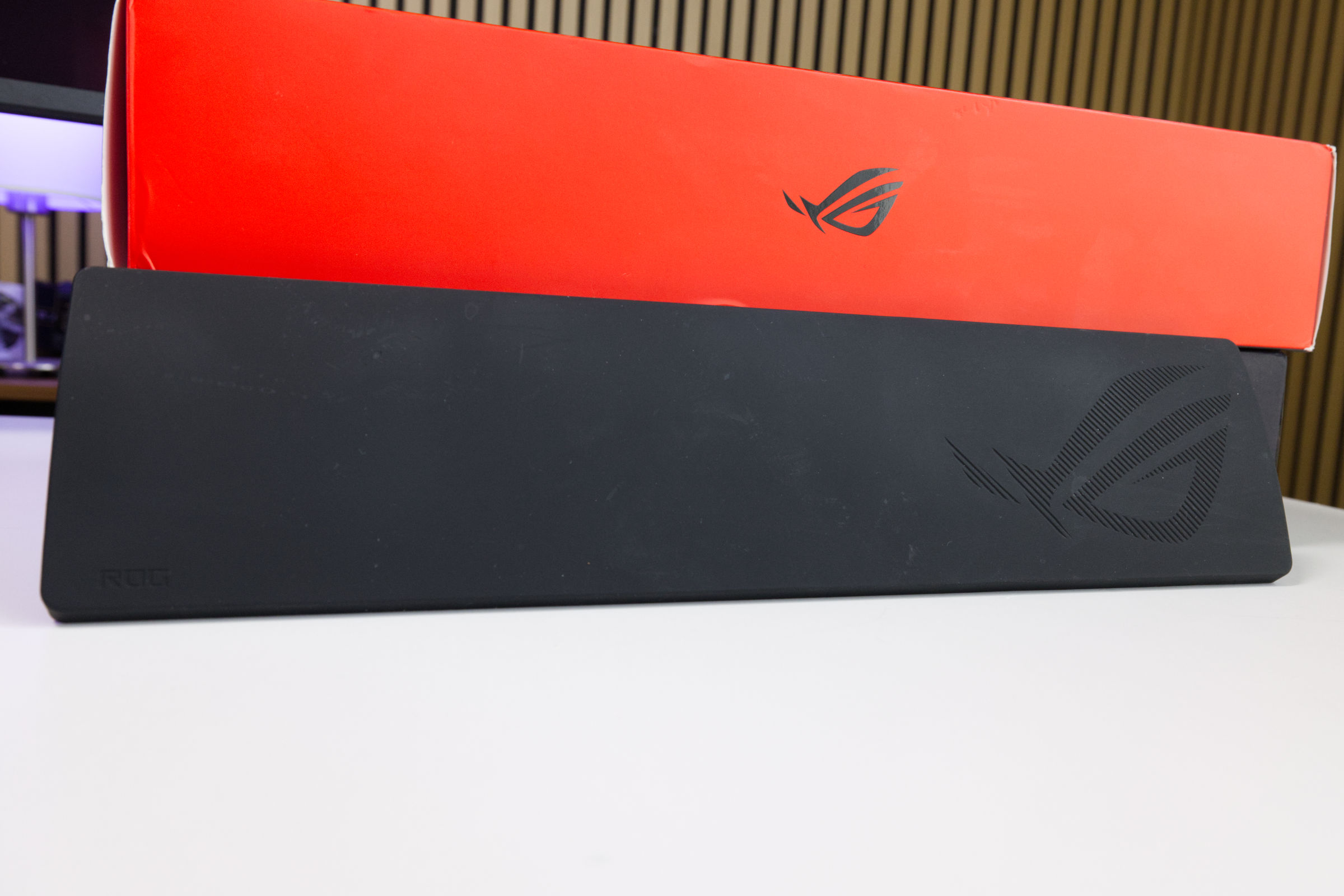 ASUS ROG Azoth 96 HE Handballenauflage (Image © PCMasters.de)
When we compare it to the Wooting 60 HE+, the compromise becomes clear: The Wooting, with its 60-percent format, has an advantage for pure gaming but forces the constant use of keyboard shortcuts during everyday office work. With the Azoth 96 HE (as well as the Corsair Vanguard 96), the numeric keypad and arrow keys remain physically present, which, in our opinion, hardly restricts workflow in Excel or when programming.
Seating and Posture
The front edge of the aluminum chassis is relatively high at around 24 millimeters. Without support, your wrists would have to bend sharply while typing. Unlike the Wooting, where a wrist rest must be purchased separately, ASUS fortunately includes a wide silicone wrist rest. It’s well-made, offers a comfortable angle, and—unlike many foam versions—doesn’t permanently compress during extended use.
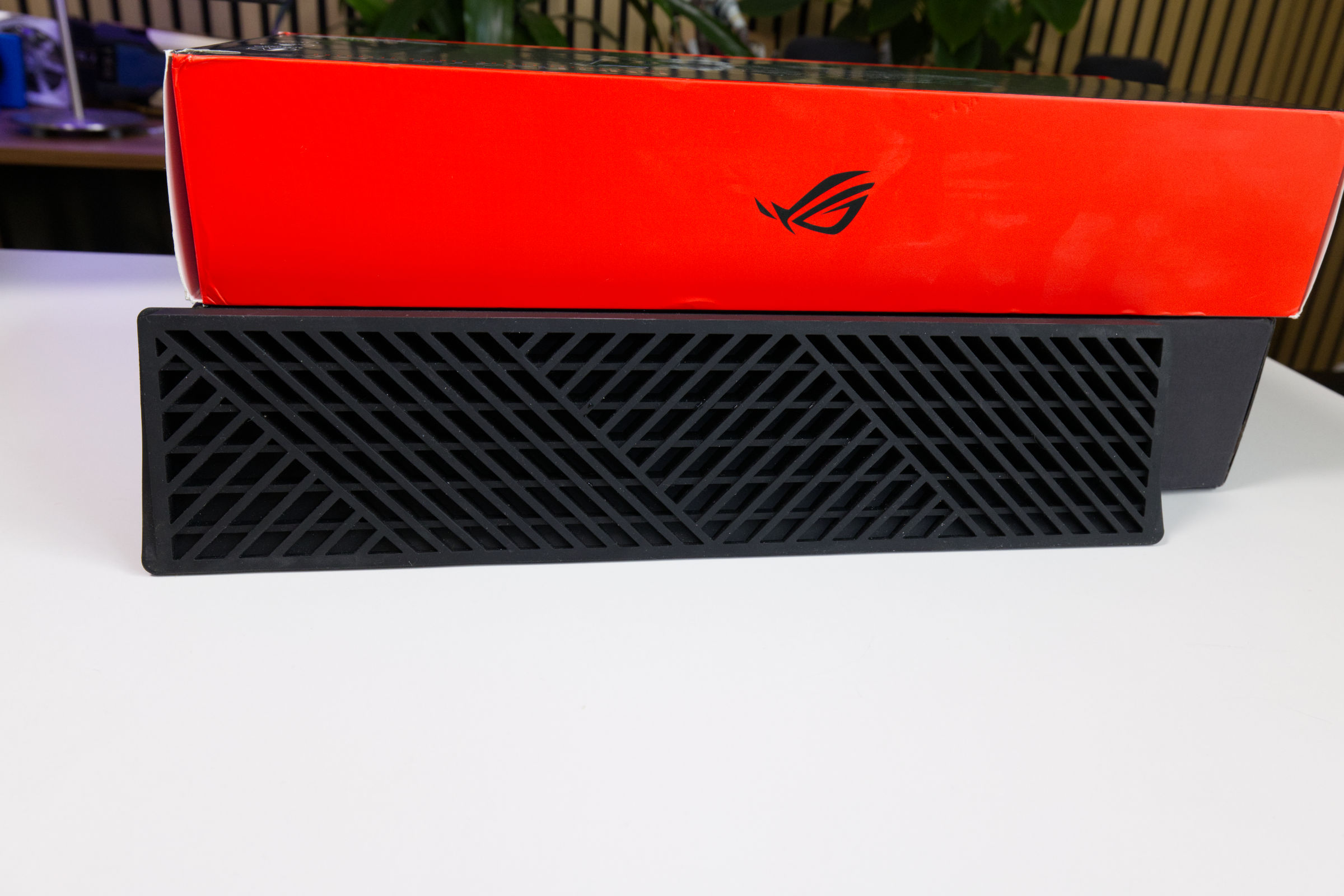 ASUS ROG Azoth 96 HE Handballenauflage Rückseite (Image © PCMasters.de)
Our main practical criticism of the wrist rest, however, is that it isn’t attached to the case—neither magnetically nor with clips. It simply sits loosely in front of the keyboard, which means it can occasionally slide around on smooth tabletops during faster mouse movements. In general, though, it serves its purpose well. But as is often the case with silicone, it’s a good idea to wipe the dust off the surface every now and then.
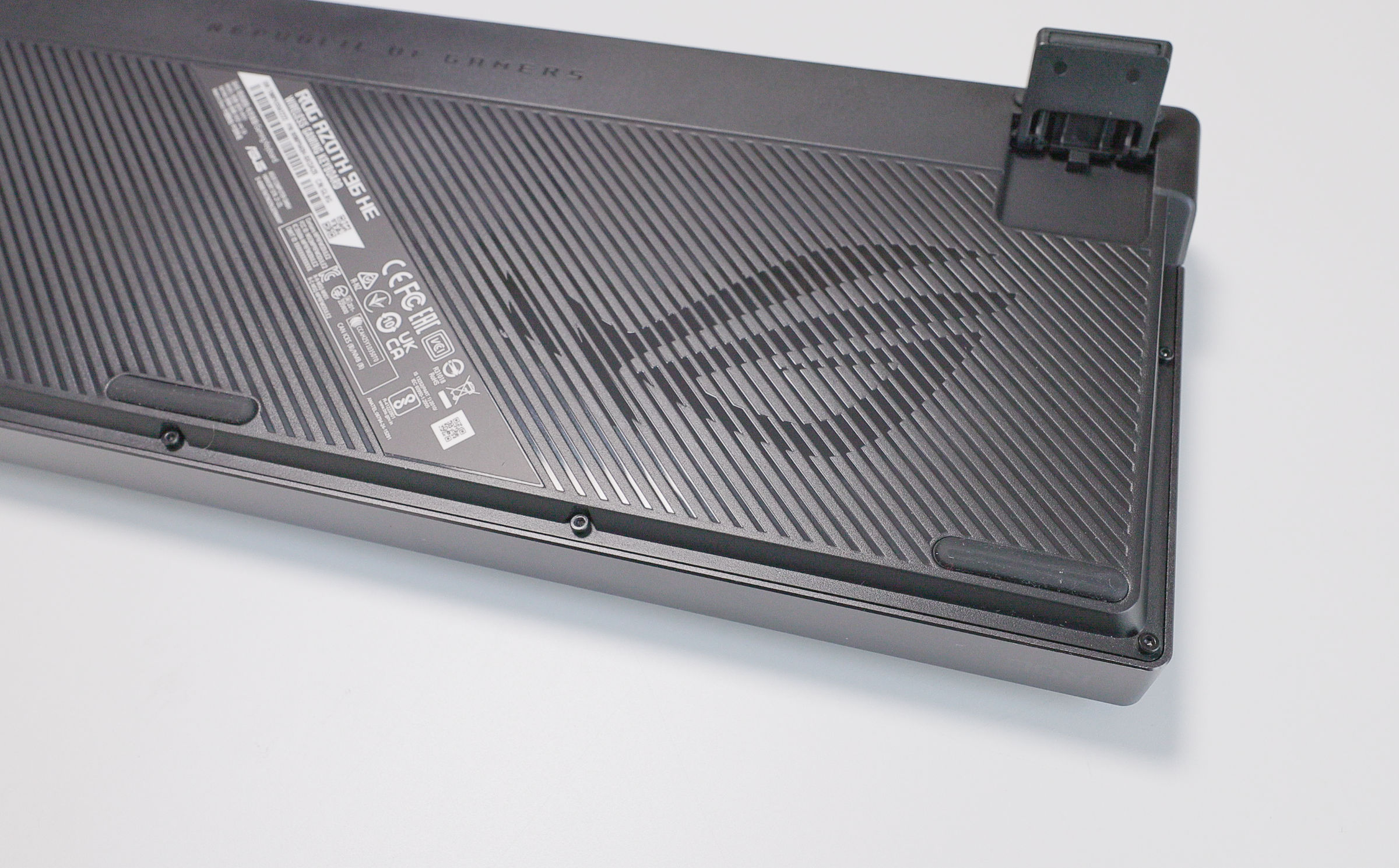 ASUS ROG Azoth 96 HE Beine (Image © PCMasters.de)
Unlike the Wooting’s fixed 6-degree angle, the keyboard’s tilt can be adjusted to two additional levels—in addition to the default position—using fold-out feet on the underside. We’ve found that we prefer the keyboard lying flat. However, for those who like it positioned higher, two additional height settings are available.
Switches
## Design
ASUS uses its proprietary ROG HFX V2 Magnetic Switches. These operate contactlessly via the Hall effect: when a key is pressed, a magnet approaches a sensor on the circuit board, which measures the exact depth of the keystroke. Since there are no metal contacts subject to wear, ASUS—like Wooting—promises a lifespan of 100 million keystrokes.
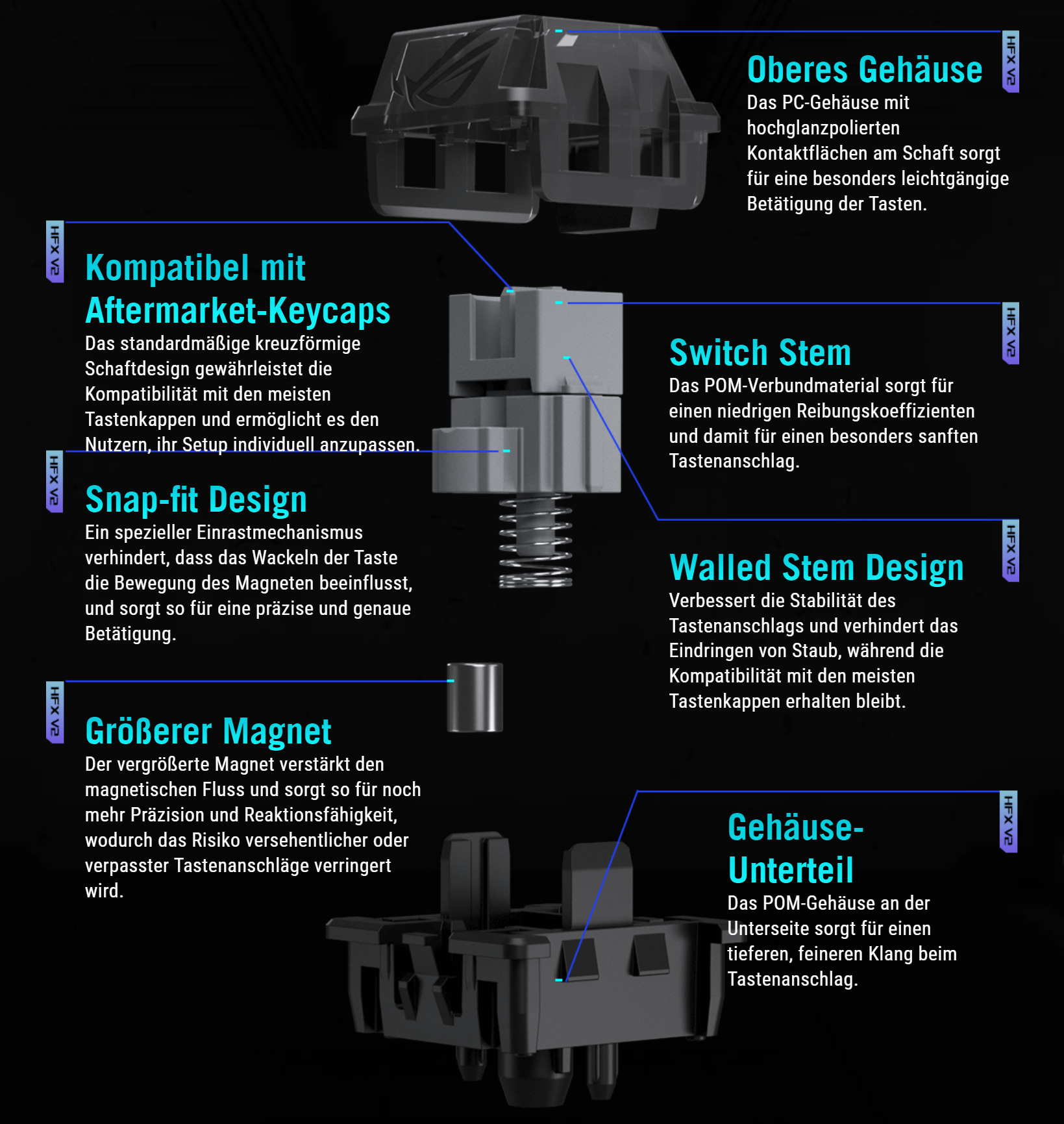 ASUS ROG Azoth 96 HE Switch Aufbau (Image © PCMasters.de)
The switch features a transparent polycarbonate housing on top for RGB lighting, as well as a movable stem and a base housing made of POM plastic. The stem is equipped with side walls, which are designed to reduce wobble in the keycaps and make it harder for dust to enter.
An interesting mechanical detail is the positioning of the magnet: On the HFX V2, it is not centered beneath the stem but is positioned to the side. According to the documentation, this is intended to allow the central stem to snap open, which is supposed to create a more defined "bottom-out" feel and a more solid sound than with centered magnetic switches. But you’ll see what this means most of all in the hot-swap section.
Characteristics
The switches exhibit a consistently linear characteristic. The actuation force starts at a light 31 cN and increases to 48 cN upon full depression. As mentioned earlier, the total travel of 3.5 millimeters is slightly shorter than the mechanical standard of 4.0 mm, as was still the case, for example, with the HFX V1, which were used in the ROG Falchion Ace HFX.
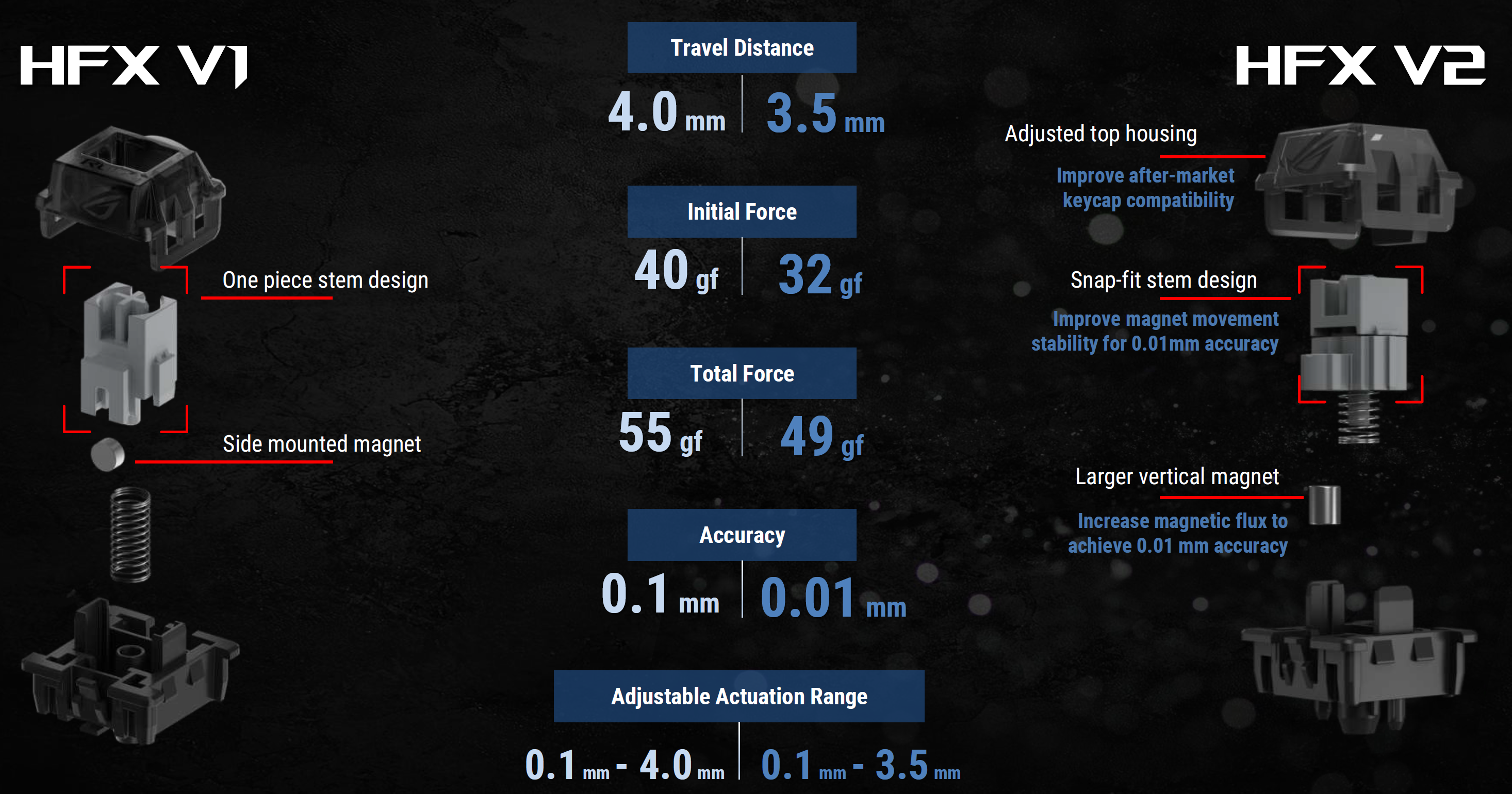 ASUS ROG Azoth 96 HE Vergleich Switches HFX V1 vs. HFX V2 (Image © PCMasters.de)
The primary advantage of the Azoth lies in its software-based customizability: The actuation point can be adjusted individually for each key between 0.1 mm and 3.5 mm. The sensors operate in fine increments of 0.01 millimeters. For example, you can set the WASD keys to 0.2 mm for quick reactions in games, while leaving other keys at 2.0 mm to prevent typing errors. We covered the rest in the "Typing Feel & Gaming Performance" section of the keyboard review.
Acoustics
Acoustically speaking—or rather, to the ear—the keyboard delivers a clean, muted sound profile compared to other keyboards, clearly setting it apart from the Wooting 60 HE+ and Corsair Vanguard. The Azoth 96 HE is primarily tuned for a deep, muffled sound ("thock"), which, in our subjective opinion, we clearly prefer over the sound profiles of the other keyboards.
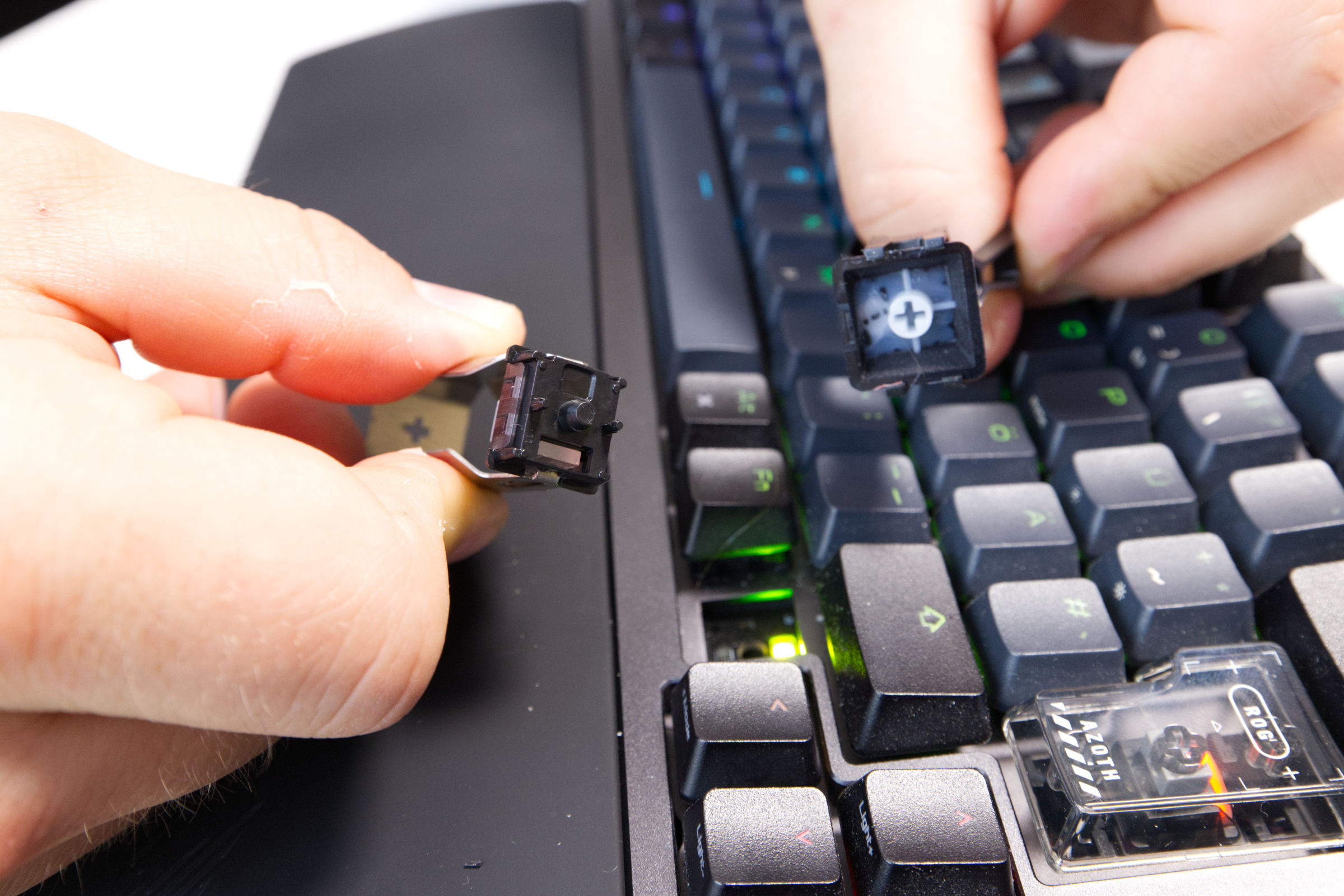 ASUS ROG Azoth 96 HE ASUS Switch (Image © PCMasters.de)
If you’d like a firmer typing feel and a more direct sound, you can unscrew the case and manually remove the lower PORON layers. You can find the architectural background on the acoustics under Design, Materials, and Workmanship: "Gasket-Mount Design".
Hot-Swap and Design Tolerances
The Azoth 96 HE’s PCB is hot-swappable. The magnetic switches can be easily pulled out and replaced using the included tool. However, this is precisely where a major drawback for DIY enthusiasts becomes apparent—one that strongly resembles vendor lock-in.
Since ASUS has moved the magnet in the HFX V2 switches to the side—a proprietary design—the keyboard is incompatible with many existing switches, as those place the magnet in the center. Incidentally, this also applies in the opposite direction: Anyone hoping to transplant the smooth-acting ROG switches into another Hall-effect keyboard will be disappointed. Aside from the differently positioned magnet, ASUS has molded a plastic cylinder into the center of the switch’s underside. The Azoth 96 HE’s PCB features large, custom-made cutouts for this. On standard PCBs from other manufacturers, however, this cylinder prevents the switch from being installed.
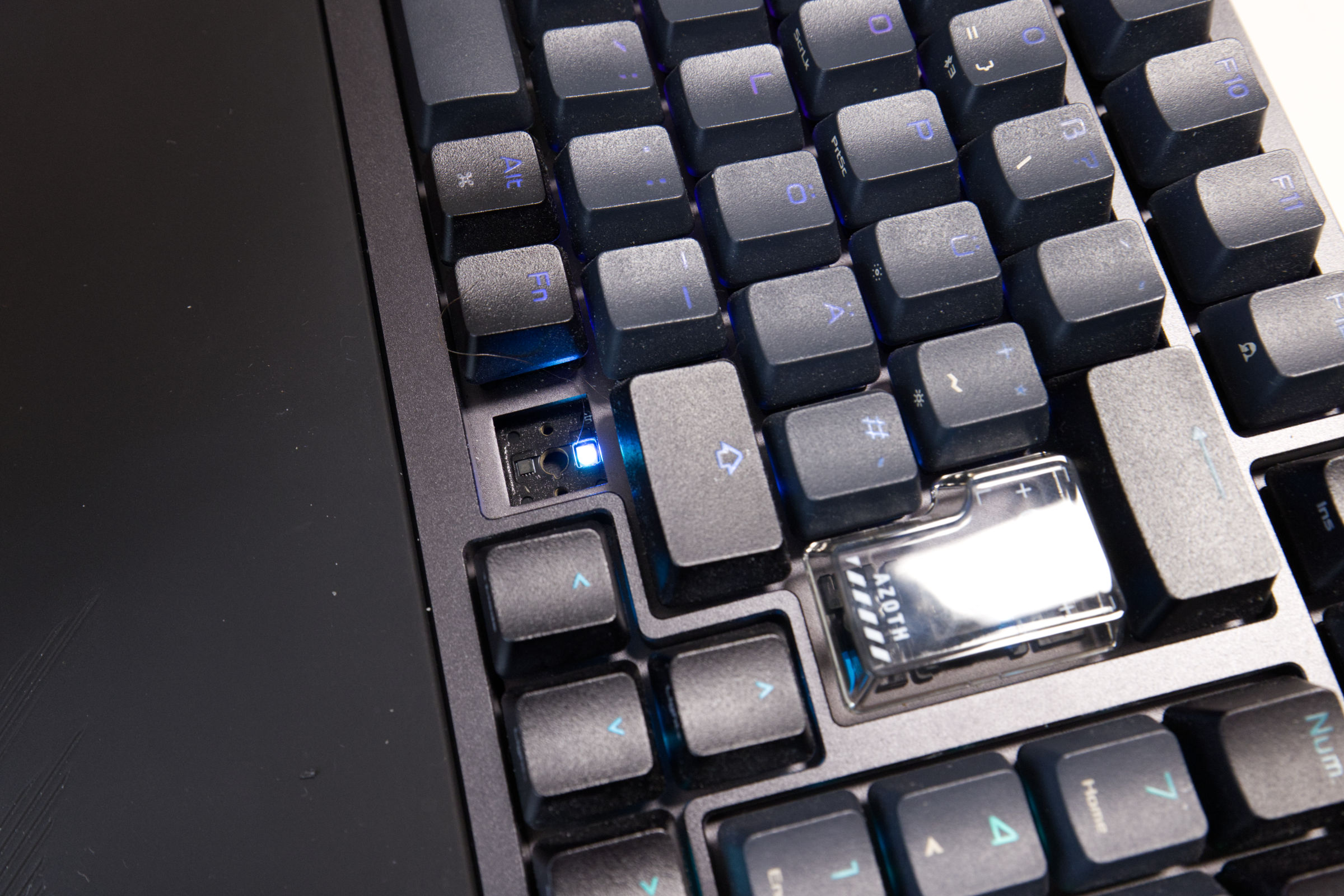 ASUS ROG Azoth 96 HE Switch Gehäuse (Image © PCMasters.de)
While ASUS justifies this design with improved sound quality and the lack of industry standards to date, the reality for you is this: Anyone who wants or needs to swap out switches on a keyboard costing nearly 400 euros is currently almost exclusively tied to ASUS’s proprietary ecosystem and pricing structure. At least the keycaps are compatible with the standard MX-Cross Switch stem.
This limitation is compounded by another critical issue observed in practice: Shortly after release, reports of so-called "key chattering" began to pile up in the community —that is, the erroneous, double registration of letters with a single keystroke. Initial observations here point to tolerance issues. On the one hand, the metal clips on the circuit board seem to have slightly too much play, leading to vibrations that the sensor interprets as keystrokes. On the other hand, the thick damping pads inside the case appear to exert pressure on parts of the circuit board, which disrupts the precise 0.01-mm sensor calibration.
[image -30830]
To minimize these double-clicks, you can currently use a manual workaround on the Azoth 96 HE by increasing the dead zones and trigger points, or perform regular recalibrations. However, a look at the competition shows that this physical issue with magnetic switches can be solved more elegantly: Wooting, for example, offers a switchable bounce filter for this purpose. ASUS’s Gear Link currently lacks such a dedicated filter function.
Software
Until now, it was an unwritten rule for ASUS peripherals: Anyone who wanted to customize macros, lighting, or specific key functions had to install the resource-hungry software behemoth "Armoury Crate" on their system.
With the ROG Azoth 96 HE, however, ASUS is bringing about a paradigm shift. The focus has now shifted to "Gear Link"—a streamlined, purely web-based solution that is clearly intended to replace the familiar desktop software on the new models.
Availability and How to Get the Software
You’ll notice that ASUS is breaking new ground with the Azoth 96 HE no later than when you try to obtain the configuration software—a process that turned out to be an unintentional adventure during our test.
If you search for the Armoury Crate download out of old habit, you’ll quickly run into the familiar hurdles of ASUS websites: Regional redirects to the German landing page often don’t work properly and result in endless loading loops or blank pages. Those who then turn to search engines out of frustration quickly end up on unofficial third-party sites like armoury-crate.com. While these SEO traps offer supposed installers, they protect themselves legally with lengthy disclaimers and assume no liability for any damages. Since such programs require extensive system privileges, these "fan sites" are strongly discouraged.
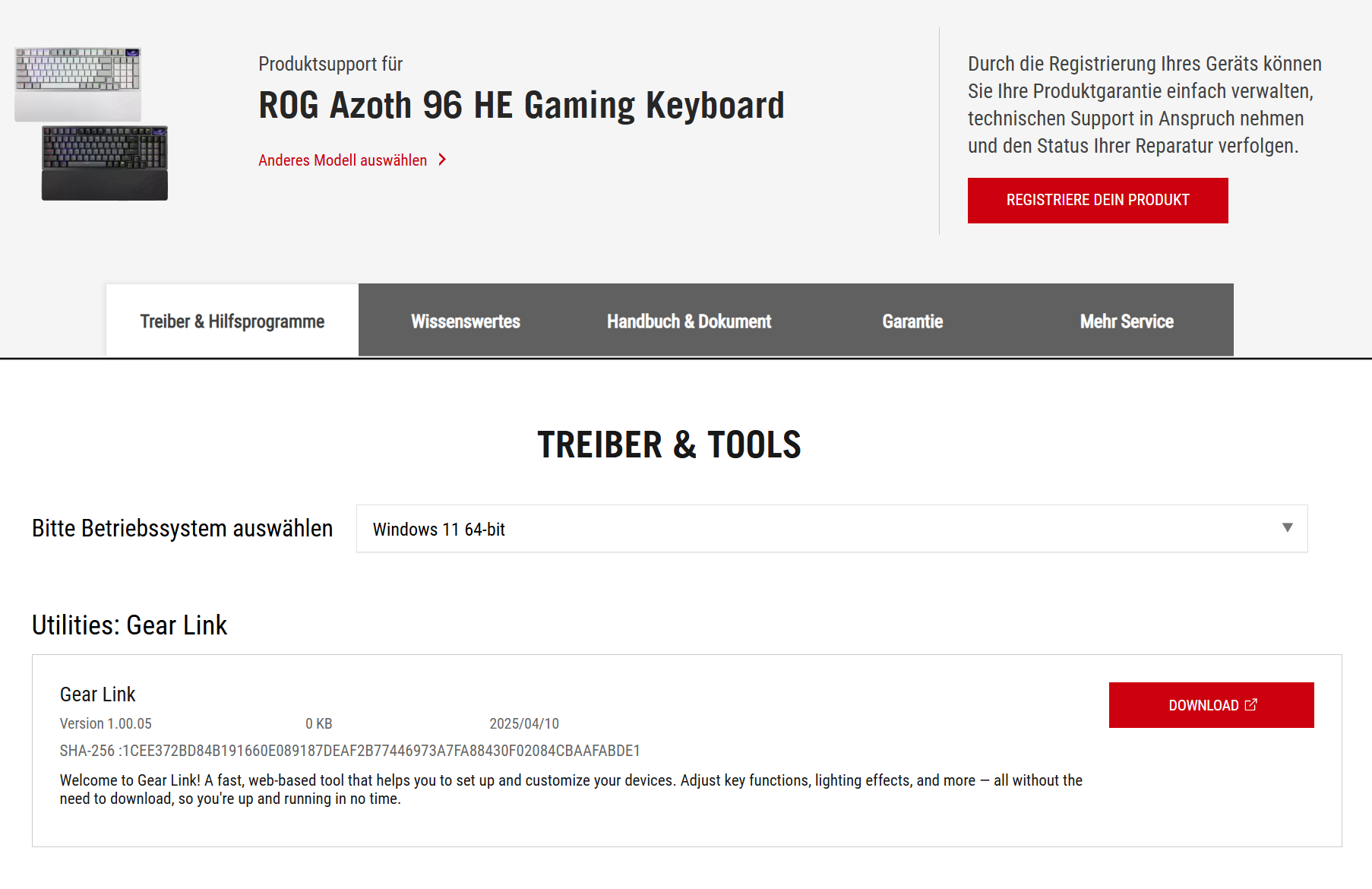 ASUS ROG Azoth 96 HE Gear Link - Download (Image © PCMasters.de)
The only reliable route ultimately led us to the official ASUS Download Center. But anyone searching for the ROG Azoth 96 HE there is in for a real surprise: an installer for Armoury Crate is simply no longer available for download for this model. If you click "Download" on the official support page, you’re instead redirected directly to the URL
As with other web tools of this kind, a Chromium-based browser (such as Chrome, Edge, or Opera) is required due to the WebHID interface—Firefox users are unfortunately left out here.
This effectively rules Armoury Crate out of the running for the Azoth 96 HE. Anyone who wants to configure the keyboard’s Hall-effect functions must use the new browser-based route to GearLink.
GearLink in a Hands-On Test: The "Companion"
Once you’ve connected the keyboard via any interface—whether by cable or 2.4-GHz dongle (excluding Bluetooth)—and opened the web app, Gear Link immediately recognizes the Azoth 96 HE. Compared to the cluttered Armoury Crate, the web interface feels refreshingly uncluttered. But if you click deeper into the menus, you’ll inevitably the "Companion" tab—and this is where the technical limitations of a purely web-based application become apparent.
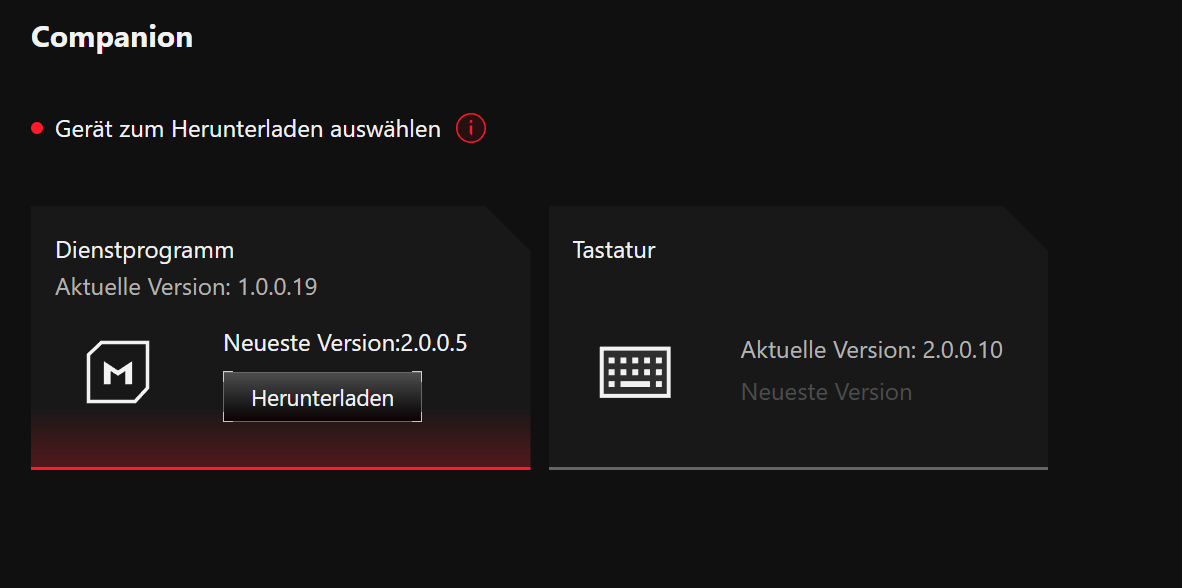 ASUS ROG Azoth 96 HE Gear Link - Companion (Image © PCMasters.de)
Since a web browser operates within a strict sandbox, Gear Link does not have access to Windows system resources on its own. However, anyone who wants to use the keyboard’s advanced features—such as displaying the CPU temperature, system notifications, or an audio visualizer on the OLED display—must download the corresponding Companion extensions.
These are small programs that run in the background of Windows and pass local system data or commands to the keyboard. To access the full range of features of the Azoth 96 HE, you should therefore download and activate these services right from the start.
Even for what are essentially everyday keyboard features—such as the in-depth recording and execution of macros—a completely separate companion service is required. While there is the convenient option of on-the-fly recording via hardware shortcuts (press Fn + L-Alt to start and stop recording), anyone who wants to precisely control and edit the sequence in the software afterward has no choice but to download the service.
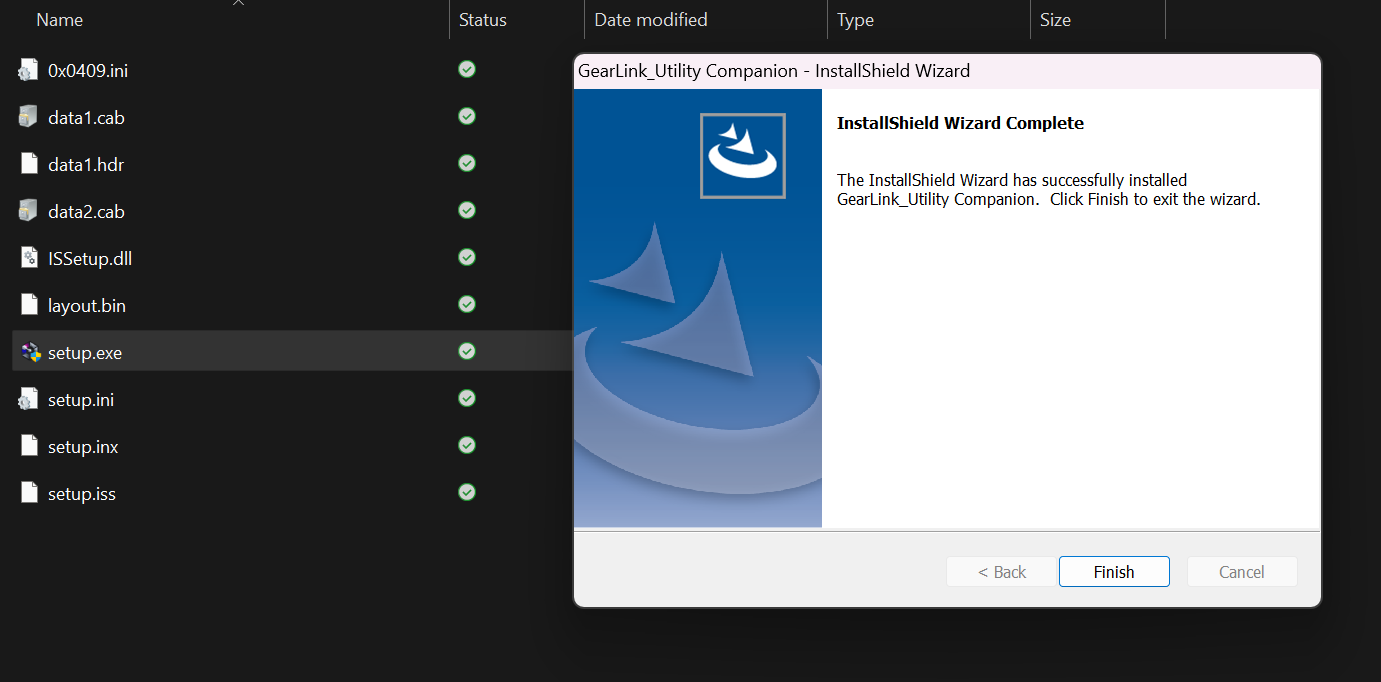 ASUS ROG Azoth 96 HE Gear Link - Companion Wizard (Image © PCMasters.de)
What sounds like a smart compromise on paper, however, turns out to be unnecessarily old-fashioned in practice. When you click on the download, you get the classic ZIP file, which you first have to unzip and then manually run the .exe file—and you have to do this separately for each companion you need. Unfortunately, the same cumbersome procedure also applies to the keyboard’s firmware updates. In our opinion, competitors like Wooting and Corsair handle this much more elegantly: Their convenient setup wizards guide users seamlessly through the update process directly within the software, without having to go through Windows Explorer or manually download files.
To make matters worse, the Companion services (which are, of course, operating system-dependent) delve quite deeply into the system, so you’ll need to restart your operating system.
Gear Link in Detail: The User Interface
Once the Companion is running, we can explore the web interface to our heart’s content. Below, we’ll work our way chronologically through the menu tabs on the left side.
Home Screen and Navigation
The interface is quite straightforward at first glance. In the header at the top left, we find the device list button, which lets us switch between our connected ROG devices. On the right side of the header are quick access options for macros, the Companion app, firmware updates, notifications (such as new versions), and general Gear Link settings (language, Light/Dark Mode, backgrounds, FAQs, and diagnostics).
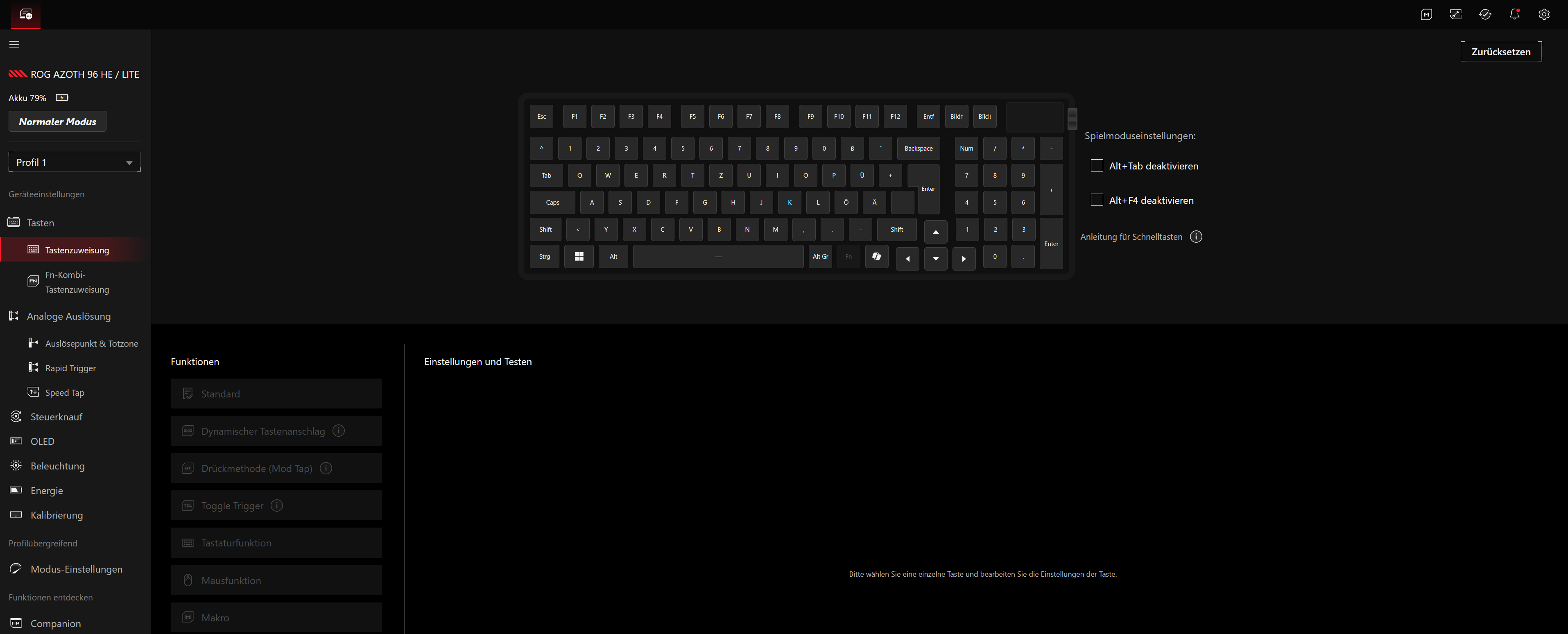 ASUS ROG Azoth 96 HE Gear Link - Startseite (Image © PCMasters.de)
A minor UX drawback in everyday use: If you click on one of these items on the right side of the header, there’s unfortunately no simple "Back" button. Instead, you have to take the detour through the device list to return to the configuration menu for the current keyboard.
Profiles
Gear Link gives you access to a total of six different profiles, which are stored directly on the Azoth 96 HE’s internal memory. All six memory slots are fully customizable. So for each individual profile, you can not only adjust the lighting and the sensitive trigger points on each individual profile, but also completely override the basic key assignments to suit your preferences.
Keys
In this tab, you can assign any functions you like to the individual keys. Of course, the standard layout is set by default here, but if you want, you can go all out—with the exception of the designated Fn key, which is locked across all profiles.
For the Fn combinations, the Azoth comes with a useful pre-configured list right out of the box. This includes macro recording, profile, lighting, and OS switching, turning features on and off, and switching on the fly between connected Bluetooth devices. Keys that already have a secondary function engraved by default cannot be overridden at the Fn level. Nevertheless, more than enough keys remain free for custom configurations, primarily the F1 through F11 row, the numpad, and many letters without a visual secondary assignment.
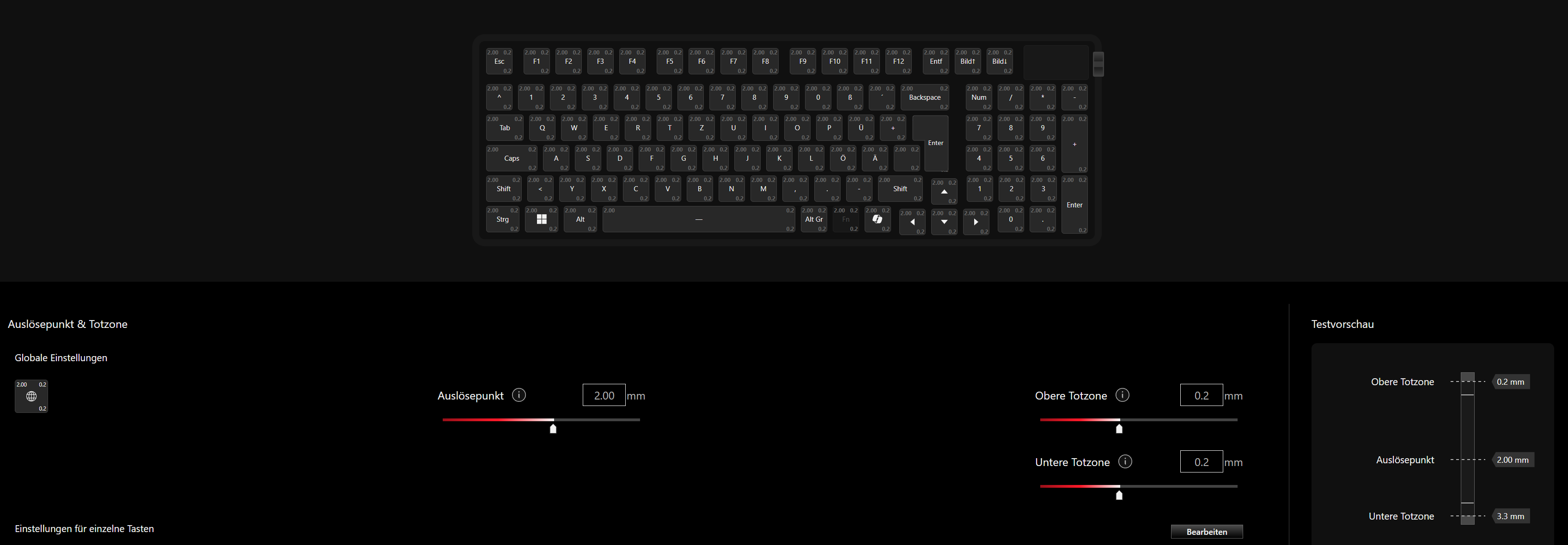 ASUS ROG Azoth 96 HE Gear Link - Tasten (Image © PCMasters.de)
In addition, features such as the following can be used:
- Dynamic key mapping - Up to four values can be stored here
- Mod Tap
- Toggle Trigger
- Keyboard keys
- Mouse buttons
- Macros
Analog Triggering
This is the heart of the Hall-effect switches. Here, you can adjust the actuation point and dead zones for individual keys or the entire keyboard with millimeter precision. As we’ve already discussed in detail in the chapter * Tactile Feedback & Gaming Performance*, this tab also lets you configure aggressive gaming features such as Rapid Trigger and Speed Tap (SOCD).
Control Knob
We find the three-way control knob on the side particularly comfortable and intuitive to use in everyday situations. Gear Link offers convenient and direct functions for this:
- Adjust volume
- Media controls (next/previous track, pause)
- Increase or decrease the trigger point globally
- Adjust Rapid Trigger globally
- Set keyboard brightness
- Adjust OLED brightness
- Cycle through lighting effects
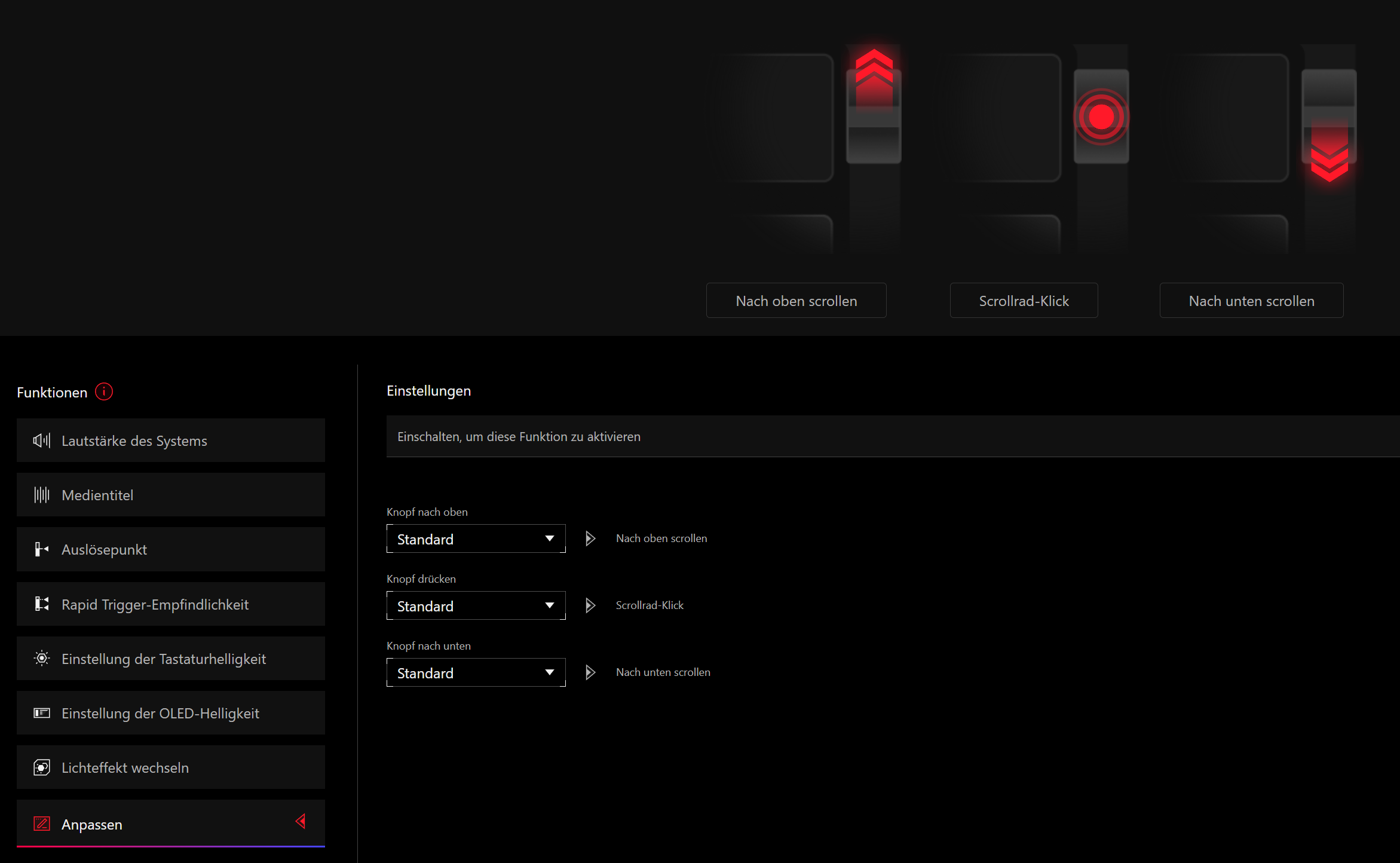 ASUS ROG Azoth 96 HE Gear Link - Steuerknauf (Image © PCMasters.de)
One minor drawback: There’s only one single slot in the software that we can assign to a completely custom function. With the Corsair Vanguard, you could create as many custom slots as you wanted here. However, since we can create enough alternatives using the Fn layer, this hardly bothers us in practice.
OLED Display
In a direct comparison to the Corsair Vanguard, which displays only simple status icons (volume, Num Lock, Caps Lock), the Azoth 96 HE’s OLED panel is in a league of its own. In addition to the same basic status bars, you can display your own images and GIF animations here. Thanks to the companion app, you can also visualize the date and time or in-depth hardware information (CPU, GPU, and RAM usage, frequencies, voltages, and temperatures) can be visualized in real time. As a fun feature for gamers and fast typists, a "Keystrokes per Second" (KPS) counter can also be displayed.
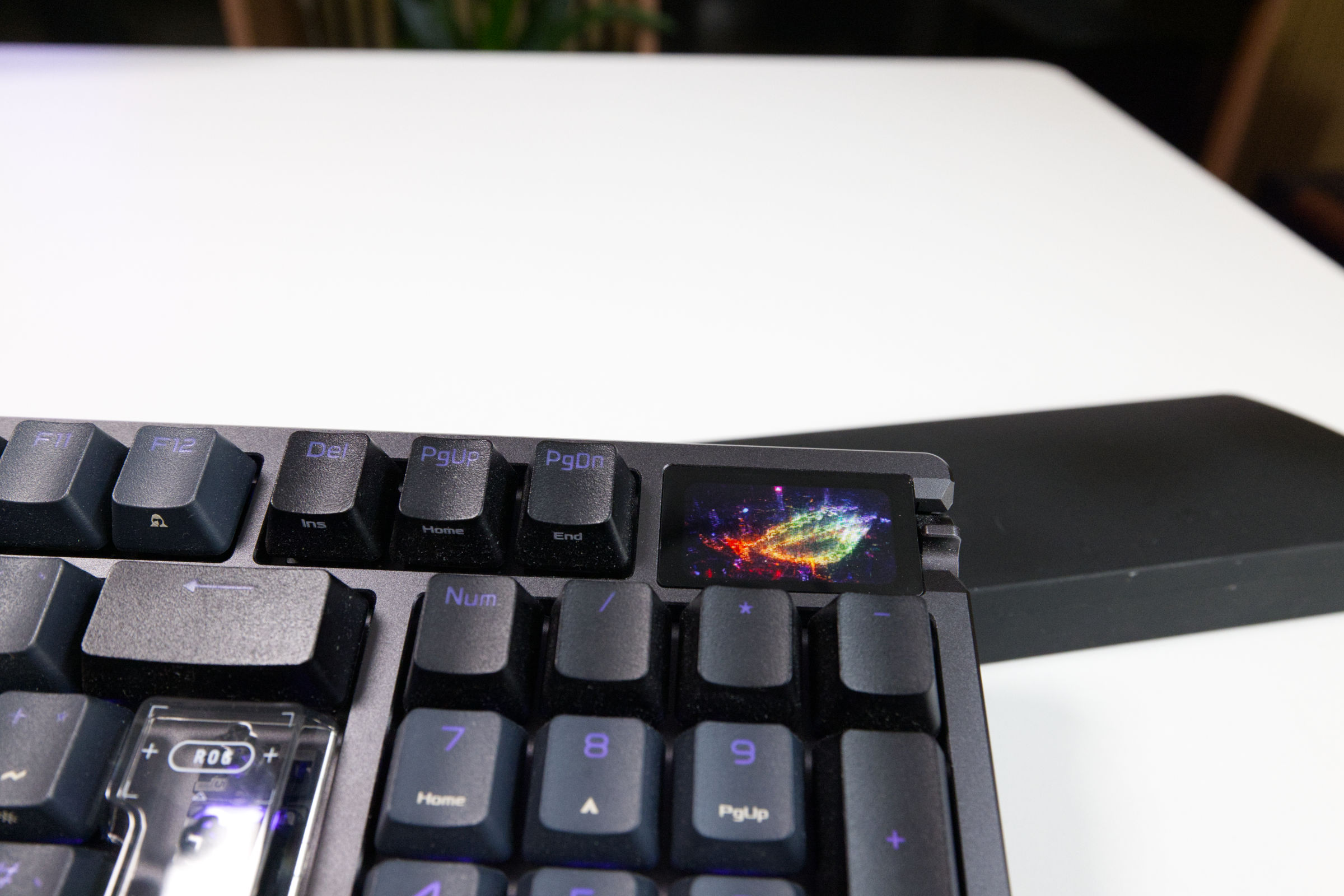 ASUS ROG Azoth 96 HE Dispaly Nahaufnahme 2 (Image © PCMasters.de)
## Lighting
Here you’ll find the typical RGB effects and color schemes. However, it’s noticeable that the settings are somewhat more rudimentary than those of the competition. While Corsair uses complex, stacked lighting layers and Wooting can display separate colors for different Fn layers, ASUS is noticeably more restrained here, sticking to simpler color display functions.
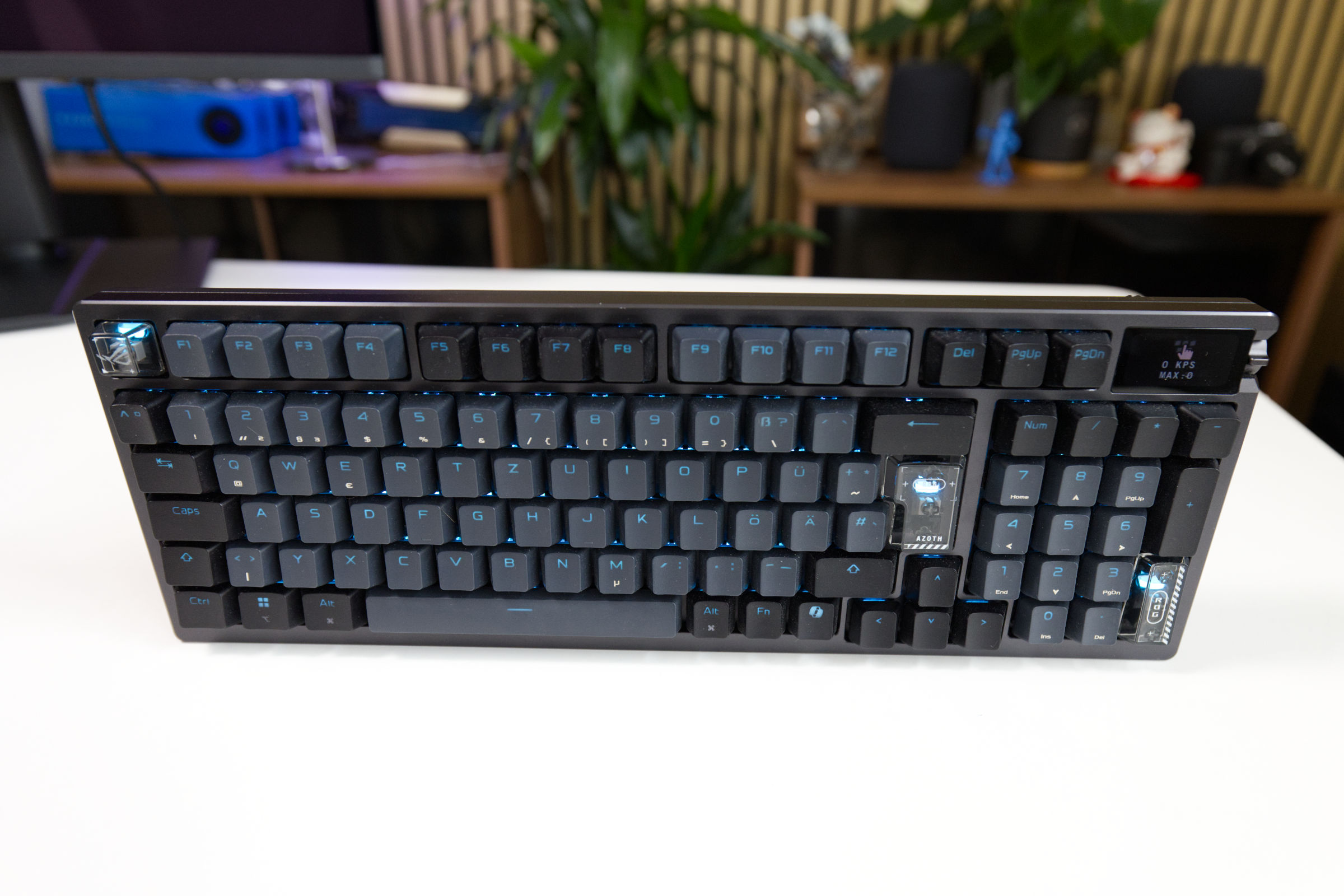 ASUS ROG Azoth 96 HE RGB (Image © PCMasters.de)
Power
Power management holds no surprises but provides everything you need: Here you can view the current battery status and set the battery level at which the LED should start flashing as a warning. You can also configure the behavior for power-saving mode (for example, turning off the lighting after 3 minutes of inactivity).
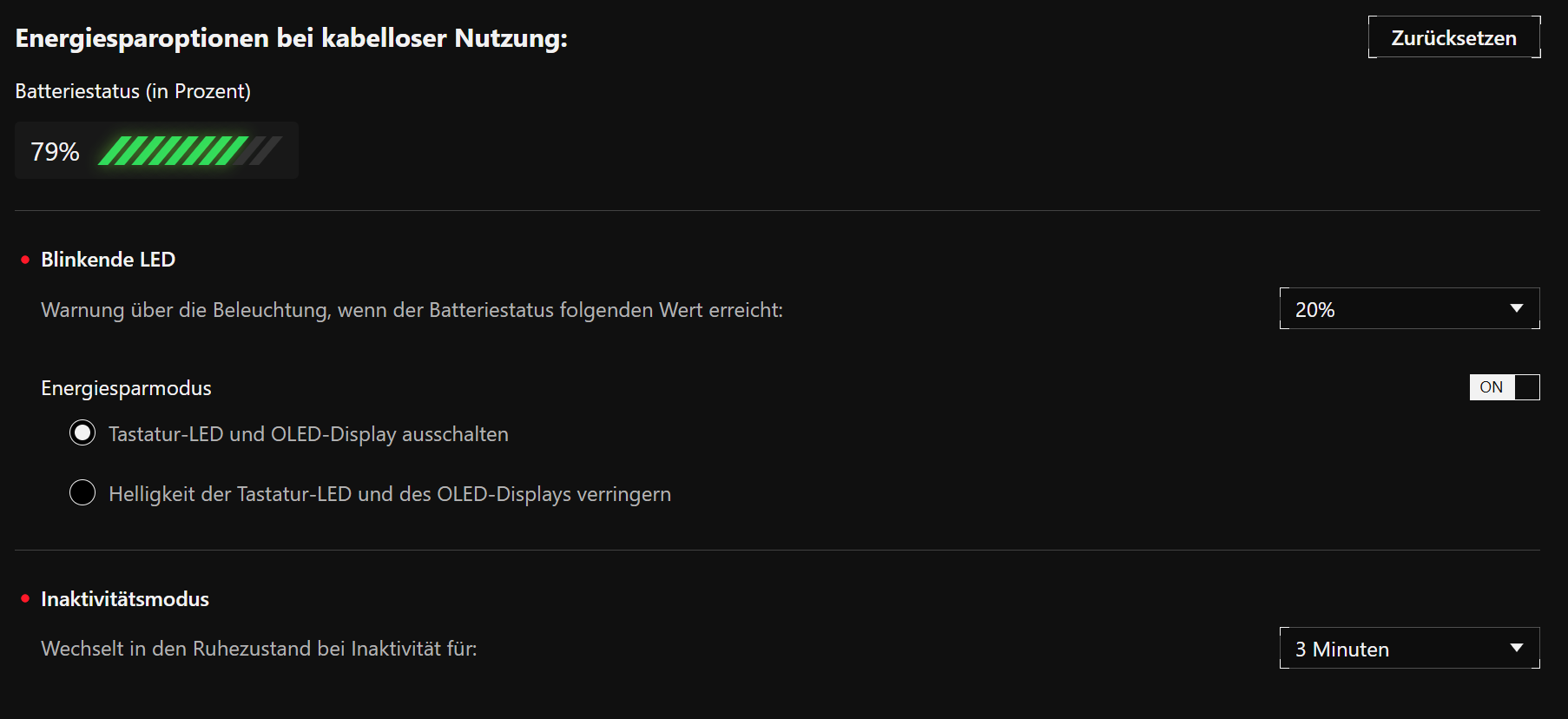 ASUS ROG Azoth 96 HE Gear Link - Energieoptionen (Image © PCMasters.de)
Calibration
If switches need to be replaced or the sensor drifts due to temperature fluctuations or key chattering, the switches can be recalibrated here. As already mentioned in the hot-swap section, however, the selection of compatible switches is limited. Currently, the keyboard physically supports only the in-house magnetic ROG HFX V2 switches and the magnetic TTC Golden switches.
Mode Settings
One interesting feature is the intelligent management of the polling rate, which has a significant impact on battery life. Gear Link offers three presets here:
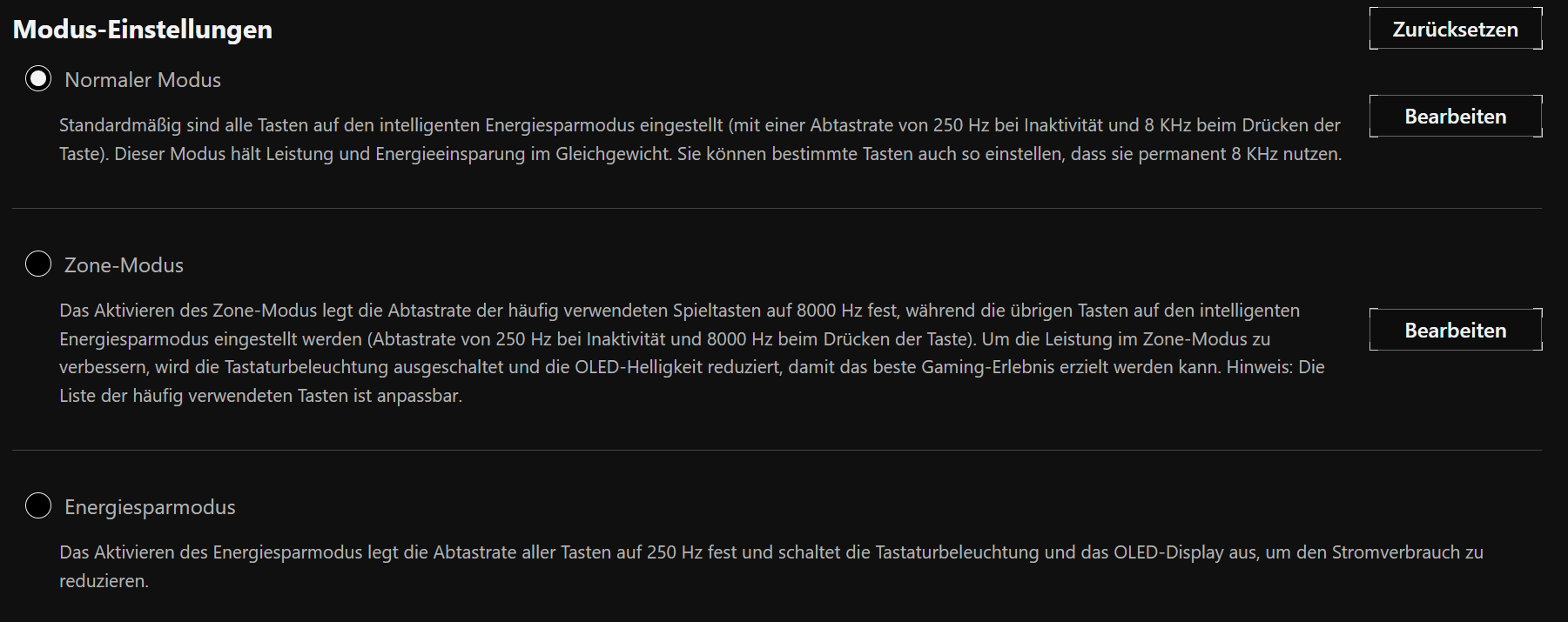 ASUS ROG Azoth 96 HE Gear Link - Modus-Einstellungen (Image © PCMasters.de)
- Normal Mode: By default, all keys are set to an intelligent power-saving mode. When inactive, the keyboard runs at 250 Hz; when a key is pressed, it jumps to 8000 Hz. This strikes a good balance between performance and power consumption. You can also force selected keys to transmit permanently at 8000 Hz.
- Zone Mode: This mode permanently sets the polling rate of the most frequently used gaming keys (WASD by default, but customizable) permanently at 8,000 Hz. The rest of the keyboard remains in smart mode (250 Hz to 8,000 Hz). To maintain battery life despite the permanently high polling rate, the RGB lighting is disabled and the OLED brightness is reduced.
- *Power-Saving Mode: * Sets the polling rate for all keys to a fixed 250 Hz and completely turns off the display and lighting.
ASUS’s approach here differs significantly from the competition: While the Corsair Vanguard allows you to switch the polling rate between various fixed settings ranging from 250 Hz to 8000 Hz, ASUS dynamically switches between the two extremes. For context: The Wooting runs at a constant 1000 Hz by default in its "Tachyon Mode" .
Conclusion on Gear Link
The shift from the often—and justifiably—criticized software behemoth Armoury Crate to a lightweight web application is fundamentally an absolutely correct and long-overdue move by ASUS. Once you’ve opened Gear Link in a compatible browser, the tool impresses with a clean, smooth user interface. All essential core functions of the Hall-effect switches—from analog triggering and Rapid Trigger to the clever polling rate modes—can be configured here clearly and precisely, without burdening the system with bloatware. The integration of the OLED display is also currently unmatched on the market.
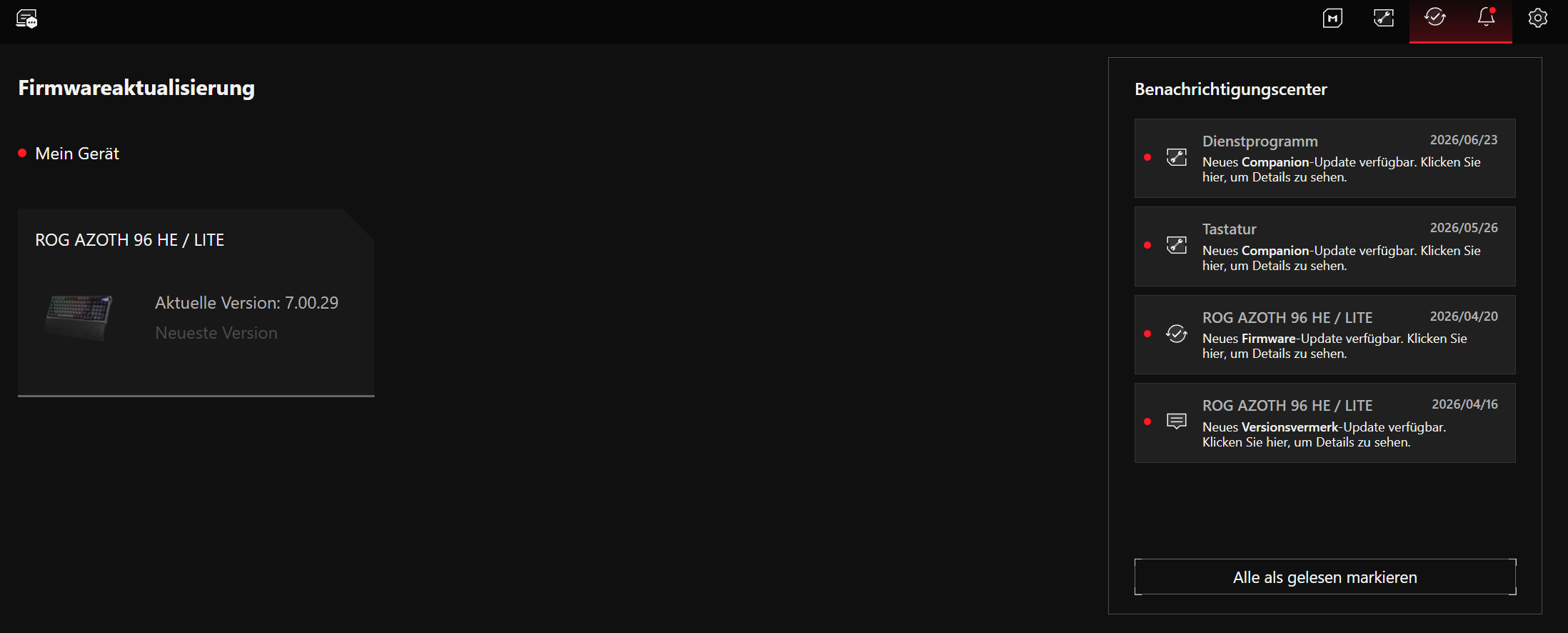 ASUS ROG Azoth 96 HE Gear Link - Firmware (Image © PCMasters.de)
However, the software experience and the technical implementation of the companion services currently cast a massive shadow over the premium appeal of this keyboard, which costs nearly 400 euros. The haphazard setup process—complete with broken links, endless redirect loops, and potential SEO pitfalls—is simply unworthy of a manufacturer like ASUS. The fact that you also have to manually download ZIP files, install executable files, and restart the entire operating system just to enable basic features like macros feels like a relic from the past decade. Competitors like Wooting and Corsair impressively demonstrate, with seamless in-app wizards and significantly better onboarding processes, what a modern setup should look like today.
In summary: Gear Link is a strong, promising foundation and a real blessing for anyone who hates having to dig deep into the operating system. However, until the entire user experience—from download to update—is truly polished and befitting a high-end product, ASUS still has some work to do on the onboarding process.
Specifications & Technical Data
| Feature | ASUS ROG Azoth 96 HE |
|---|---|
| 1. General Specifications | |
| MSRP | €399.00 |
| Form Factor | 96% (1800-Compact) |
| Layout | 96 (US-ANSI) / 97 (ISO, e.g., German) |
| Color Options | Black, White (coming soon) |
| Weight | approx. 1,400 g |
| Material | Aluminum top shell (CNC-milled), plastic base tray |
| 2. Keys & Switches | |
| Switch Technology | Magnetic (Hall effect), analog |
| Model | ROG HFX V2 Magnetic Switches (pre-lubricated) |
| Actuation Force | 31 cN (start) – 48 cN (end) |
| Actuation travel | 0.1 mm – 3.5 mm (adjustable in 0.01-mm increments) |
| Total travel | 3.5 mm |
| Lifespan | 100 million keystrokes |
| Hot-swap capability | Yes (Proprietary, limited to ROG HFX V2 / TTC Golden) |
| Keycaps | Double-Shot PBT |
| Backlighting | RGB per key |
| 3. Features & Performance | |
| Polling Rate | Up to 8,000 Hz (wired & 2.4 GHz SpeedNova) / 250 Hz (Bluetooth) |
| Matrix | Full N-Key Rollover (NKRO) with 100% Anti-Ghosting |
| Onboard Memory | 6 profiles (all freely configurable) |
| Display | 1.47-inch OLED panel |
| Controls | Three-way control knob |
| Advanced Features | Rapid Trigger, Speed Tap (SOCD), dynamic polling rate zones |
| 4. Connectivity & Accessories | |
| Connectivity | Tri-Mode: USB-C cable, 2.4 GHz (ROG SpeedNova), Bluetooth (3 channels) |
| Battery Life (max.) | Up to 123 hours (2.4 GHz) / Up to 148+ hours (Bluetooth) – without RGB in each case |
| Cable | 1.8 m, braided, detachable (USB-C to USB-C, includes USB-A adapter) |
| Sound Damping | Yes, gasket-mount design (six layers including silicone, PORON, and IXPE) |
| Package Contents | Keyboard, silicone palm rest, cable, adapter, metal puller, extra keycaps, dongle extender |
| 5. Software | |
| Name | ASUS Gear Link (web-based app, requires Chromium browser) |
| Additional Services | Optional desktop companions for macros, hardware specs, etc. (.exe) |
| 6. Warranty | |
| Manufacturer's warranty | 2 years |
 ASUS ROG Azoth 96 HE Fazit (Image © PCMasters.de)
ASUS ROG Azoth 96 HE mit Verpackung (Image © PCMasters.de)
Conclusion
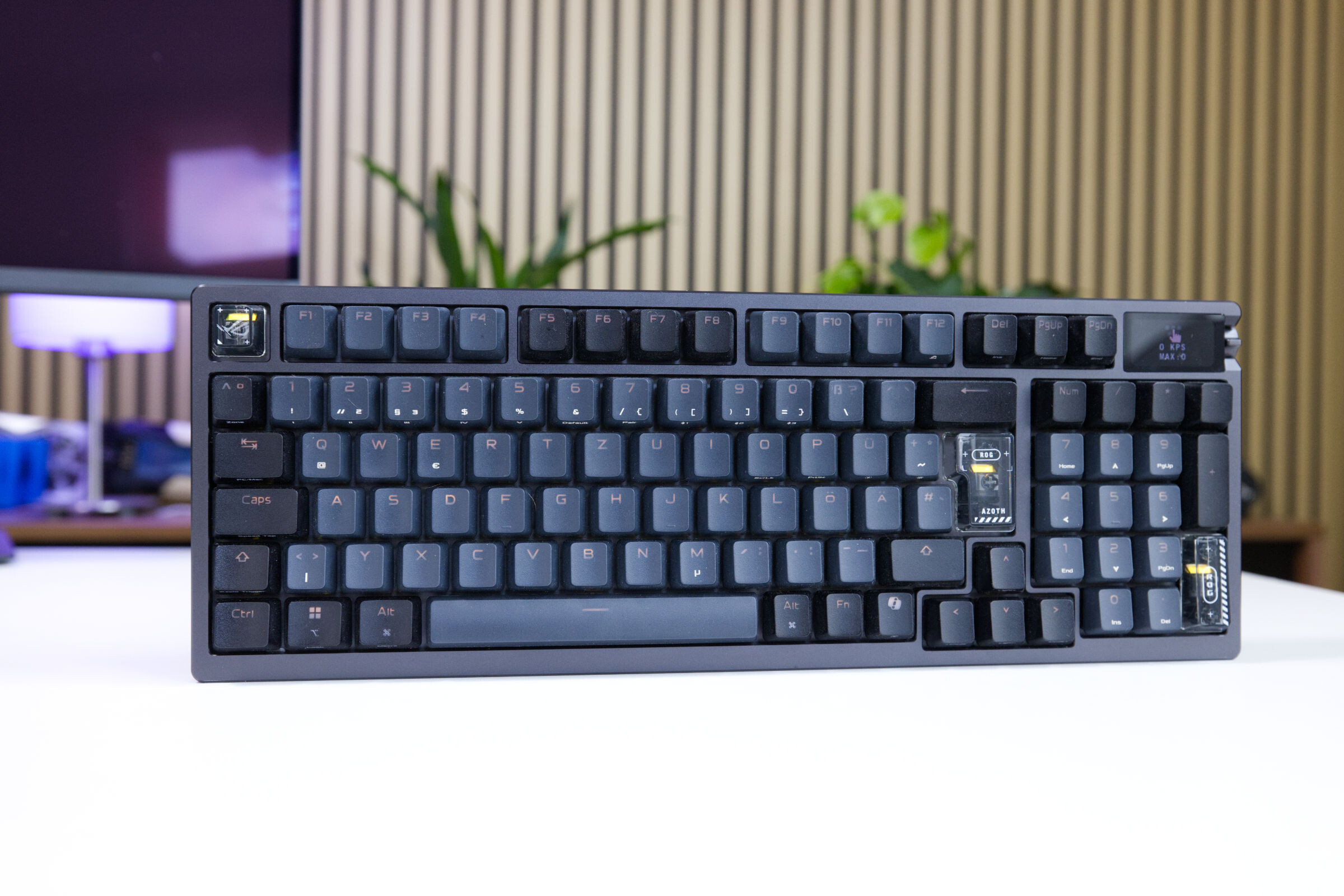
The ASUS ROG Azoth 96 HE is undoubtedly an impressive piece of hardware that, on paper, fulfills nearly every desire of a modern gamer and enthusiast. The keyboard can do an incredible amount, but upon closer inspection—and given a price tag of just under 400 euros—it becomes clear that it doesn’t do everything perfectly.
This dichotomy becomes clear right from the unboxing: While the packaging itself doesn’t quite deliver the premium feel we were hoping for, but the generous bundle of accessories—packed with many useful goodies—makes up for it. Once the keyboard is set up on the desk, its minimalist, sleek design impresses across the board. Its substantial weight is a testament to high build quality, even if enthusiasts will unfortunately have to do without a full aluminum chassis compared to classic custom keyboards.
When it comes to ergonomics, ASUS scores points: The fold-out legs and the included wrist rest provide plenty of comfort, although it’s a shame that the wrist rest isn’t magnetic or clip-on and simply rests loosely on the keyboard. The compact layout bridges the gap between gaming and office use exceptionally well, even if MMO players or streamers have to do without dedicated macro keys. On the other hand, everyday operation via the side dial is significantly more pleasant and intuitive than, for example, on the Corsair Vanguard.
Technically, the Azoth 96 HE is among the very best. The versatile tri-mode setup—comprising K able, 2.4-GHz dongle, and Bluetooth covers every use case—from latency-free gaming to flexible everyday office use. In particular, the ability to connect up to five devices simultaneously and reliably switch between PC, Mac, tablet, or Ubuntu systems after a quick setup is a huge plus, even if there’s always a brief initialization delay.
The proprietary Hall-effect switches enable precision with settings accurate to 0.01 millimeters. However, the shortened travel distance of 3.5 mm and the light actuation force (31 to 48 cN) require a noticeable adjustment period at first. Those who find their rhythm here, however, will be rewarded with an outstanding typing feel and a rich, muted "thock"—for us, the Azoth offers one of the best typing experiences ever. One major drawback, however, remains the forced vendor lock-in: Anyone who wants to swap out the switches is limited to the ASUS ecosystem due to the proprietary design.
On the software side, saying goodbye to Armoury Crate is a real blessing. The new web interface " Gear Link" is much cleaner, and the settings—sometimes more, sometimes less detailed than those of the competition—are clearly laid out. The integrated OLED display is also miles ahead of the competition. Nevertheless, the software still needs urgent improvements: The fact that you have to download and install outdated companion services as ZIP files—and then restart your PC—just to set up macros or install firmware updates is simply unworthy of a high-end product.
Ultimately, with the ROG Azoth 96 HE, ASUS is attempting the daring balancing act of combining two often-separate worlds : the esports performance and speed of a Wooting 60 HE+ or Corsair Vanguard paired with the acoustics and tactile feedback of high-quality custom keyboards like Keychron or Ducky.
Technically, this bridge-building succeeds remarkably well in many areas—though ASUS also demands the full price for this fusion of both worlds without compromise. Anyone who spends just under 400 euros (Affiliate) and places a high value on tri-mode flexibility, OLED features, and a compact layout, will get an absolutely top-tier device.
However, anyone who doesn’t want to be locked into a proprietary switch ecosystem, expects a flawless software experience, or simply requires the standard of a full-aluminum chassis in the high-end segment should think twice about this price tag.
Pros
- Connectivity: Tri-Mode setup with a latency-free 8K dongle and Bluetooth switching between devices.
- Acoustics & Tactile Feel: The gasket-mount design and multi-layered damping ensure a clean, deep, and well-isolated sound profile.
- Ergonomics: Adjustable feet and an included silicone palm rest come standard.
- Operation & Features: The integrated OLED display and three-way control knob offer useful and easily accessible additional functions for everyday use.
Cons
- Modularity: The proprietary switch design prevents replacement with magnetic switches from other manufacturers.
- Materials: Unlike many custom keyboards, it does not feature an all-aluminum chassis.
- Software: Advanced features require manual installation of companion services via a ZIP download.