Computer Forum
Affordable 4K OLED Gaming Monitor from MSI
MSI was primarily known for its motherboards and graphics cards, but the manufacturer now sells much more than just a few components—you can even get complete pre-built PCs from MSI, as well as peripherals and monitors. With the ** MAG 321UPDE**, we’re taking a look at a modern 31.5-inch monitor based on the popular QD-OLED technology.
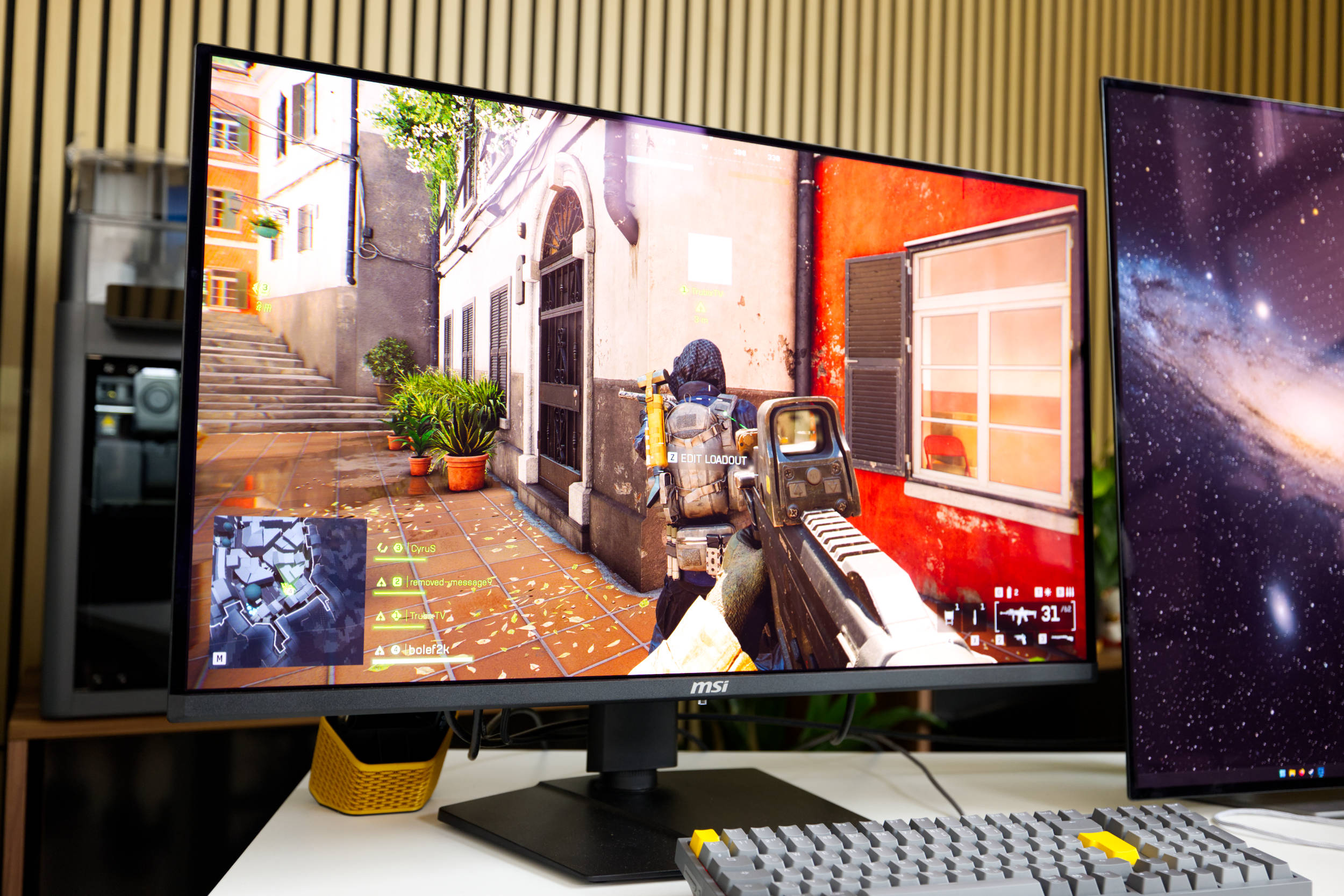 MSI MAG 321UPDE Test Review (Image © PCMasters.de)
Currently, it seems that all QD-OLED panels come exclusively from Samsung, so that’s the supplier for the monitor’s most obvious component—but of course, there’s much more that MSI has optimized and enhanced for its own purposes.
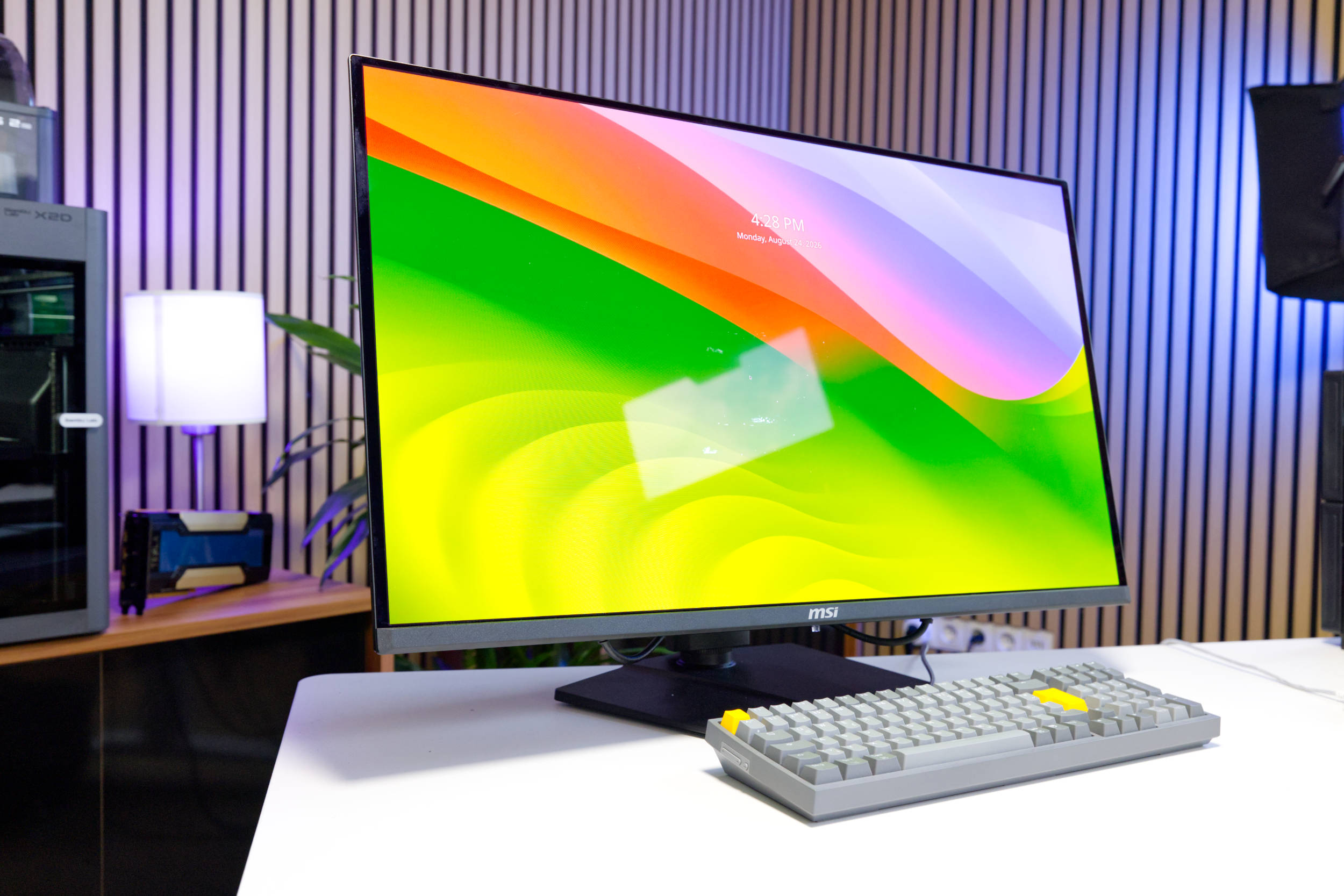 MSI MAG 321UPDE Review (Image © PCMasters.de)
With a resolution of 3840 x 2160 (UHD), the monitor strikes a sweet spot, even though 5K would be more desirable for work on a screen this size—nearly 32 inches. However, the monitor is primarily aimed at gamers, and for them, the chosen resolution is optimal both now and for the near future. In addition, the panel operates with a variable refresh rate ranging from 48 to 165 Hz. To ensure optimal performance—especially during gaming—and to prevent screen tearing, it supports both Adaptive Sync and AMD FreeSync Premium Pro. Most systems and games handle this feature perfectly well, which is why you should enable it right away.
For greater contrast, the MAG 321UPED is certified for the "True Black 400" HDR standard. You can enable this feature in the OSD when HDR is turned on in the operating system. Brightness in SDR mode is 250 nits, and in HDR mode, it can reach a peak of 1,000 nits—a fairly standard value. The contrast ratio is 1,500,000:1, and the response time (GTG) is specified at a crisp 0.03 ms.
MSI provides a relatively large amount of information about color space coverage on its website. In addition to the somewhat irrelevant NTSC and Adobe RGB values, we find 99% coverage for DCI-P3, 100% for sRGB, and 80% for Rec.2020. We set the display to the DCI-P3 color space relatively early on because it seems the most pleasant to us. Here is the complete list from MSI:
- NTSC (CIE1976 area percentage/overlap): 120.5%/93.8%
- NTSC (CIE1931 area percentage/overlap): 103.6%/91.5%
- sRGB (CIE1976 area percentage/overlap): 138.2%/100%
- sRGB (CIE1931 area percentage/overlap): 146.2%/100%
- Adobe RGB (CIE1976 area percentage/overlap): 118.4%/97.5%
- Adobe RGB (CIE1931 area percentage/overlap): 108.4%/94%
- DCI-P3 (CIE1976 area percentage/overlap): 110.1%/99%
- DCI-P3 (CIE1931 area percentage/overlap): 107.8%/98.4%
- Rec.709 (CIE1976 area percentage/overlap): 138.2%/100%
- Rec.709 (CIE1931 area percentage/overlap): 146.2%/100%
- Rec.2020 (CIE1976 area percentage/overlap): 80.2%/80.2%
- Rec.2020 (CIE1931 area percentage/overlap): 77.3%/77.3%
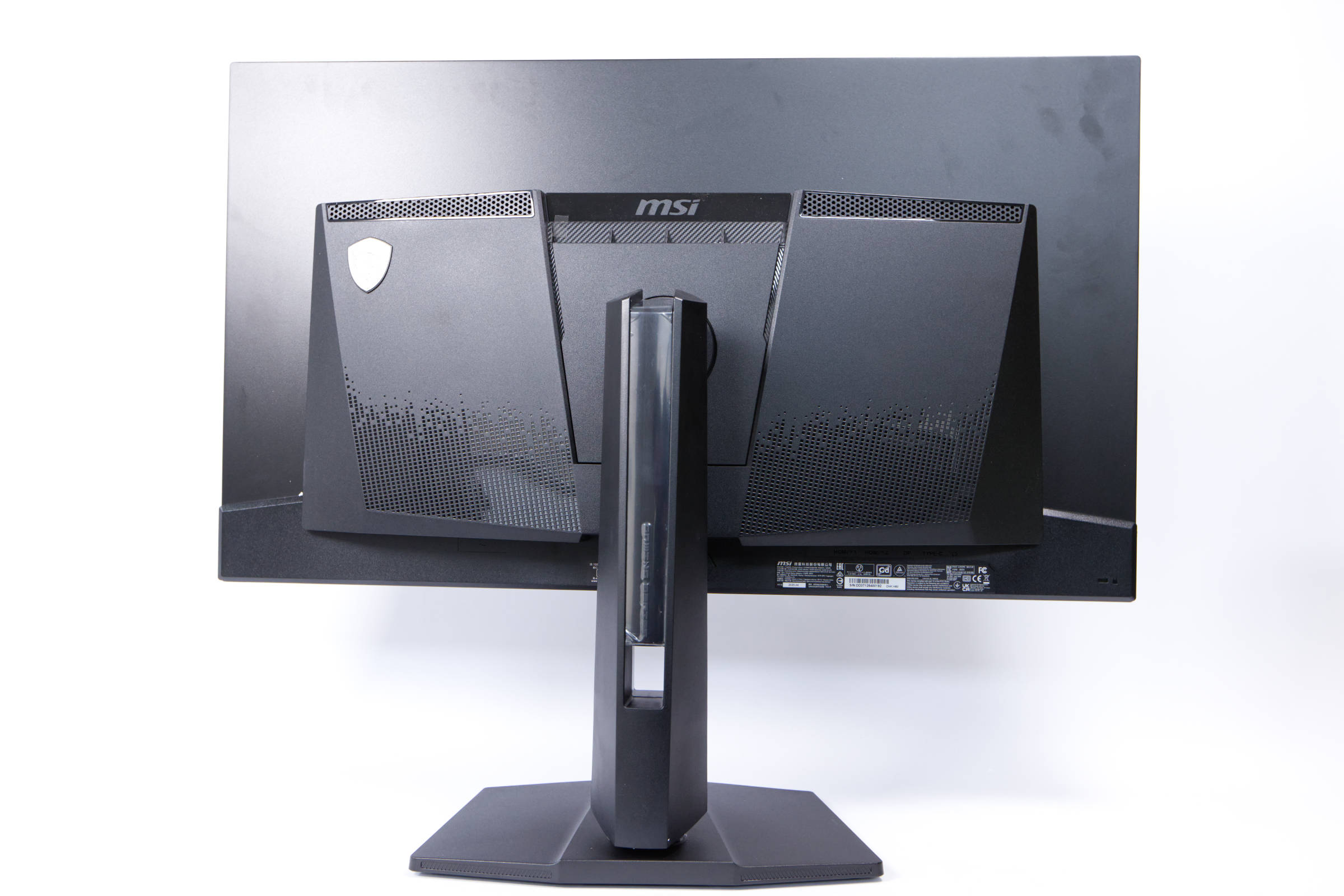 MSI MAG 321UP QD OLED Rückseite (Image © PCMasters.de)
When used with the included stand, the monitor can also be swiveled and adjusted for height. It can be swiveled 30° to the right and left, which means that the monitor cannot be rotated to a 90° angle—for example, for a programming setup. While you probably wouldn’t use an OLED monitor for that purpose, we still wanted to point this out.
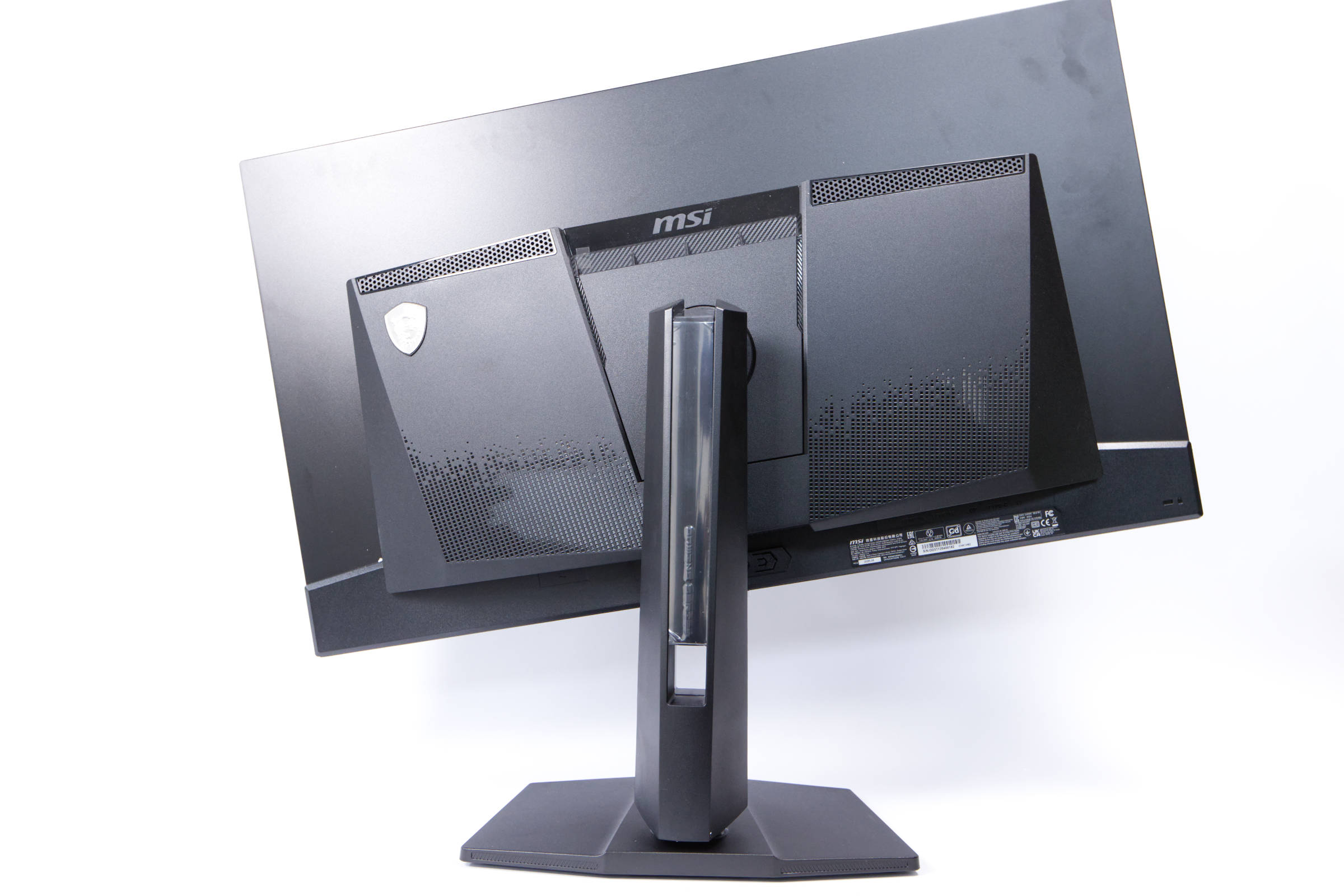 MSI MAG 321UP QD OLED Drehung links (Image © PCMasters.de)
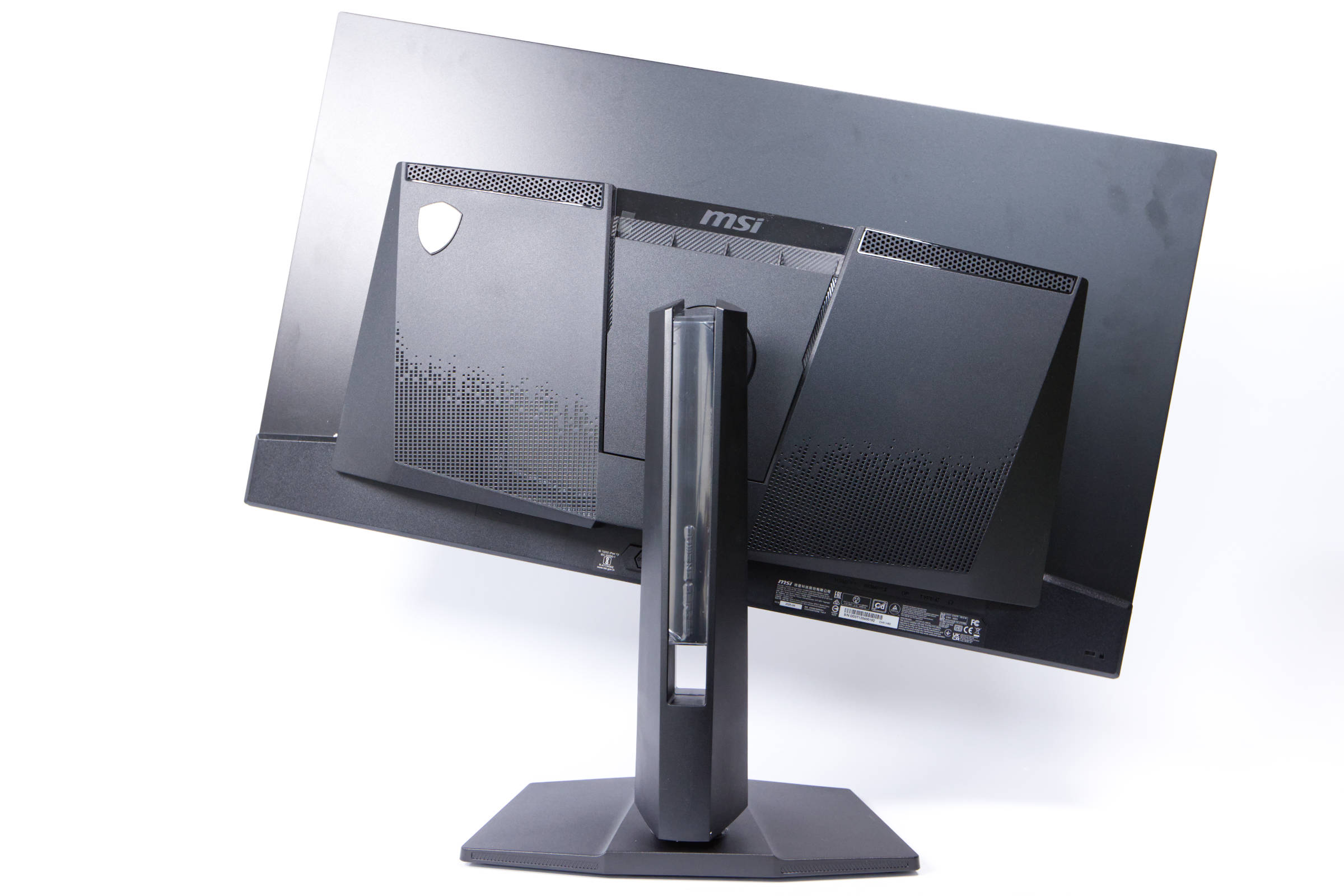 MSI MAG 321UP QD OLED Drehung rechts (Image © PCMasters.de)
Height adjustability is important for setting up the monitor on a desk, as the ideal height varies for each user. There is a 110-mm range of adjustment.
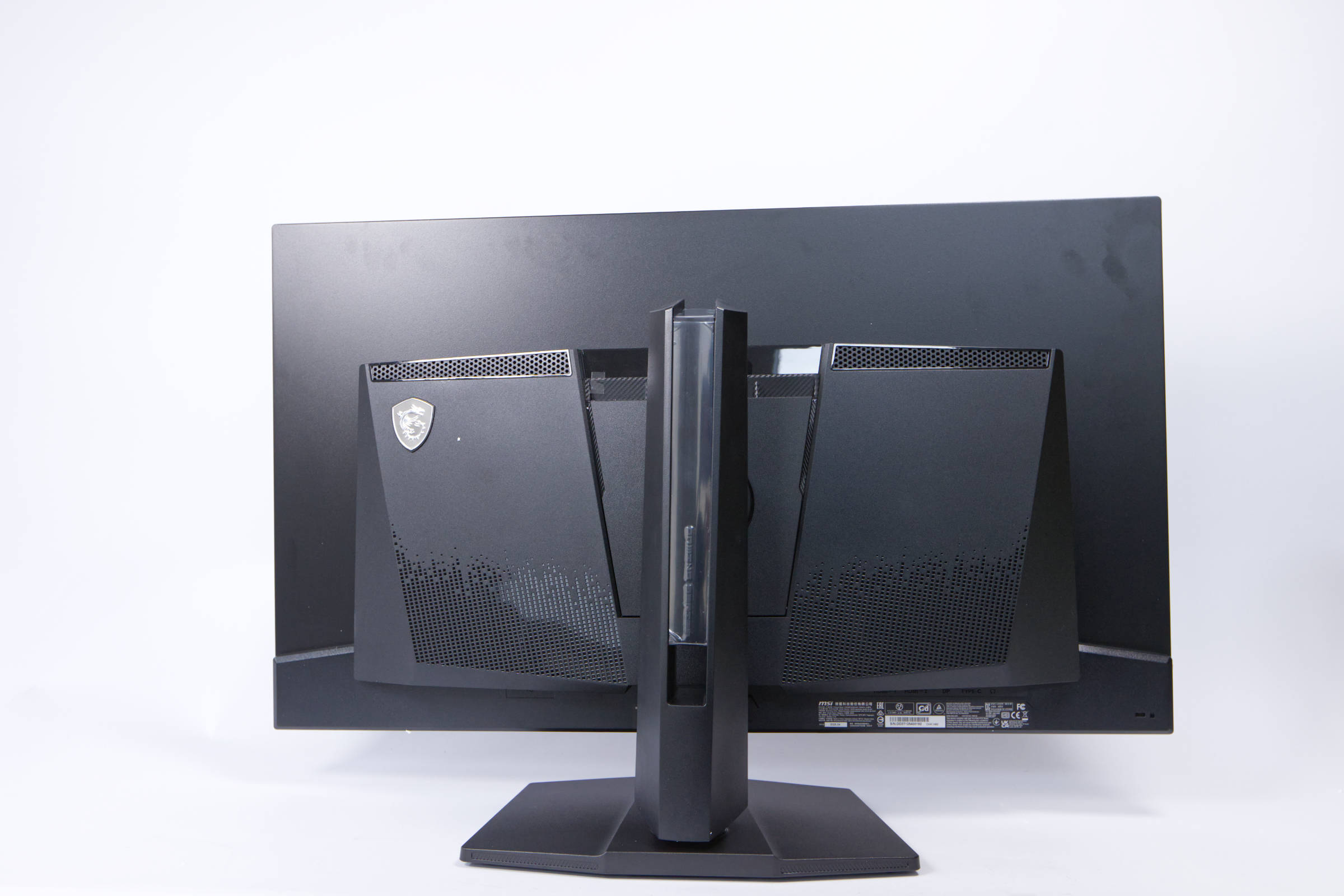 MSI MAG 321UP QD OLED Abgesenkt (Image © PCMasters.de)
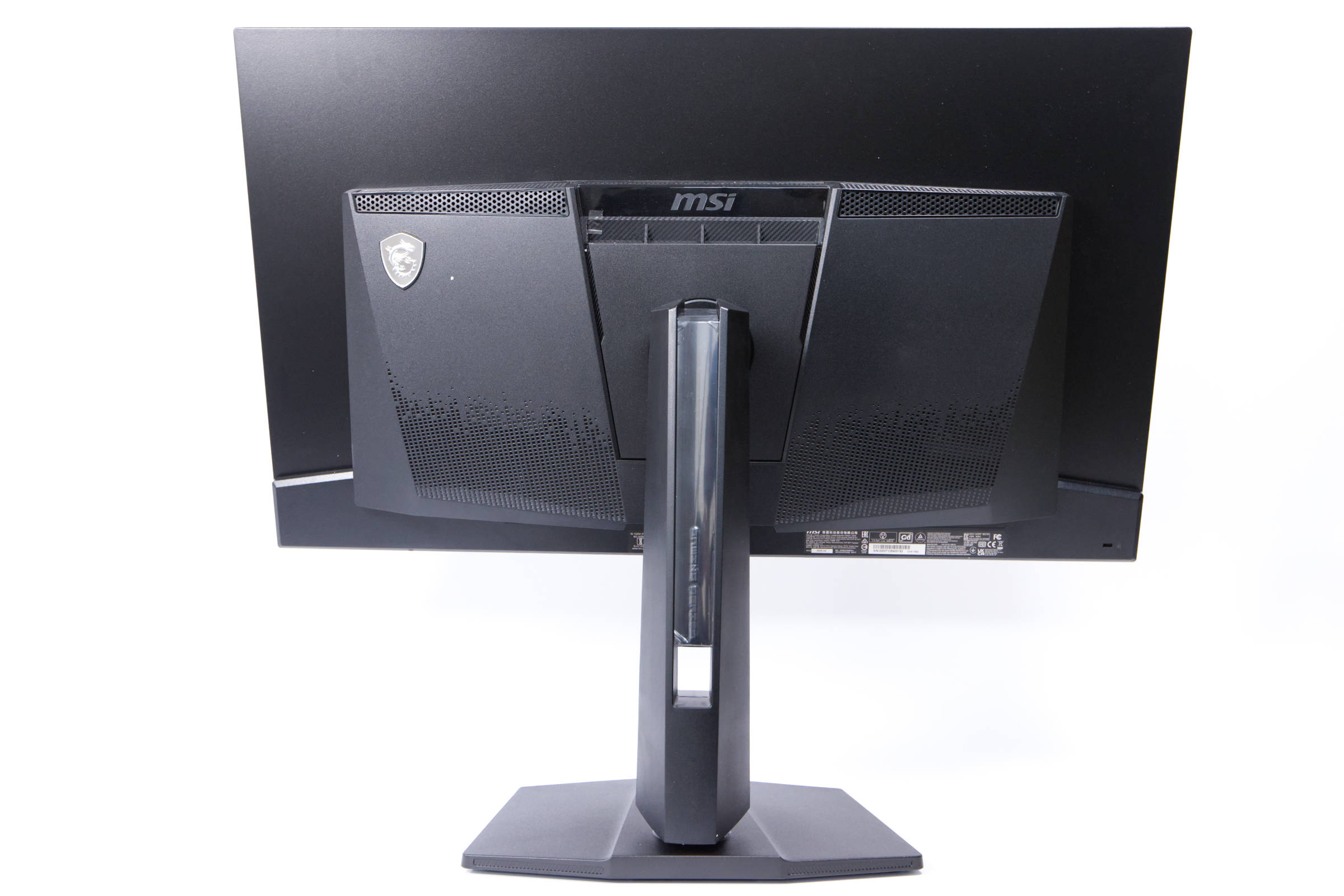 MSI MAG 321UP QD OLED Hochgefahren (Image © PCMasters.de)
Furthermore, the monitor can be tilted forward by 15° and backward by up to 5°.
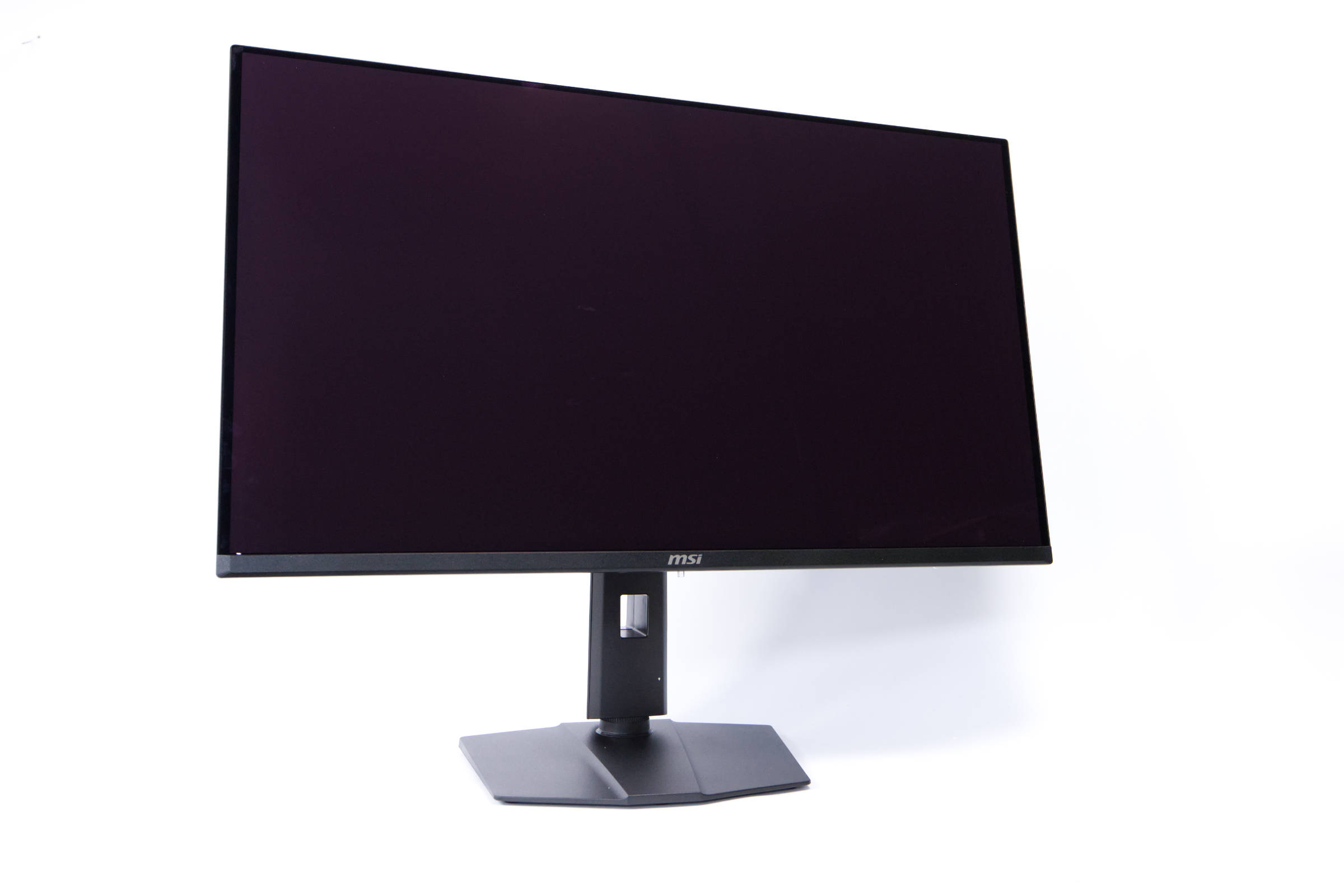 MSI MAG 321UP QD OLED Front (Image © PCMasters.de)
Features and Special Characteristics
MSI isn’t reinventing the wheel, but there are a few features we wanted to highlight in particular. With OLED-Care 2.0, MSI’s system indicates that the panel needs a refresh, but MSI also noticed that these notifications always appear at the wrong time after 4 hours. On the current models, MSI has switched to an OLED refresh after 24 hours, and we didn’t even see the refresh notification, even when the panel was on for longer. The experience with AOC was quite different, as the pop-up window was simply intrusive and kept appearing at inopportune times. The refresh happens automatically while the monitor is in standby mode, which aligns with our experience—the monitor didn’t bother us at all. According to MSI, the monitor also detects static images or logos that could cause screen burn-in and reduces the luminance to counteract this. In addition, it’s supposed to detect and mitigate harsh transitions between two windows or static images. Unfortunately, we can’t verify how effective this actually is.
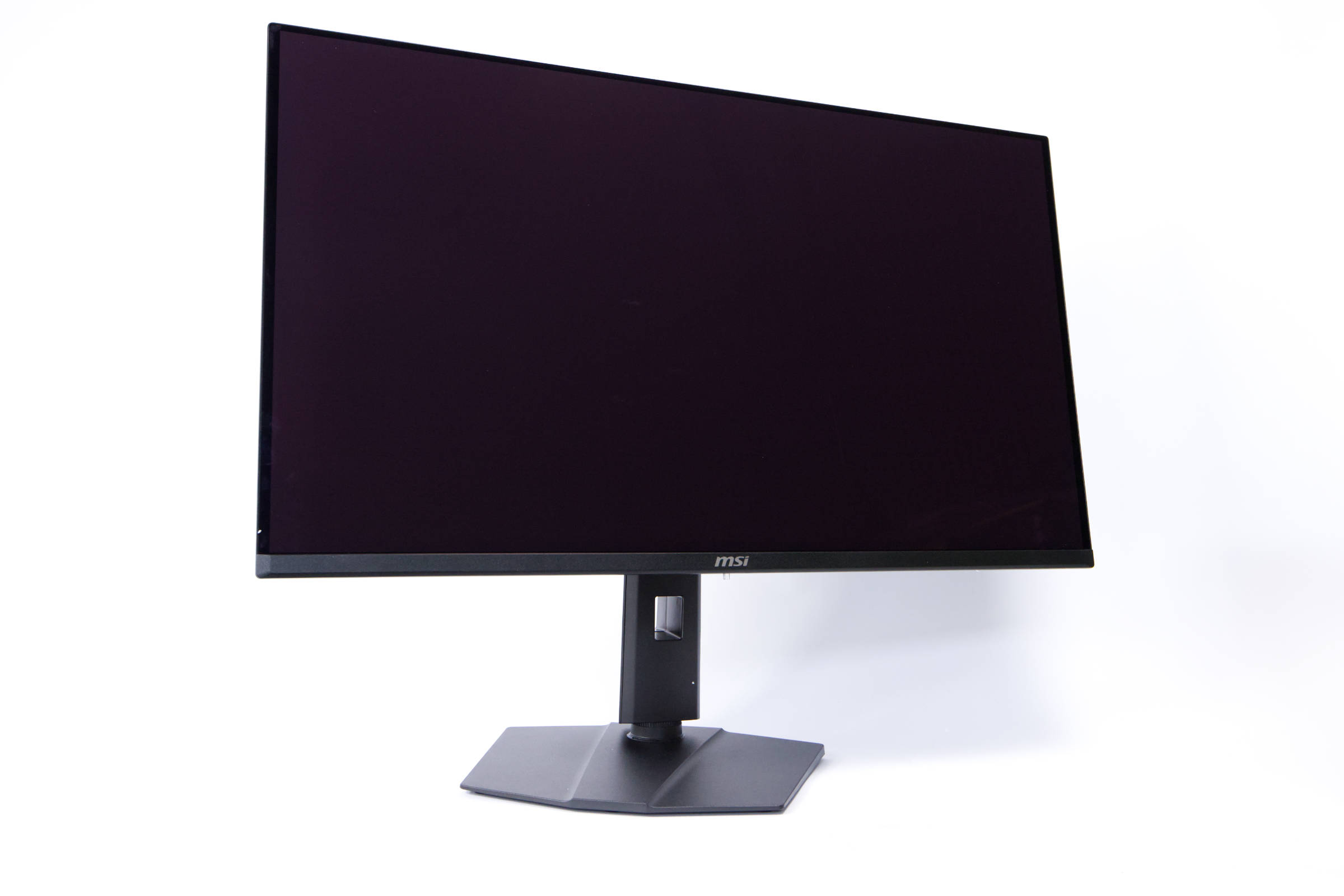 MSI MAG 321UP QD OLED Drehung (Image © PCMasters.de)
For console gamers, the monitor offers not only VRR at 2160p and 120 Hz but also HDMI’s CEC mode, which allows you to switch between multiple devices when activated. VESA ClearMR 9000 compliance is also mentioned, though we were unable to test this feature directly.
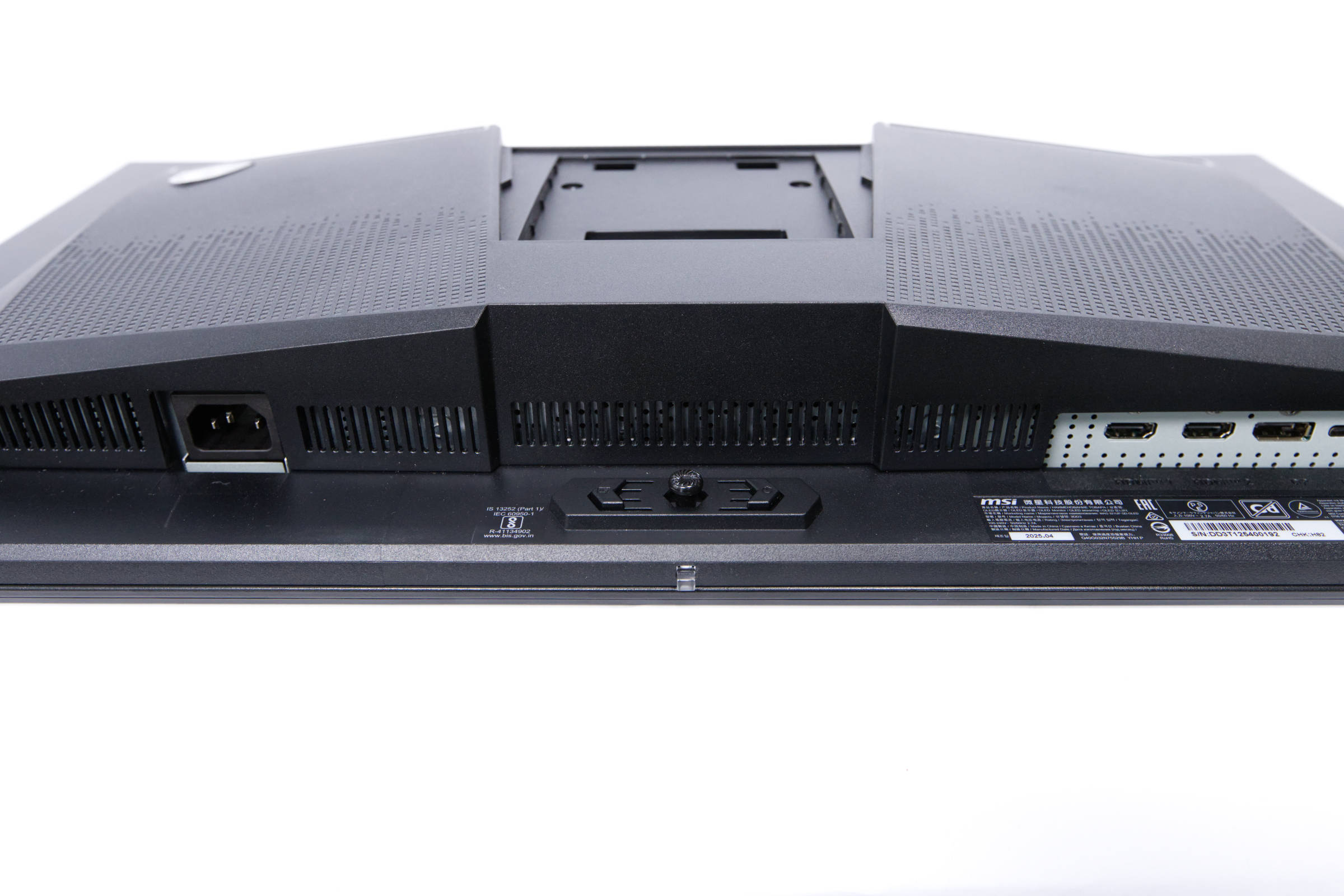
 MSI MAG 321UP QD OLED Anschlüsse (Image © PCMasters.de)
Connectivity Options
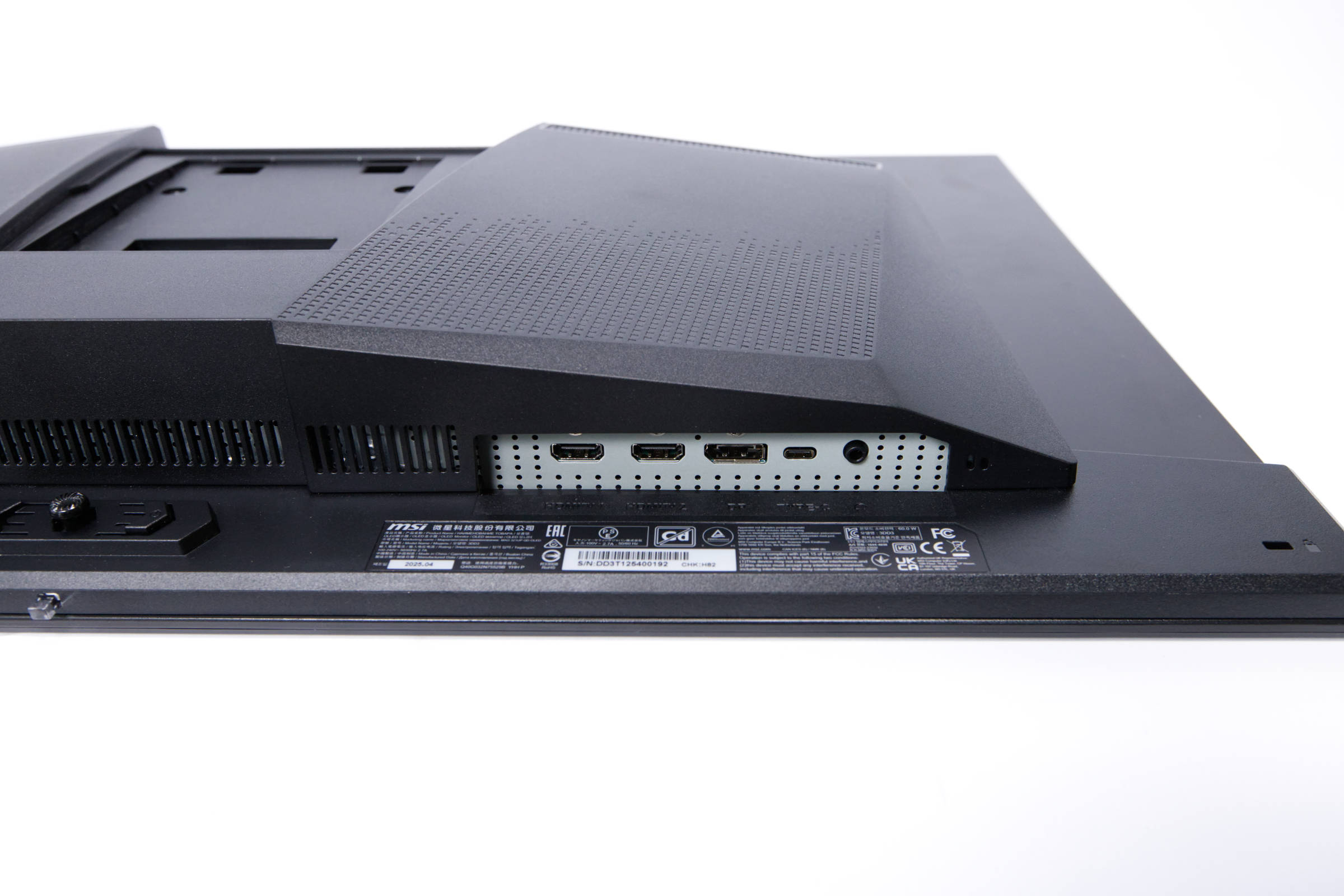
The monitor’s ports are located on the left side of the back panel. Here, you’ll find two HDMI 2.1 ports and one DisplayPort 1.4a port. All three are designed for operation at 4K resolution at 165 Hz and support HDCP version 2.3. Next to these is a USB Type-C port, which is rated for 15W PD-Out charging of compatible devices and also supports DisplayPort Alt Mode. It is therefore not a Thunderbolt 4/5 port. Right next to the USB Type-C port, there is also a 3.5mm headphone jack. The audio signal is transmitted via one of the video outputs.
There is no KVM switch or hub, as the MAG 321UPED is focused on gaming and content consumption rather than work.
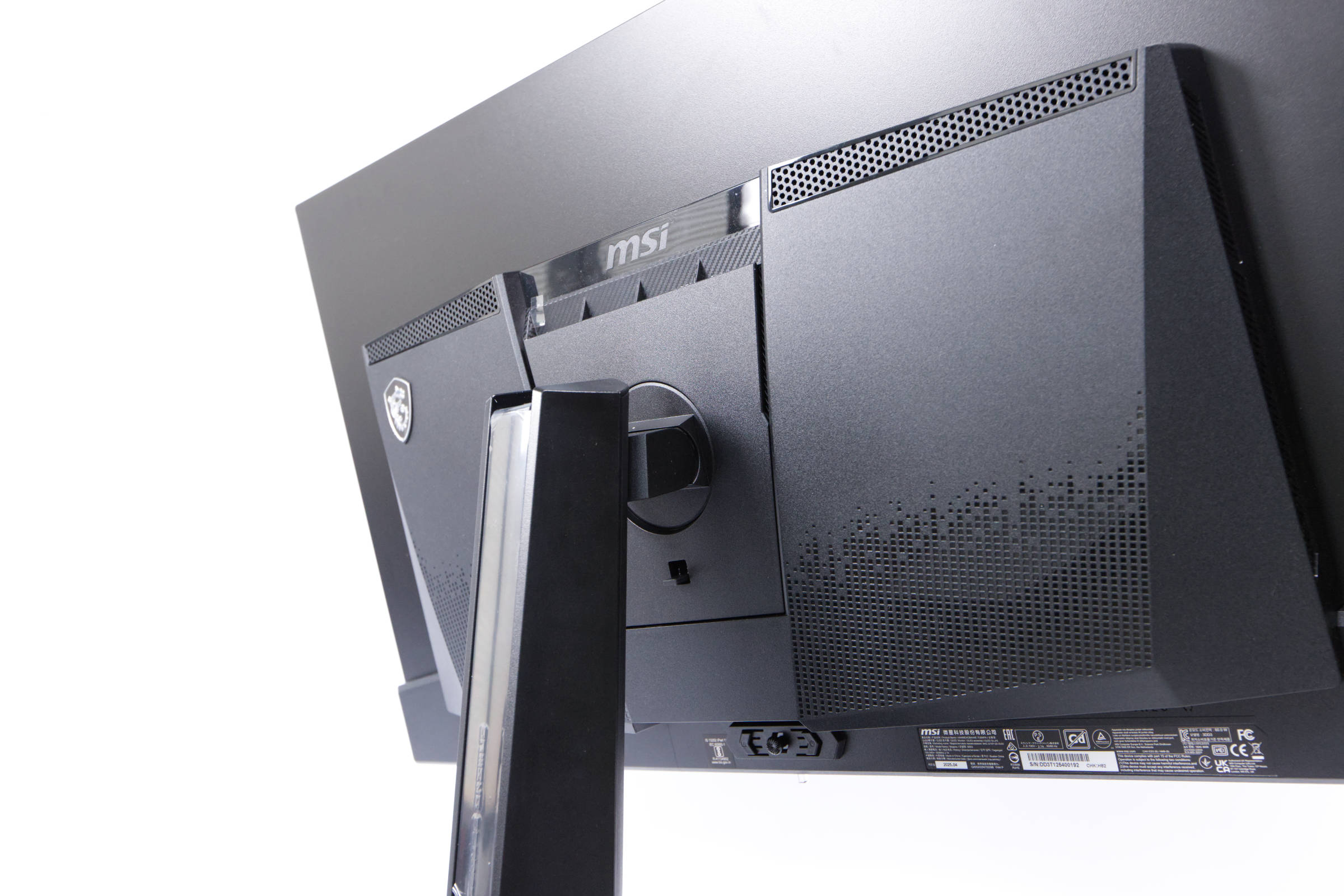 MSI MAG 321UP QD OLED Standfuss montiert (Image © PCMasters.de)
Stand and Assembly
The stand is very important for monitor operation because it significantly affects stability and, consequently, the user experience. If it’s wobbly, the negative impression reflects on the entire device. For the MAG 321UPED, MSI has opted for a wide stand that’s quite stable. As is often the case, however, you first have to assemble it, which takes just a few steps.
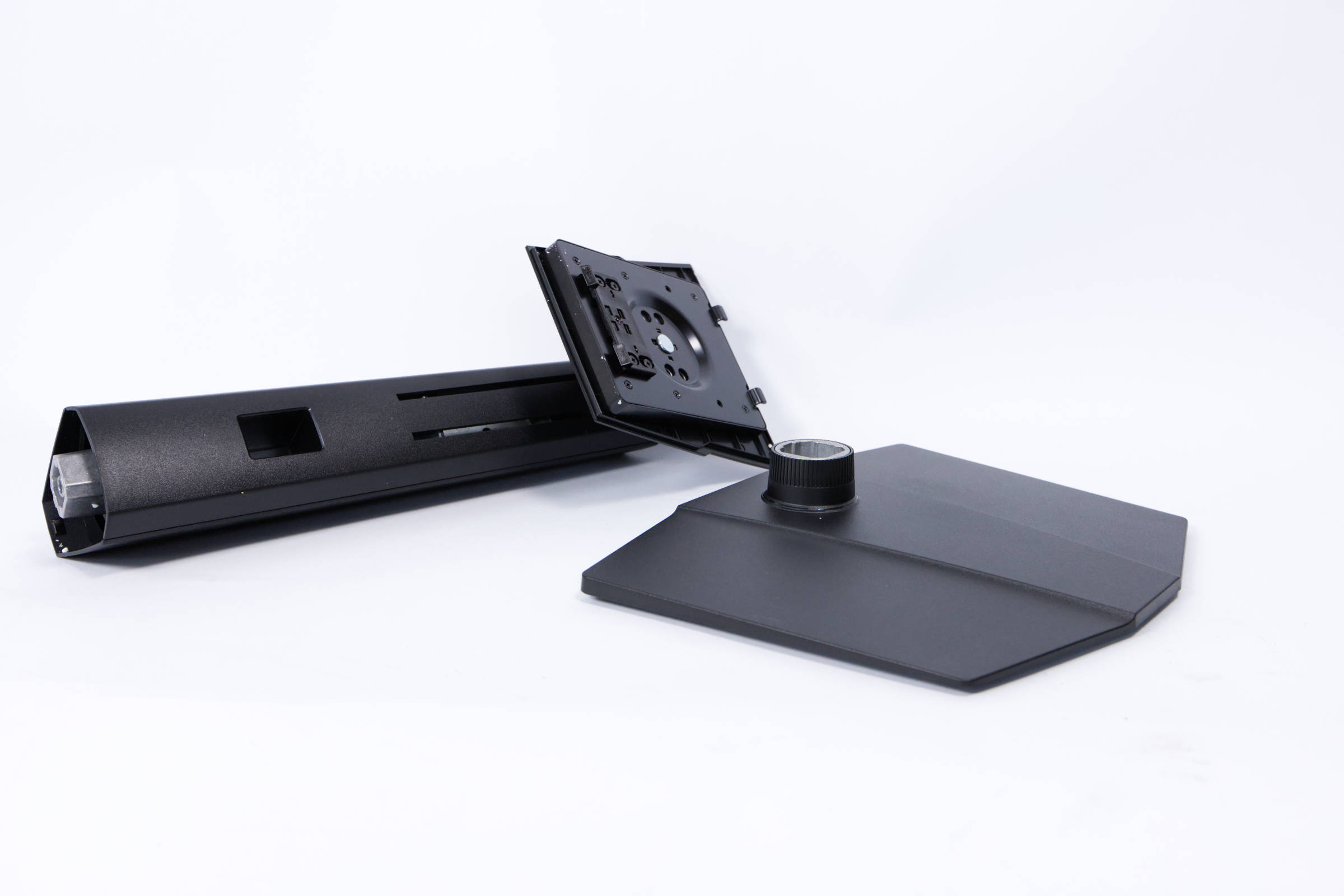 MSI MAG 321UP QD OLED Fussaufbau 1 (Image © PCMasters.de)
The stand comes in two parts that slot together. The openings are designed so that the parts can only be assembled one way—namely, the correct way.
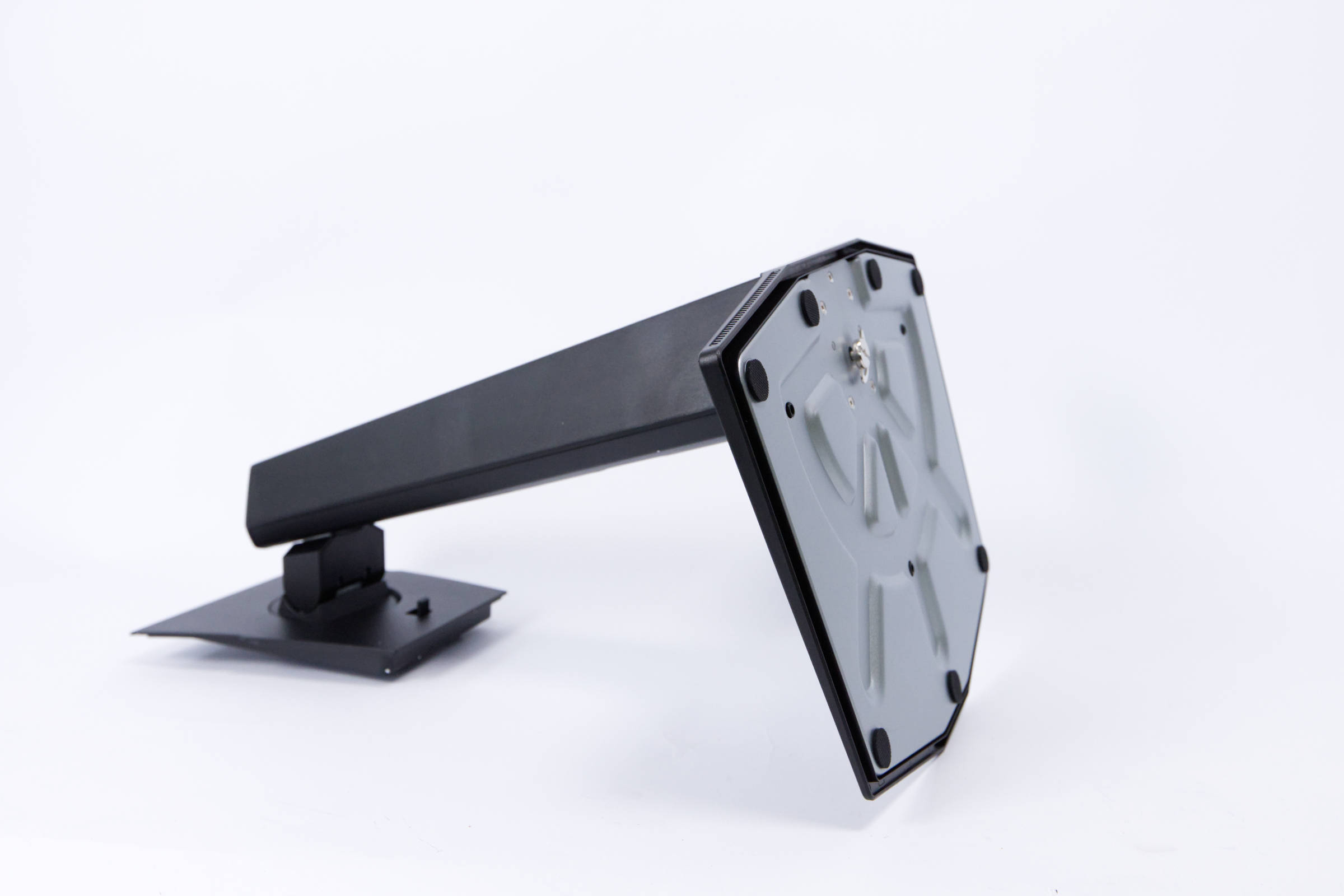 MSI MAG 321UP QD OLED Fussaufbau 2 (Image © PCMasters.de)
The lower element already has a built-in screw for securing it in place, which cannot be removed. Once you’ve snapped the parts together, tighten the screw. There’s a metal ring attached to the screw that you can use to do this. If you prefer, you can also use a flathead screwdriver to tighten the screw.
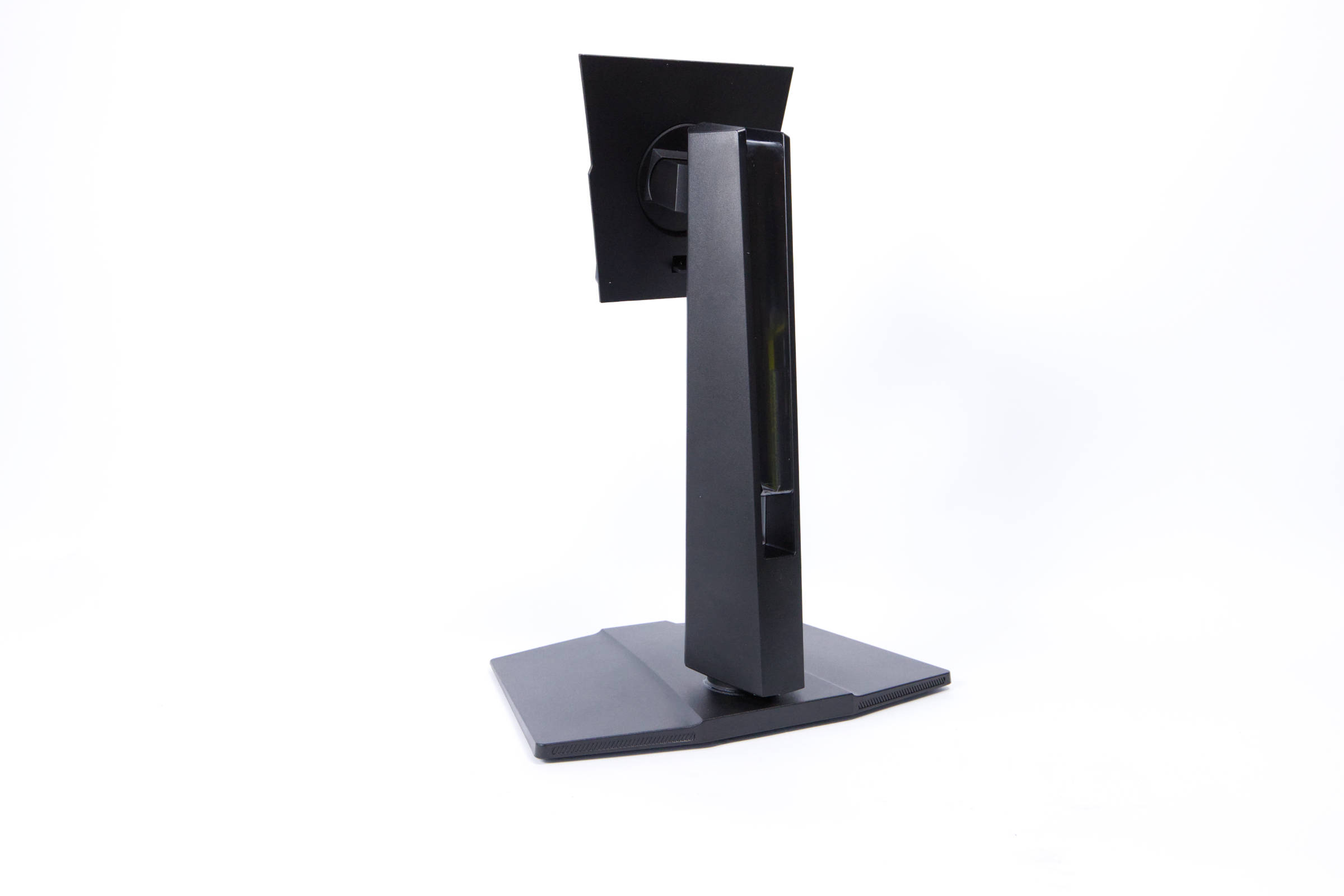 MSI MAG 321UP QD OLED Fussaufbau 3 (Image © PCMasters.de)
After that, the stand can be set up, as it’s basically ready to go. On the back, it features a cable pass-through that you can use if you’re placing the monitor on a table.
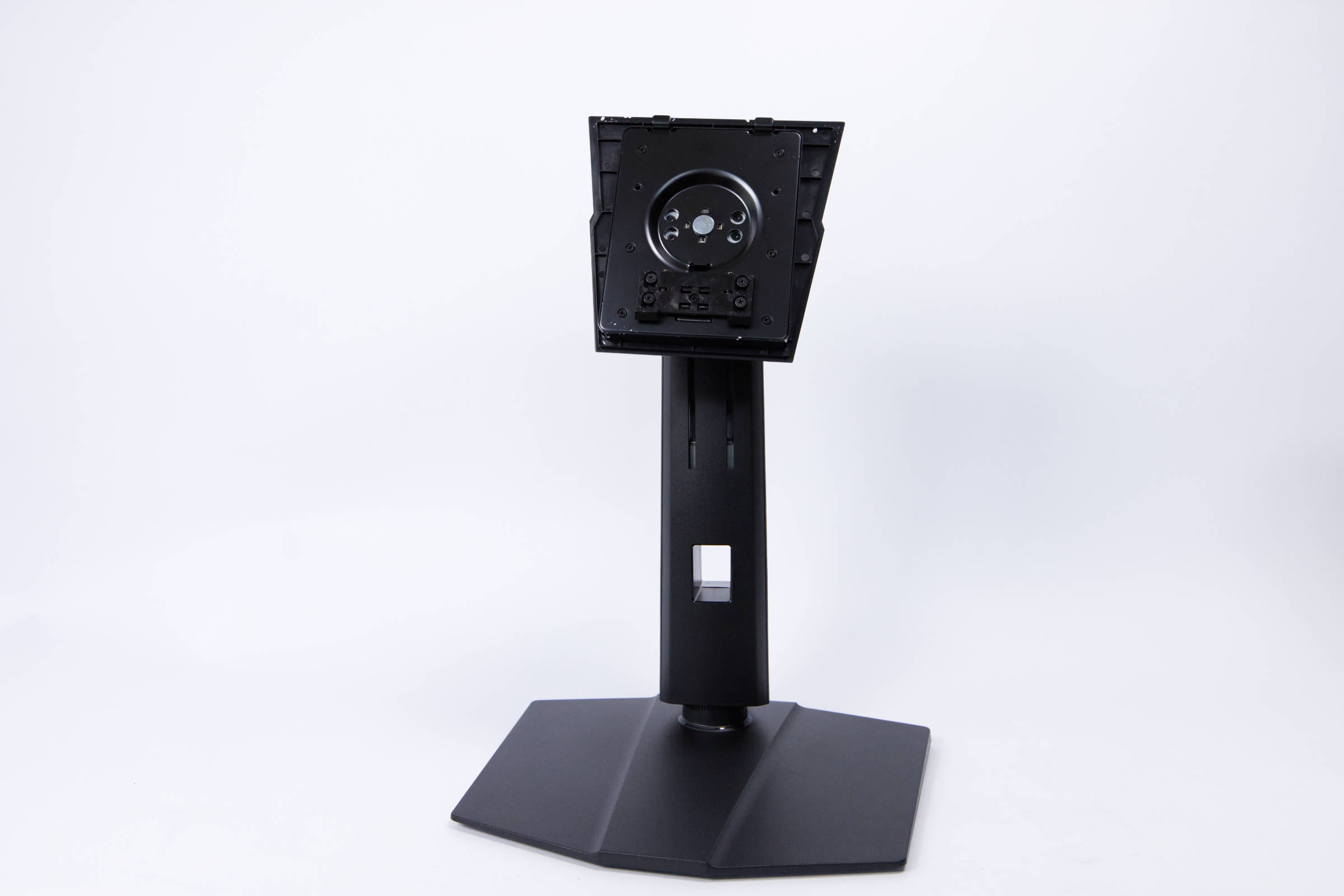 MSI MAG 321UP QD OLED Standfuss (Image © PCMasters.de)
The stand hooks onto the monitor and sits rock-solid. It’s best to attach the stand to the monitor while it’s still in the box. Afterward, you can lift the monitor out and place it on the table. Assembly is really easy, and there’s nothing to complain about here.
VESA Mount
Instead of the stand mount, you can also attach a monitor arm to the back if you’d like to use one (not included). The mount supports the widely used VESA standard with a 100x100 mm hole pattern, making it compatible with the most common monitor arms.
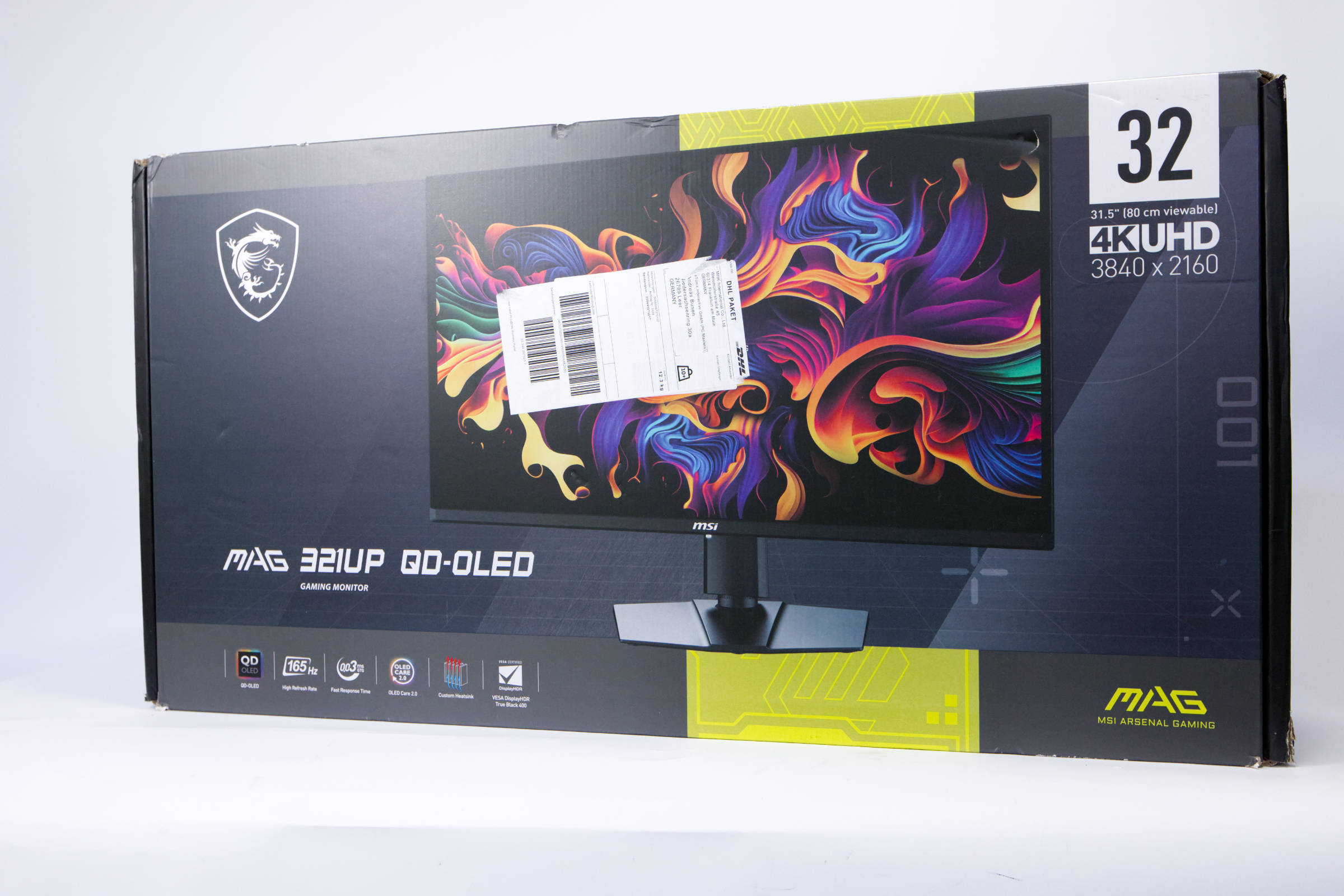 MSI MAG 321UP QD OLED Verpackung (Image © PCMasters.de)
Packaging & Contents
MSI ships the MAG 321UPDE in a colorfully printed cardboard box that is quite compact and easy to carry. In addition to the monitor, the printed box highlights some of the key features and specifications designed to convince potential buyers. The design is stylish, and the monitor itself really stands out thanks to the particularly colorful background image.
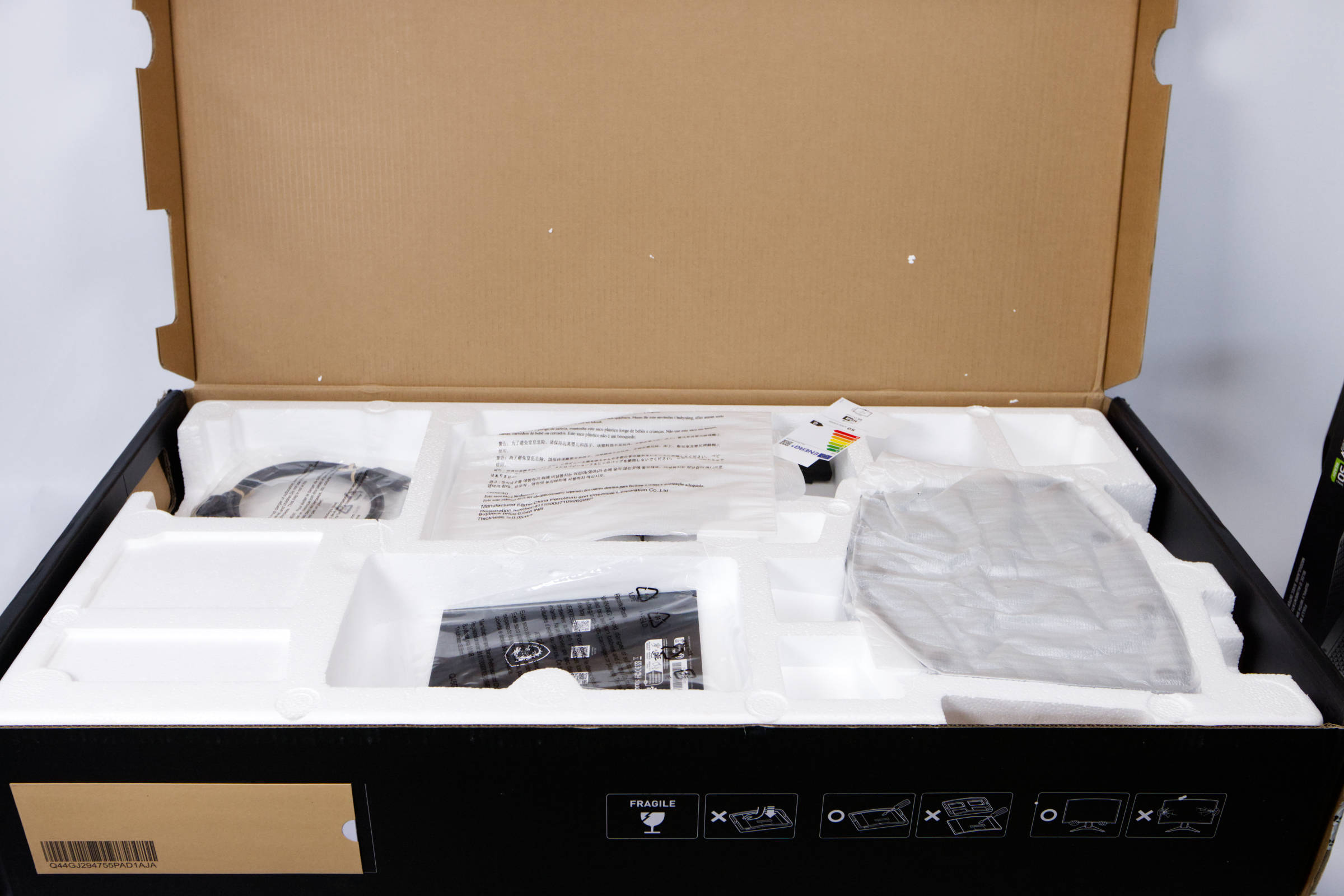 MSI MAG 321UP QD OLED Innenverpackung (Image © PCMasters.de)
The packaging needs to be unfolded, so you have to lay it flat on the floor. At the very top is a layer of Styrofoam containing the cables, a manual, and the base of the stand.
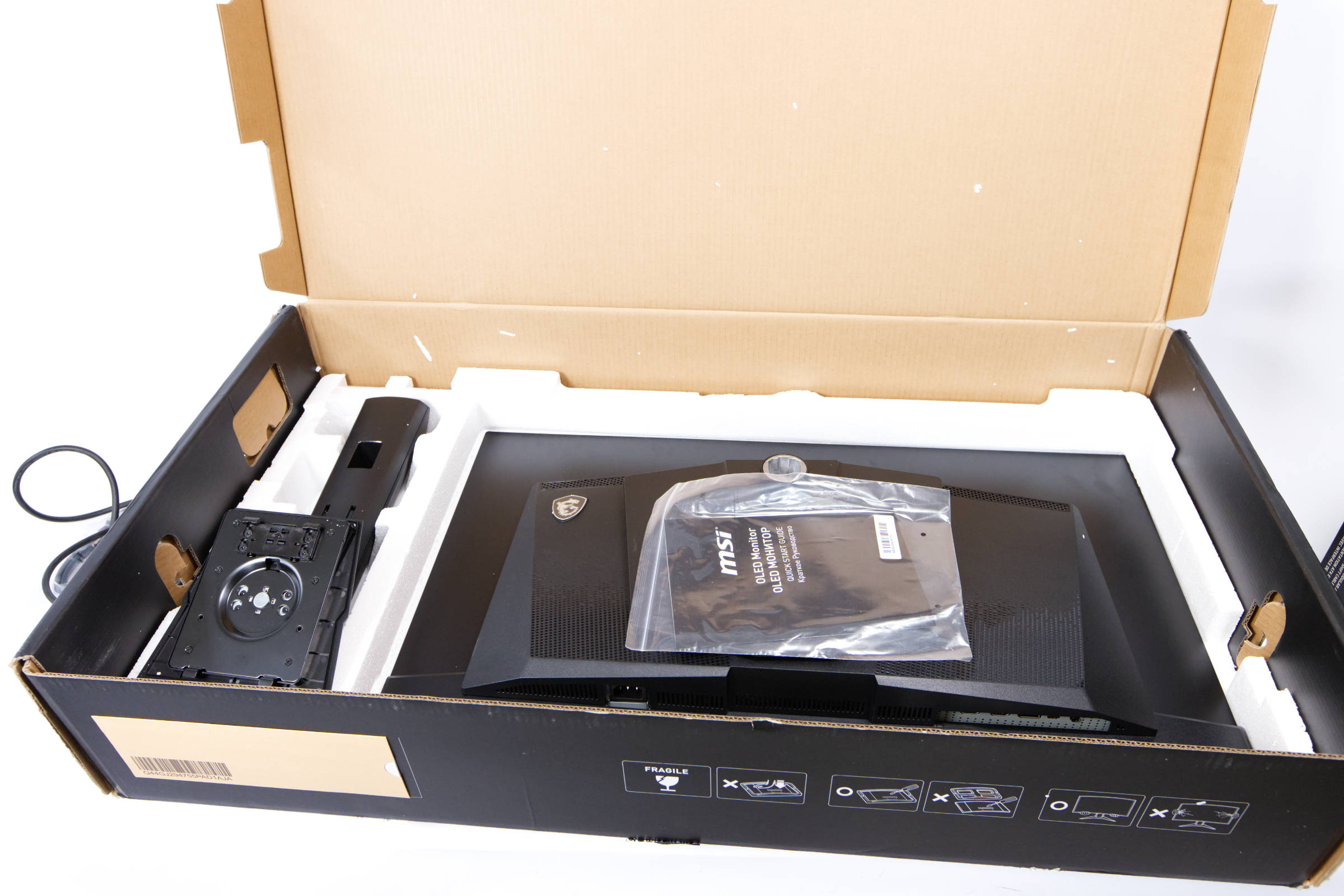 MSI MAG 321UP QD OLED Display mit Fuß verpackt (Image © PCMasters.de)
When you remove the first layer, you’ll find the actual monitor. Strangely enough, ours wasn’t wrapped in plastic again—which may be due to our test unit having passed through many hands. The second part of the stand is located next to the monitor.
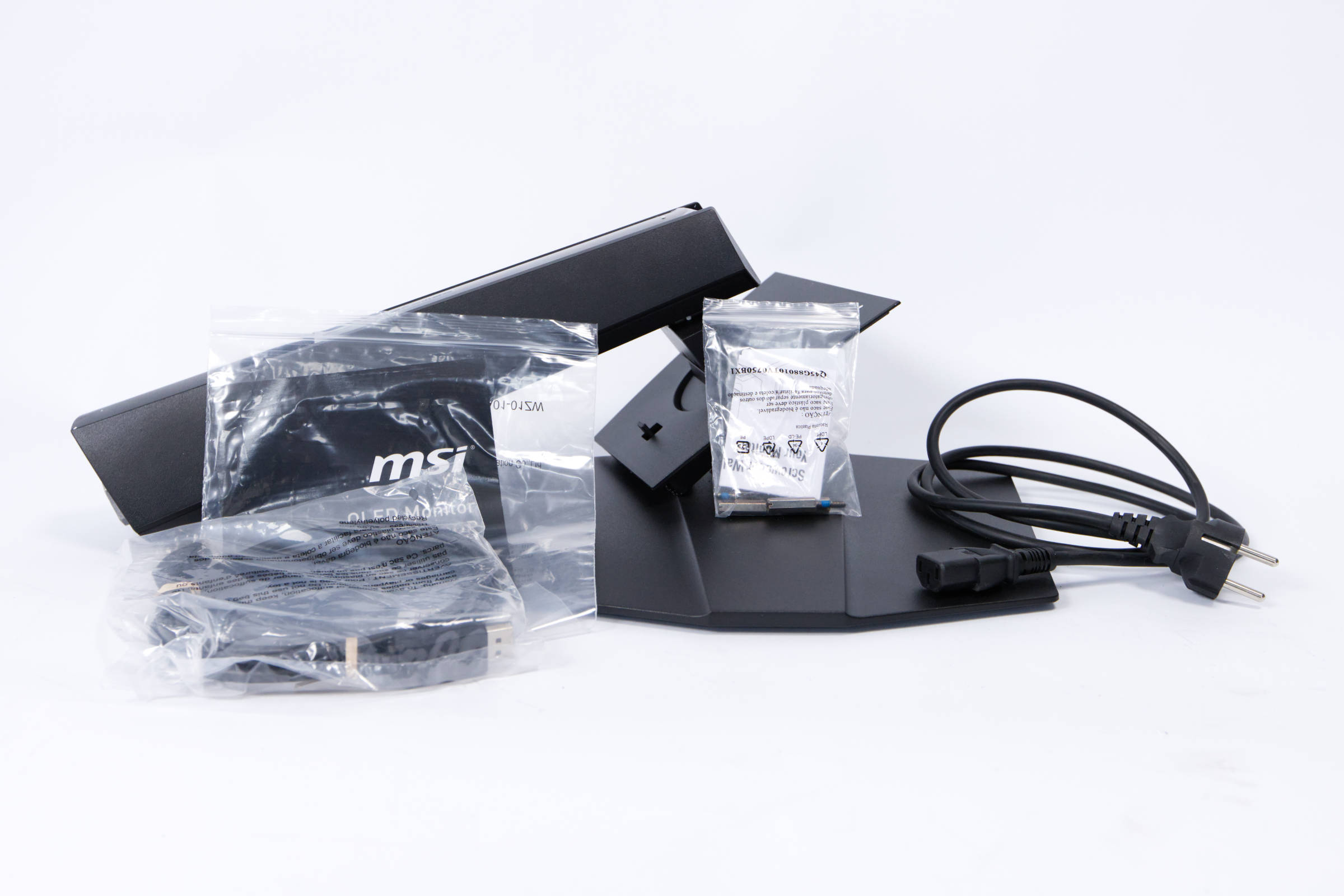 MSI MAG 321UP QD OLED Lieferumfang (Image © PCMasters.de)
The package also includes a IEC power plug for the power supply, as well as an HDMI and a DisplayPort cable. Spacer screws for the VESA mount are provided in a separate bag.
Test Systems
We used the following test systems for this review:
Gaming Setup
- CPU: AMD Ryzen 5 7500X3D
- CPU Cooler: NZXT Kraken PLUS 2380
- Motherboard: ASUS ROG STRIX B850-A GAMING WIFI7 NEO
- SSD: WD SN850
- Graphics Card: PNY GeForce RTX 5080 SLIM OC
- Power Supply: NZXT C1200 Gold
- Case: BenchTable
- Operating System: Windows 11
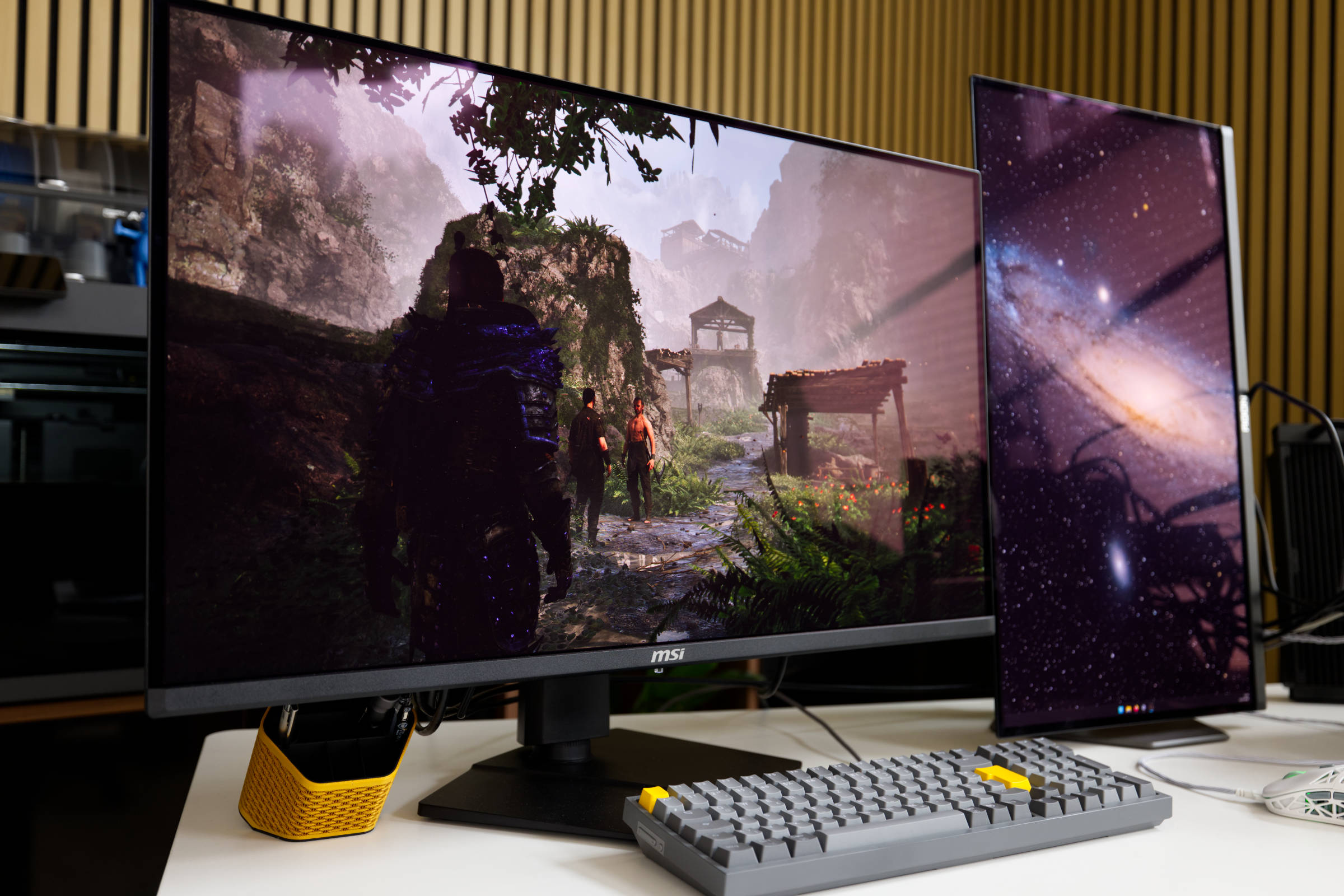 MSI MAG 321UPDE Gaming (Image © PCMasters.de)
MAG 321UPDE Review
As a QD-OLED monitor, the MAG 321UPDE is particularly well-suited for gaming and videos, as its deep blacks and vibrant colors are designed to enhance the experience. The side bezels are barely noticeable, and the bottom bezel—with its plastic cover and MSI logo in the center—is unobtrusive. The LED at the bottom isn’t distracting, and once you’ve set up the monitor, gaming takes center stage.
 MSI MAG 321UP QD OLED Steuerkreuz und Button (Image © PCMasters.de)
Navigating the OSD menu and shortcuts is easy, as MSI has included a directional pad at the bottom center of the monitor. You just have to be careful not to accidentally tap the power button to the left of the directional pad. It has a rubberized finish and is easy to feel by touch. The directional pad is well-positioned, and navigation is intuitive.
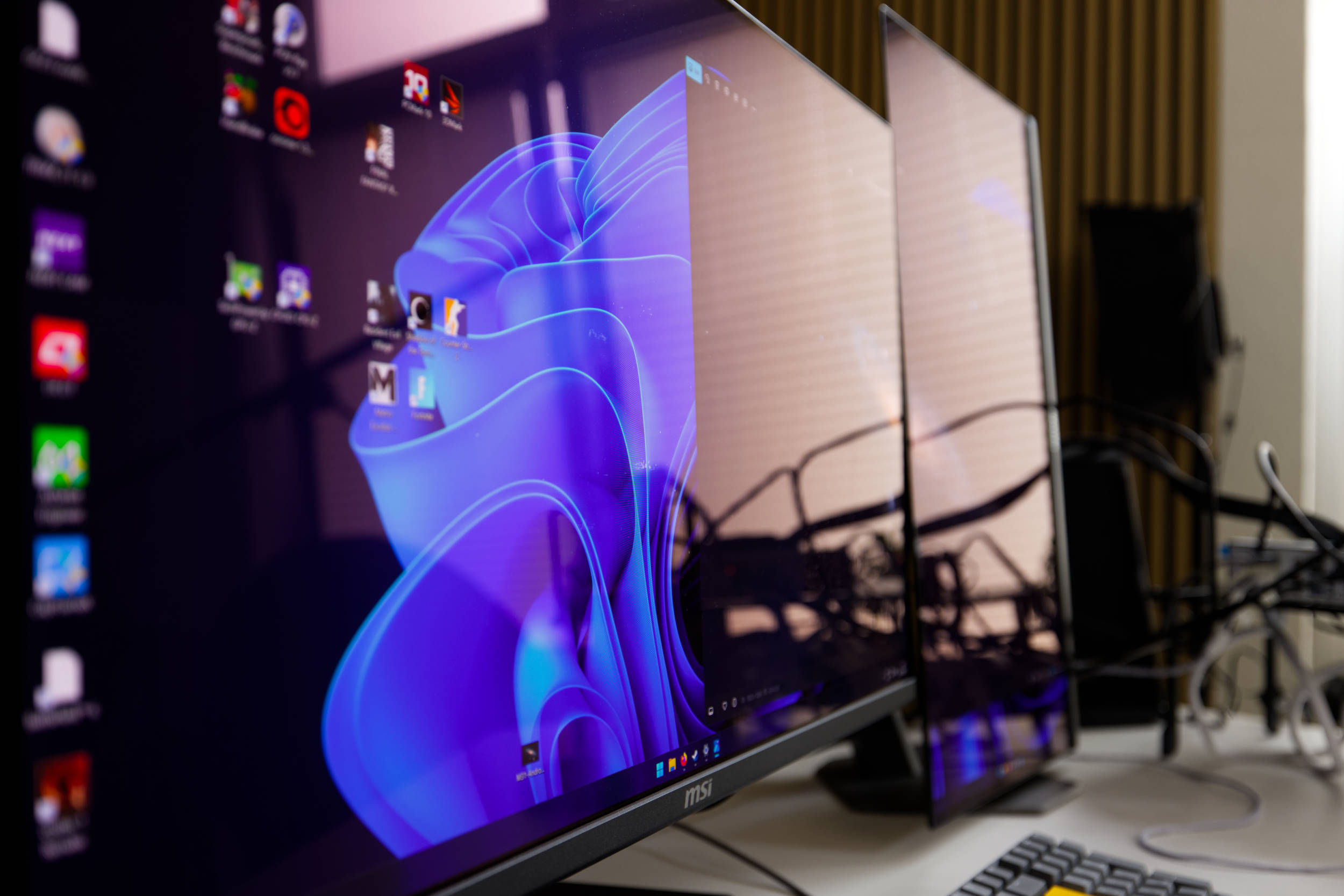 MSI MAG 321UPDE Spiegelung (Image © PCMasters.de)
Both adventure games, such as the Gothic 1 remake, and action shooters, such as Battlefield 6, were a blast to play on the MAG 321UPDE. The colors are vivid, and the monitor does a great job of rendering atmospheric scenes with deep blacks.
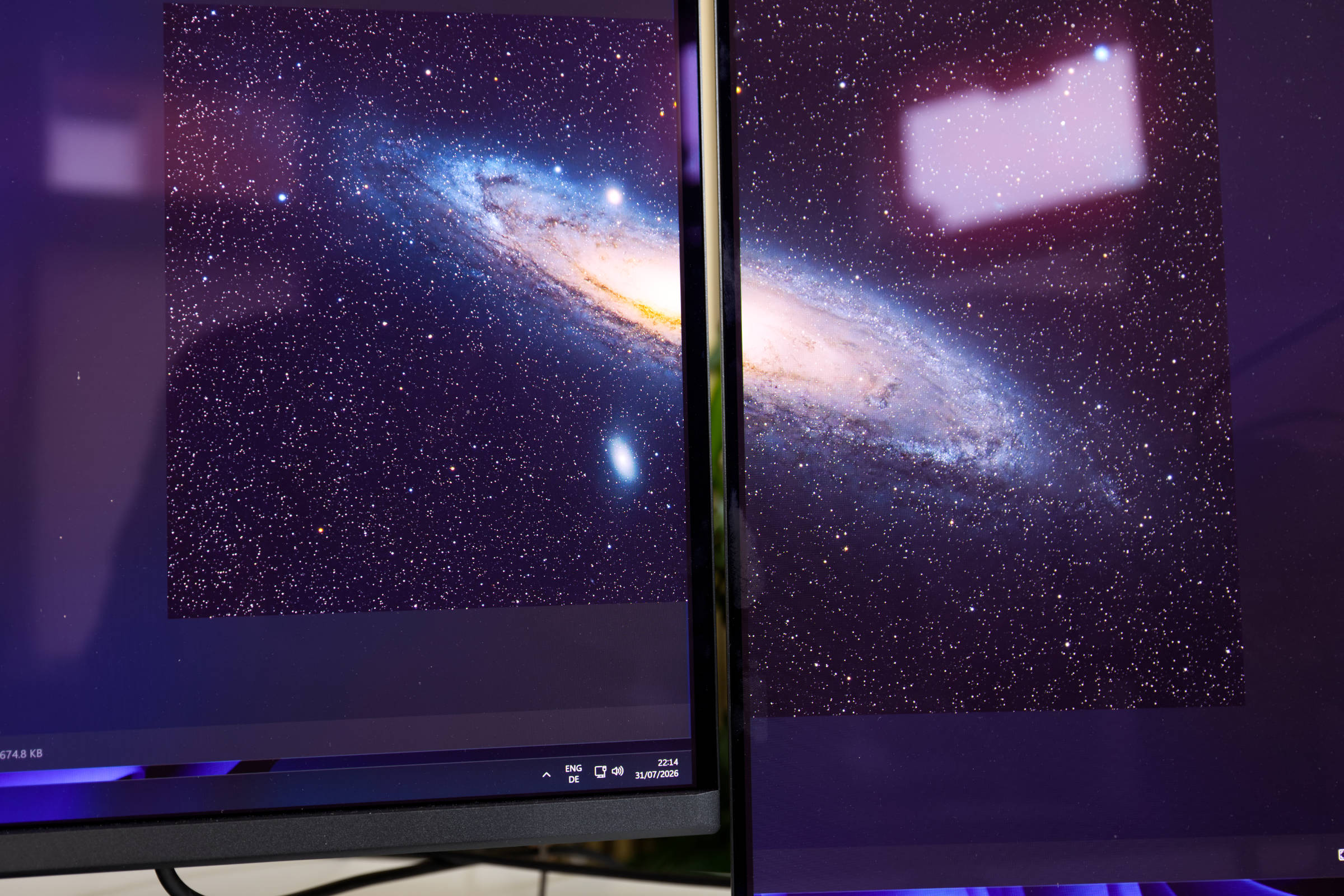 MSI MAG 321UPDE vs AOC AGON PRO AG276QZD2 (Image © PCMasters.de)
With modern monitors, the panel can be more or less reflective, which can be extremely disruptive in everyday use because reflections are distracting or make gaming or working difficult. MSI promotes the "Anti-Reflection" feature on the 321UPDE monitor. A direct comparison with the AOC AGON PRO AG276QZD2 (Review) shows that the level of glare is almost identical. Depending on the angle of incidence and light intensity, it can be distracting, but in most cases, we found it acceptable. The surface is glossy, and the coating is delicate. Our sample has a few spots where the protective layer has worn off, revealing a more reflective layer underneath.
Another feature MSI has handled well is the OLED Care function, as it doesn’t annoy you like it does with other manufacturers. It’s triggered automatically by the monitor when it’s idle, so you completely forget about it. If you want to run it manually, you can of course do so, but according to MSI, it happens automatically every 24 hours, so there’s no need to worry about it. There are also other measures to prevent screen burn-in, which we described above, and you won’t even notice them during normal use. This helps preserve the panel’s lifespan in a user-friendly way.
No Speakers
It’s not entirely clear why MSI chose not to include speakers. Even if they’re just average, they’re still very helpful. As a result, audio output is only available through headphones or external speakers. The lack of speakers is probably the biggest criticism of the monitor, since the rest of the features are well-implemented.
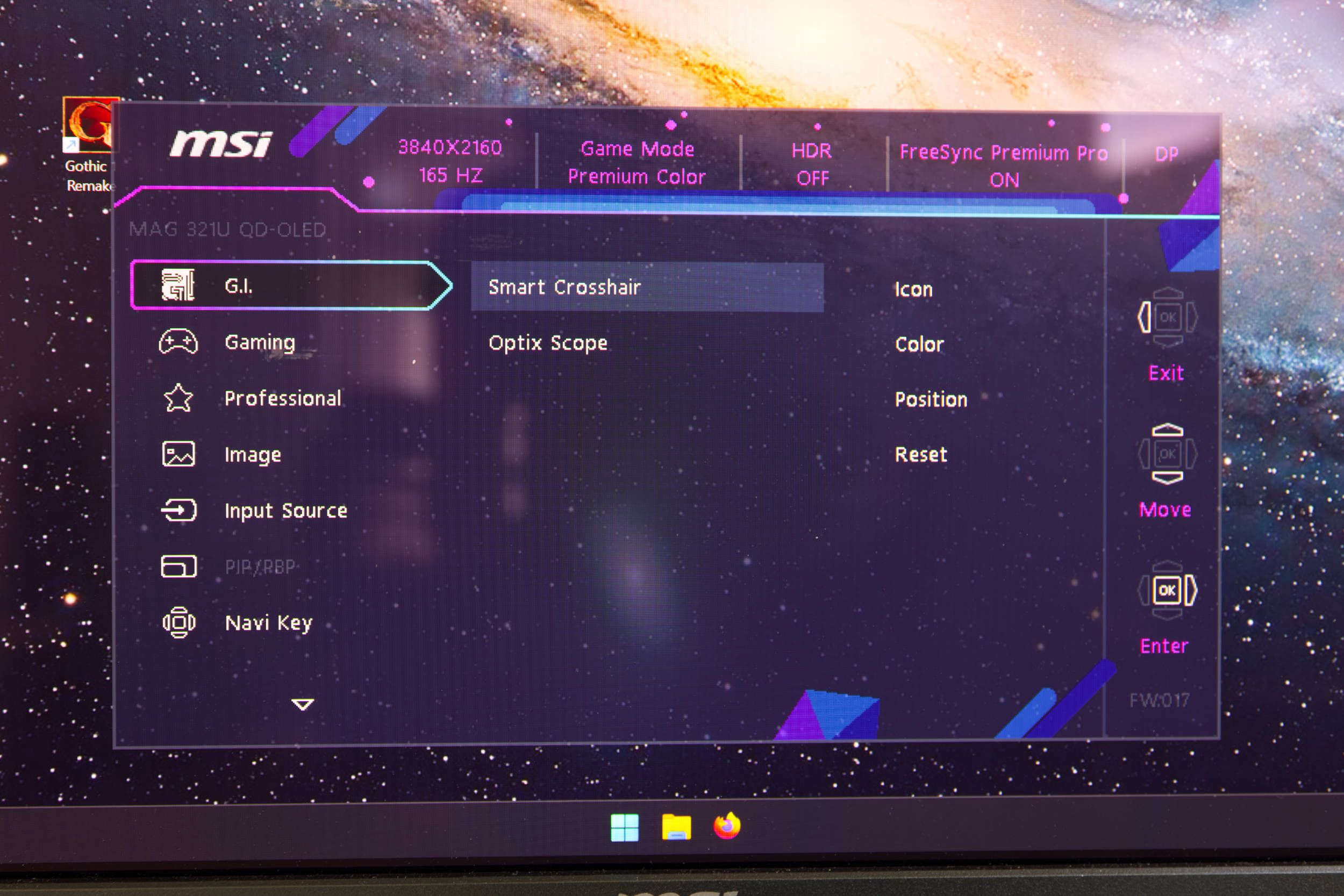 MSI MAG 321UPDE OSD GI Setting (Image © PCMasters.de)
OSD
Clicking the directional pad opens the OSD menu. It’s well-organized, with the main menu items on the left and the options menu items arranged to the right. Click to confirm your selection. The top menu is labeled "G.I." and offers options for shooters, such as a crosshair or a special zoom range for sniper action. These functions are processed by the monitor itself, so neither the PC nor the game can influence this functionality—which can be an advantage and isn’t detected as cheating.
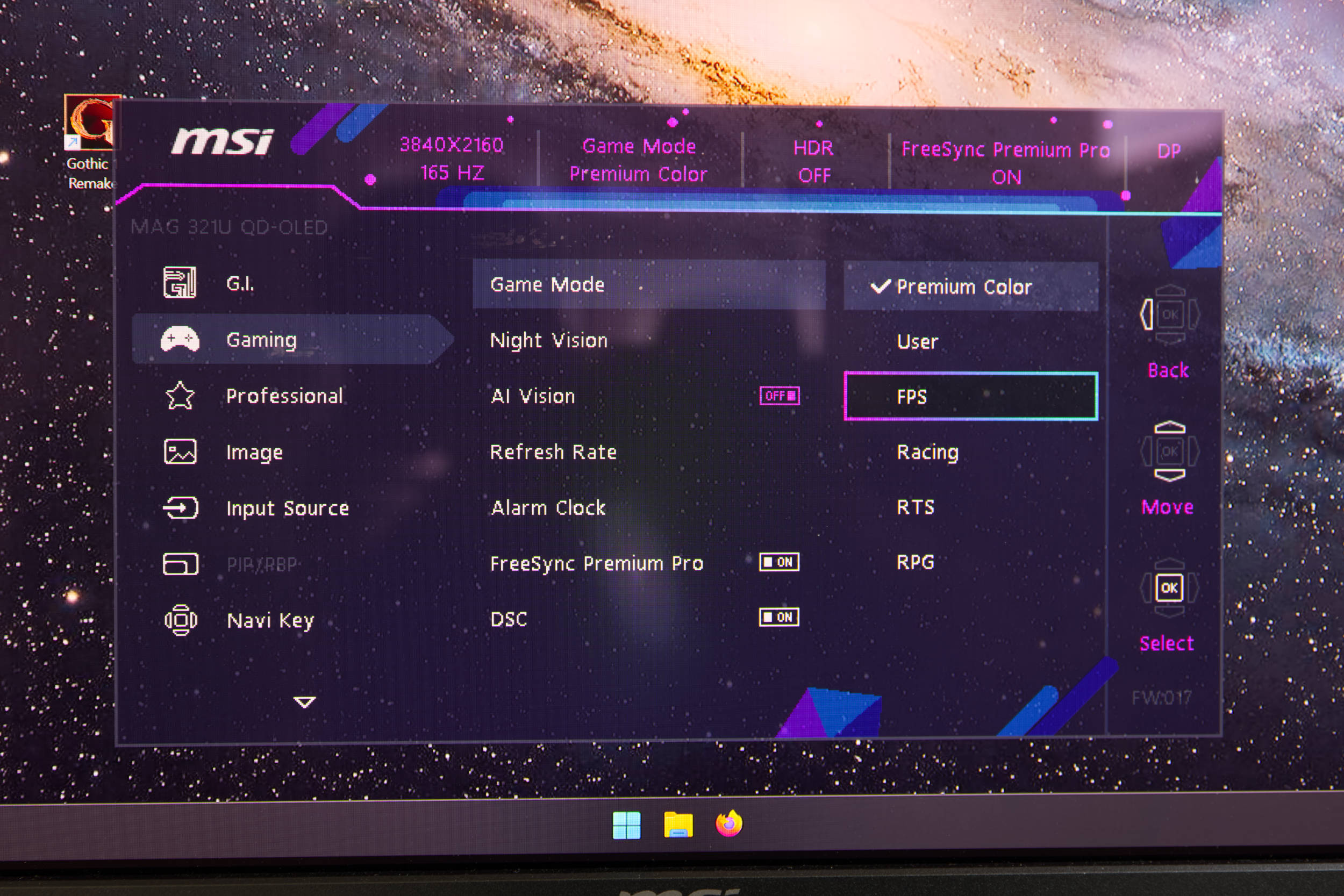 MSI MAG 321UPDE OSD Gaming Profile (Image © PCMasters.de)
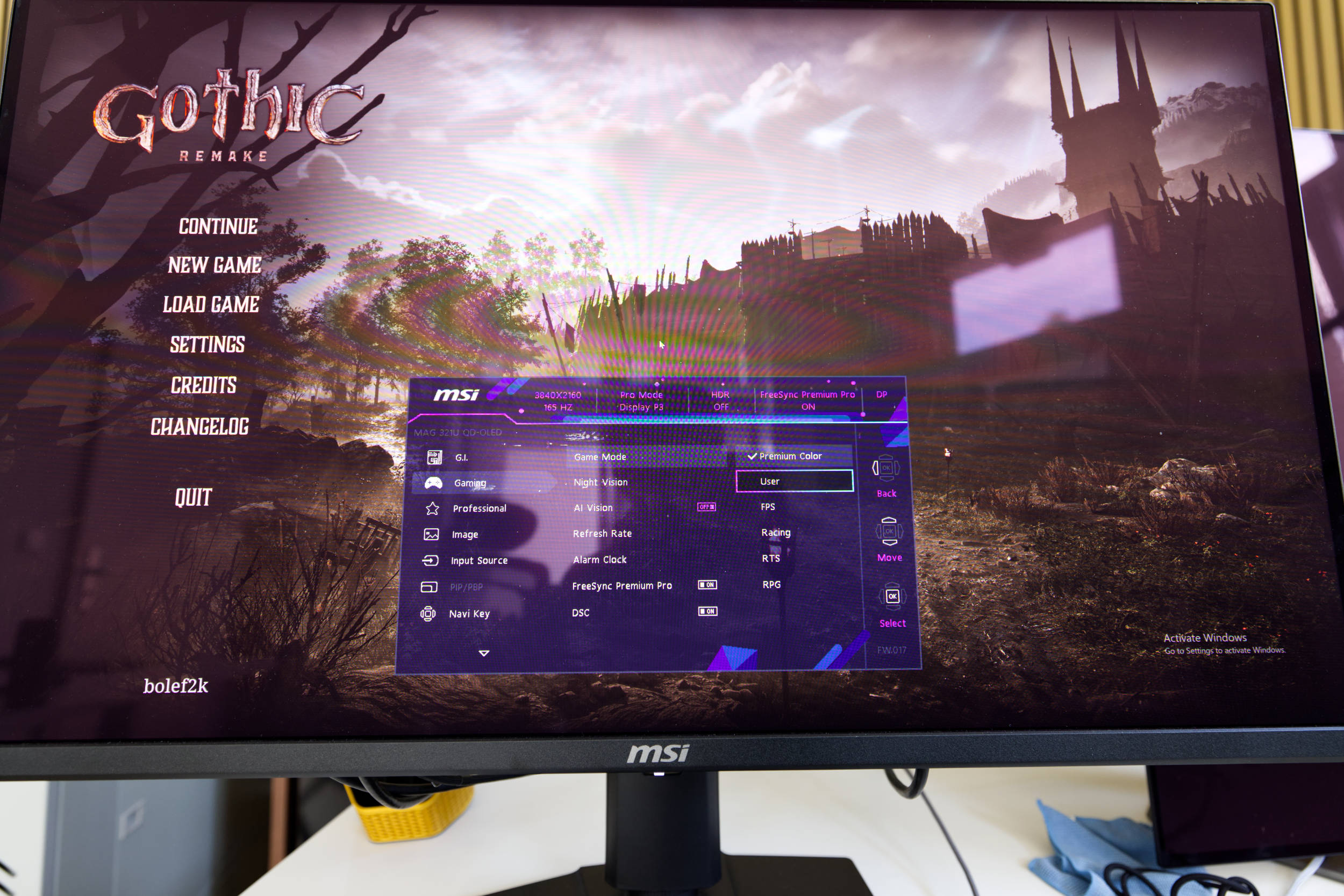
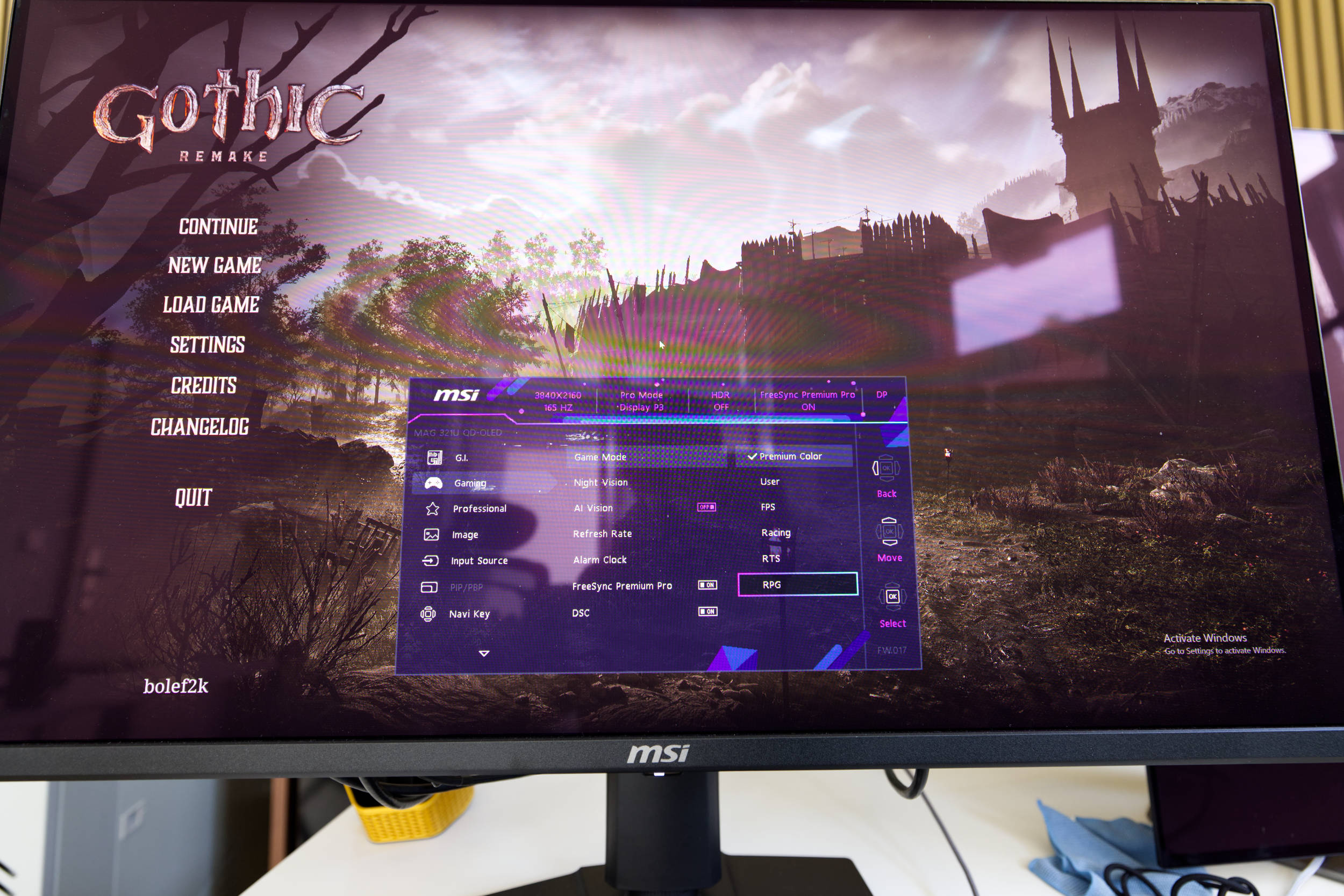
The "Gaming" menu item combines all settings relevant to gaming, including FreeSync Premium Pro. You can select profiles or gaming modes that affect colors, brightness, and contrast. We didn’t try AI-Vision, but the feature isn’t likely to be a true AI feature, since no LLM or similar technology is running on the monitor.
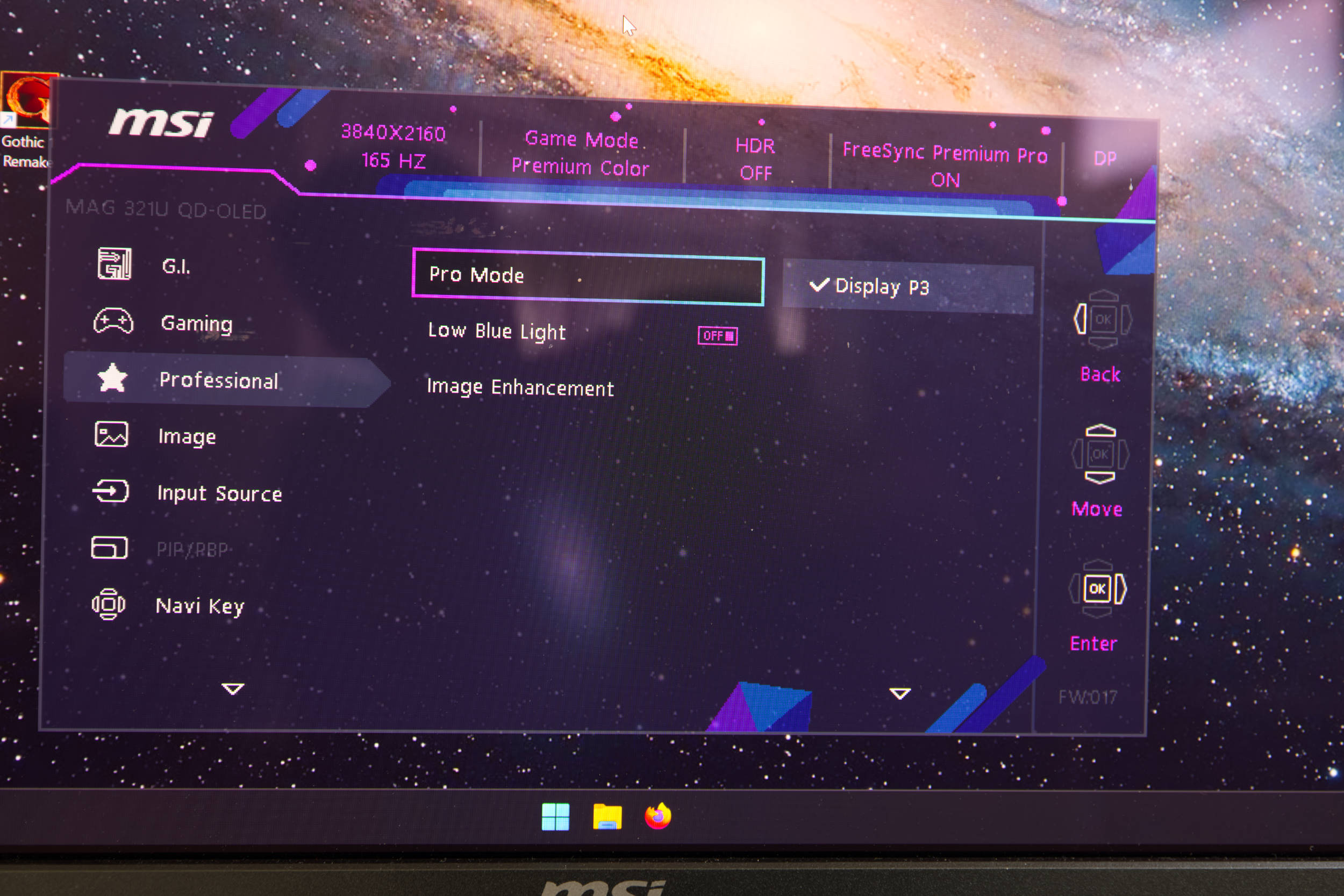 MSI MAG 321UPDE OSD Pro Mode (Image © PCMasters.de)
The "Professional" menu item is useful for everyday use, as it allows you to select the color space, for example. If needed, you can enable Low Blue Light mode—a feature the operating system can also provide, but here it’s built right into the monitor.
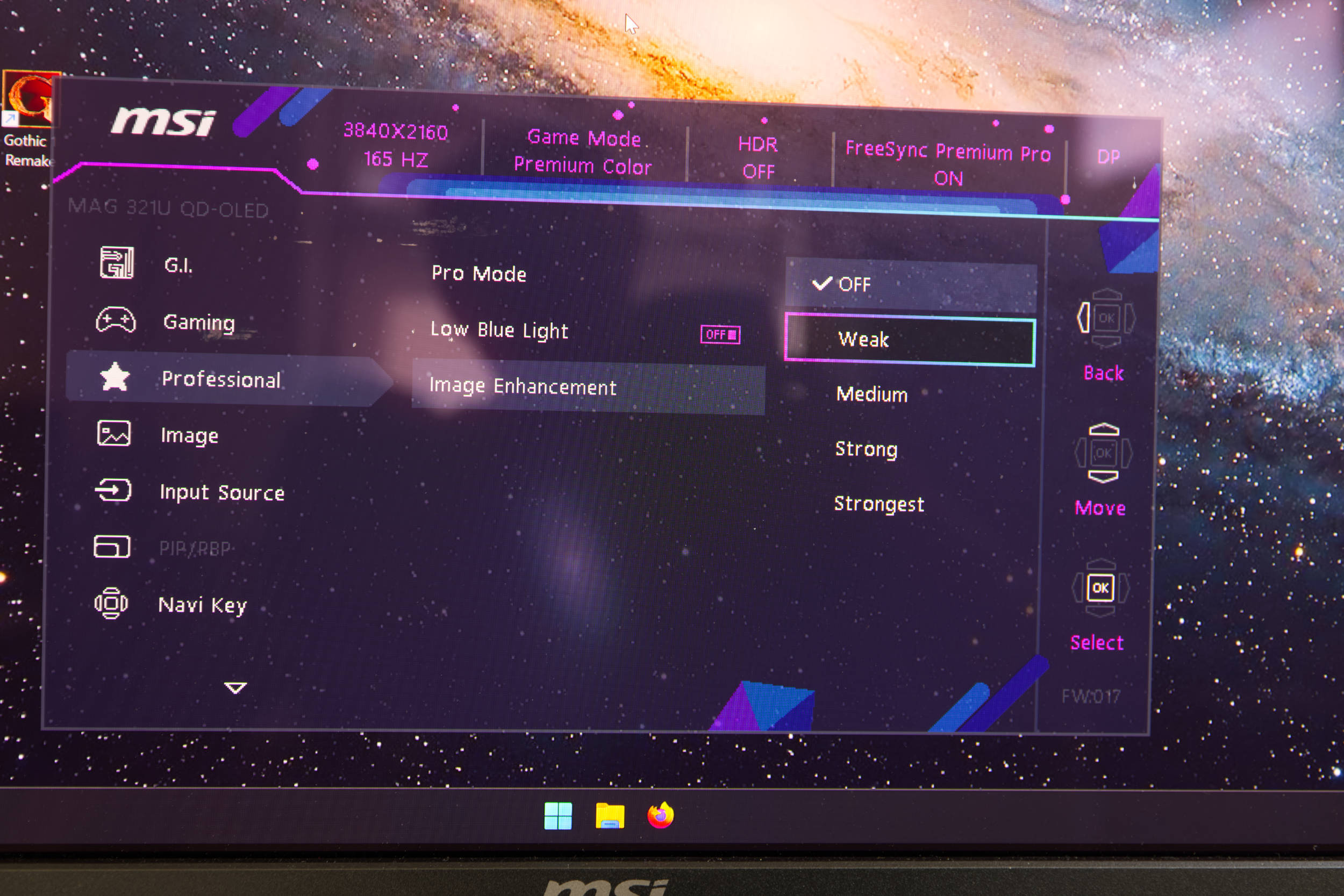 MSI MAG 321UPDE OSD Pro Image Weak (Image © PCMasters.de)
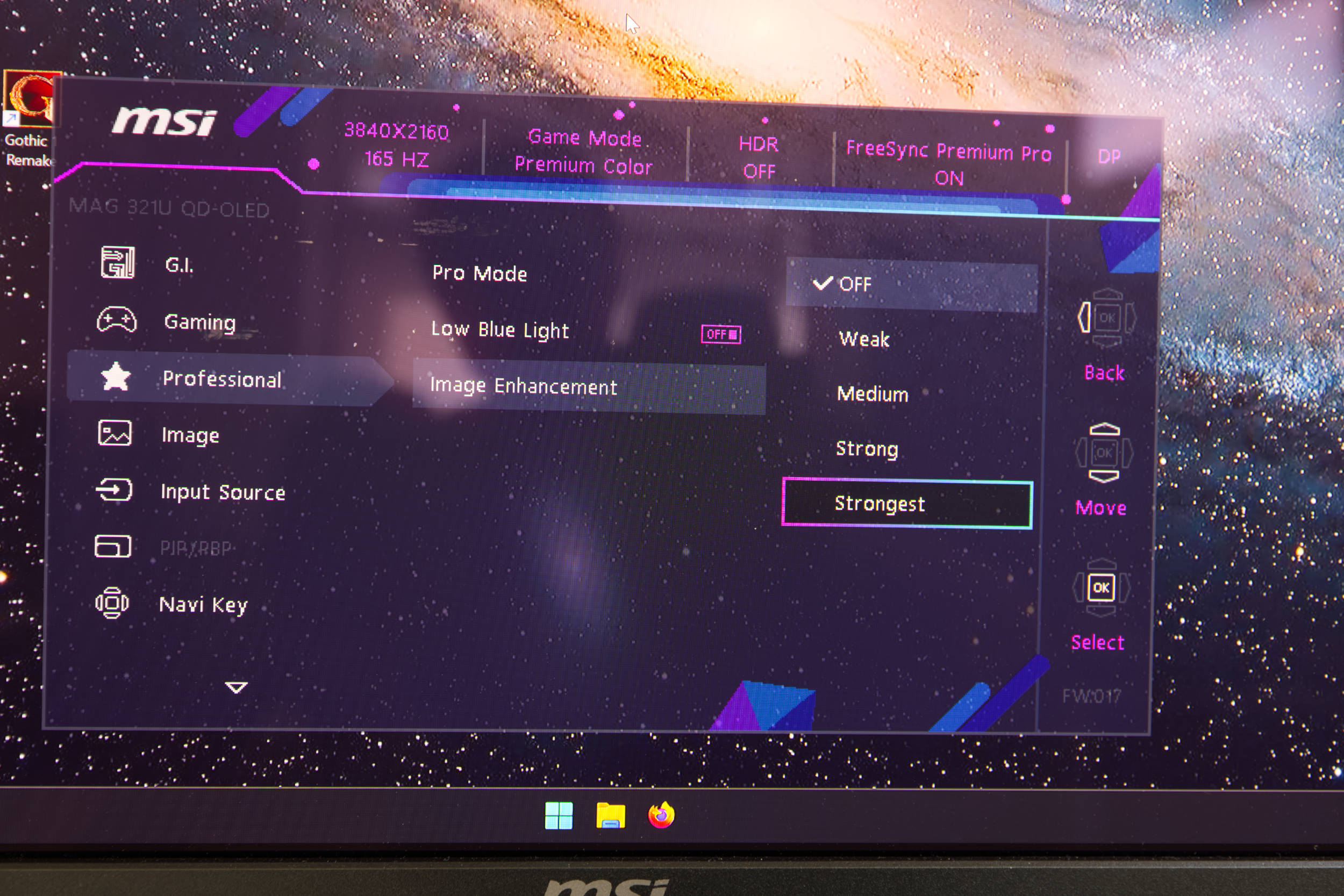
The Image Enhancements make the image sharper, which is clearly visible. "Strongest" seems a bit excessive.
 MSI MAG 321UPDE OSD Pro Image Strong (Image © PCMasters.de)
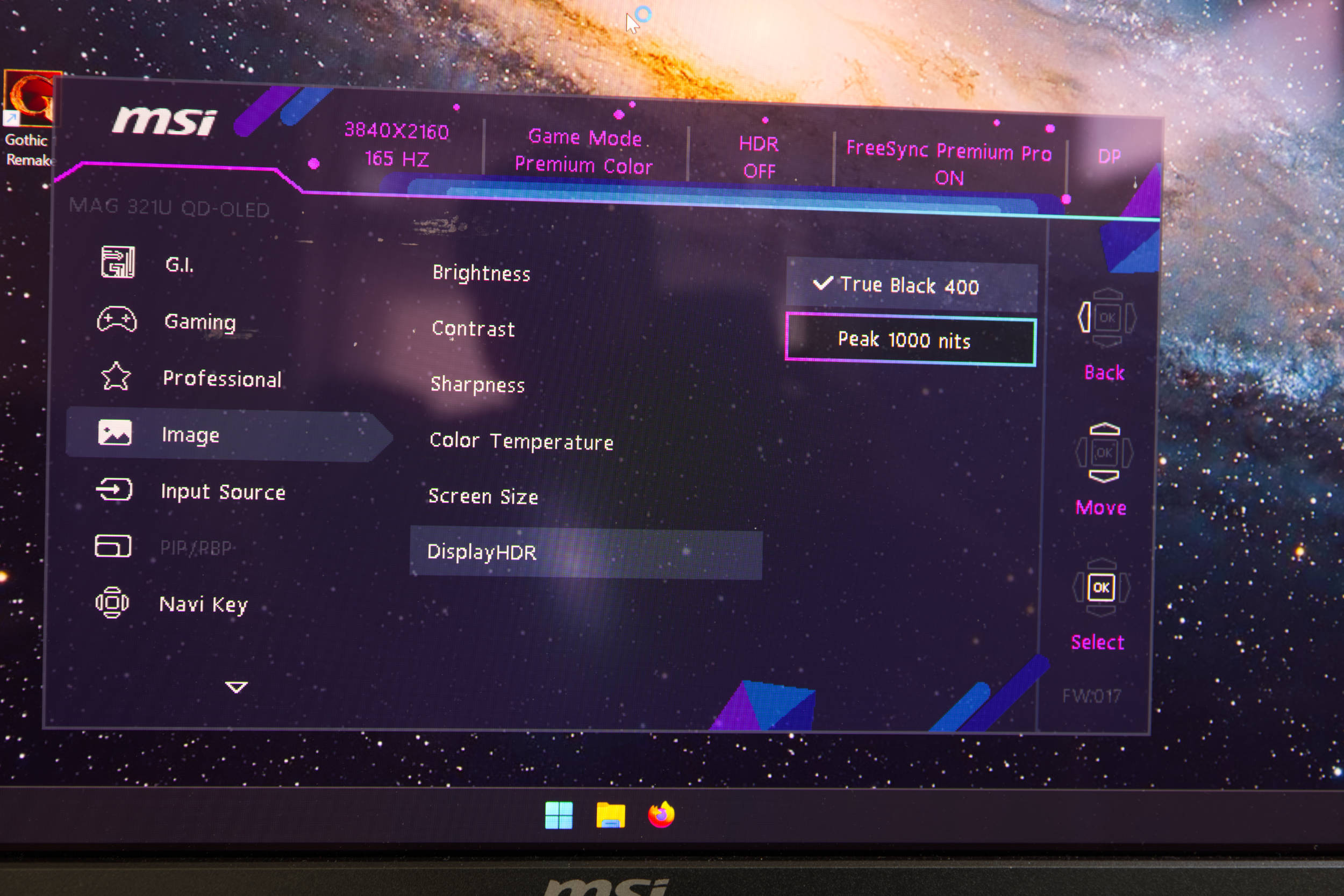
Under "Image," we find many more options that affect the actual image. Here, you can manually adjust the brightness, contrast, and sharpness. There’s also a color temperature setting and a DisplayHDR setting. We used True Black 400 for the test. When switching to Peak 1000 Nits, we didn’t notice any difference—perhaps there was another option missing here.
 MSI MAG 321UPDE OSD Image HDR (Image © PCMasters.de)
The individual gaming profiles/modes alter both color and contrast to varying degrees, but the differences between the profiles were more pronounced than what we’re used to seeing from other manufacturers.
 MSI MAG 321UPDE OSD Gaming User (Image © PCMasters.de)
 MSI MAG 321UPDE OSD Gaming RPG (Image © PCMasters.de)
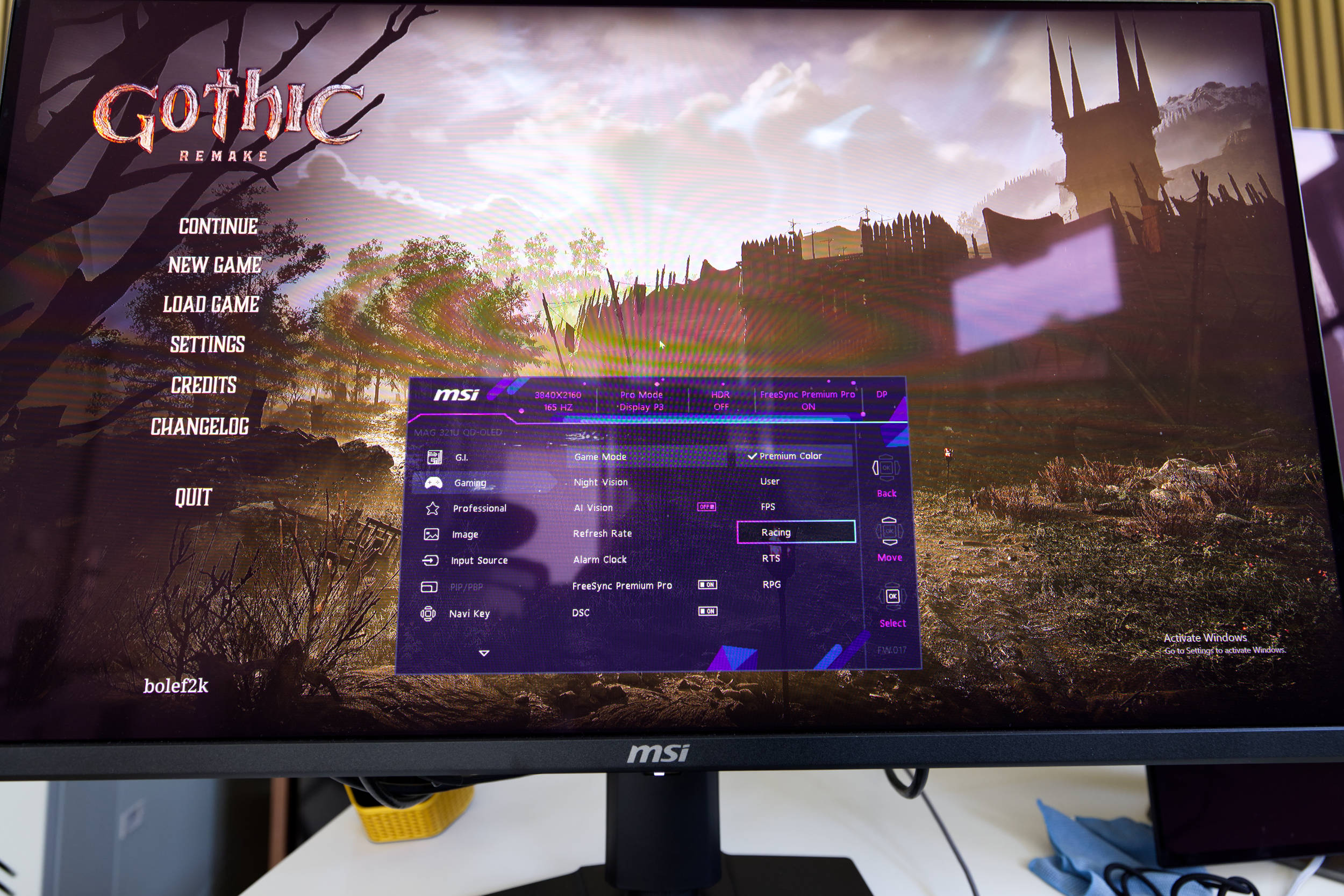 MSI MAG 321UPDE OSD Gaming Racing (Image © PCMasters.de)
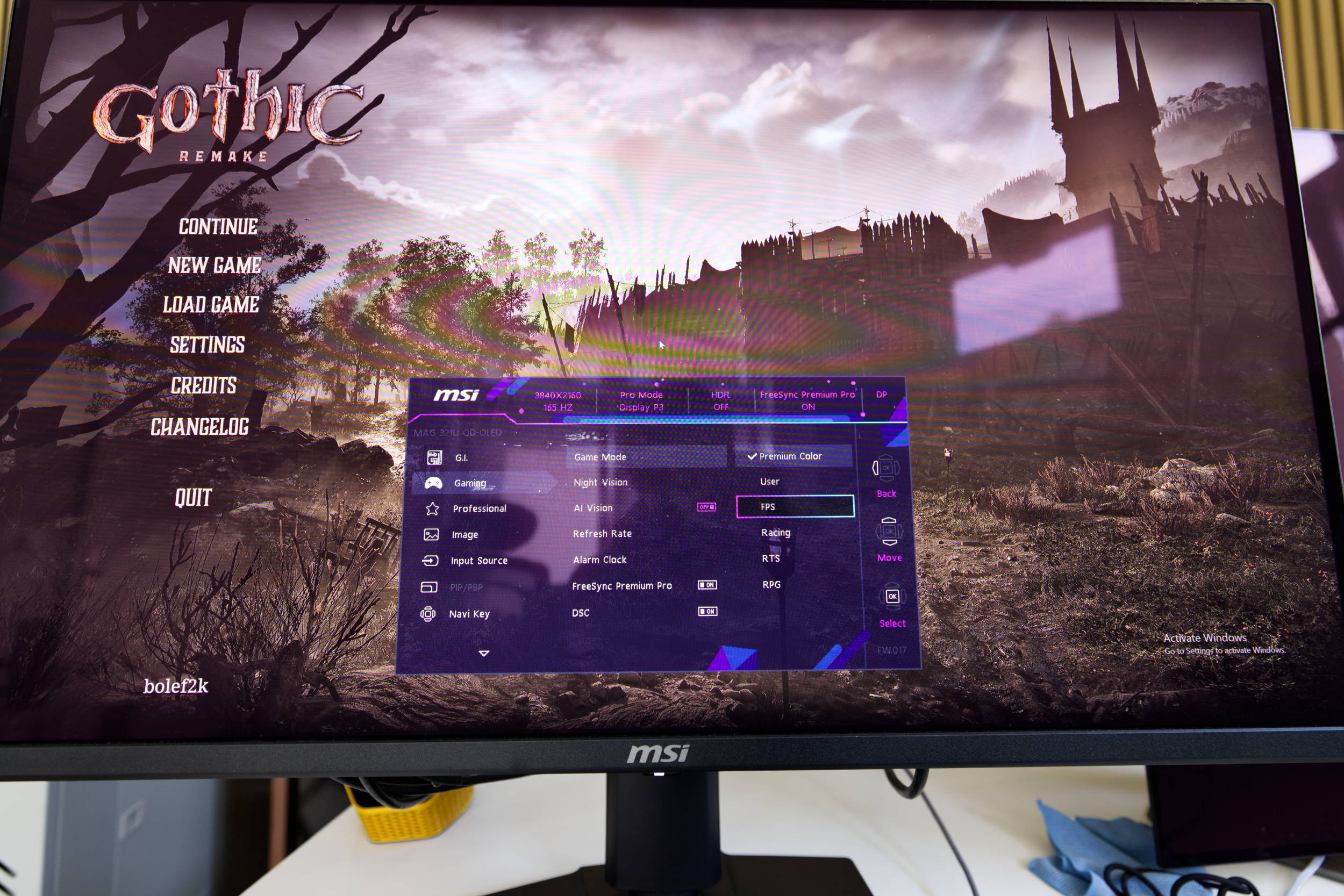 MSI MAG 321UPDE OSD Gaming FPS (Image © PCMasters.de)
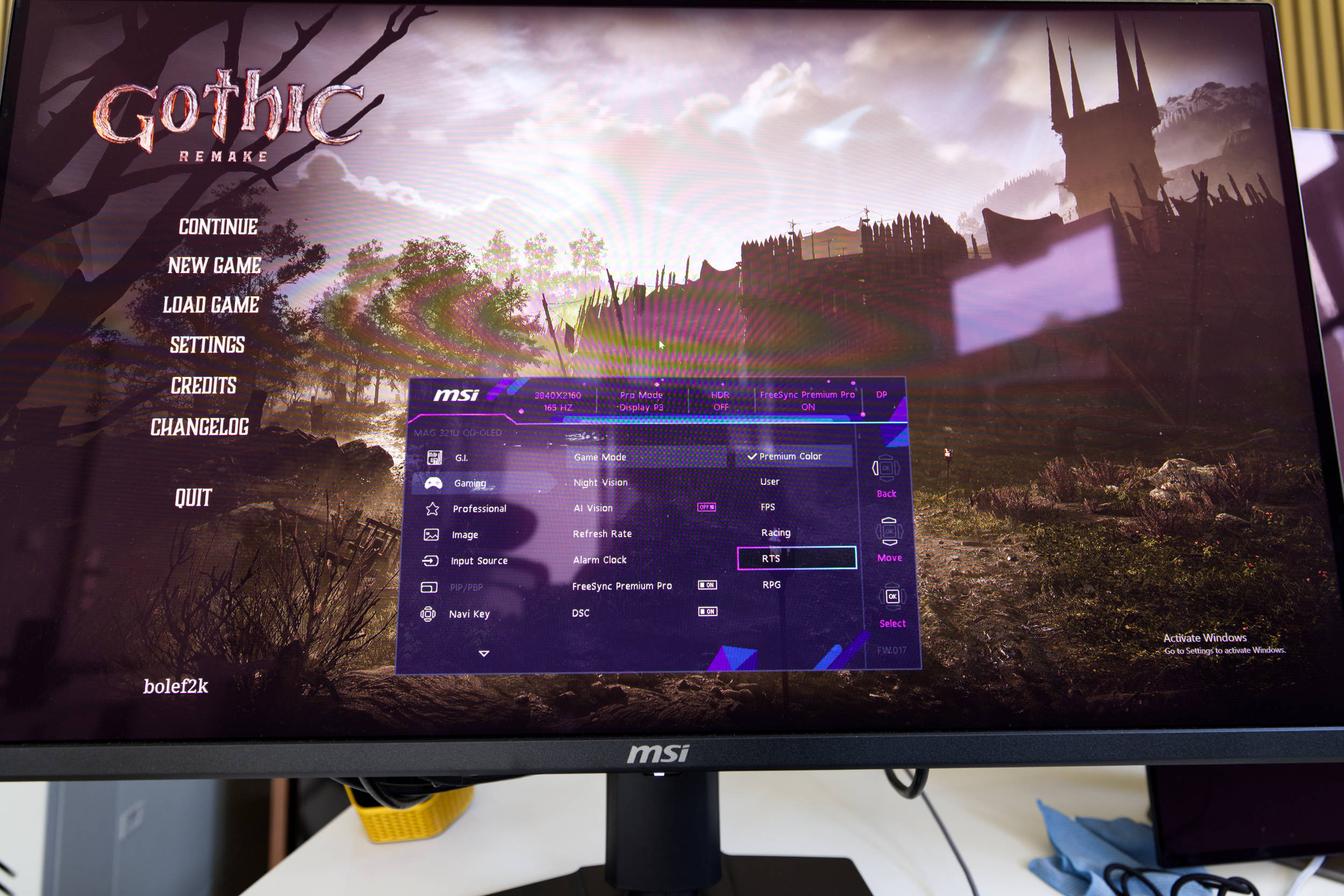 MSI MAG 321UPDE OSD Gaming RTS (Image © PCMasters.de)
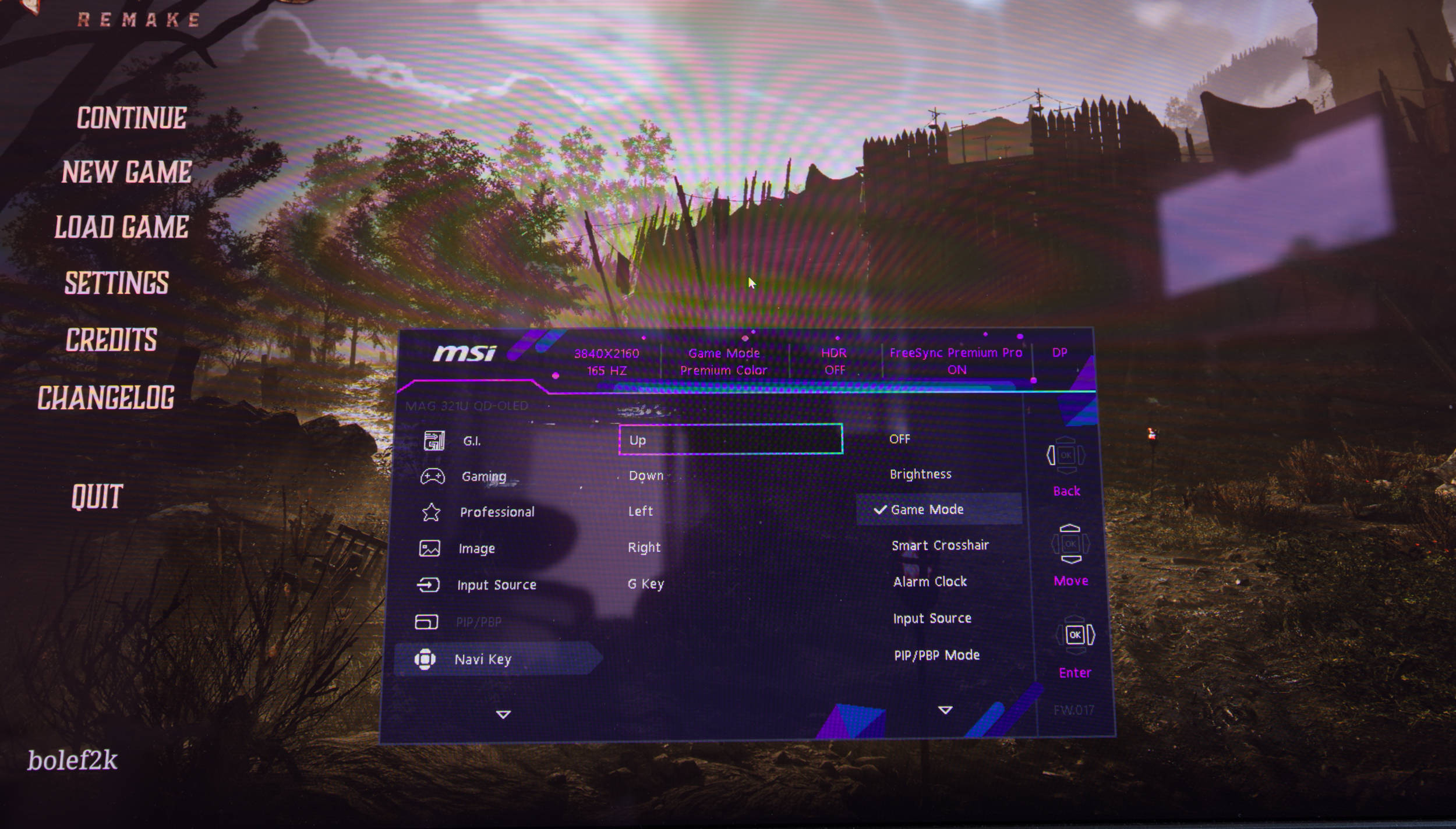 MSI MAG 321UPDE OSD Navi Key (Image © PCMasters.de)
MSI has also included customizable settings for the directional pad’s shortcut function. When the menu isn’t open, the "Navi-Key" directional pad activates specific functions. You can choose which function each direction and the G-Key perform.
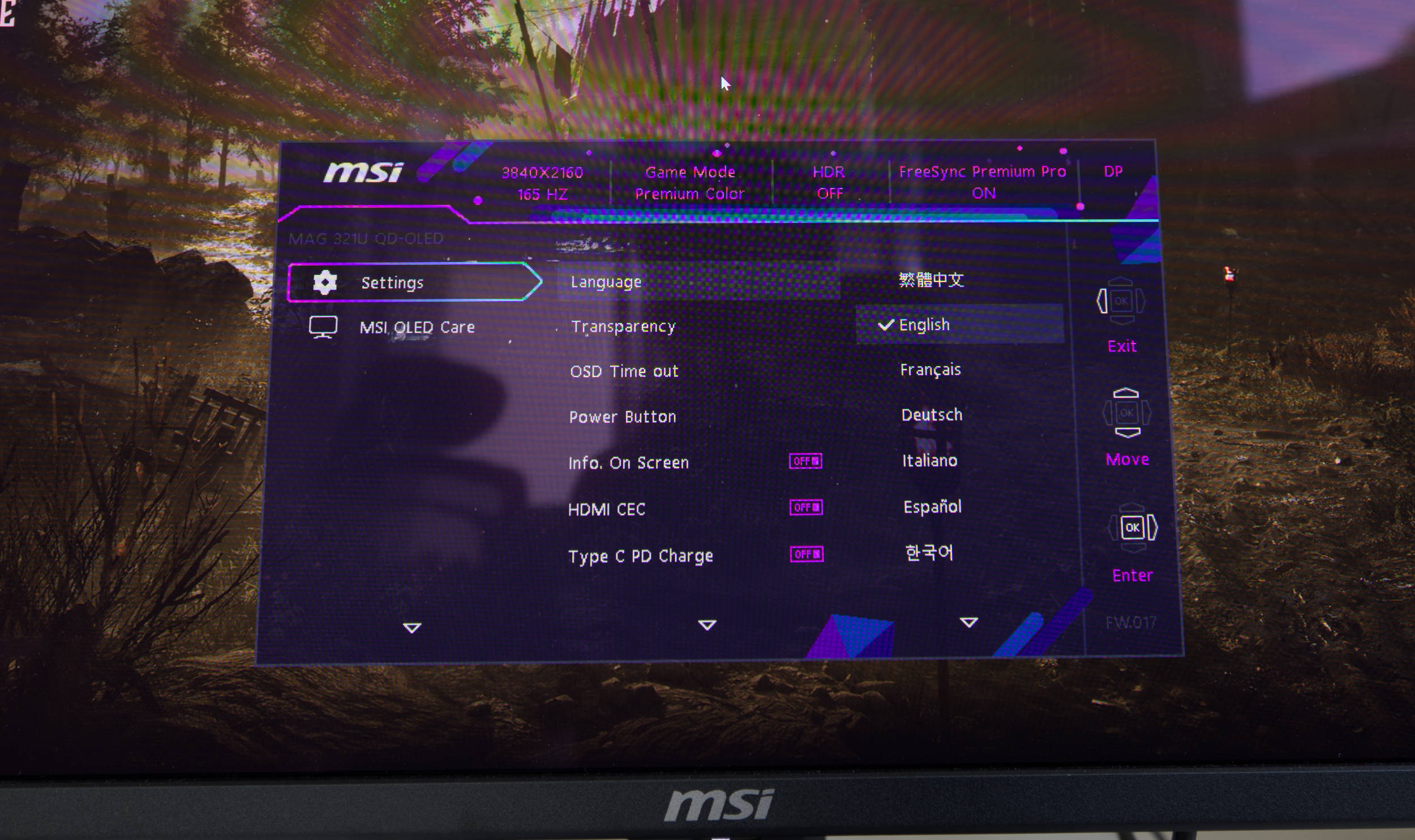 MSI MAG 321UPDE OSD Settings (Image © PCMasters.de)
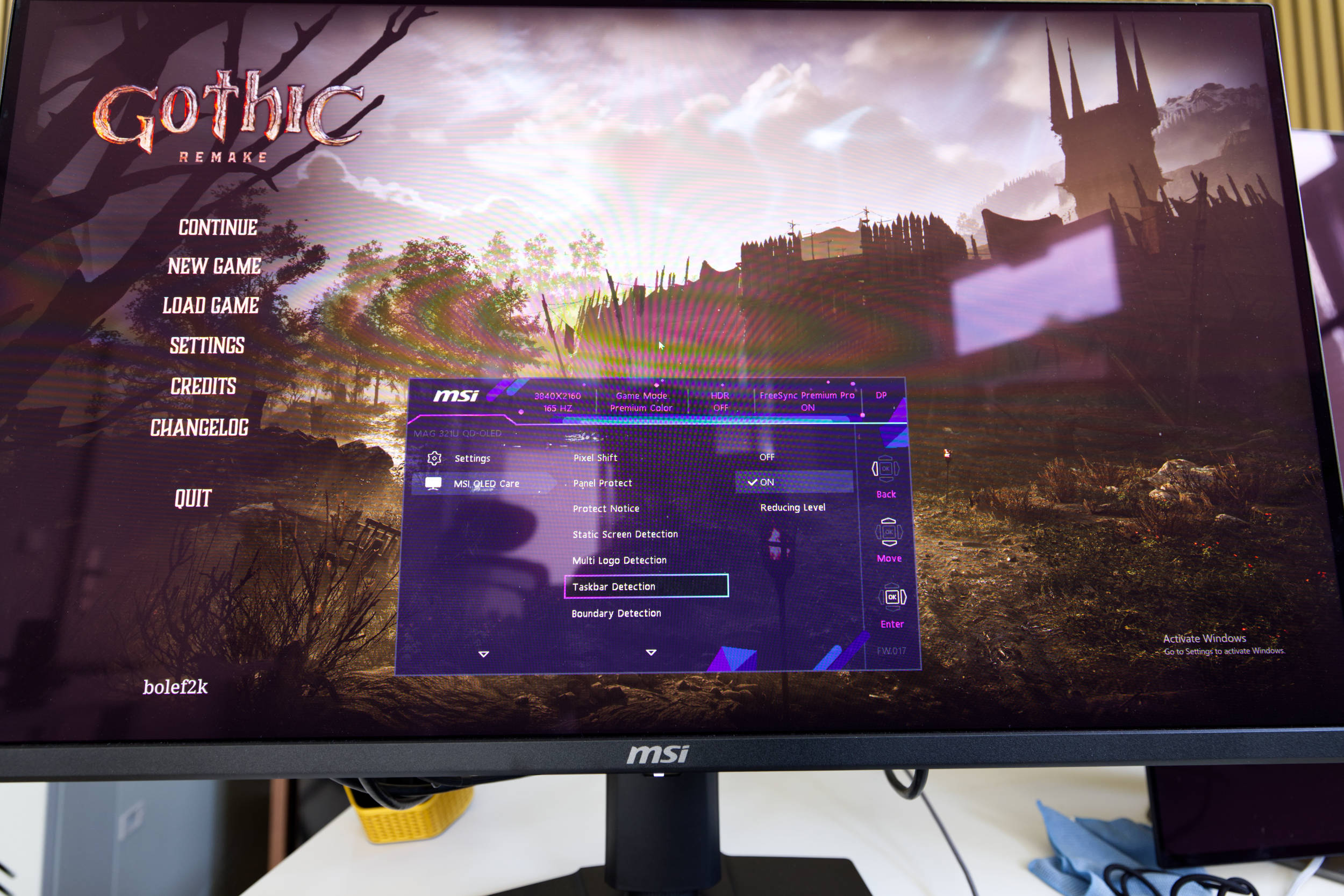 MSI MAG 321UPDE OSD OLED Care (Image © PCMasters.de)
Further down, you’ll find the general settings for language as well as for the OSD as a whole. Below that is MSI OLED Care, where you can enable or disable the aforementioned burn-in detection features. You’ll also find the refresh function here and can view the last refresh. All in all, a very clean and versatile menu.
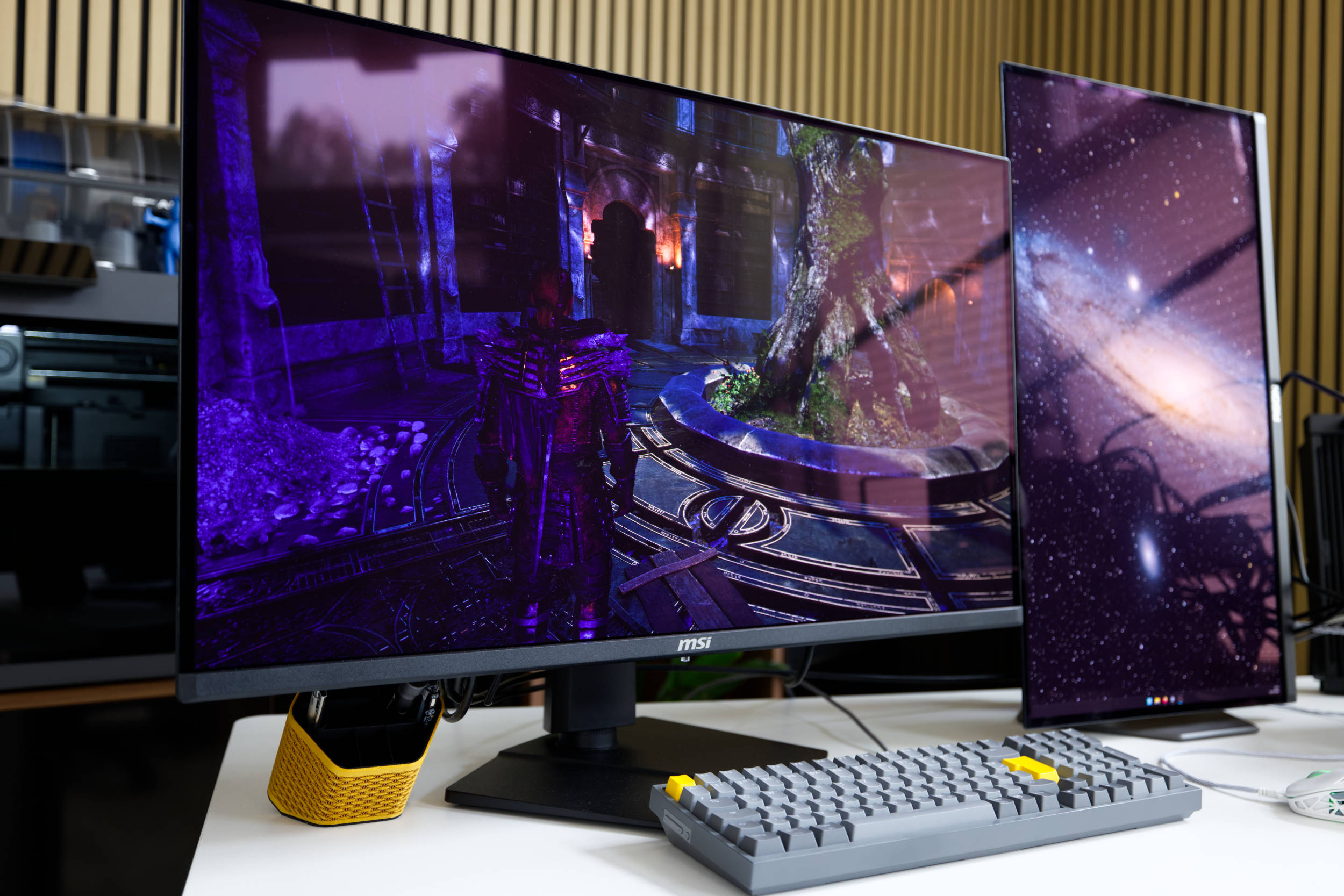 MSI MAG 321UPDE Fazit (Image © PCMasters.de)
Conclusion on the MAG 321UPDE
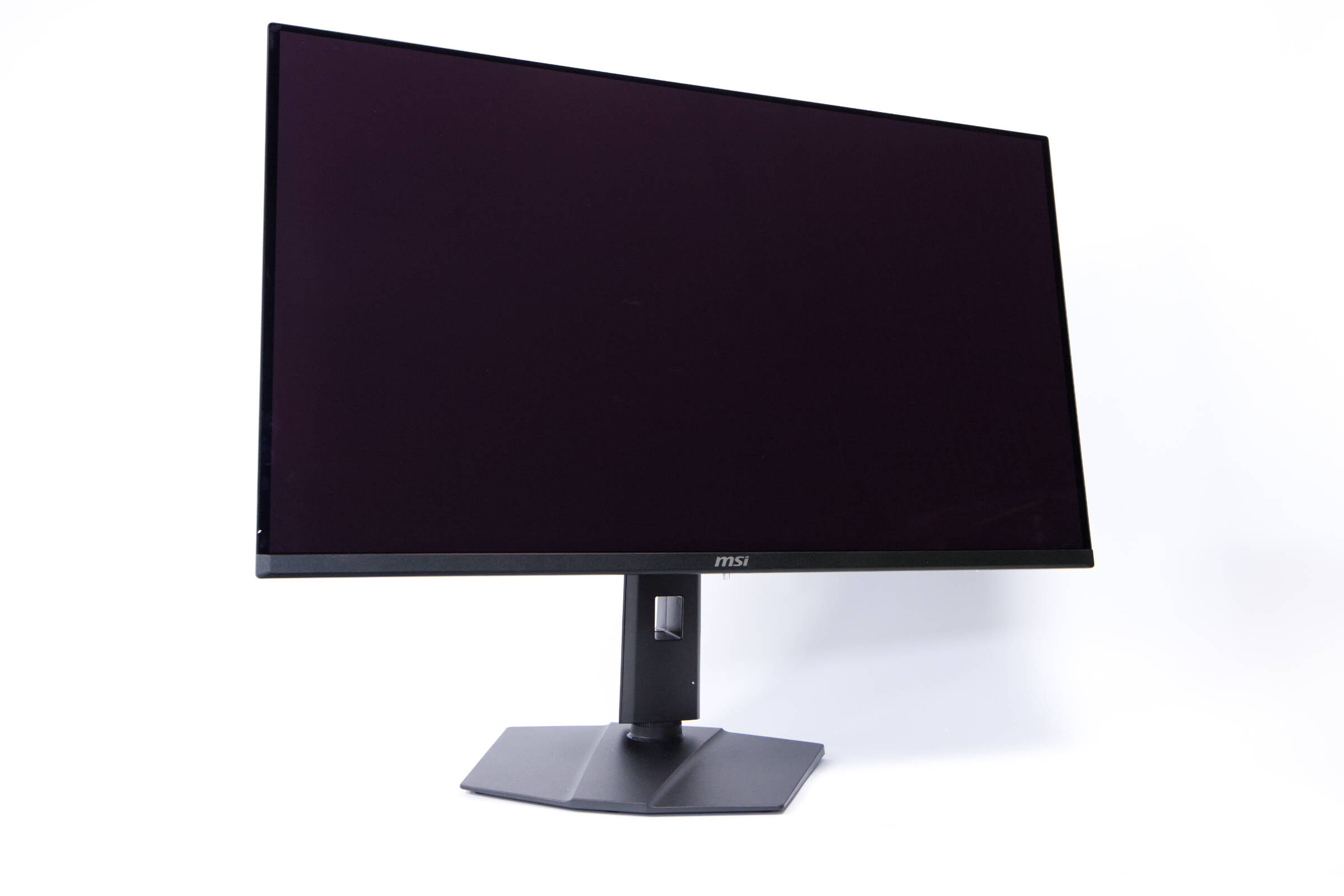
If you’re looking for a gaming monitor with an OLED panel, a screen size of 30" or larger, and a 165 Hz refresh rate, you should definitely check out the MAG 321UPDE. With a price of 599 € (Affiliate), it’s ranked among the top 10 best deals on Geizhals and has a lot to offer.
In everyday use, the monitor has proven to be a stable and reliable companion that—despite the necessary OLED Care—hasn’t annoyed us even once and handles the process automatically in the background. This meant we weren’t interrupted either while working or during gaming sessions. The panel is somewhat reflective, but this isn’t distracting at most times of the day—and of course, it’s least noticeable in the evening. In addition, the QD-OLED panel looks very sharp thanks to its 4K UHD resolution.
The monitor’s adjustability is sufficient, even though it lacks a pivot function. Another positive is that the stand is very sturdy, and the monitor sits firmly on the desk without wobbling. The directional pad offers intuitive control of the monitor’s functions, and the small LED beneath the monitor is very unobtrusive. There’s no KVM switch, but the connectivity options are more than sufficient, as MSI has even included a USB Type-C port with Power Delivery.
MSI managed to surprise us with this monitor, as it’s a very well-designed product that makes both work and gaming enjoyable. The only thing we really missed was the lack of built-in speakers.
Pros
- Attractive design
- QD-OLED panel
- Sharp 3,840 x 2,160 (4K UHD) resolution
- Adaptive-Sync/FreeSync Premium Pro and up to 165 Hz
- Automatic OLED Care in standby mode every 24 hours
- Sturdy stand with acceptable adjustment options
- Price
Cons
- No built-in speakers