Computer Forum
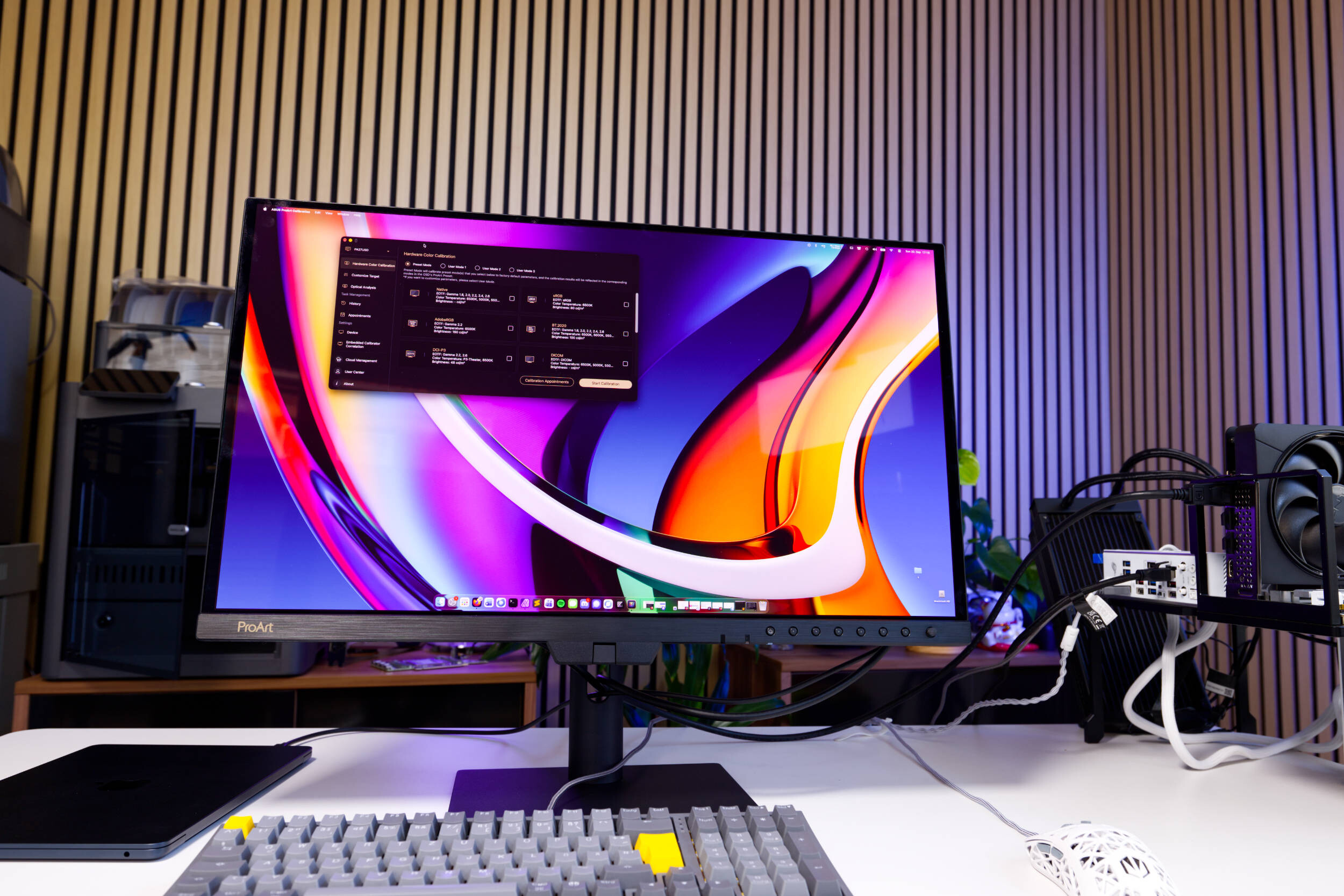 ASUS ProArt Display OLED PA27USD HDR Review (Image © PCMasters.de)
ASUS ProArt OLED PA27USD in Detail
ASUS has recently been launching many new models in the professional segment that are part of the manufacturer’s ProArt series. With the ASUS ProArt Display PA32KCX, we’d already tested the exclusive 8K Mini-LED monitor, and now we’re taking a look at a more affordable 27-inch monitor from the series that combines similar features with an OLED panel.
A key difference with the ProArt Display OLED PA27USD lies in its screen size and the QD-OLED (Quantum Dot) panel from Samsung. Due to this technology, the display doesn’t offer 8K or even 5K resolution, but rather the standard 3840x2160px resolution (4K UHD) . This isn’t a major issue in this case, because the image, with a pixel density of 166 ppi, is still sharp and perfectly suited for work. The panel is anti-glare, which was a positive in everyday use, as the monitor didn’t bother us with reflections. For better protection against incoming light, ASUS also includes a light shield, though we didn’t need it in everyday use.
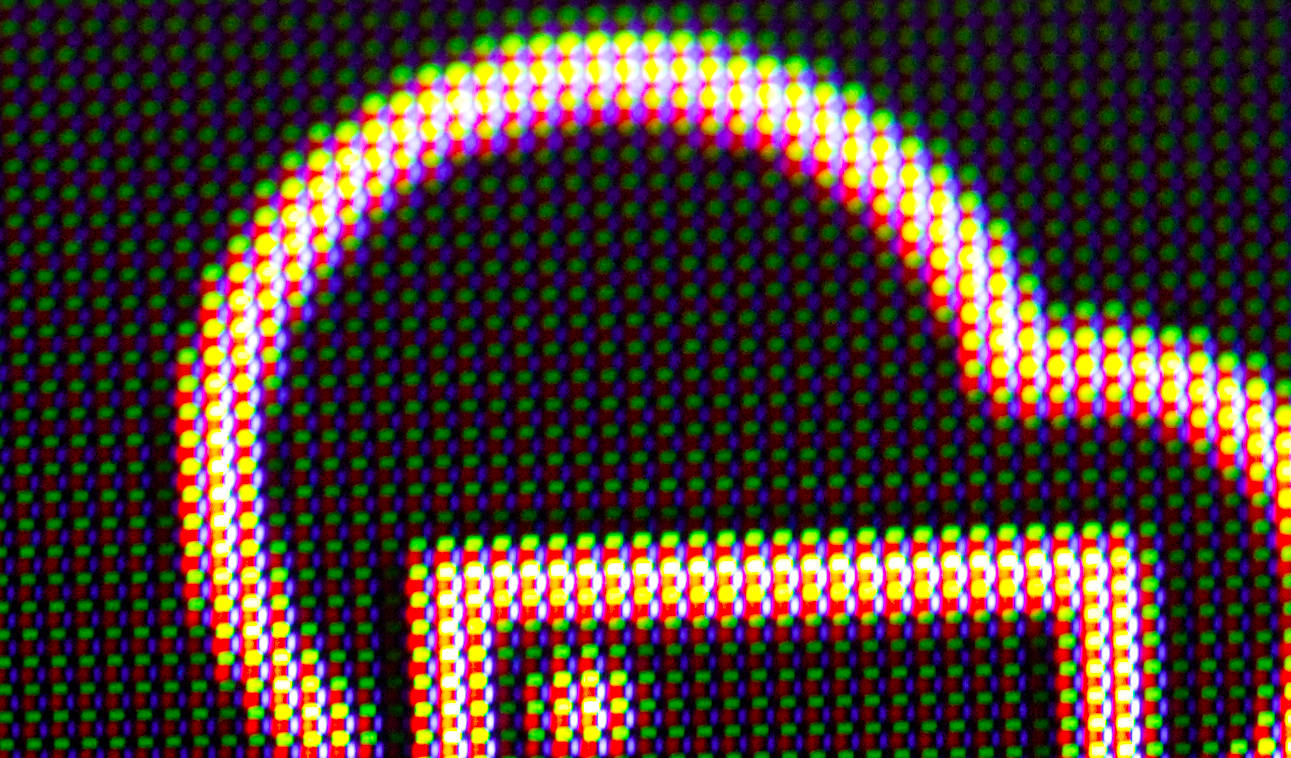 ASUS ProArt Display OLED PA27USD OLED (Image © PCMasters.de)
Even though the monitor is primarily intended for work, it supports a refresh rate of 240 Hz and even Adaptive Sync, in case you want to use it for gaming. We also took this scenario into account and will discuss it further in the "Experience Report" section.
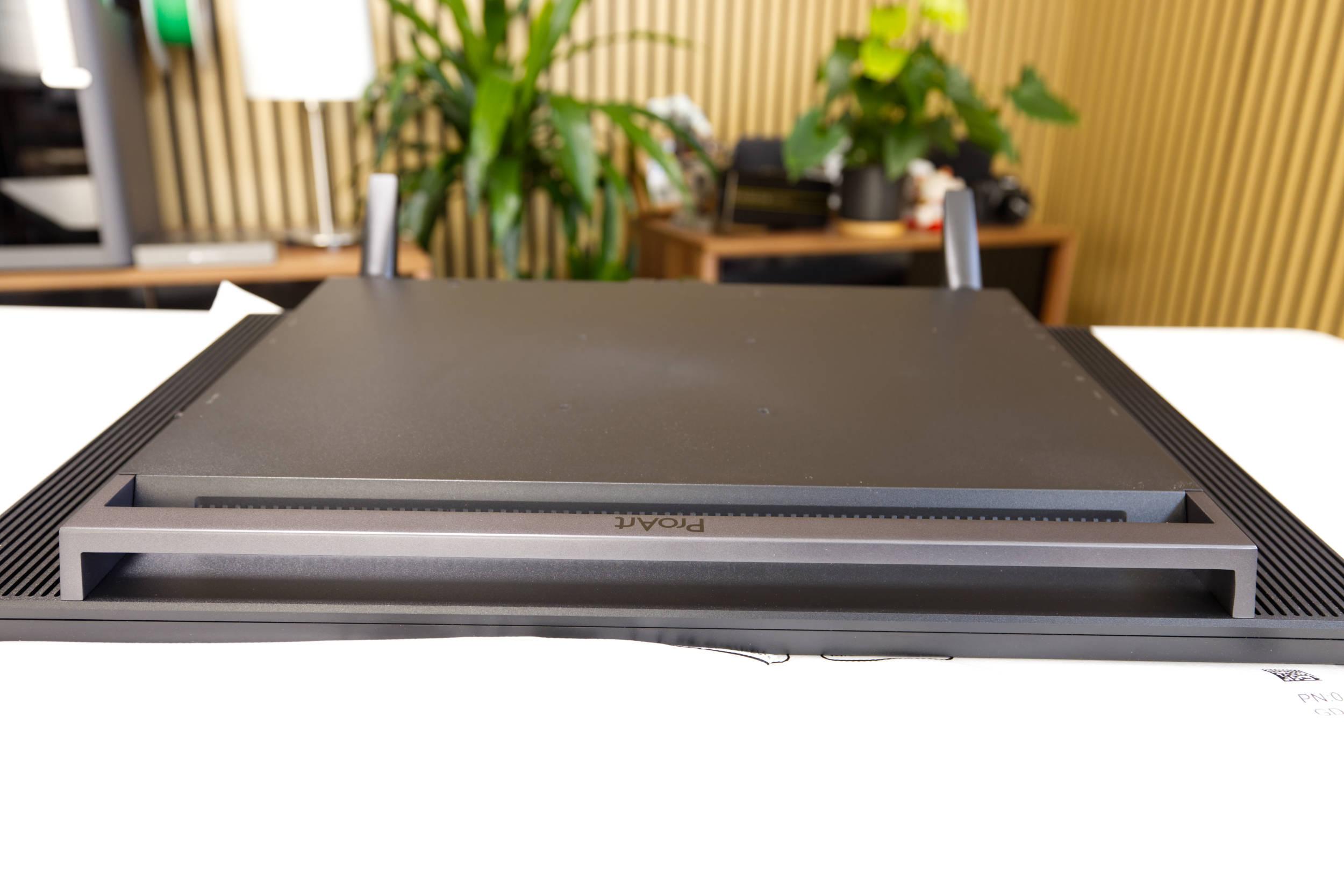 ASUS ProArt Display OLED PA27USD Top Mount (Image © PCMasters.de)
With this panel, there’s hardly any loss of contrast or image distortion as the viewing angle increases. Since the panel is flat and not curved, it pairs well with other monitors for dual-monitor setups. At 11 mm on the sides and 8 mm at the top, the panel’s bezel is slightly wider than on, for example, the ProArt PA27JCV model (5K monitor). Nevertheless, the bezel isn’t distracting, and thanks to its uniform design, the monitor fits quite well into the overall look.
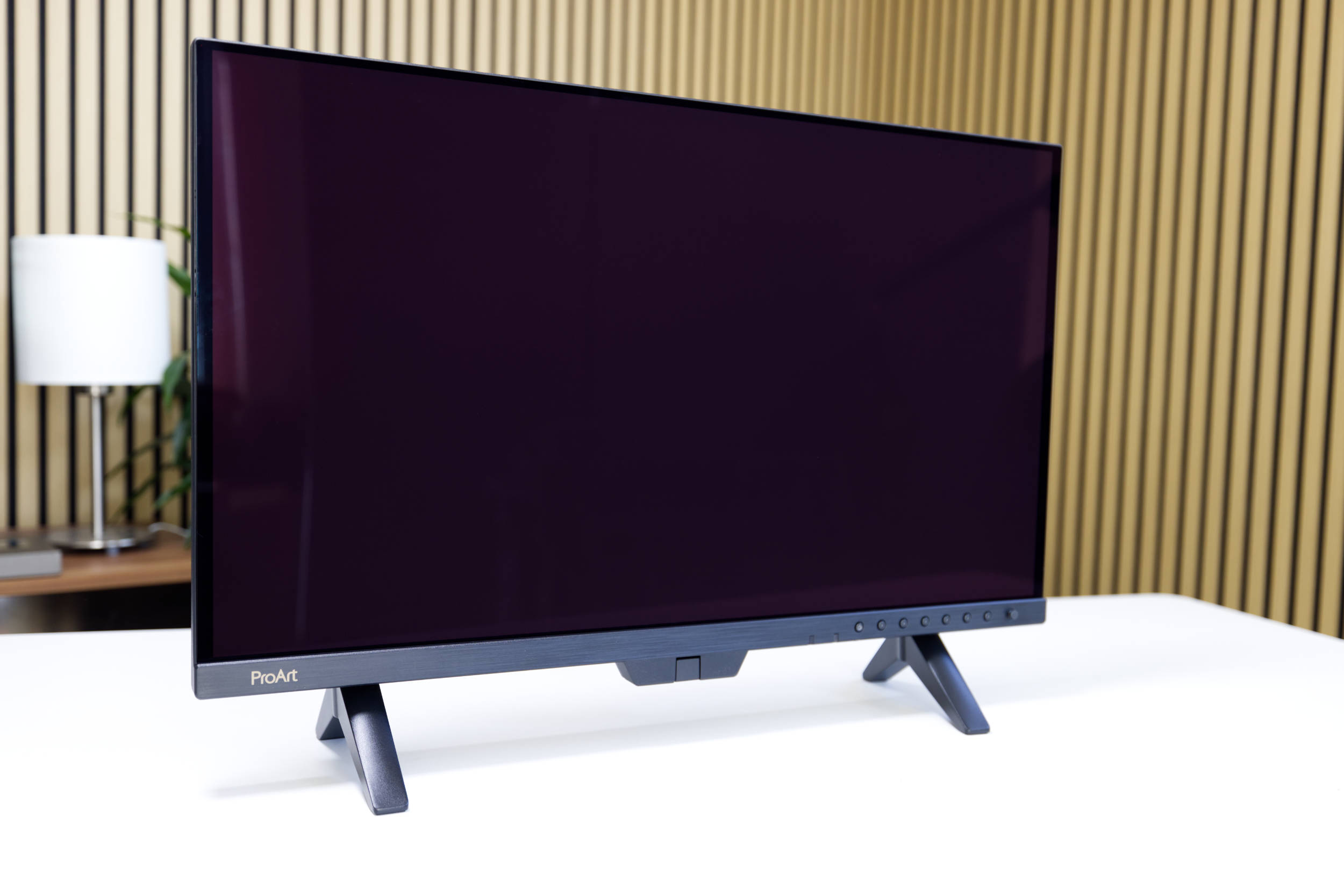 ASUS ProArt Display OLED PA27USD Monitor (Front) (Image © PCMasters.de)
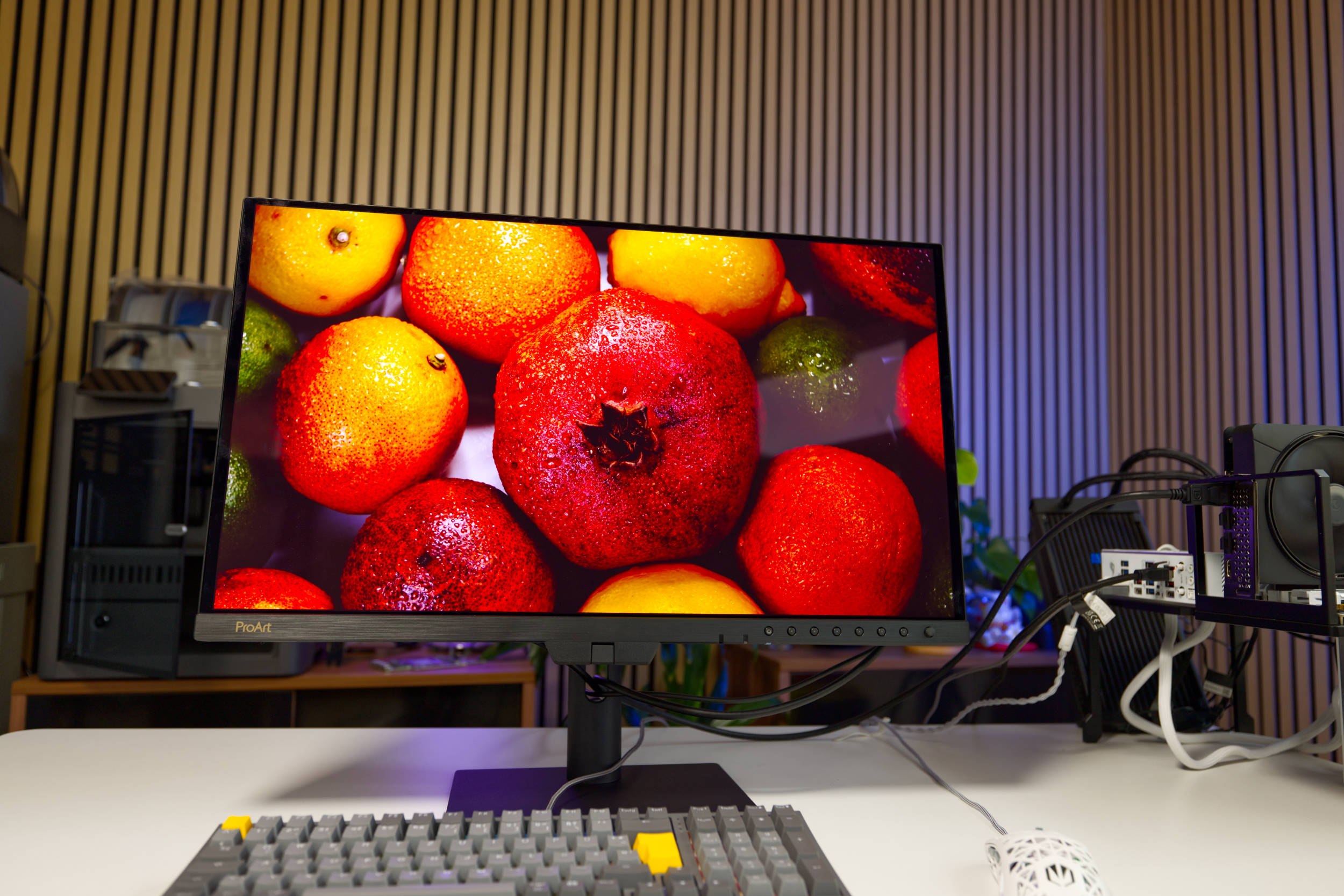
When it comes to brightness, the ProArt OLED PA27USD delivers acceptable values ranging from 250 cd/m² up to a maximum of 1,000 cd/m² (1,000 nits), as well as a contrast ratio of 1,500,000:1. We’ve already seen many QD-OLED panels that achieve higher values, but the focus with this monitor is on color accuracy rather than maximum brightness. This brightness level also ensures that the panel doesn’t overheat, meaning it doesn’t need a fan! That was a major point of criticism with the ASUS ProArt Display PA32KCX, as that monitor was simply too loud. That’s not the case with the ProArt OLED PA27USD, which makes working with the monitor for long periods comfortable.
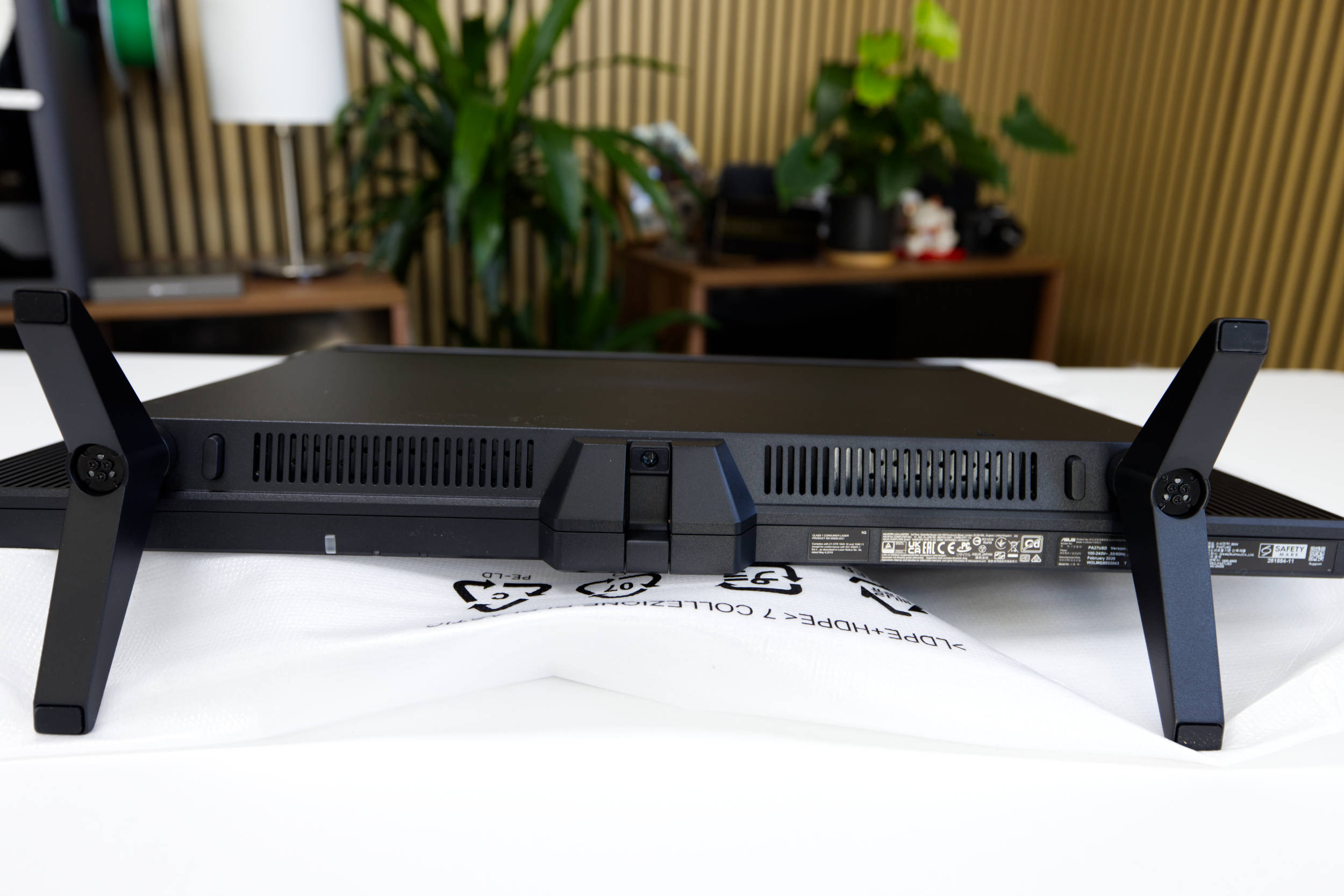 ASUS ProArt Display OLED PA27USD (bottom) (Image © PCMasters.de)
HDR mode is ideal for certain types of content and tasks, and the ProArt OLED PA27USD supports DisplayHDR True Black 400 (VESA-certified), HDR10, and HLG. The OSD menu allows you to adjust various settings to ensure they’re comfortable for every user. The monitor also offers Dolby Vision, but we didn’t examine that feature in detail.
The monitor covers 100% of the sRGB color space and 99% of the DCI-P3 color space.
However, the monitor also has additional sensors that can help you save power or extend its lifespan. For example, the ProArt OLED PA27USD features, among other things, an ambient light sensor that can automatically adjust the brightness and a proximity sensor to turn off the monitor when you step away from your workspace.
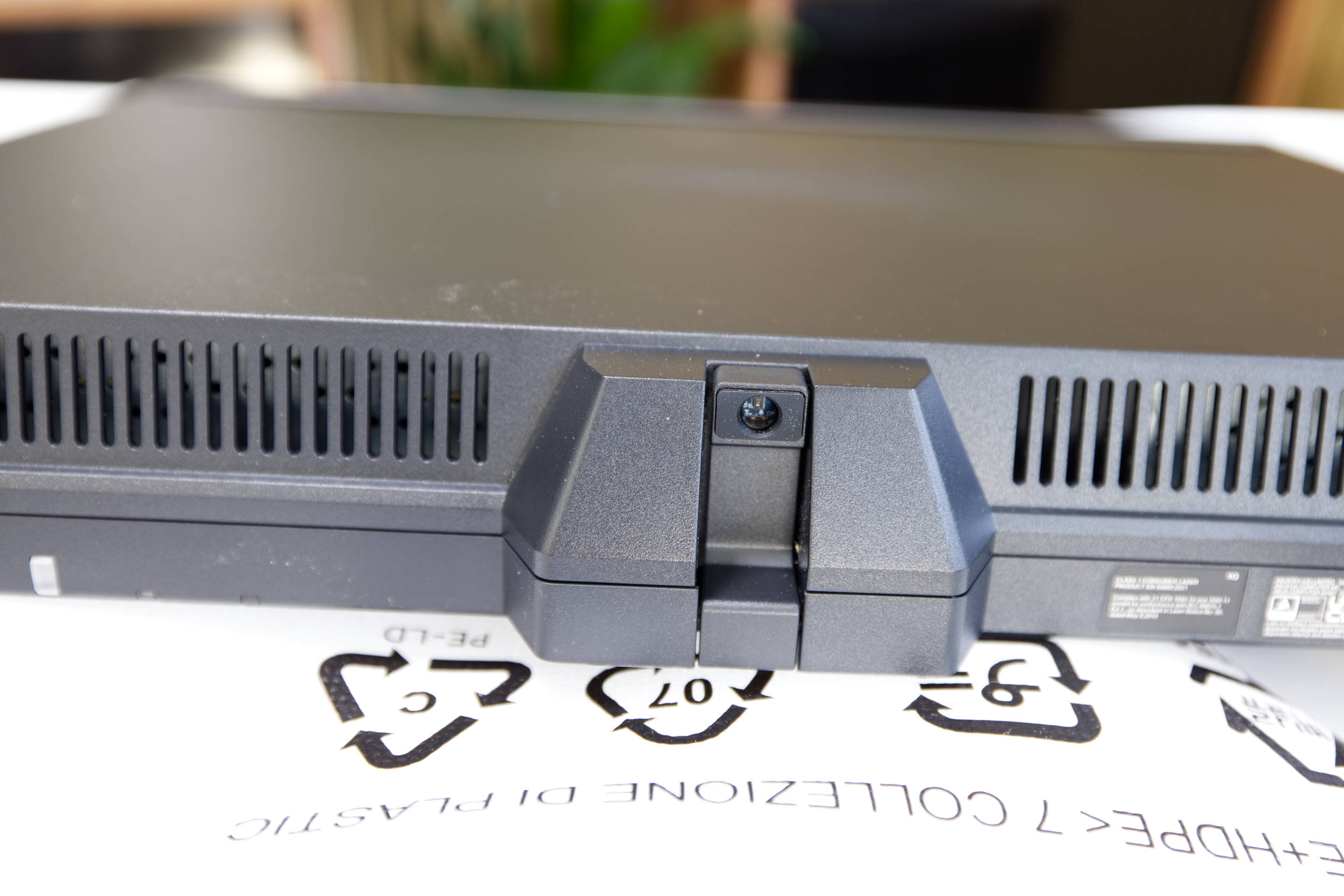 ASUS ProArt Display OLED PA27USD Colorimeter (Image © PCMasters.de)
Integrated Colorimeter
The panel comes pre-calibrated with a factory calibration of Delta-E <1, but you can confidently perform your first calibration right away to get a feel for the feature and try out the ASUS software.
The colorimeter integrated by ASUS is located in the center of the ProArt OLED PA27USD and protrudes slightly downward. This doesn’t detract from the design, and it extends automatically when you start the calibration. For this process, we recommend using the software, even though it can be done via the OSD menu. This is primarily because the process is much faster using the software and saves us time.
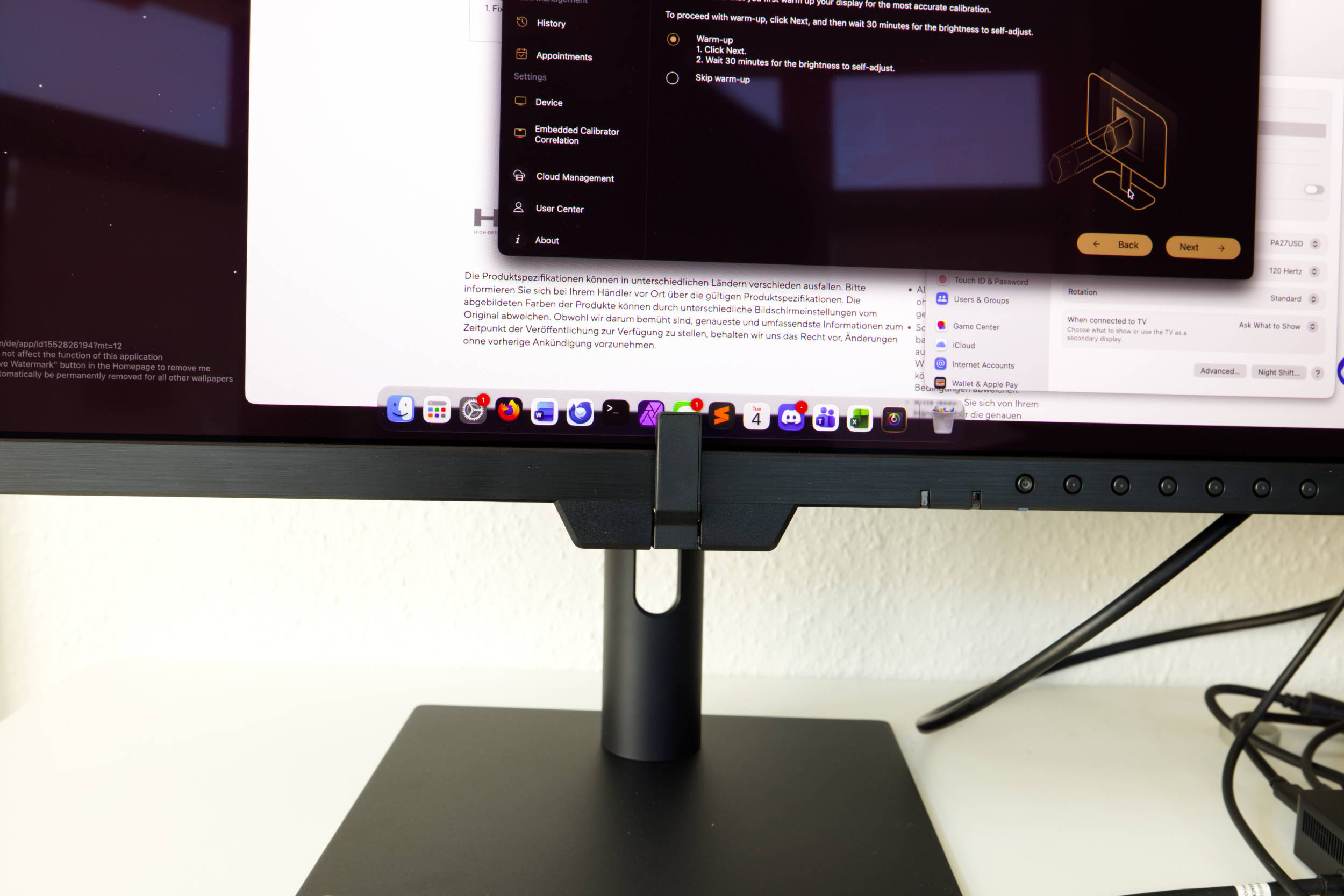 ASUS ProArt Display OLED PA27USD Calibration 1 (Image © PCMasters.de)
The monitor cannot be used during calibration, so you’ll have to wait for it to finish—which you can combine with a coffee break.
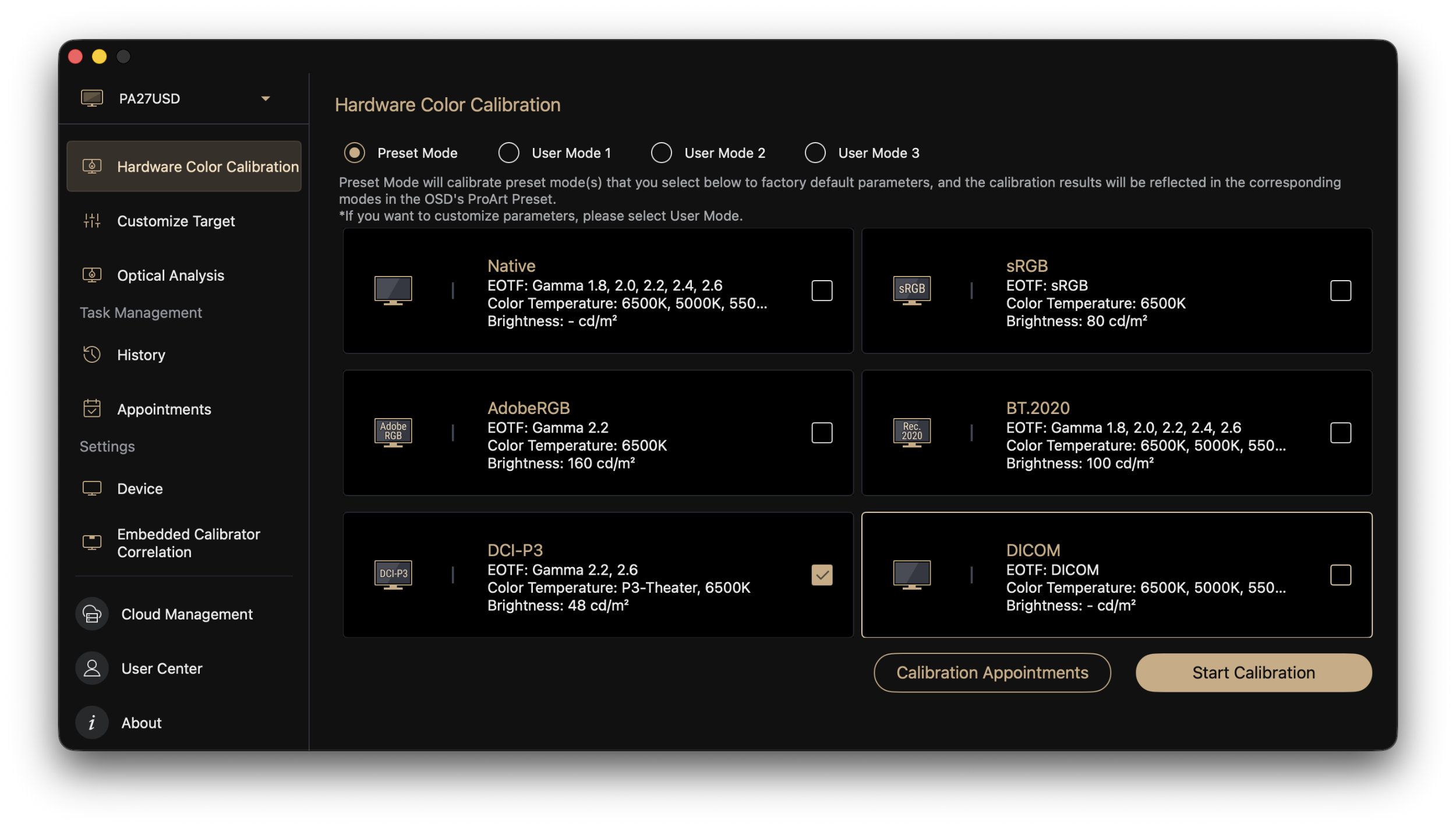 ASUS ProArt Display OLED PA27USD Calibration Options (Image © PCMasters.de)
ASUS ProArt Calibration
With the ProArt Calibration software, ASUS offers a stable solution that works in both SDR and HDR modes. The software can be used to save color parameter profiles directly to the ProArt monitor’s internal scaler IC chip, enabling system-independent management.
The tool is available for Windows and macOS, and we used it with macOS version 4.3.3.3 (26.88 MB, 06/30/2026). Other monitors are also recognized, and the software distinguishes between them. This allows you to manage the profiles within a single software application, which is quite useful.
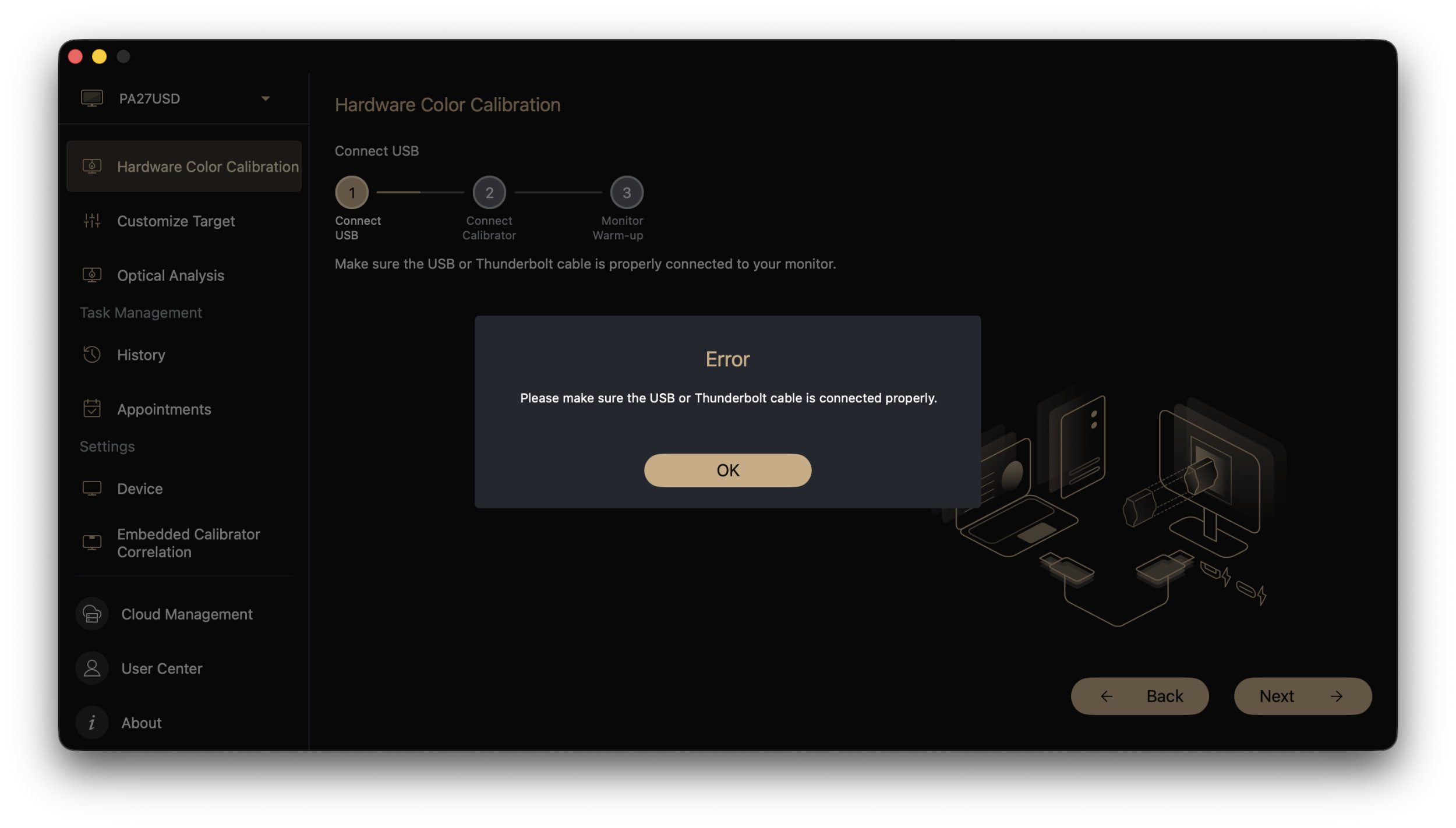 ASUS ProArt Display OLED PA27USD Calibration via Thunderbolt or USB (Image © PCMasters.de)
The colorimeter is controlled via Thunderbolt or USB, though it’s not entirely clear which of the many ports to use. The second Thunderbolt port from the top was detected. In our setup, this port feeds the video and audio signals to the Thunderbolt docking station. Once the colorimeter is detected, calibration can begin.
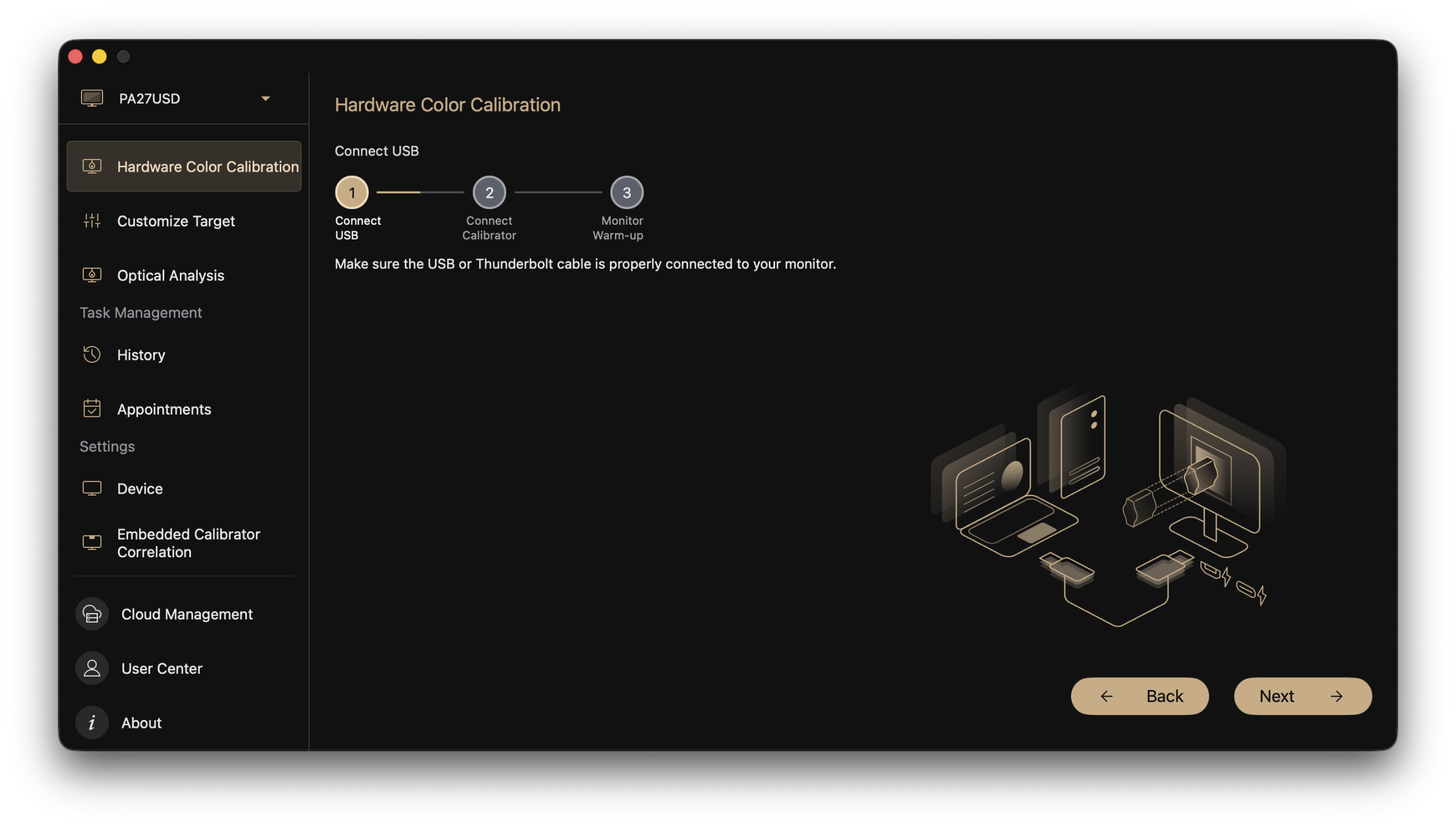 ASUS ProArt Display OLED PA27USD Calibration Step 1 (Image © PCMasters.de)
On the start screen, you select the color space you want to calibrate, but you can also calibrate all color spaces at once.
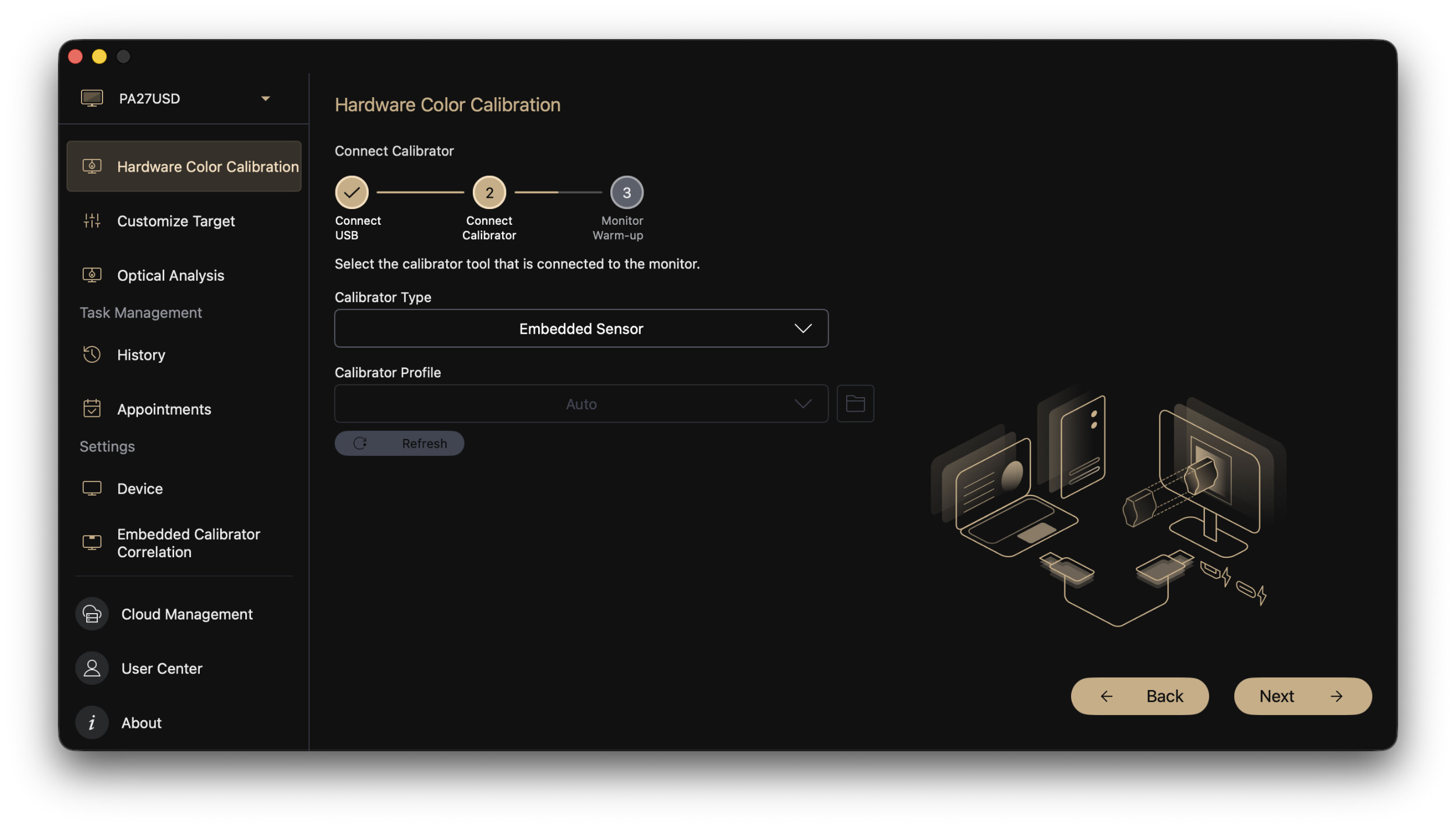 ASUS ProArt Display OLED PA27USD Calibration Step 2 (Image © PCMasters.de)
The software guides you through three steps, and after the actual start, you simply let the system do its work.
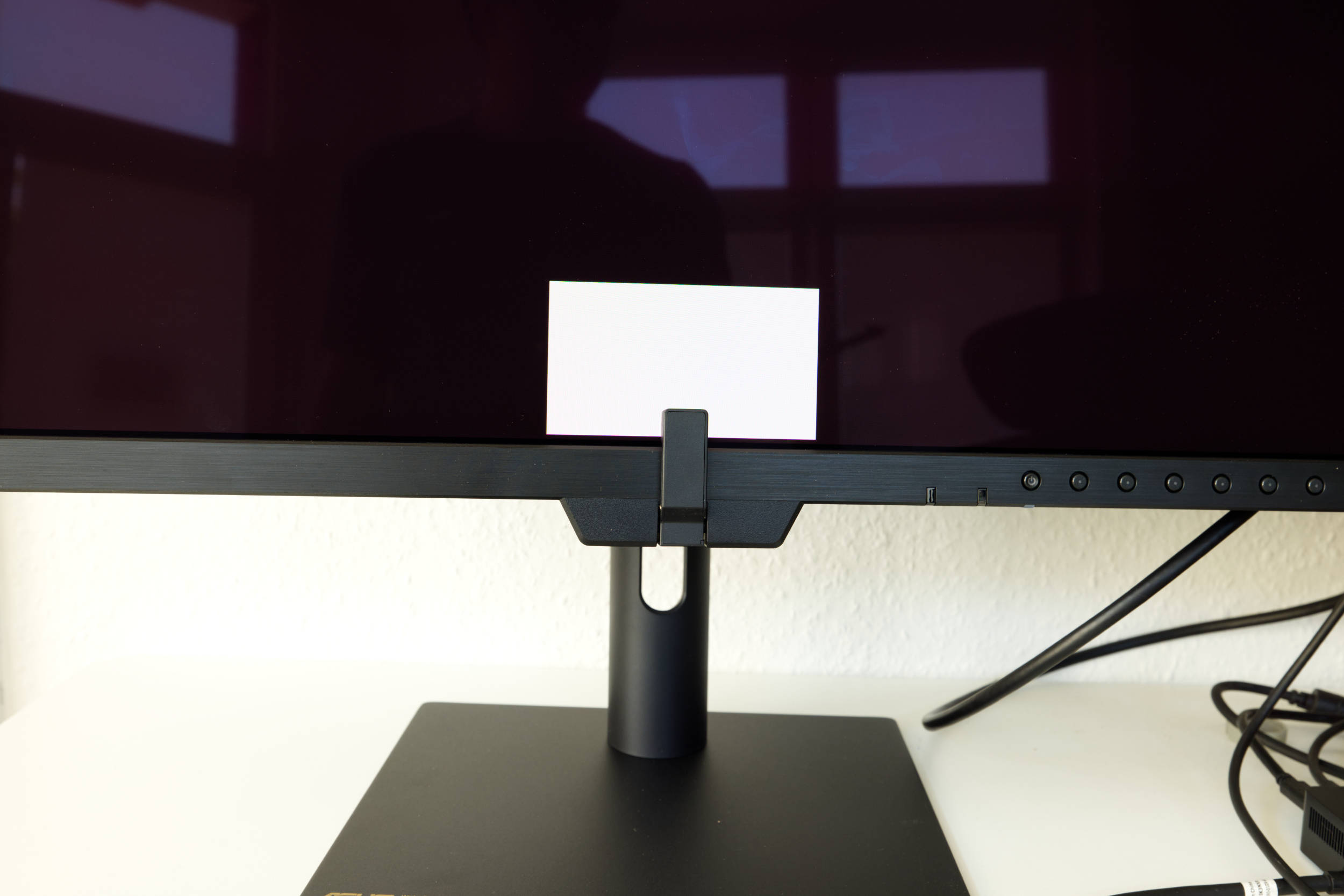 ASUS ProArt Display OLED PA27USD Software Calibration (Image © PCMasters.de)
Unlike the test via the OSD menu, the app illuminates only the small lower area of the monitor during calibration. The sensor cannot detect the other areas.
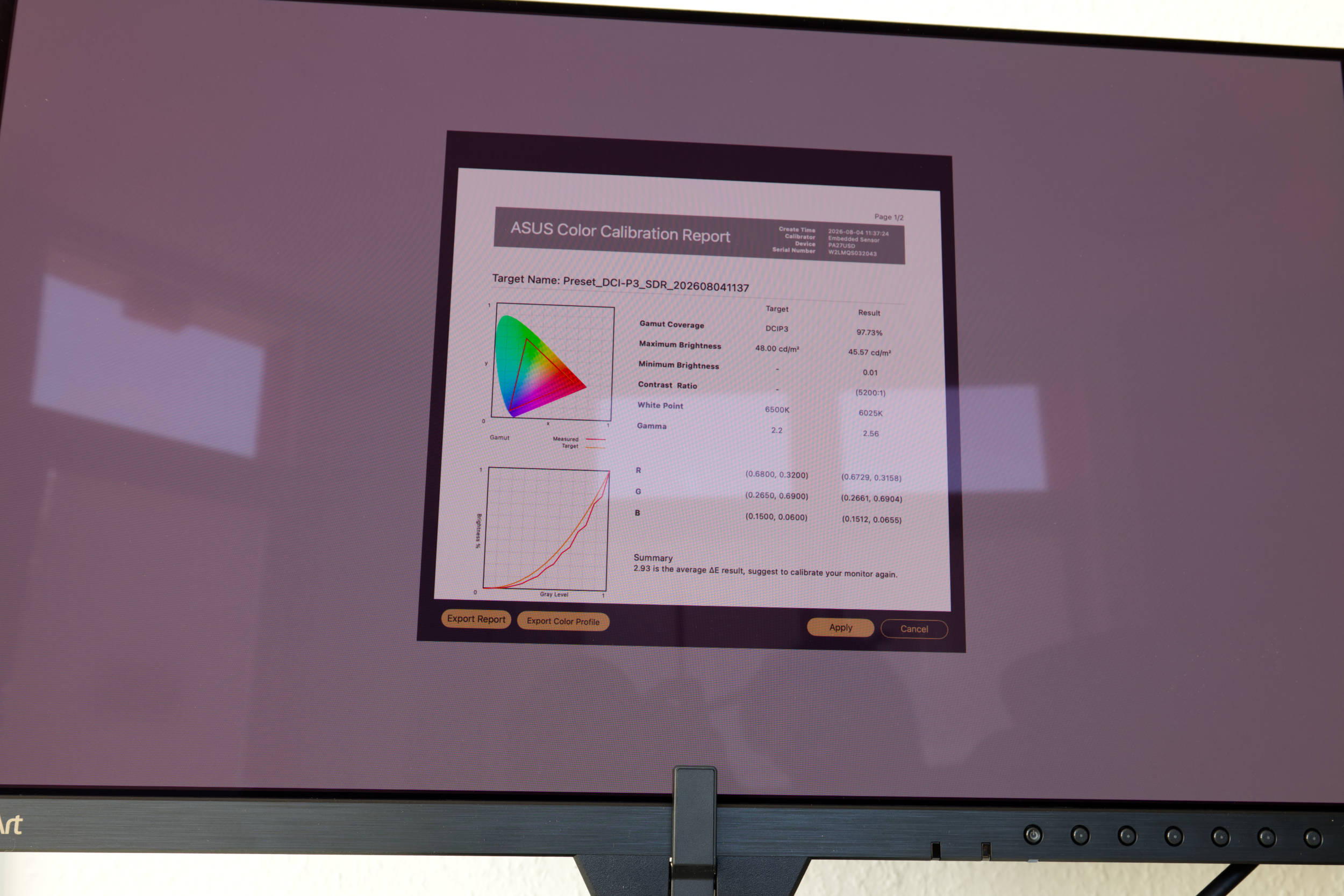 ASUS ProArt Display OLED PA27USD Calibration Complete (Image © PCMasters.de)
Once complete, the new profile is displayed. When the profile is then activated, you’ll usually notice a change in brightness, contrast, and color saturation. You can download the report, including the profile, as a PDF, and the corresponding profile is displayed in the app along with the date.
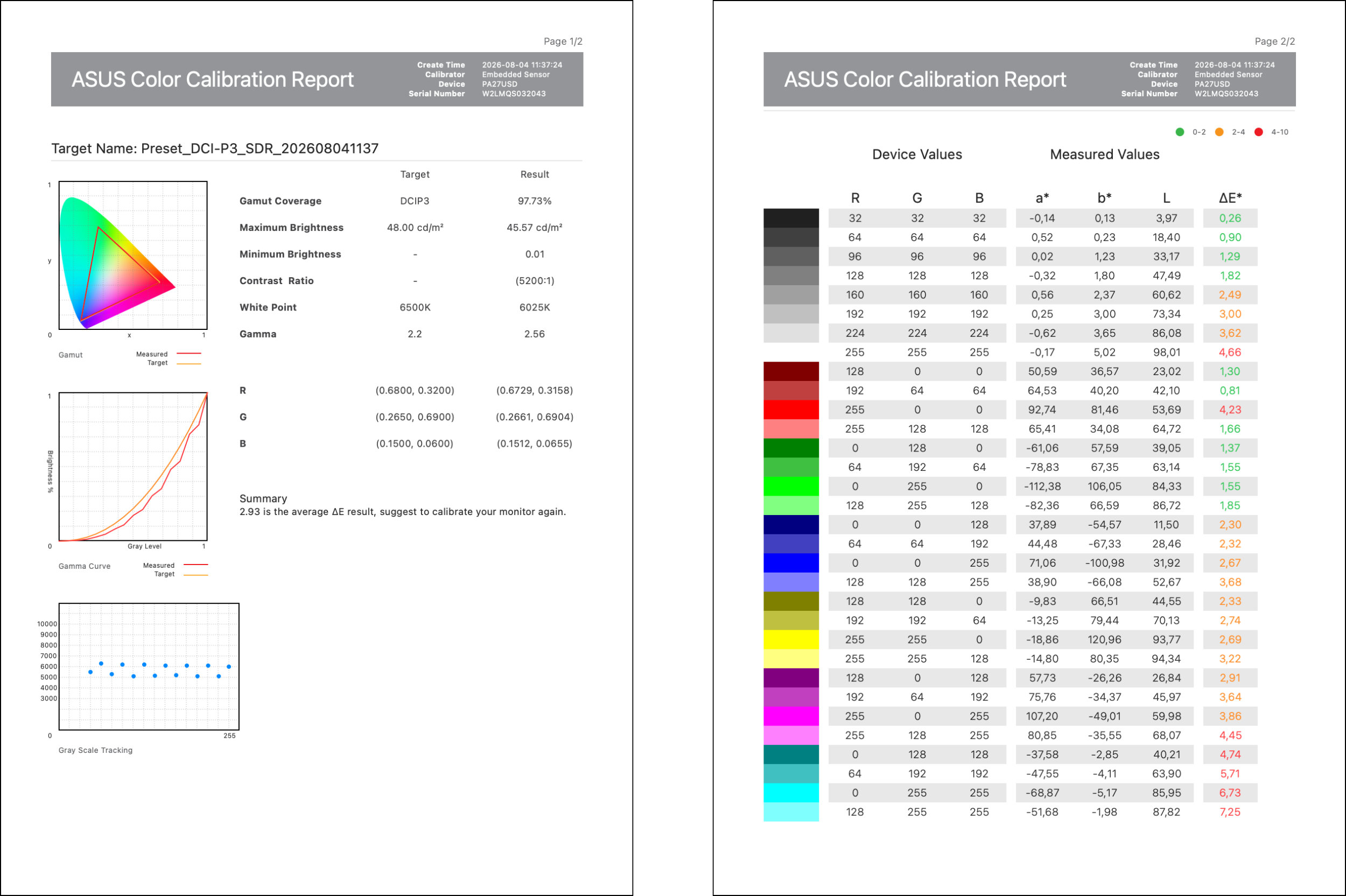 ASUS ProArt Display OLED PA27USD Calibration Preset 202608041137 DCI-P3 (Image © PCMasters.de)
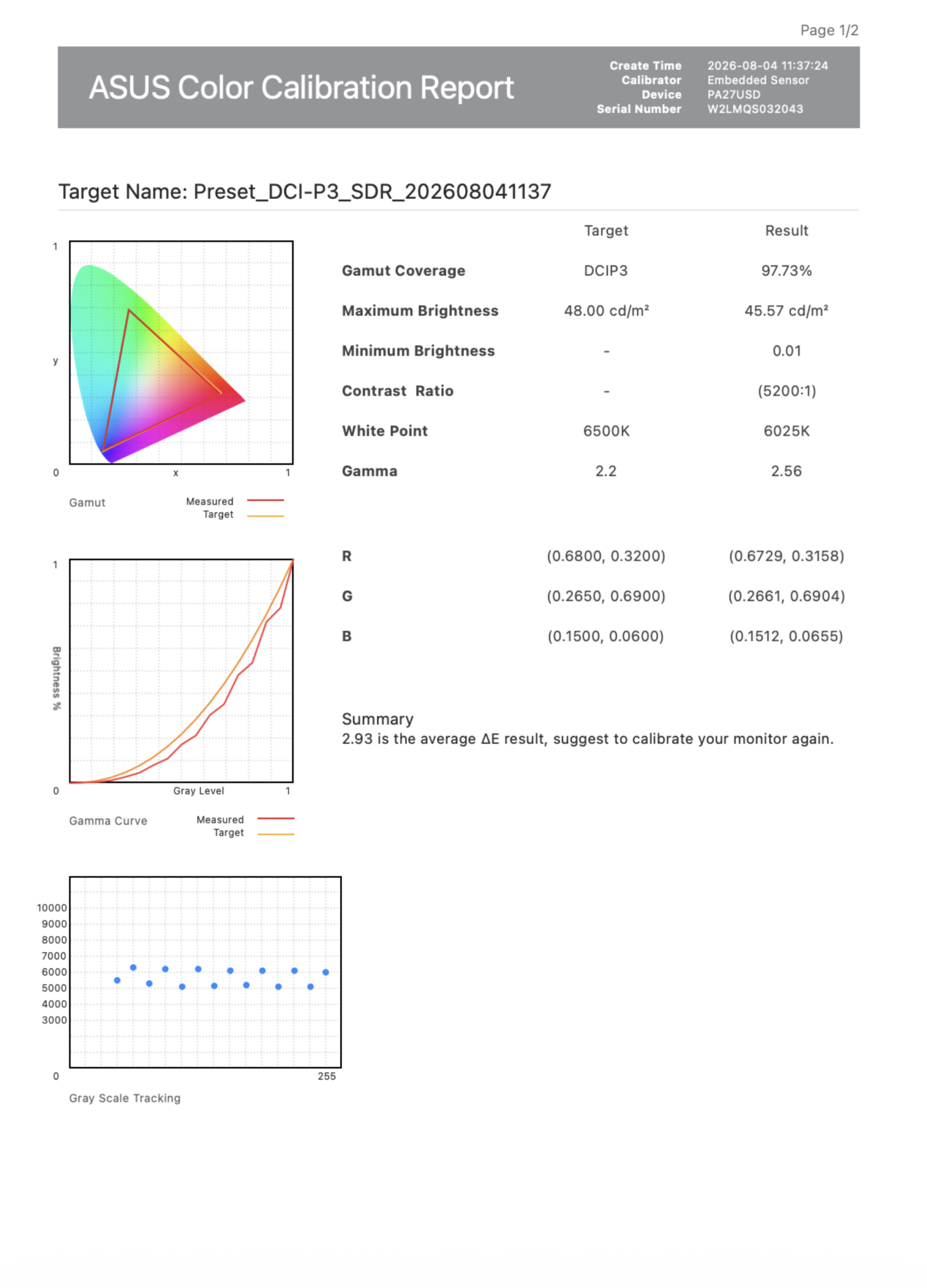 ASUS ProArt Display OLED PA27USD Calibration Report 1 (Image © PCMasters.de)
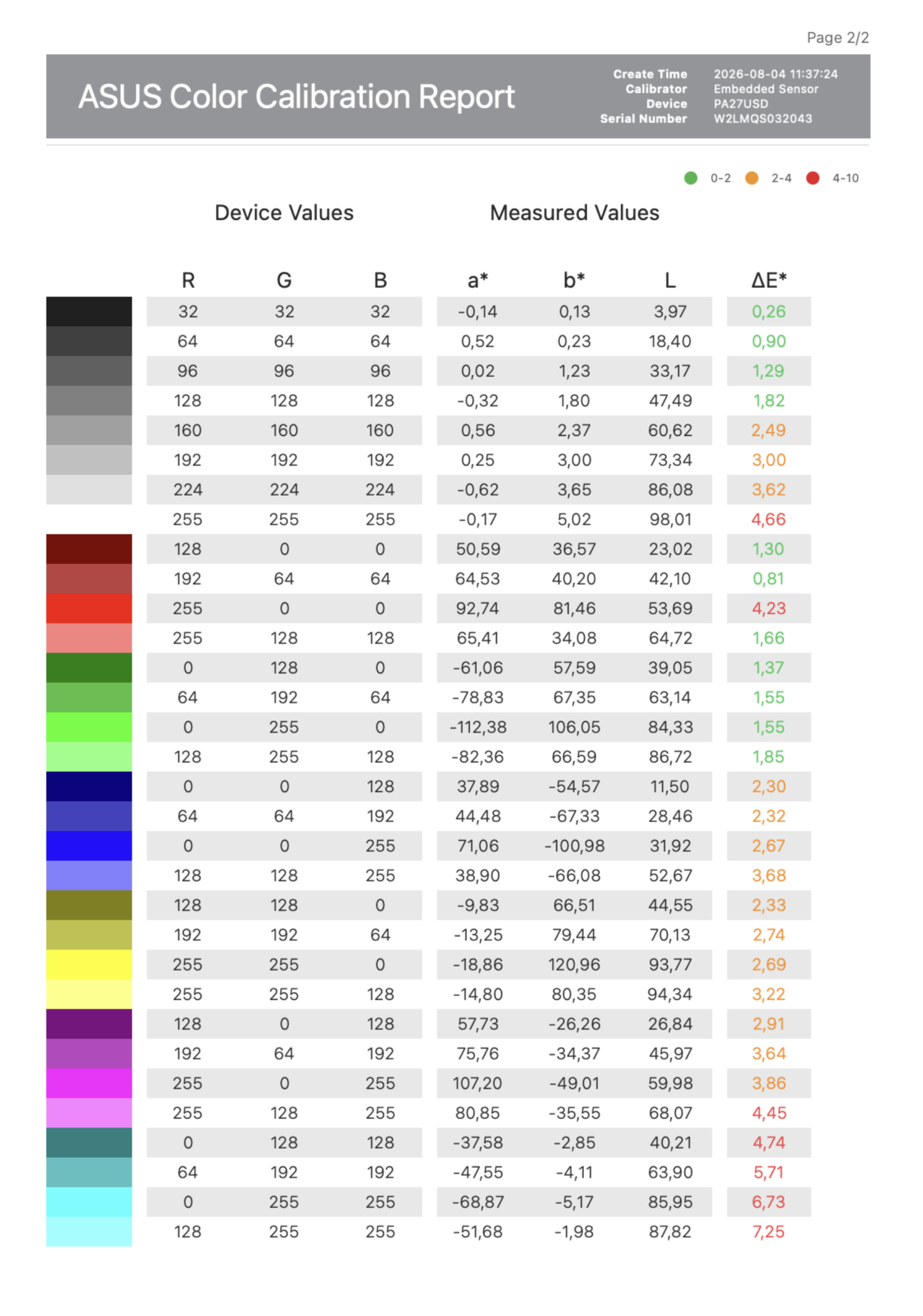 ASUS ProArt Display OLED PA27USD Calibration Report 2 (Image © PCMasters.de)
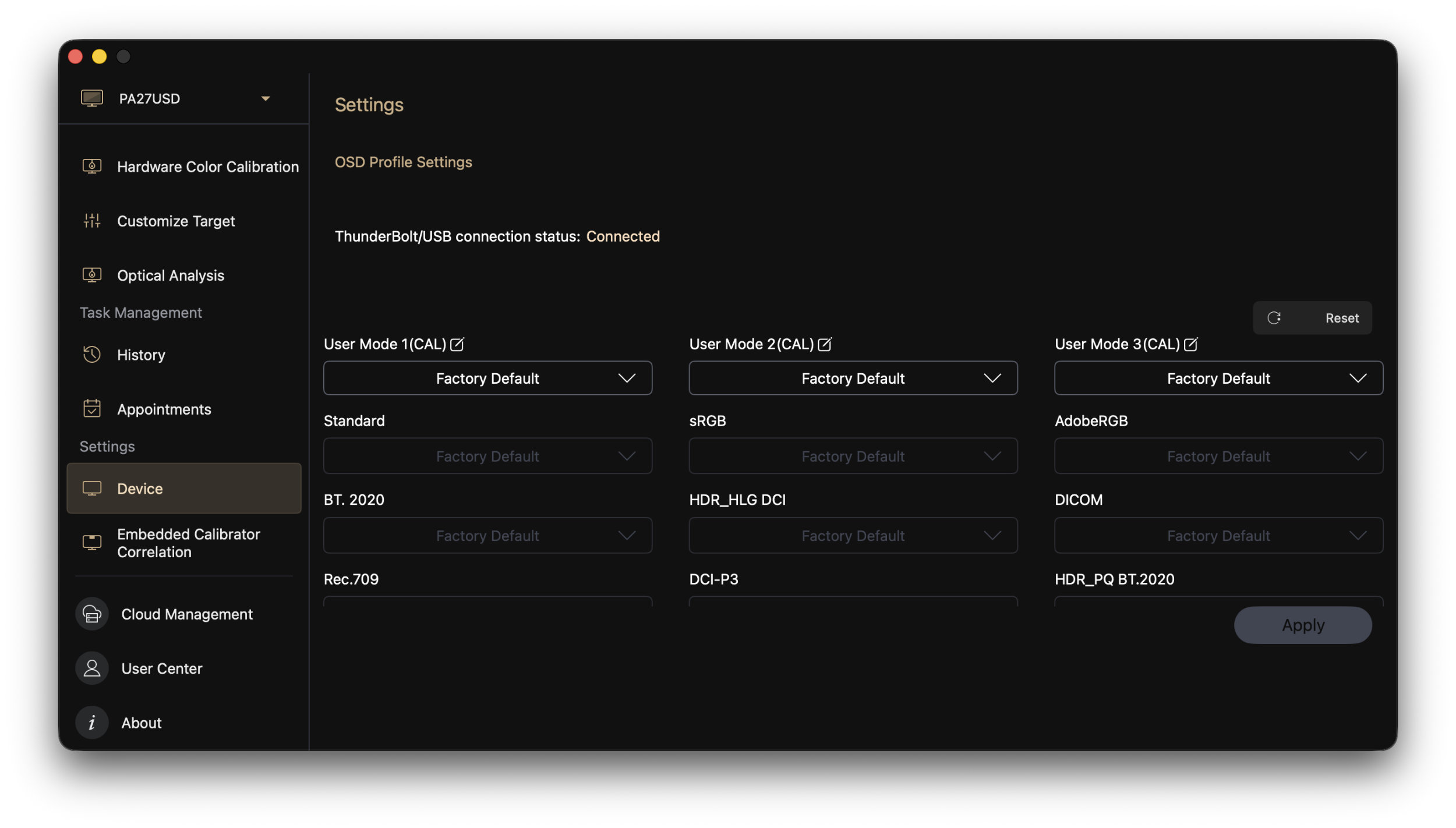 ASUS ProArt Display OLED PA27USD Calibration Connected (Image © PCMasters.de)
The app also features additional settings and sections that provide information about the monitor.
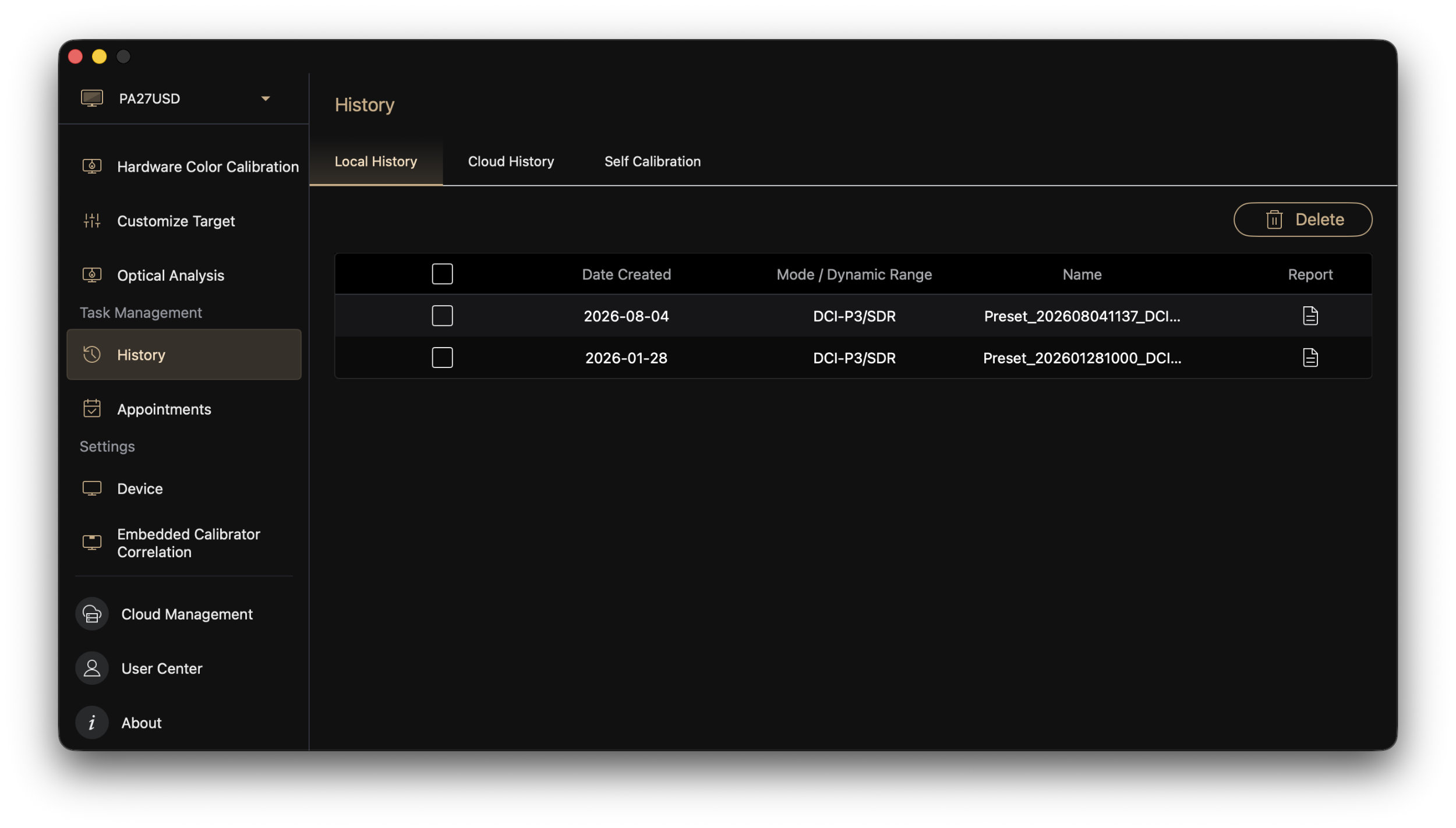 ASUS ProArt Display OLED PA27USD Calibration Profile Log (Image © PCMasters.de)
Calibration on macOS takes not 30 but about 6 minutes, which is really quick. Under "History," you’ll find a list of calibration sessions with dates.
A run for the P3 profile took about 15 minutes via the OSD interface. You can also get the report through the app, which is simply the better way to go.
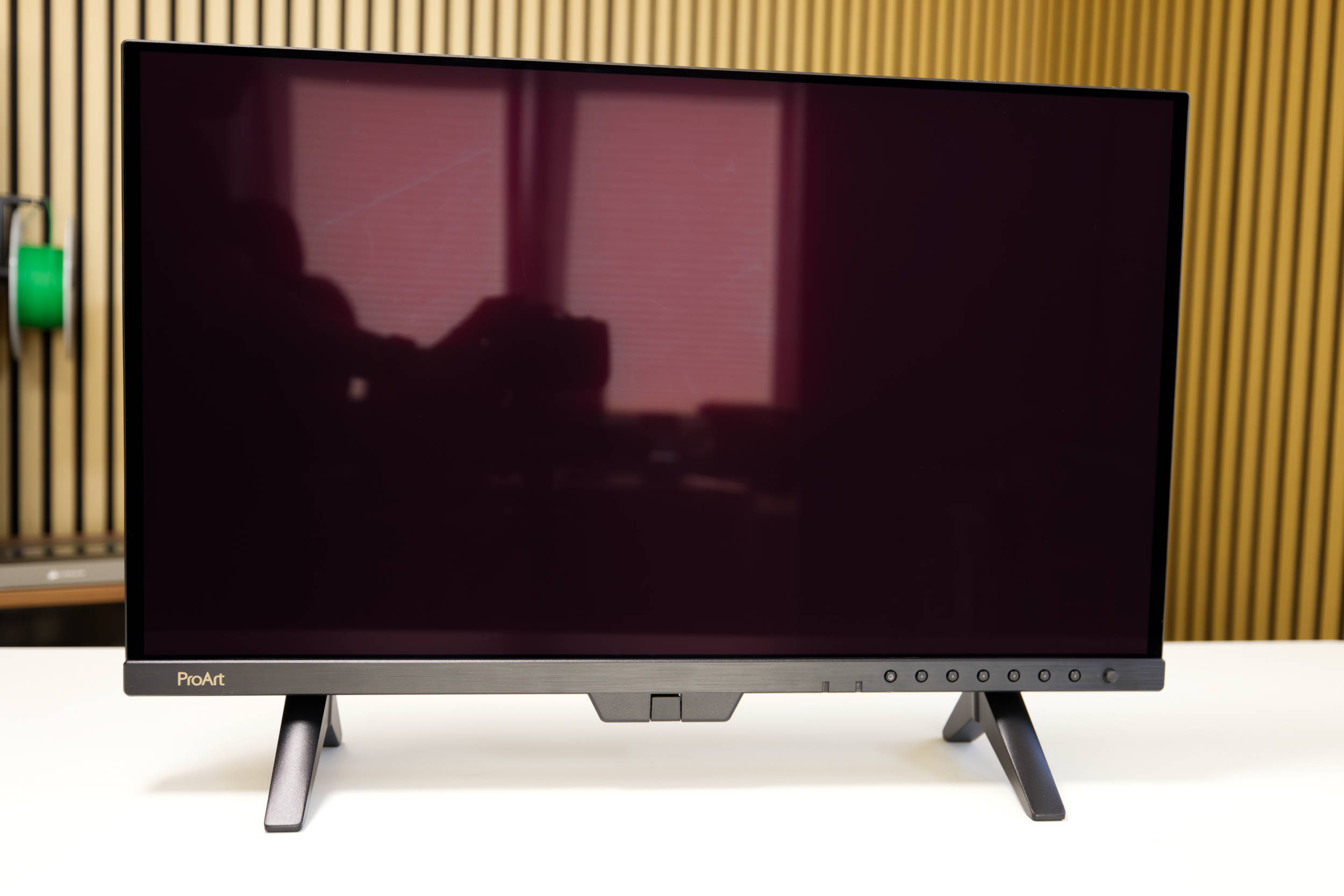 ASUS ProArt Display OLED PA27USD Monitor Reflection (Image © PCMasters.de)
Stand and Mounting
The ProArt OLED PA27USD takes a rather unusual approach when it comes to the stand and mounting. ASUS ships the monitor from the factory with two feet already attached. These allow us to set the monitor directly on the table, and we can use it right away because it stands firmly on the table. However, this option has a clear drawback: we can’t adjust either the height or the orientation of the monitor. The protective cover can be used in this mode, but for everyday use, we recommend installing the stand.
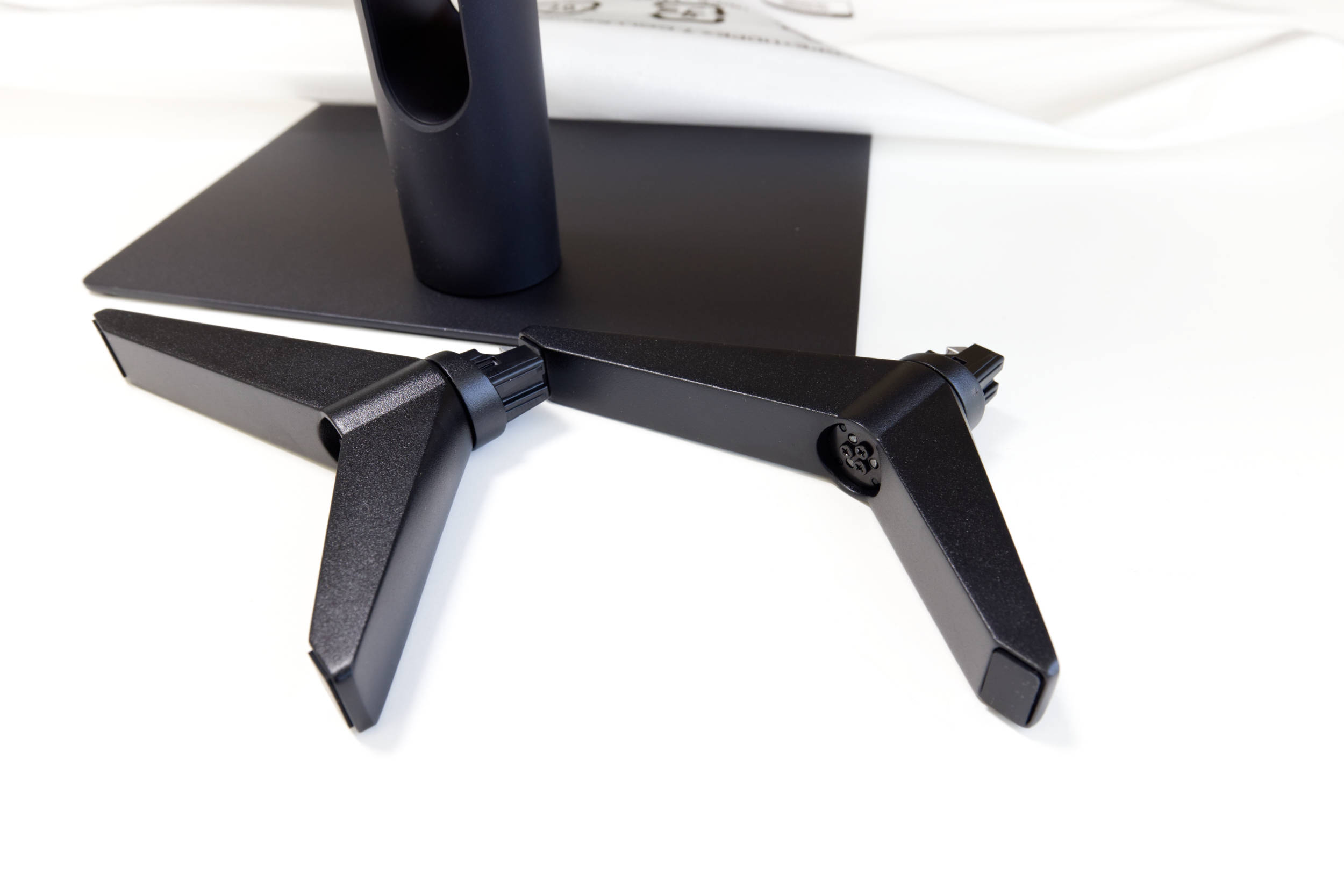 ASUS ProArt Display OLED PA27USD Stand Feet (Image © PCMasters.de)
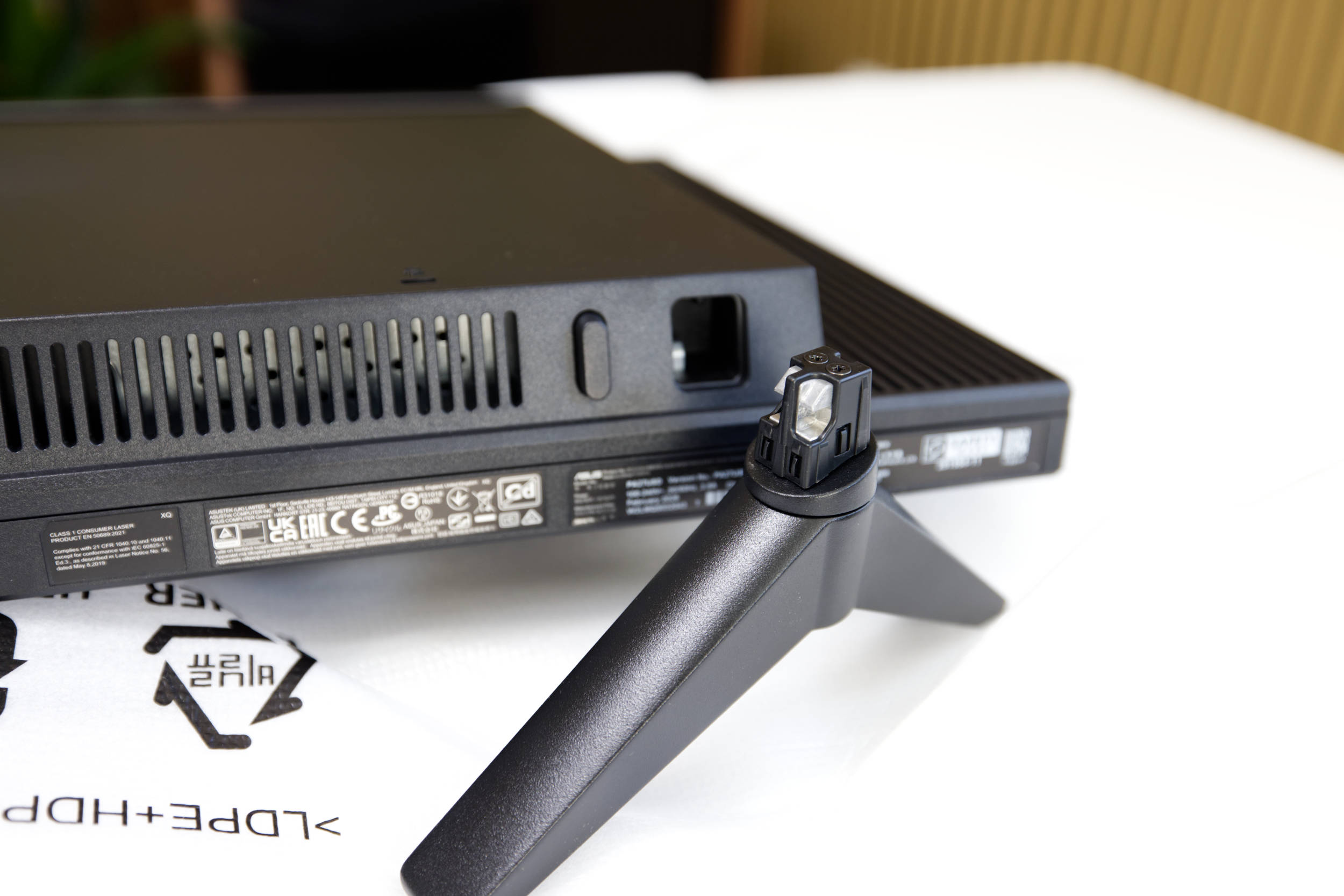 ASUS ProArt Display OLED PA27USD Stand (Image © PCMasters.de)
To do this, place the monitor securely on a padded surface that won’t scratch the display, then press the button located at the bottom next to the triangular stands, after which you can pull them out. These must be removed from both sides.
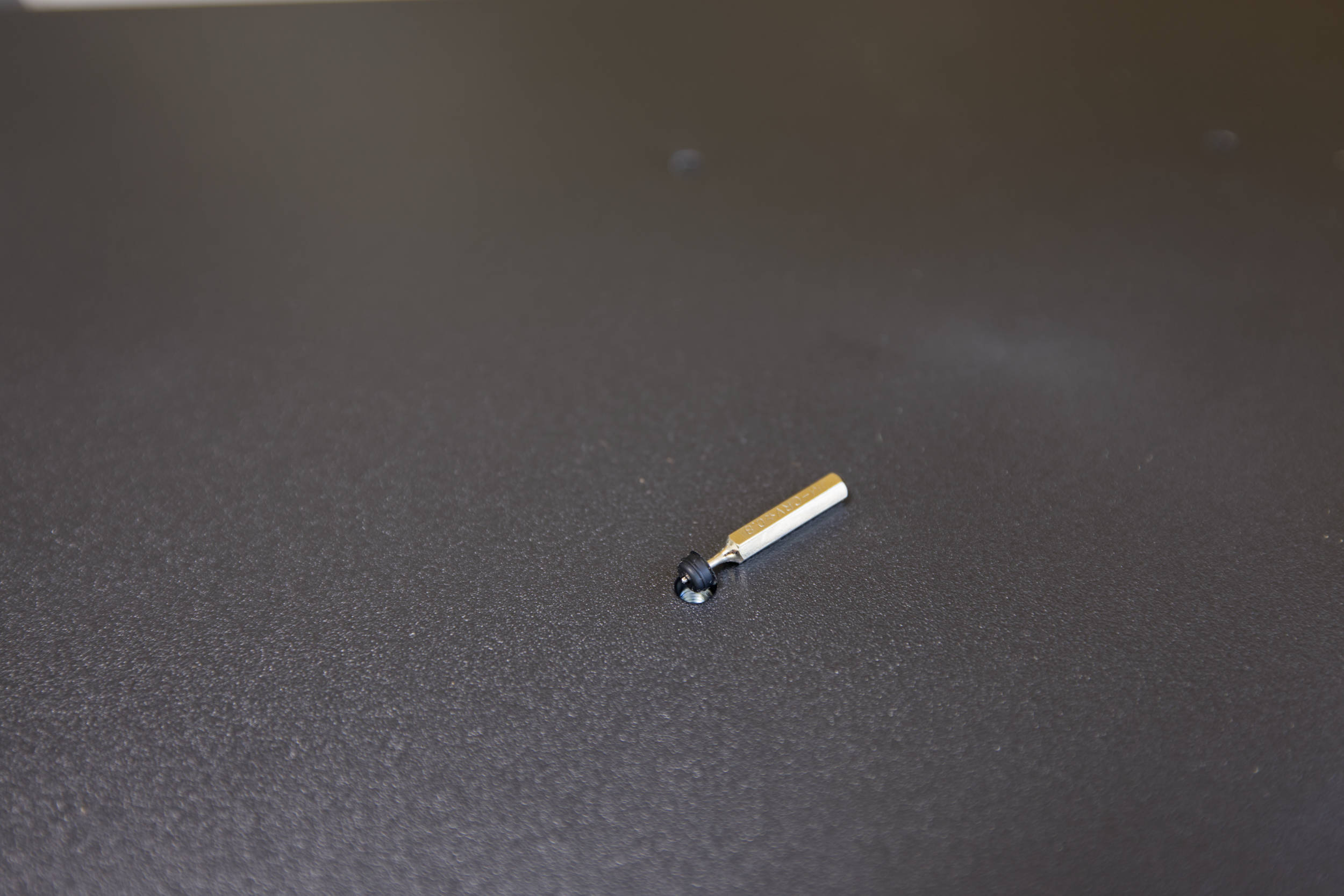 ASUS ProArt Display OLED PA27USD Rubber Bumpers (Image © PCMasters.de)
On the back of the monitor, you must first remove four rubber bumpers from the mounting holes. It’s best to use a pointed object.
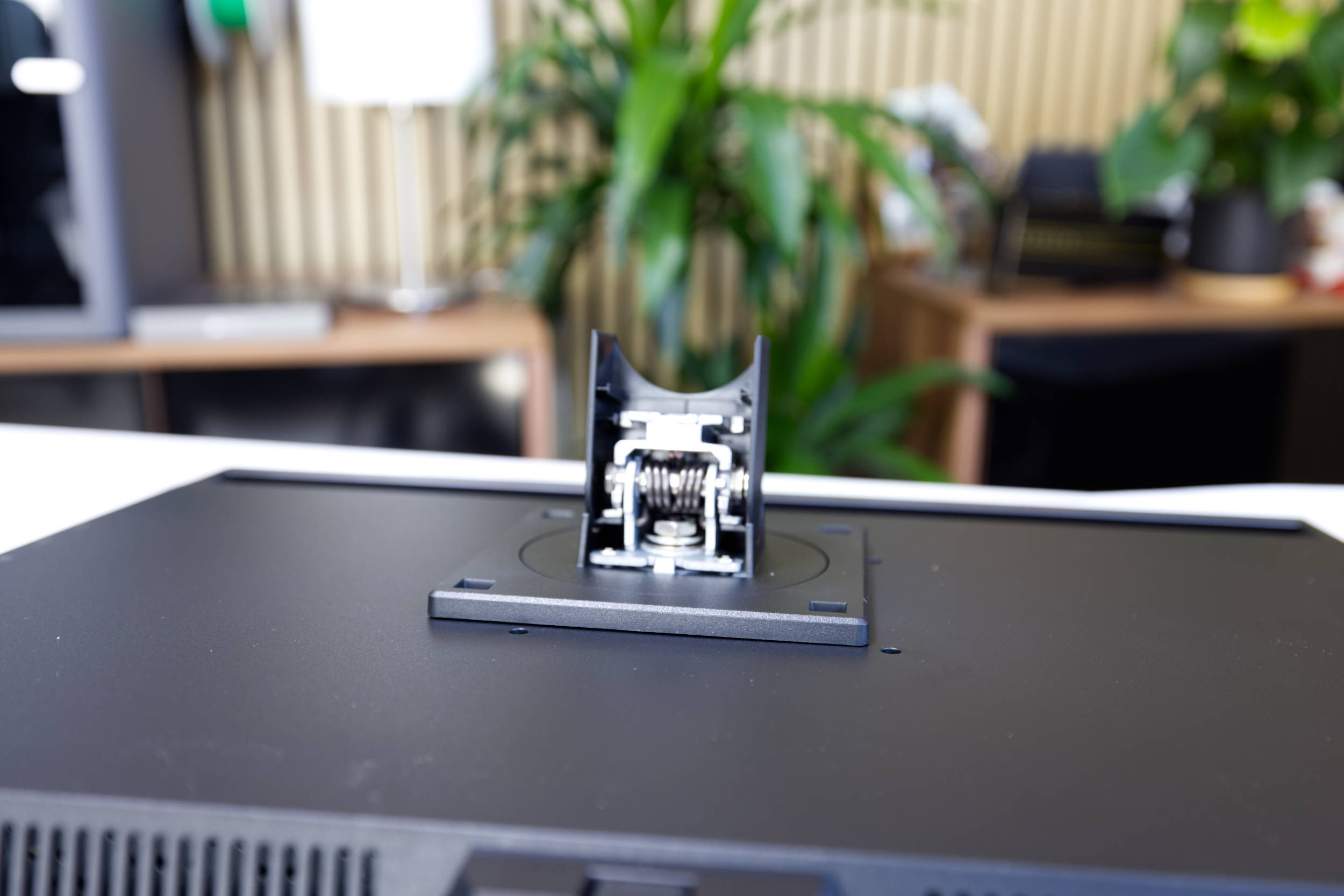 ASUS ProArt Display OLED PA27USD Monitor Mount (Image © PCMasters.de)
After that, you can place the backplate on top and secure it with the included screwdriver and screws.
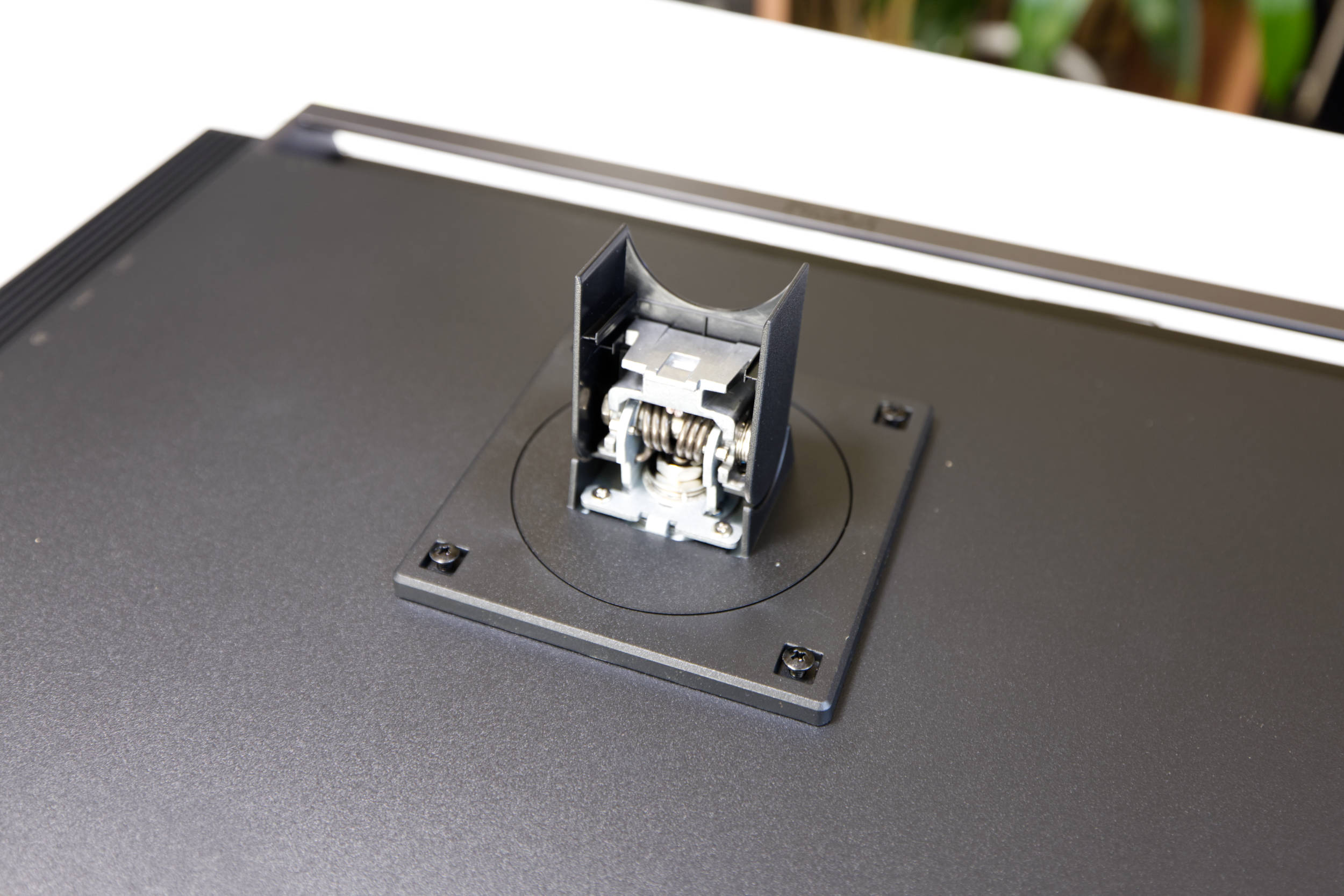 Screwing the Stand onto the ASUS ProArt Display OLED PA27USD (Image © PCMasters.de)
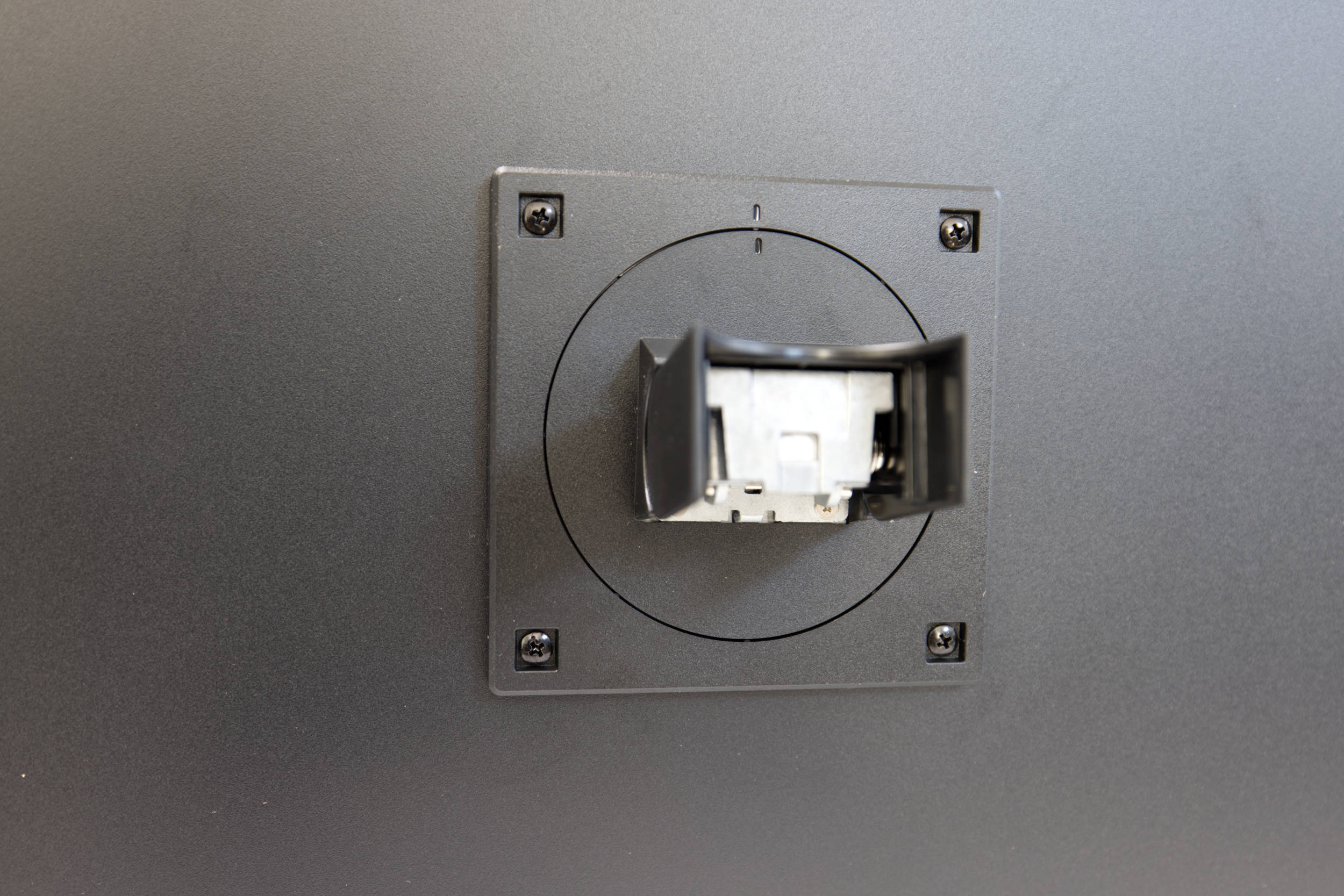 ASUS ProArt Display OLED PA27USD Mount 1 (Image © PCMasters.de)
The stand itself also consists of two parts that are screwed together. Both parts are included in the box. First, take the round upper part of the stand and insert it into the monitor mount.
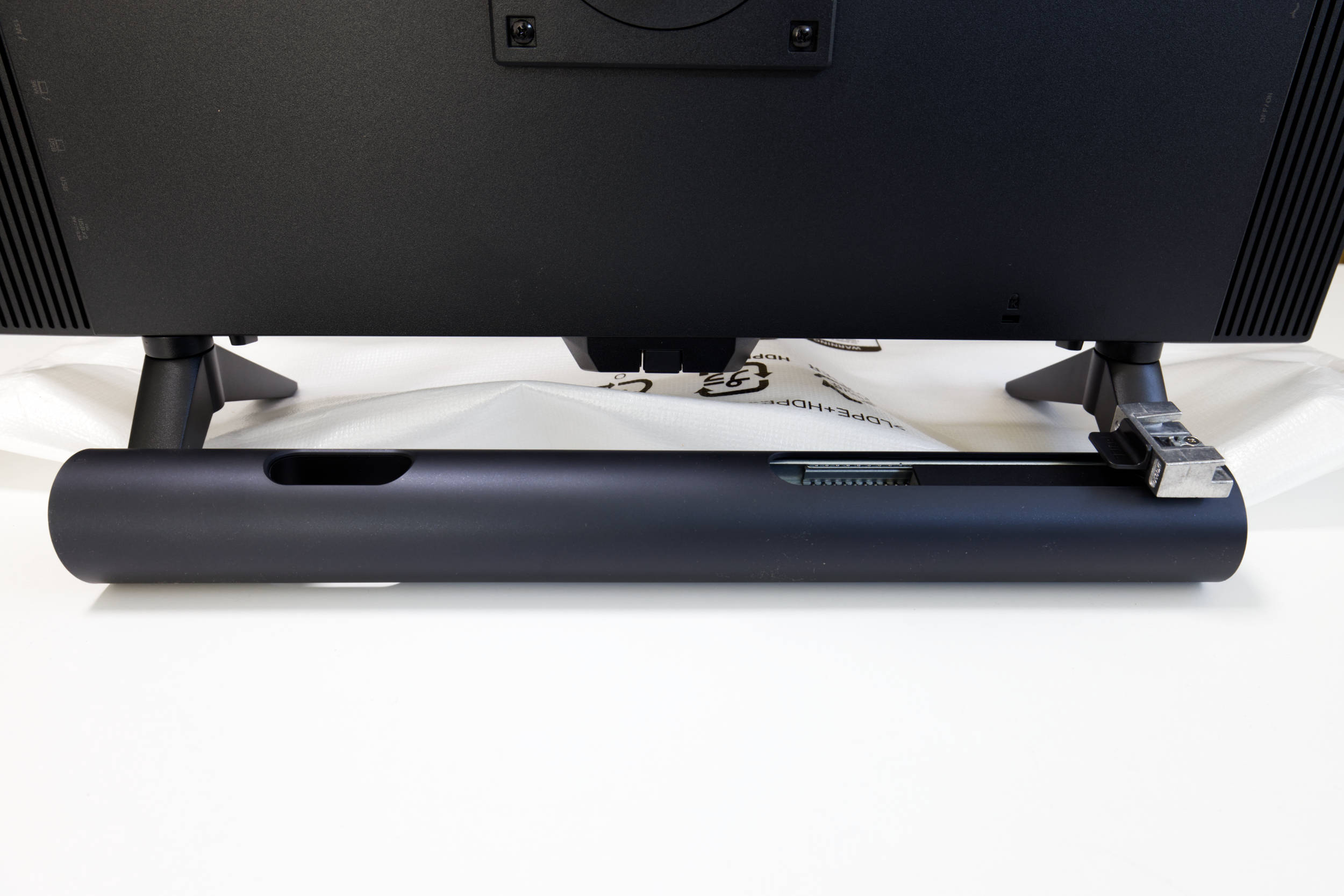 ASUS ProArt Display OLED PA27USD Stand, Part 2 (Image © PCMasters.de)
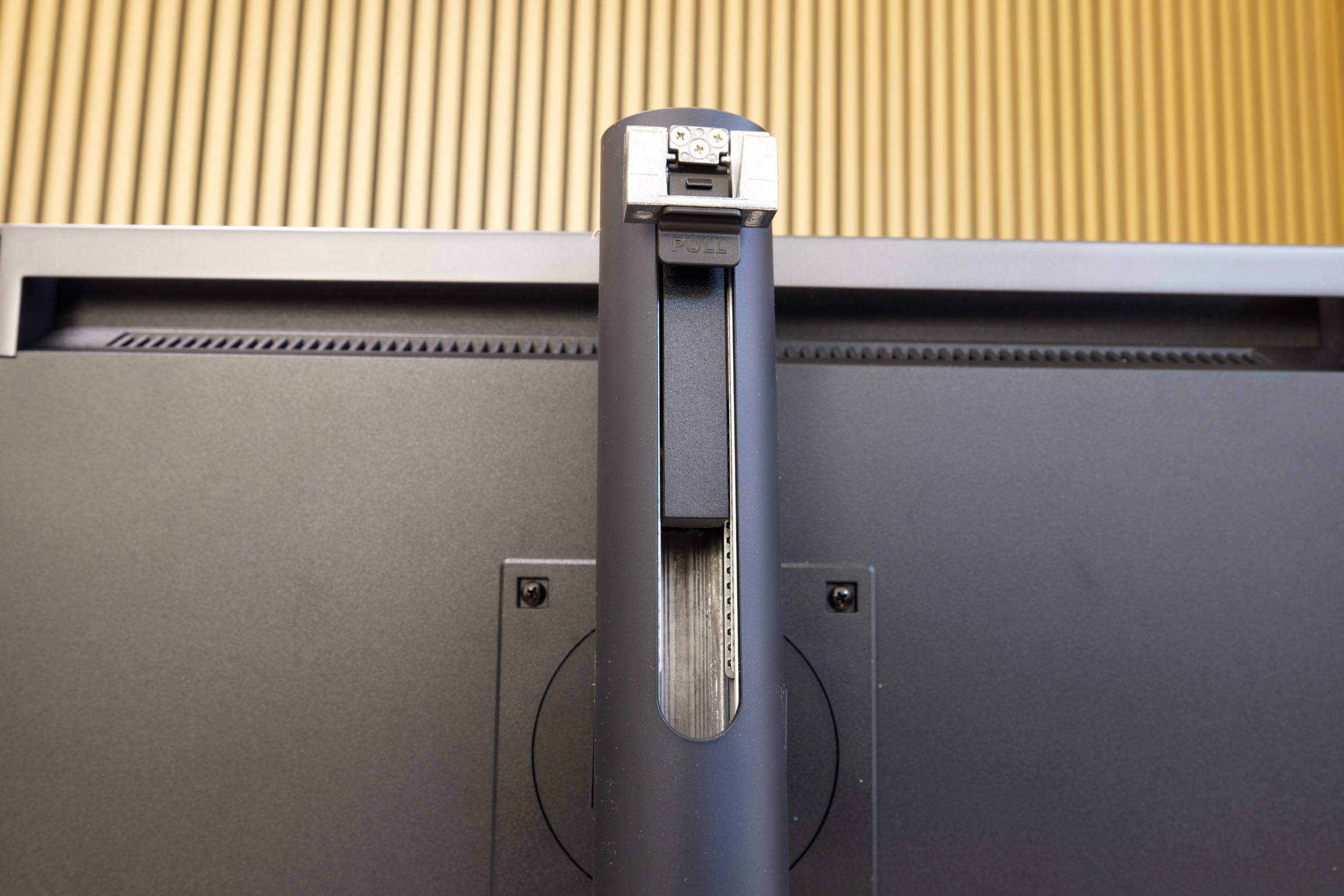 ASUS ProArt Display OLED PA27USD Release Mechanism (Image © PCMasters.de)
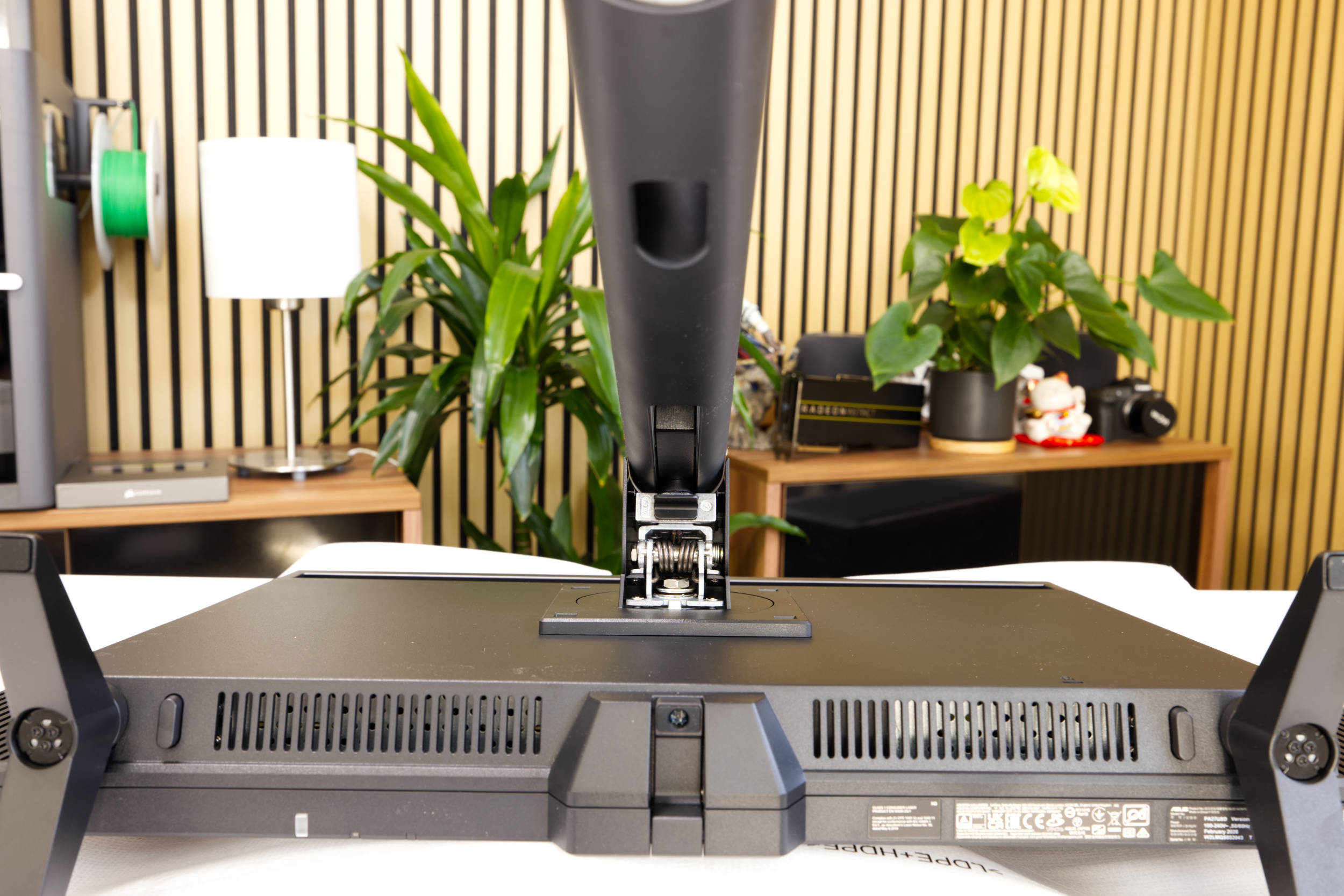 ASUS ProArt Display OLED PA27USD Stand Assembly 3 (Image © PCMasters.de)
The base plate is unexpectedly heavy because it is made of solid steel. The screw and two bolts are recessed directly into the plate to prevent the structure from shifting.
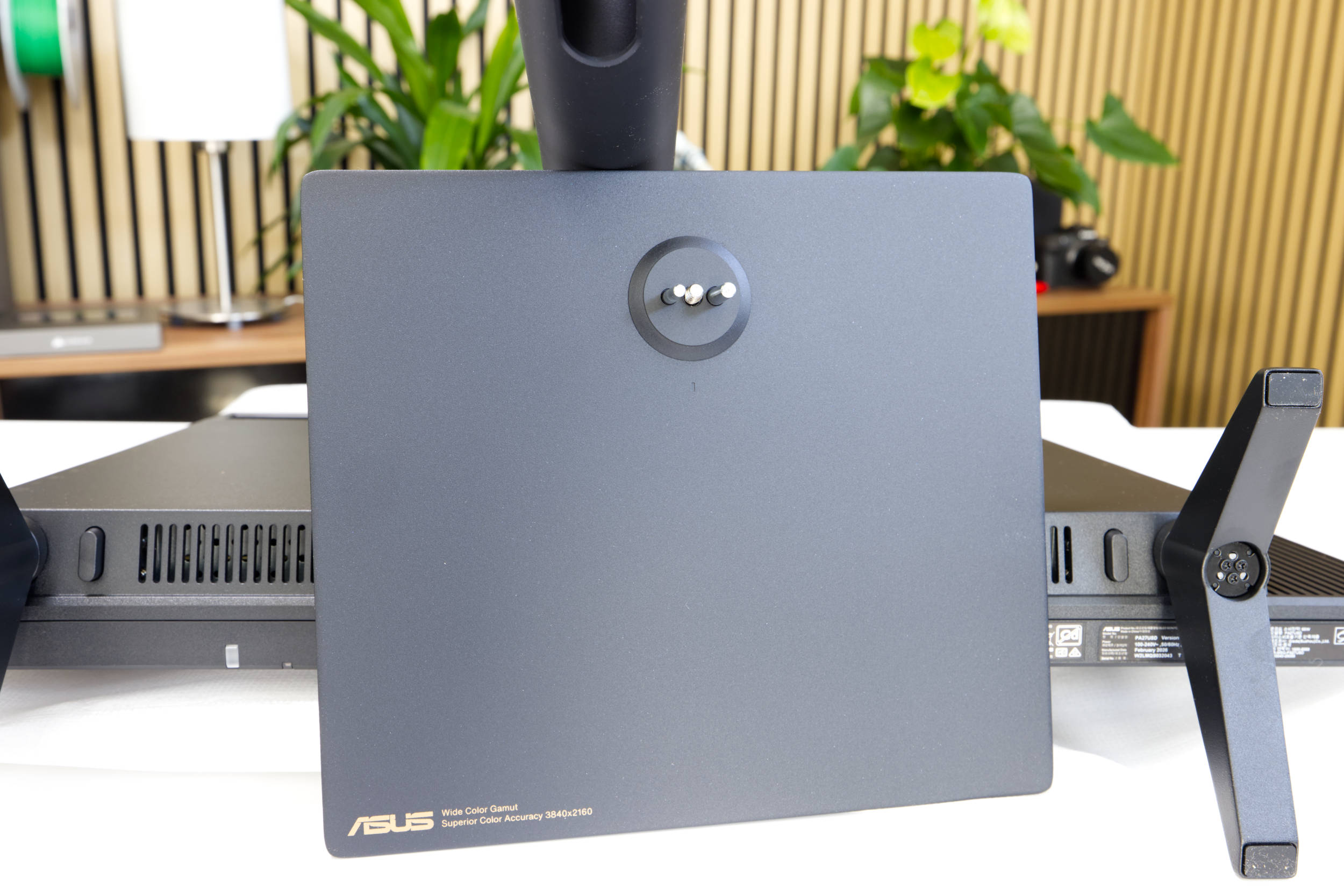 ASUS ProArt Display OLED PA27USD Metal Plate (Image © PCMasters.de)
The base plate is placed onto the already inserted base section and then secured with the screw. The screw must be tightened properly so that the base doesn’t wobble.
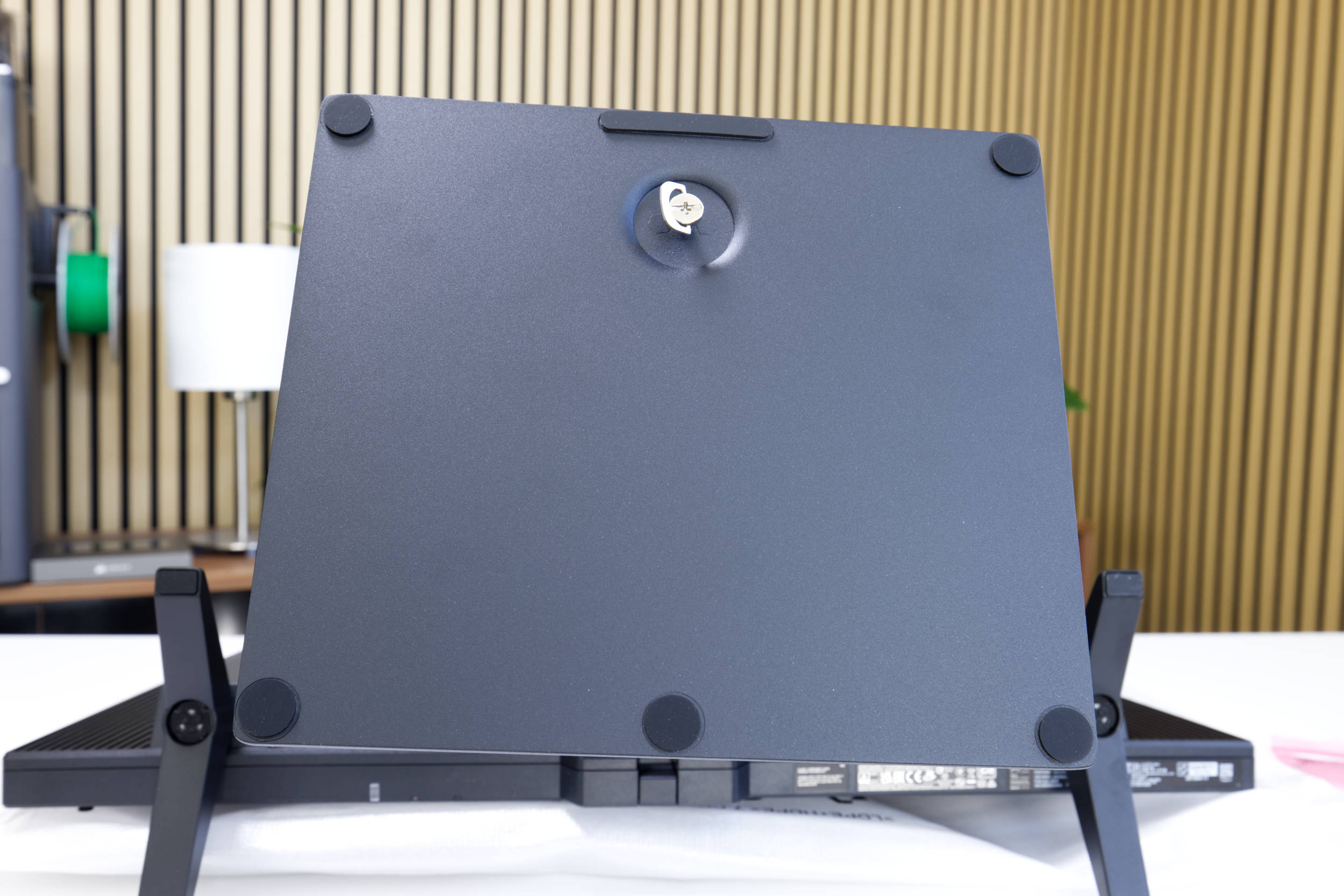 ASUS ProArt Display OLED PA27USD Metal Base (Image © PCMasters.de)
After that, you can set up and align the monitor.
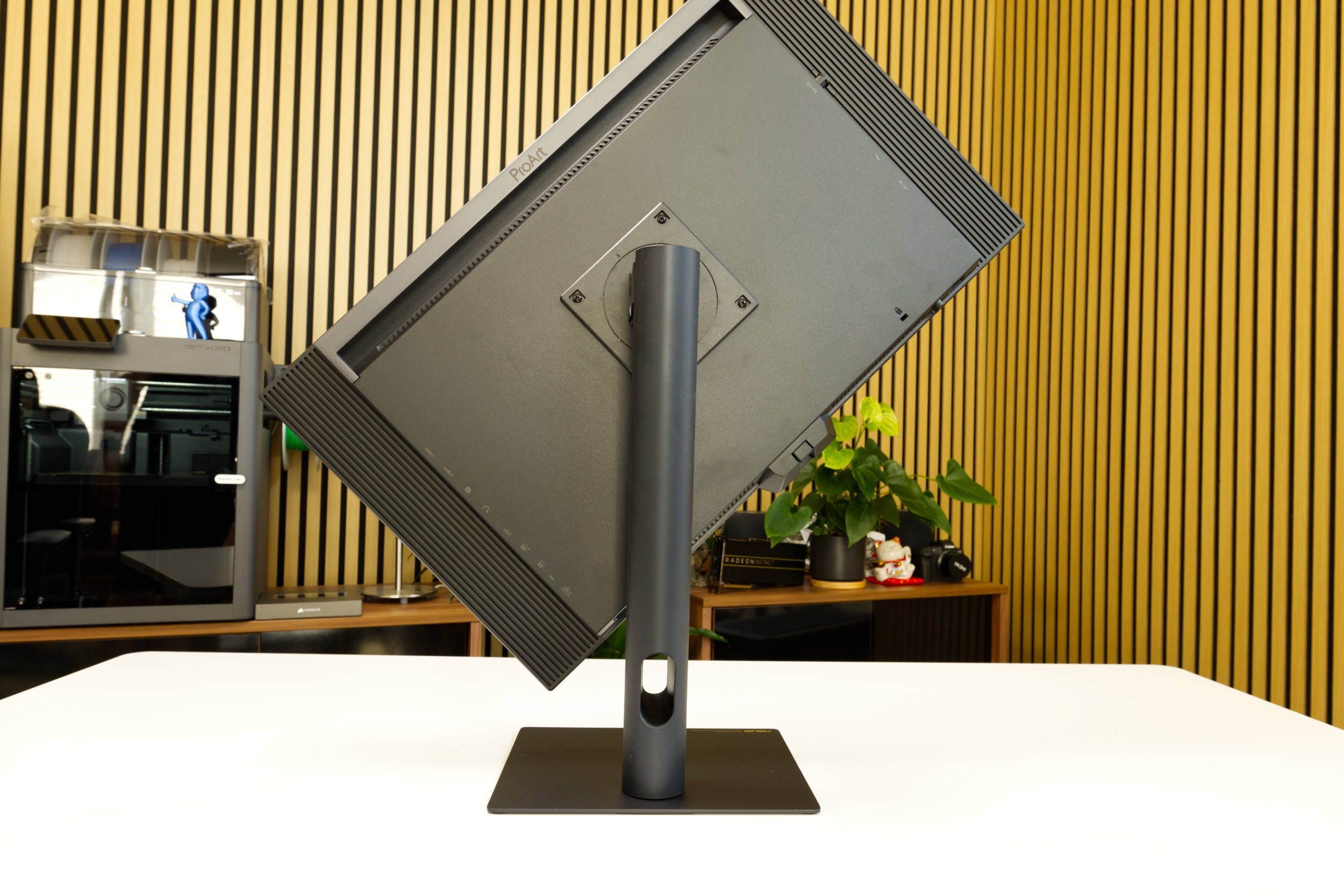 ASUS ProArt Display OLED PA27USD Rotation (Image © PCMasters.de)
Adjustability
With the stand mounted, we have many options for properly adapting the monitor to the work environment. The stand is designed so that it can tilt from +23° to –5° and swivel 30° to either side.
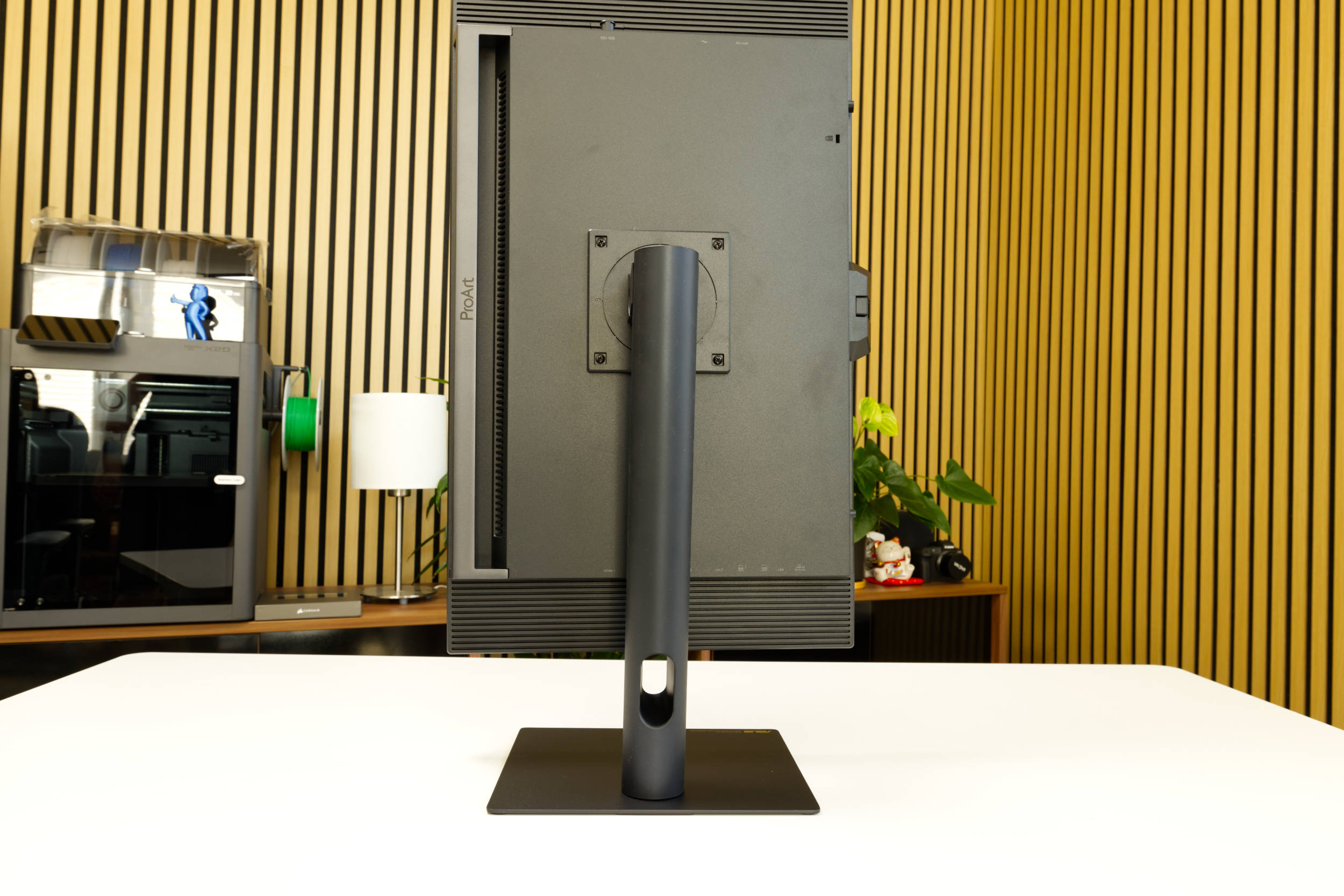 ASUS ProArt Display OLED PA27USD Pivot (Image © PCMasters.de)
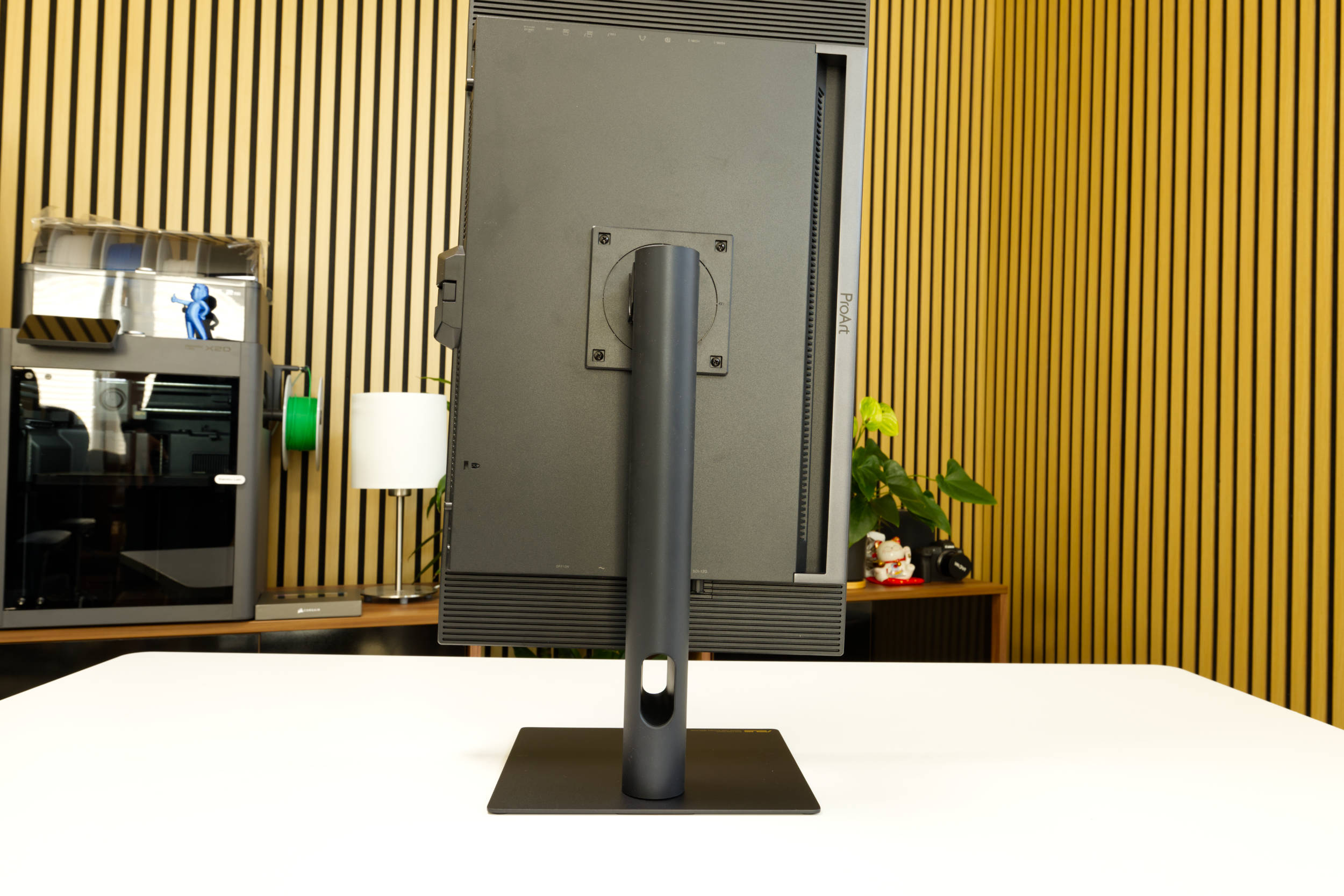 ASUS ProArt Display OLED PA27USD Pivot 2 (Image © PCMasters.de)
But that’s not all—you can also rotate the monitor 90° to the right or left to switch to portrait mode in pivot mode.
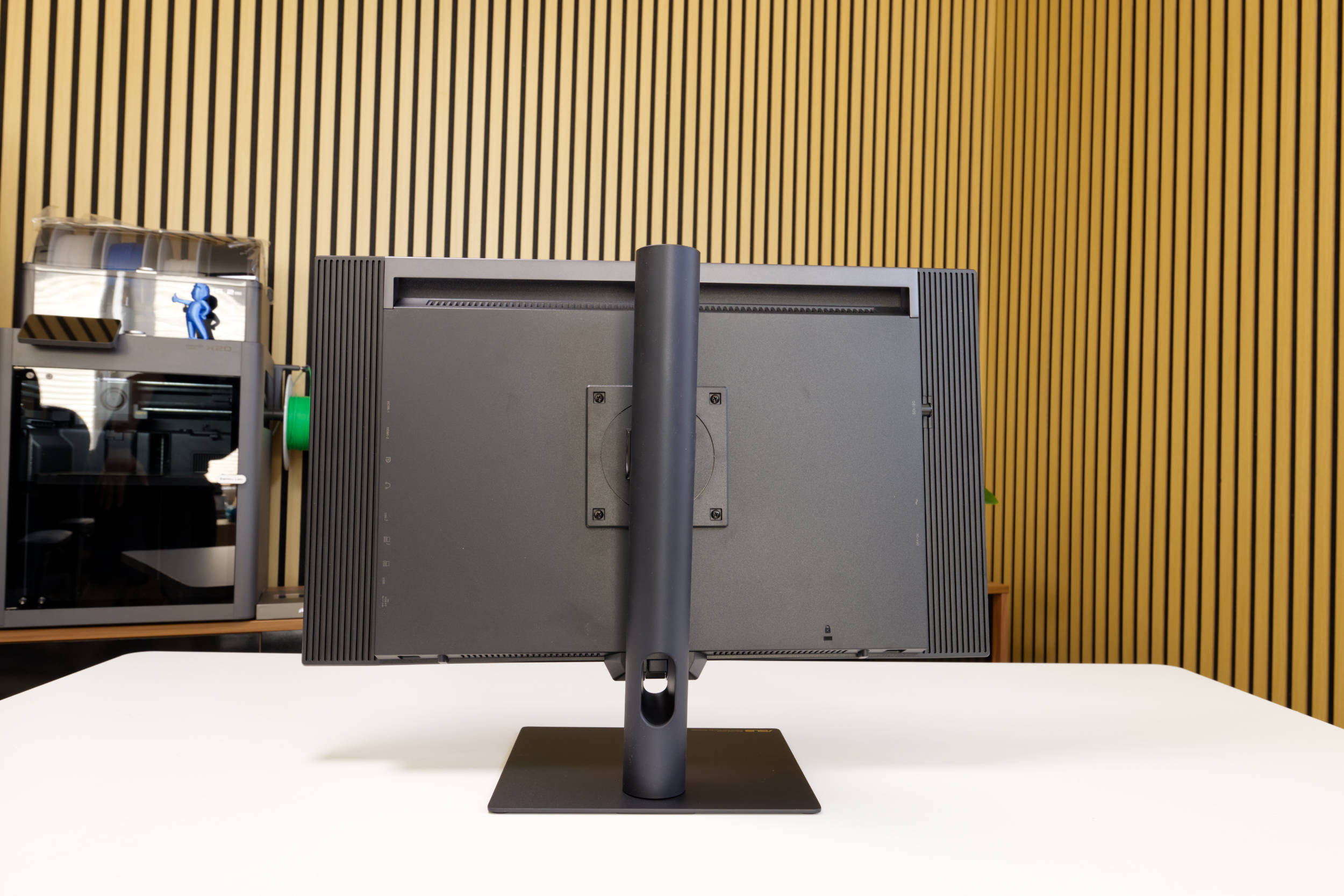 ASUS ProArt Display OLED PA27USD lowered (Image © PCMasters.de)
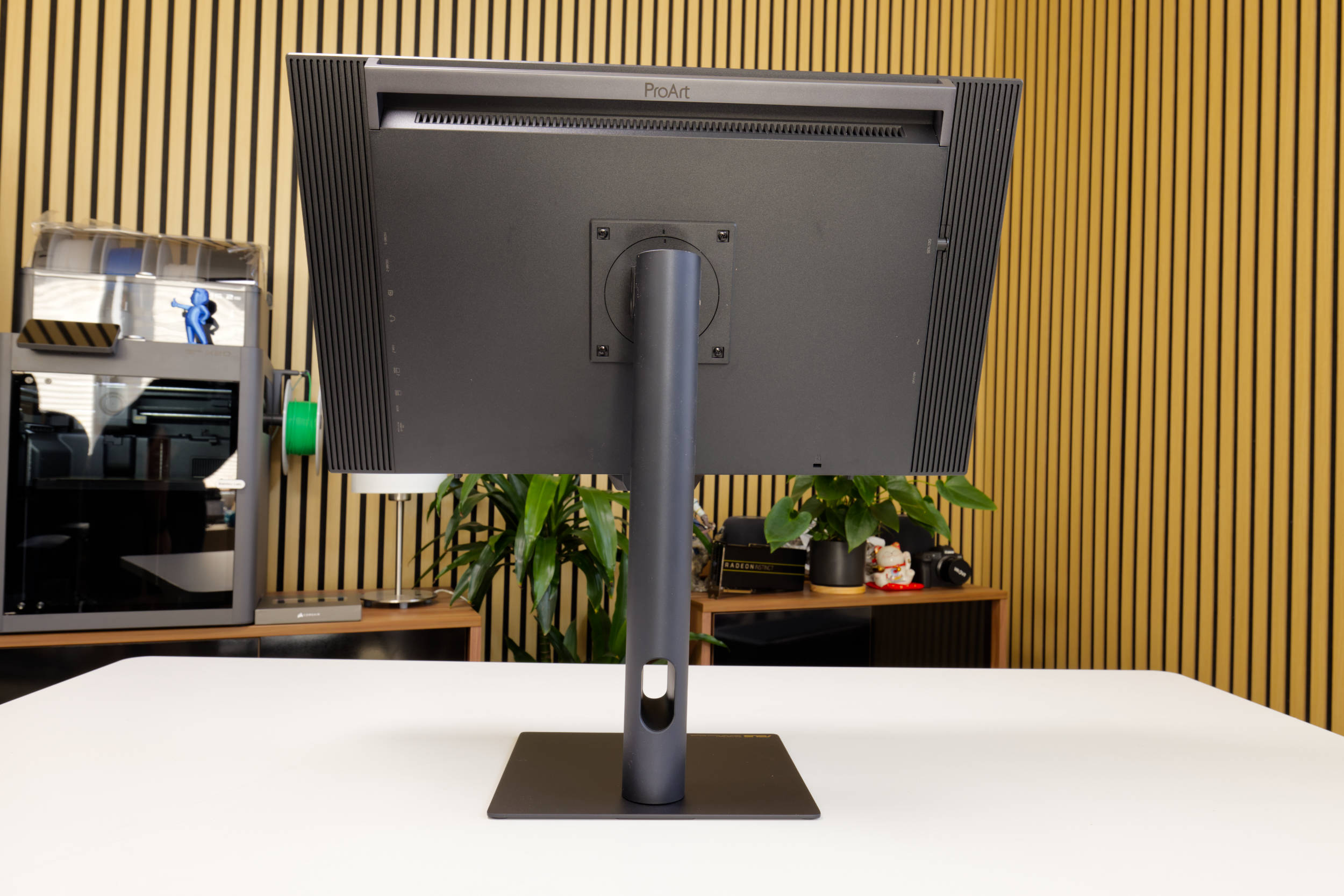 ASUS ProArt Display OLED PA27USD (superscript) (Image © PCMasters.de)
Thanks to its metal construction, the stand is very solid and stabilizes the monitor exceptionally well. As a result, the monitor wobbles only minimally when you adjust it. The lowest setting positions the ProArt OLED PA27USD about 10 cm above the desk (measured to the bottom bezel). Additionally, you can adjust the monitor’s height by 130 mm, bringing it 23.5 cm above the desk.
You can also mount the monitor on a monitor arm using the standard 100 x 100 mm VESA mount, and a Kensington lock is included for shared work environments. To use the monitor arm, you must remove the stand and instead secure the arm to the monitor using the monitor’s screws.
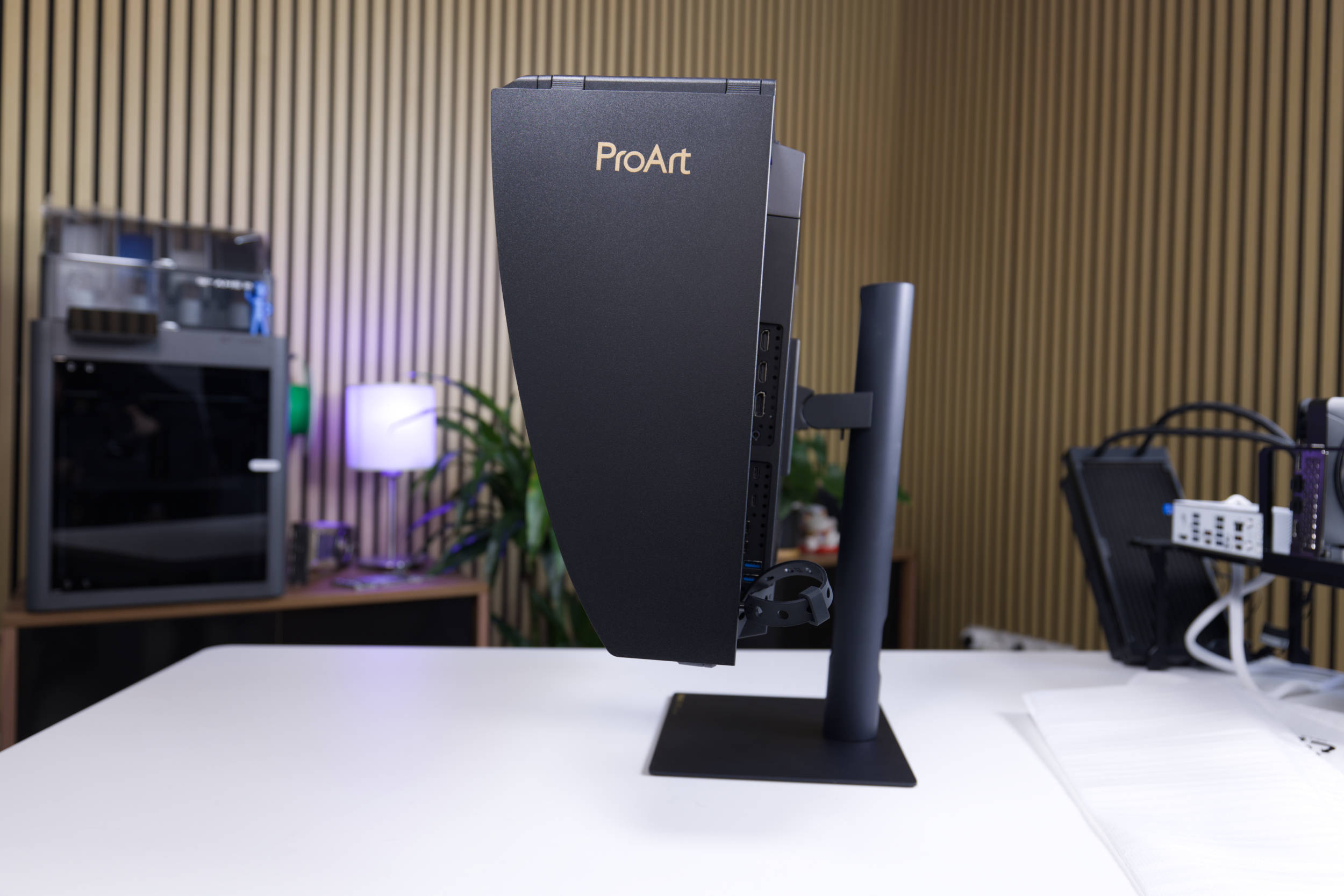 ASUS ProArt Display OLED PA27USD Light Shield Side (Image © PCMasters.de)
Light Shield
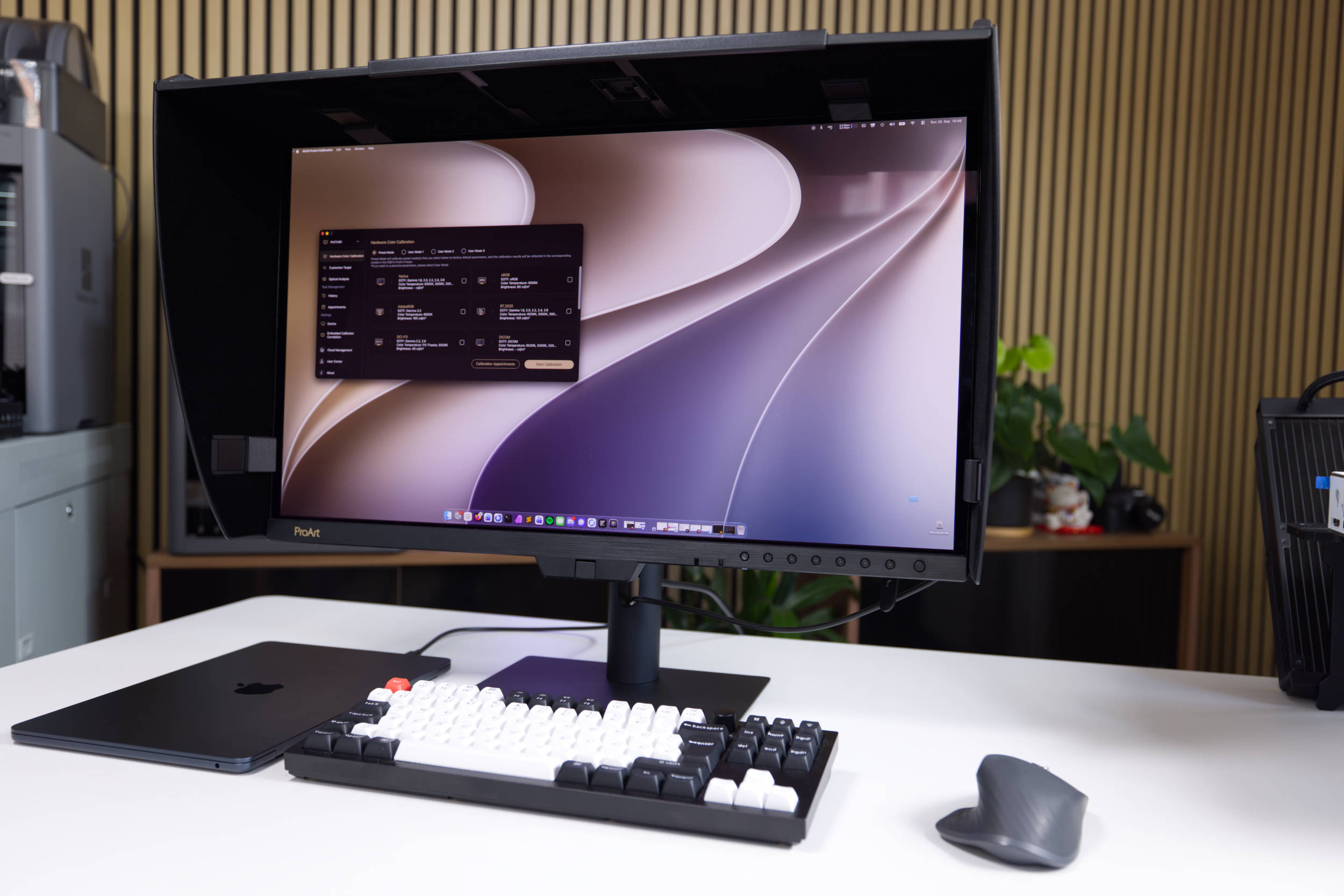
ASUS also includes a light shield with its ProArt OLED PA27USD, though this one differs from those included with other models. Given the focus on professional users, this is a wise decision, as the included version is designed to fit many different monitor sizes thanks to its adjustability. It simply folds out and can then be slid to the desired width.
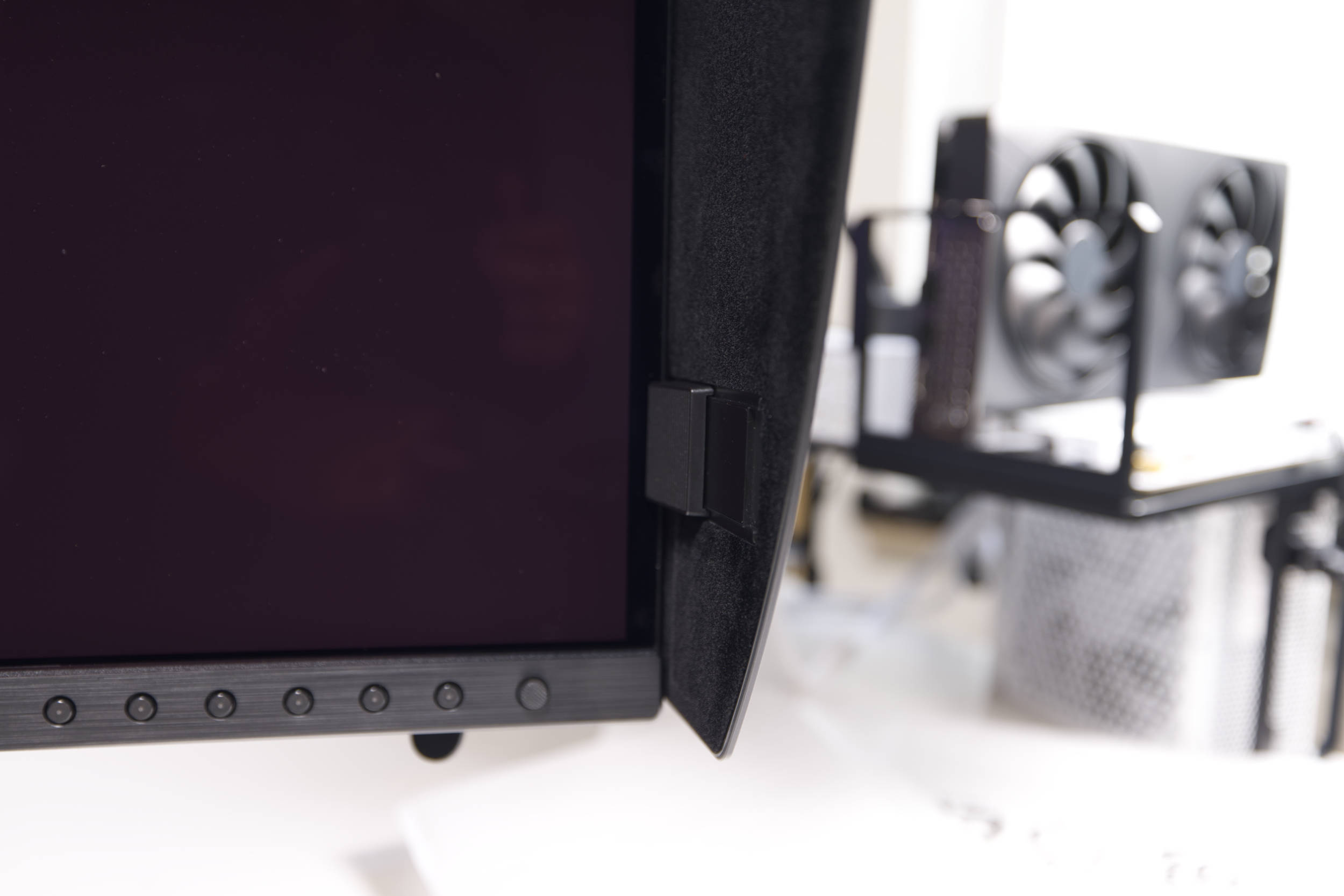 ASUS ProArt Display OLED PA27USD Anti-Glare Hood Clamp (Image © PCMasters.de)
Unfortunately, however, assembly is a bit fiddly because the parts aren’t secured with screws. There are movable sliders on the sides and top that are meant to secure the hood to the monitor.
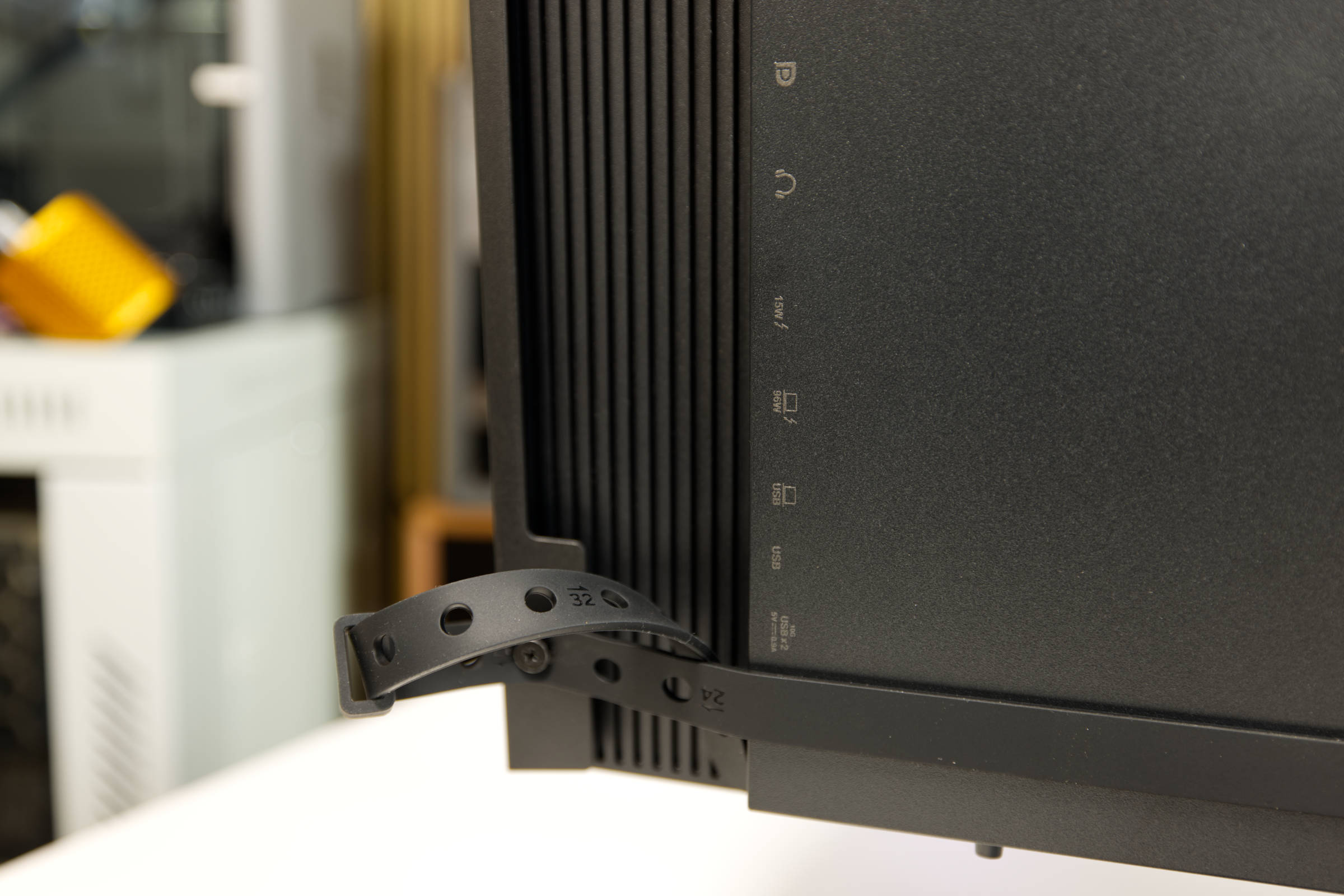 ASUS ProArt Display OLED PA27USD Light Shield Mounting Bracket (Image © PCMasters.de)
Once you’re done adjusting it, the hood is secured at the back with a flexible rubber band, which presses it against the monitor. However, this also causes the sliders at the front to come loose, so you’ll need to readjust them on the front side.
There’s also an opening at the top that can be closed. Once assembly is complete, the light shield is securely in place and the structure holds—even if it doesn’t look super sturdy.
Connectivity Options and KVM
The ProArt Display OLED PA27USD is particularly well-equipped when it comes to connectivity. The monitor features a wide range of connection options tailored to the demands of professional video production and high-end workstation environments.
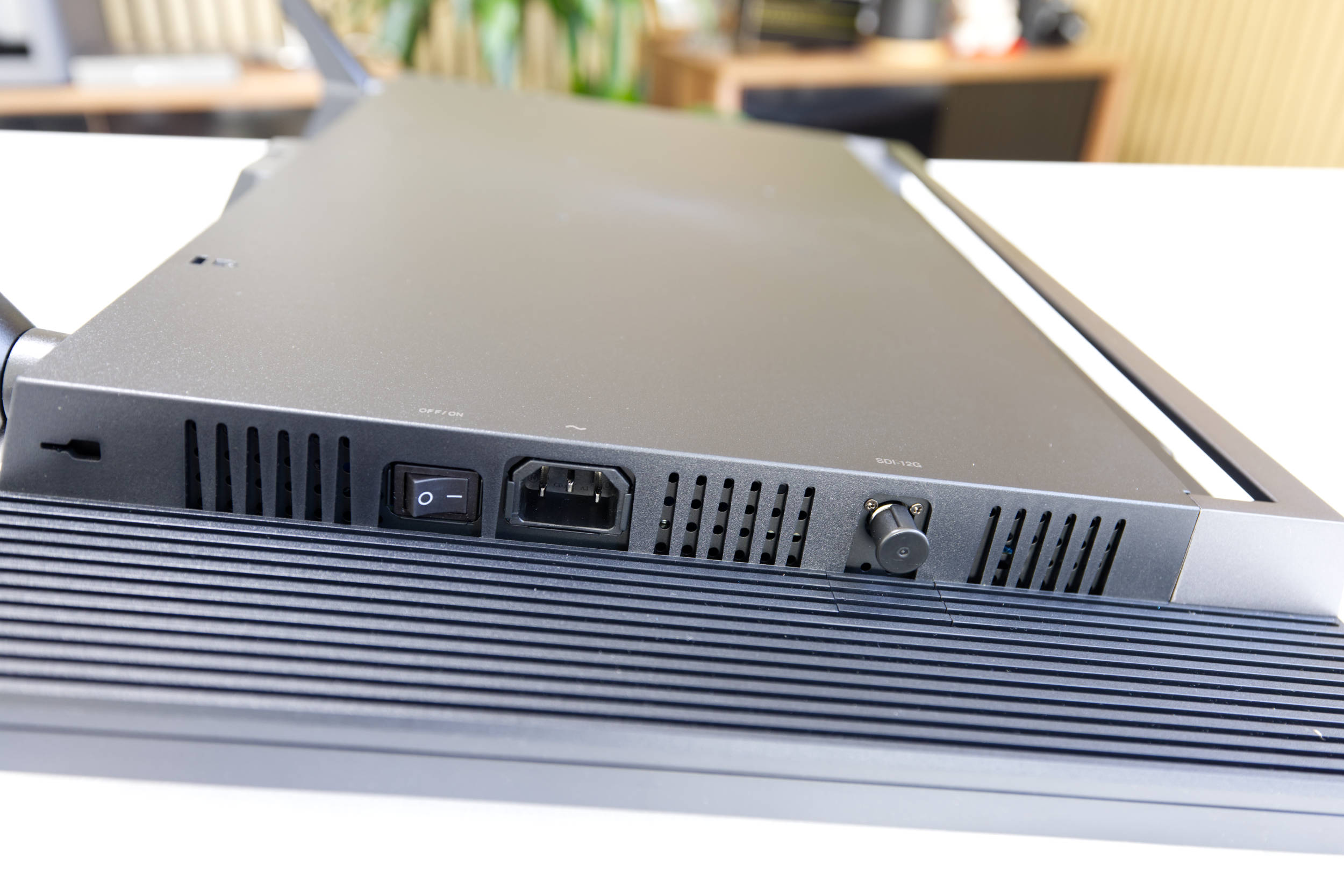 ASUS ProArt Display OLED PA27USD Ports on the Left (Image © PCMasters.de)
For professional video broadcasts and productions, it offers a 12G-SDI port, which is quite rare and a first for ASUS. This is complemented by two Thunderbolt 4 ports that support a daisy-chain connection, allowing multiple monitors to be daisy-chained via a single connection to the host system.
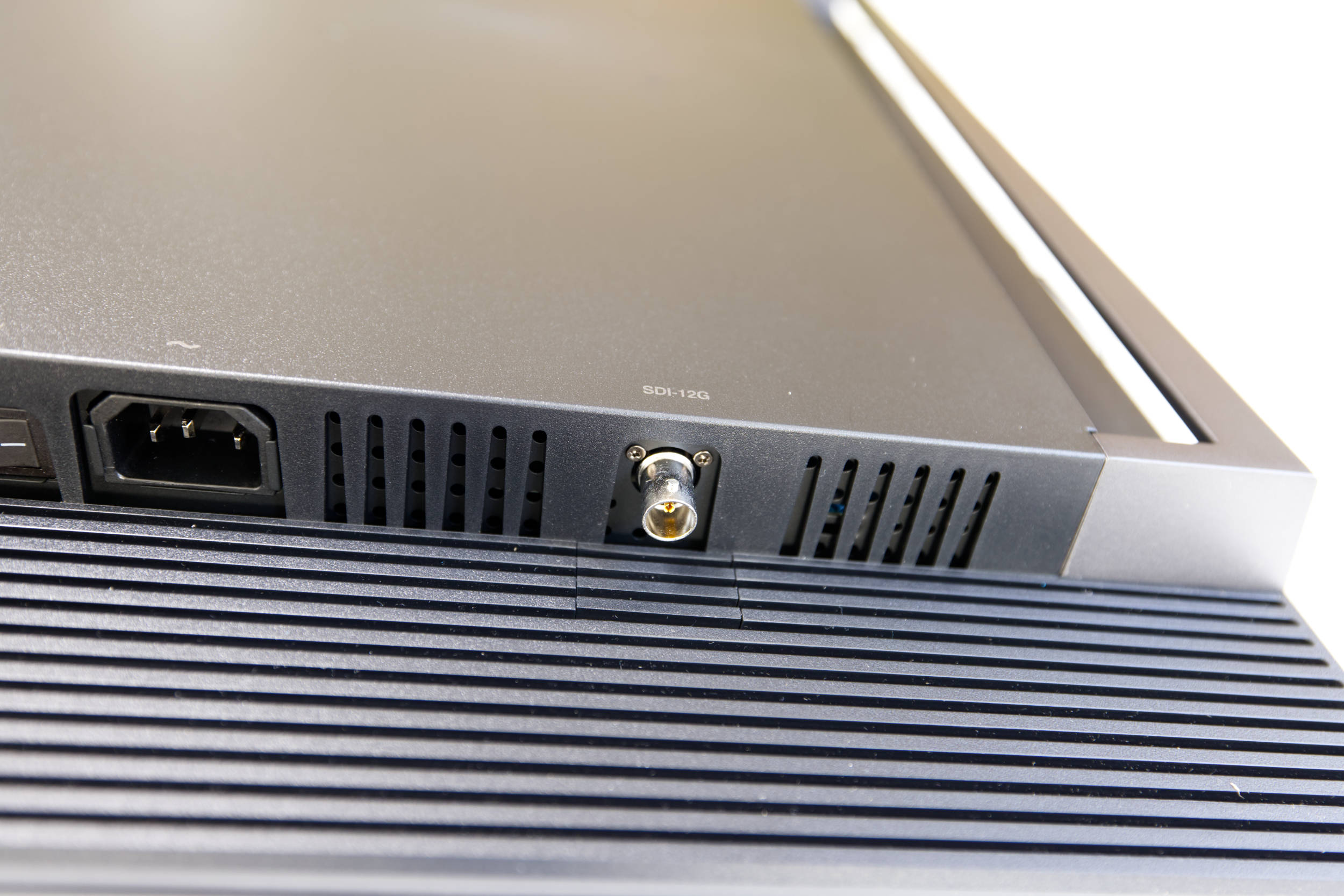 ASUS ProArt Display OLED PA27USD SDI 12G port (Image © PCMasters.de)
It also features a DisplayPort 2.1 input and two HDMI 2.1 ports with Fixed-Rate Link (FRL) technology to ensure maximum data throughput
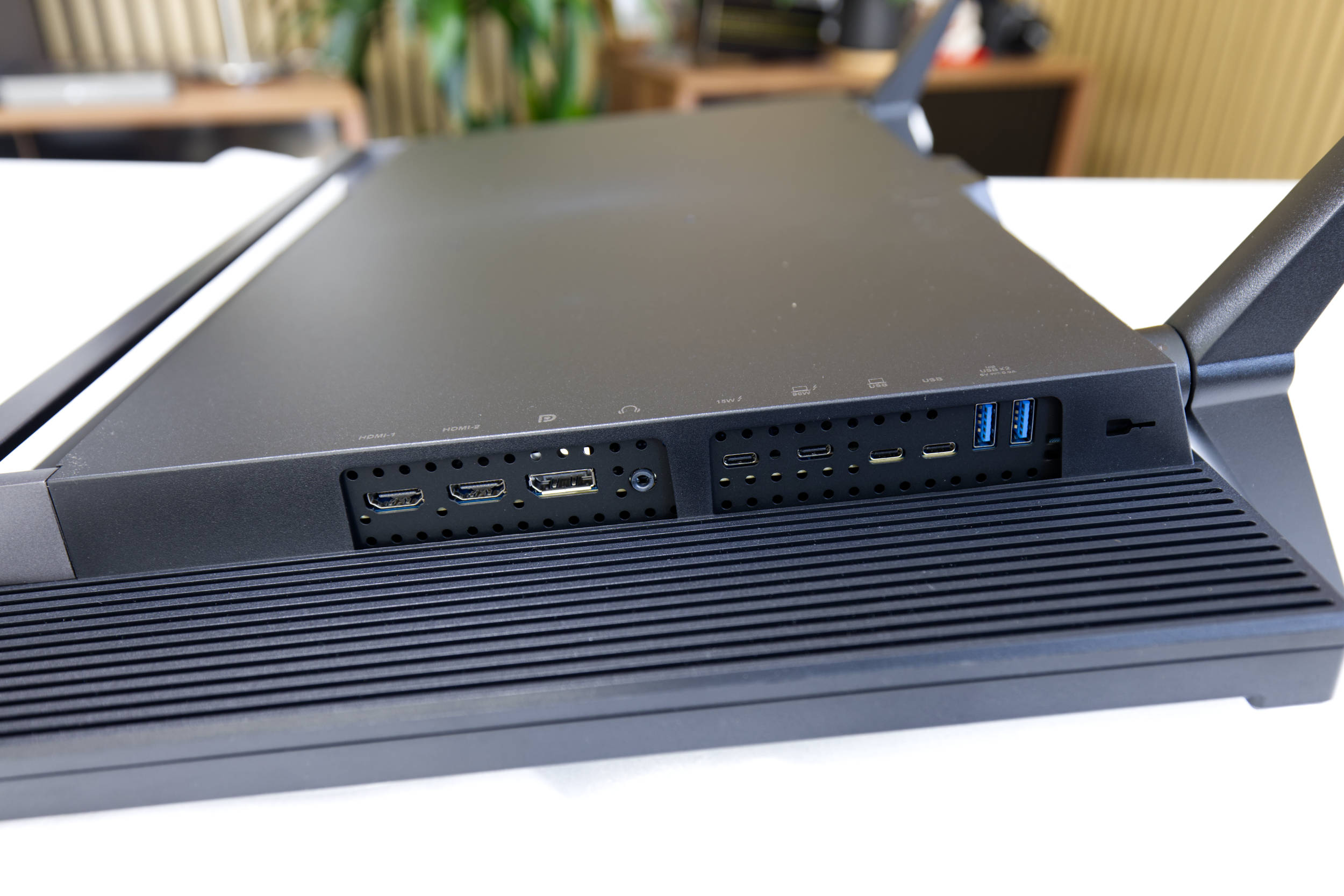 ASUS ProArt Display OLED PA27USD: Ports on the Right (Image © PCMasters.de)
Thanks to the built-in USB hub, the monitor also functions as a docking station. The hub consists of one USB 3.2 Gen 2 Type-C port and two USB 3.2 Gen 2 Type-A ports for fast data transfer. To simplify cable management at your workspace, the USB-C port provides up to 96 W of power, which is sufficient to charge most laptops.
One of the USB 3.2 Type-C ports is used for the KVM switch signal. This feature allows you to control two separate computer systems with just one set of keyboard and mouse peripherals, reducing clutter on your desk and increasing the efficiency of your workflows. For audio output, the device is equipped with a standard headphone jack.
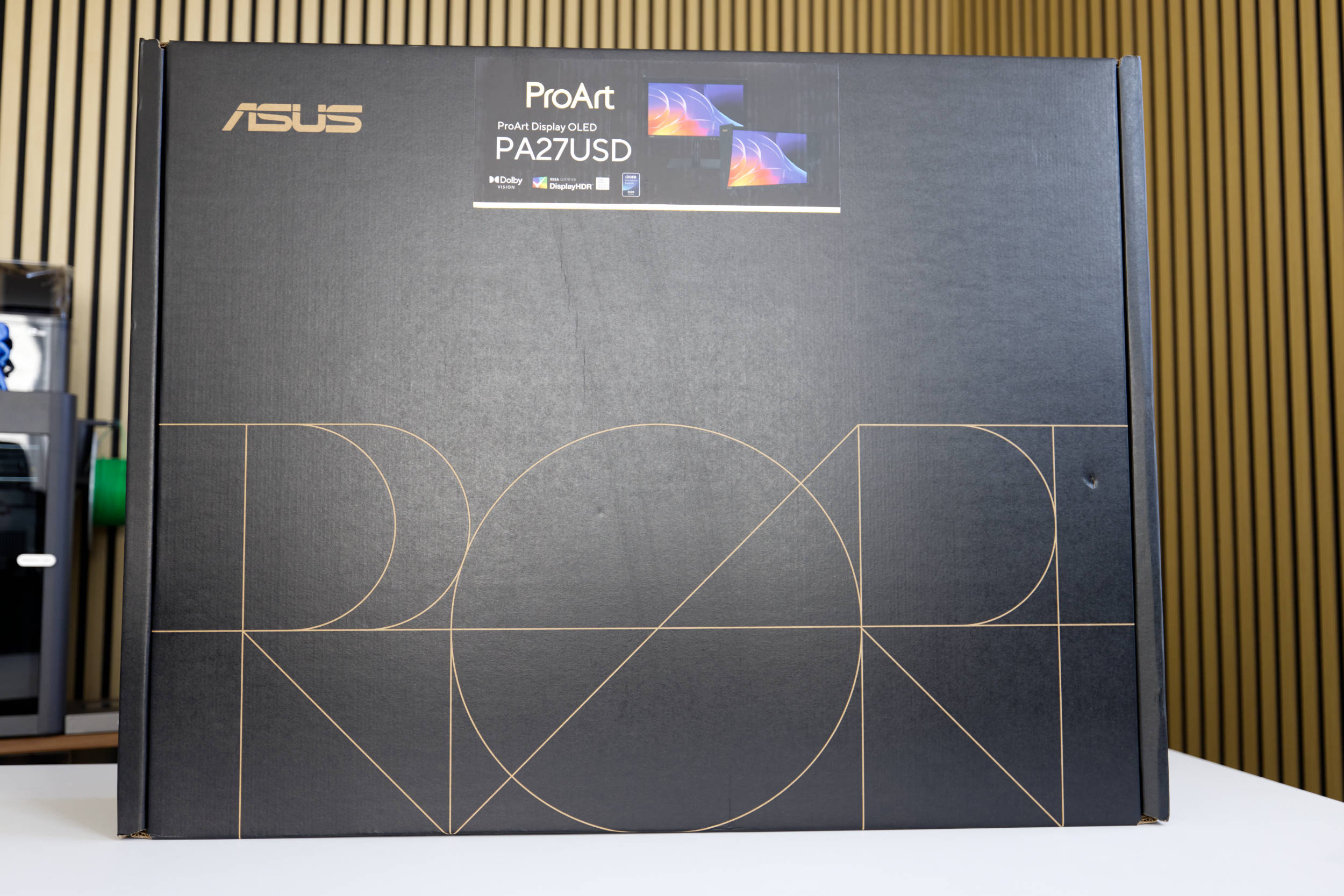 ASUS ProArt Display OLED PA27USD Packaging (Image © PCMasters.de)
ASUS ProArt Display OLED PA27USD Packaging and Contents
ASUS has put a lot of effort into the packaging of the ProArt Display OLED PA27USD monitor; the box features a sleek design typical of the ProArt line and is quite large. It is predominantly black, with stickers on the side revealing the exact model. Inside, at the very top, are all the cables and the light shield. All the parts are housed in individual compartments.
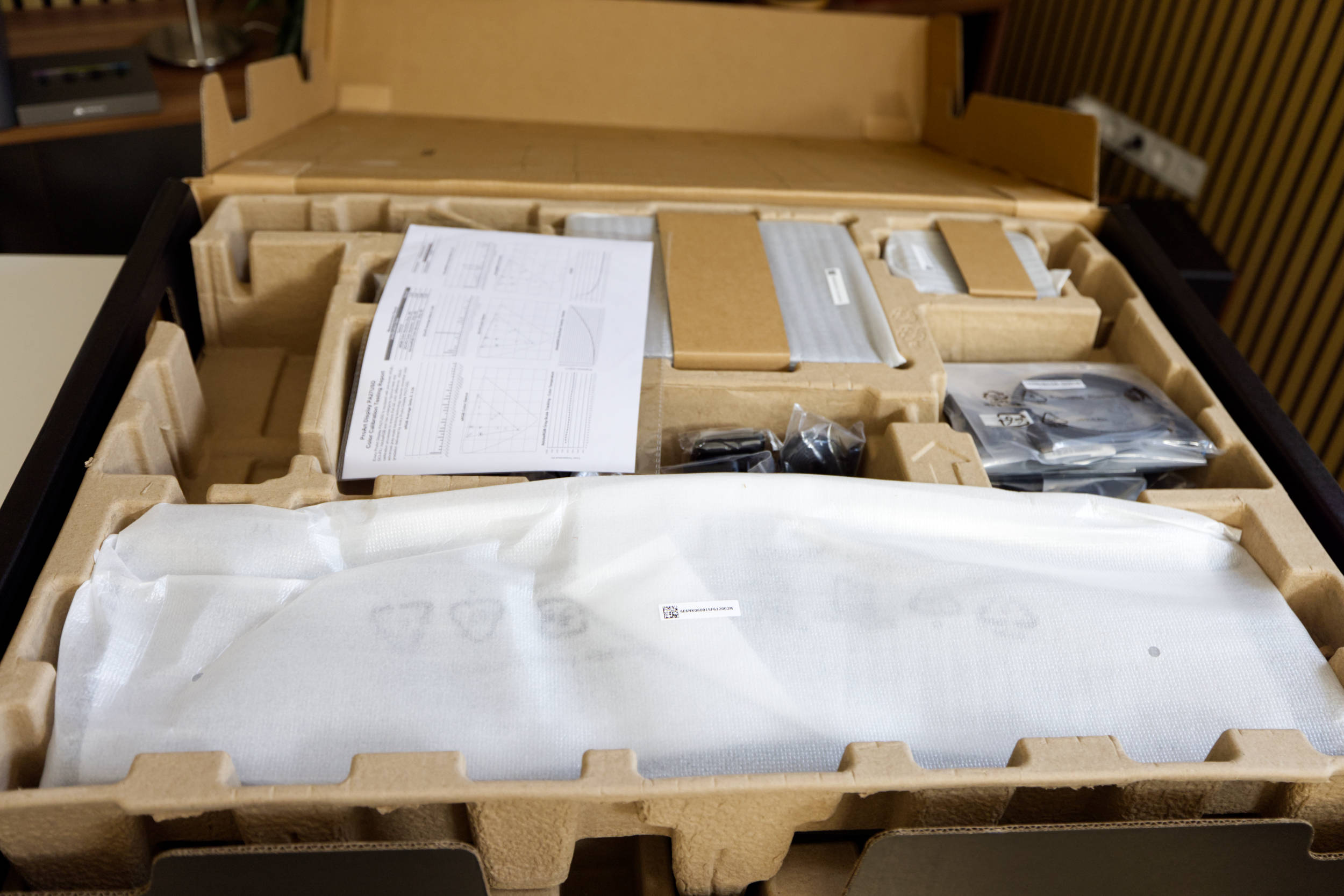 ASUS ProArt Display OLED PA27USD Inner Packaging (Image © PCMasters.de)
The cushioning inside the cardboard box is designed to provide protection during shipping. Openings on the sides make it easier to carry the monitor. No surprises here—it’s all standard.
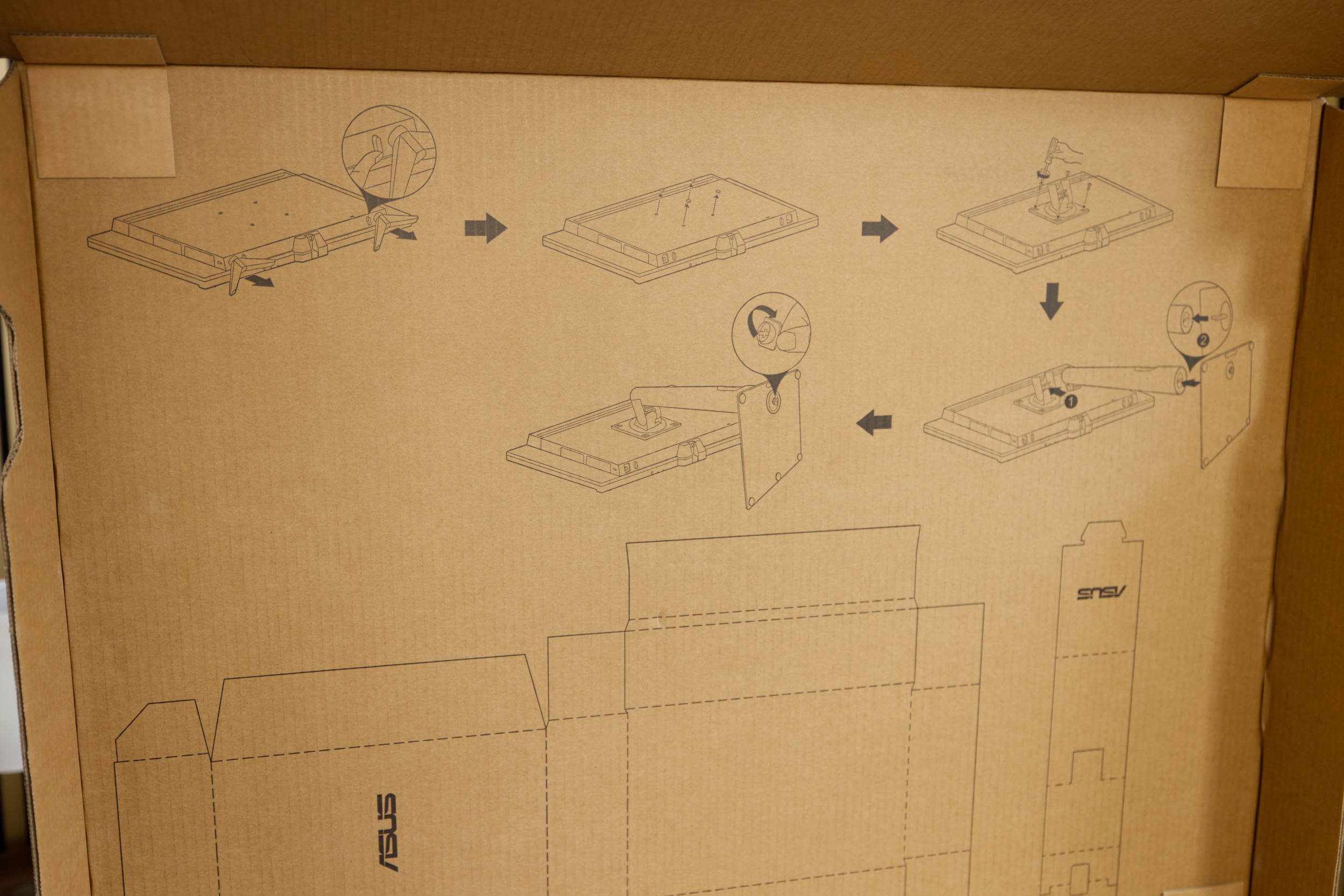 ASUS ProArt Display OLED PA27USD Instructions on the Package (Image © PCMasters.de)
Inside, at the top, we find a simple guide for setting up and assembling the monitor.
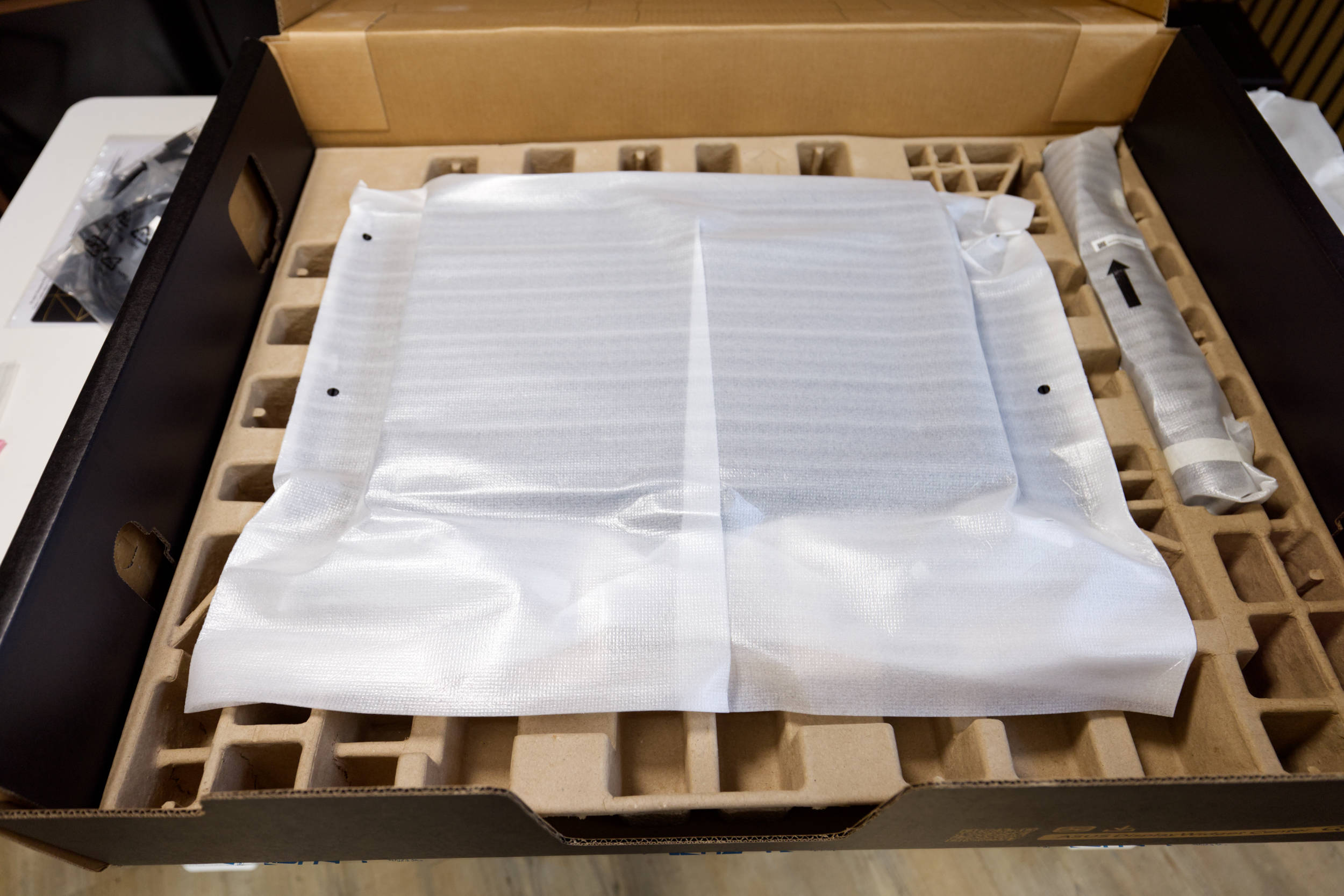 ASUS ProArt Display OLED PA27USD Monitor Packaging (Image © PCMasters.de)
The monitor is housed in the lower part of the box along with part of the stand. There’s plenty of space between the contents and the edges.
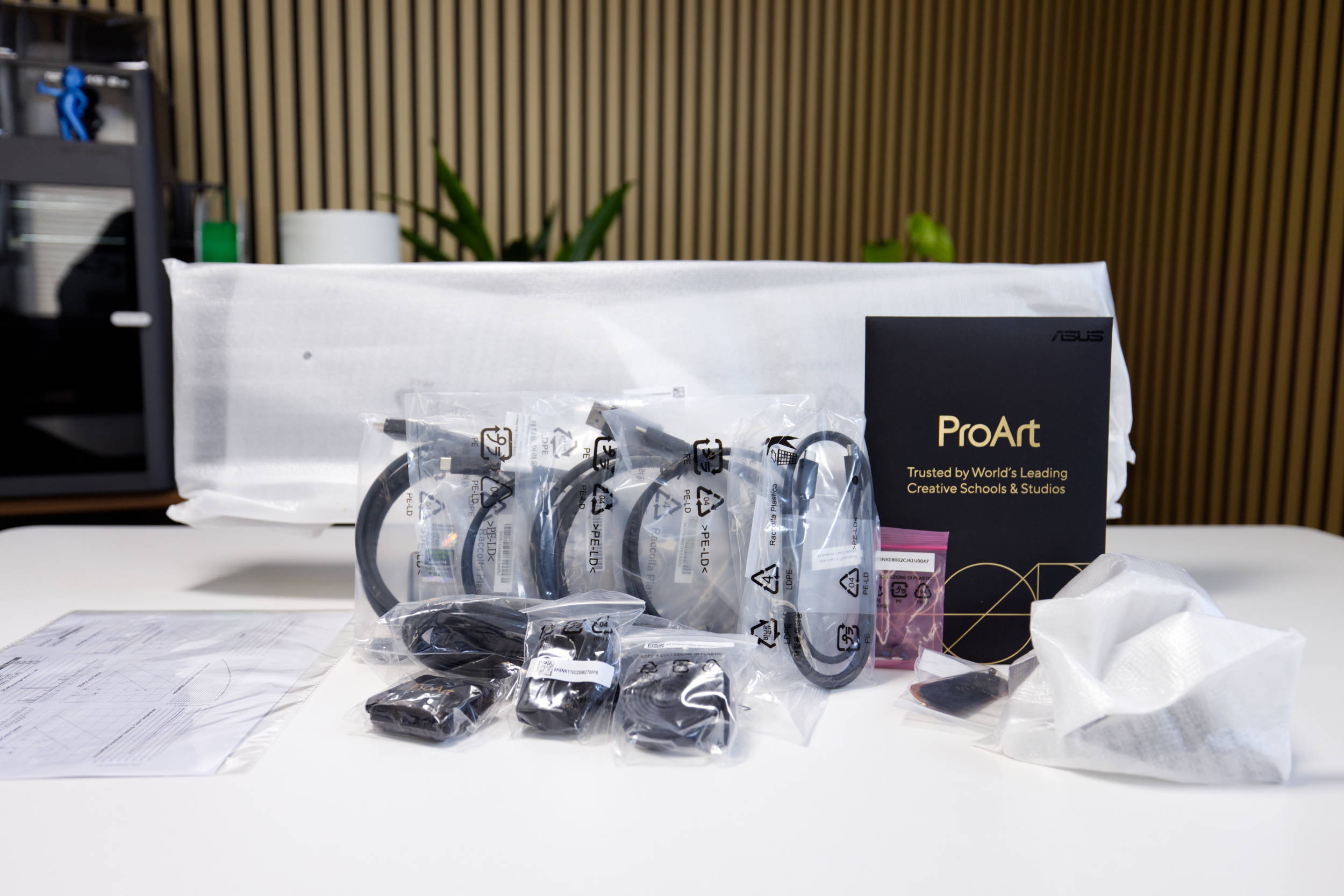 ASUS ProArt Display OLED PA27USD Package Contents (Image © PCMasters.de)
The package contents are unusually extensive and include a wide variety of cables and accessories. The package includes the following:
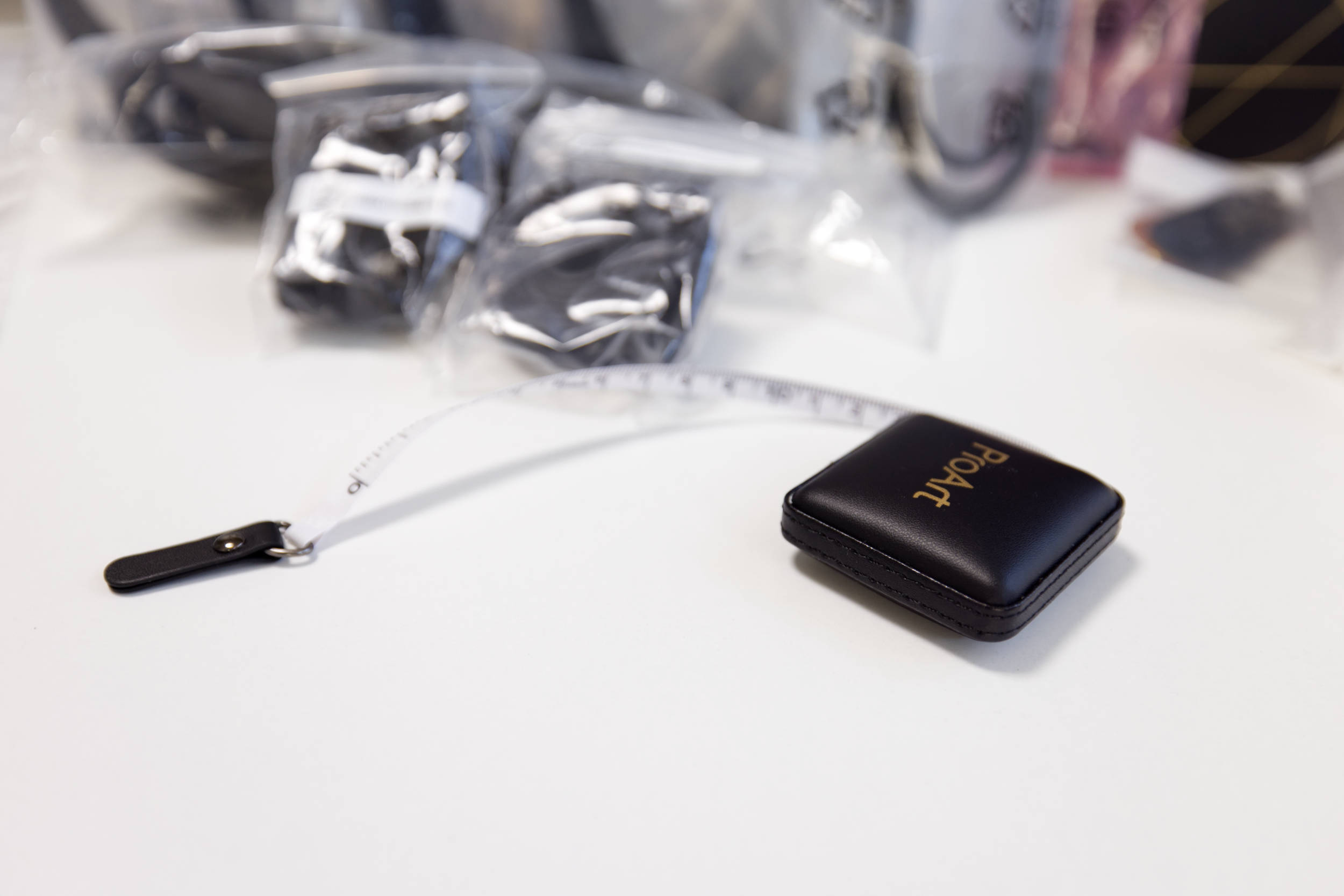 ASUS ProArt Display OLED PA27USD Accessory 1 (Image © PCMasters.de)
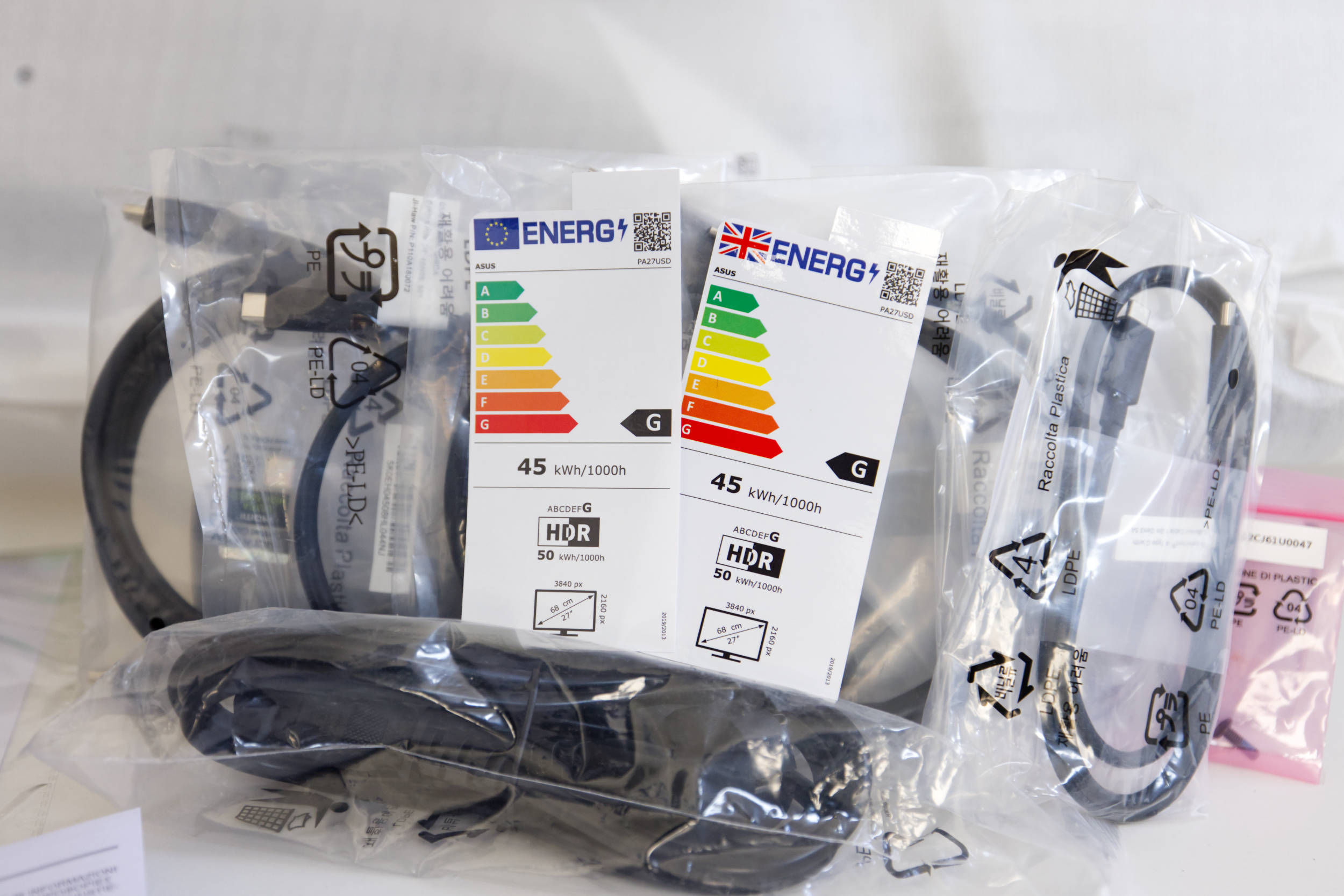 ASUS ProArt Display OLED PA27USD Cable (Image © PCMasters.de)
Inside the box, we find the monitor and the stand in separate parts.
- Warranty card
- USB-C to A cable
- USB-C cable
- Thunderbolt 4 cable
- Quick start guide
- Power cable
- Screen cover
- Mini stand
- L-shaped screwdriver
- HDMI Ultra High Speed cable
- Ergonomic stand
- DisplayPort 2.1 (DP80) cable
- Color pre-calibration report
- Cable clip
 ASUS ProArt Display OLED PA27USD Desktop (Image © PCMasters.de)
ASUS ProArt Display OLED PA27USD Review
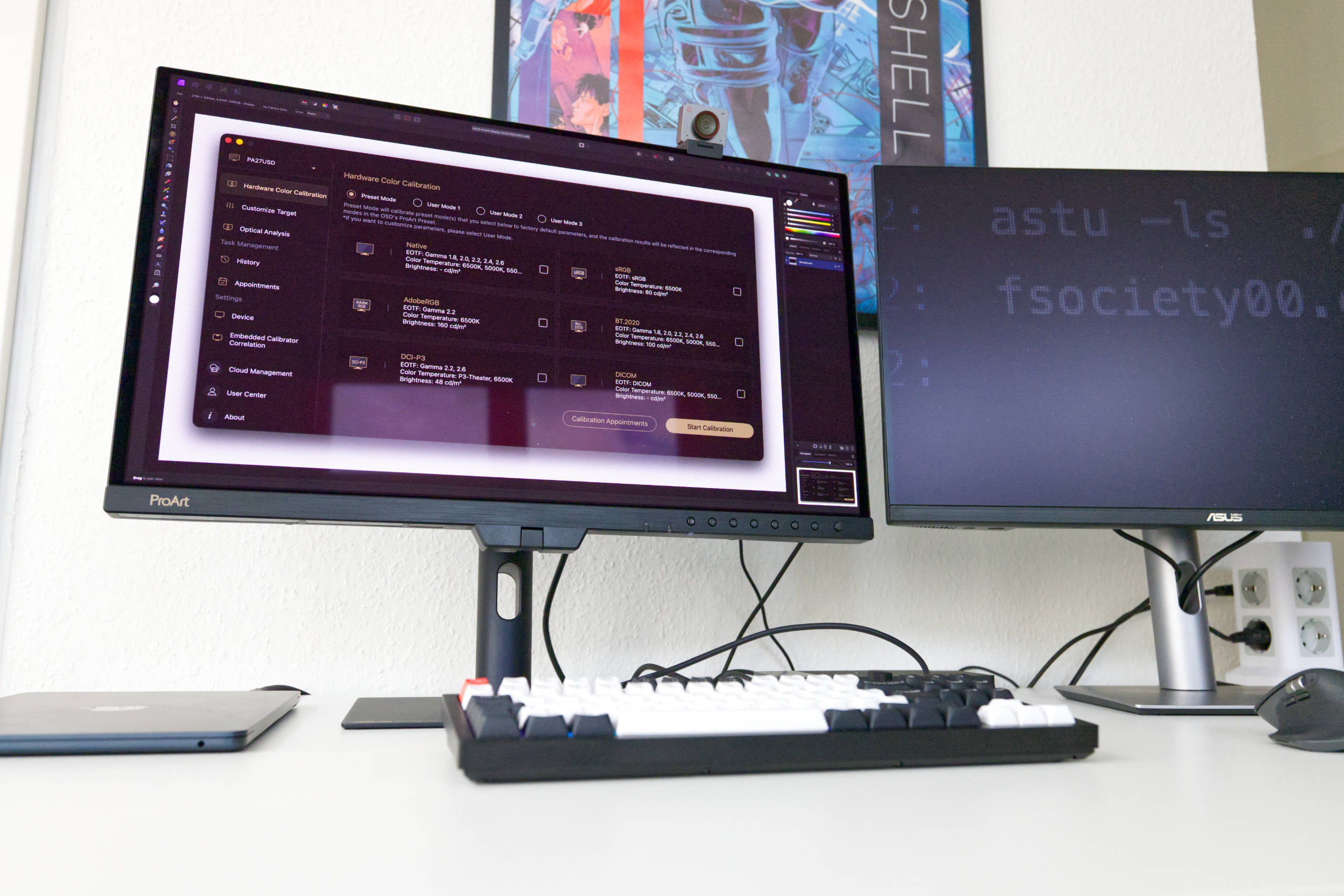
We had the opportunity to test the monitor for several weeks and used it most of the time in a dual-monitor setup alongside the ProArt PA27JCV 27-inch 5K IPS monitor. The difference in resolution wasn’t an issue on macOS, and the designs of the two monitors complemented each other well, even though the bezel on the ProArt OLED PA27USD monitor was slightly thicker. The MacBook Air didn’t always handle two monitors well, so on some days the second monitor wouldn’t turn on at startup—which was likely due to the Dell Thunderbolt 4 docking station.
In everyday use, we found it particularly difficult to match the color calibration between the two monitors, since the IPS monitor had a different calibration even when using the same color profile—which was to be expected. Once the ProArt OLED PA27USD was calibrated, we were pleased with the image quality, and working with Canon RAW photos for our reviews was very pleasant. The switch to the IPS panel was noticeable because the blacks differed significantly. Both models had matte finishes, which wasn’t a major issue in that regard, at least.
 ASUS ProArt Display OLED PA27USD HDR Review (Image © PCMasters.de)
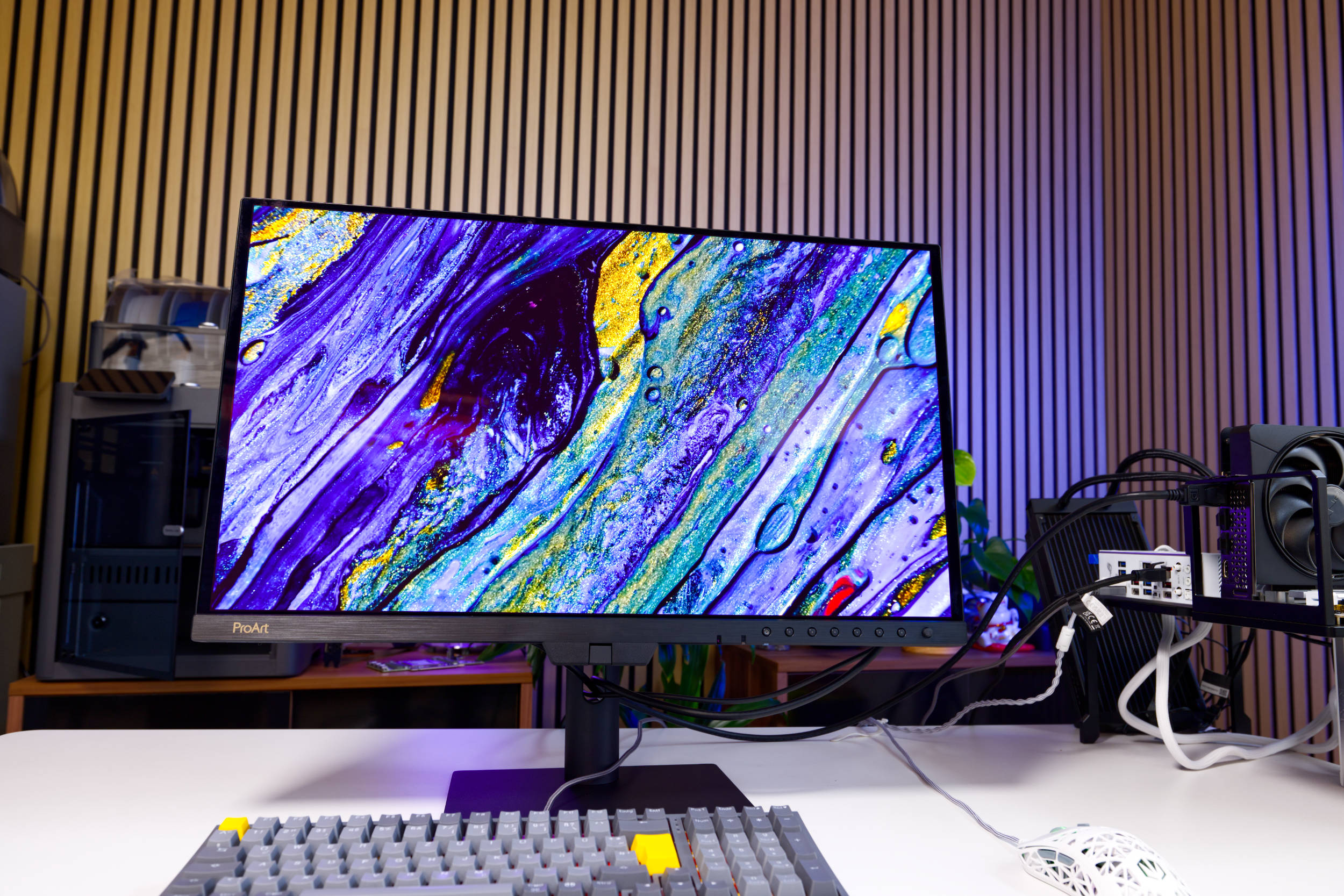
We also noticed positively that the ProArt OLED PA27USD kept its OLED Care feature completely in the background; the refresh cycles ran their course at some point, but we weren’t actively notified of them. So there are no pop-ups from the monitor and no reports—the monitor simply does its job. This is commendable, and we were able to fully immerse ourselves in our work.
 ASUS ProArt Display OLED PA27USD Light Shield in Use (Image © PCMasters.de)
The light shield will be important for some users; in our setup, we were able to leave it off and were satisfied with the results. At first, the edges appeared slightly darker, but we didn’t notice that issue later on. The backlighting seemed uniform to us, as did the brightness after fine-tuning. Once you’ve set up the HDR profiles, you won’t want to go back. This can vary depending on the OS and from application to application. We calibrated the monitor to the P3 color space and then used the calibrated profile, even though the "HDR PQ_P3" profile also worked well.
 ASUS ProArt Display OLED PA27USD Power Cable (Image © PCMasters.de)
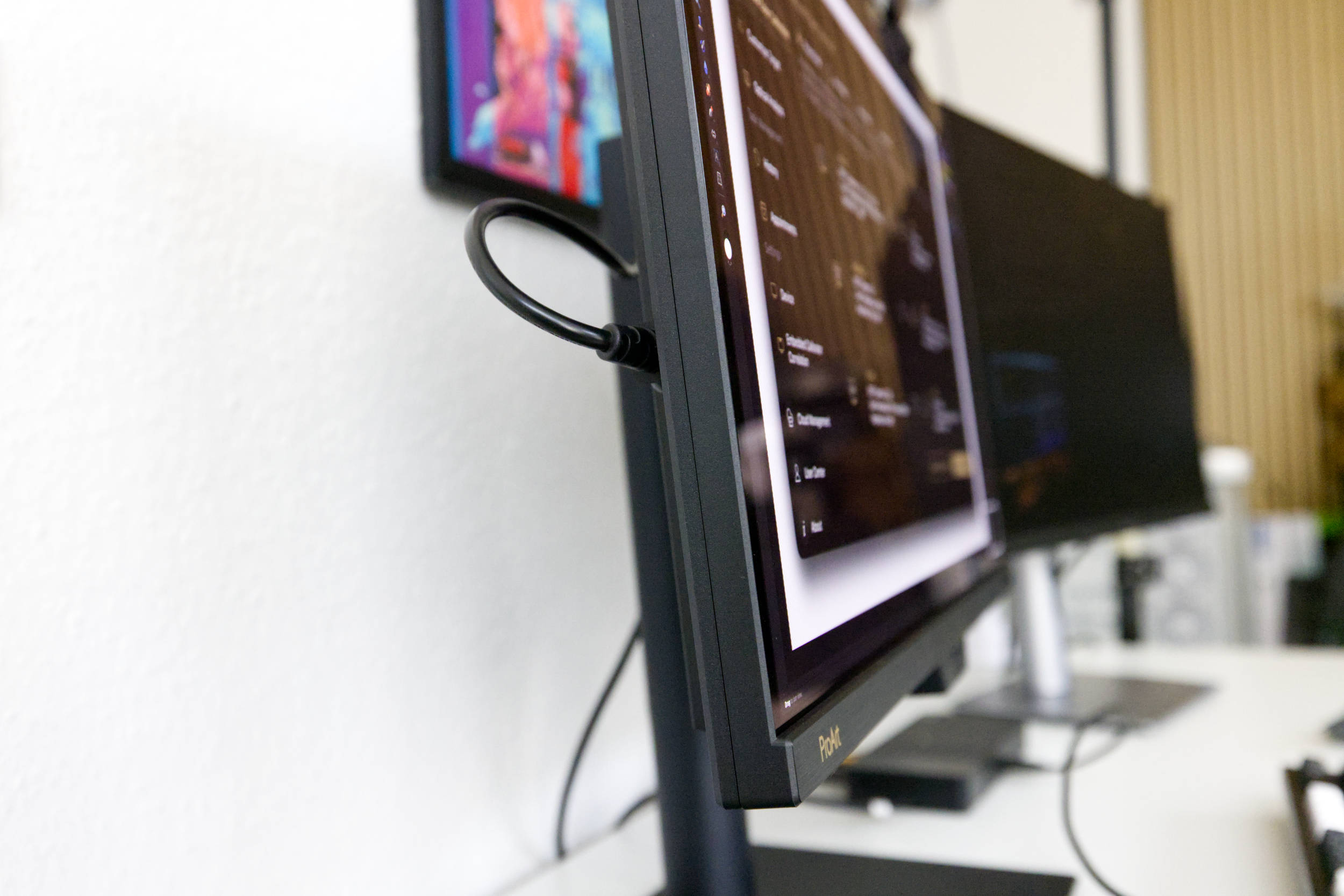
The connectivity options are generally good as well, except for the odd decision to place the power cable on the right side. Depending on your setup, the thick cable sticks out and can be a bit of a nuisance. The KVM switch is useful if you have two systems, but we’d recommend a decent docking station so you have enough USB ports and an Ethernet connection on hand just in case.
 ASUS ProArt Display OLED PA27USD in Gaming (Image © PCMasters.de)
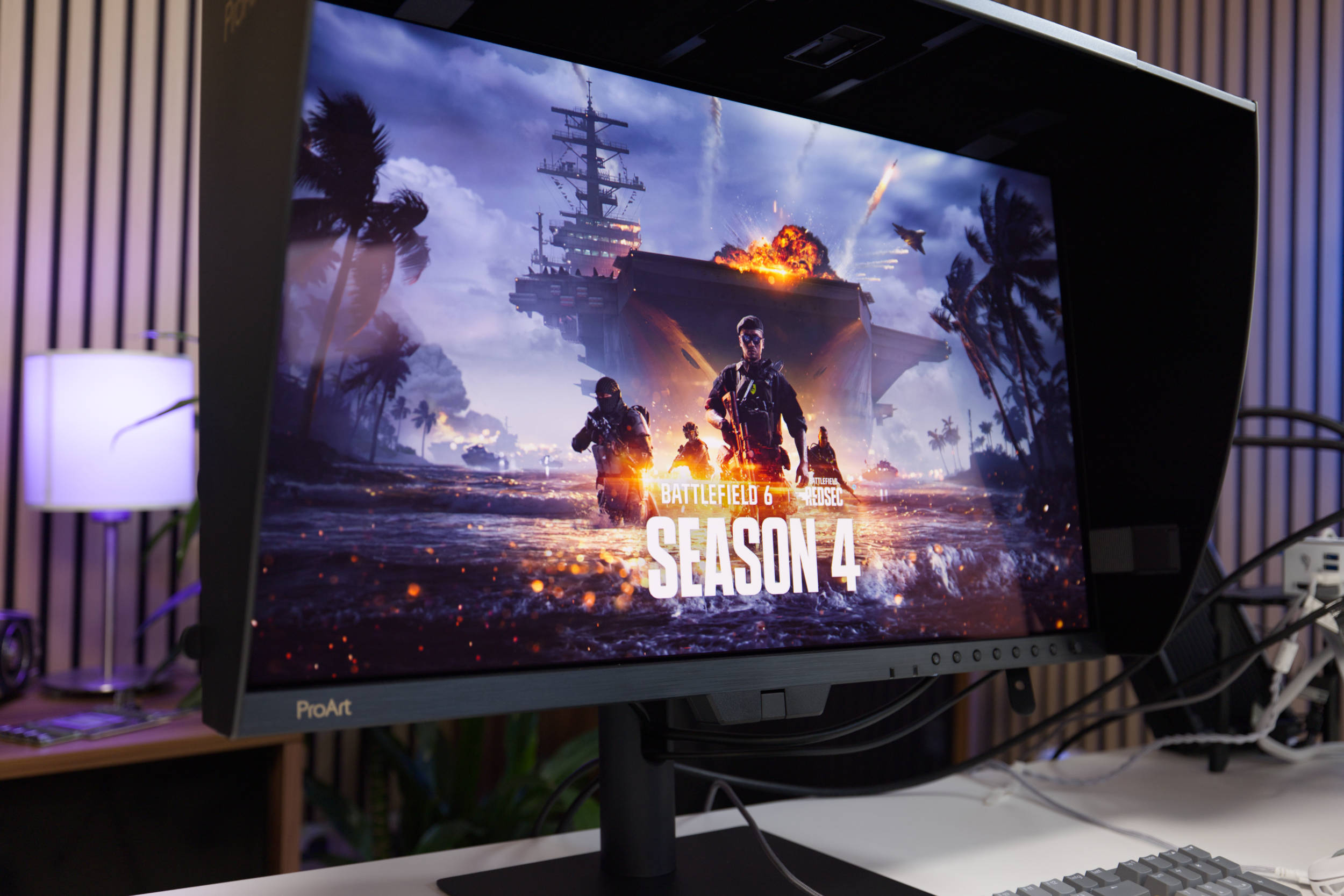
The OLED monitor is also suitable for gaming, as it supports FreeSync and has a maximum refresh rate of 240 Hz. OLED gaming monitors offer significantly more than that these days, but if you already own the ProArt OLED PA27USD, you’ll definitely prefer it over an IPS panel. Thanks to the 4K UHD resolution, you don’t need a high-end graphics card either. We primarily played Battlefield 6 on it and achieved a smooth 100 fps on Ultra settings with a GeForce RTX 5080, without DLSS frame generation or upscaling. So if you’re planning to get a pro monitor for your home office, this could be an option for after work, since it’s probably better suited for content creation and productivity on a day-to-day basis.
Speakers
ASUS also equips its ProArt OLED PA27USD with speakers. Anyone expecting very high-quality sound at a price of €2,000 will be disappointed. The two 2-watt speakers are positioned at the back, but the sound only highlights high frequencies well. At full volume, they can barely fill a small room, and the bass distorts the sound immediately, causing it to sound overdriven and unbalanced. They’re certainly sufficient for YouTube videos, but they aren’t particularly well-suited for music.
 ASUS ProArt Display OLED PA27USD HDR Review (Image © PCMasters.de)
Conclusion on the ASUS ProArt Display OLED PA27USD

The ProArt Display OLED PA27USD is clearly positioned in the professional segment, a fact underscored by powerful features such as the integrated colorimeter, a 12G-SDI port, the two included stand options, and the overall package as a whole. Calibration software is available for Windows and macOS, but you can also adjust the calibration via the OSD menu without the software. The OLED panel is anti-glare, but as is often the case, it still exhibits a certain degree of reflection, which can be mitigated using the included light shield. The OSD menu offers many additional options and profiles; furthermore, the profiles calibrated via the software are also saved on the monitor.
In addition to the two removable side stands, you can also use the sturdy stand, which offers a wide range of adjustment options. If you use a monitor arm, you can mount the monitor as usual via a VESA mount. The monitor’s design is simple and features the typical ProArt look.
The ProArt Display OLED PA27USD is ideally equipped for working with photo and video material, and you’ll get used to it very quickly. The 4K UHD resolution is sufficient for the 27" format and delivers a sharp image. In addition, the mandatory OLED Care processes run in the background during standby mode. This means you don’t notice them at all and can focus fully on your work.
With a price of approximately €2,000, the ProArt Display OLED PA27USD (Affiliate) is by no means a bargain, as OLED monitors with a 27–30-inch diagonal are available for well under €1,000; however, its many pro-grade features make it a workhorse. Anyone with the budget for it will quickly grow to love the ProArt Display OLED PA27USD.
Pro
- Sturdy monitor
- Good design
- 4K UHD OLED panel
- Built-in colorimeter
- ProArt Calibration with software profiles
- Light shield included
- Proximity and ambient light sensors
- Rotatable (vertical orientation) and swiveling
- Very sturdy stand
- Mini stand pre-installed
- Very comprehensive package contents
- KVM switch with Thunderbolt 4
- Quiet operation (no fan)
- OLED Care runs in standby mode
- Built-in speakers
Contra
- Speakers sound mediocre
- 3-year warranty, 5 years after registration