Computer Forum
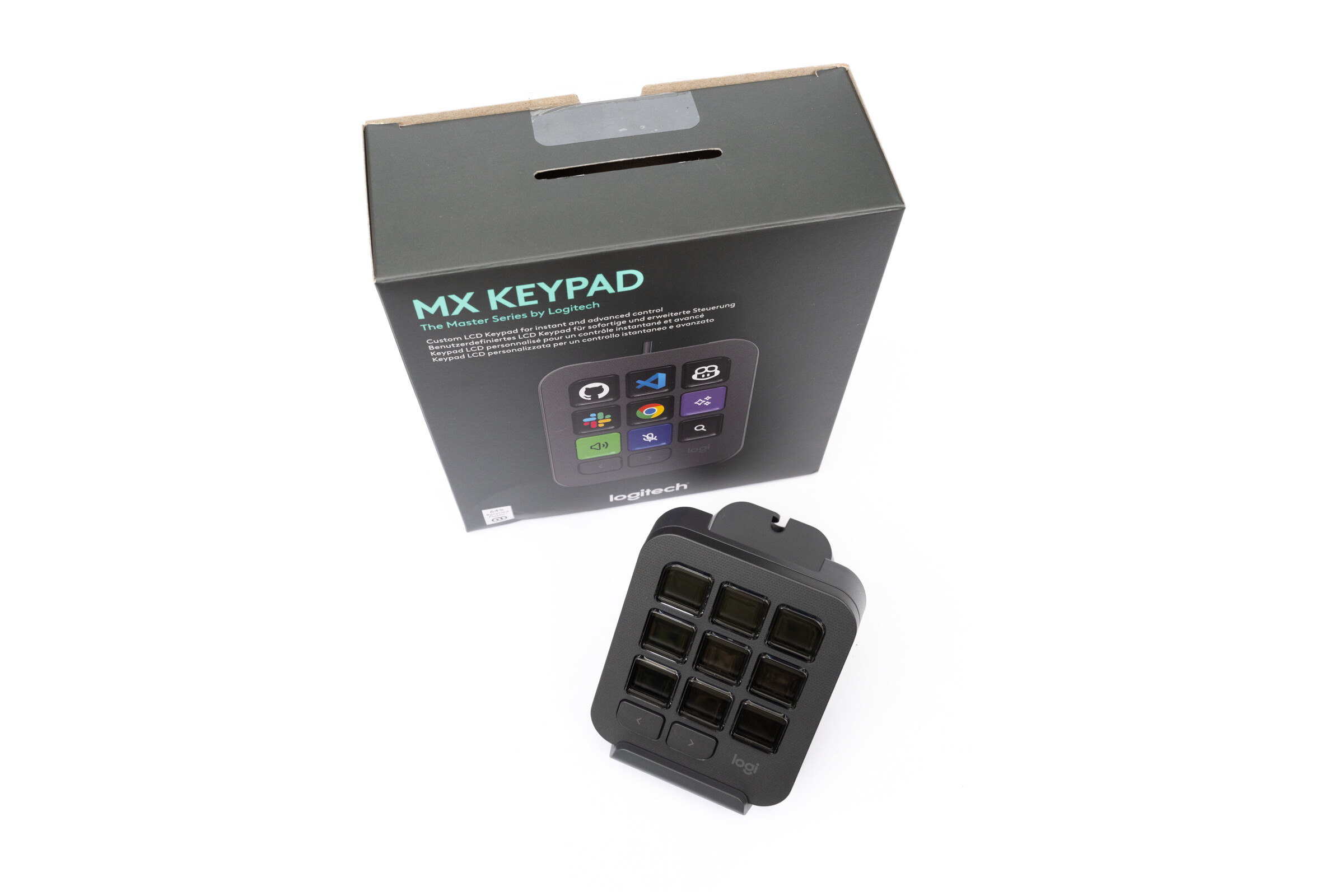 Logitech MX Keypad Review (Image © PCMasters.de)
However, this concept isn’t entirely new to us. We’re already familiar with the MX Keypad from our review of the MX Creative Console, with which it was originally introduced. Now Logitech is offering the keypad separately, aiming to appeal to a broader audience. We therefore took another closer look at what the MX Keypad has to offer, how it performs in everyday use, and who would benefit from purchasing it. In doing so, we’re also drawing on our experiences from our previous review of the MX Creative Console.
About Logitech
Most of us are likely familiar with Logitech primarily for its mice, keyboards, and webcams. The Swiss company was founded in Lausanne in 1981 and remains headquartered there to this day. However, its product range now extends far beyond traditional PC peripherals. In addition to gaming hardware, its portfolio includes headsets, microphones, and solutions for video conferencing and streaming.
Sustainability is also playing an increasingly important role at Logitech. According to the company, this includes, among other things, the use of recycled materials in production. With the MX series, Logitech primarily targets users who value high-quality products for their everyday work. The MX Keypad now complements this product family with a compact, separately available control unit.
Technical Specifications
| Technical Specifications | Logitech MX Keypad |
| Dimensions | 75 x 89 x 24 mm (without stand) |
| Weight | 96 g (without stand) |
| Buttons | 9 customizable LCD buttons |
| Side buttons | 2 buttons for switching pages |
| Connection | USB-C |
| Cable | USB-C to USB-C |
| Cable Length | 150 cm |
| Software | Logi Options+ |
| Compatibility | Windows and macOS |
| App profiles | Yes, automatic switching based on the application |
| Supported applications | Including VS Code, IntelliJ, GitHub Copilot, Claude Code, Figma, Zoom, Spotify, Adobe, and many more |
| Special Features | LCD keys, AI agents, and macros; customizable profiles |
| Price | €99.99 |
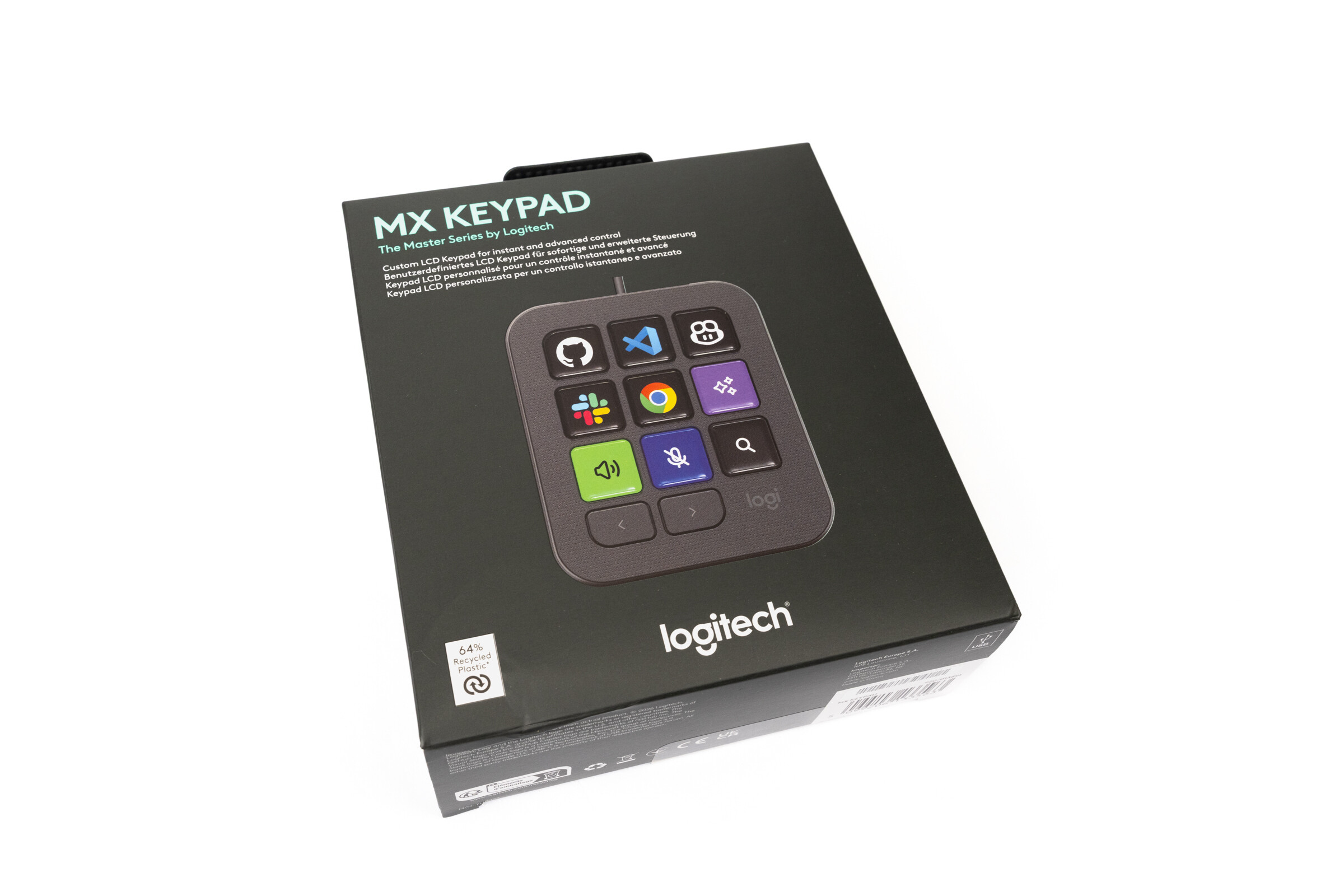
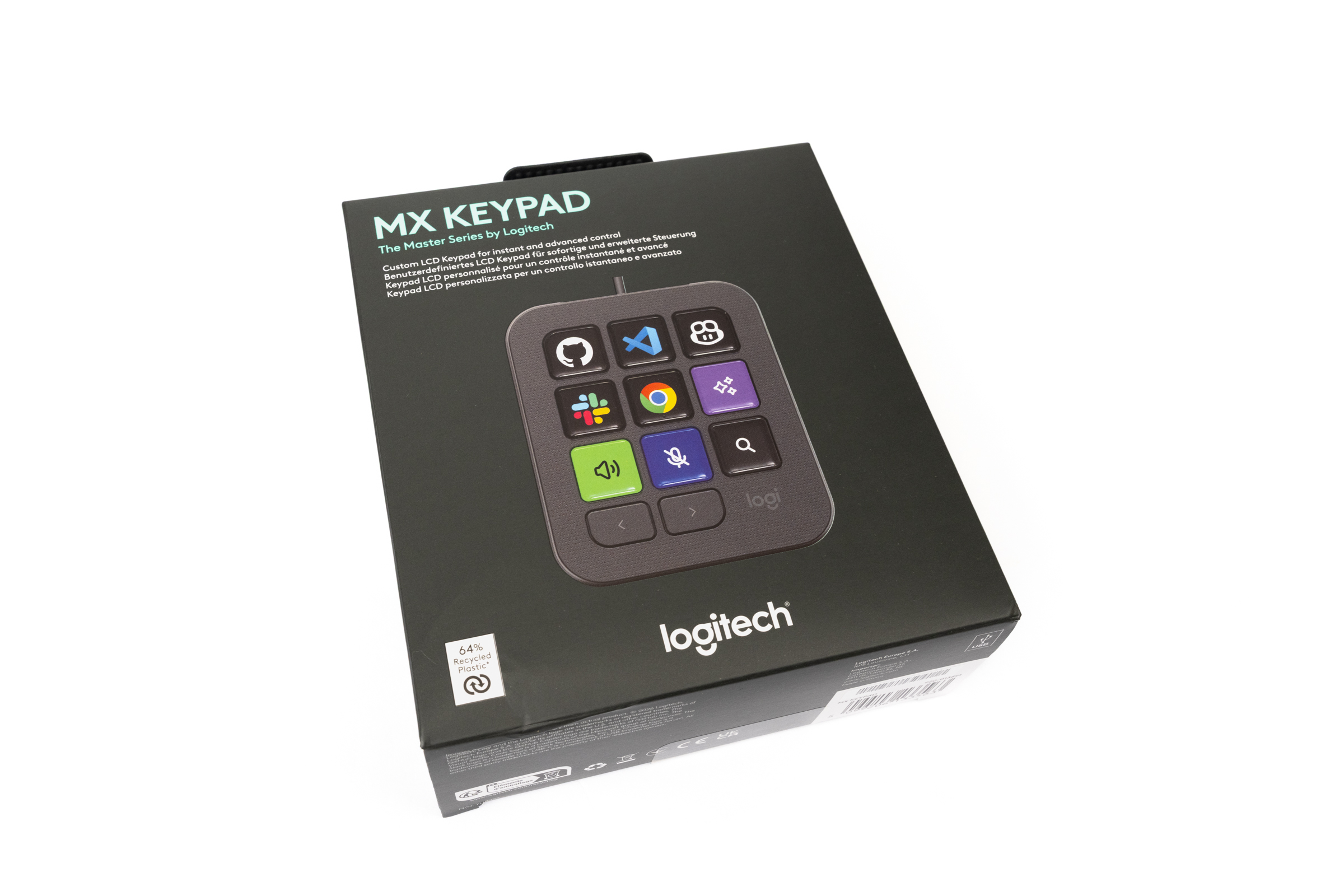 Front of the Logitech MX Keypad Packaging (Image © PCMasters.de)
Package Contents
As with the MX Creative Console, Logitech has opted for simple packaging for the MX Keypad. The predominantly black box looks high-quality and fits well with the rest of the MX series. An image of the keypad is printed on the front, while the other sides provide some information about the device and its features. Logitech keeps the design pleasantly simple and avoids unnecessary frills. This makes a good impression right from the moment you unbox it.
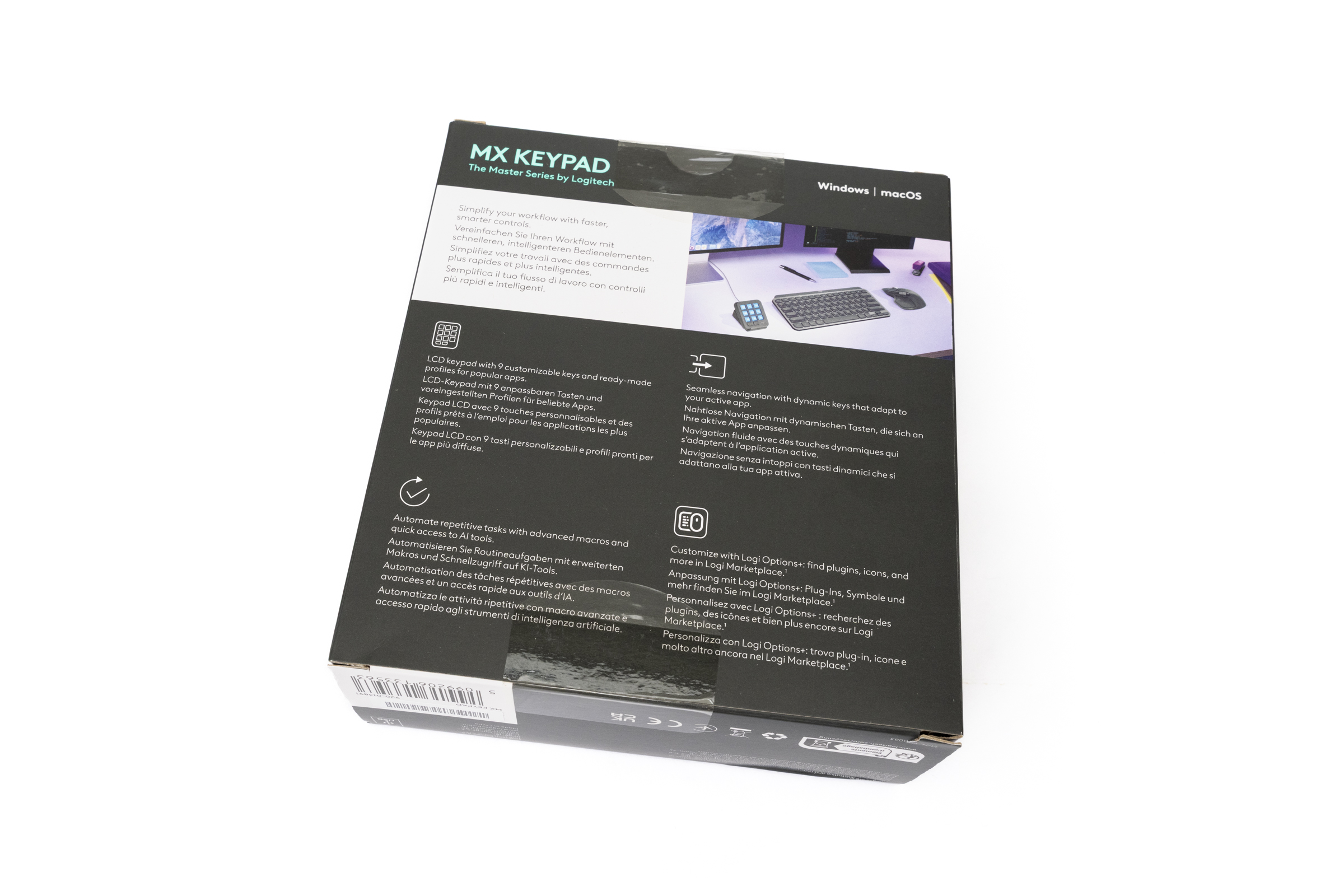 Logitech MX Keypad Back of Packaging (Image © PCMasters.de)
Inside the box, Logitech remains true to this approach. Instead of plastic, cardboard and paper are used. The keypad and accessories sit securely in their designated compartments, ensuring everything is neatly stowed away. The manufacturer also avoids elaborate plastic moldings and extra plastic bags. This saves on unnecessary packaging material and aligns with the company’s commitment to more sustainable packaging solutions.
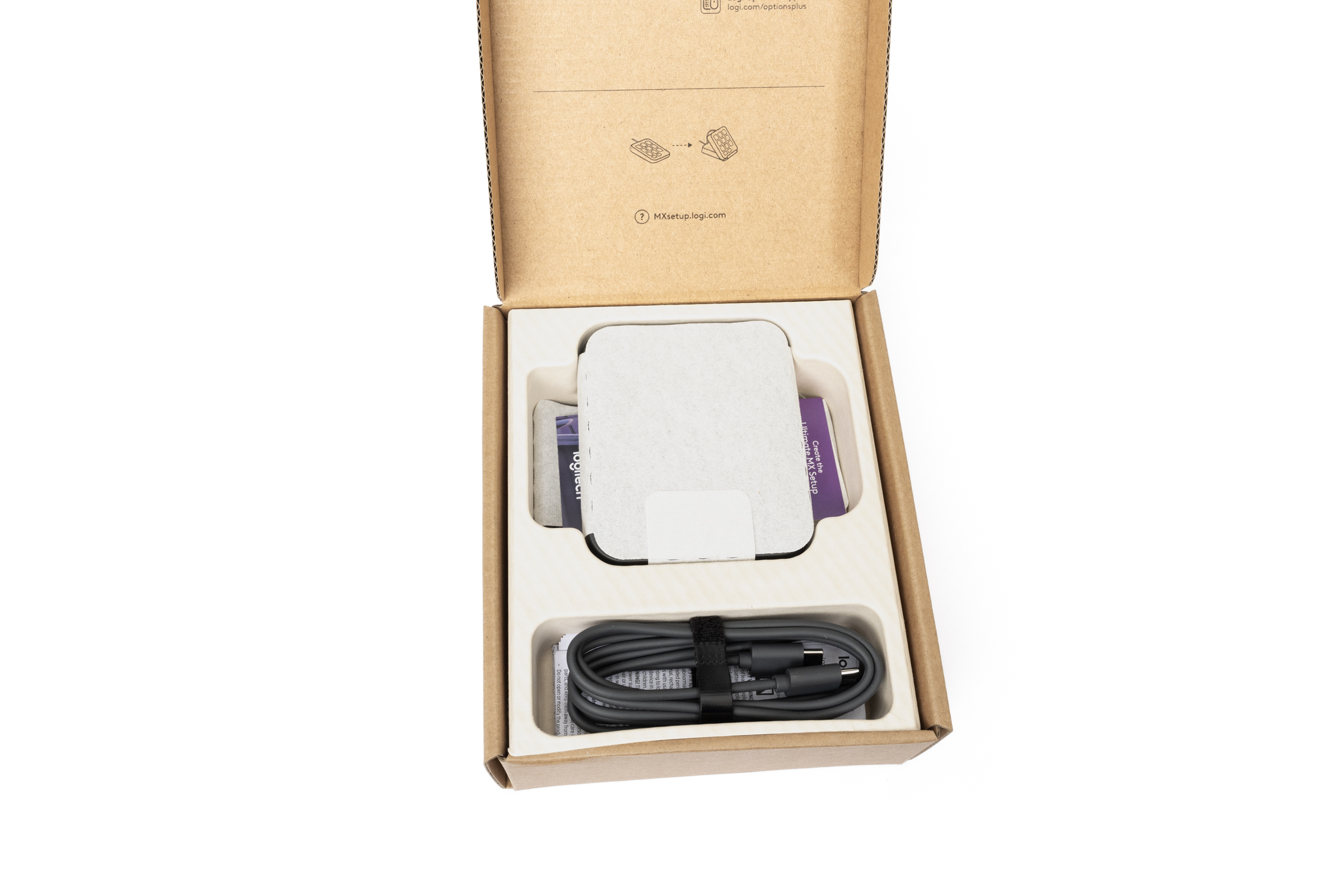 Logitech MX Keypad Package Contents (Image © PCMasters.de)
There are no major surprises in the package contents. In addition to the MX Keypad itself, the box contains a matching stand, a 150-cm USB-C 2.0 cable, and some documentation. This includes everything we need to get started. No additional accessories are necessary for its intended use.
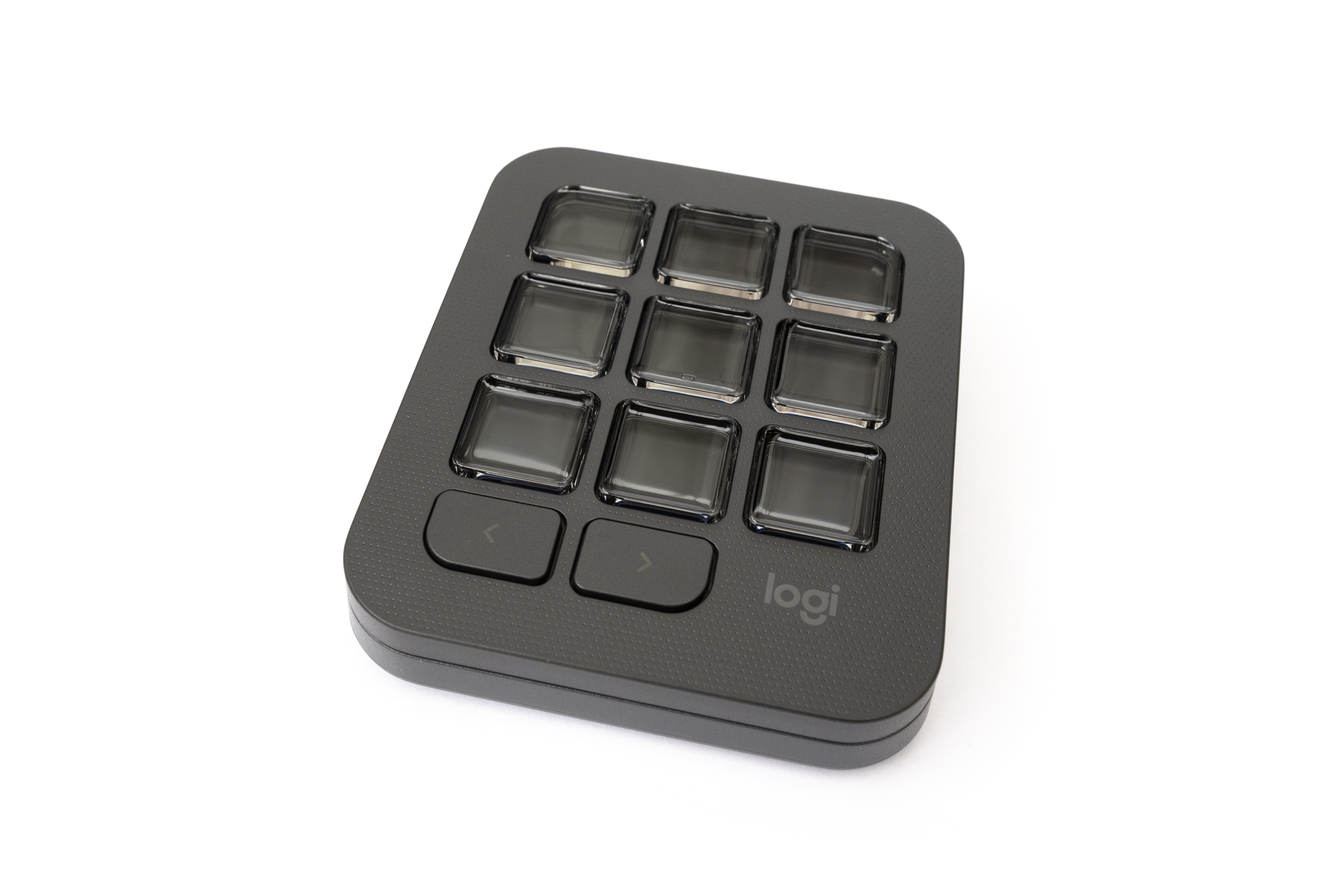 Front view of the Logitech MX Keypad with its 11 keys (Image © PCMasters.de)
MX Keypad in Detail
Visually, Logitech stays true to its minimalist design with the MX Keypad. Our sample comes in graphite; alternatively, the keypad is also available in light gray. Although the housing is made of plastic, it feels high-quality and is well-crafted. This is complemented by the matte finish with its subtle, dotted pattern, which gives the keypad a pleasant look and blends well with the rest of the MX series. Overall, this gives the device a pleasantly understated appearance without looking cheap or unremarkable.
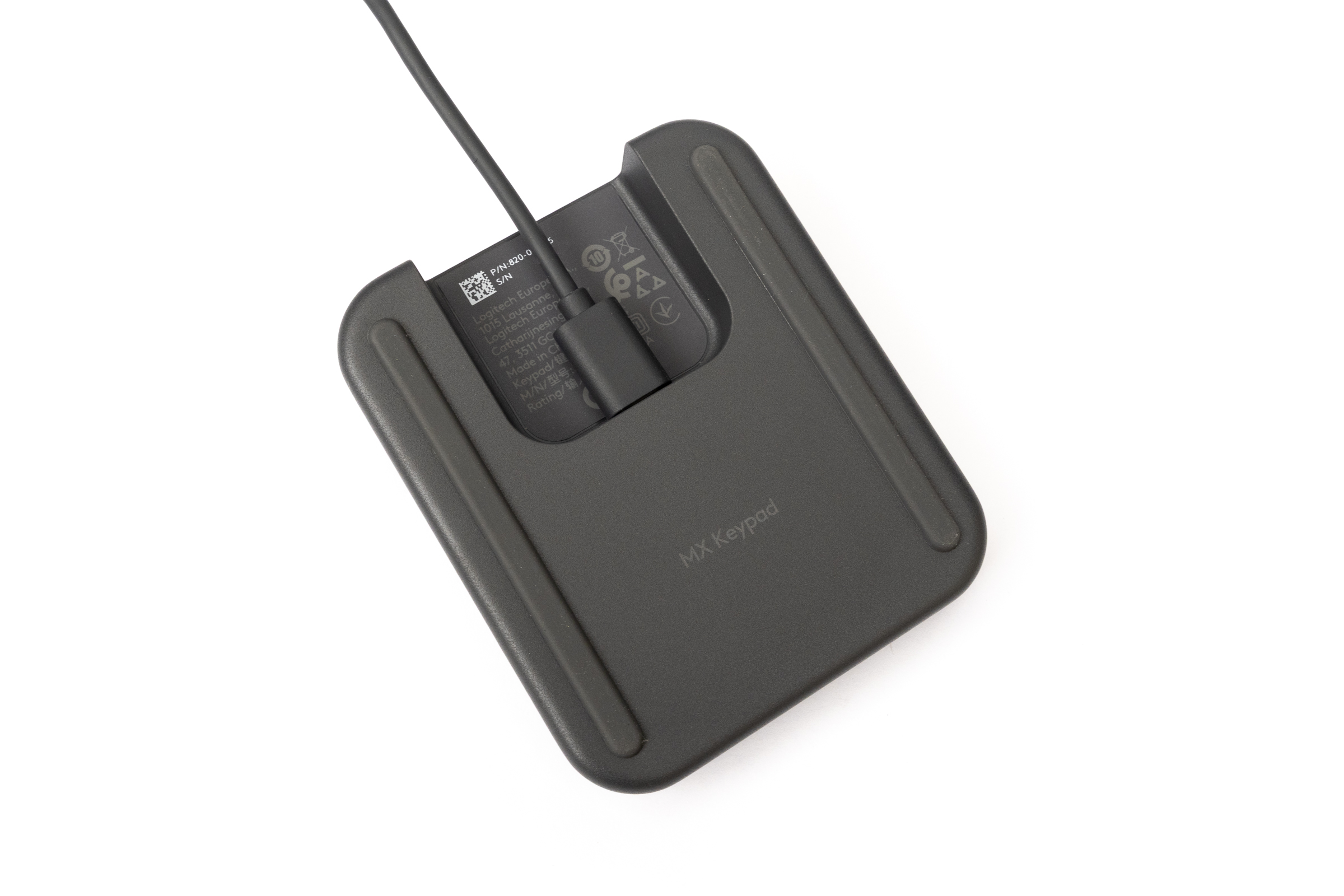 Logitech MX Keypad with a connected cable (Image © PCMasters.de)
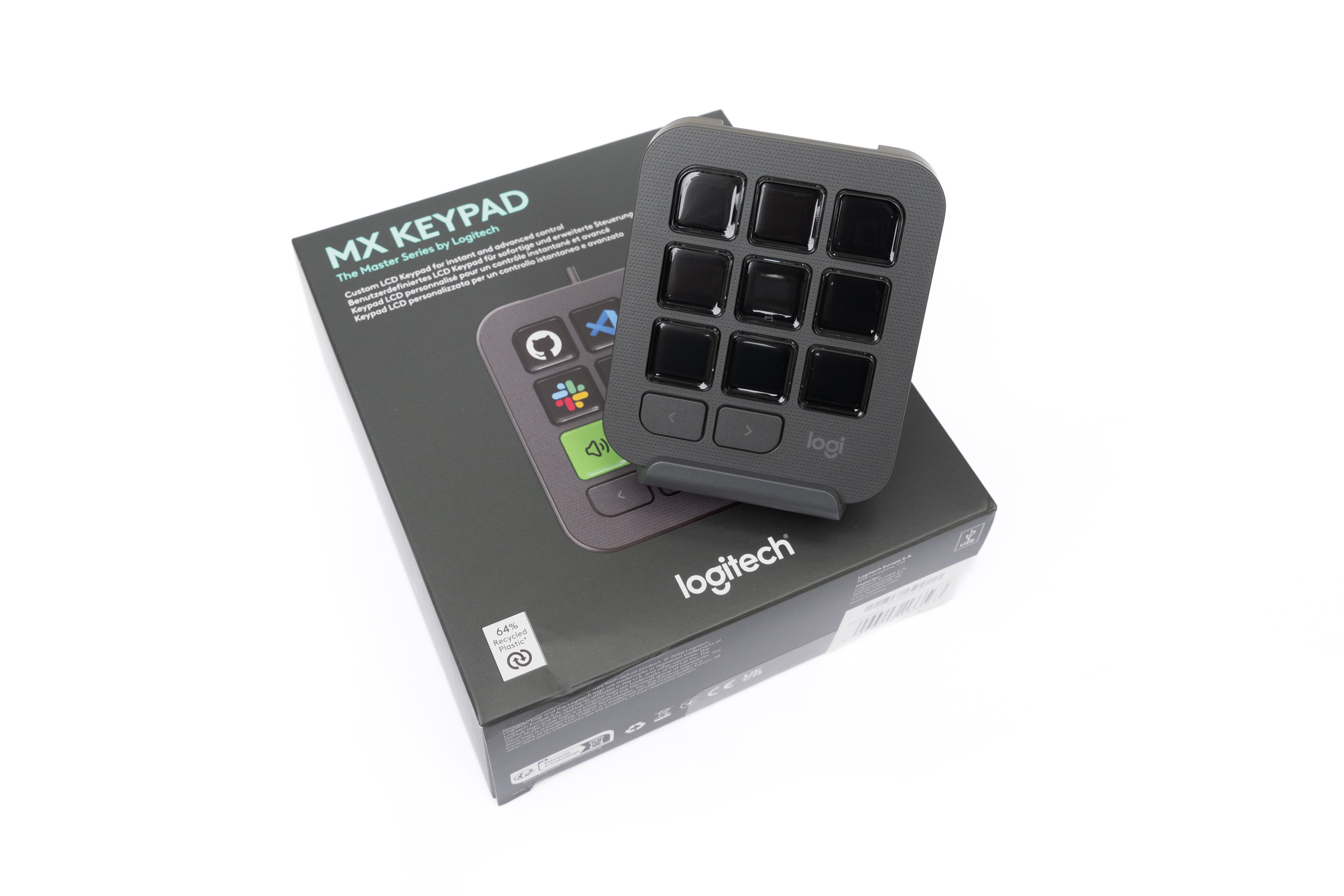
The focal point is, of course, the top panel with its nine LCD buttons, which we can later assign various functions to according to our needs. Each button has its own display that can show icons, app logos, or other graphics. This allows us not only to customize the interface functionally but also to design it visually to our liking. Directly below are two additional buttons with arrow symbols that let us switch between the different pages. In total, we have eleven physical buttons at our disposal, which blend into the compact design without making the interface look cluttered.
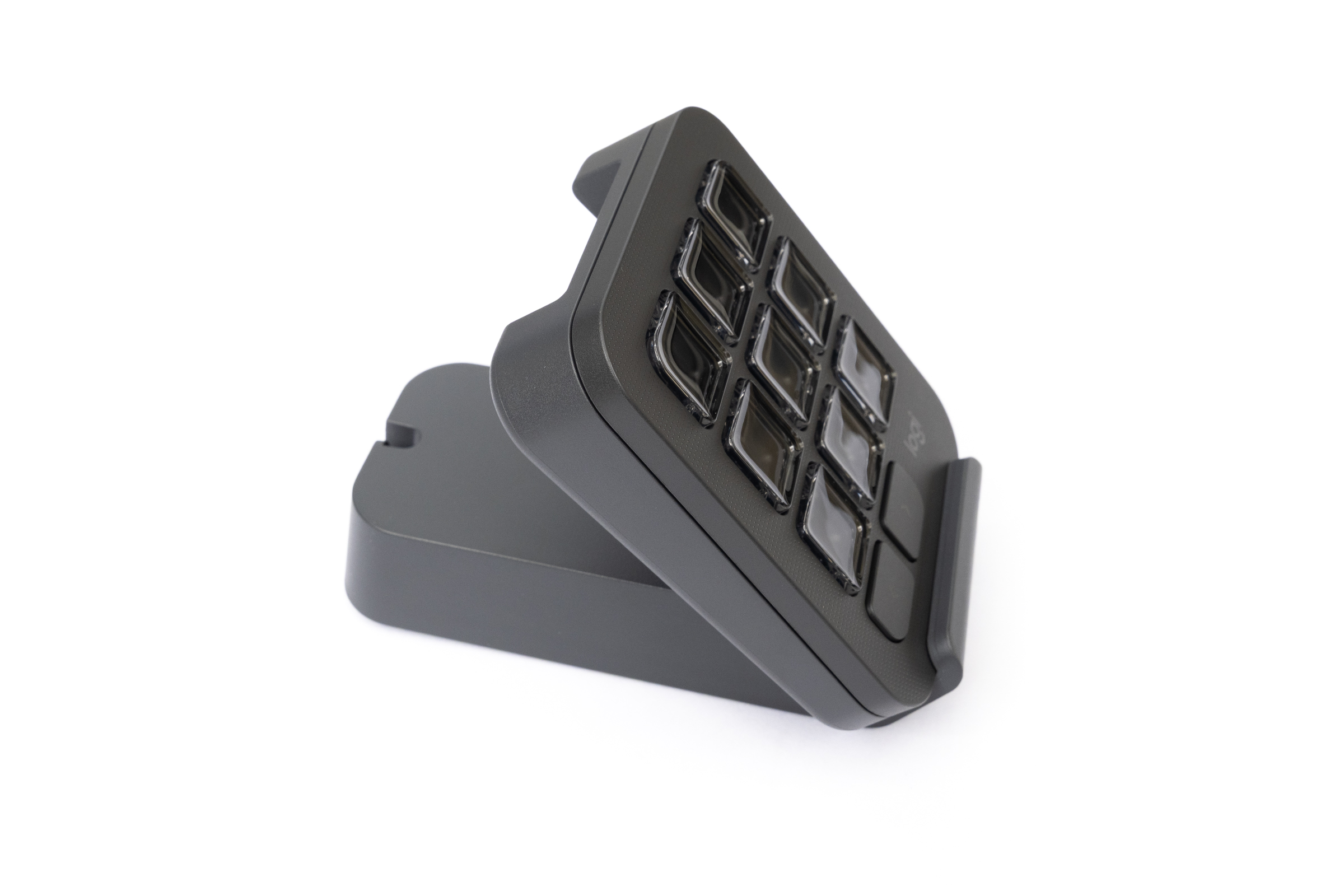 Logitech MX Keypad set up using the included mount (Image © PCMasters.de)
Two large rubber feet on the bottom ensure that the keypad sits securely on the desk and doesn’t slip easily during use. Between them, we find some manufacturer information as well as the recessed USB-C port for connecting to the computer. Logitech has largely omitted additional design elements, which fits well with the simple overall look. Thanks to its compact shape, the MX Keypad can also be easily placed next to the keyboard and mouse without taking up much space on the desk.
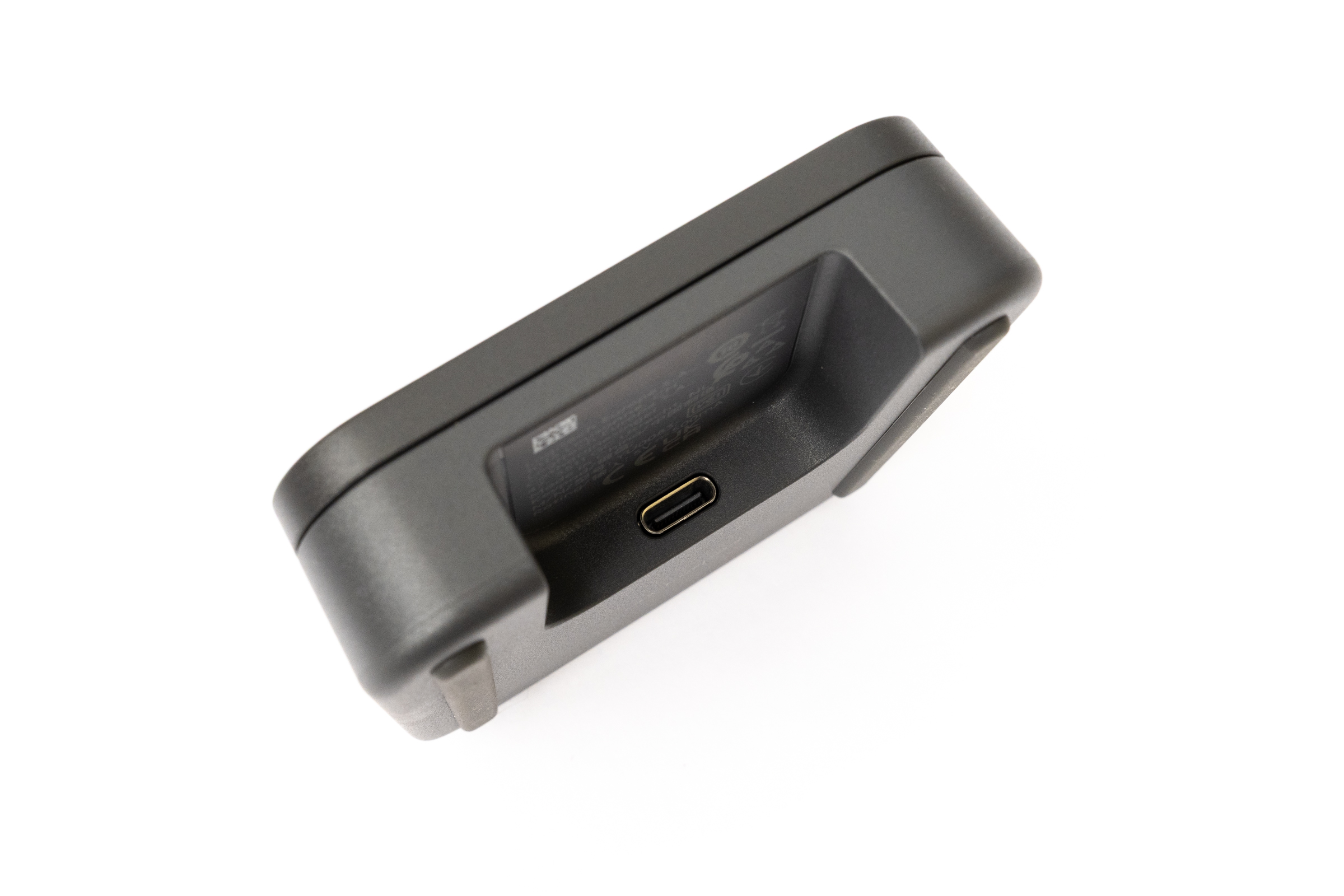 Logitech MX Keypad USB-C Port (Image © PCMasters.de)
Overall, we really like the design of the MX Keypad. It has an understated look, visually matches other products in the MX series, and makes a strong impression in terms of build quality. Anyone familiar with our previous review of the MX Creative Console will recognize the Keypad, as Logitech uses the same hardware foundation. This isn’t necessarily a drawback—after all, the design has already proven itself and fits well on the desk even as a standalone device.
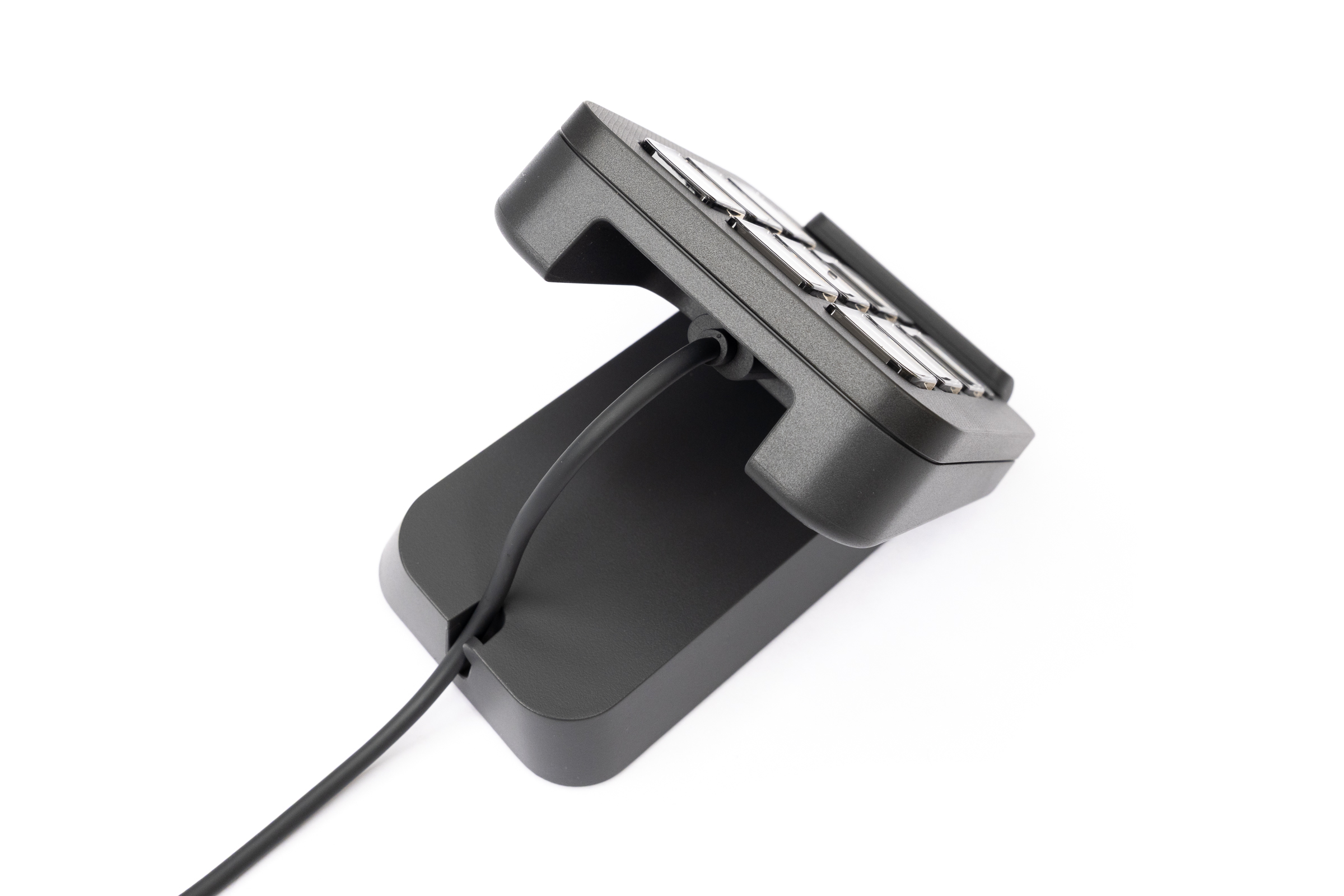 Logitech MX Keypad Cable Management When Using the Mount (Image © PCMasters.de)
Hands-On Test
The MX Keypad was quick to set up in our test. We connected it to our Mac via USB-C, opened Logi Options+, and were ready to go right away. The nine LCD keys can be individually programmed, while the two arrow keys let us switch between different pages. This allows us to access significantly more functions than the compact interface initially suggests. What makes this particularly exciting are the profiles for individual applications, as they automatically adjust the key assignments to the program currently in use. Just how practical this can be became clear during our test with Lightroom Classic. The corresponding profile from the Logitech Marketplace already includes numerous functions that come in handy for image editing. Instead of clicking through menus or memorizing keyboard shortcuts, we can access the desired commands directly via the keypad. Of course, we don’t have to stick with the default assignments—we can customize everything to fit our own workflow.
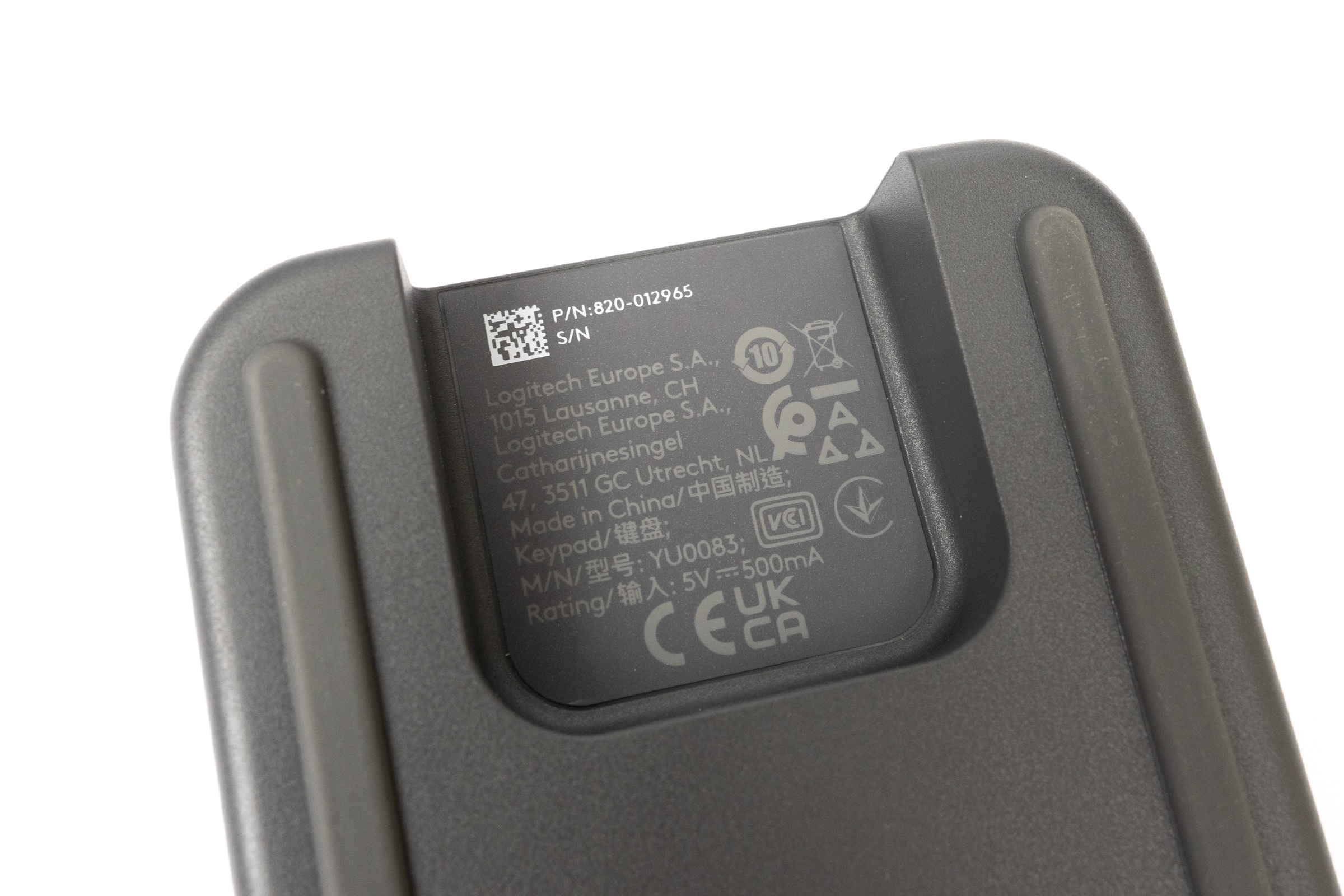 Logitech MX Keypad Manufacturer's Imprint and CE Marking (Image © PCMasters.de)
We also looked into the integration of AI applications, as Logitech is particularly promoting this feature with the new MX Keypad. While we were able to launch GitHub Copilot and Claude Code, we lacked the necessary access credentials for further use. We were, however, able to successfully test OpenAI Codex via the ChatGPT app on the Mac, using the Codex desktop plugin. The plugin already comes with many different actions, such as starting a new chat, opening Codex, or switching between models. Confirmations, for example, can also be assigned to a key. Additionally, we can switch back and forth between Codex, GPT, and Work with the press of a key. The controls worked reliably during testing and demonstrate how recurring steps can be completed with a single keystroke.
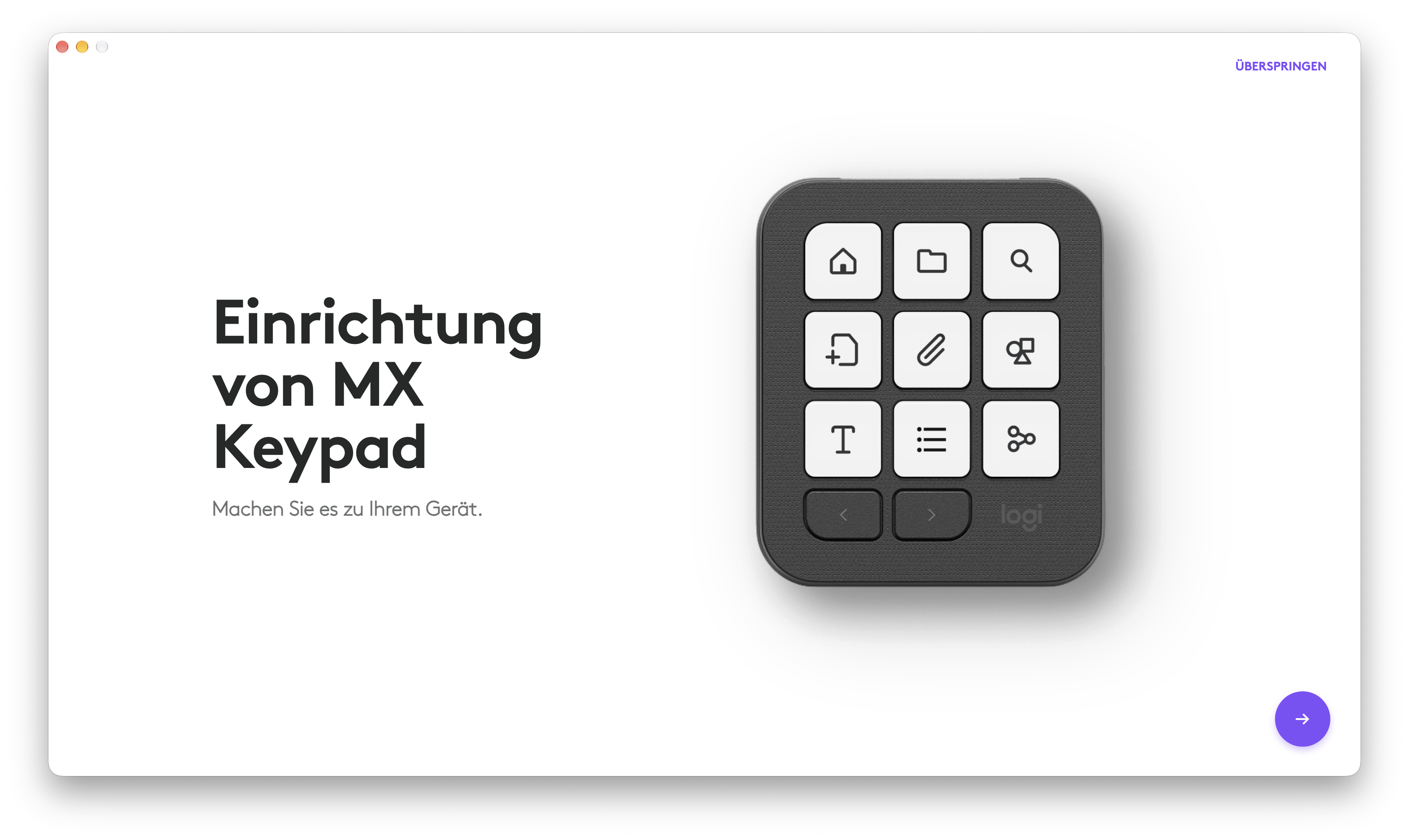 Logitech MX Keypad Options Setup (Image © PCMasters.de)
However, the MX Keypad really shines thanks to its many customization options. Through the Logitech Marketplace, we can install additional profiles, plugins, and icons. The selection ranges from image editing programs like Photoshop, Lightroom, and Capture One to Spotify, Apple Music, Zoom, and Discord. Those who want to go even further don’t have to limit themselves to Logitech’s selection. The community also offers its own profiles and icons, for example on GitHub. And those with technical expertise can even develop their own plugins using the Logitech SDK. This opens up additional possibilities that go beyond the pre-built features. We’re not limited visually either, as we can use our own images and symbols as well as custom text and colors.
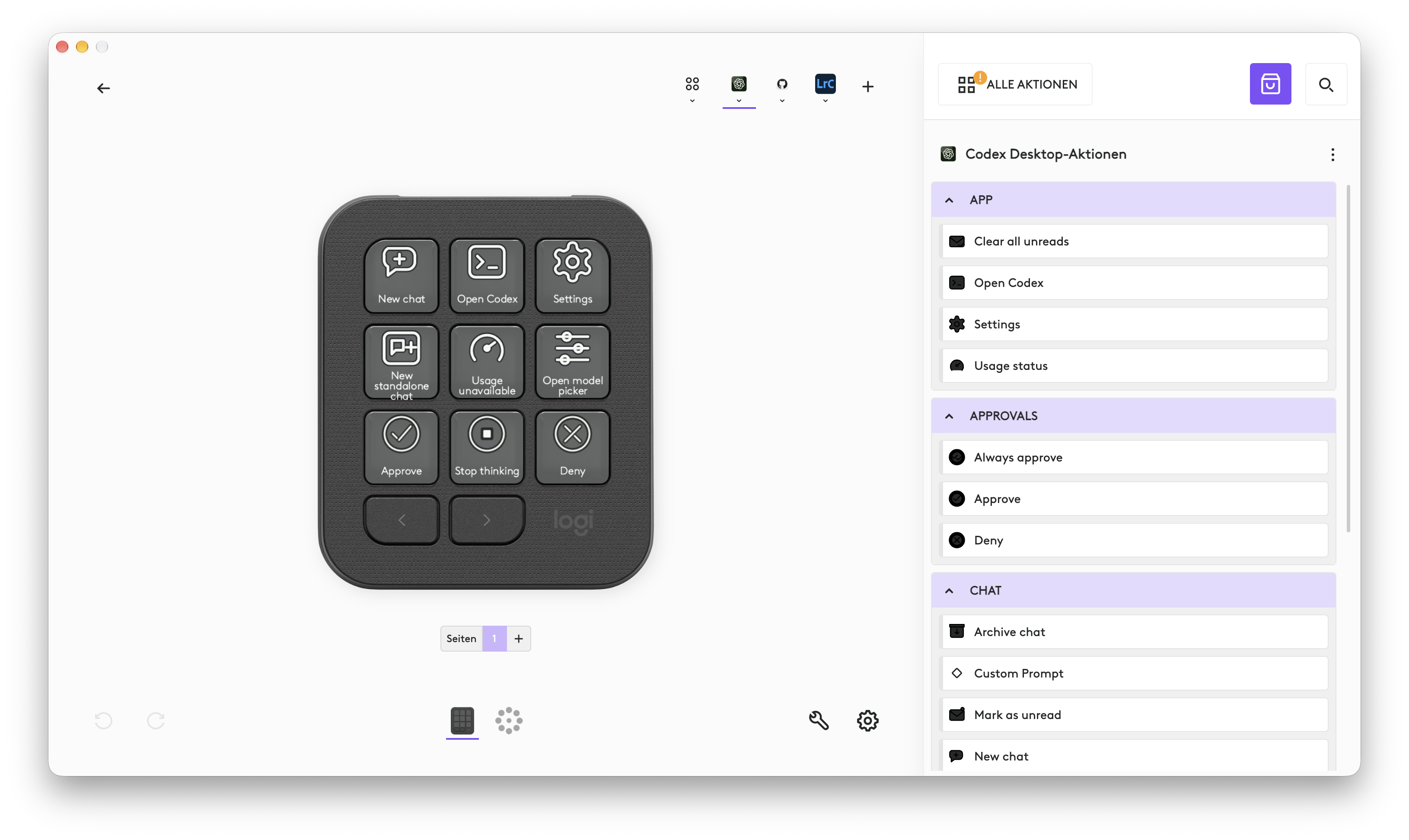 Logitech MX Keypad Options Codex Key Options (Image © PCMasters.de)
In addition, there are other features that let us get more out of the buttons. With Multi Toggle, for example, you can group multiple actions onto a single button and execute them together. The Actions Ring offers another interesting option, which we’re already familiar with from our review of the MX Master 4. We assign it to a button, and with a single press, we get an additional selection of functions centered around the mouse pointer, which we can configure individually for supported programs. In Lightroom Classic, this gives us additional actions at our fingertips without having to assign them to extra buttons or pages.
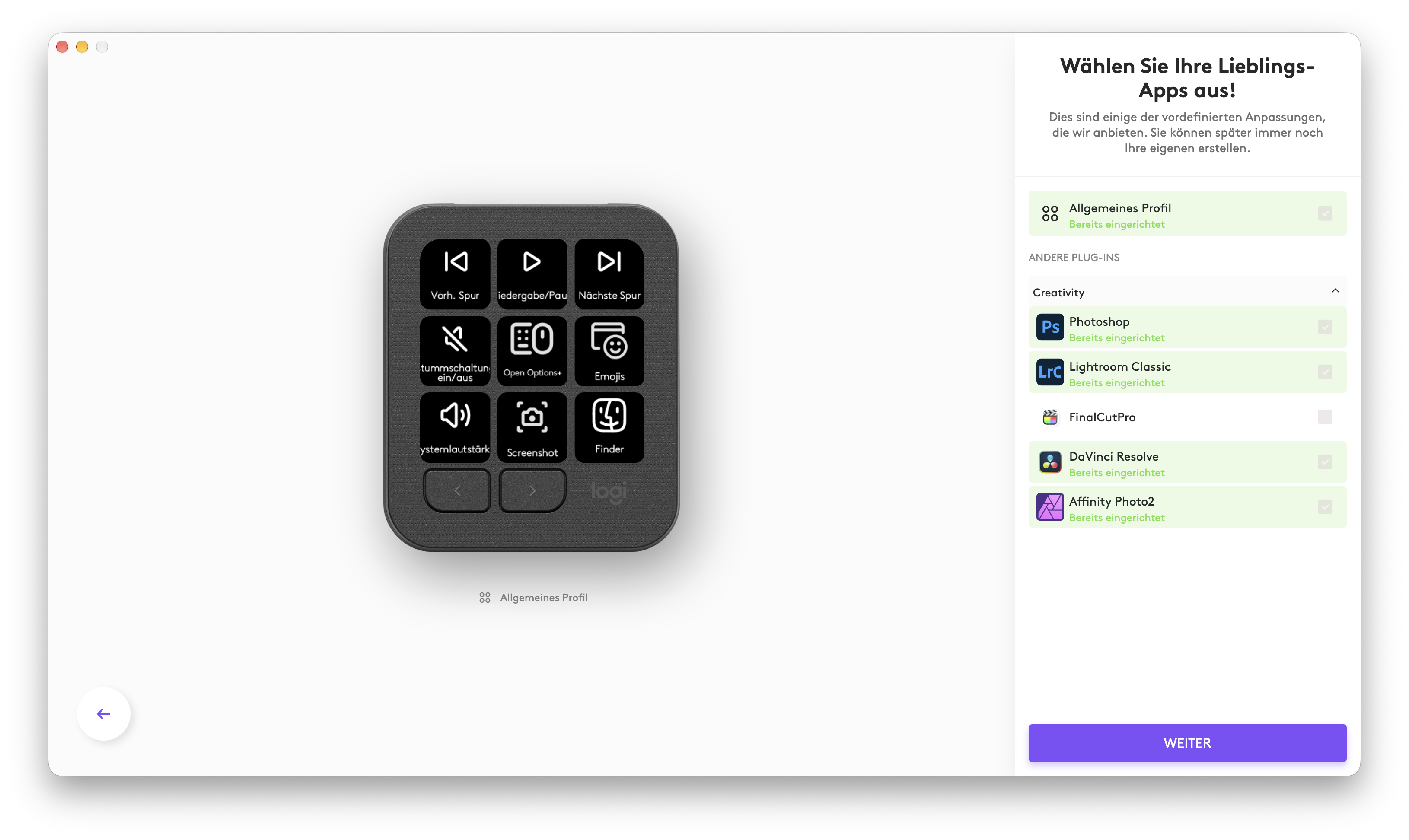 Logitech MX Keypad Options: Automatic App Customization (Image © PCMasters.de)
The Marketplace, with extensions like Snake, a speed test, a date display, or even a bell, shows that Logitech has thought of even the little extras. Some of these are just gimmicks in everyday work, but they underscore just how versatile the keypad can be. At the very least, playing a round of Snake on the keypad is pretty interesting. :)
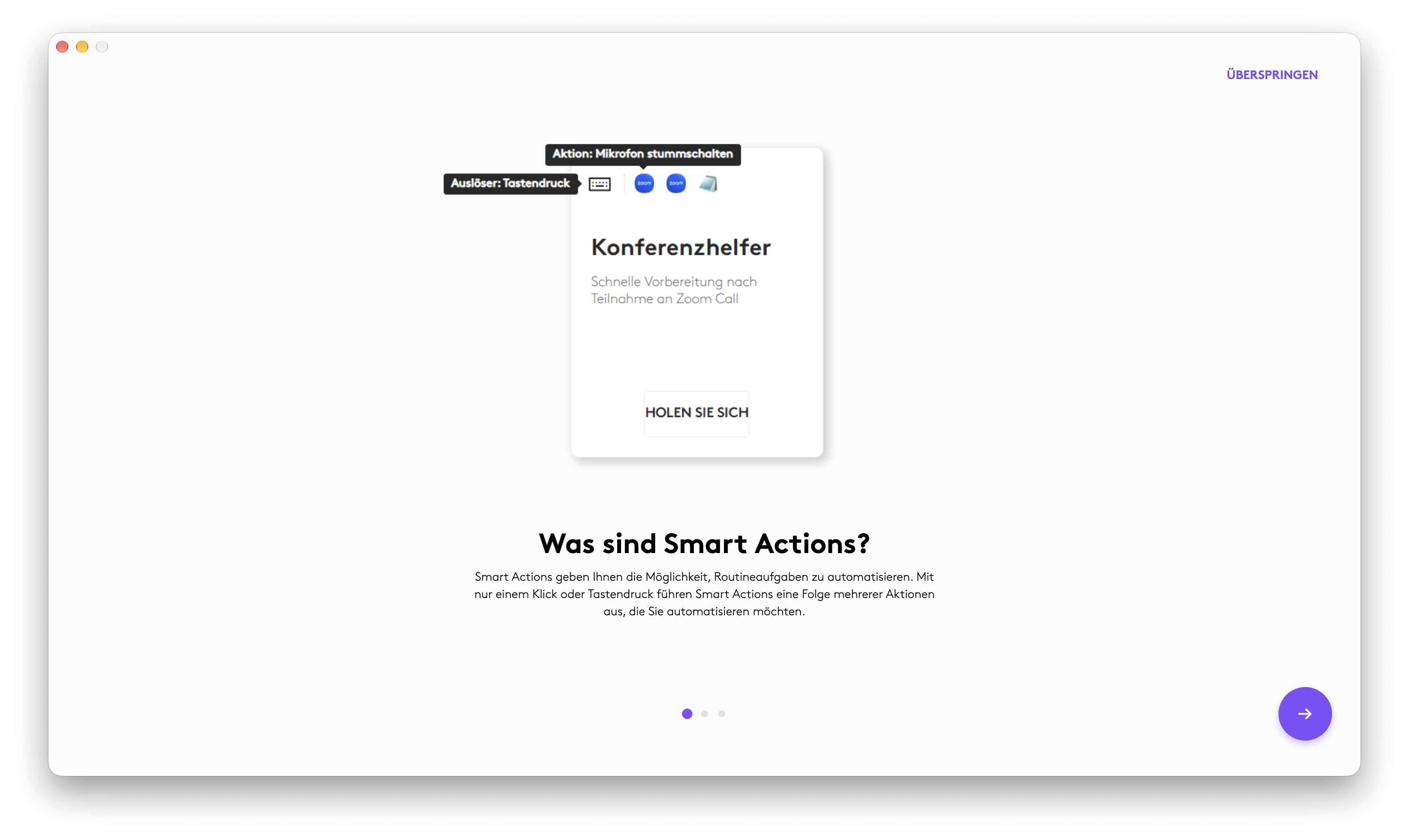 Logitech MX Keypad – Optionen – Smart Actions (Image © PCMasters.de)
However, operation isn’t always completely seamless. For some functions, pressing a key simply opens the corresponding slider in the application, which we then still have to control with the mouse. This certainly raises the question of what advantage the keypad offers if we still have to click and move the slider ourselves anyway. This isn’t a major drawback, but it does show that not every assignable function automatically offers real added value in everyday use.
The device also makes a good impression during daily use. The keys have a pleasant actuation point and, while slightly audible, aren’t unpleasantly distracting. Thanks to the two large rubber feet, the keypad stays in place during use but can be easily moved if needed. If you prefer to have it slightly elevated, you can use the included stand. Although it offers slightly less stability on the bottom than the rubber feet directly on the device, it still serves its purpose.
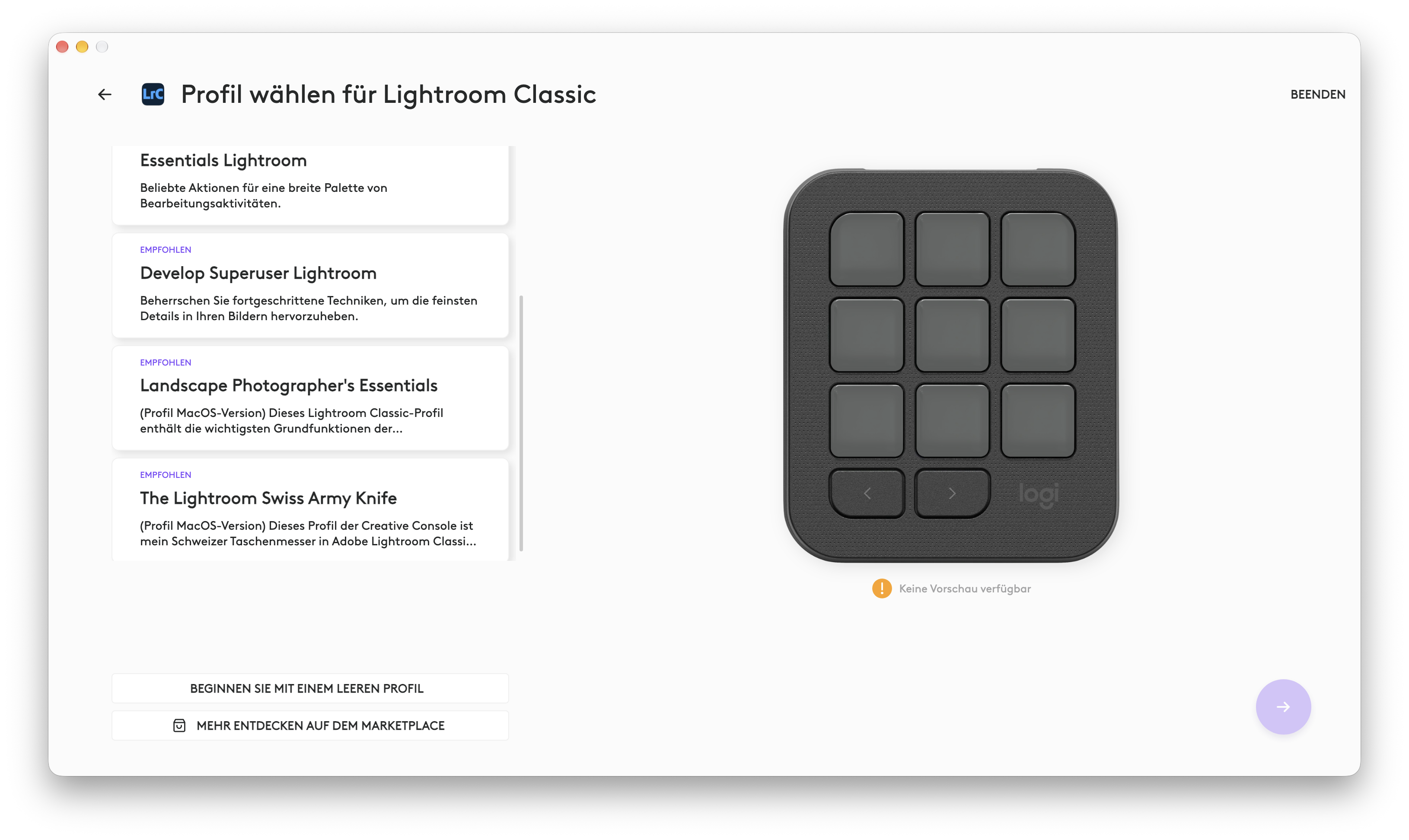 Logitech MX Keypad Options: Profile Selection for Lightroom (Image © PCMasters.de)
Over time, however, you should set up a logical key layout. Otherwise, especially with custom pages, you can quickly forget where a specific function is located or lose track of things. The many possibilities therefore also require some configuration work. In German in particular, some text descriptions in the default view are too long to be displayed in full on a single key’s screen. Of course, they can be edited later. Furthermore, not everything ran smoothly in practice. Despite using the latest versions of Vizhi and ChatGPT, we were unable to use the corresponding plugin because the assigned keys did not respond at all. In Lightroom, too, it occasionally happened that some keys simply had no function, even though they were included in the provided profile. During testing, we also encountered instances where the Logi Plugin Service on the Mac stopped working properly and had to be restarted. Options+ even provides a dedicated menu item specifically for this purpose. This shows that setting up and using such extensions isn’t always as straightforward as one might hope.
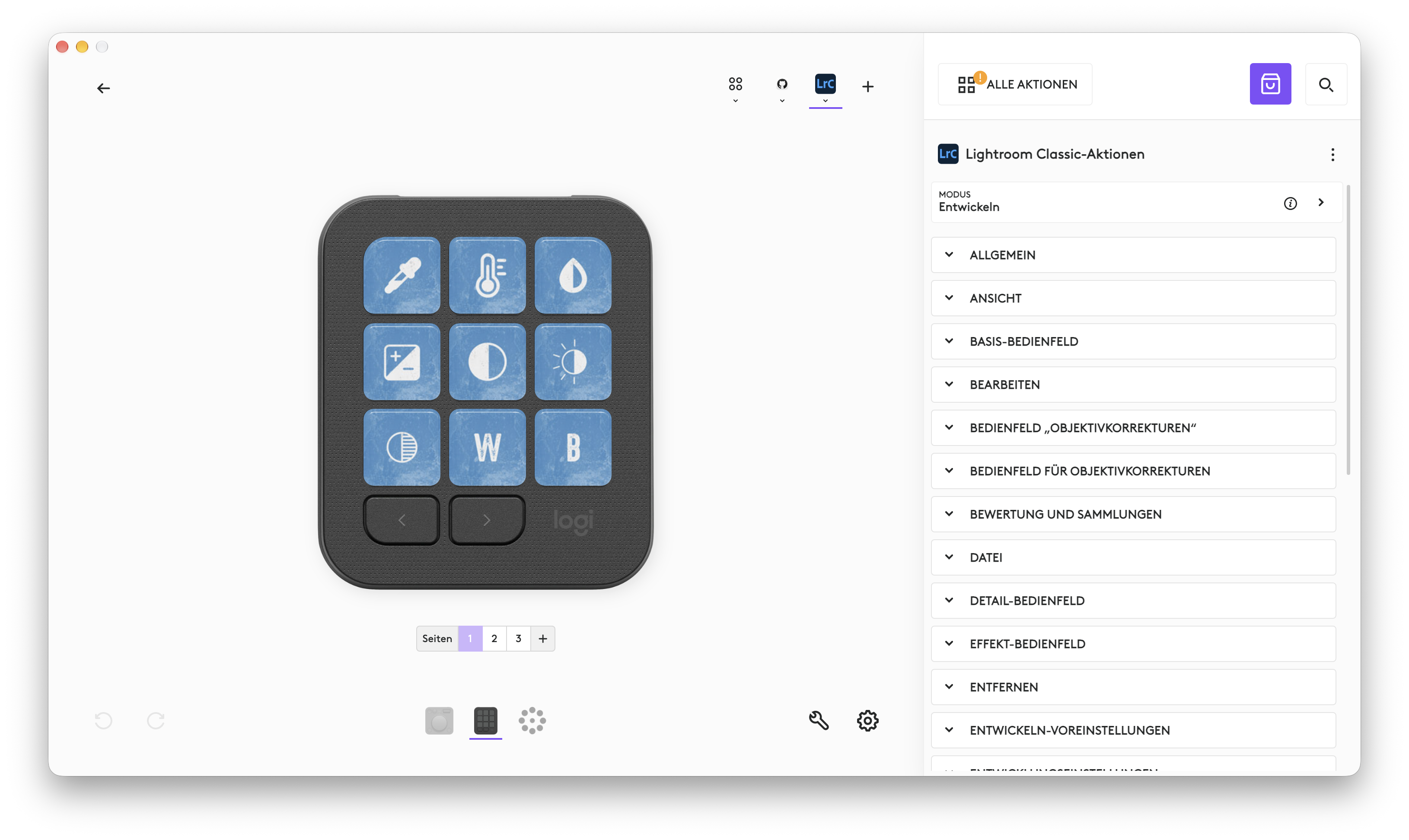 Logitech MX Keypad Options: Lightroom Customizations (Image © PCMasters.de)
However, once you’ve set up your keypad properly, you’ll have a compact control unit that can be tailored to your daily workflow. In our conclusion, we’ll discuss just how useful this additional keypad actually is and for whom it’s worth purchasing.
 Logitech MX Keypad: Conclusion (Image © PCMasters.de)
Conclusion
With the MX Keypad, Logitech offers an interesting addition to the desktop that stands out primarily for its nine LCD keys and extensive customization options. Thanks to individual profiles, numerous plugins, and custom key mappings, the keypad can be tailored to different applications and workflows. We also appreciate the build quality and the keys’ comfortable actuation point. Particularly exciting are the possibilities for integrating AI applications, which Logitech highlights in its promotion of the MX Keypad. There’s definitely potential here to simplify repetitive tasks and speed up access to specific functions. However, the actual benefit depends heavily on the applications used and the respective plugin support. In our test, not everything went smoothly; for example, the Vizhi plugin for ChatGPT simply wouldn’t work, despite having the latest software versions and all necessary permissions.
Even beyond the AI features, not every assignable action automatically provides a real benefit. If, after pressing a key, we still have to reach for the mouse, for example, to adjust a slider—the time saved is correspondingly minimal. Furthermore, the wide range of options requires some getting used to and a well-thought-out key layout.
With a suggested retail price of €99.99, the MX Keypad (Affiliate) is not a cheap addition to your desk. It’s particularly worthwhile for users who regularly work with specific applications, frequently execute recurring commands, and want to streamline their workflow in a targeted way. On the other hand, those who only occasionally need additional functions—or who primarily work with a mouse and keyboard anyway—will likely find the added value less apparent. The bottom line is that the MX Keypad is a versatile tool with a lot of potential, though its strengths only truly shine when we meaningfully integrate its additional capabilities into our daily workflows.