Computer Forum
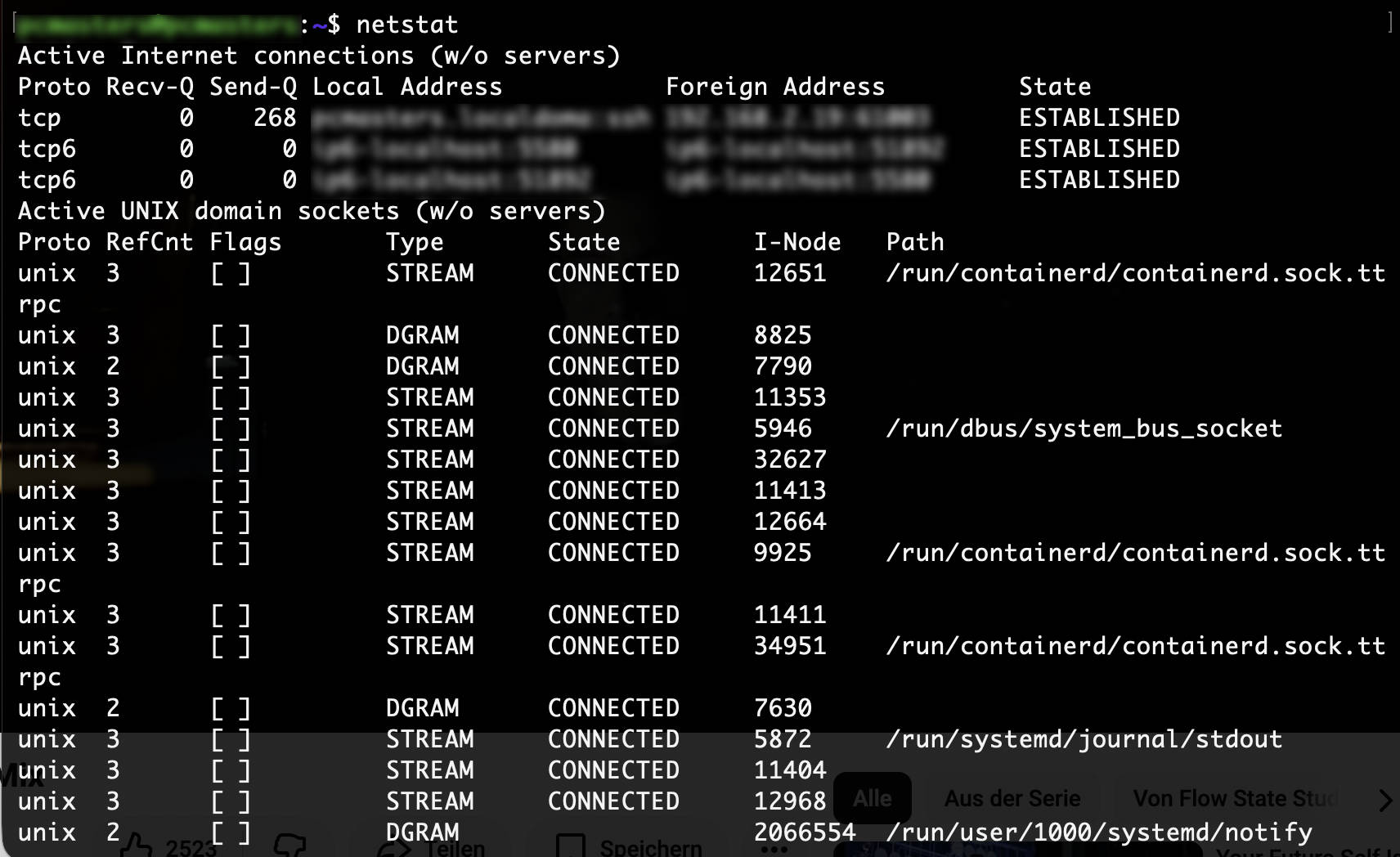 netstat Installation unter Linux (Image © PCMasters.de)
Setting Up the netstat Utility
The netstat command is included in the net-tools package. While many modern Linux distributions include this utility by default, the package may be missing in certain minimal installations or older systems, resulting in a “command not found” error message. To resolve this, the net-tools package must be installed using the system’s native package manager.
Depending on the distribution you are using, the following commands are required for installation:
Debian, Ubuntu, and Linux Mint
sudo apt install net-tools
RHEL, CentOS, Fedora, Rocky Linux, and AlmaLinux
sudo yum install net-tools
Gentoo Linux
sudo emerge -a sys-apps/net-tools
Alpine Linux
sudo apk add net-tools
Arch Linux
sudo pacman -S net-tools
OpenSUSE
sudo zypper install net-tools
After installation, administrators can check the utility’s operational status and version by running the following command:
netstat -v
Practical Use of netstat
Once the utility is installed, it can be used to retrieve network data at various levels. The tool uses specific flags to filter the type of information displayed.
Analyzing the Network Routing Table
To examine the kernel routing table, the utility uses the -r flag. When combined with the -n flag, the system avoids DNS lookups and displays addresses as numerical values to speed up the output.
netstat -nr
Monitoring Network Interface Statistics
System administrators can use the -i flag to evaluate the performance and status of configured network interfaces. Adding the -a flag ensures that all interfaces currently present in the kernel are listed.
netstat -ai
Identifying Active Network Connections
This utility is frequently used to monitor active and passive sockets. By combining the -a (all), -n (numeric), and -t (TCP) options, you can view all established TCP connections as well as those waiting for incoming traffic.
netstat -ant
Checking Network Services and Ports
To obtain a detailed list of running services and the ports they use, use the following command. This combination of options displays TCP and UDP ports (-tu), identifies the numerical address (-n), lists all sockets (-l), and specifies the program name or PID (-p).
netstat -pnltu
Transition to Modern Alternatives
It is important to note that the net-tools suite, including netstat, is now considered obsolete in many modern Linux environments. The industry has largely switched to the socket statistics utility, known as ss.
The ss tool was designed to provide faster and more detailed information by accessing kernel statistics directly, making it a more efficient alternative for high-traffic servers.
System Administration Questions
Why does the “netstat” command return a “Not found” error on some systems?
This is because the net-tools package is not included in the base installation of certain distributions, particularly those designed for minimal disk space requirements or newer versions that prefer the ss utility. Installing the net-tools package via the appropriate package manager resolves this issue.
What is the advantage of using the -n flag for network analysis?
The -n flag prevents the utility from attempting to resolve IP addresses to hostnames. In environments with slow or misconfigured DNS, this prevents the command from hanging and provides numerical output immediately.
How does “netstat” differ from the “ss” utility?
While netstat reads information from the /proc filesystem, the ss utility communicates directly with the kernel’s Netlink interface. This allows ss to process a significantly larger number of connections more quickly and provide more detailed data on socket status.
Which options are most effective for identifying a service that is blocking a specific port?
The combination of -p, -l, and -n is most effective. In particular, netstat -pln allows the administrator to see exactly which process ID is listening on a specific port, which is essential for resolving port conflicts.
Can netstat be used to diagnose routing loops?
Yes, by using the -r flag to display the routing table, an administrator can determine whether a destination IP is being routed through the wrong gateway or whether there are conflicting static routes that might be causing a loop.