Computer Forum
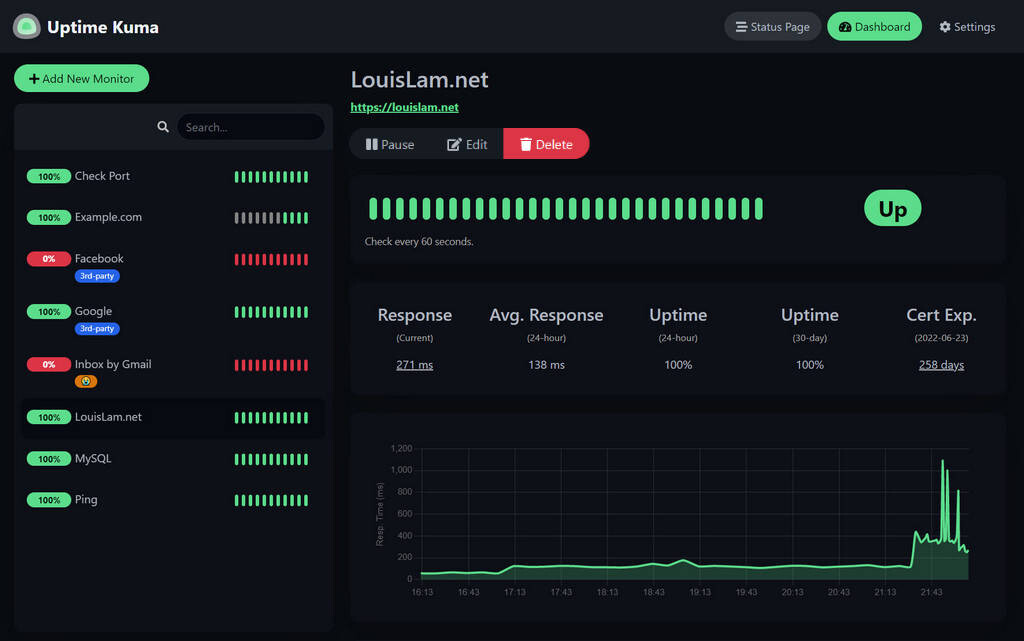 Server und Webseitenstatus überwachen mit Uptime Kuma (Image © Uptime Kuma)
Feature Overview and Core Functions
Uptime Kuma (GitHub) functions as a standalone monitoring agent that offers a modern, intuitive user interface for managing network status. Since it is open-source software, it is available without subscription fees or feature restrictions.
One of the tool’s main features is the ability to create public status pages. Through these pages, companies can provide their users with transparent, real-time updates on the operational status of their services, thereby reducing the number of support requests during known outages.
Main Areas of Application
The tool is versatile enough to support both simple website setups and complex server architectures. The most important areas of application include:
- Web Assets: Monitoring the availability of corporate websites and online stores.
- Backend Services: Monitoring the responsiveness of APIs and various server-side processes.
- Environment Status: Monitoring entire project environments to ensure that all interconnected components are functioning.
Notification Features
To enable fast response times, Uptime Kuma can be integrated with a variety of communication platforms. If a service is detected as offline or underperforming, the system can trigger alerts via the following channels:
- Instant Messaging: Discord, Slack, and Telegram.
- Direct Communication: Email and Pushover.
- Custom integrations: Webhooks for connecting to internal third-party systems.
Installing Uptime Kuma and Hosting Environments
There is one primary method for deploying Uptime Kuma: via a Secure Shell (SSH) command line.
Deployment via SSH and Docker
For administrators who prefer management via the command-line interface (CLI), the manual Docker installation takes about 20 minutes.
1. Prerequisites:
SSH access to the server and active container functionality for the primary FTP user are required.
2. Retrieving the Image:
The latest official image is retrieved using the following command:
docker pull louislam/uptime-kuma:latest
3. Running the Container:
The container is started with a specific port mapping. In this environment, host ports in the range of 40000 to 40100 are permitted. An example of a run command is:
docker run -d --name uptime-kuma -p 40001:3001 -v uptime-kuma-data:/app/data --restart=always louislam/uptime-kuma:latest
-
Port mapping:
-p 40001:3001maps host port 40001 to the container’s internal port 3001. -
Persistence:
-v uptime-kuma-data:/app/dataensures that the data is stored in a persistent volume. -
Stability:
--restart=alwaysensures that the service automatically restarts after a system reboot.
4. Verification:
You can check the operational status using the command docker ps -a.
5. Domain Mapping:
To make the installation accessible via HTTP (Port 80), the container must be mapped to a subdomain within the DCP. To do this, select the appropriate subdomain, set the type to “Container,” and select the corresponding Uptime Kuma instance.