Computer Forum
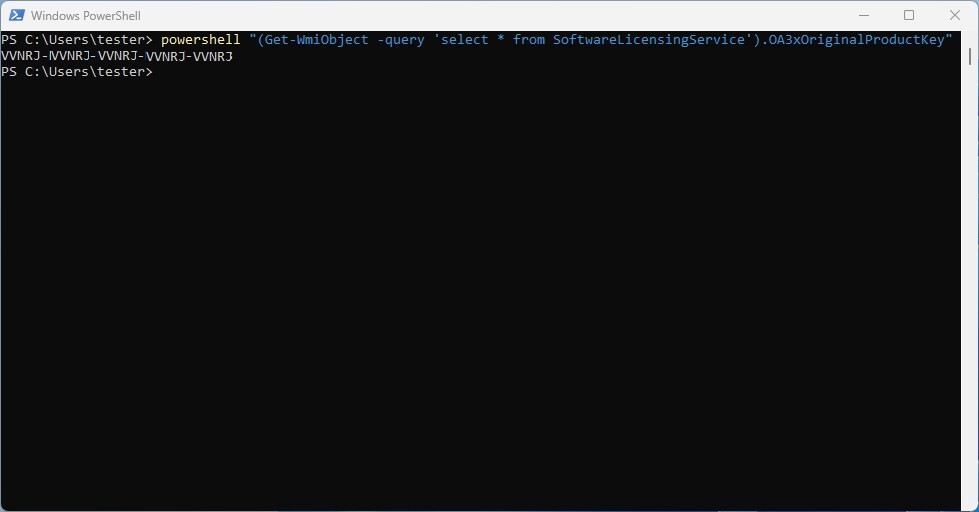 Win 11 Powershell (Image © PCMasters.de)
When is a product key required?
Microsoft still issues keys in some purchase situations. You should use or at least keep your key if any of the following apply:
- Retail version in box (physical): The key is printed on a label inside the packaging.
- Digital retail purchase from an authorized retailer: The key is delivered via email with the order confirmation or via the retailer's digital store.
- New PC with Windows**: The key may be provided on the packaging or a Certificate of Authenticity (COA); some devices also have the key stored in the firmware (UEFI/BIOS).
- Refurbished PCs with pre-installed Windows**: Look for the COA/packaging or the key embedded in the firmware.
- Purchase via the Microsoft Store website (full version): The key will be displayed in the confirmation email or in the order history of your Microsoft account.
- Volume licensing/MSDN**: The keys are retrieved via the program's web portal.
Keep these documents: They are your proof of license and simplify future reinstallations.
When you don't need a key
A digital license (also known as a digital entitlement) activates Windows 11 without a visible 25-digit code in most cases:
- Free upgrade from an original Windows 7/8.1/10 device.
- Windows 11 Pro in-place upgrade purchased through the Microsoft Store app.
- Original Windows purchased in the Store app (license is tied to your account/hardware).
- Windows Insider builds installed on eligible devices.
With digital licensing, you sign in with the same Microsoft account on the same hardware and Windows is automatically activated after installation.
Read Windows 11 key
If your installation has been activated by a key, you can often read this from the firmware or the system. In the case of purely digital activation, these methods do not return a complete key.
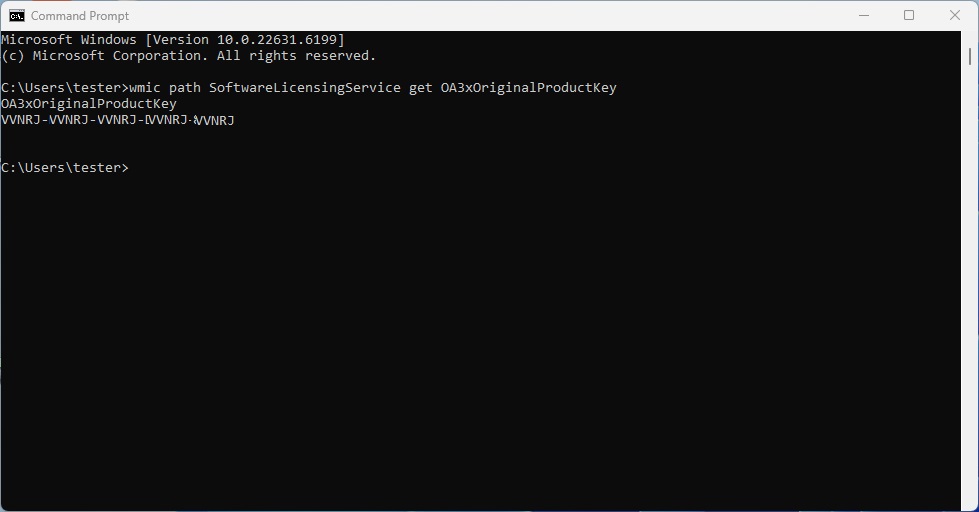 Win 11 cmd Keys auslesen (Image © PCMasters.de)
1) Command prompt (key embedded in the firmware)
- Open Start → enter “cmd” → Enter (or Win+R → cmd → OK).
- Execute:
If a key is stored in UEFI, it will be displayed. An empty result usually indicates a digital license or an edition without an embedded key. wmic path SoftwareLicensingService get OA3xOriginalProductKey
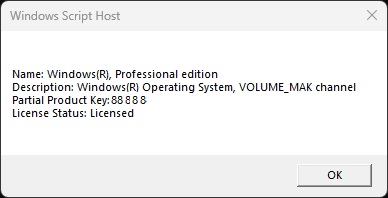 Win 11 dli (Image © PCMasters.de)
This will show you the last five characters of the installed key (useful for verification): slmgr/dli
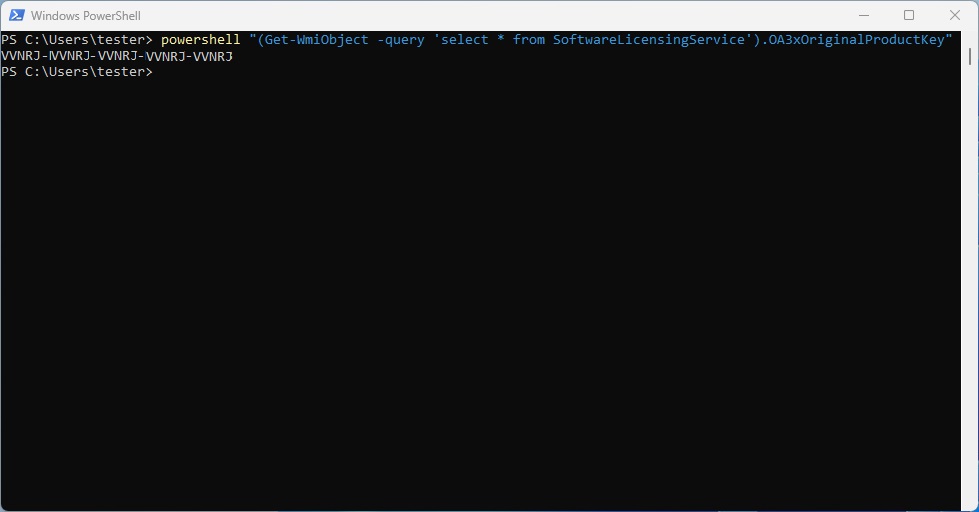 Win 11 Powershell (Image © PCMasters.de)
2) PowerShell (same firmware query)
1.open Start → enter “PowerShell” → Enter (optionally run as administrator).
- execute: powershell “(Get-WmiObject -query ‘select * from SoftwareLicensingService’).OA3xOriginalProductKey”
If nothing is returned, your device is probably activated via digital authorizations.
3) Other third-party programs
- Download ShowKeyPlus from the Microsoft Store, install and launch it.
- The app will display details of the edition and the original key if it can be restored.
Note: No third-party tool can generate a key for a device that is licensed exclusively via digital entitlements. In these cases, there is simply no 25-digit code that could be displayed.
Practical tips and security precautions
- Match edition: Keys are edition specific (Home vs Pro). A Home key does not activate Pro.
- Keep proof of purchase: Save emails/receipts or screenshots of the portal.
- Link to your account: Use a Microsoft account so digital licenses can be reactivated after hardware repairs or reinstalls.
- Note OEM restrictions**: OEM keys are usually tied to the original hardware.
- Use official sources**: Avoid “key finders” from untrusted websites; these may collect data or display locked MSDN/volume keys.
By distinguishing between digital licenses and traditional keys - and using the secure retrieval methods mentioned above - you can activate, reinstall or verify Windows 11 without speculation.