Computer Forum
 Defekte Sektoren reparieren Linux (Image © PCMasters.de)
Scanning for Bad Sectors with ‘badblocks’
For administrators who need to manually scan the surface of a hard drive, the "badblocks" utility provides a method for identifying inaccessible blocks. This process is essential for determining the extent of physical damage to a drive.
Device Identification
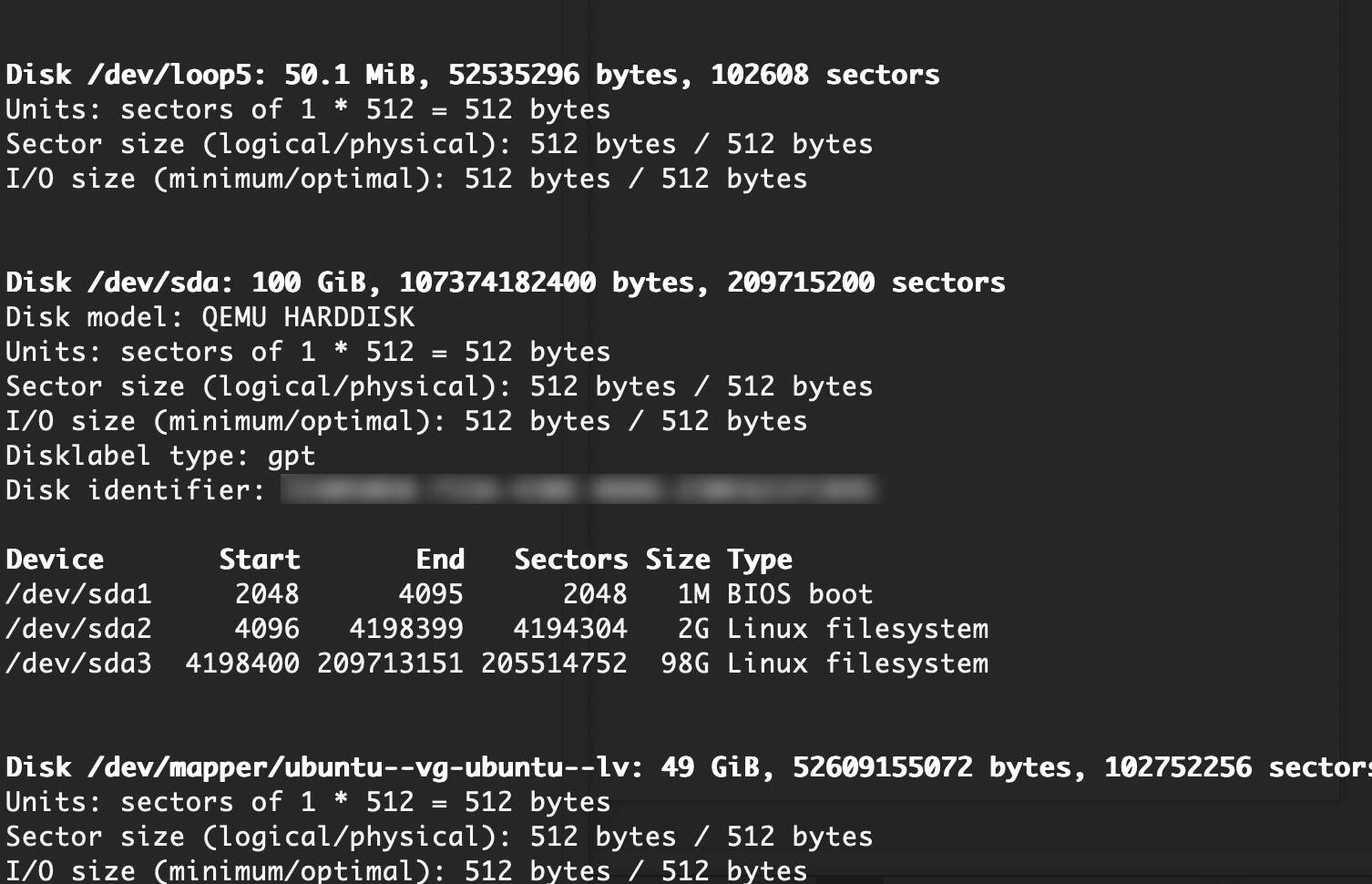
Before starting a scan, the administrator must determine the correct device identifier. To do this, list all connected hard drives and their respective partitions:
sudo fdisk -l
Performing the Scan
Once the target device (e.g., /dev/sda10) has been identified, the scan is performed using the following syntax. The -v flag ensures verbose output, and redirection is used to save the results to a text file for later analysis:
sudo badblocks -v /dev/sda1 > badsectors.txt
Isolating and Marking Sectors
If bad sectors are detected, the operating system must be instructed to avoid these specific blocks to prevent data corruption. To do this, the hard drive must be unmounted, and the sectors must be marked as unusable using file system-specific tools.
For file systems based on ext2, ext3, or ext4:
sudo e2fsck -l badsectors.txt /dev/sda1
For other supported file systems:
sudo fsck -l badsectors.txt /dev/sda1
Health Monitoring with smartmontools
While manual scanning is useful, modern storage hardware (SATA, SAS, and SSDs) features "Self-Monitoring, Analysis, and Reporting Technology" (SMART). This system allows the drive to internally monitor its own health and log impending failures. The smartmontools package provides the necessary interface to access this internal data.
Installation
The utility can be installed via the distribution’s primary package manager:
Debian-based systems:
sudo apt install smartmontools
RHEL-based systems:
sudo dnf install smartmontools
Health Assessment
The smartctl command is used to interact with the internal SMART system. To obtain a binary assessment of the drive’s current health, use the -H or --health flag:
sudo smartctl -H /dev/sda1
A result of "PASSED" indicates that the drive is operating within normal parameters, while a "FAILED" result suggests an impending hardware failure.
Comprehensive Telemetry Reports
For a more detailed analysis, administrators can generate complete reports. The -a (all) flag provides a general overview of the SMART attributes, while the -x (xall) flag provides the most comprehensive data, including technical specifications outside of SMART:
sudo smartctl -a /dev/sda1
sudo smartctl -x /dev/sda1
Frequently Asked Questions
What is the difference between a "hard" and a "soft" bad sector?
A "hard" bad sector results from physical damage to the platter surface or a failure of the flash memory hardware; these cannot be repaired. A "soft" bad sector is a logical error in which the data stored in the sector does not match the checksum. "Soft" bad sectors can often be fixed by overwriting the sector with new data.
How does a drive automatically handle bad sectors?
Most modern drives use a process called sector reallocation. When the drive detects a bad sector, it automatically reassigns that logical address to a physical replacement sector from a reserved area of the hard drive. Once the supply of replacement sectors is exhausted, the drive begins reporting bad sectors to the operating system.
Is it safe to continue using a drive once bad sectors are detected?
If only a small number of sectors are detected and the SMART status continues to show "PASSED," the drive may still be usable for non-critical data after the blocks have been marked as unusable. However, an increasing number of bad sectors usually indicates a failing read head or deteriorating NAND flash memory, which is why immediate data backup and hardware replacement are recommended.
Why is "smartmontools" preferred over the "badblocks" tool for SSDs?
The "badblocks" tool performs extensive read and write operations that can contribute to wear on the NAND flash memory in SSDs. SMART tools are preferred because they read internal counters and logs managed by the drive’s controller, thereby providing status data without unnecessarily stressing the cells.
Can bad sectors be repaired with software?
Physical damage cannot be repaired by software. Tools like e2fsck do not "repair" the sector; they simply create a mapping that tells the file system to ignore that specific physical location, effectively bypassing the damage.