Computer Forum
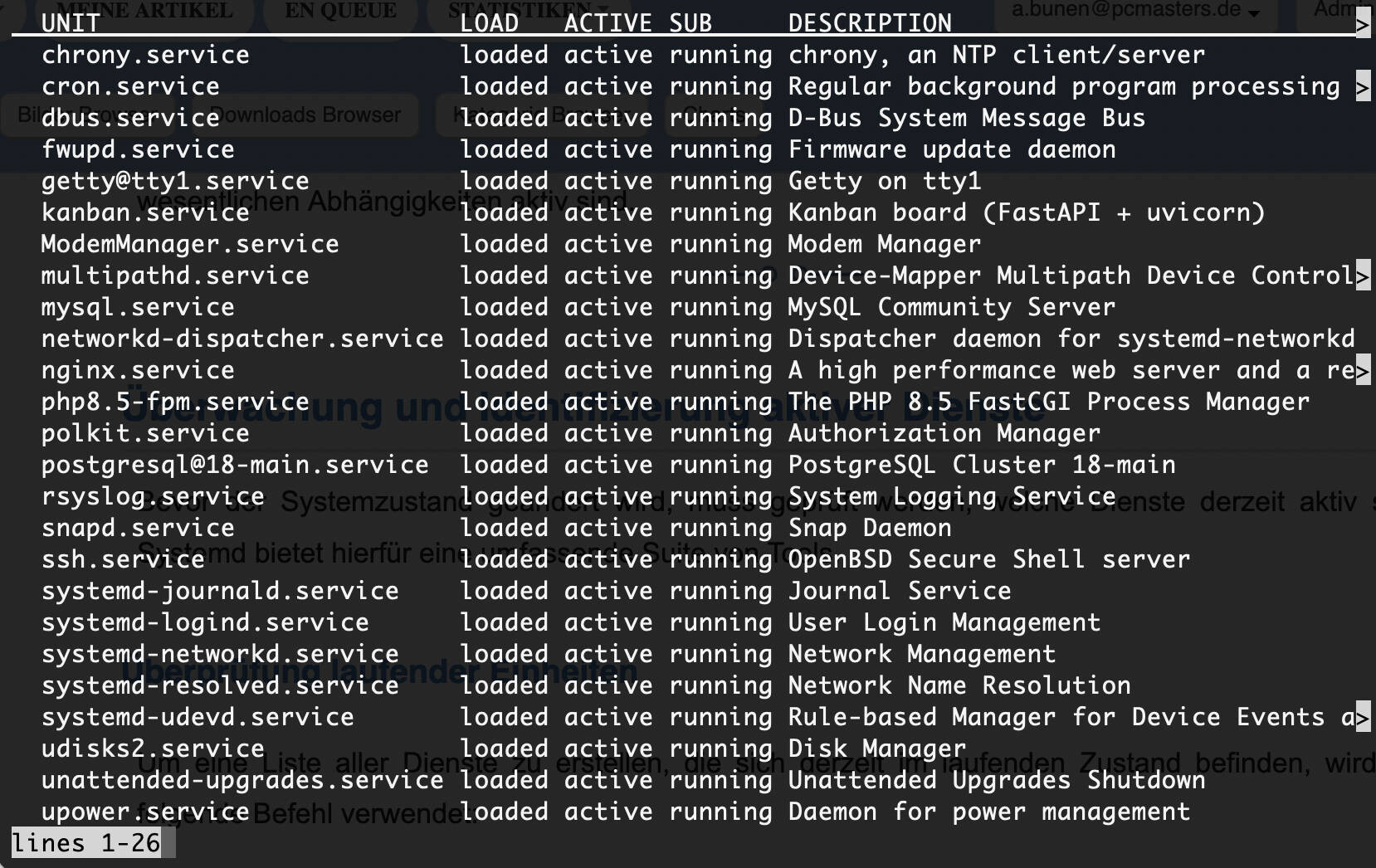 Unwichtige Systemd Dienste identifizieren und deaktivieren (Image © PCMasters.de)
Every active service consumes a portion of the system's memory (RAM) and CPU cycles. Even more critical is the fact that services that open network ports to listen for incoming connections can create vulnerabilities. If a service such as an FTP server or a print spooler is running on a headless production server where it is not needed, it provides a potential entry point for unauthorized access.
To optimize a server, administrators should assess the system’s specific role (e.g., database server, web server, or application host) and ensure that only essential dependencies are active.
Monitoring and Identifying Active Services
Before changing the system state, it is necessary to check which services are currently active. Systemd provides a comprehensive suite of tools for this purpose.
Checking Running Units
To generate a list of all services that are currently running, use the following command:
sudo systemctl list-units --type=service --state=running
Based on this output, administrators can identify processes that are active and consuming resources in real time.
Analyzing Open Network Ports
An important part of server security is identifying services that are exposed to the network. Services that are “waiting” for connections pose the greatest security risks. The ss or netstat utilities can be used to display open TCP and UDP ports:
sudo ss -tuln
OR
sudo netstat -tuln
For example, if port 21 is open, this indicates that an FTP service is active. If FTP is not required for the server’s functionality, the associated service should be disabled.
Identifying Common, Non-Essential Services
Depending on the deployment environment (physical hardware, virtual machine, or container), certain services are often redundant. The following table lists services that are often active by default but may be unnecessary:
| Service Name | Main Function | Reason for Disabling |
|---|---|---|
avahi-daemon | Network without configuration/discovery | Not required for servers with a static IP address |
bluetooth.service |
Bluetooth hardware management | Superfluous on servers without a display |
cups.service |
Common Unix Printing System | Not required for servers without printing capabilities |
postfix.service |
Mail Transfer Agent (MTA) | Not needed if no local emails are sent |
iscsi.service |
iSCSI network storage connection | Disable this service if you do not use iSCSI storage |
qemu-guest-agent |
VM communication with QEMU/KVM | Not needed if you are not in a QEMU/KVM VM |
apport.service |
Automatic error reporting (Ubuntu) | Optional for production environments |
sssd.service |
System Security Services Daemon (LDAP/AD) | Disable if using local authentication |
hyperv-daemons |
Hyper-V guest integration | Unnecessary if not running on Hyper-V |
nfs-client.target |
Network File System Client | Disable this service if no NFS shares are mounted |
To disable these services and prevent them from starting at system boot, use the disable command:
sudo systemctl disable [service name]
Example: sudo systemctl disable apache2
To stop the service immediately without restarting it, replace disable with stop:
sudo systemctl stop bluetooth
Advanced Service Analysis and Control
To gain a deeper understanding of system performance and boot behavior, administrators can use advanced systemd analysis tools.
Boot Performance Analysis
To determine which services contribute most to system boot time, the following command provides a detailed breakdown:
systemd-analyze blame
This list ranks services by the time required for their initialization, allowing administrators to specifically remove or optimize services with high latency.
Managing Service Persistence and Masking
Beyond stopping and disabling services, systemd offers a “mask” function. While disable prevents a service from starting automatically, it can still be started manually or as a dependency for another service. Masking creates a symbolic link to /dev/null, which prevents the service from starting under any circumstances.
To mask a service:
sudo systemctl mask [service name]
To restore a masked service:
sudo systemctl unmask [service name]
Checking Enabled Unit Files
To display a complete list of all services configured to start automatically at system boot, regardless of whether they are currently running:
systemctl list-unit-files --type=service --state=enabled