Computer Forum
 Symbolic Links und Hard Links unter Linux und Ubuntu (Image © PCMasters.de)
To understand how symbolic links work, you first need to understand the inode (index node). In a Linux file system, a filename is not the file itself, but rather a reference to an inode. The inode is a data structure that stores all the important metadata about a file, including:
- File permissions and ownership
- File size
- Timestamps (creation, modification, and access)
- Pointers to the actual data blocks on the physical hard drive where the content is stored
When a user opens a file, the system uses the filename to locate the corresponding inode and then follows the pointers to retrieve the data blocks.
Hard Links: Direct Inode Referencing
A hard link is essentially an additional filename that points directly to the same inode as the original file. In this configuration, there is no “original file” in the technical sense; instead, multiple directory entries point to the same physical data.
Technical Characteristics of Hard Links
- Persistence: If the original filename is deleted, the data remains accessible via the hard link, since the inode is not deleted until the total number of references (link count) reaches zero.
- Limitations: Hard links cannot be created for directories to prevent recursive loops in the file system. Additionally, they are restricted to the same physical partition or file system, since inode numbers are unique only within a single file system.
Symbolic Links: Path-Based References
A symbolic link, also known as a symlink, is a special type of file that contains a text string representing a path to another file or directory. Unlike a hard link, a symlink does not point to an inode but rather to a filename.
Technical Characteristics of Symbolic Links
- Flexibility: Symlinks can point to both files and directories.
- Cross-File-System Support: Since they point to a path rather than a specific inode, symlinks can point to targets on different partitions or drives mounted over the network.
-
Dependency: If the target file is moved or deleted, the symlink becomes
dangling. Although it continues to exist, it points to a path that no longer contains the intended data.
Command Execution and Verification
Both types of links are managed using the ln command.
Creating Symbolic Links
The -s flag is used to specify a symbolic link.
ln -s [target path] [link name]
Example: Creating a link to a system log file: ln -s /var/log/syslog ~/syslog-link.
Creating Hard Links
If you omit the -s flag, the system creates a hard link.
ln [target file] [link name]
Example: ln original.txt backup_hardlink.txt
Verification Methods
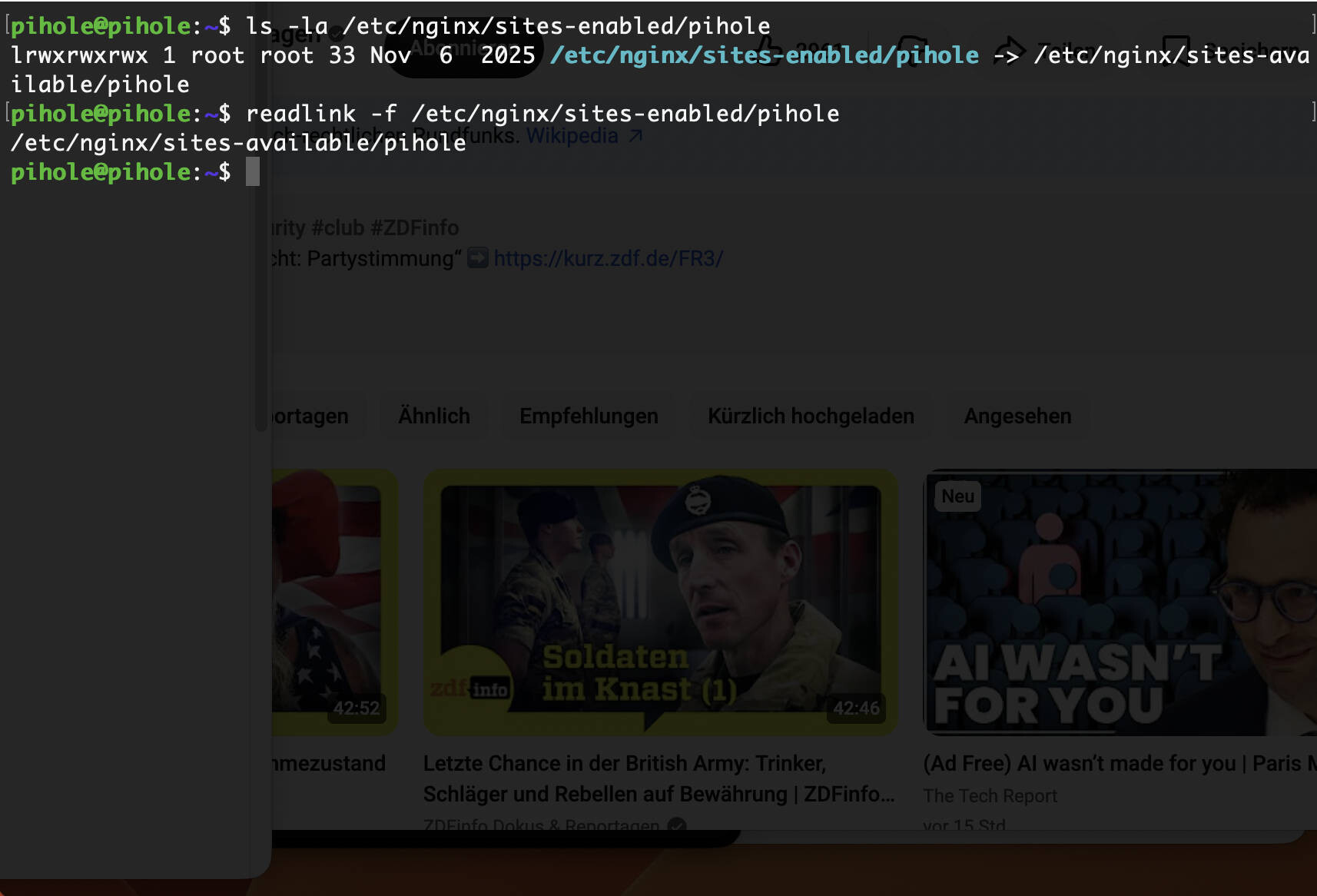
To verify a symbolic link, the ls -l command displays the path that the link follows. The readlink command can be used to determine the target path, and readlink -f returns the absolute canonical path.
To check a hard link, use the ls -li command to display the inode number. If two files have the same inode number, they are linked via a hard link.