Computer Forum
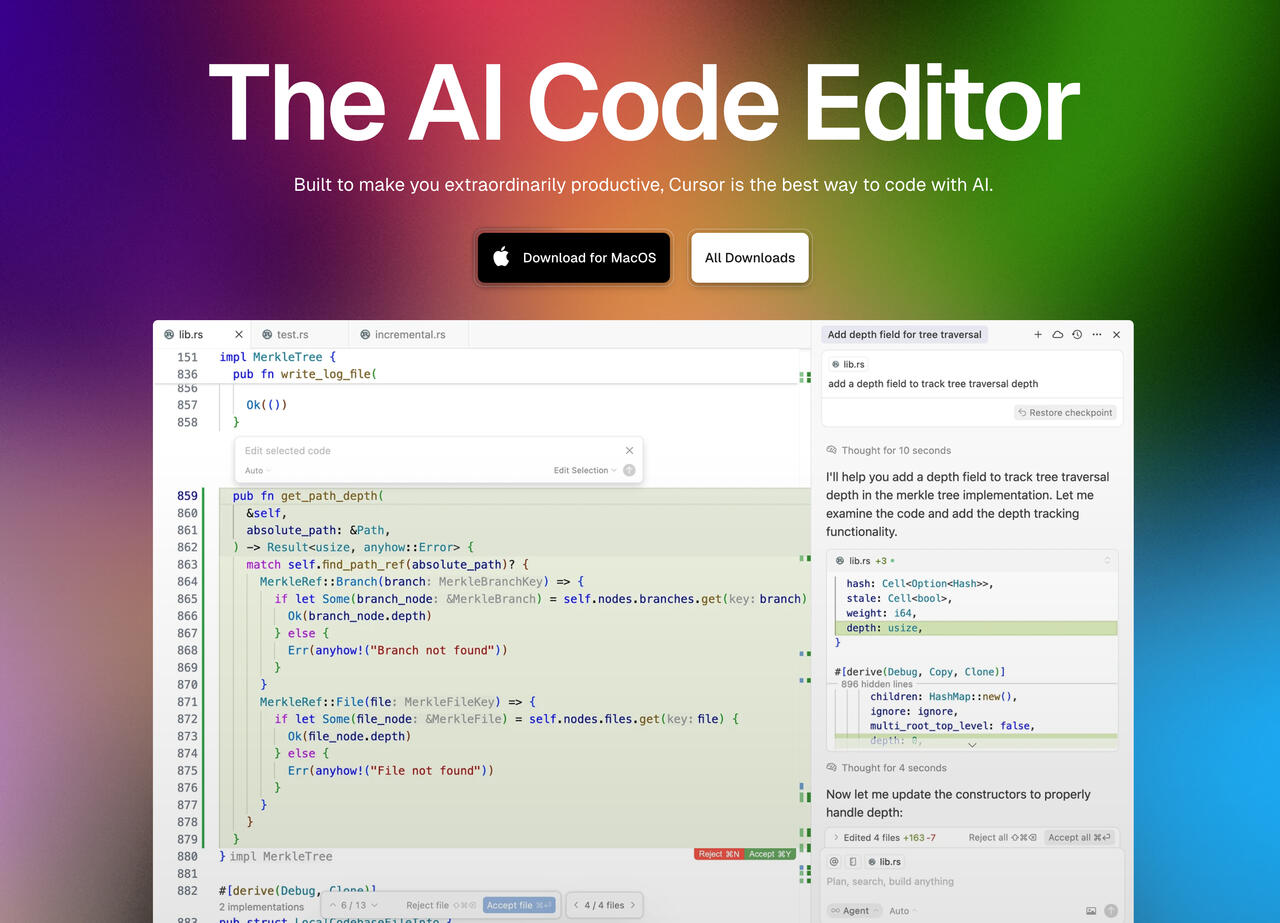 Cursor AI Code Editor auf Ubuntu installieren (Image © Cursor)
After you've downloaded the AppImage from the official Cursor website, you'll need to grant the file execution permissions:
chmod +x Cursor-0.50.5-x86_64.AppImage
If a FUSE-related error occurs during execution (dlopen(): Error loading libfuse.so.2), Ubuntu users can resolve the issue by installing the required library:
sudo apt-get install libfuse2
After that, the AppImage should launch, but some users may encounter sandboxing issues caused by namespace restrictions in Ubuntu. In such cases, you can work around the problem by adding the --no-sandbox flag when running the application:
./Cursor-0.50.5-x86_64.AppImage --no-sandbox
For permanent integration into the Ubuntu application menu, the AppImage can be moved to /opt and linked to a desktop shortcut. Create the following configuration:
sudo nano /usr/share/applications/cursor.desktop
Paste the following content:
[Desktop Entry]
Name=Cursor
Exec=/opt/cursor.appimage --no-sandbox
Icon=/opt/cursor.png

Type=Application
Categories=Development;
Finally, place an icon named cursor.png in the /opt/ directory to enable full visual integration. If the icon does not appear immediately, you can log out and log back in to resolve the issue.
Although the setup takes a little time, this configuration makes the full range of Cursor’s features available on Ubuntu, making it a useful tool for Linux developers looking for a smart coding assistant.