Computer Forum
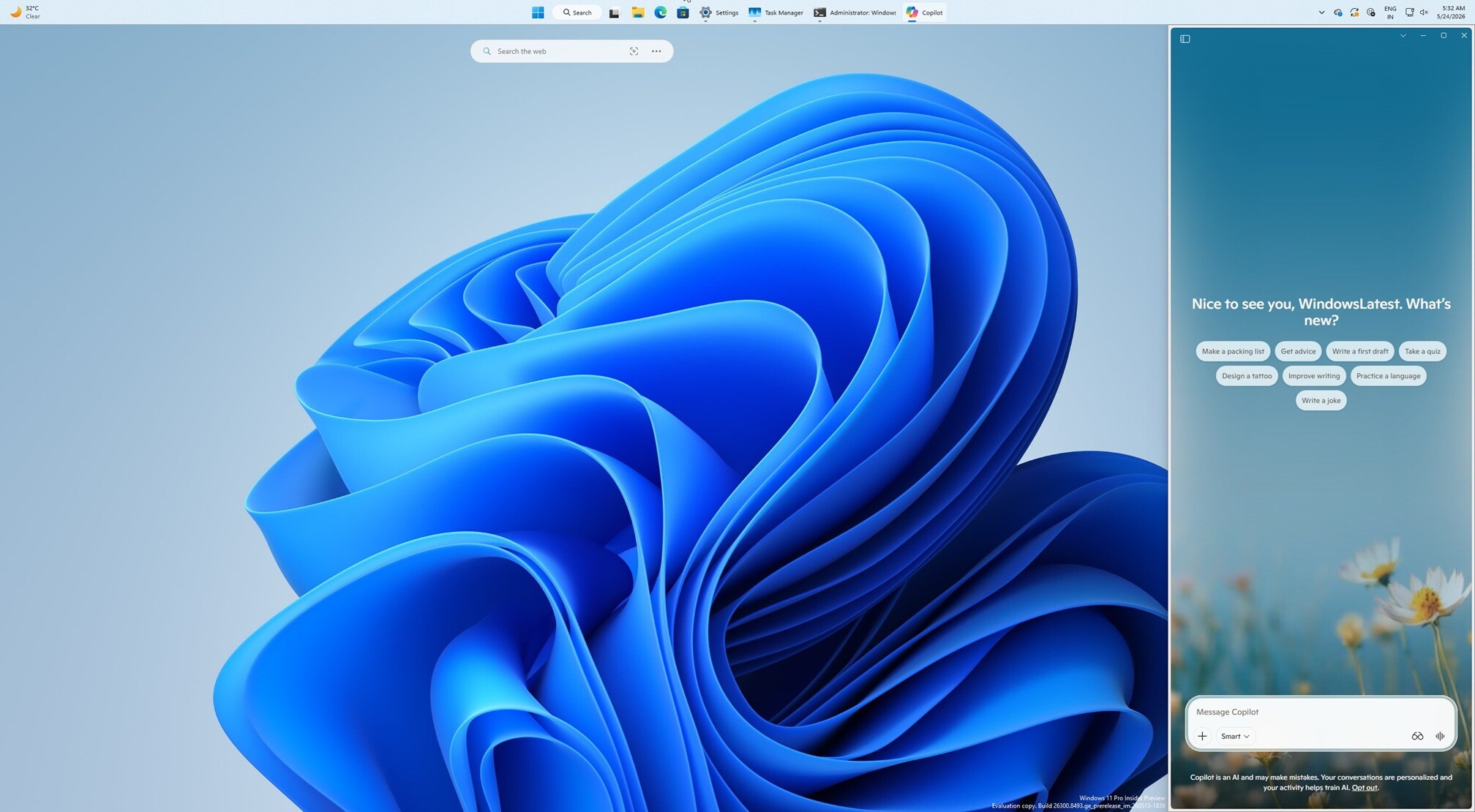 Windows 11 Copilot Sidebar (Image © Windowslatest)
The sidebar design allows the AI tool to occupy its own area of the screen and push other open windows to the side to ensure visibility. This integration is intended to make the tool more accessible for multitasking, as it remains available alongside active workflows rather than requiring the user to switch between separate windows.
For users and administrators who prefer to disable or remove this feature, Microsoft has provided two main methods for removal:
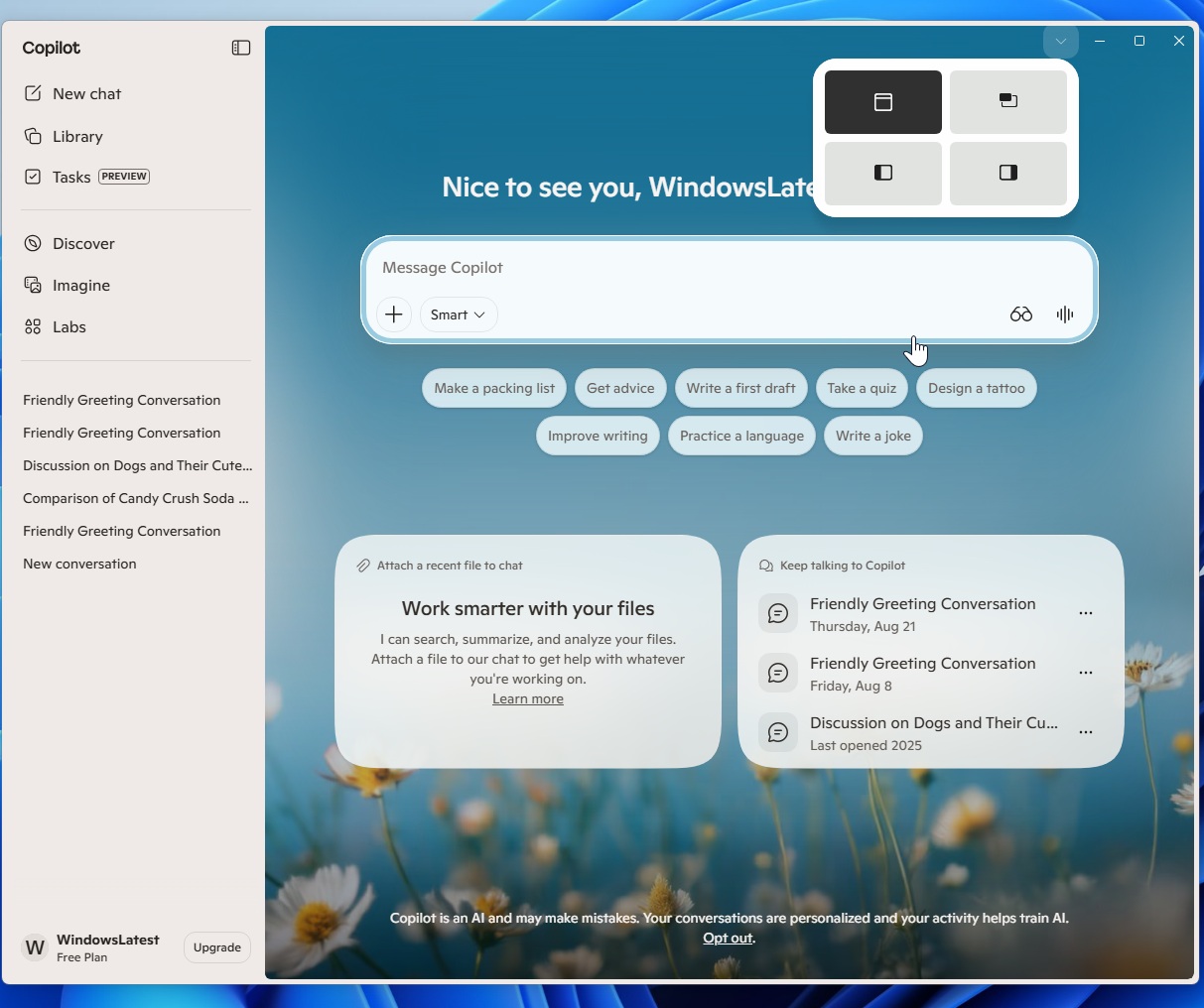 Copilot for Windows 11 Snippets (Image © Windowslatest)
Method via the registry editor
Users can remove the AI integration by modifying the Windows registry. To do this, you need to go to the Registry Editor and create a specific entry under the system's policy keys. More specifically, adding a value in the Windows\System\Policies path that disables the AI application will prevent it from appearing in the sidebar.
Method via the group policy
For users of Windows Professional or Enterprise versions, the function can be managed via the Group Policy Editor. Administrators can navigate to the administrative templates, find the AI-specific settings under the system components and set the policy to “Disabled”. This method is particularly useful for enterprise environments where standardized desktop layouts are required.
This design change reflects ongoing efforts to refine the coexistence of AI tools with traditional operating system elements, moving away from isolated apps to a more integrated, persistent sidebar.