Computer Forum
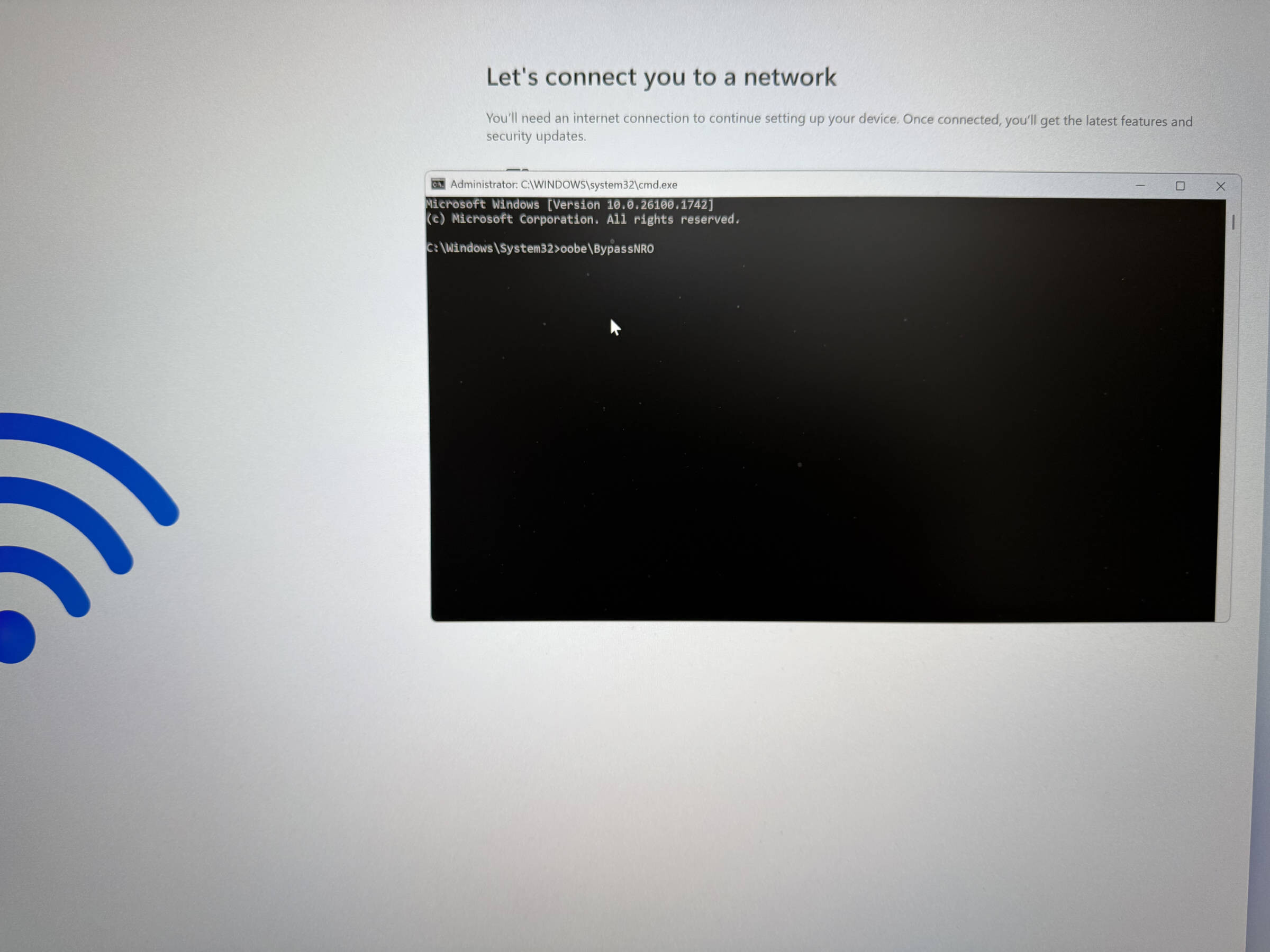 Windows 11 ohne Internet installieren (Image © PCMasters.de)
Offline installation: Install Win 11 without Internet
If the setup stops at the network screen and does not continue:
- 1.Open the command window: Press Shift + F10 (Fn + Shift + F10 on some laptops).
- 2.execute the bypass command: Type oobe\bypassnro and press Enter. The PC will restart.
- 3.continue without network: Select “I have no internet**” on the network selection screen.
-
- limited setup**: Click “Continue with limited setup” to complete the OOBE and create a local account.
With this method, you avoid network processes that terminate tasks - which often only leads to a loop - and use Microsoft's offline process.
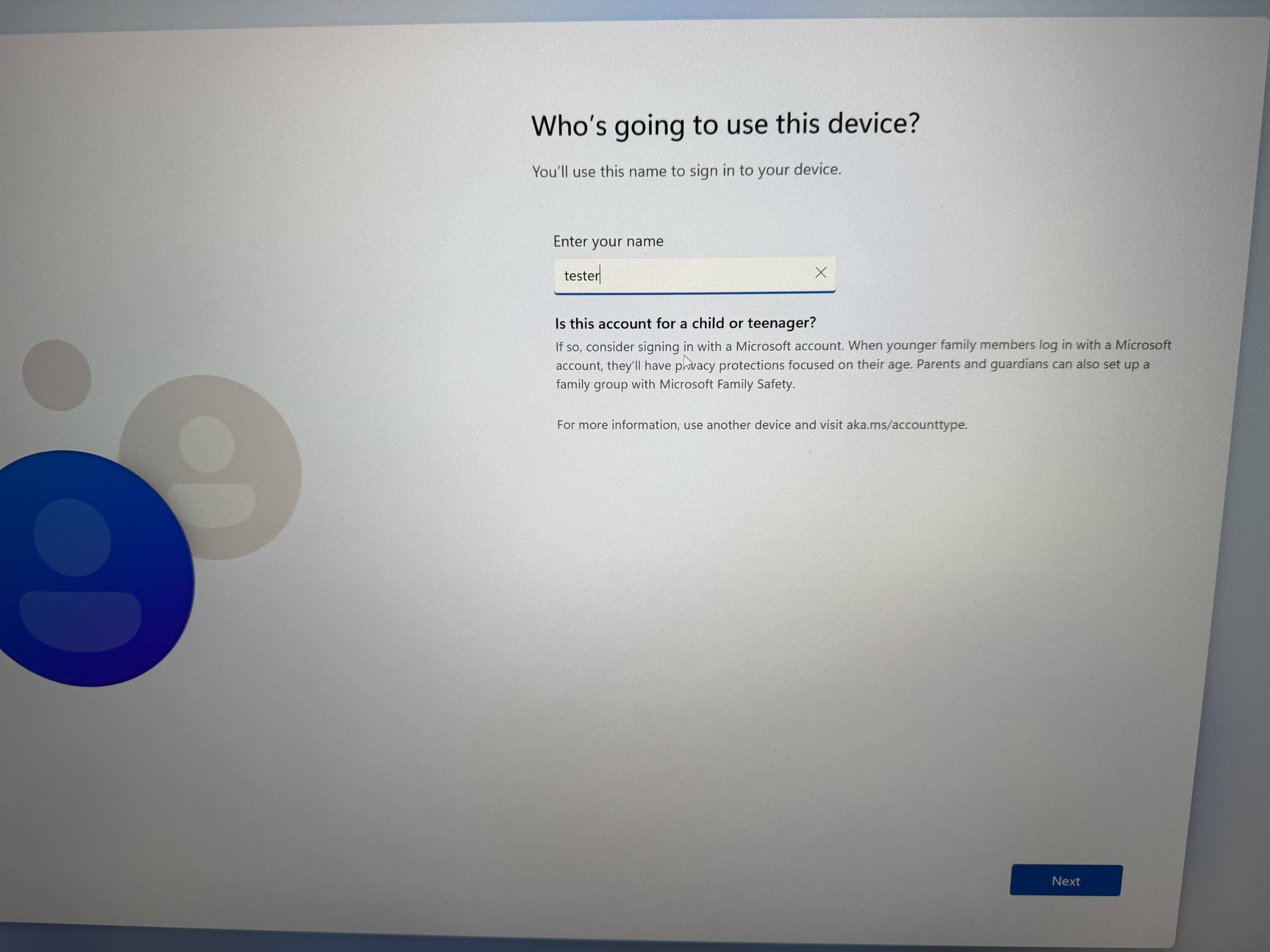 Lokales Konto (Image © PCMasters.de)
Local account
If you are online but want to skip the Microsoft account, you have other options:
1st option
- Simulate offline**: Temporarily disconnect the WLAN connection, unplug the Ethernet cable or deactivate the router. Then apply the above oobe\bypassnro procedure and continue with the limited setup.
2nd option
- Invalid/locked credentials: When prompted for the Microsoft account, enter a known invalid or locked account and any password. After Windows fails to log in, the setup will display the path to the offline account so you can create a local user.
3rd option
- Select “For work or school” during setup.
- Open sign-in options and select “Join a domain instead”.
- Windows will then display the screen for creating a local account (username, password, security questions).
Tip: If you only see the process for “personal use”, go back one step and change to the “Work/School” path to see the option to join the domain in the Pro editions.
Rufus USB: Optimize OOBE prompts
If you regularly deploy Windows, you can pre-apply OOBE optimizations (such as disabling online account requirements) to the USB installer by creating installation media with Rufus. This reduces manual steps and ensures a consistent process on all computers.
Quick troubleshooting
- Shift + F10 does not work: Try Fn + Shift + F10 or check the status of the function key lock in the BIOS.
- No “I have no internet ” button: You probably did not run oobe\bypassnro or the system was not rebooted. Repeat the command.
- Driver missing: Continue offline, complete the setup with a local account and then install the LAN/WLAN drivers from the manufacturer's media or a USB stick.