Computer Forum
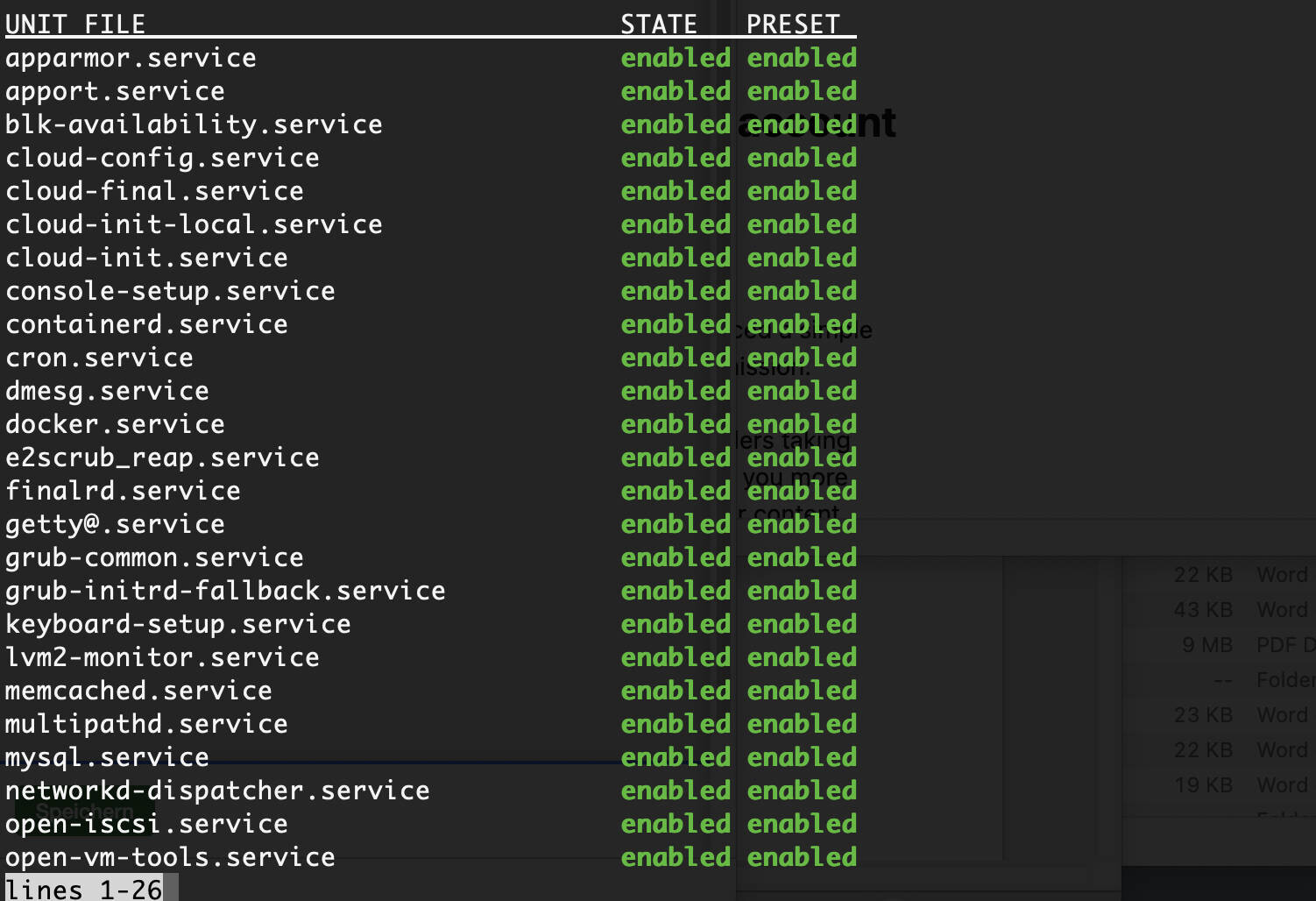 Check Running Services in Linux with systemctl (Image © PCMasters.de)
Understanding Service States: “Enabled” vs. “Running”
A crucial distinction in Linux administration is the difference between an enabled service and a running service. An enabled service is configured to start automatically during the system boot process. A running service, on the other hand, is currently active in system memory and performing its intended functions.
It is possible for a service to be enabled but not currently running. This occurs when a service is configured to start only under certain conditions, or when it has been manually stopped despite its startup configuration.
To identify services configured for automatic startup:
systemctl list-unit-files --type=service --state=enabled
To identify services currently active in memory:
systemctl list-units --type=service --state=running
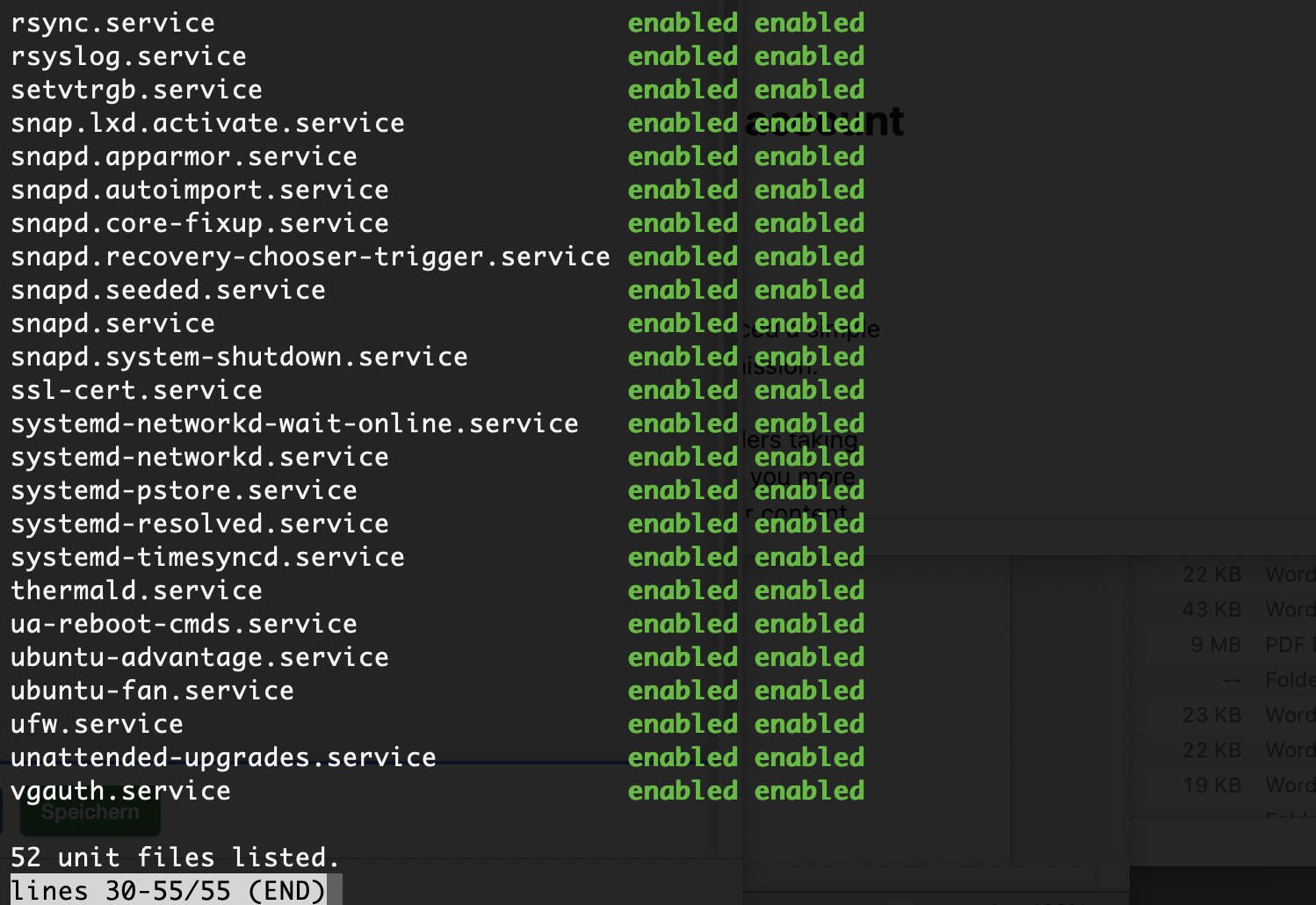 Linux Services (Image © PCMasters.de)
Technical Implementation of the Service List
Using the “systemctl” utility, administrators can filter the status of system units to extract specific operational data. A unit can be a service, a socket, or a device, and its status is categorized as loaded, active, or down.
Comprehensive Service List
To display all loaded services, regardless of their current status (active, down, or stopped):
systemctl list-units --type=service
Filtering for Active Services
To filter for services that are considered active (including those that have successfully completed a task and have been stopped):
systemctl list-units --type=service --state=active
Identify Only Running Services
To generate a list of services currently running in the background:
systemctl list-units --type=service --state=running
To check individual services, the “status” command provides detailed telemetry data for a specific process:
systemctl status sshd
Optimization Using Command Aliases
Due to the length of certain “systemctl” commands, administrators often set up aliases in the shell configuration file (e.g., ~/.bashrc) to increase work efficiency. By adding the following line to the configuration file:
alias running_services=‘systemctl list-units --type=service --state=running‘
The administrator can use the shortened command running_services to retrieve the list of active processes without having to enter the full syntax.
Network Port and Firewall Analysis
Since many services function as network daemons, it is necessary to check which TCP or UDP ports are in use. The “ss” utility (or the older “netstat” tool) provides this overview. The flags -l (listening), -t (TCP), -u (UDP), -n (numeric), and -p (process) are used to associate a service with its port.
Example for determining the port used by a specific agent:
ss -ltup | grep zabbix_agentd
In addition, the system firewall must be checked to ensure that the required ports are open for external traffic. Depending on the distribution, either the Firewalld or UFW utility is used:
For Firewalld:
firewall-cmd --list-services
firewall-cmd --list-ports
For UFW:
sudo ufw status
Automating Service Monitoring and Recovery
Manual service monitoring is inefficient in production environments. Automation ensures that outages are logged and resolved without manual intervention.
Scheduled Logging via Cron
To maintain a history of running services, a cron job can be configured to export the service list every five minutes:
*/5 * * * * systemctl list-units --type=service --state=running > /tmp/running_services.log
Implementing Automatic Restarts
To avoid prolonged downtime, systemd can be configured so that a service is automatically restarted in the event of a failure. This is done by editing the service unit file:
systemctl edit apache2
The following configuration is added to the unit file:
[Service]
Restart=always
RestartSec=6s
After editing, the system manager must be reloaded and the service restarted for the changes to take effect:
systemctl daemon-reload
systemctl restart apache2
You can verify the restart policy using the following command:
systemctl show apache2 --property=Restart
Security Optimization and Security Restrictions
To reduce a system’s attack surface, services should be restricted to only the absolutely necessary permissions. Systemd offers security policies that can be added to the [Service] section of a unit file:
- NoNewPrivileges=true: Prevents the service and its child processes from gaining new privileges via setuid or setgid bits.
- ProtectSystem=full: Mounts /usr, /boot, and /etc as read-only for the service.
- PrivateTmp=true: Provides the service with its own, isolated /tmp directory.
Troubleshooting and Explanations During Operation
What happens if a service is listed as active even though it has exited the SUB state?
This usually indicates that the service has performed its intended task and terminated successfully. This is typical for “one-shot” services that execute a script during the boot process and then terminate, but are still considered active because they did not fail.
Why do you need to run “systemctl daemon-reload” after modifying a unit file?
Systemd loads unit configurations into memory. Changes made directly to the files on the hard drive are not automatically detected. The “daemon-reload” command forces systemd to check for modified units and update the configuration in memory.
How can an administrator distinguish between a service that failed to start and one that is simply disabled?
A disabled service does not appear in the list-units output unless it has been started manually. A failed service appears in the list-units output with the status failed. The command systemctl status [service] returns the specific exit code or error message associated with the failure.
Which tool is more efficient for port checking: ss or netstat?
The ss utility is more efficient because it retrieves information directly from the kernel’s TCP stack, while netstat reads from the /proc filesystem, which can be slower on systems with a very high number of active connections.
Can a service be configured to restart only when certain error codes occur?
Yes. Instead of Restart=always, administrators can use Restart=on-failure. This ensures that the service is restarted only if it exits with a non-zero exit code or is terminated by a signal, thereby preventing unnecessary restarts in the event of intentional manual shutdowns.